Record a vendor refund
On this page
A refund records what a vendor owes back: a price corrected after the bill, goods returned, a bill entered twice. On screen it is a Vendor Credit Note. It is made from the bill it corrects, or on its own; an open refund is then deducted from the vendor's next bill.
Before you start
- You need the Invoicing access right on Accounting.
- The bill to correct is posted. A draft bill is simply corrected before it is confirmed.
Refund a bill
- Open and open the bill.
- In Actions, choose Credit Note. Type the Reason displayed on Credit Note; it is added to the reference of the refund, after the number of the bill. Journal and Reversal date are proposed: the purchase journal and today.
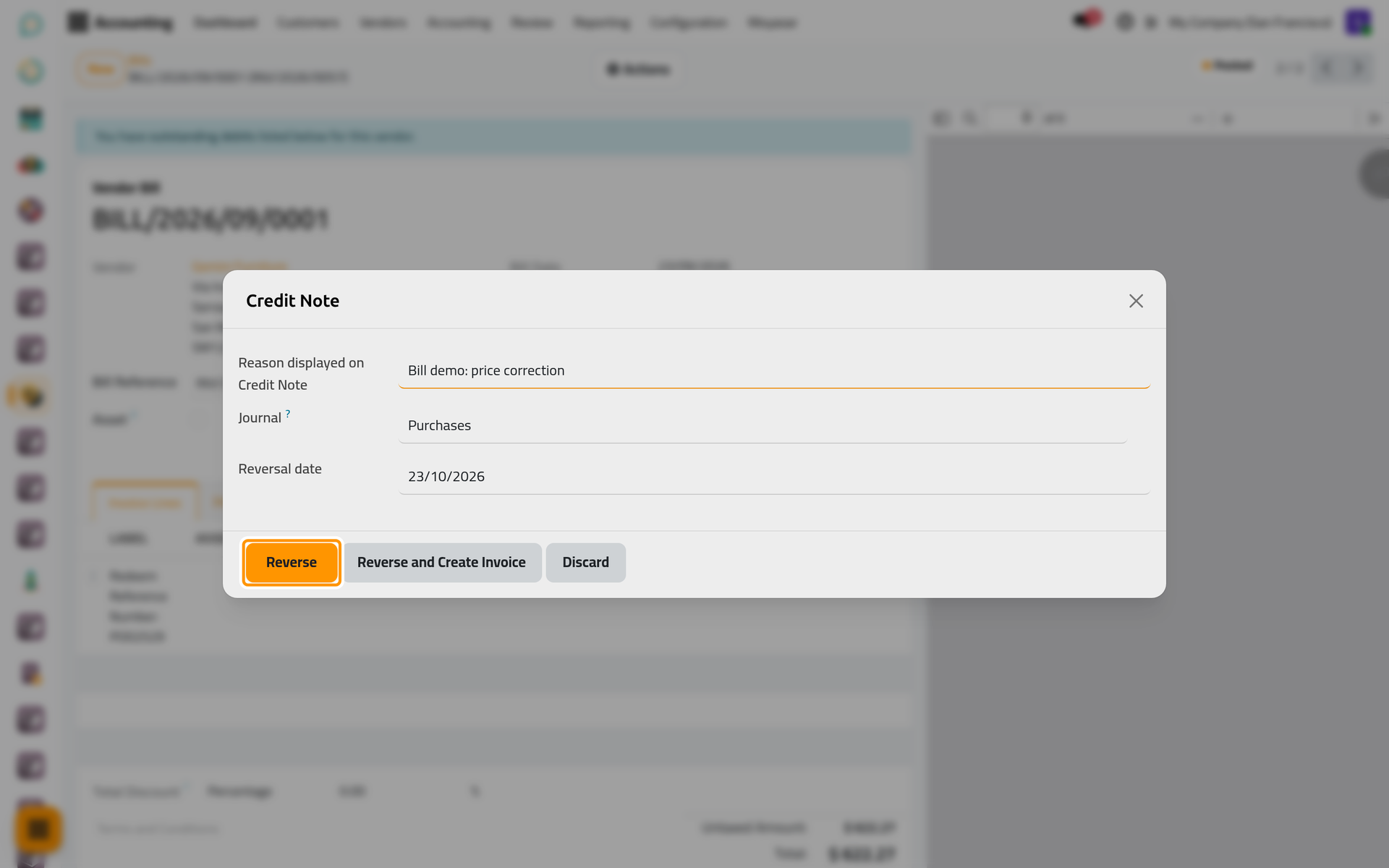
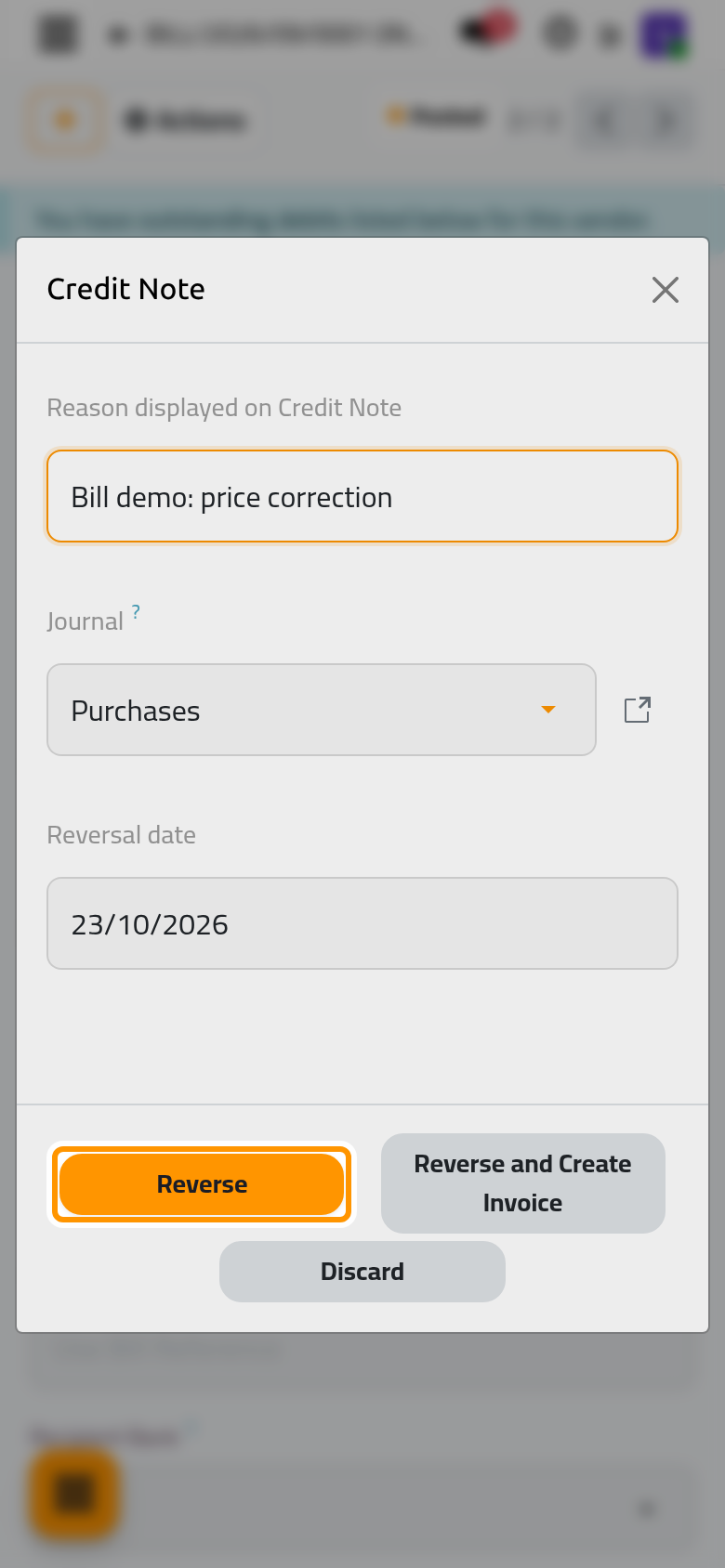
- Click Reverse. A draft Vendor Credit Note opens with every line of the bill copied. For a partial refund, lower the quantity or the price of the lines now.
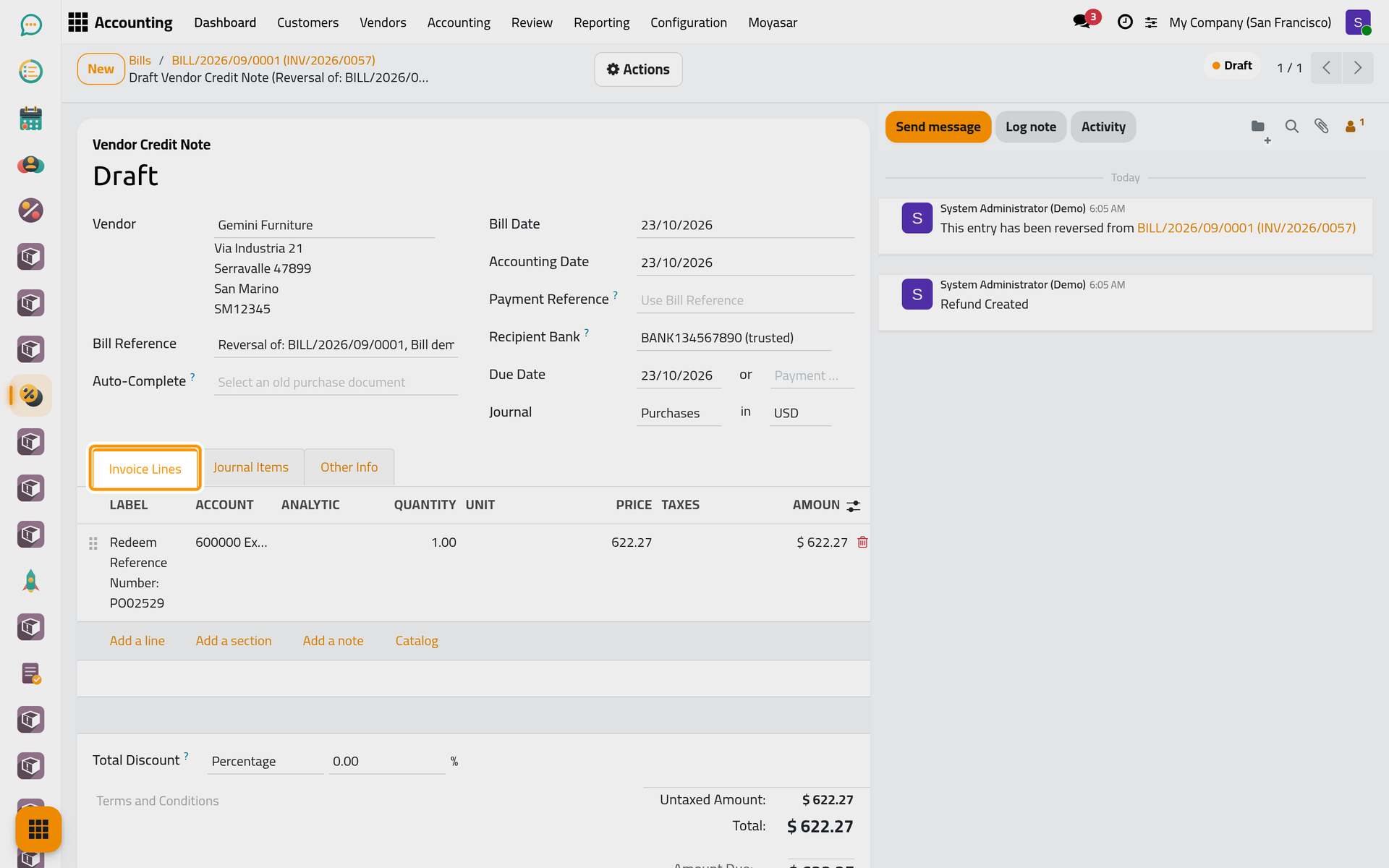
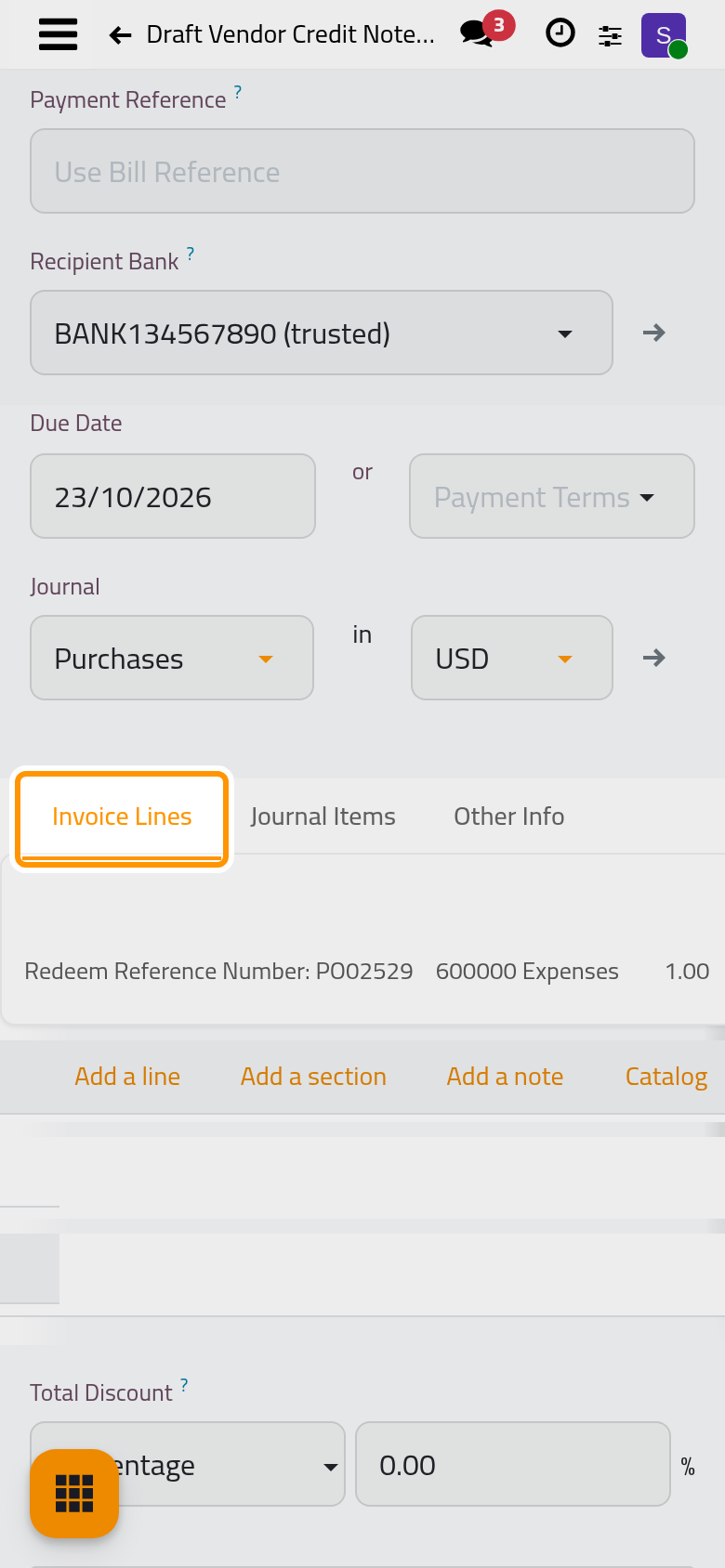
- In Actions, choose Confirm. The refund is posted and settles the bill it came from at once: it carries the Paid ribbon.
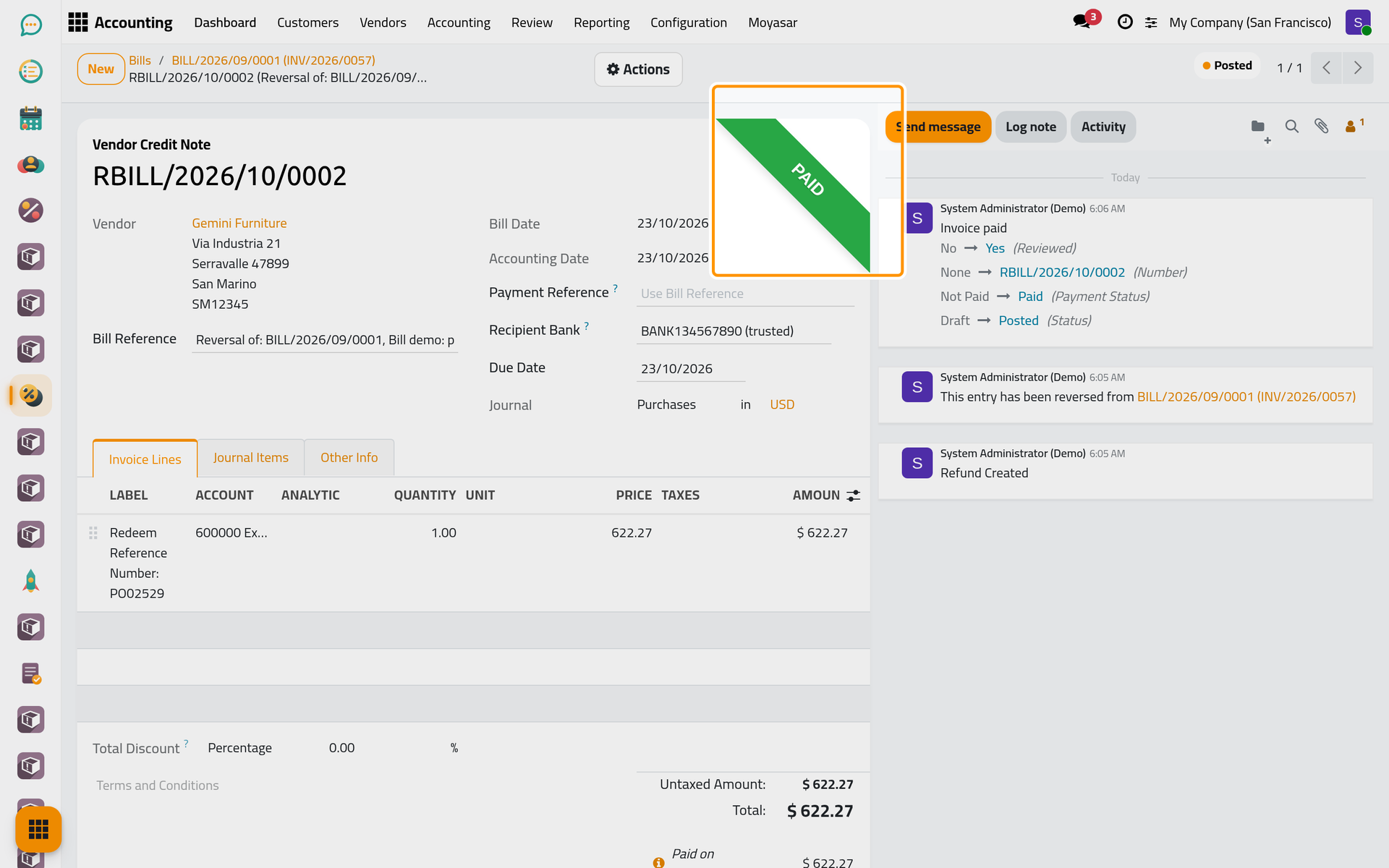
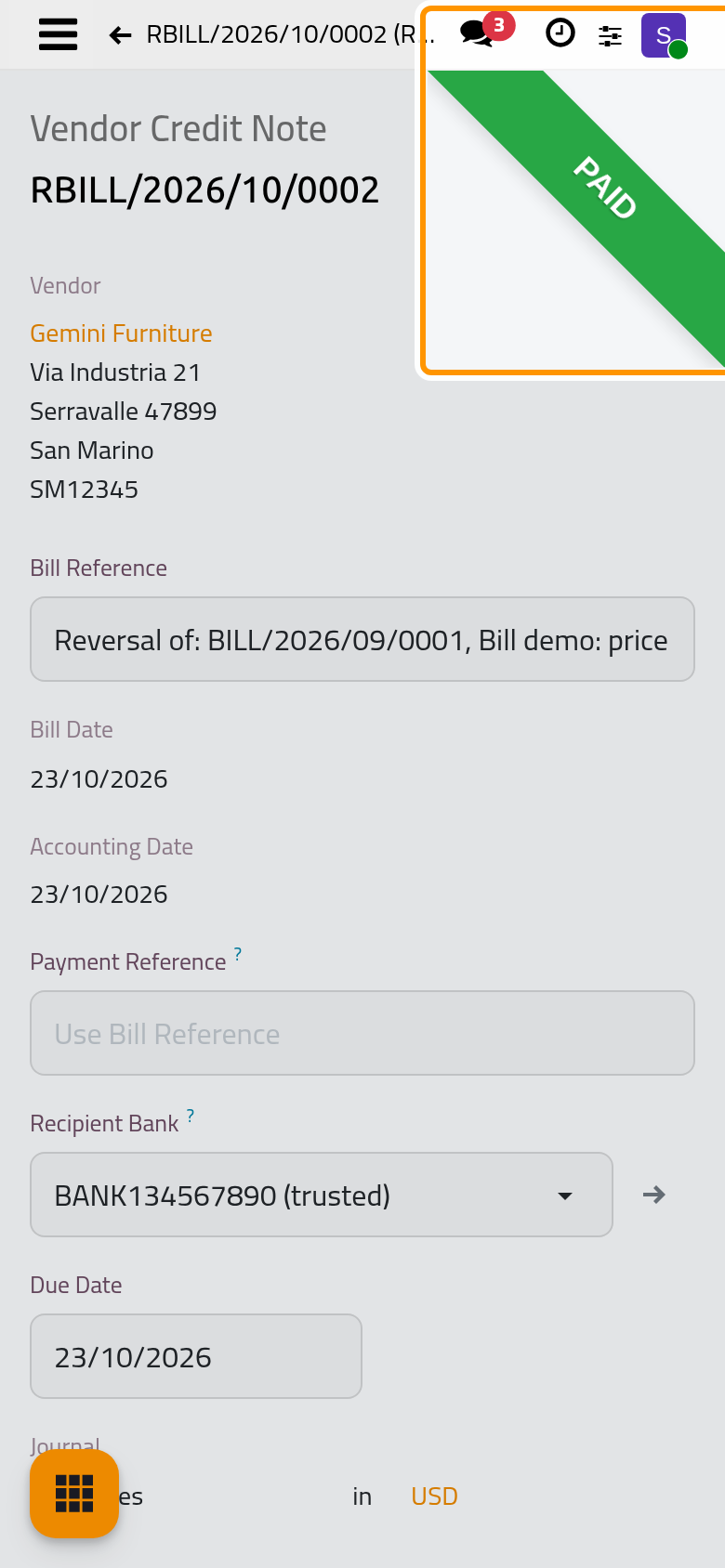
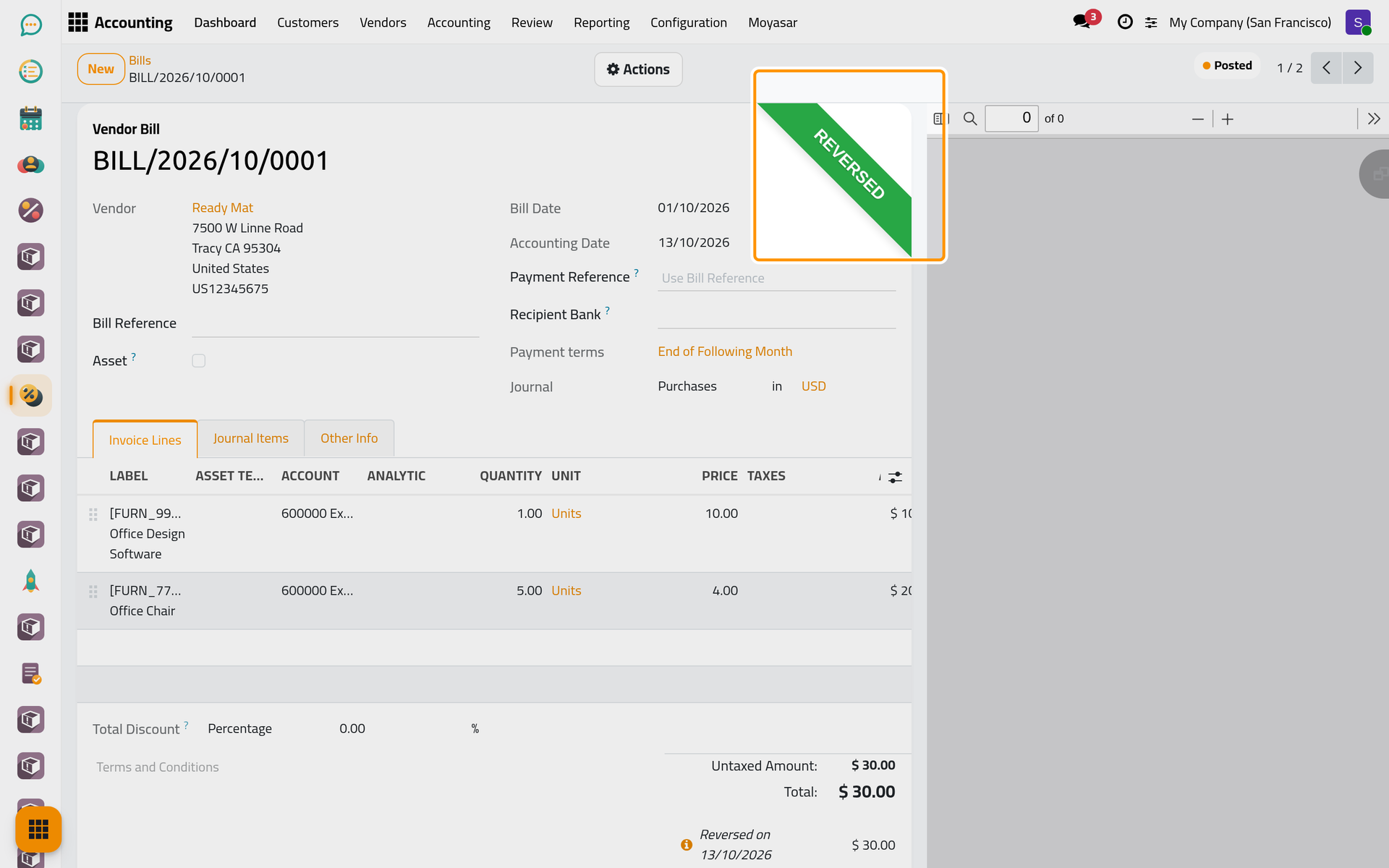
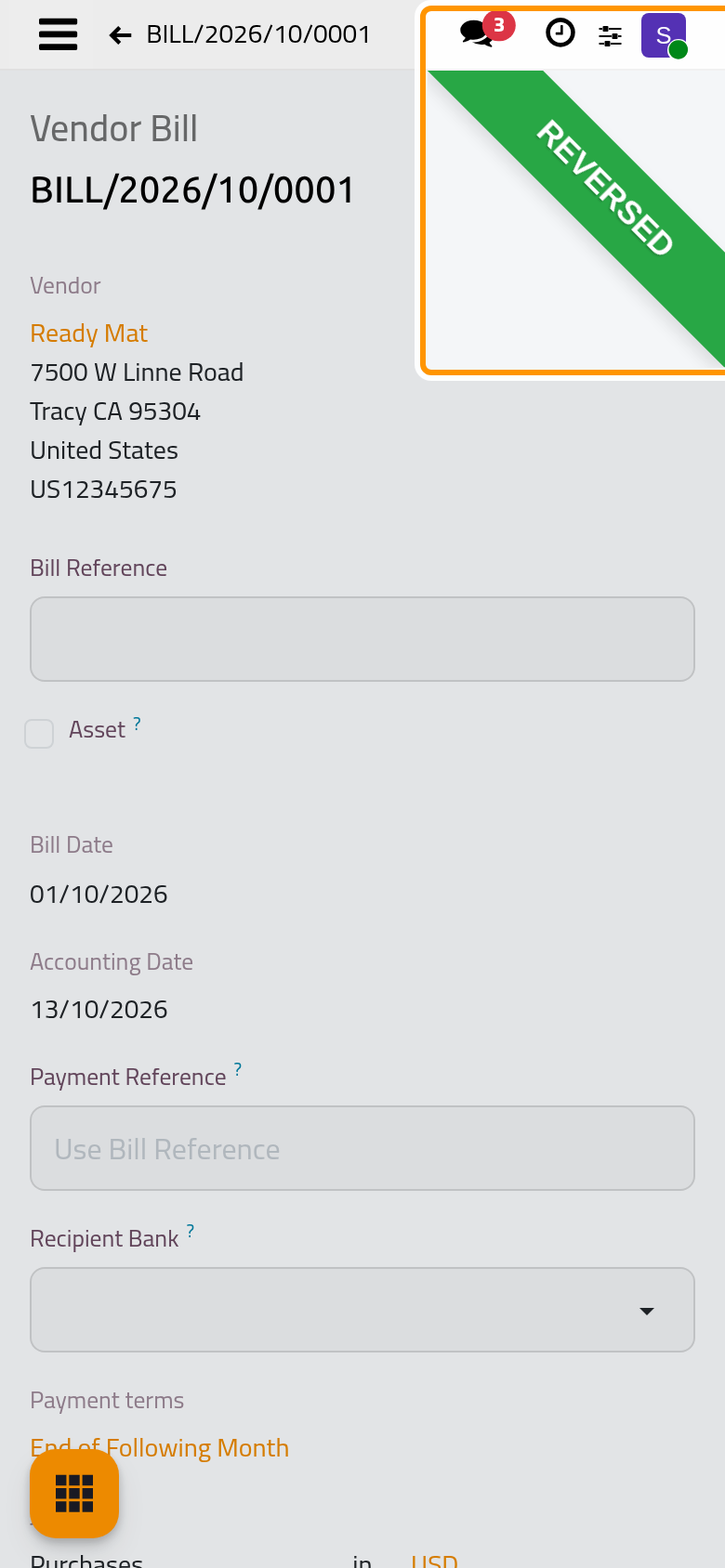
- Go back to the bill with the link at the top. A refund that covers the whole bill gives it the Reversed ribbon; a smaller one leaves it Partial, with the rest still to pay.
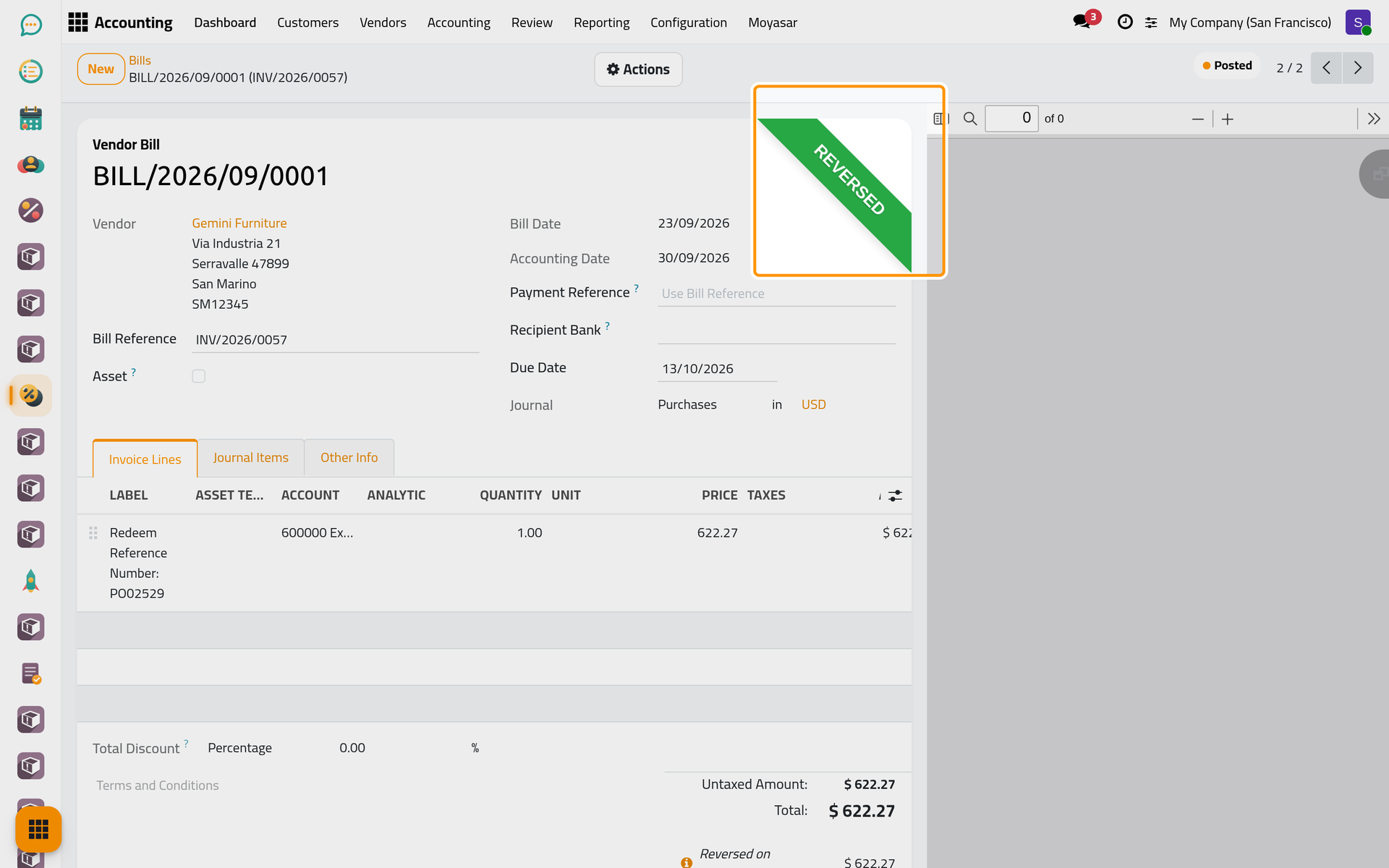
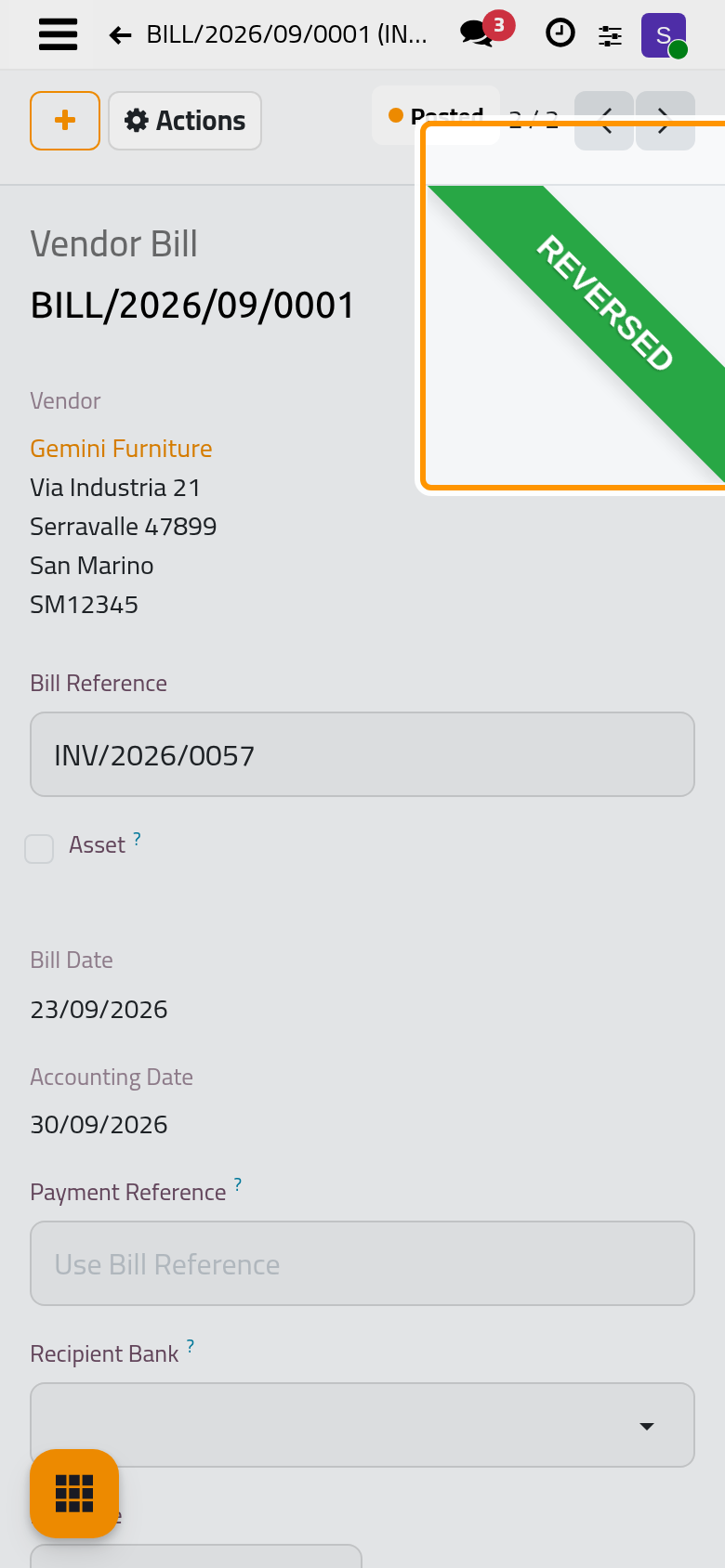
Reverse and Create Invoice, the other button of the dialog, does more in one click: it posts a refund of the whole bill, settles the two, and opens a new draft bill with the same lines, to enter the right amounts.
Deduct an open refund from a bill
A refund recorded on its own, with New in , or one made after the bill was paid, stays open. Every posted bill of that vendor still to pay then shows a blue banner about outstanding debits, and under its totals the Outstanding debits list: each open refund with its date, its reference (or its number when it has none) and its amount.
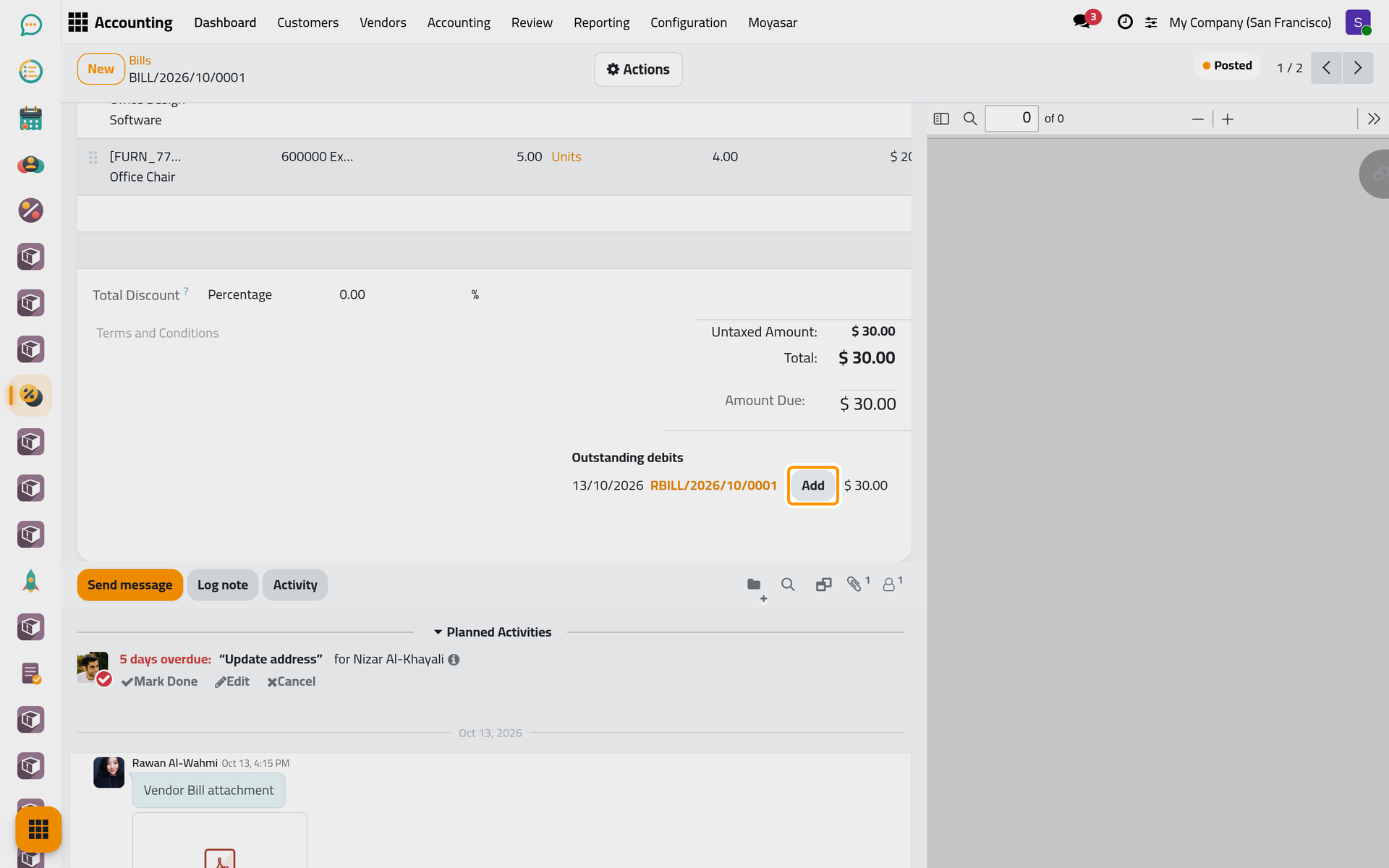
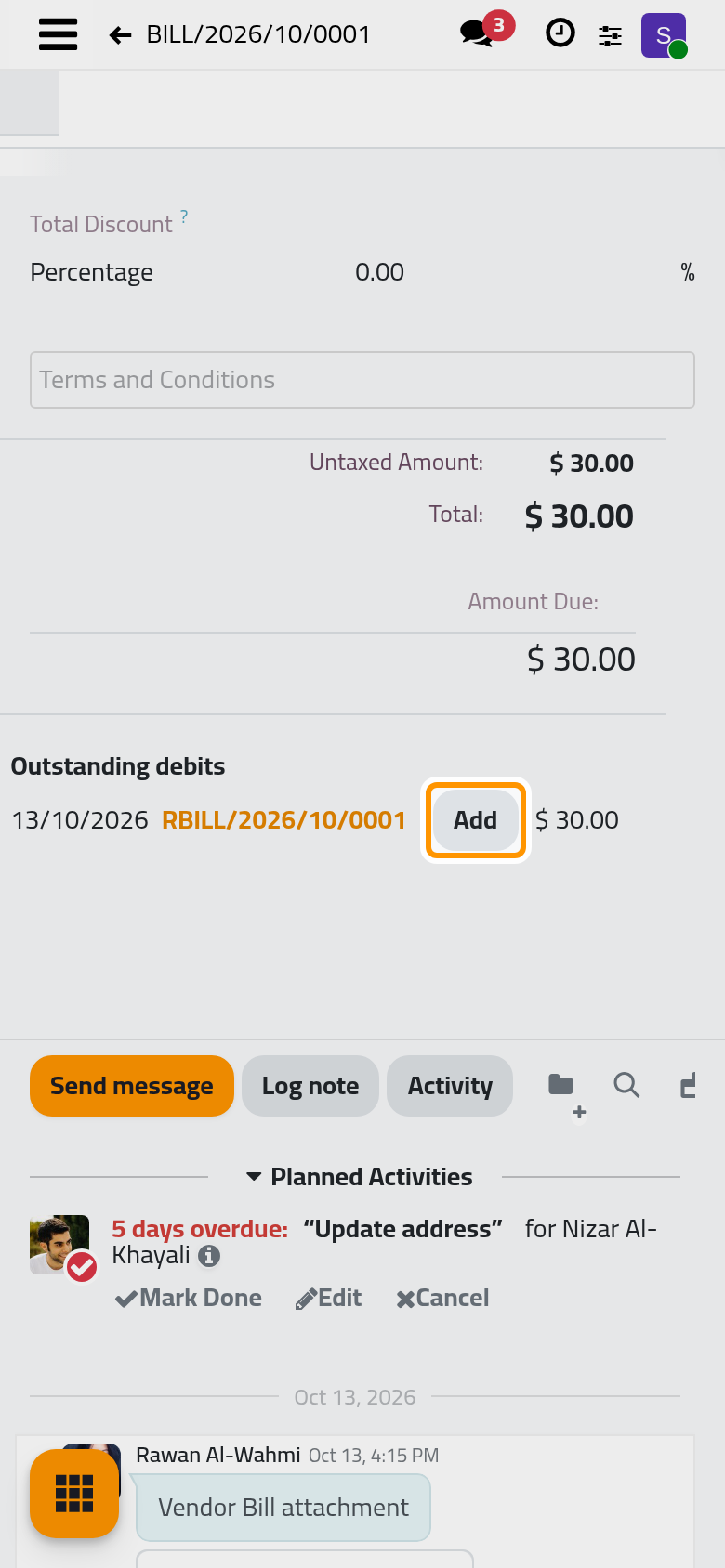
Click Add on the line of the refund. The amount is deducted from the bill; a refund that covers the whole bill gives it the Reversed ribbon.
FAQ
Can I refund only part of a bill?
Yes. After Reverse, change the quantity or the price on the draft refund before confirming it; the bill stays Partial with the rest due.
The vendor paid us back by bank transfer. How do I record it?
Open the refund and choose Pay in Actions: the dialog records money received instead of money sent. Then match it with the bank statement in Banks, cash and currencies.
I added the wrong refund to a bill. Can I undo it?
Under the totals of the bill, the info icon next to the deducted amount opens its details; Unreconcile takes it off, and the refund is open again.
Where are all the refunds?
In . The bills list hides them, because it starts with the Bills and Receipt filters.
Was this page helpful?
Thank you for your feedback.