Repeat a meeting
On this page
A meeting that comes back, such as a weekly file review or a monthly billing check, is created once and repeated. Each occurrence is a meeting of its own, with its own attendees' answers, linked to the others by the series.
Before you start
- You organize or attend the meeting: only the organizer and the attendees can change it.
- Set Start first: the first meeting gives the series its time, and its day for a weekly series.
Make it repeat
- Open the meeting, or create one with New as in Schedule a meeting.
- Open the Options tab and switch on Recurrent.
- Choose the rhythm after Repeat:. Weekly is proposed.
- Weekly: under Repeat on, the day of the start is selected; click other day letters to add them.
- Monthly: Day of Month offers a date of the month, such as the 15th, or a weekday in the month, such as the first Monday or the last Friday.
- Daily and Yearly repeat every day or every year; Custom sets Repeat every to a number of days, weeks, months or years.
- Choose when it stops in Until: Number of repetitions, typed in the box next to it, an End date, or Forever, which creates the meetings up to fifteen years ahead and never more than 720.
- Timezone keeps the hour of every occurrence in that time zone; it starts from yours.
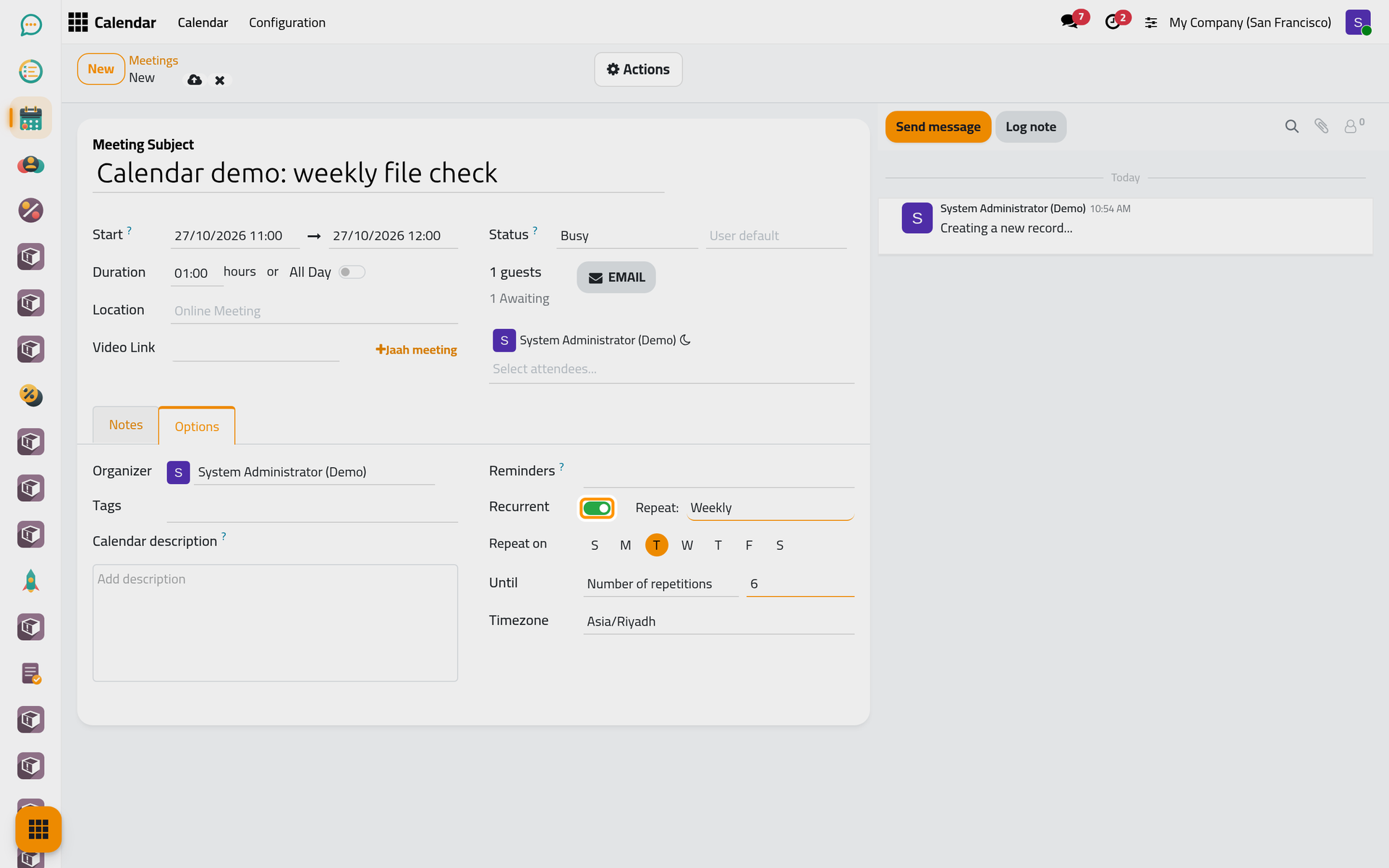
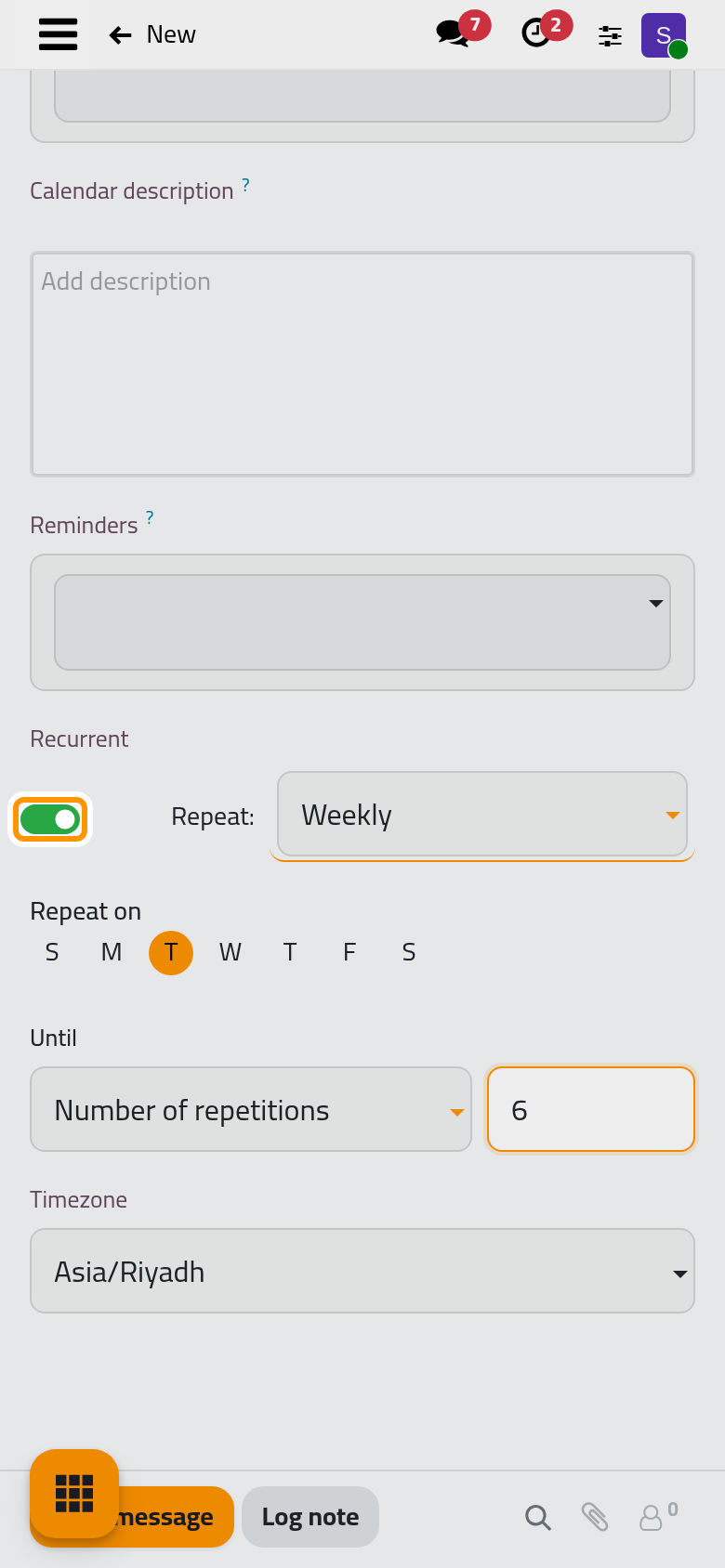
- Click Save manually. All the occurrences are created at once and appear in the calendar. The attendees receive their invitation when you save, and the reminders apply to every meeting of the series.
Change one meeting or the series
Open any occurrence. A blue band, Edit recurring event, asks which meetings your next change covers:
- This event: only the one you opened, as for a meeting moved once because of a holiday.
- This and following events: this one and the ones after it; the earlier ones keep their old values.
- All events: every meeting of the series.
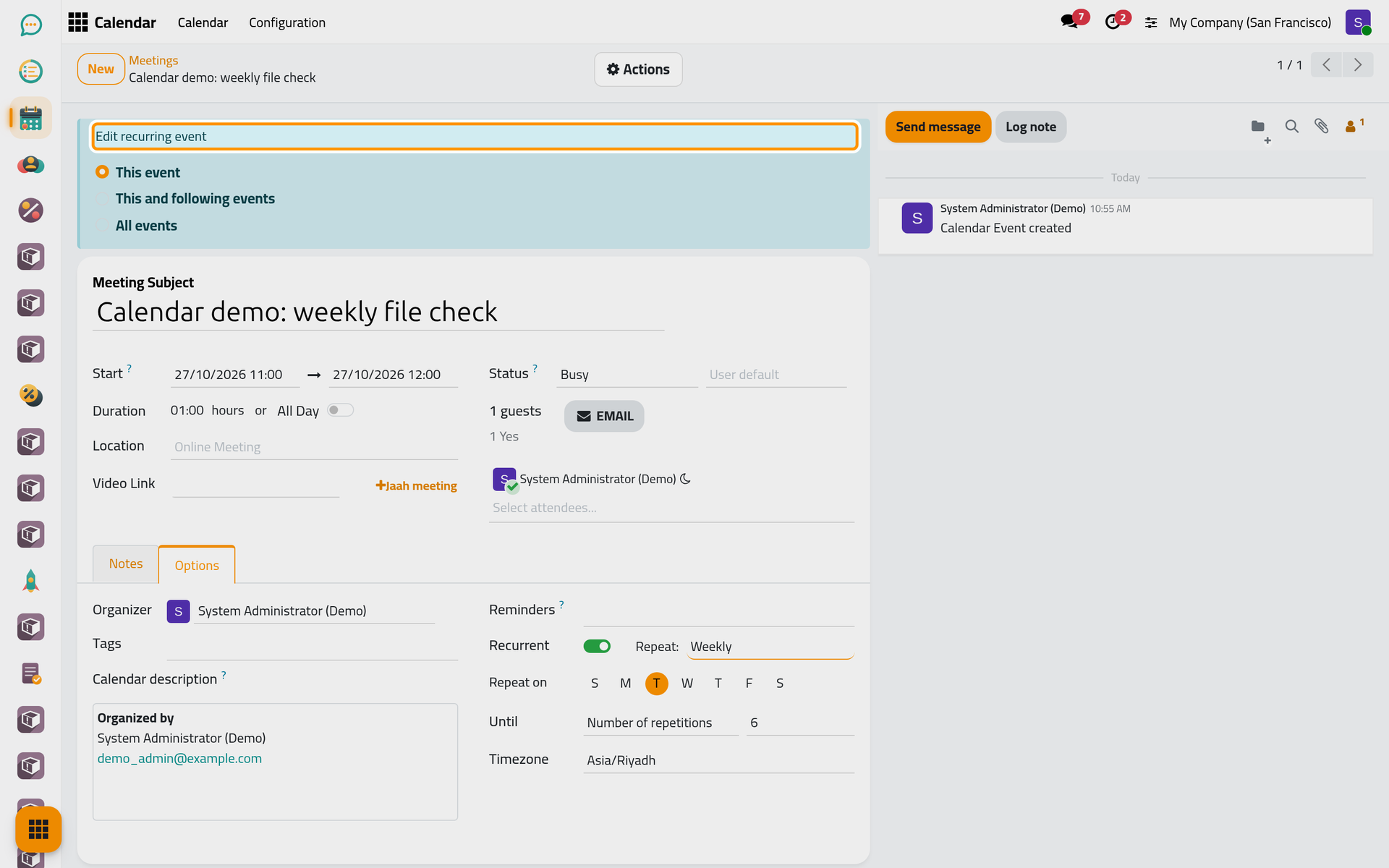
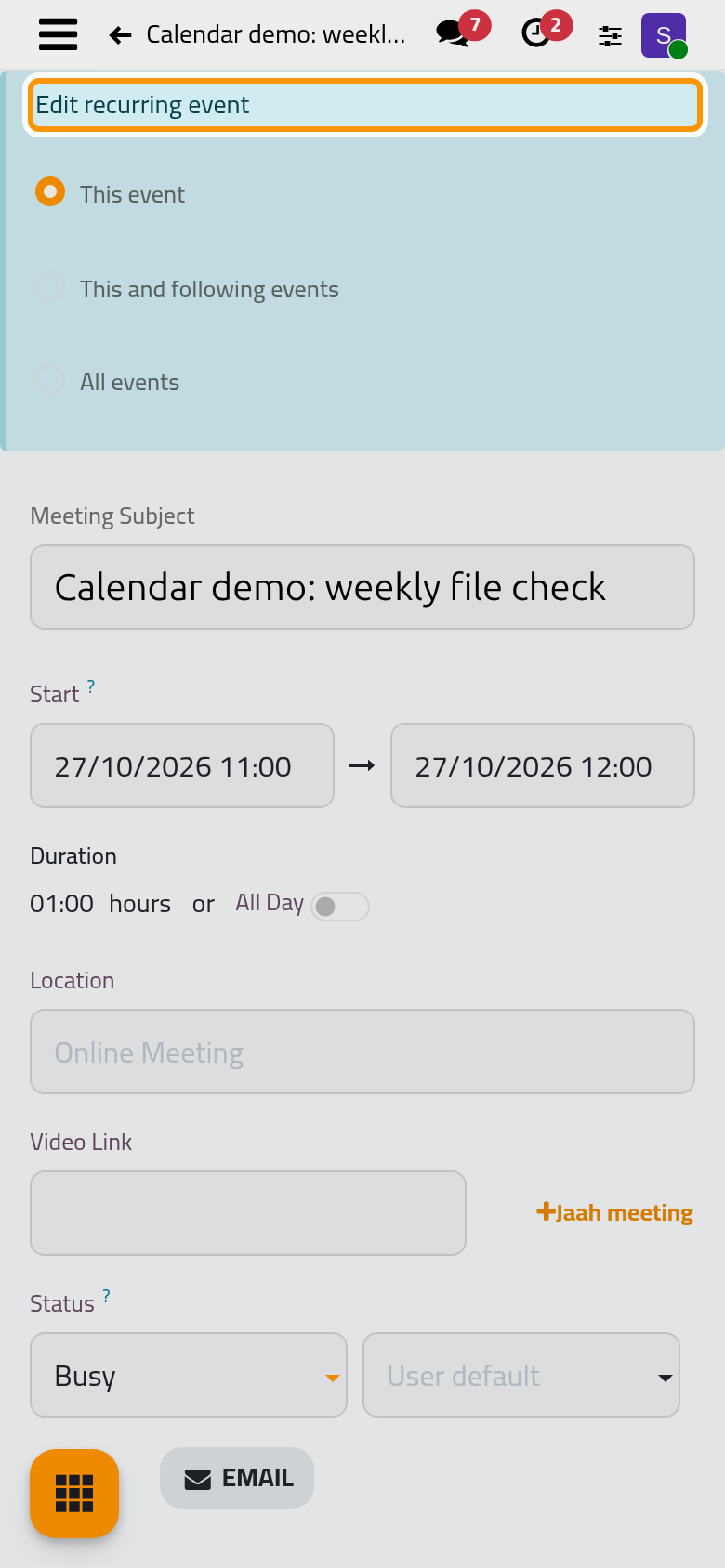
Choose, change the field, then save. Here, All events with a new Location moves the six meetings to Room 3 at once.
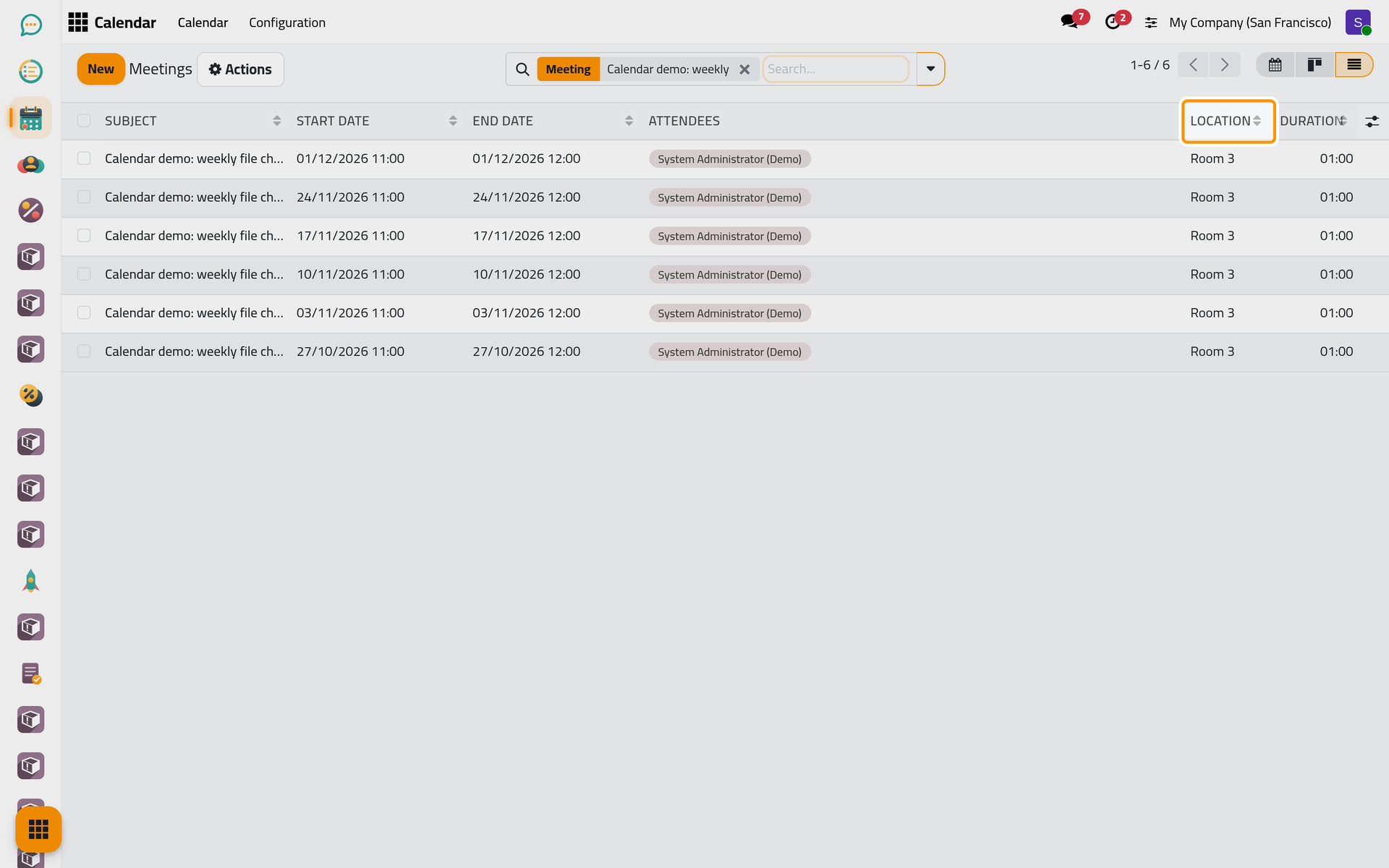
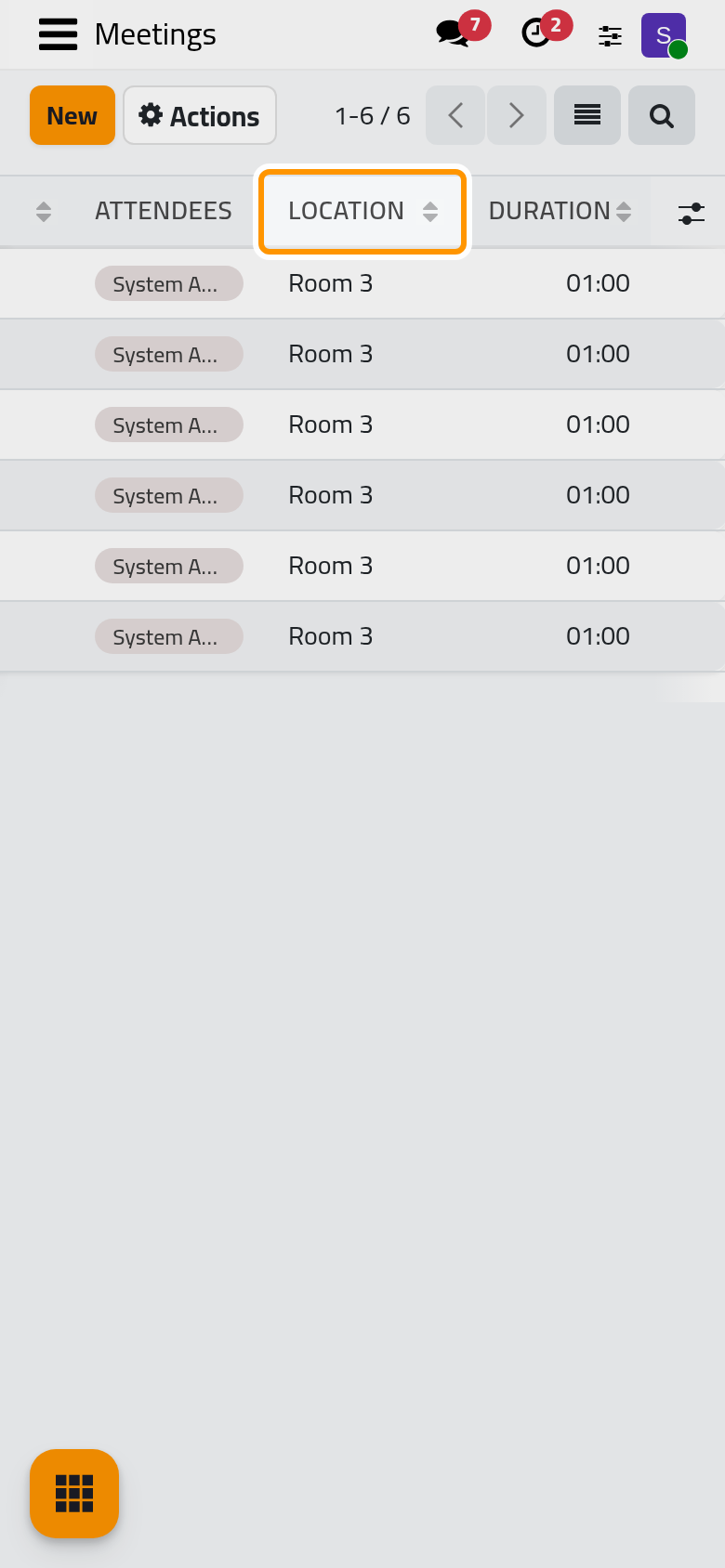
The rhythm itself (Repeat:, the days, Until) changes only with This and following events or All events; with This event, saving is refused with a message. Answering an invitation from the calendar and moving a meeting by dragging ask the same question in a small window.
Stop or delete a series
- To end a series earlier, open the last meeting you want to keep, choose This and following events, switch Recurrent off and save. The meetings after it are deleted; the earlier ones stay in the series, and the one you opened stays as a single meeting.
- Delete in the Actions menu of an occurrence first asks the same question. When you are the only attendee, the meetings you chose are archived instead of deleted, and the Archived filter of the search finds them again. When other people attend, the answer is not applied: only the occurrence you opened is deleted, through the Delete Event window of Answer, move or cancel a meeting.
FAQ
Can a series skip a holiday?
Yes. Open the occurrence that falls on the holiday, choose This event, then move it to another day or delete it. The rest of the series stays as it is.
Why is Duration greyed out on my meeting?
A saved repeating meeting does not change its length from Duration. Change the end in Start instead, choosing which occurrences it covers.
Do all occurrences meet in the same video call?
Yes. The first person who joins creates the call's channel in Discuss, and every occurrence of the series then opens that same channel.
I set Forever. Why does the calendar stop after some years?
Forever creates the meetings up to fifteen years ahead, and never more than 720 of them, to keep the calendar light.
Was this page helpful?
Thank you for your feedback.