Plan your week
On this page
Calendar is the shared diary of the team. Each meeting has a subject, a start and an end, a place or a video link, the people invited and their answers. This walk-through plans one week with the demo user: it answers a colleague's invitation, adds a meeting of its own, then looks at the same meetings as cards and as a list.
Before you start
- Every internal user has Calendar: it needs no access right of its own.
- Times are shown in the time zone of your preferences; Set your preferences shows where to check it.
- The demo holds two weekly meetings: Weekly case review on Sundays, which you organize, and Case strategy meeting on Tuesdays, which Rawan Al-Wahmi organizes and to which she invited you.
Step 1: open your week
- Open . The calendar opens on the current Week.
- Click the right arrow to show next week. The left arrow goes back, Today returns to the current week, and the Week button changes the scale to a day, a month or a year.
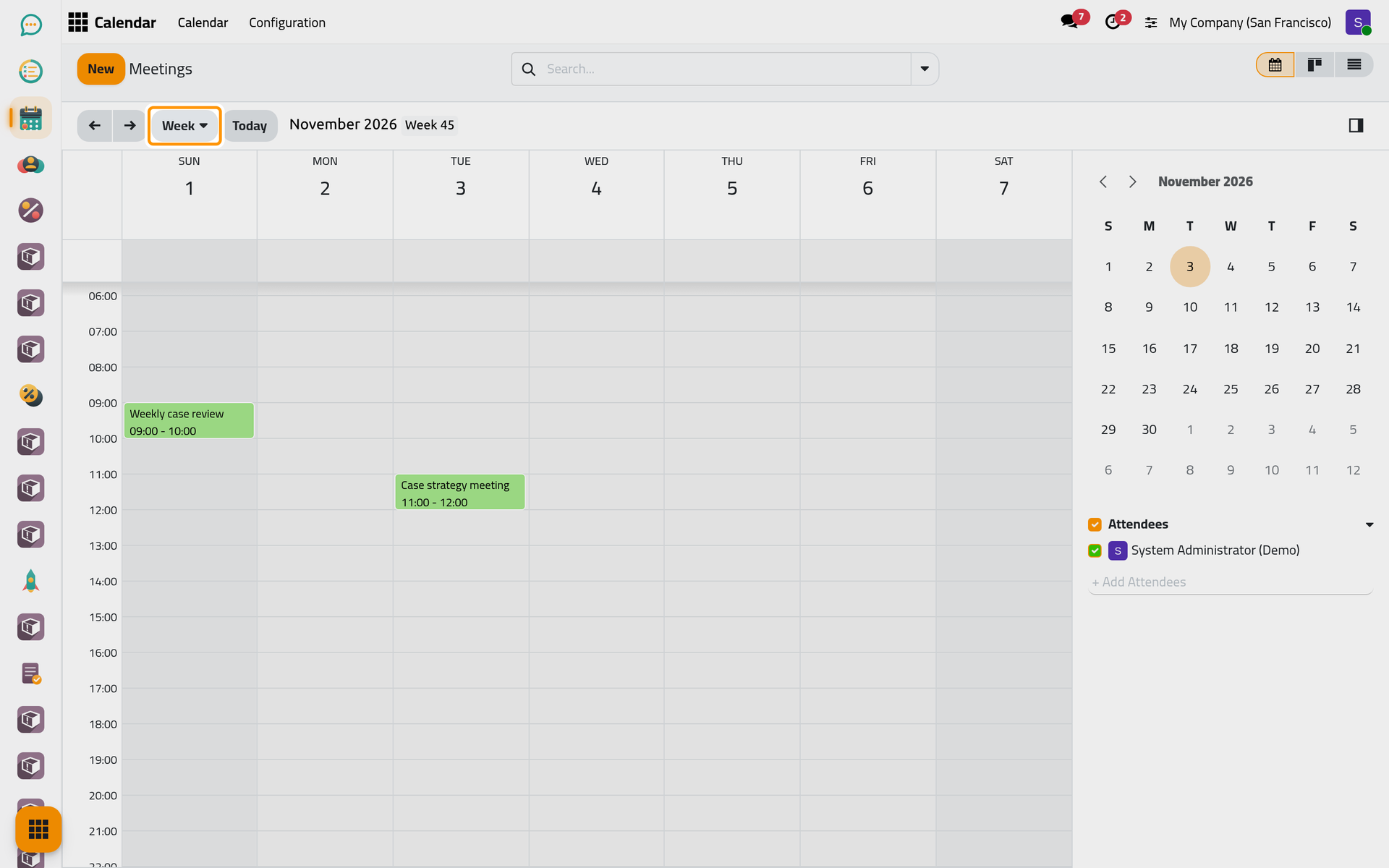
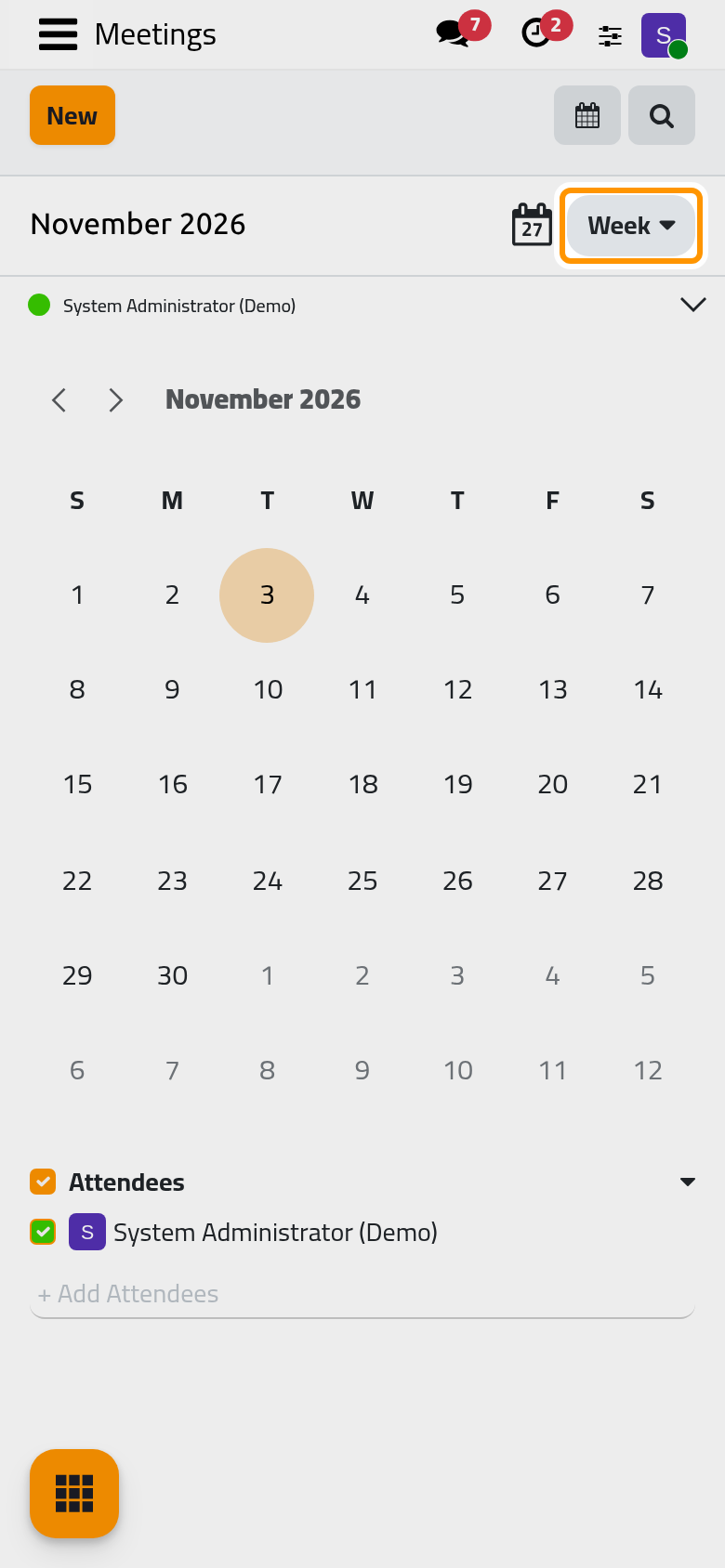
The panel on the right holds a small month calendar to jump to any date, and the Attendees whose meetings are shown: you, ticked. See your colleagues' meetings adds other people there.
Step 2: answer an invitation
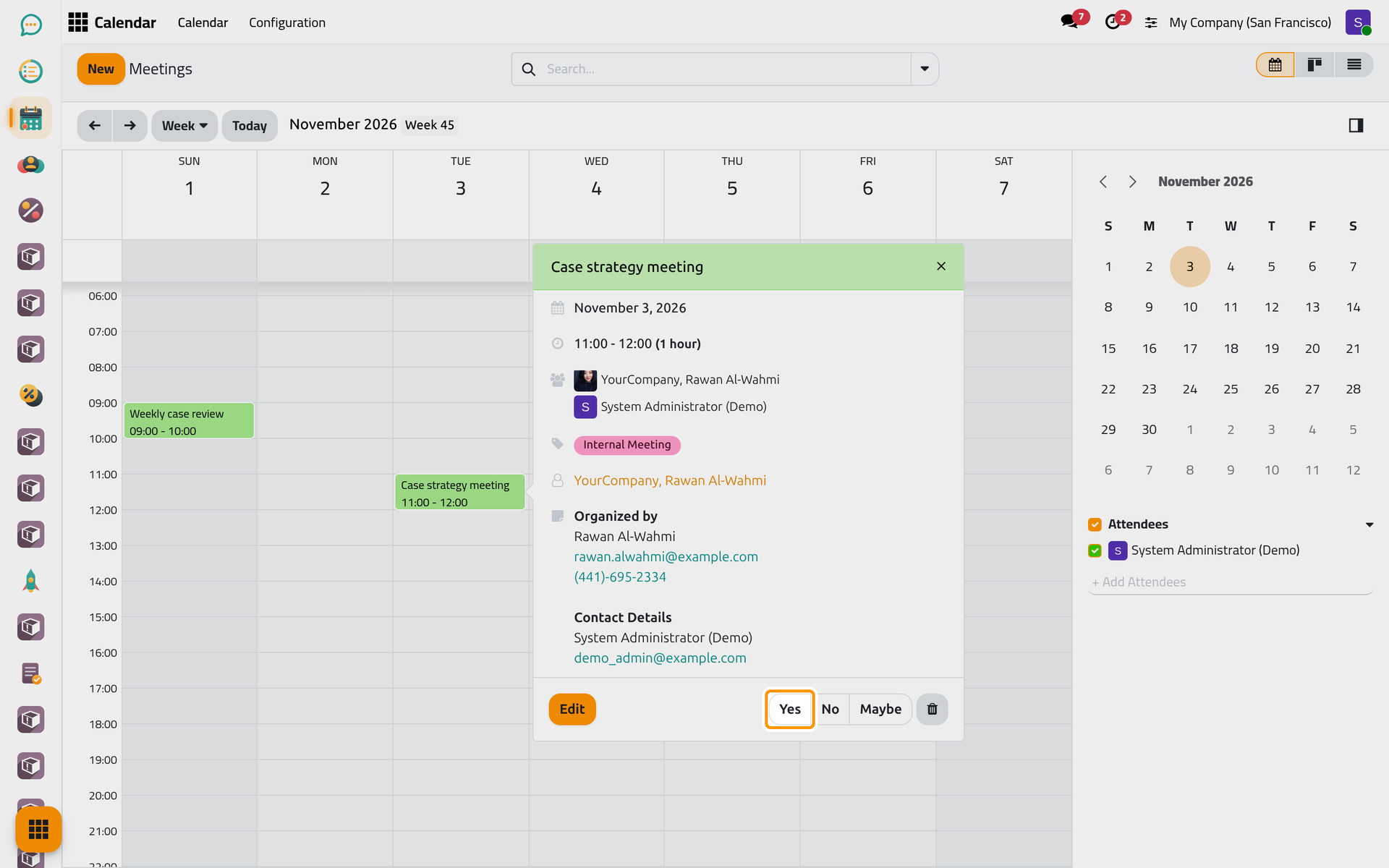
- Click Case strategy meeting. A summary opens with the date, the time, the attendees, the tags and the organizer's contact details.
- Click Yes. No and Maybe are the other answers.
On a phone, Calendar opens on its cards (Step 5): open the meeting and answer with Going? on its form, as Answer, move or cancel a meeting shows.
- The meeting repeats every week, so a small window asks which meetings your answer covers. Keep This event and click Confirm.
A check mark now shows on your avatar among the attendees, and a line in the meeting's chatter records that you accepted.
Step 3: add a meeting
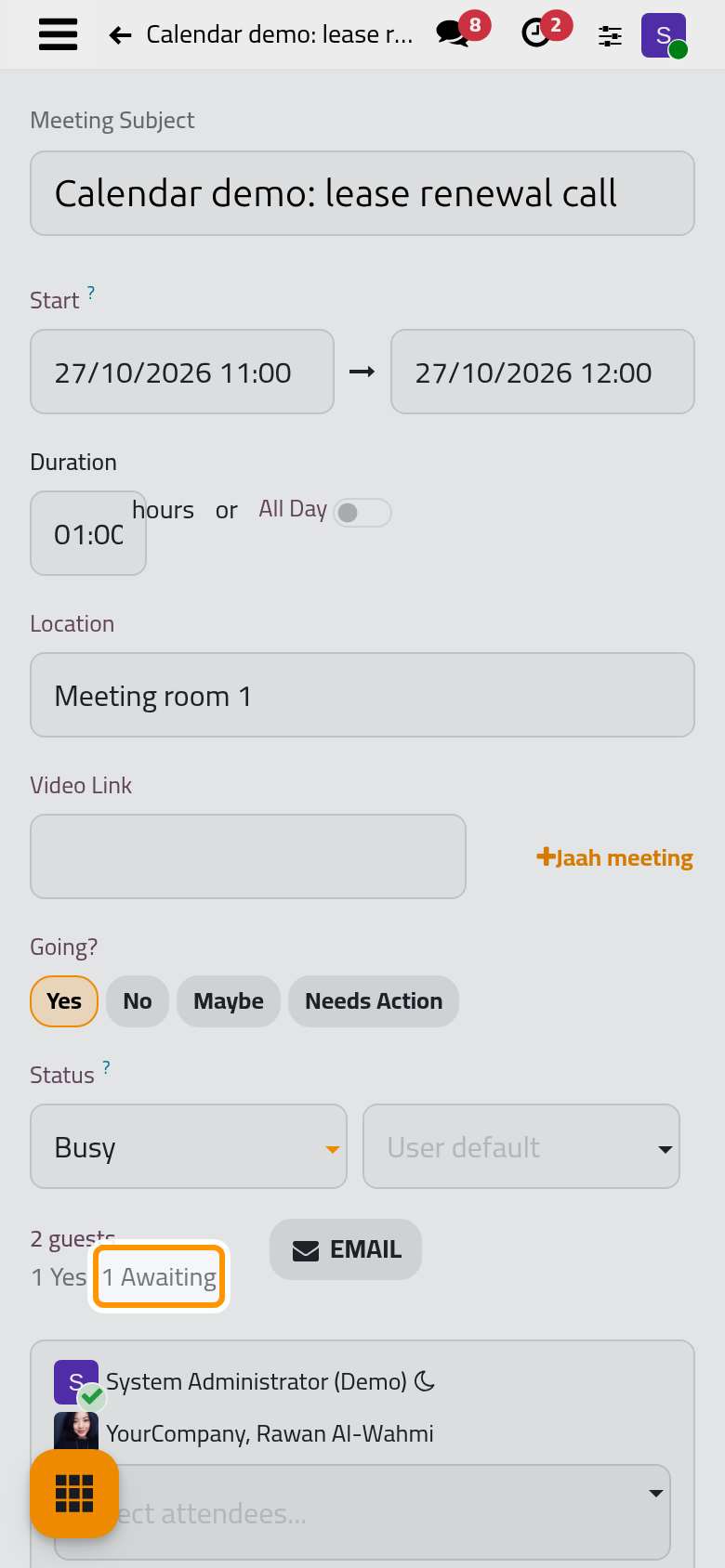
- Click New. The meeting form opens with you as organizer and first attendee, starting at the next half hour, for one hour. Change Start and Duration if needed, or switch on All Day.
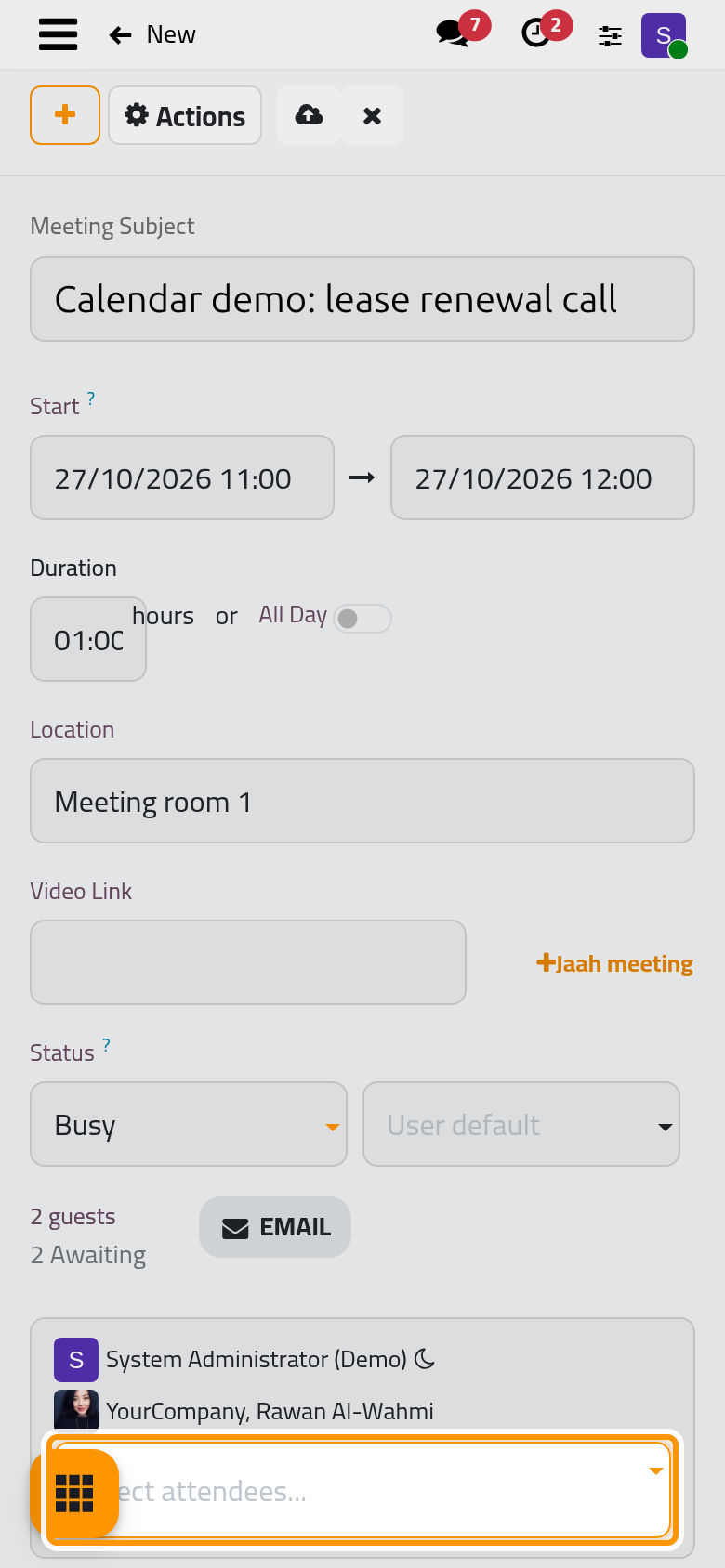
- Type the Meeting Subject, here Calendar demo: lease renewal call, and the Location, here Meeting room 1.
- In Select attendees..., under the guest counter, choose Rawan Al-Wahmi.
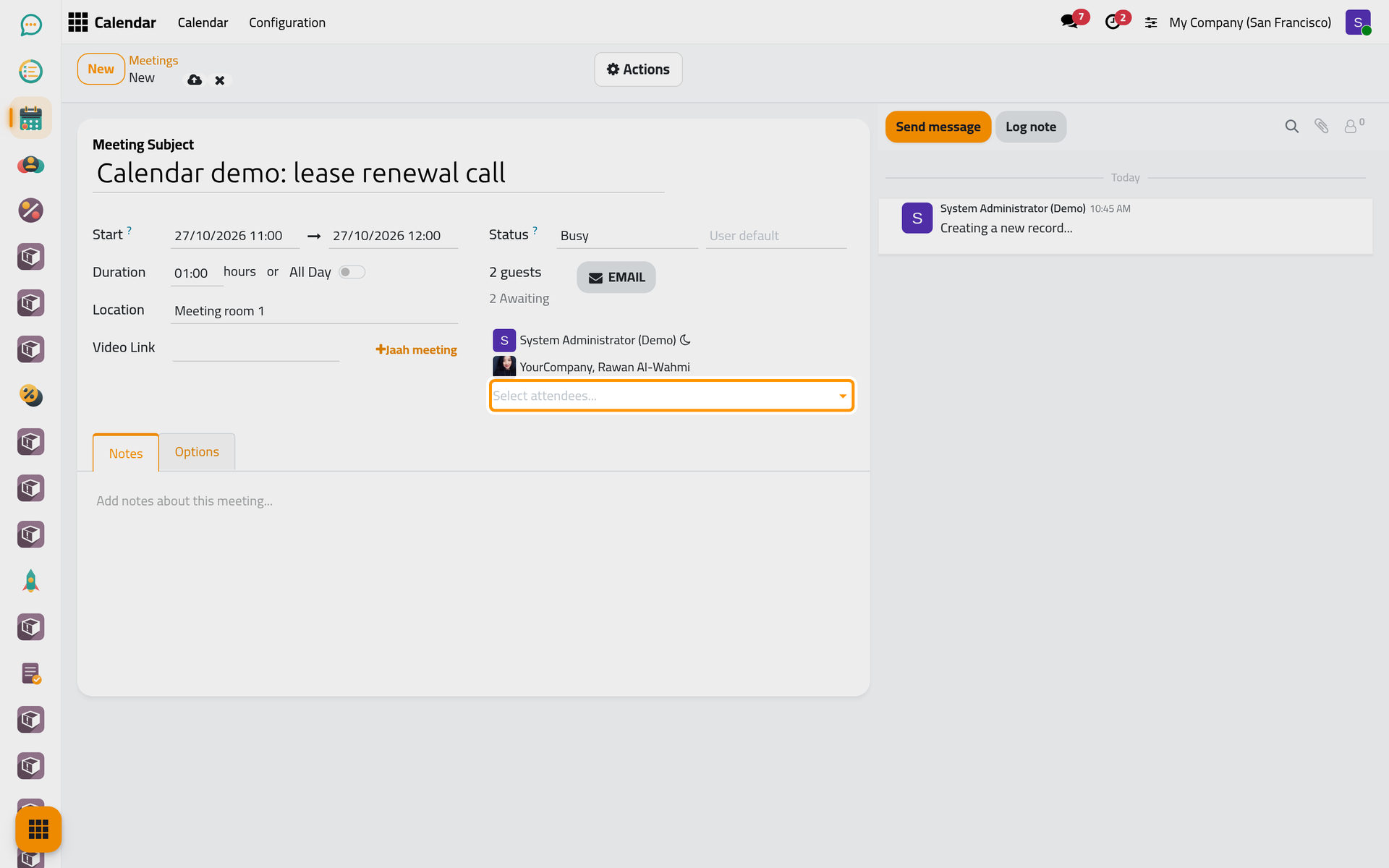
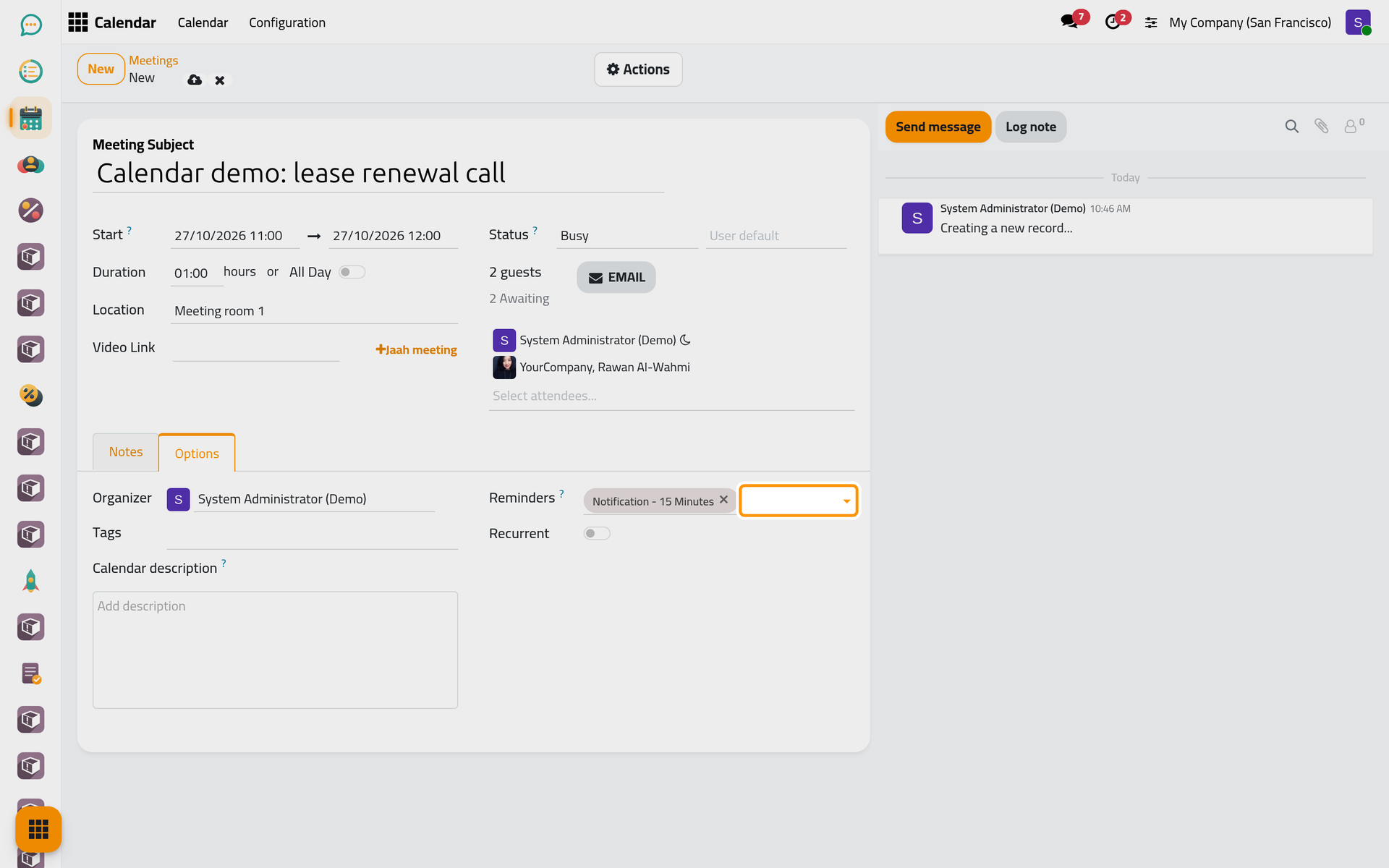
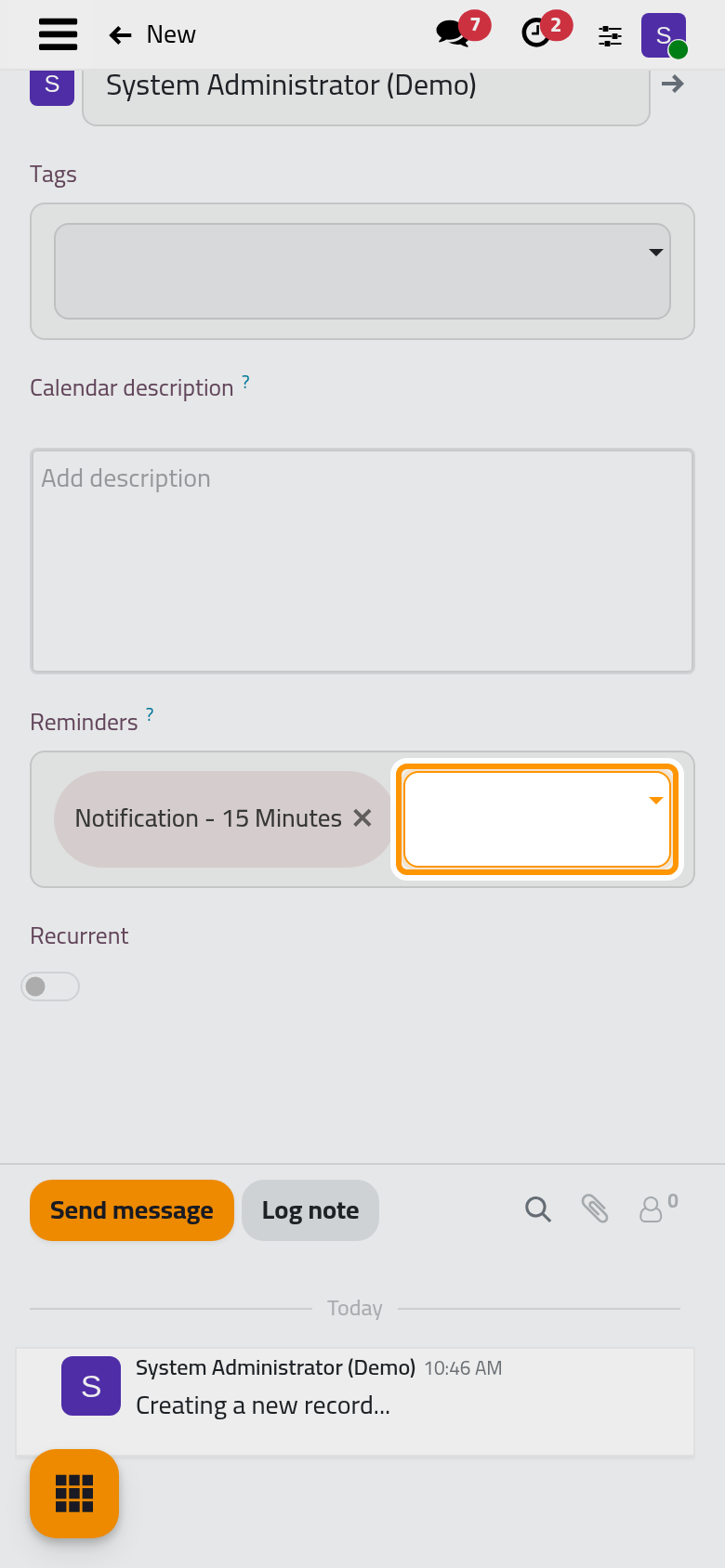
- Open the Options tab and choose Notification - 15 Minutes in Reminders: every attendee who uses Jaah gets a pop-up in the browser fifteen minutes before the meeting.
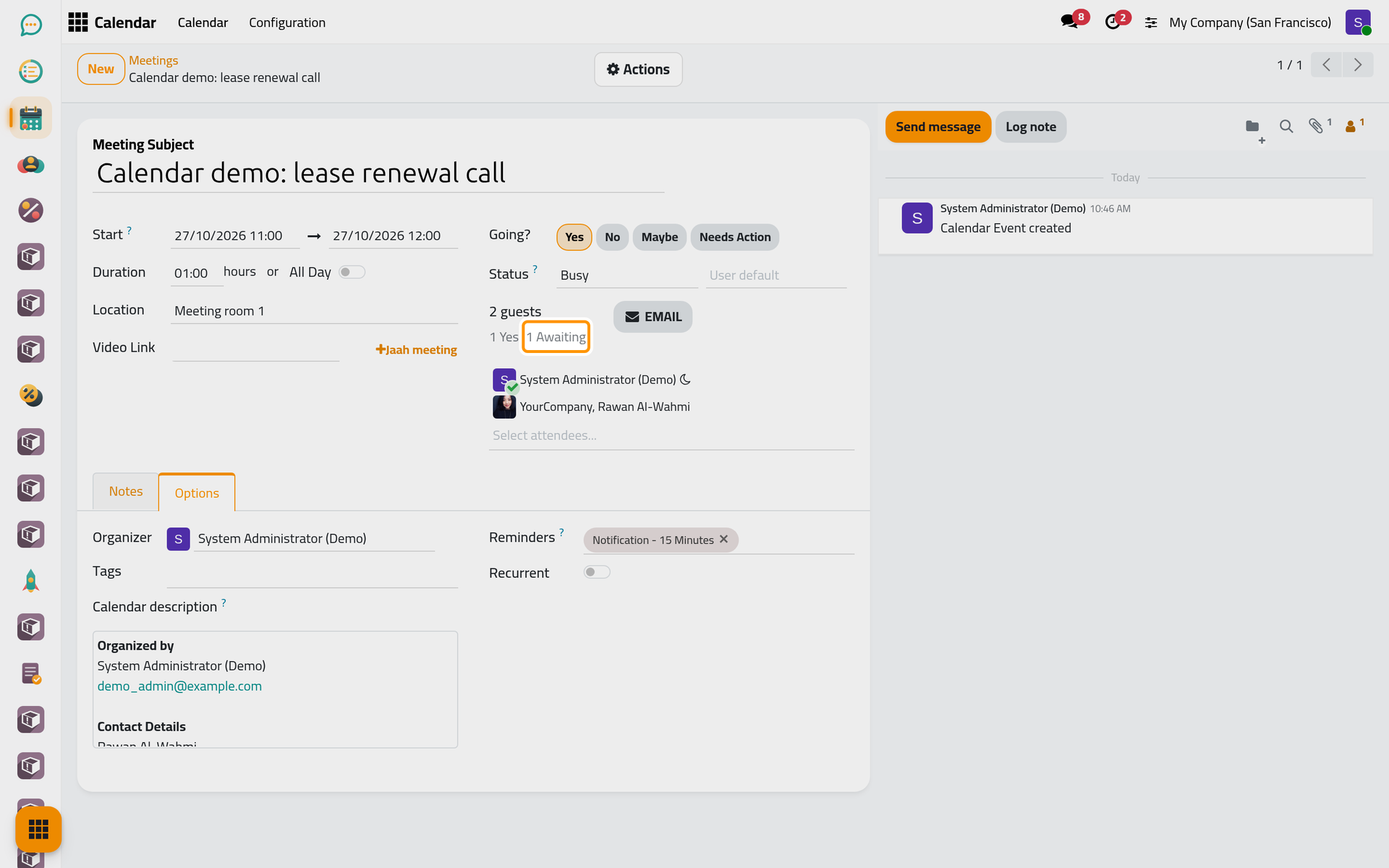
- Click the cloud icon Save manually. You count as Yes, and Rawan receives an invitation by e-mail with an invitation.ics file that any calendar program can open. Under the guests, the counter reads 1 Yes and 1 Awaiting until she answers.
Clicking an empty slot of the week is the quick way: a small New Event window opens at that time. Type the title in Add Title and click Save, or click More Options for the whole form.
Step 4: find it in the week
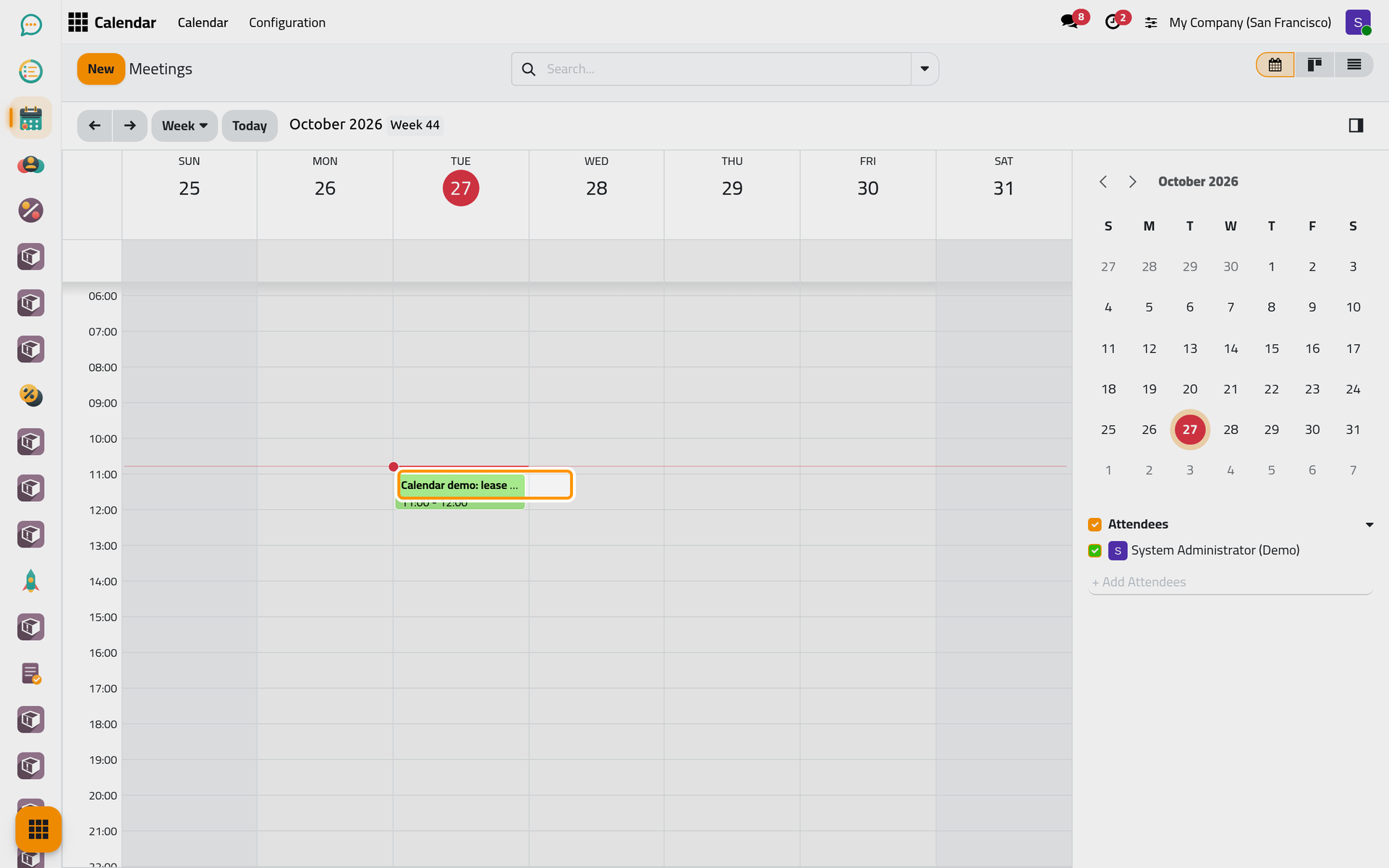
- Click Meetings in the breadcrumbs to come back to the calendar, then Today.
- The new meeting sits in its slot of the current week.
On a phone, choose the calendar from the view button at the top of the cards.
To move a meeting, drag it to another slot; drag its lower edge to make it longer. The new time is saved at once, and a repeating meeting first asks which meetings the change covers. Answer, move or cancel a meeting says who is told.
Step 5: the cards and the list
- Click the Kanban view button, at the top right. Each card shows the subject, the start and the end (or All day), the place, the attendees, the organizer's avatar and the tags.
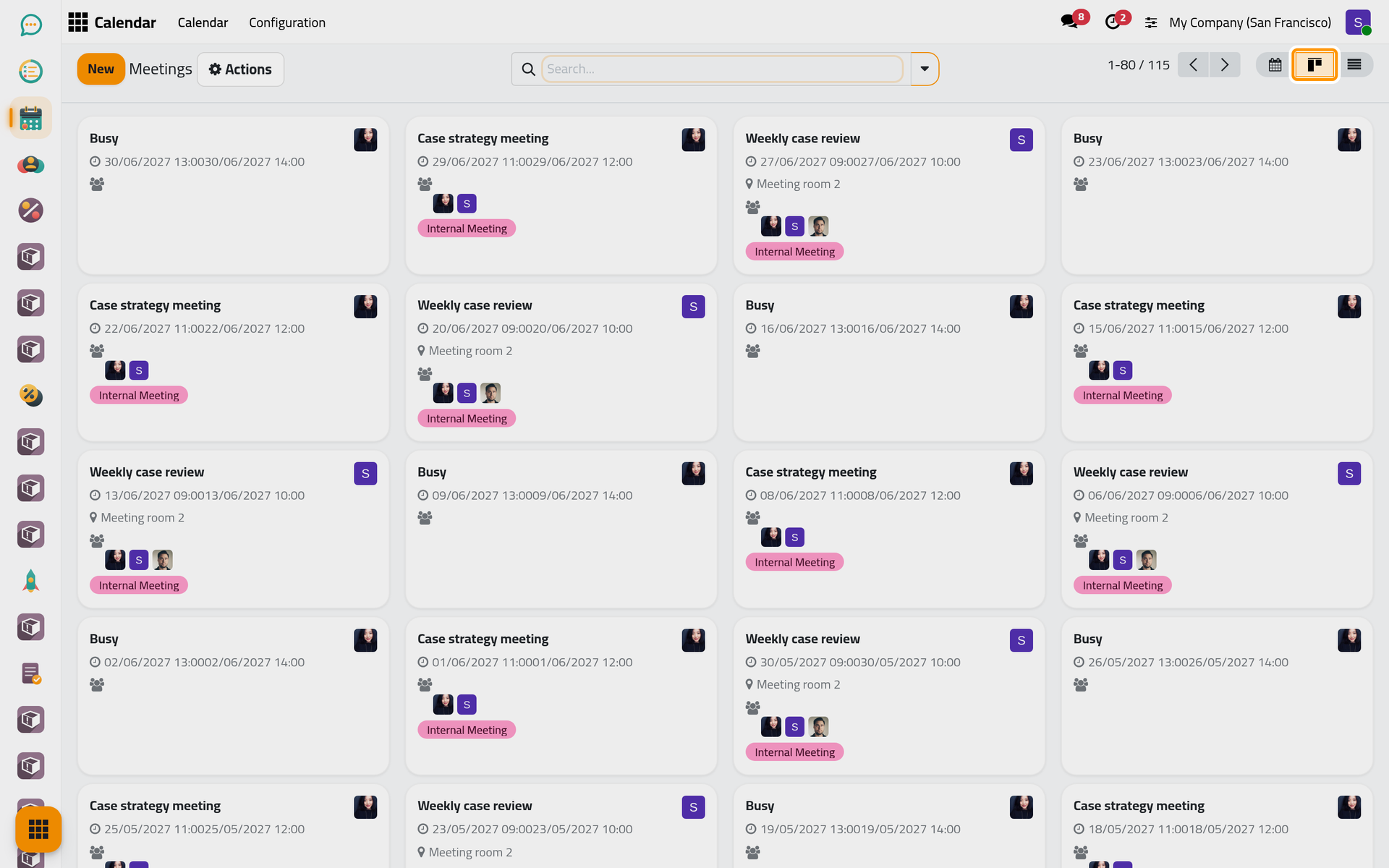
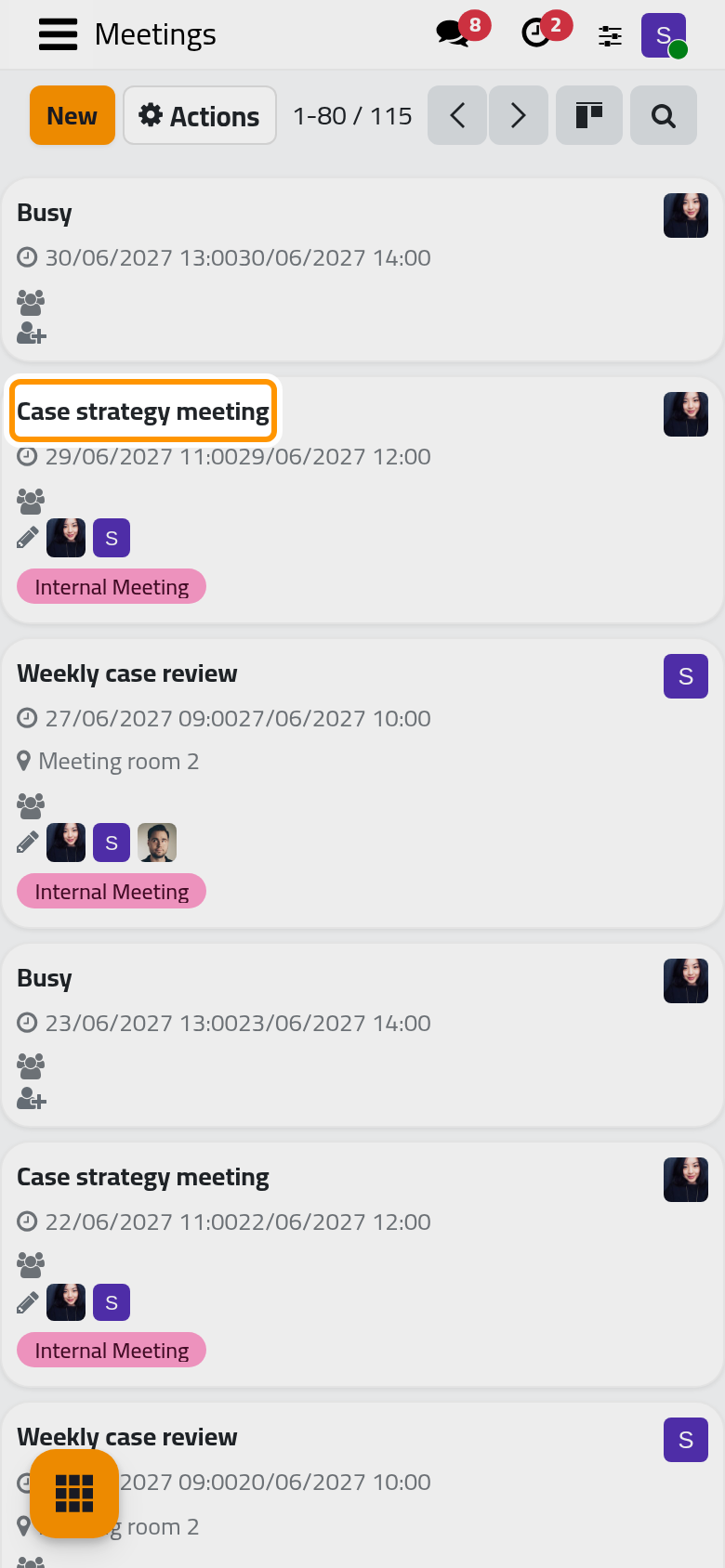
The cards list every meeting you can see, the furthest one first, and not only those of the attendees ticked in the calendar; a private meeting of someone else shows as Busy. On a phone, Calendar opens on these cards.
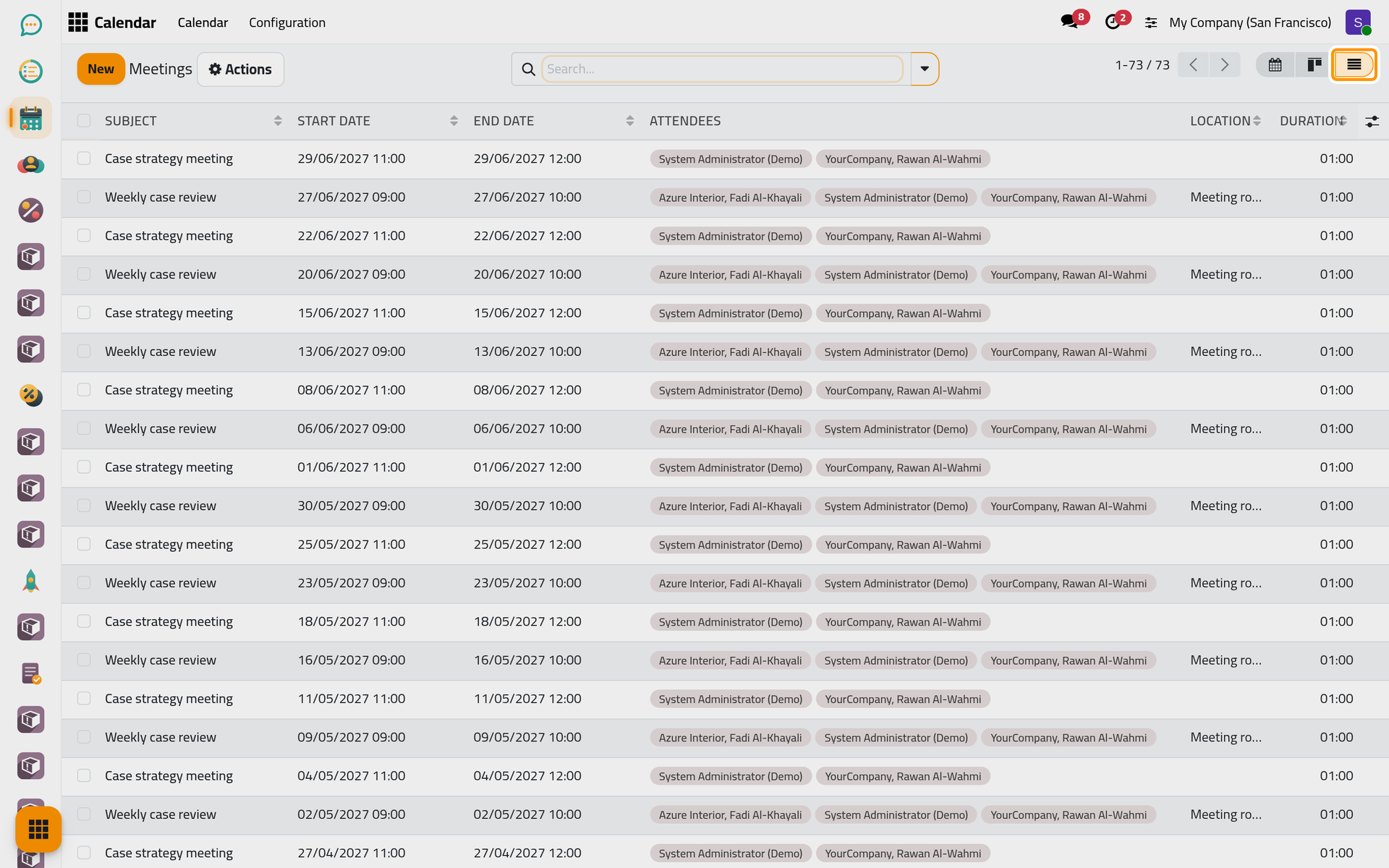
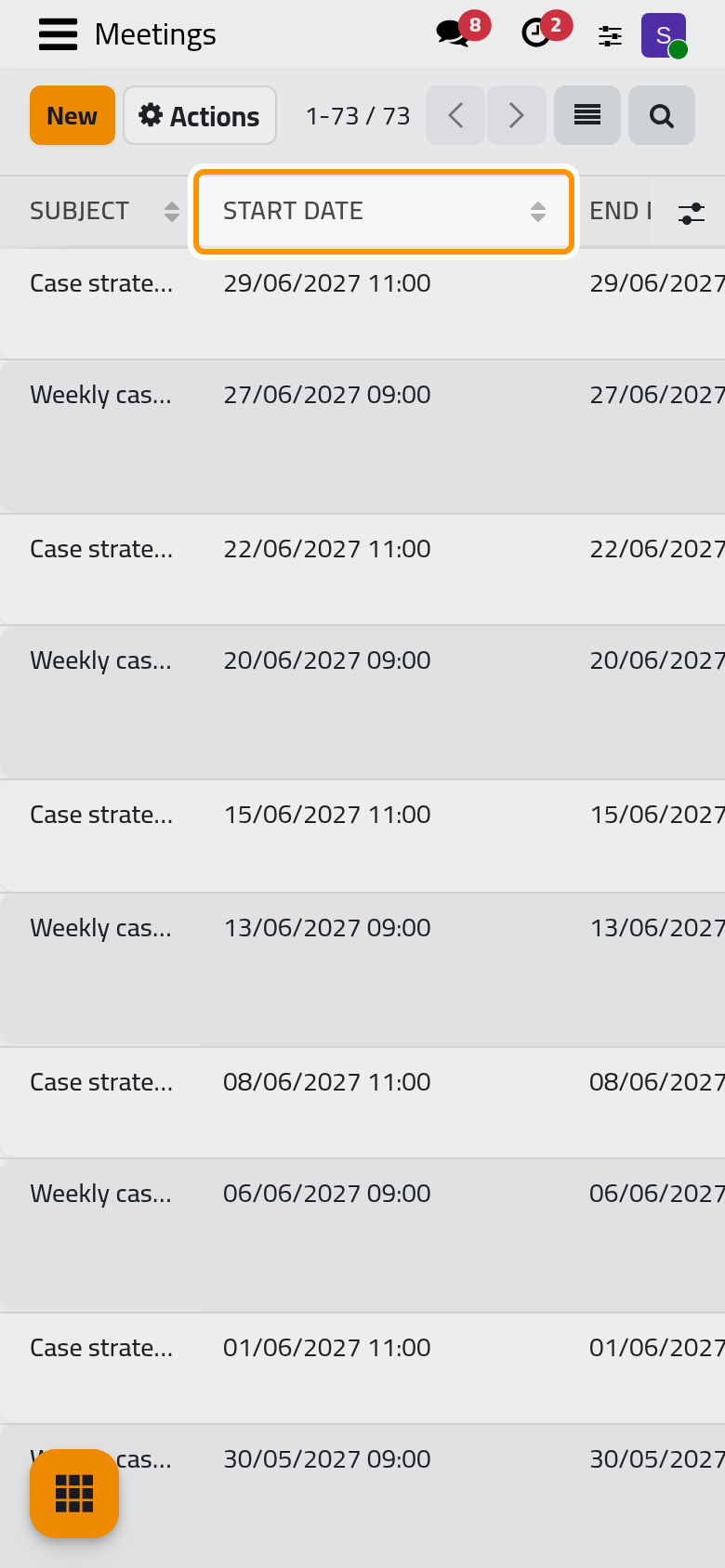
- Click the List view button. The list shows the meetings of the ticked attendees, one per line, with Start Date, End Date, Attendees, Location and Duration. Click a line to open its form.
What you have done
You moved through your week, answered an invitation for one meeting of a series, created a meeting with a place, a colleague and a reminder, and saw it in the calendar, the cards and the list. The user guide takes each part further: Schedule a meeting, Repeat a meeting, See your colleagues' meetings and Answer, move or cancel a meeting. How meetings and invitations work explains what happens behind the screens.
Was this page helpful?
Thank you for your feedback.