See your colleagues' meetings
On this page
The calendar shows your own meetings first. Add colleagues to its Attendees panel to see their days next to yours, for example to find an hour when everybody is free before you invite them.
Before you start
- Every internal user can see the meetings of the whole company. Only the details of a private meeting stay hidden from those who do not attend it: see How meetings and invitations work.
Add a colleague
- Open . The panel on the right lists the Attendees whose meetings are shown: you, ticked.
- Click + Add Attendees, type the first letters of a name and choose the person.
- Their meetings join yours, one colour per person. A meeting you both attend appears twice, side by side, once for each of you.
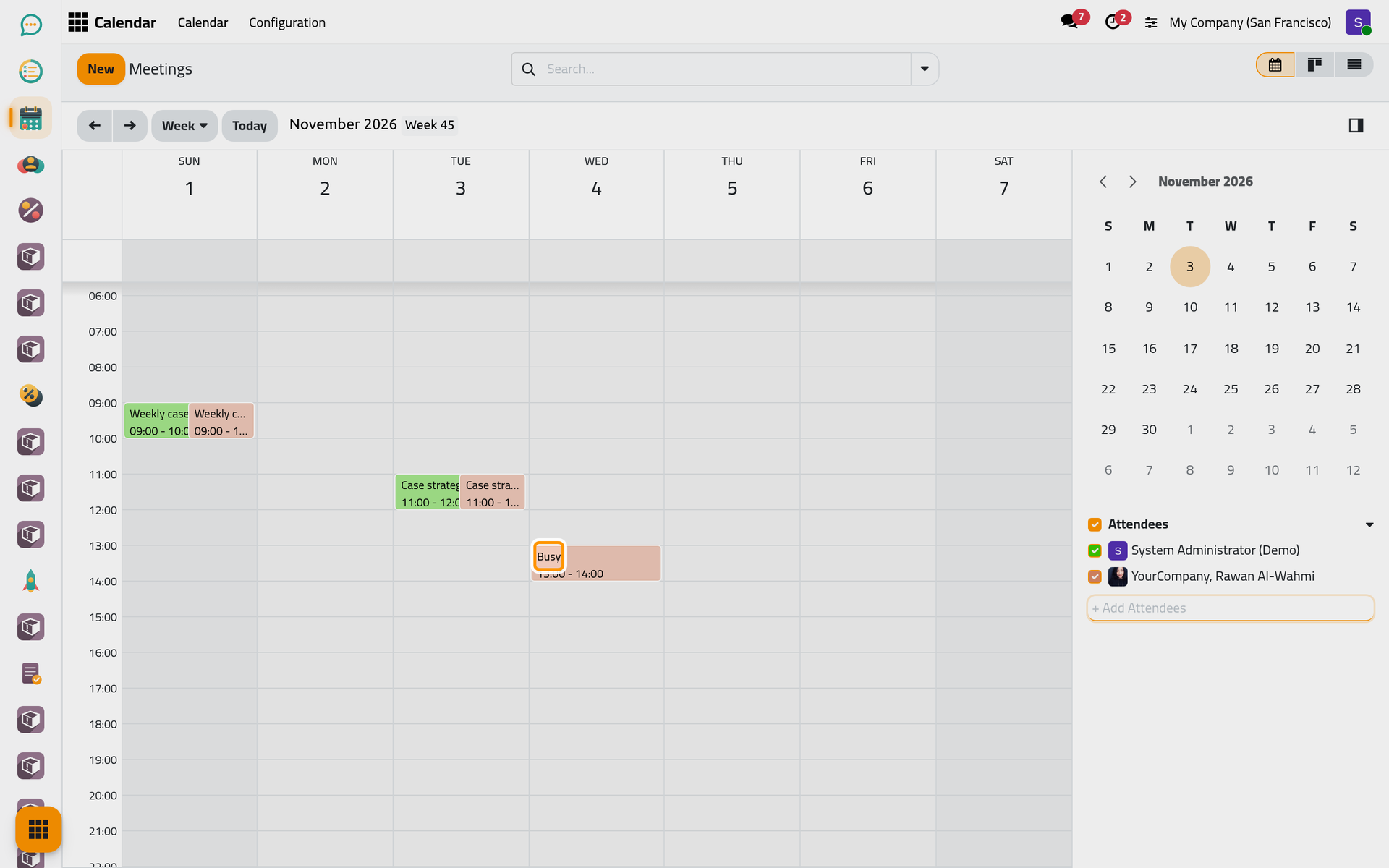
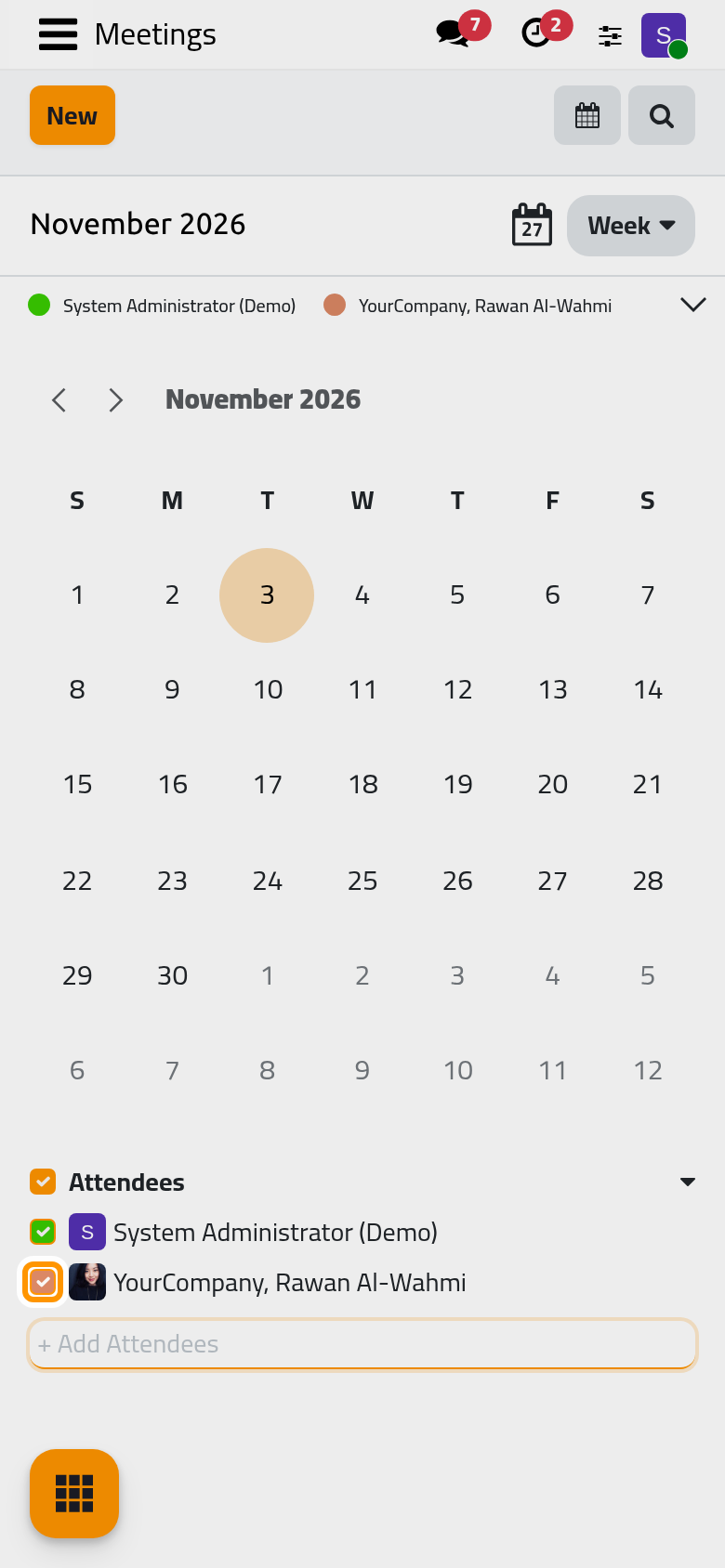
A private meeting of your colleague that you do not attend shows only as Busy with its time: you know that they are not free, not what they do. On a phone, the panel sits above the calendar, and the arrow at its top folds it away.
Choose whose meetings show
- Untick a person to hide their meetings, tick them to show them again. The box next to Attendees ticks or unticks everybody at once.
- To take a person off the list, point at the name and click the cross that appears.
- The list is yours: each user keeps their own, and it stays from one visit to the next.
- The list view follows the same ticks while the search bar is empty; a search or a filter lists every matching meeting.
The cards show everything
The Kanban view does not follow the ticks: it lists every meeting you are allowed to see, the furthest one first, whoever attends it. Here, Rawan is unticked and her meetings are still on the cards, her private ones as Busy. On a phone, where Calendar opens on these cards, keep this in mind.
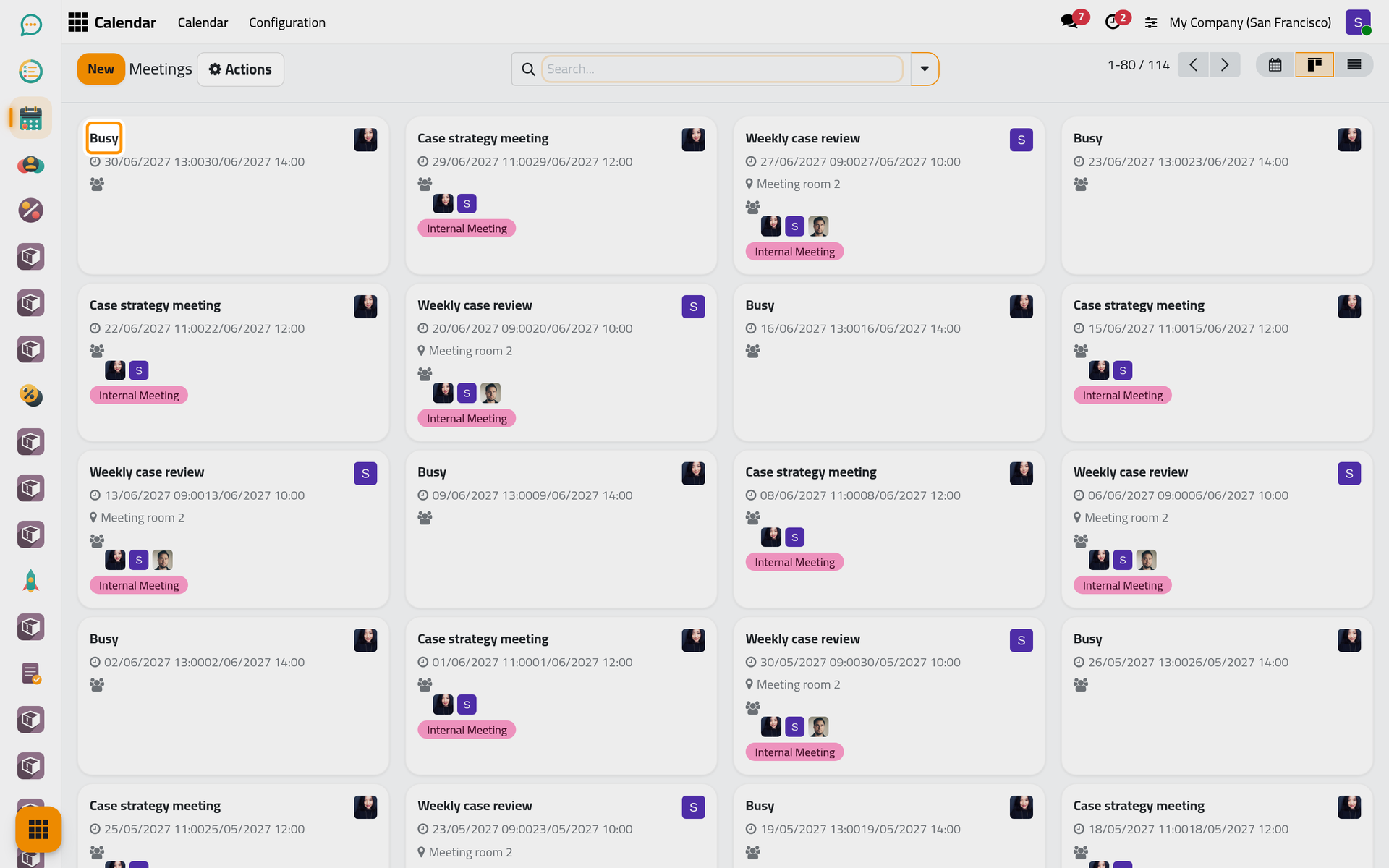
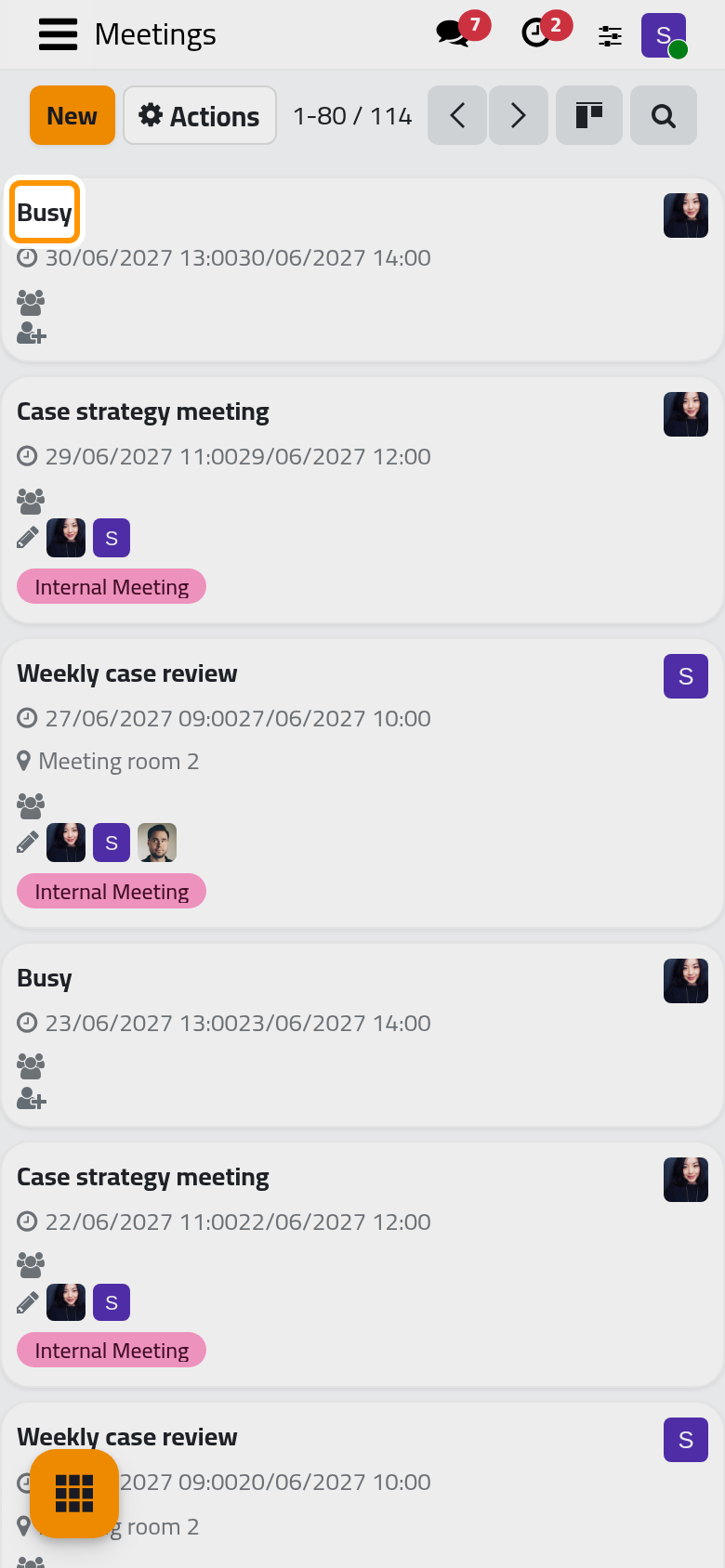
To narrow the cards, use the search: type a name and choose to search it in Attendees, or apply the My Meetings filter.
Search and filters
The search works in the three views. Type a word to find it in the Meeting subject, or choose the field to search: Attendees, Organizer, Location, Tags. The filters keep My Meetings, the meetings shown as Busy, those of one privacy, the Recurrent ones or the Archived ones; Group By sorts them by Responsible or Date. Search, filter and group records explains the search bar itself.
FAQ
Why do I not see a colleague's meeting at all?
Their name is not ticked under Attendees, they are not among the meeting's attendees, or the meeting is archived. Add or tick them, or look in the list with the Archived filter.
Can my colleagues see my private meetings?
They see that you are busy and when, not the subject, the place or the attendees. Only you and the attendees see the details.
Does adding a colleague to my panel tell them anything?
No. The panel only changes what your own calendar shows; nobody is invited or notified.
Was this page helpful?
Thank you for your feedback.