Schedule a meeting
On this page
A meeting is planned from Calendar with New, or from a contact. This page fills in every part of the meeting form.
Before you start
- Every internal user can schedule a meeting.
- A guest from outside the company must exist as a contact with an e-mail address: see Contacts. A guest without a valid address is marked with a warning sign and receives no e-mail.
Fill in the meeting
- Open and click New. You are the organizer and the first attendee.
- Type the Meeting Subject.
- Set Start: the start and the end, in your time zone. Duration changes the end; the All Day switch keeps the dates only.
- Type the Location: a room, an address or a court.
- In Select attendees..., add each person: the client, then the colleagues. The counter above the list shows the guests and their answers.
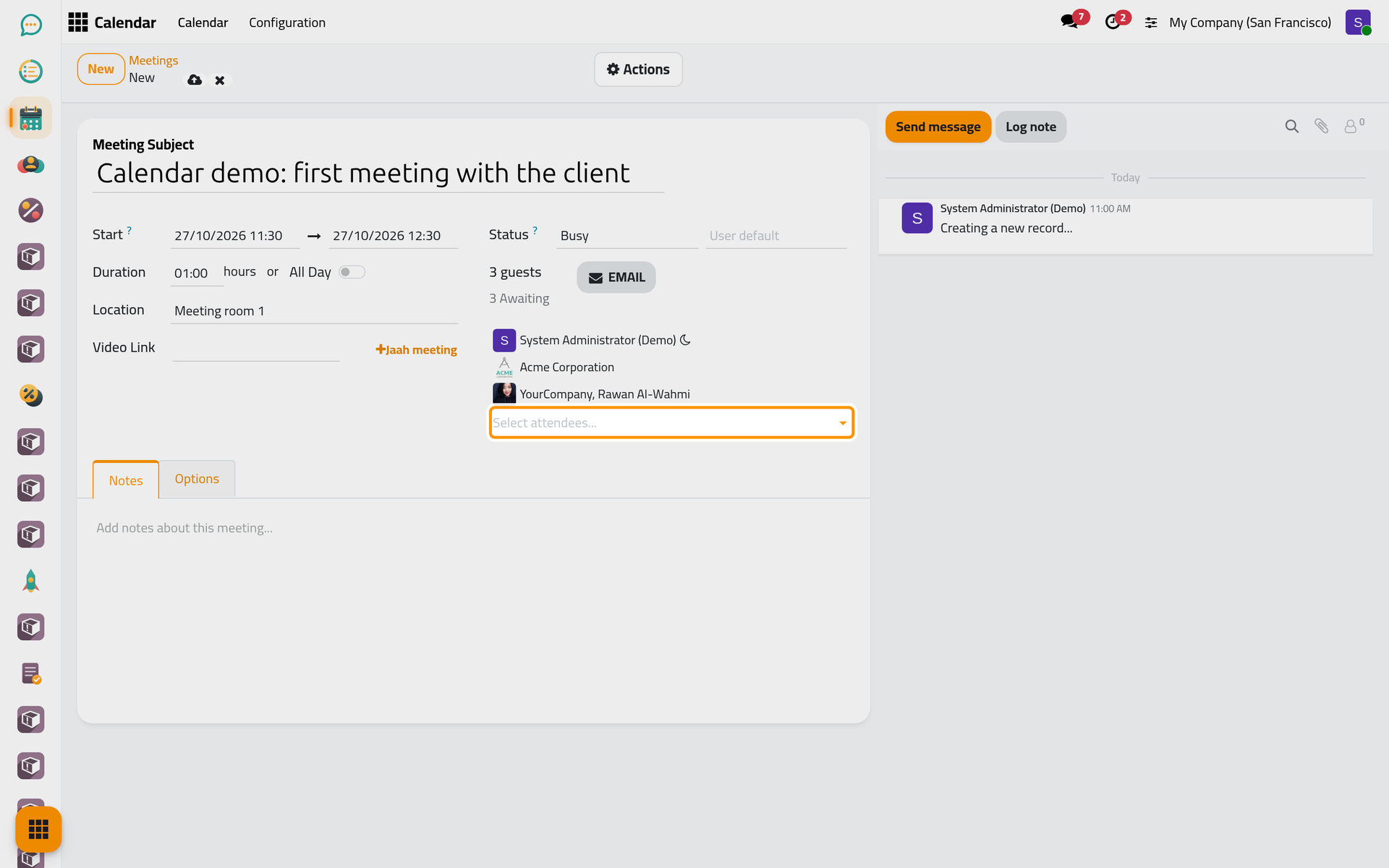
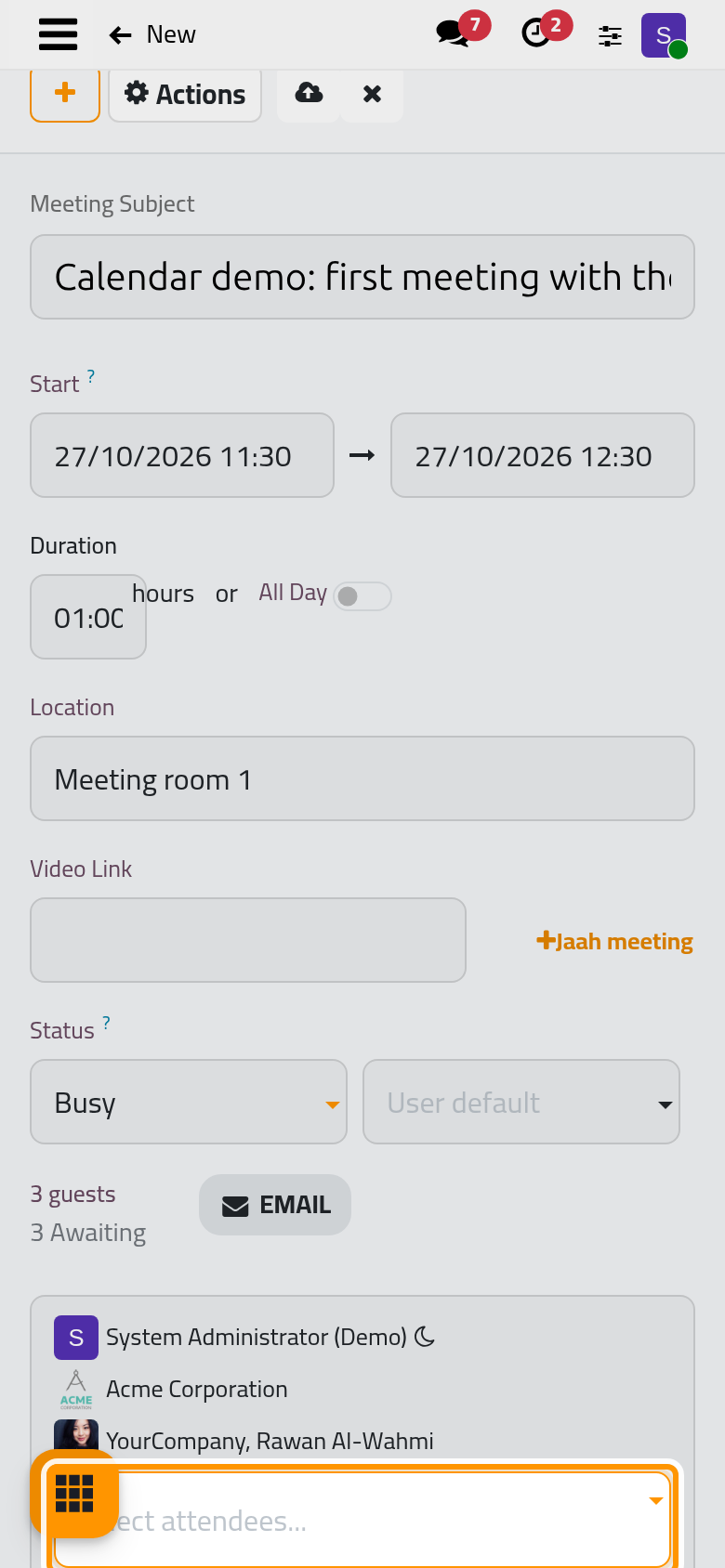
A moon beside a name means that the person is not available then: busy in another meeting, or outside the working hours of an employee.
Add a video link
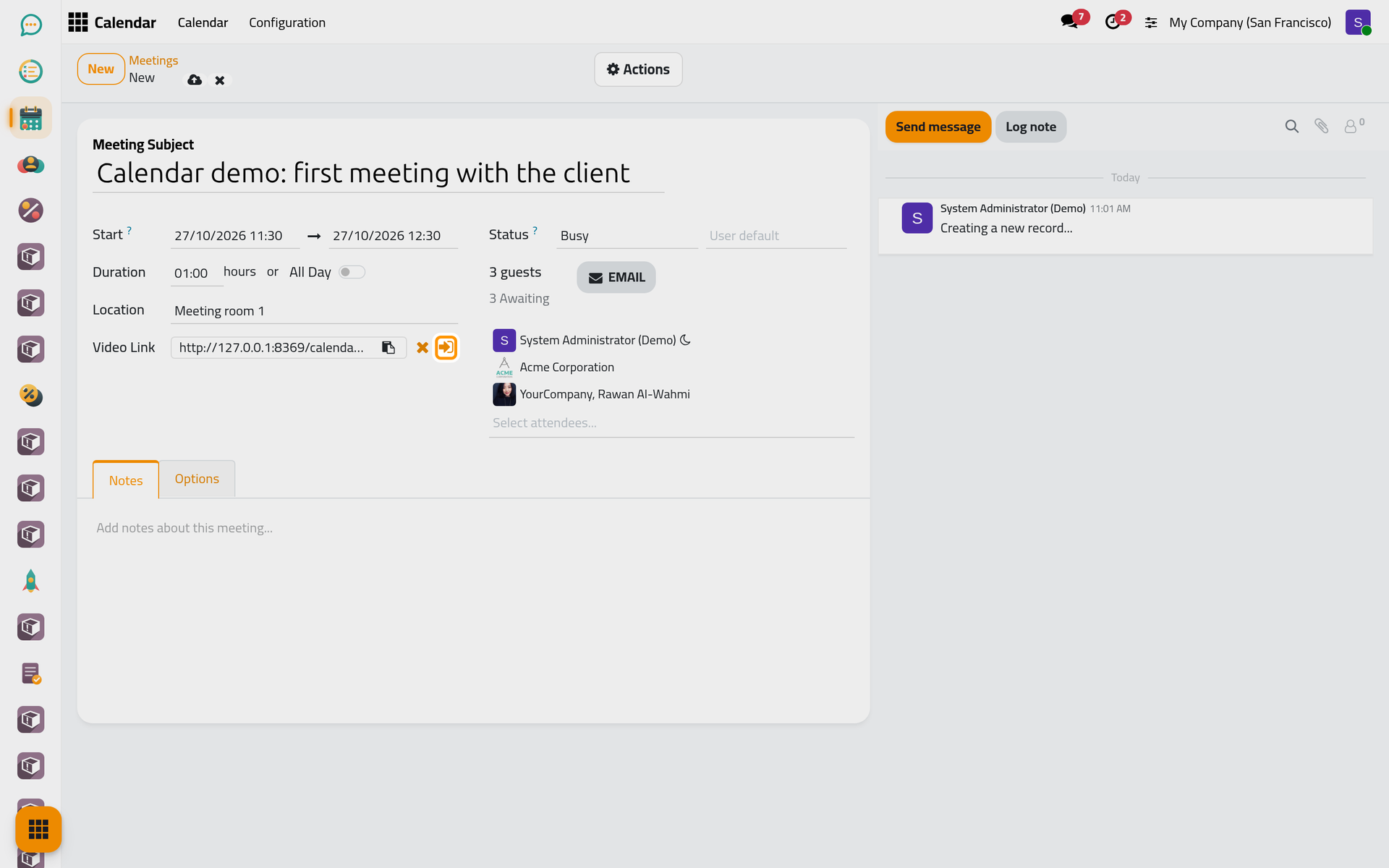
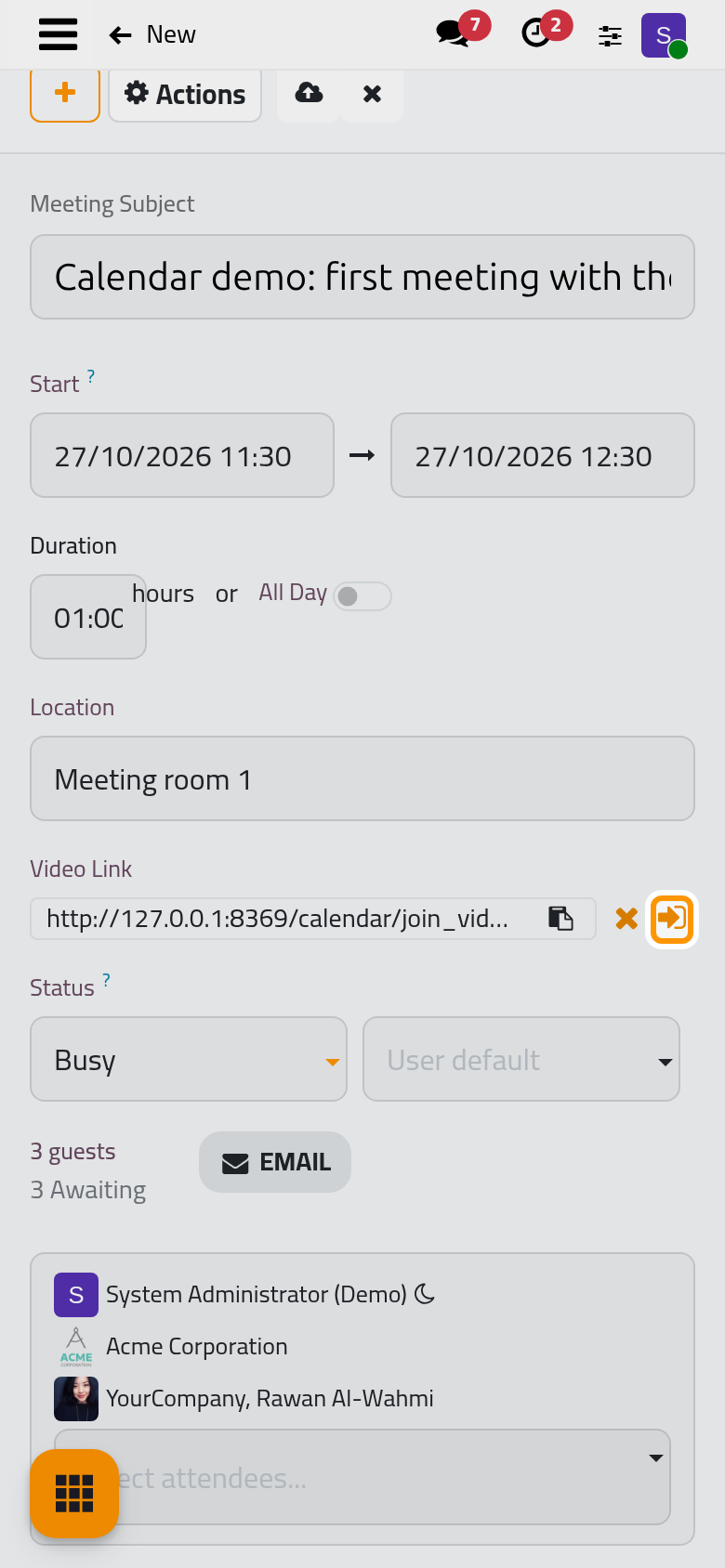
Click Jaah meeting next to Video Link. The meeting receives its own link: opening it starts a video call in Discuss for the attendees. The icons next to the link copy it, remove it and join the call. To use another video service, paste its link in Video Link instead.
Busy or available, public or private
Status holds two choices. Busy, the default, blocks the time for the attendees; Available leaves them free for other meetings. The second list sets who sees the details: Public, Private or Only internal users; left empty, it reads User default and follows the organizer's preference. How meetings and invitations work explains what each one shows.
Options
- Open the Options tab. Organizer is you; choose a colleague to organize it on their behalf.
- Tags sort meetings by kind: the demo has Customer Meeting, Internal Meeting, Off-site Meeting, Open Discussion and Feedback Meeting.
- Reminders: a Notification reminder shows a pop-up in the browser of each internal attendee; an Email reminder sends an e-mail to every attendee who has not declined.
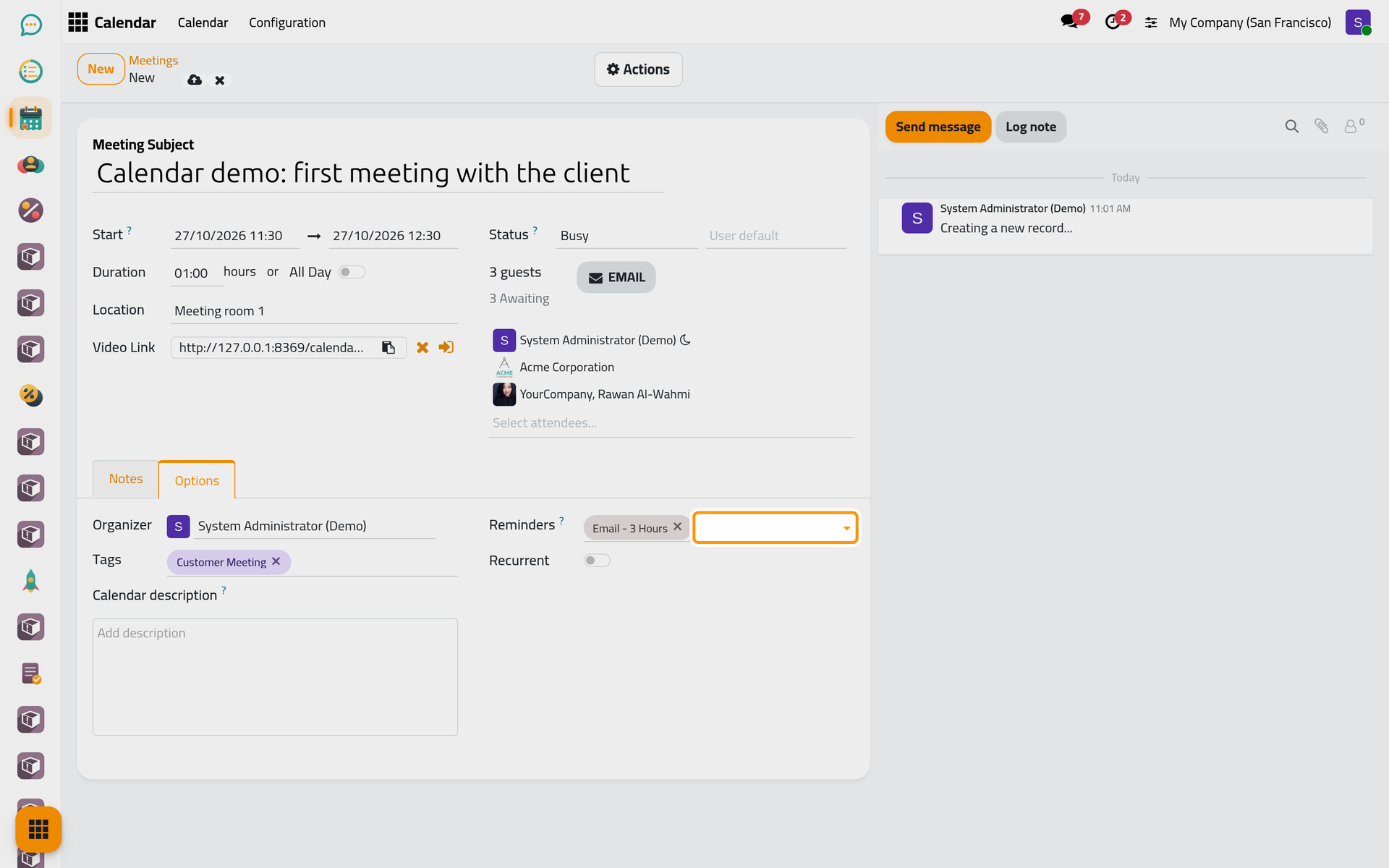
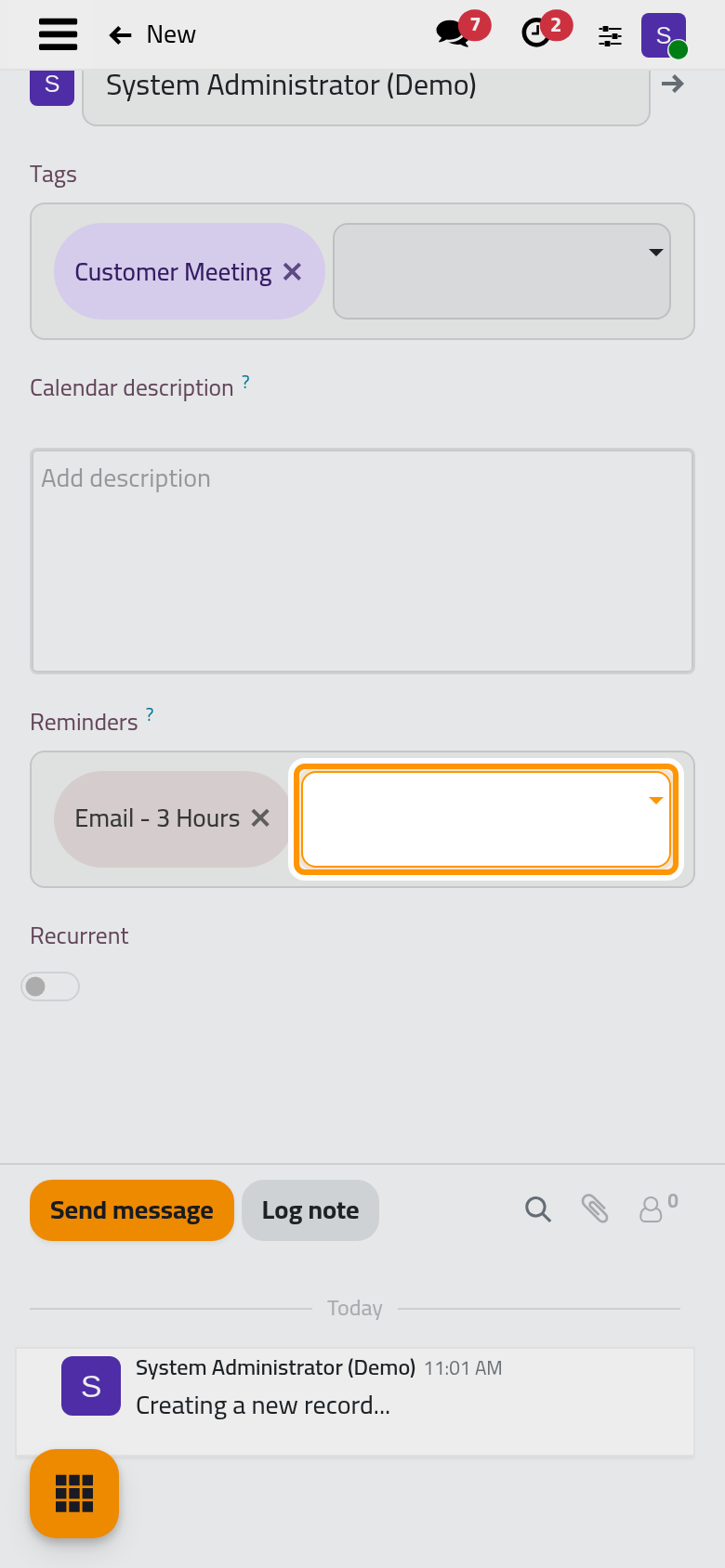
- Calendar description is the text the guests receive with the invitation. When the meeting is first saved, the organizer's contact details, and those of the guest when there is only one, are added at its end. The Notes tab is for the team only and never leaves the meeting.
- Recurrent repeats the meeting: see Repeat a meeting.
Save and send
Click Save manually. You count as Yes, and every other attendee with an e-mail address receives the invitation, with the meeting attached as an invitation.ics file and a View button that opens a page where the guest clicks Accept or Decline. The counter then reads the answers: Yes, Maybe, No and Awaiting.
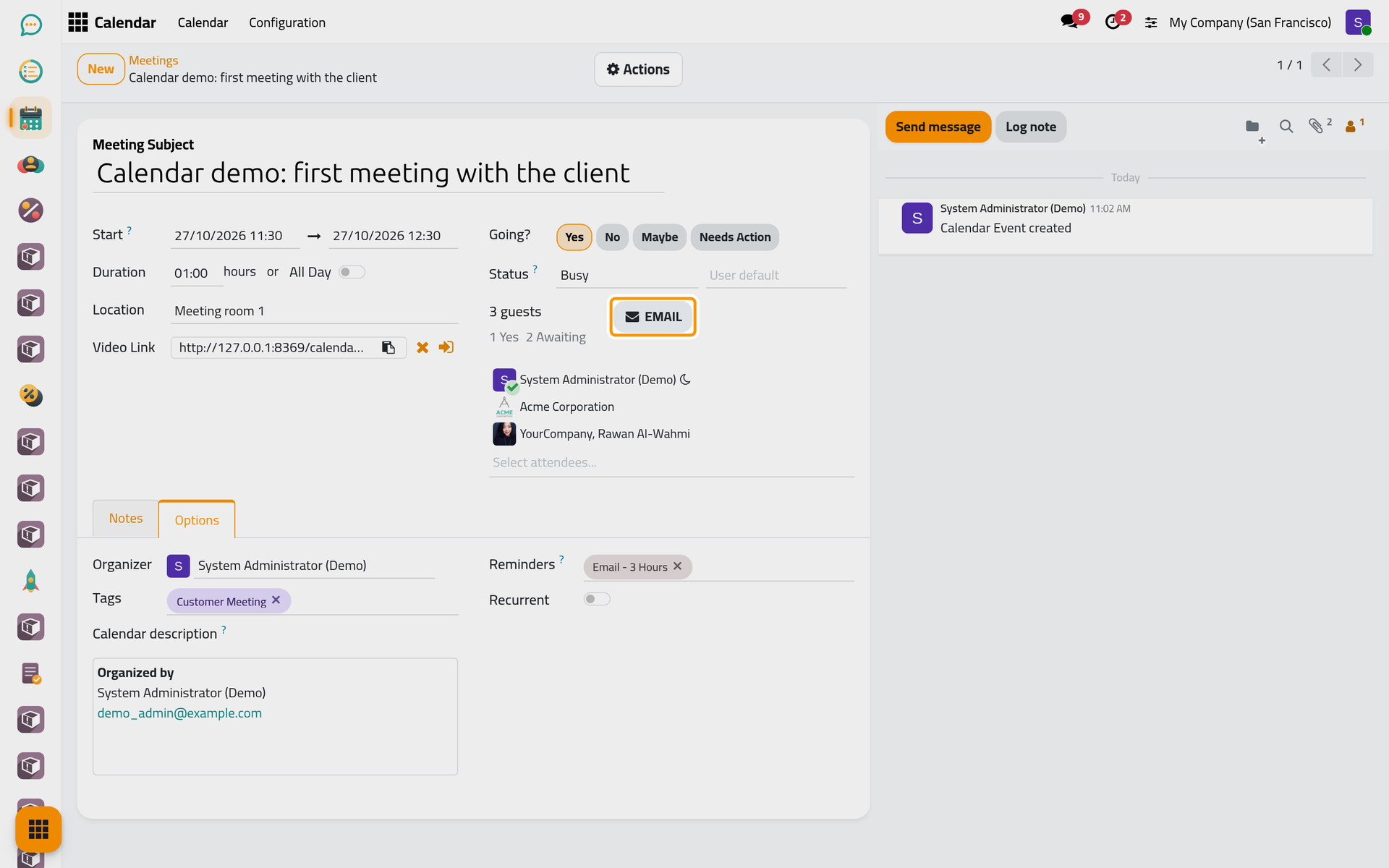
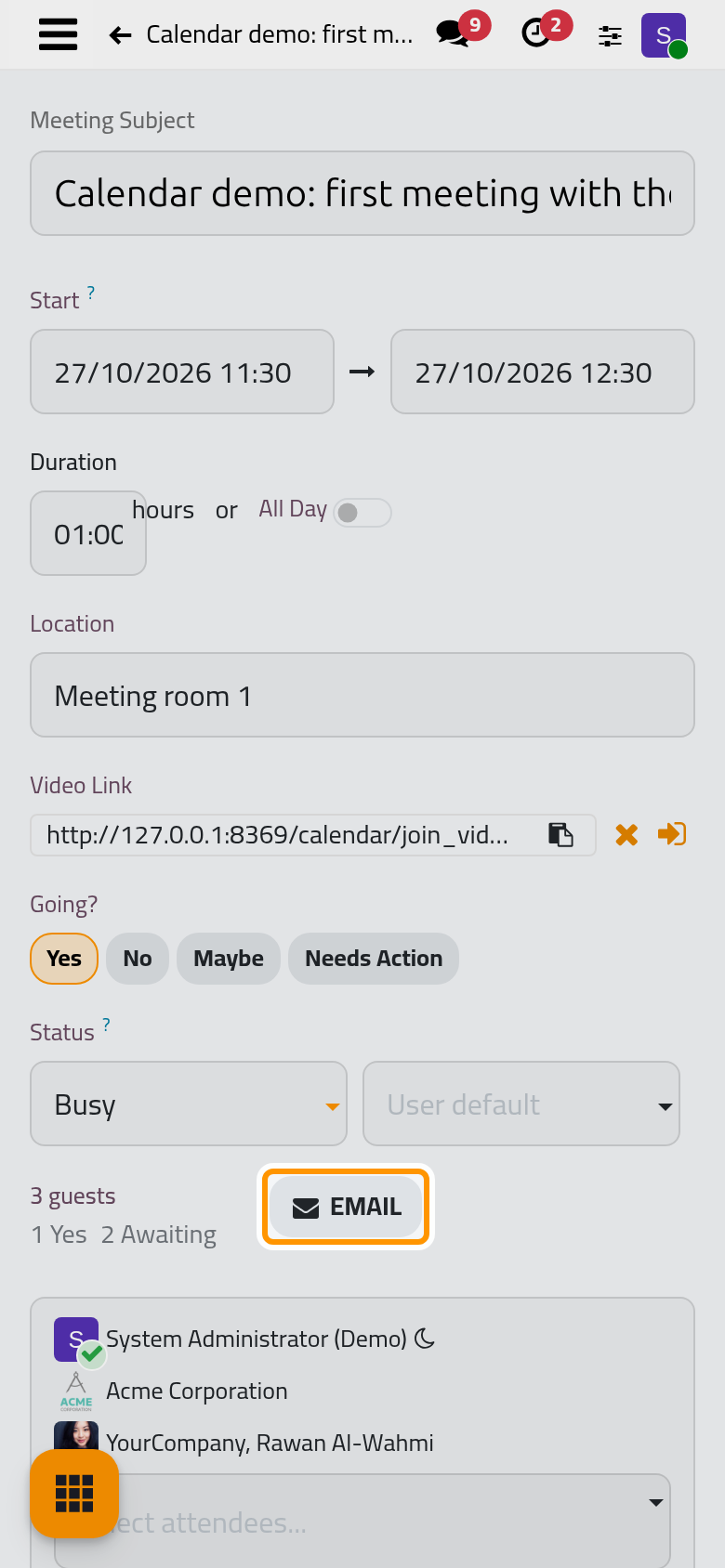
EMAIL opens an e-mail to all the attendees, prepared from the template Calendar: Event Update; nothing leaves before you send it.
From a contact
The form of a contact has a Meetings button that counts the meetings this contact attends. It opens the calendar on them, and New there invites the contact and you at once.
FAQ
Does an invitation go out for a meeting in the past?
No. Invitations are sent only for a meeting that has not started yet. Use EMAIL to write to the attendees of a past meeting.
A guest did not receive the invitation. Why?
The warning sign next to the name says the contact has no valid e-mail address. Correct it on the contact, then remove and add the guest again: a newly added attendee receives the invitation.
Who receives the reminders?
Every attendee who has not declined. A notification shows only to users of Jaah; an e-mail reminder reaches clients too.
Can a colleague change my meeting?
The organizer and the attendees can, and so can an administrator when the meeting is not private. The others only see it.
Was this page helpful?
Thank you for your feedback.