Answer, move or cancel a meeting
On this page
Each attendee answers the invitation; the organizer and the attendees can move or cancel the meeting, and the others are told by e-mail.
Before you start
- To answer, you are among the meeting's attendees.
- To move or cancel a meeting, you organize or attend it. An administrator can also change a meeting that is not private.
Answer an invitation
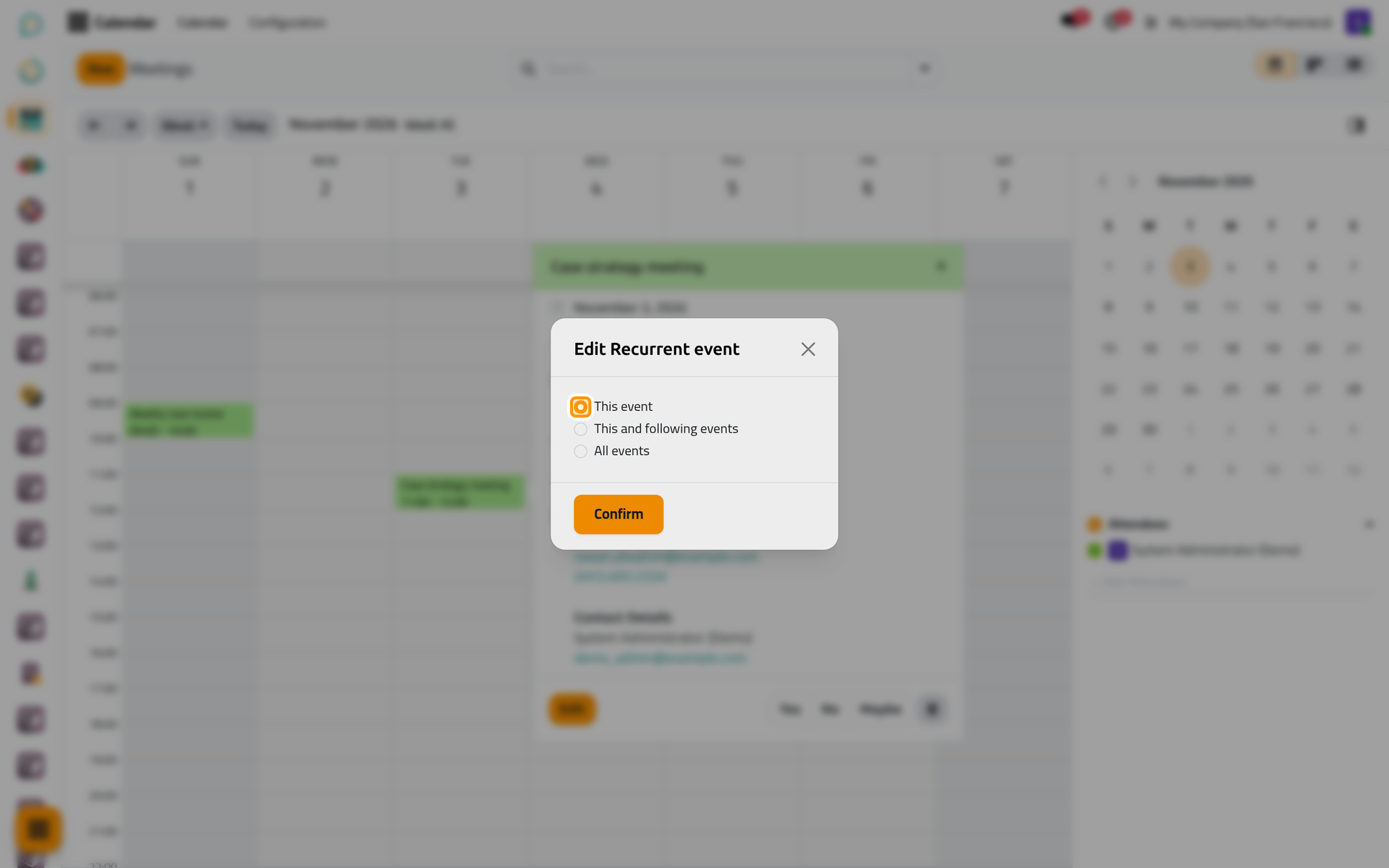
From the calendar. Click the meeting, then Yes, No or Maybe. For a repeating meeting, a window asks what the answer covers: This event, This and following events or All events. Click Confirm.
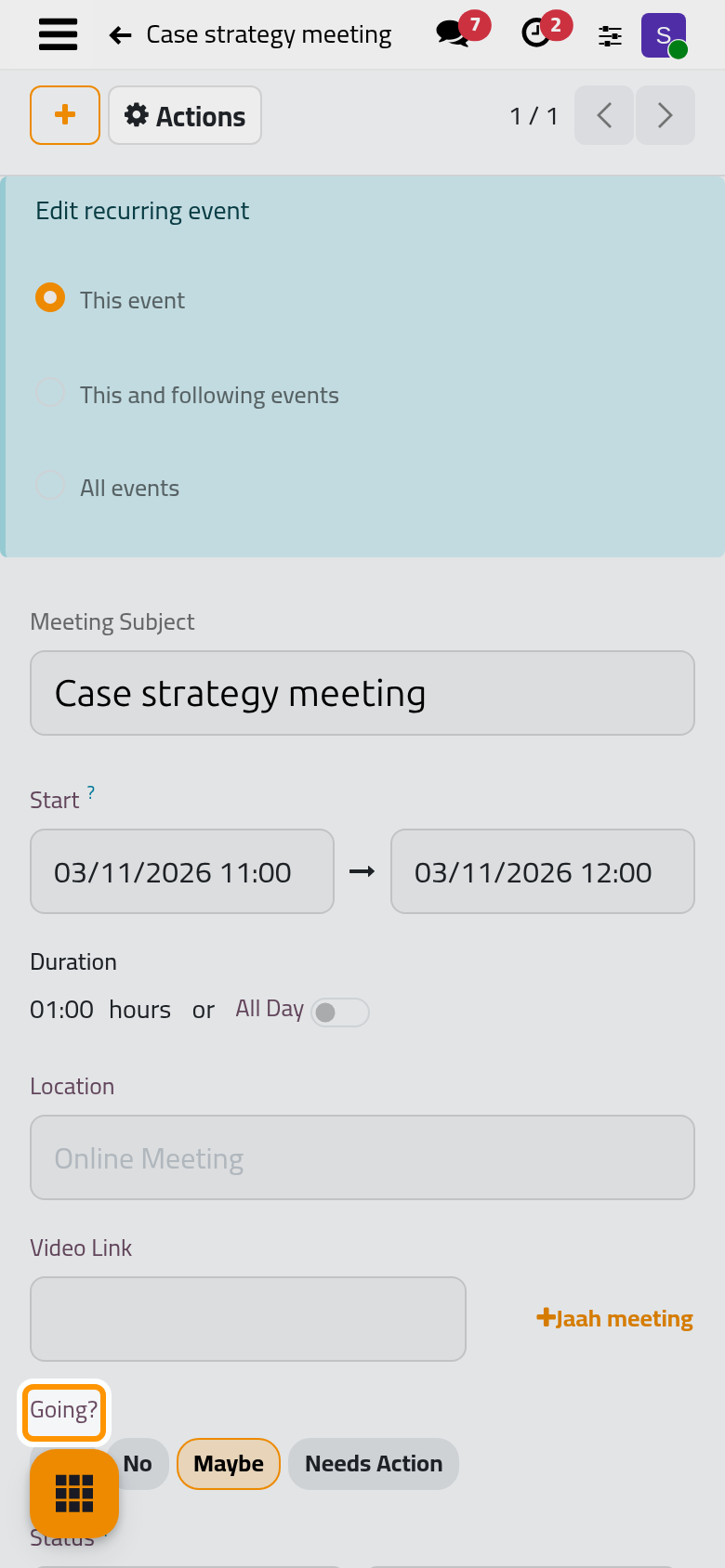
On a phone, where Calendar opens on its cards, open the meeting and answer on its form.
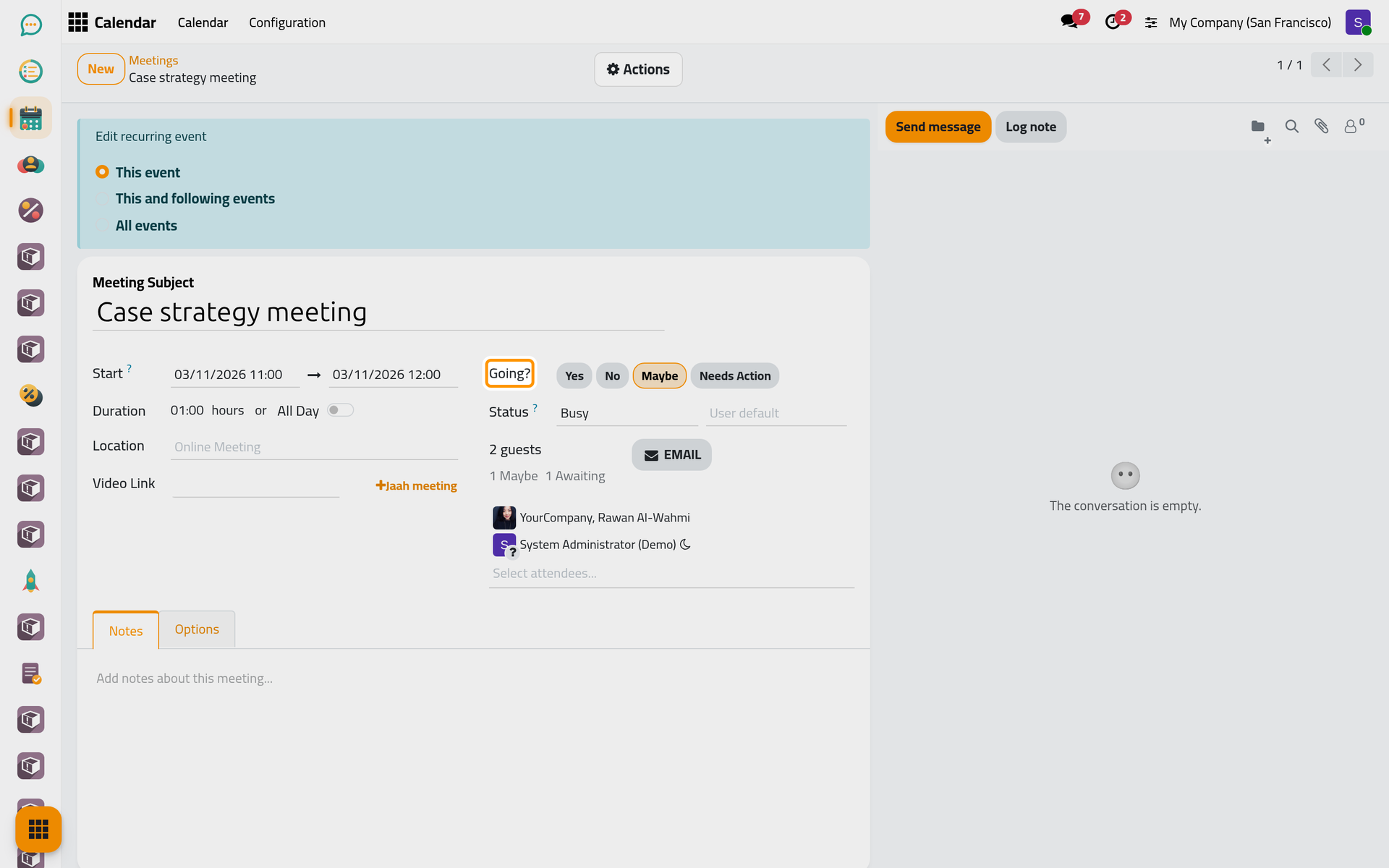
From the form. Going? shows your answer: Yes, No, Maybe, or Needs Action while you have not answered. Click another one to change it.
From the e-mail. A guest clicks View in the invitation, then Accept or Decline.
Accepting and declining each add a line to the meeting's chatter, and the counter under the guests adds up the answers. When the interface is in Arabic, the calendar summary does not mark the answer you gave; Going? on the form does.
In the summary of a meeting you attend but do not organize, the trash icon does not delete the meeting: it declines it for you.
Move a meeting
- In the calendar, drag the meeting to another slot or day, or drag its lower edge to change its length. The change is saved at once; a repeating meeting first asks which occurrences it covers.
- On the form, change Start.
When a meeting is moved to a start that is still to come, the attendees already invited receive the e-mail Calendar: Date Updated. When someone other than the organizer moves it, the organizer's own answer goes back to Needs Action.
Cancel a meeting
- Open the meeting and choose Delete in the Actions menu.
- For a repeating meeting, a window first asks which occurrences to delete. When other people attend, the form deletes only the meeting you opened, whatever you choose; to stop the following meetings, end the series as Repeat a meeting shows.
- When other people attend, the Delete Event window opens with the Recipients, a Subject and the message Event canceled, which you can edit.
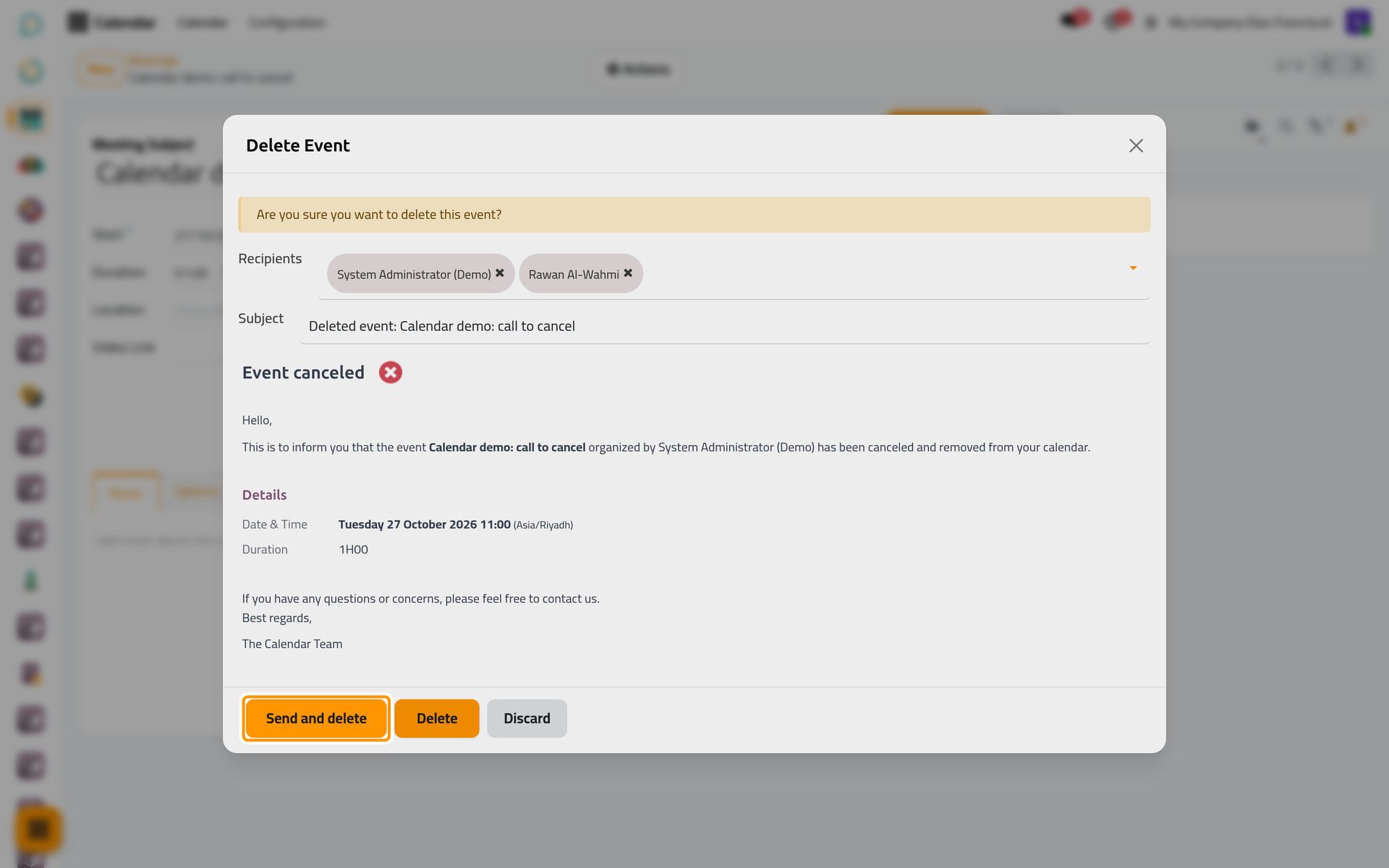
On a phone, the window fills the screen with the same buttons.
- Send and delete e-mails the message to the recipients, then deletes the meeting. Delete deletes it without a message. Discard keeps it.
When you are the only attendee, Delete archives the meeting instead of deleting it. Archive in the Actions menu does the same for any meeting: it disappears from the views and the Archived filter finds it again. Whether a deleted meeting can be brought back depends on the Recycle bin.
FAQ
I declined by mistake. What now?
Answer again: click Yes in the calendar summary, or on Going? in the form. The organizer sees the new answer in the counter.
Does the client know that I moved the meeting?
Yes, when the meeting has not taken place yet and the client was already invited: the e-mail Calendar: Date Updated gives the new time. Moving a past meeting sends nothing.
Can I cancel only next week's meeting of a series?
Yes. Open that occurrence, choose Delete, then This event. The rest of the series stays.
How do I bring back an archived meeting?
In the list view, apply the Archived filter, tick the meeting and choose Unarchive in the Actions menu.
Was this page helpful?
Thank you for your feedback.