Find, pin and star messages
On this page
A busy channel soon holds hundreds of messages. Discuss gives three ways to get back to the one that matters: the search of the channel, the pinned messages that every member sees, and your own starred messages. Canned responses, at the end of this page, save typing the same answer again and again.
Before you start
- No access right is needed to search, pin or star. Pinning is visible to all the members of the channel; a star is yours only.
- On a phone, open the conversation and tap its name at the top: the menu offers Search Messages and Pinned Messages.
- The examples use the channel case-updates of the demo.
Search a channel
- Open and click case-updates.
- Click the magnifier Search Messages in the header of the channel.
- Type a word or a reference, here CA/2026, and press Enter. The panel tells how many messages were found and lists them, newest first, with the words found in colour.
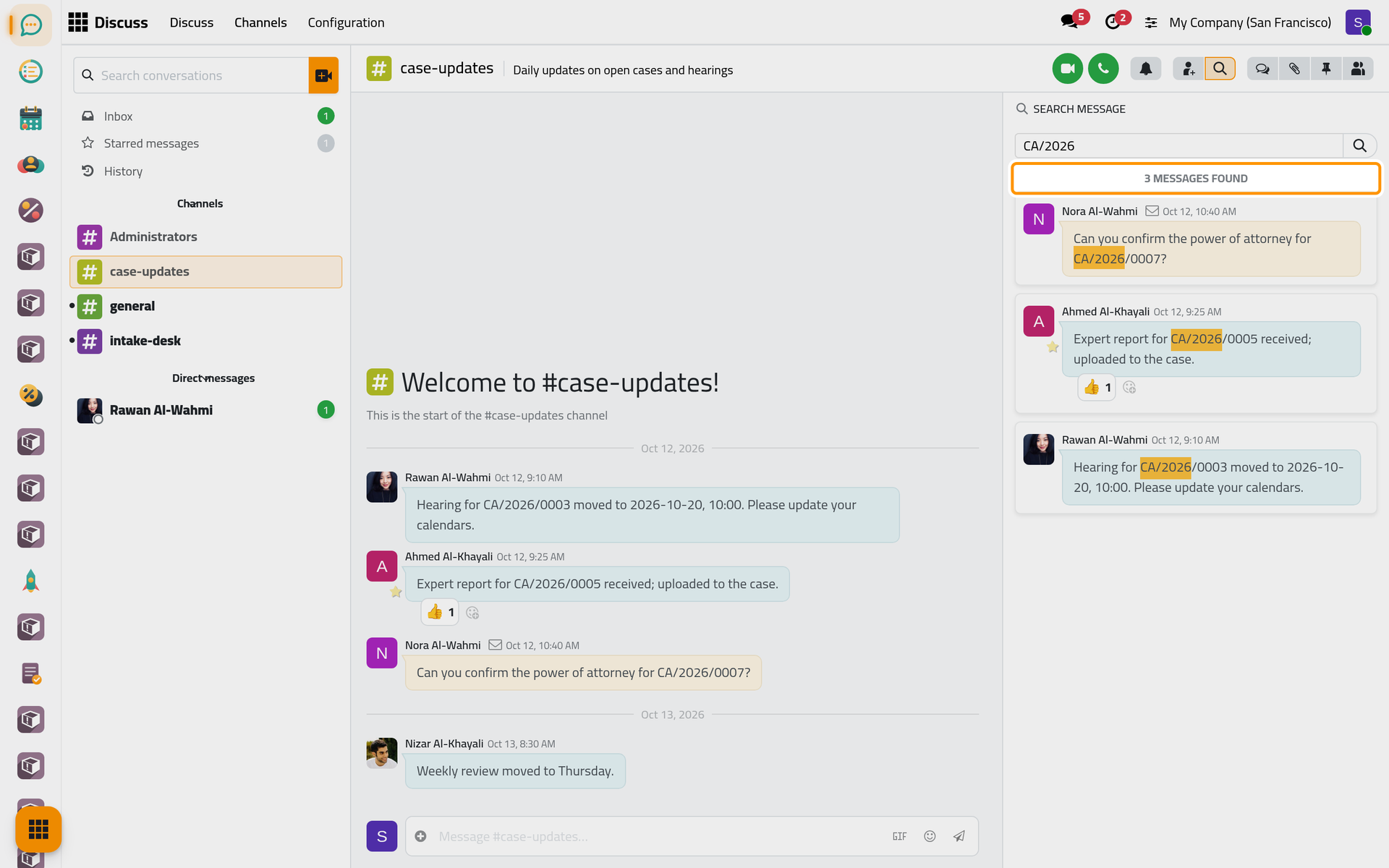
- Point at a result and click Jump to see the message in its place in the conversation. A second click on the magnifier, now named Close Search, closes the panel.
The Inbox, Starred messages and History have the same magnifier at their top right.
Pin a message for everyone
- Point at the message, here Nizar's "Weekly review moved to Thursday.", and click Expand, the three dots at the end of the bar that appears.
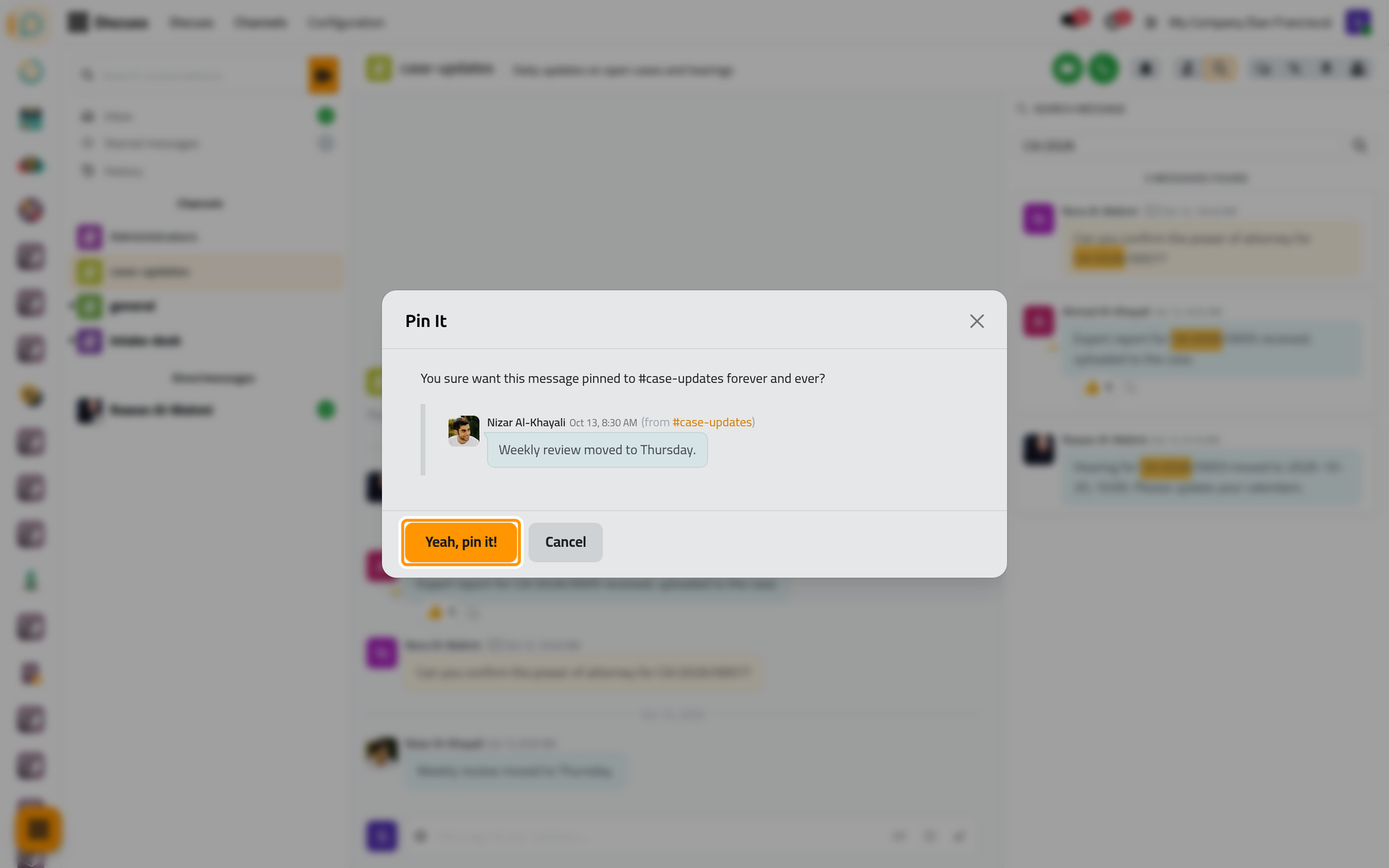
- Choose Pin. A window shows the message and asks for a confirmation; click Yeah, pin it!
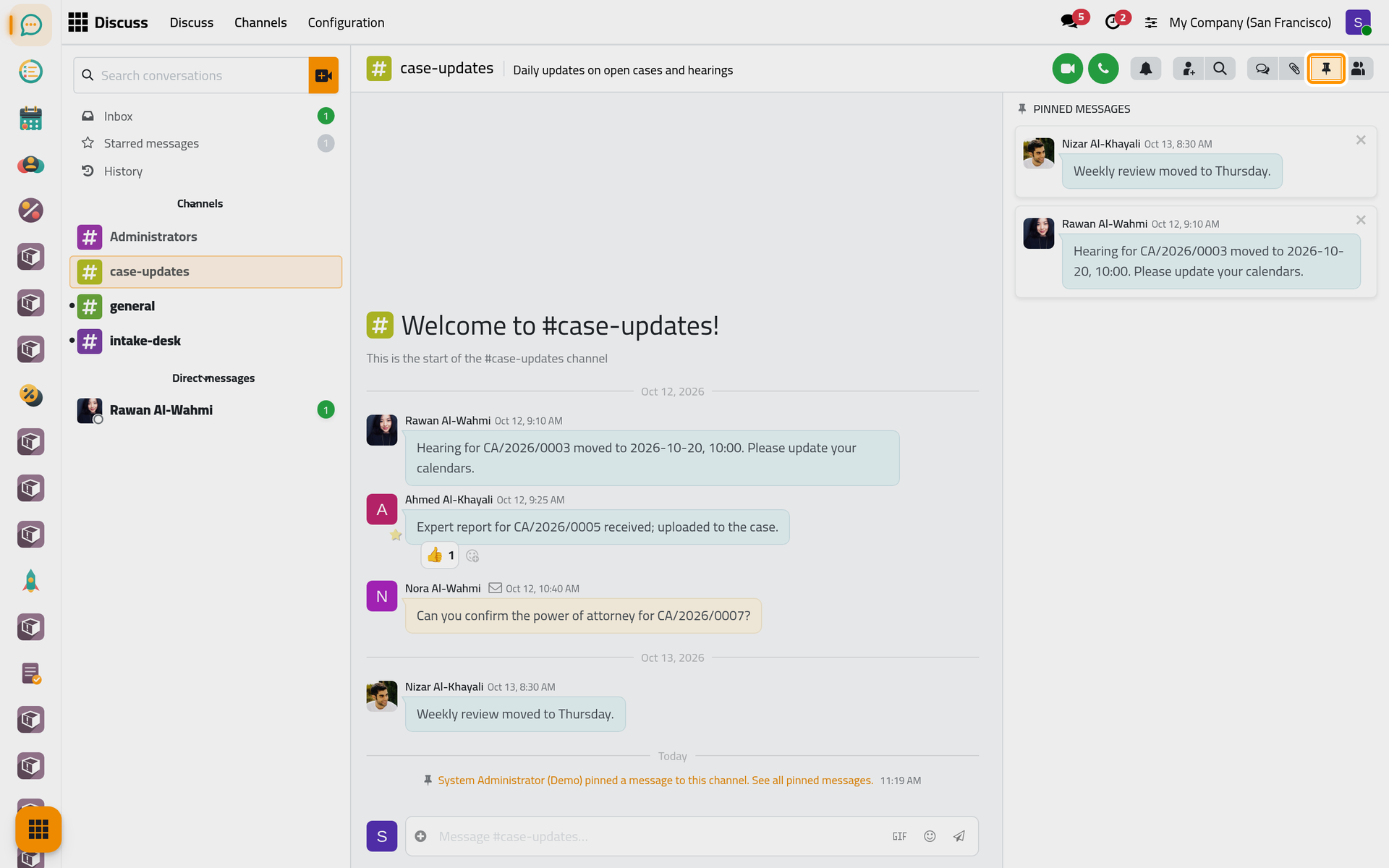
- A line in the channel tells everyone that you pinned a message. Click Pinned Messages in the header: the panel lists the pinned messages, the latest pinned first, each with Jump and a cross to unpin it.
Star a message for yourself
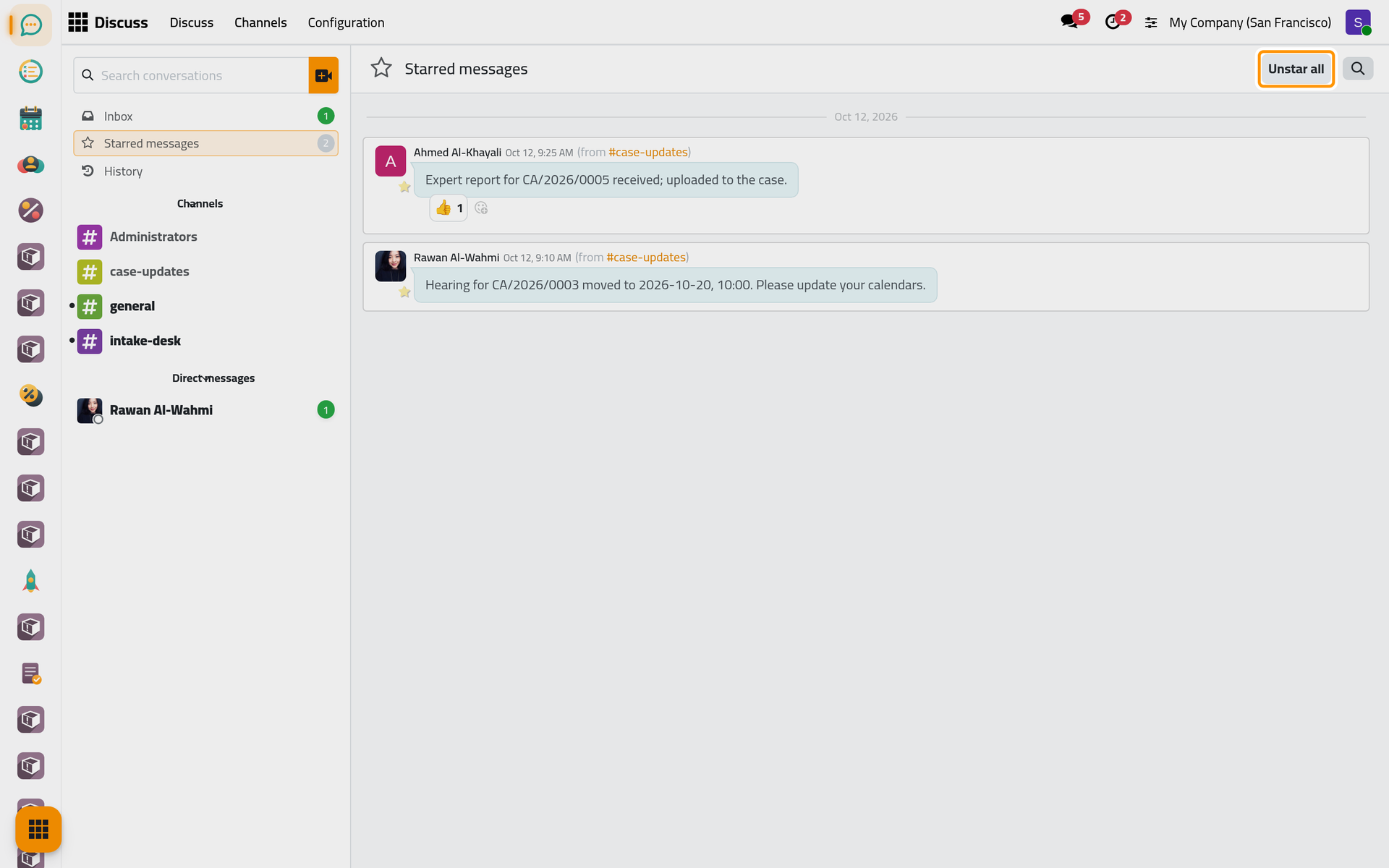
- Point at a message and click the star Add Star. The counter of Starred messages in the sidebar goes up by one.
- Click Starred messages: every message you starred, from any channel or chat, each with the conversation it comes from. Click the star of a message again (Remove Star) to take it out, or Unstar all to empty the list.
Answer faster with canned responses
A canned response is a ready text called by a short word, the shortcut.
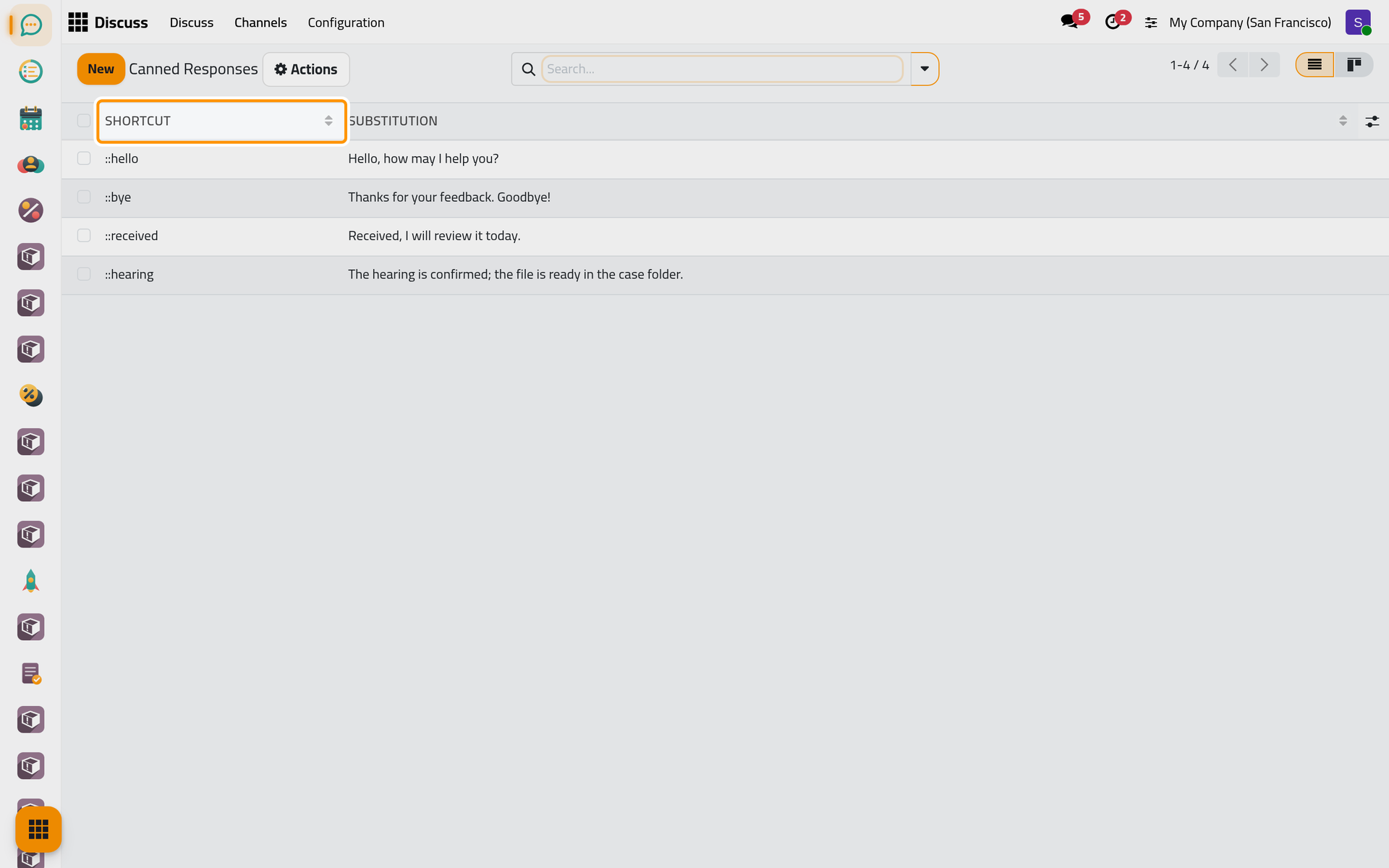
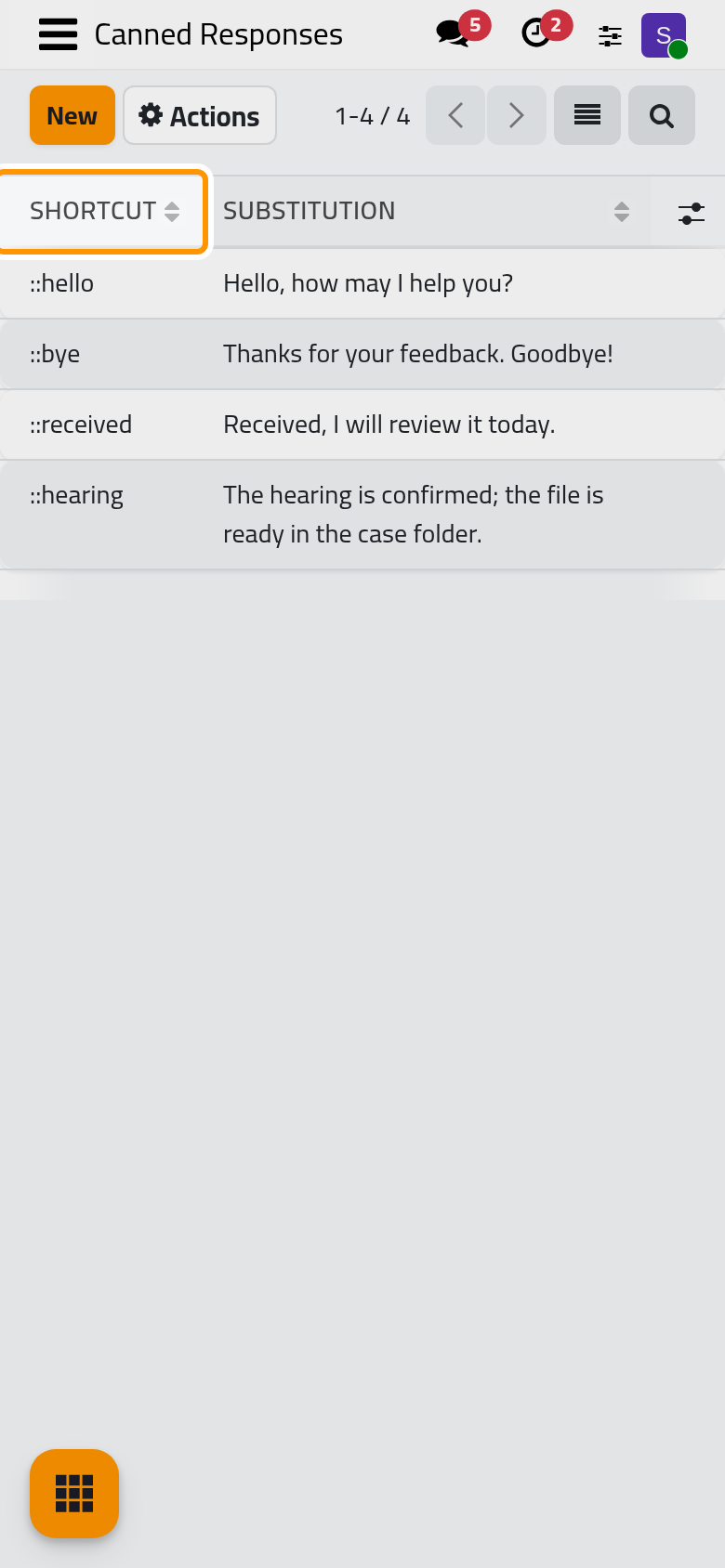
- Open . Each line has a Shortcut and its Substitution, the text that replaces it. Click New, type the shortcut without the two colons and the text, then save the line.
- In a conversation, type :: followed by the start of the shortcut, here ::hea. The matching canned responses are listed with their text.
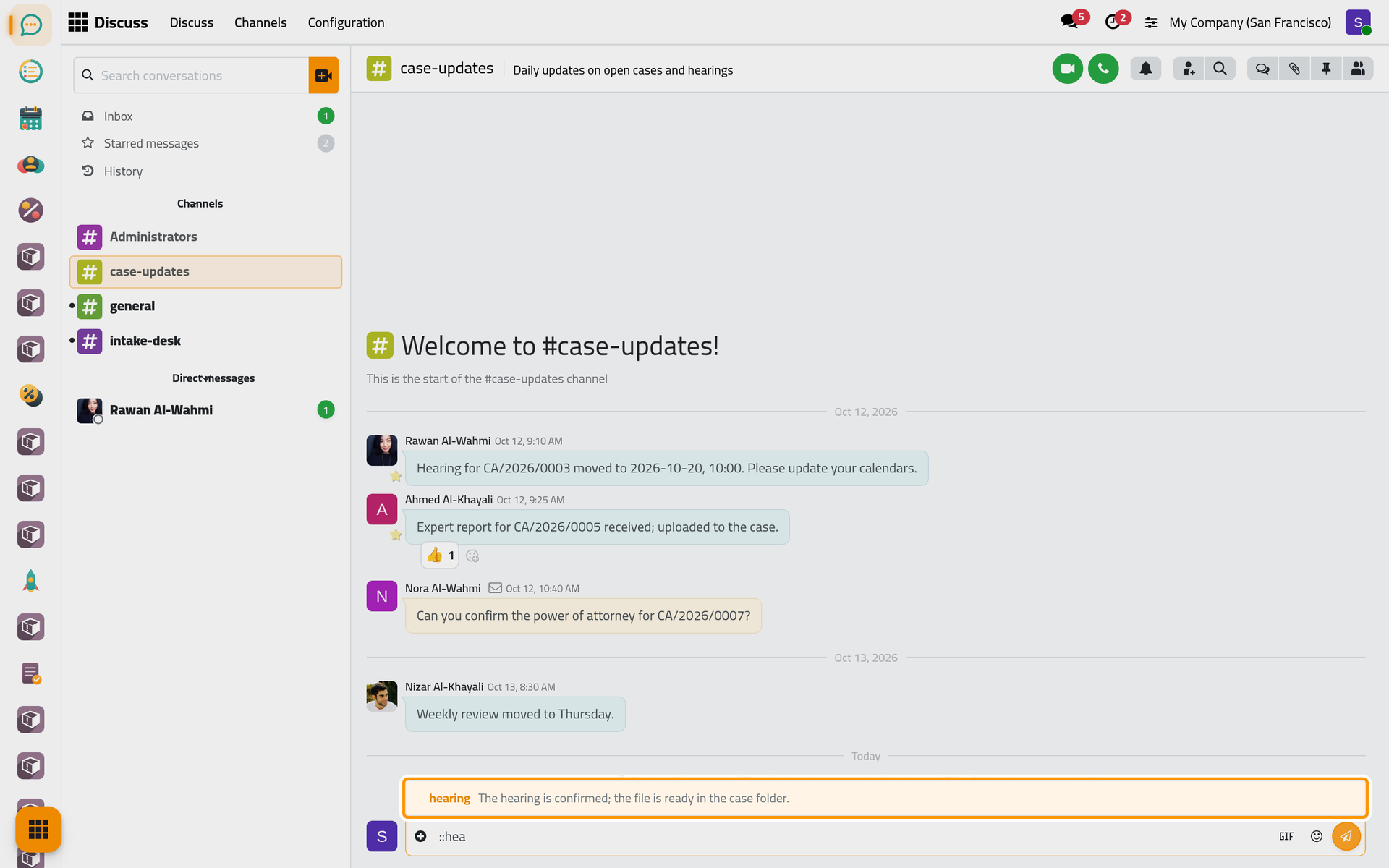
- Click the one you want: its text replaces the shortcut in the message box, where you can still change it before you click Send. More Actions (the plus at the start of the box) offers the same list through Insert a Canned response.
A canned response you create is yours. To share it, add groups in Authorized Groups, a column you show from the list's optional columns: every user of these groups can then use it, and only you, or an administrator, can change it.
FAQ
Who sees a pinned message?
Every member of the channel, in the Pinned Messages panel. Any member can unpin it with the cross in the panel, after a confirmation.
Does a star tell the author anything?
No. Stars are personal: nobody else sees them or is notified.
The search finds nothing.
The search covers the open conversation only, and the words of the messages. Check that you are in the right channel, and try a shorter word or part of a reference.
Can I change or remove a canned response someone shared with me?
No. You can use it; only its author, or an administrator, can change it.
Was this page helpful?
Thank you for your feedback.