Create a channel and invite people
On this page
- Before you start
- Create the channel
- Invite people
- Decide who may see the channel
- Join or leave a channel
- Mention a whole team with a role
- FAQ
- How do I rename a channel or change its description?
- How do I close a channel nobody uses any more?
- What is the difference between a channel and a group chat?
A channel gathers the people of a team or a topic, such as the appeals of the litigation team, in one conversation that newcomers can read from the start. Invite the colleagues who belong in it so it appears in their sidebar right away.
Before you start
- Every internal user can create a channel and invite colleagues into a channel they belong to. Deleting a channel, and creating or changing roles, need the Administrator role on the user's Access Rights tab.
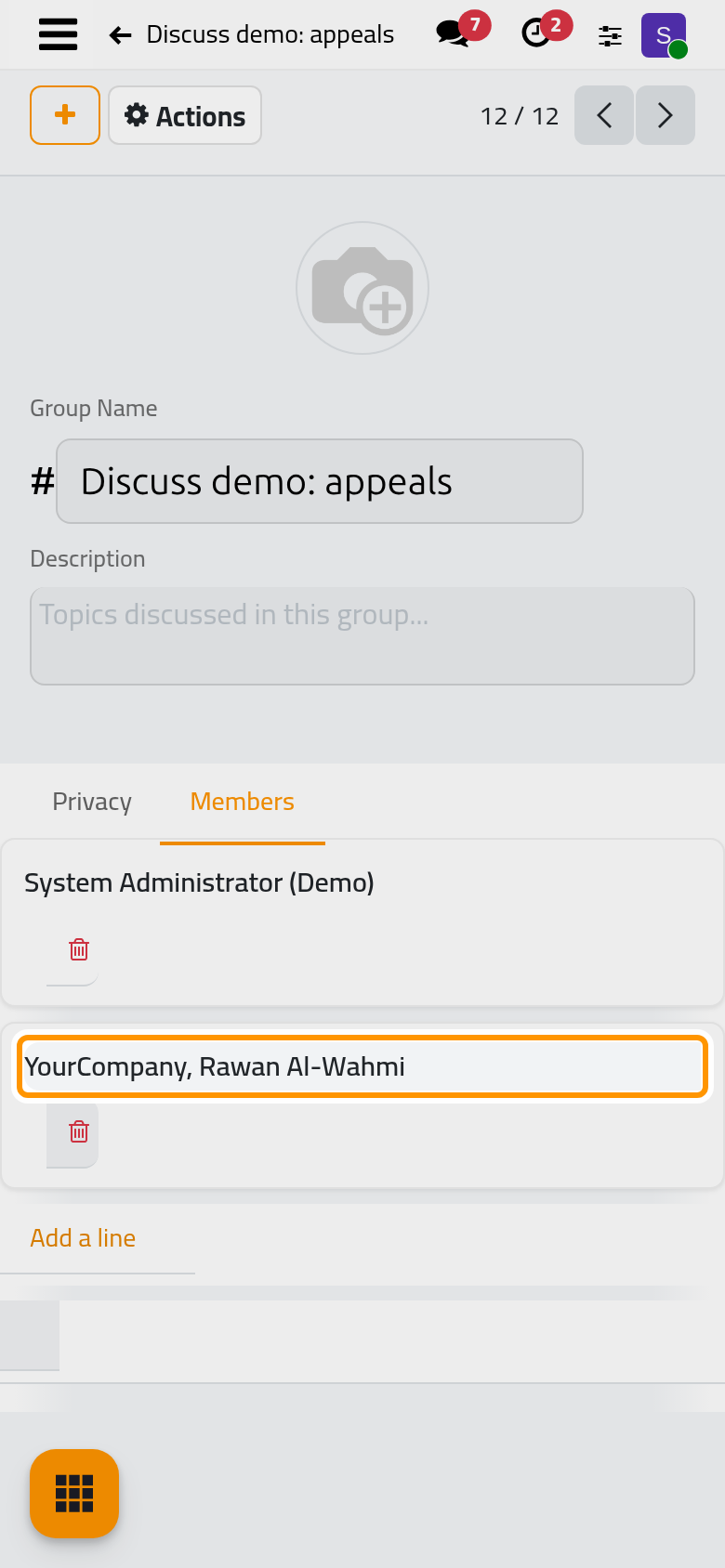
- On a phone, a tap on the name at the top of an open conversation opens a menu with Invite People and Members.
Create the channel
- Open and click Search conversations at the top of the sidebar, or press Ctrl+K.
- Type the name of the channel, for example "Discuss demo: appeals". The list shows any conversation that already matches, then Create Channel and Create Chat.
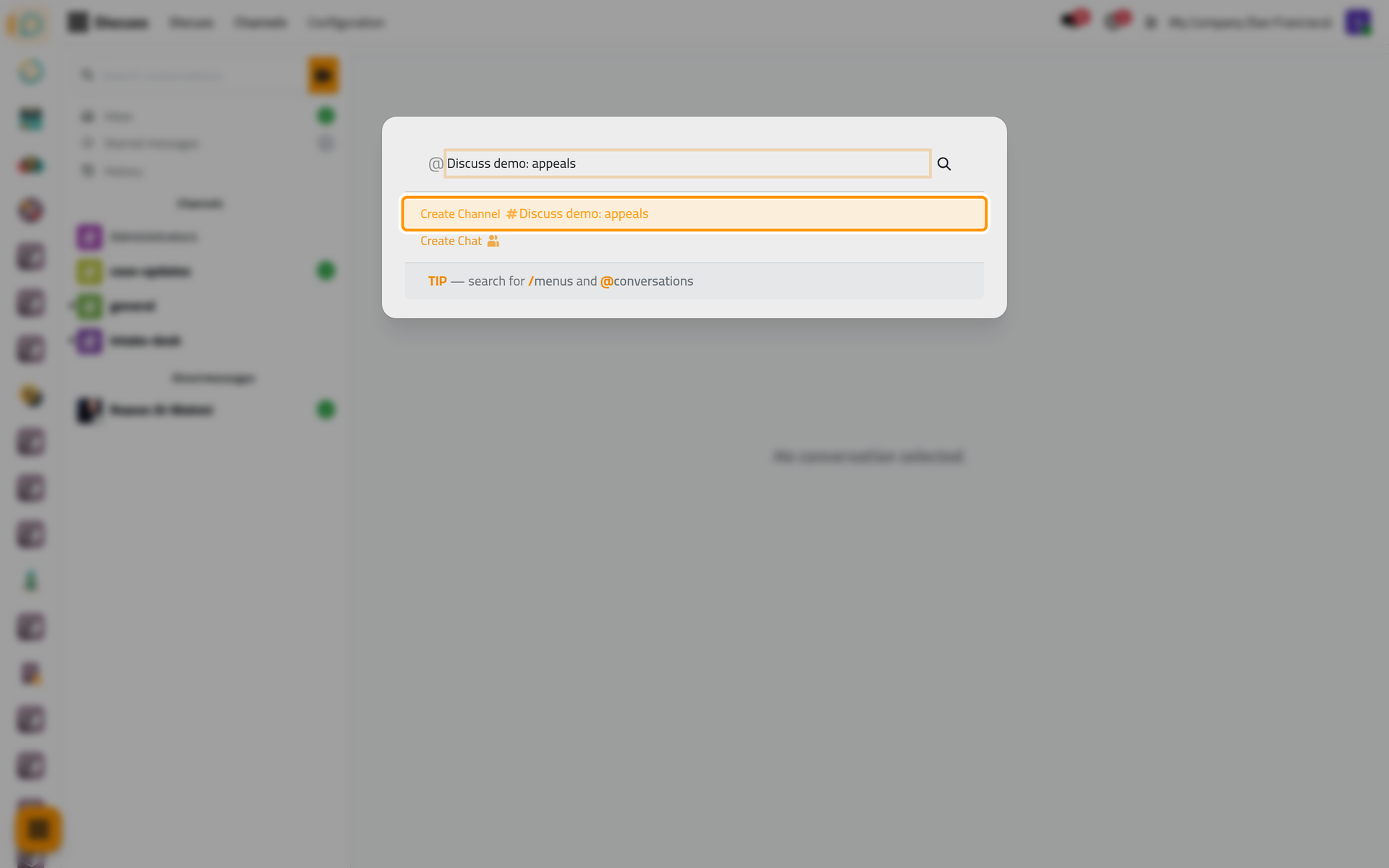
- Click Create Channel. The channel opens with you as its first member and takes its place under Channels in the sidebar. Add a description, next to its name, says what it is for.
Invite people
- In the header of the channel, click Invite People.
- Type part of a name in Search people to invite and tick the colleague. Tick several people to invite them together.
- Click Invite. The colleague becomes a member.
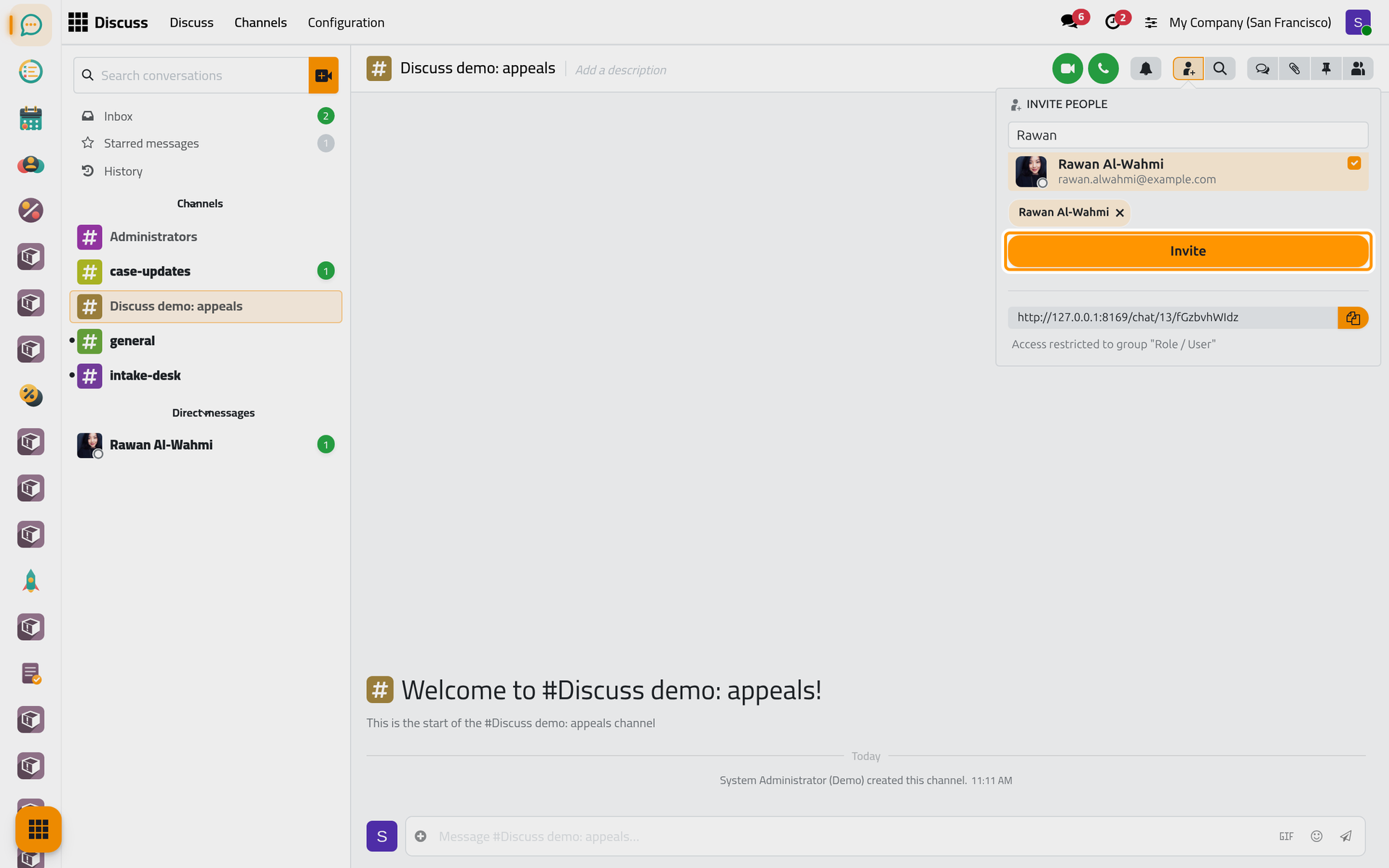
Under the list, the invitation link can be copied and sent; the line below it names the group the channel is restricted to.
Decide who may see the channel
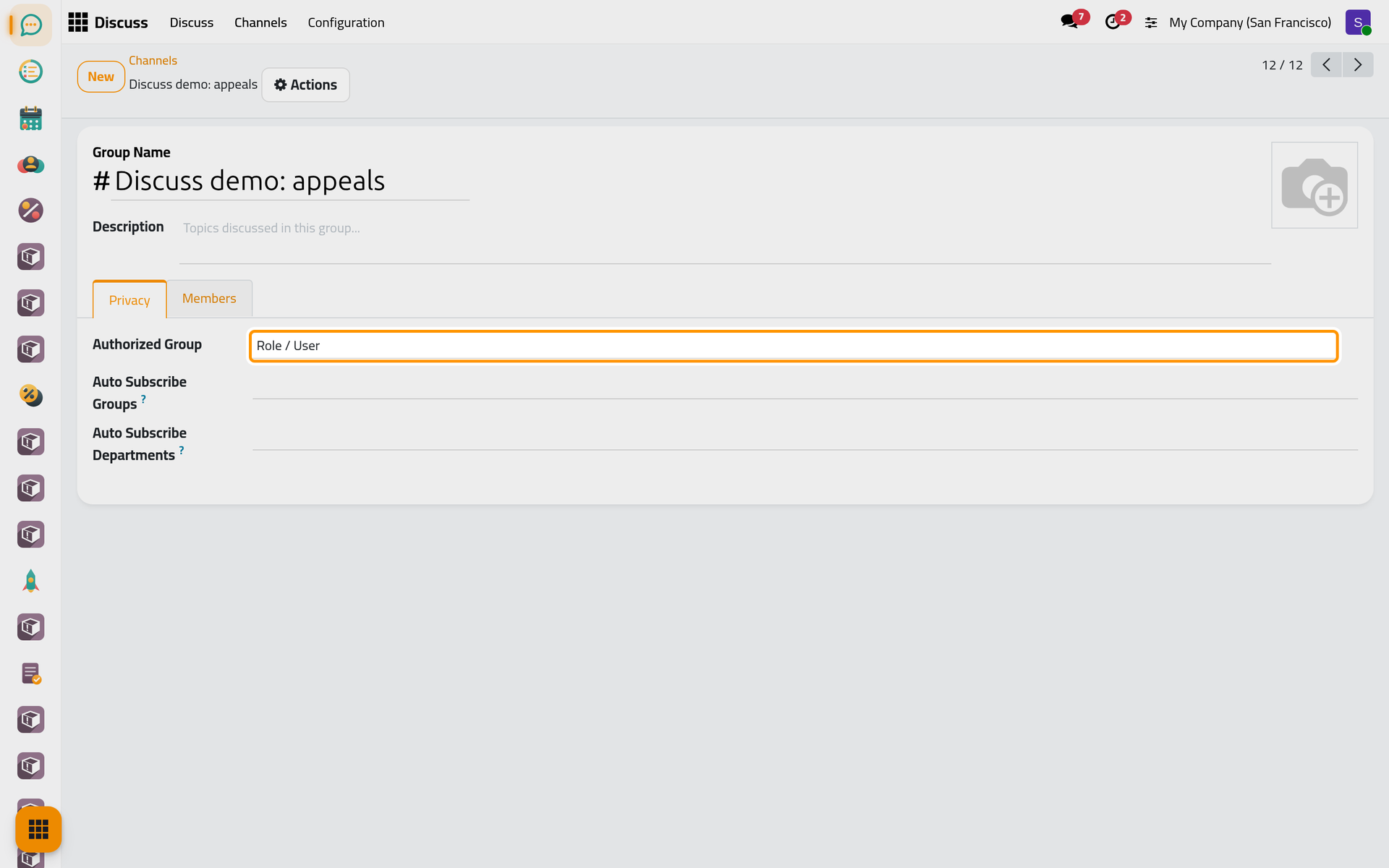
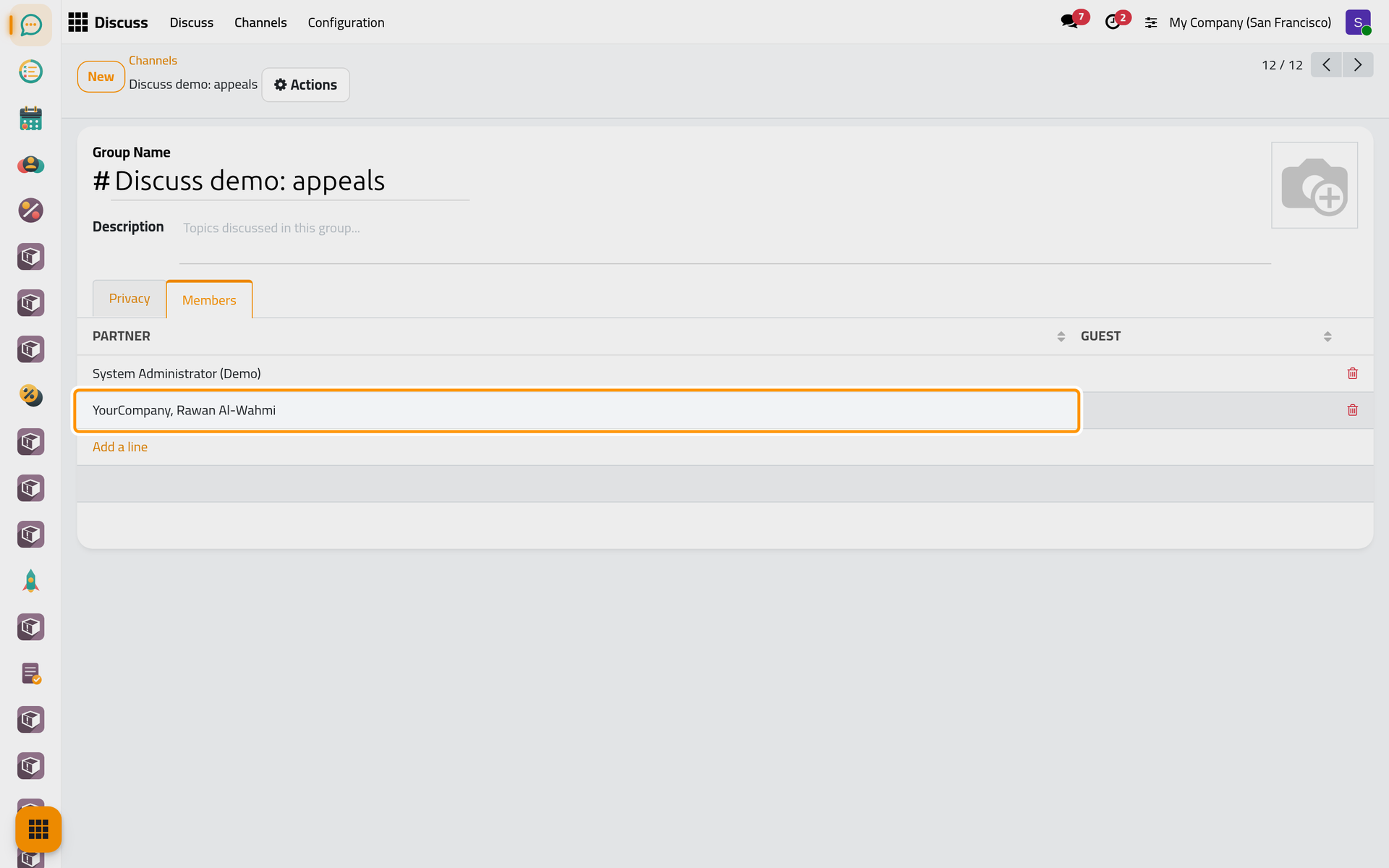
- Open and click the card of the channel. Its form opens; the name field is labelled Group Name.
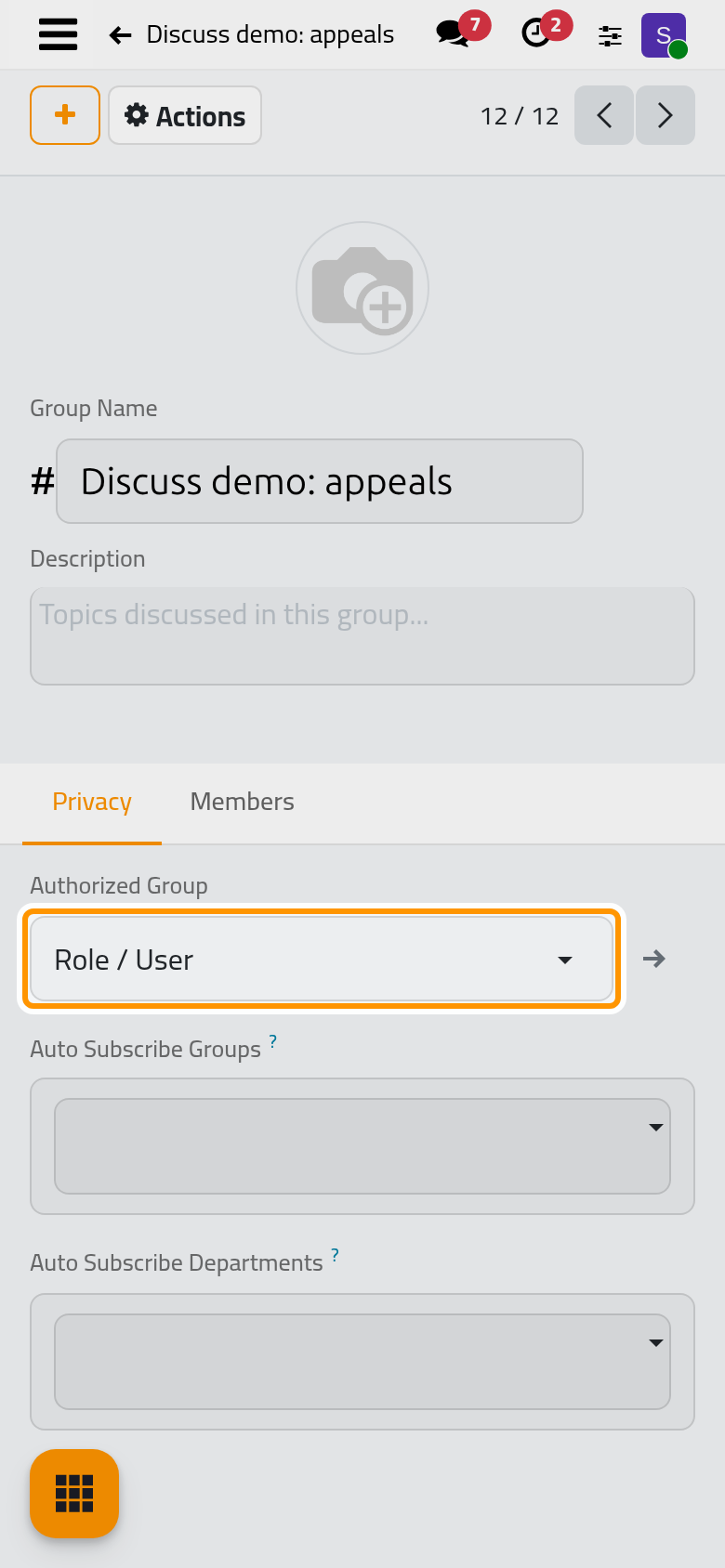
- On the Privacy tab:
- Authorized Group: only the users of this group see the channel and may join it. A new channel takes Role / User, every internal user; choose a narrower group to keep the channel to its users.
- Auto Subscribe Groups: every user of these groups becomes a member, now and whenever someone joins the group later.
- Auto Subscribe Departments: adds the employees of these departments when you save, and every employee created in them afterwards.
- The Members tab lists the members. Add a line adds one, the bin removes one. Click Save manually to keep the changes.
Join or leave a channel
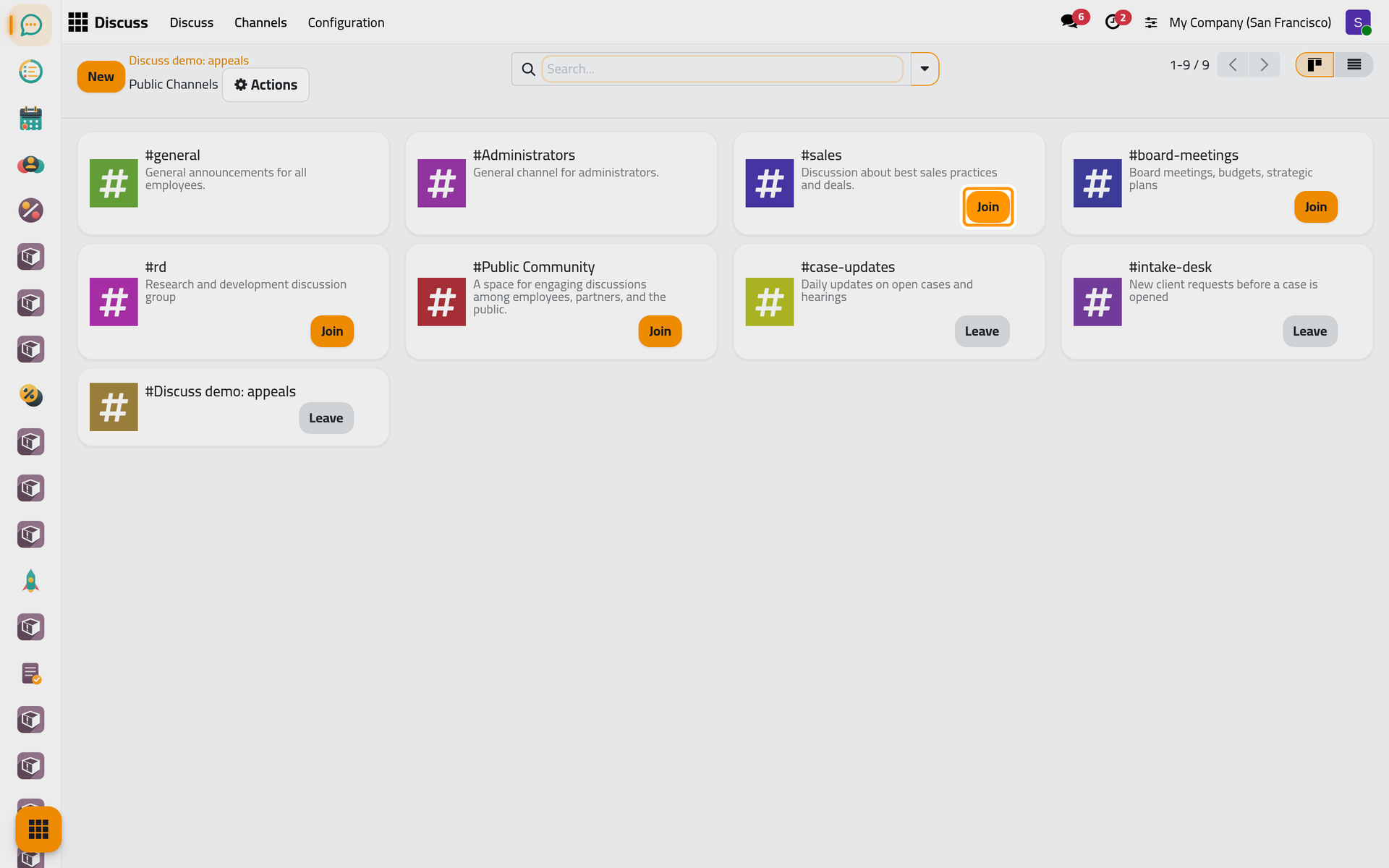
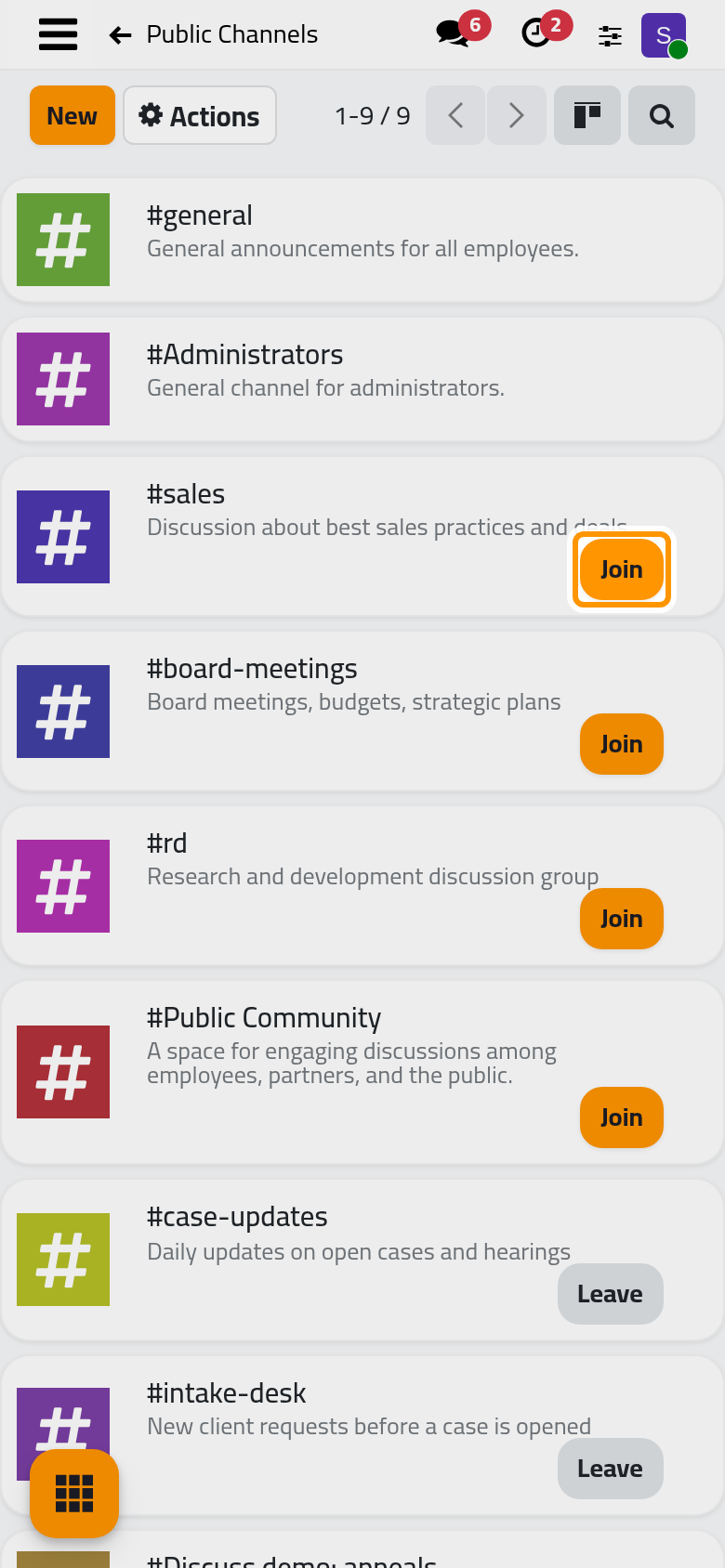
Point at Channels in the sidebar and click the cog View or join channels. Each channel you may see shows Join, or Leave when you are already a member. A channel with Auto Subscribe Groups shows neither: its members come from the groups, so mute it instead if it is too busy (Choose your notifications and mute a channel). shows the same cards, and also lists the threads opened inside channels.
Mention a whole team with a role
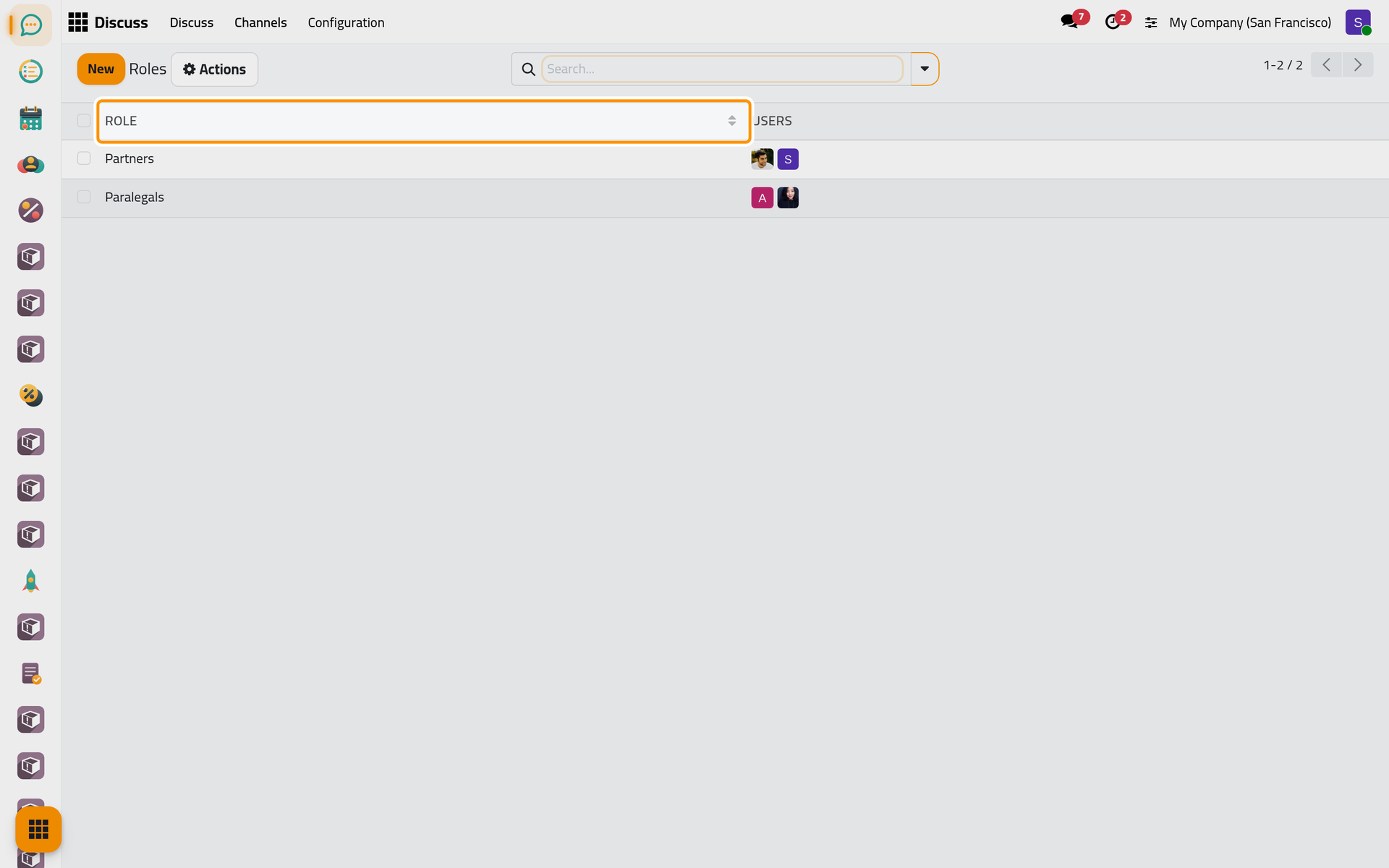
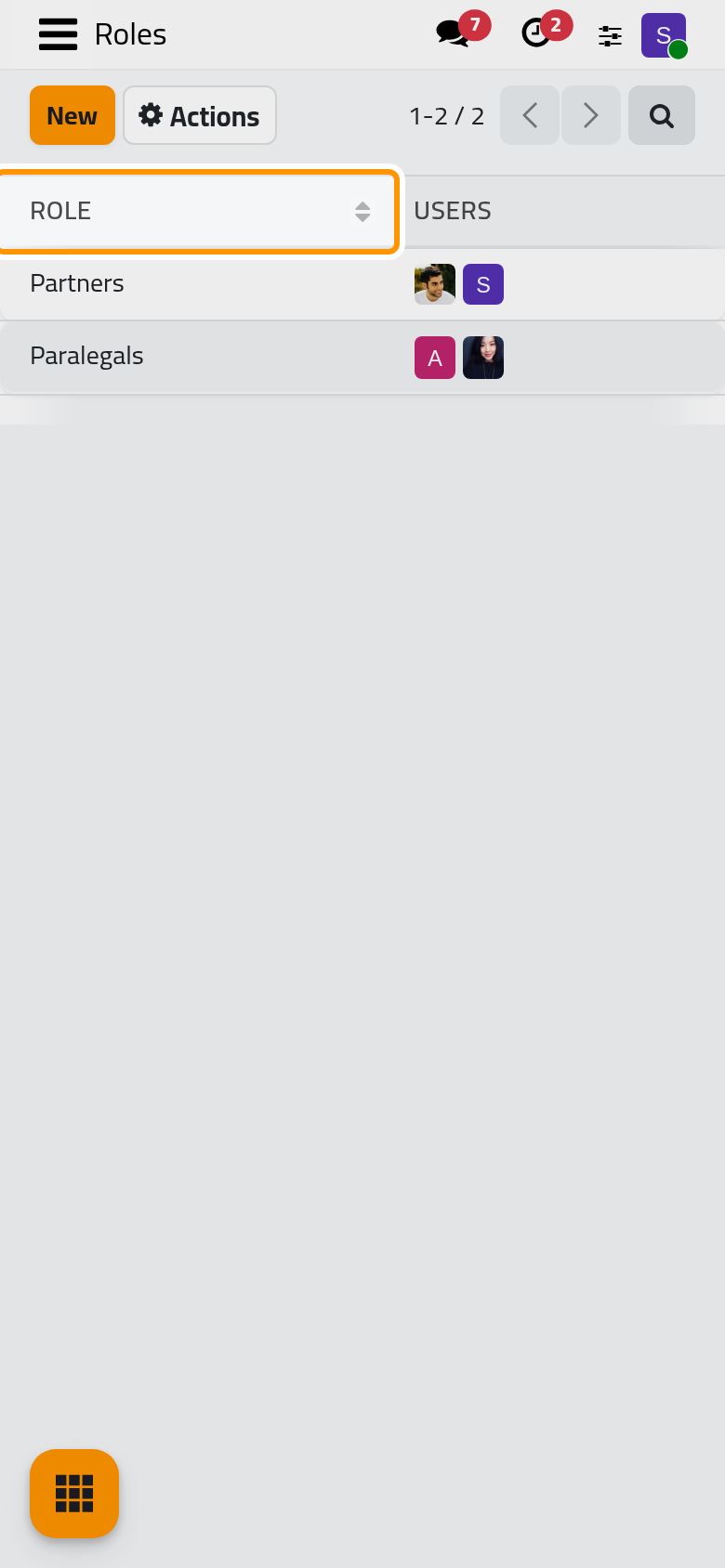
- Open . Each line is a Role with its Users, here Partners and Paralegals. Click New to add a role and pick its users.
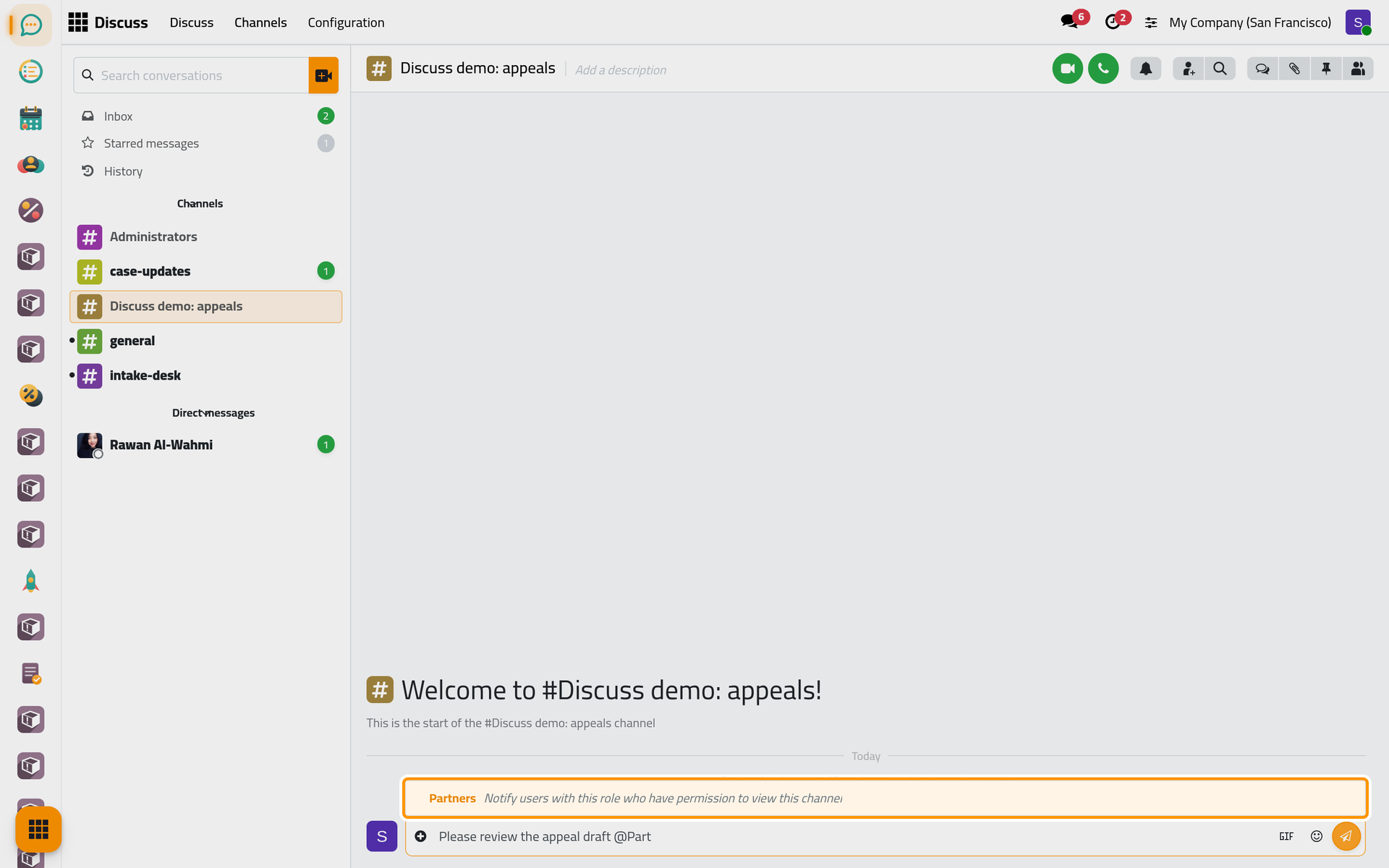
- In a channel, type @ and the start of the role's name. The role is offered with the line "Notify users with this role who have permission to view this channel". Pick it and send: every user of the role who may see the channel is notified, as if each one had been mentioned.
FAQ
How do I rename a channel or change its description?
Click the name or the description in the header of the channel and type over it.
How do I close a channel nobody uses any more?
Open its form from and choose Archive in the Actions menu: the channel leaves the channel lists and keeps its messages. Delete is offered to administrators only.
What is the difference between a channel and a group chat?
Everyone allowed to see a channel can find and join it; a group chat, started from Create Chat with several people, stays private to them. How Discuss reaches you compares the kinds of conversation.
Was this page helpful?
Thank you for your feedback.