Talk with your team
On this page
Discuss is the internal chat of the firm. Colleagues talk in channels, one per team or topic, and in direct chats between two people, instead of long chains of e-mails. This walk-through follows one morning of the demo administrator: the messages waiting for him, an answer in the case-updates channel, a reaction, a direct chat with Rawan Al-Wahmi and a message kept with a star.
Before you start
- Every internal user has Discuss on the home screen; no access right needs to be added.
- Inbox and History appear in the sidebar only when your Notification preference is In Jaah. With By Emails, the same messages reach your mailbox instead. The choice is made in Set your preferences.
- In the demo, you belong to the channels case-updates and intake-desk, Nora Al-Wahmi asked you a question in case-updates, Rawan Al-Wahmi wrote to you about case CA/2026/0003 and in a direct chat.
- On a phone, Discuss opens on the list of conversations, with the tabs Notifications, Chats, Channels and Inbox at the bottom; a tap opens a conversation full screen. The pictures of this page show the computer screen.
Step 1: open Discuss
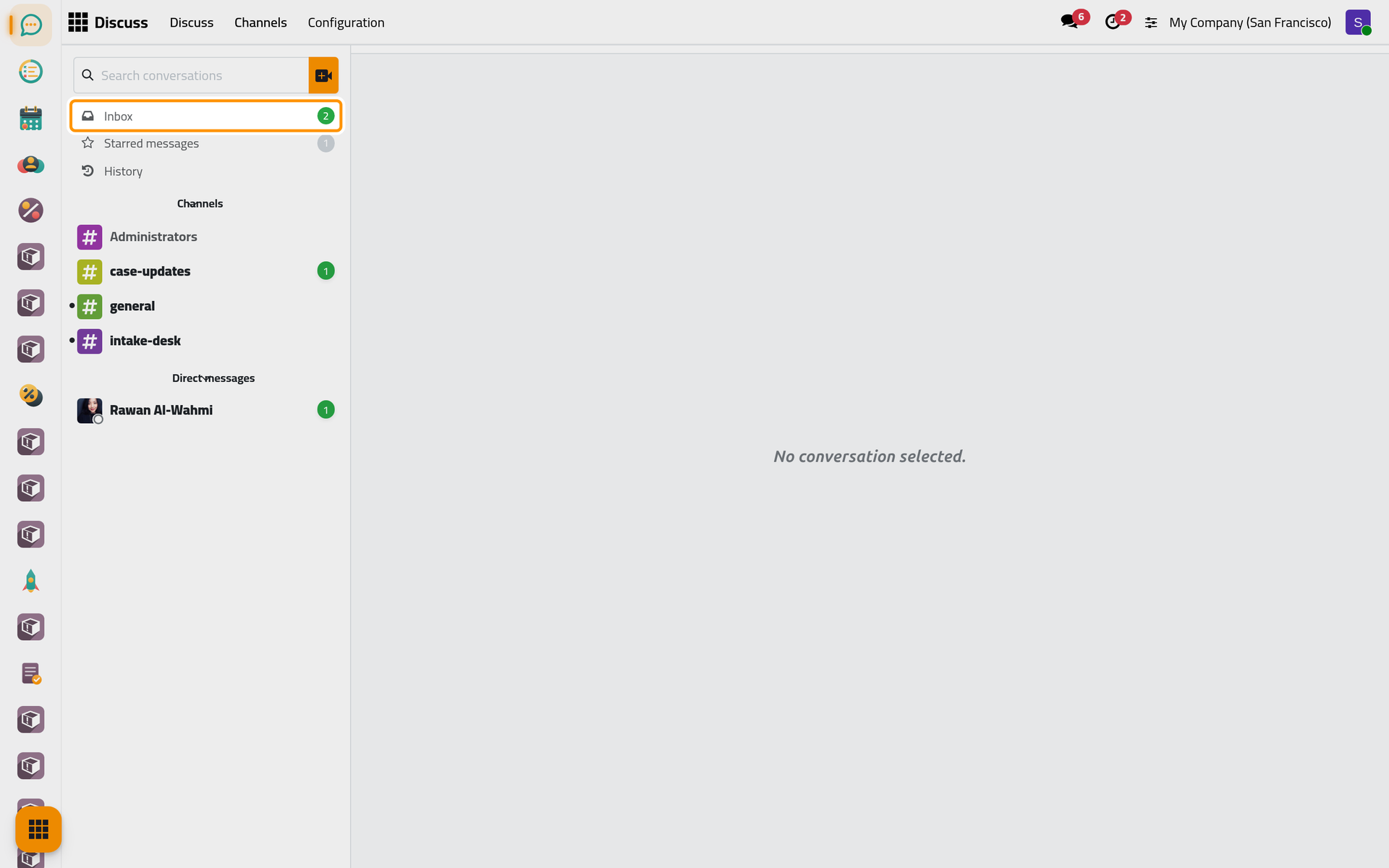
Open . The sidebar lists Inbox, Starred messages and History, then your Channels and your Direct messages. A green counter tells how many messages wait for you, and a dot before a channel's name means it holds messages you have not read yet.
Step 2: clear your Inbox
- Click Inbox. It gathers what is addressed to you: the messages that mention you in a channel, and the messages sent to you on a record, or on a record you follow, here one about a case. The record's name is a link that opens it.
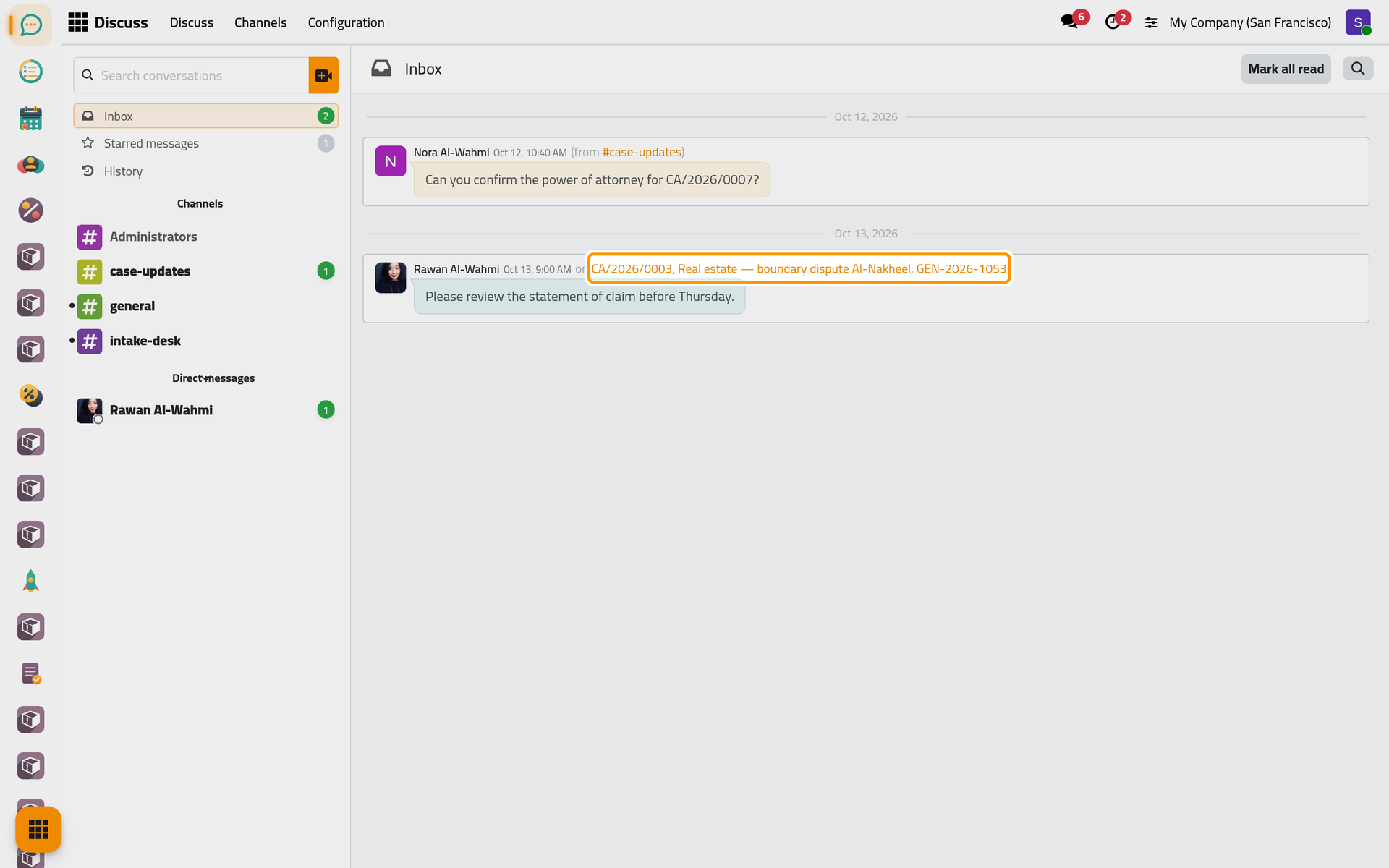
- Point at the message about the case and click the check mark Mark as Read. The message leaves the Inbox and stays in History. Mark all read, at the top, does the same for every message at once.
The chatter of the case itself, where the message was written, is explained in Follow a record with the chatter.
Step 3: answer in a channel
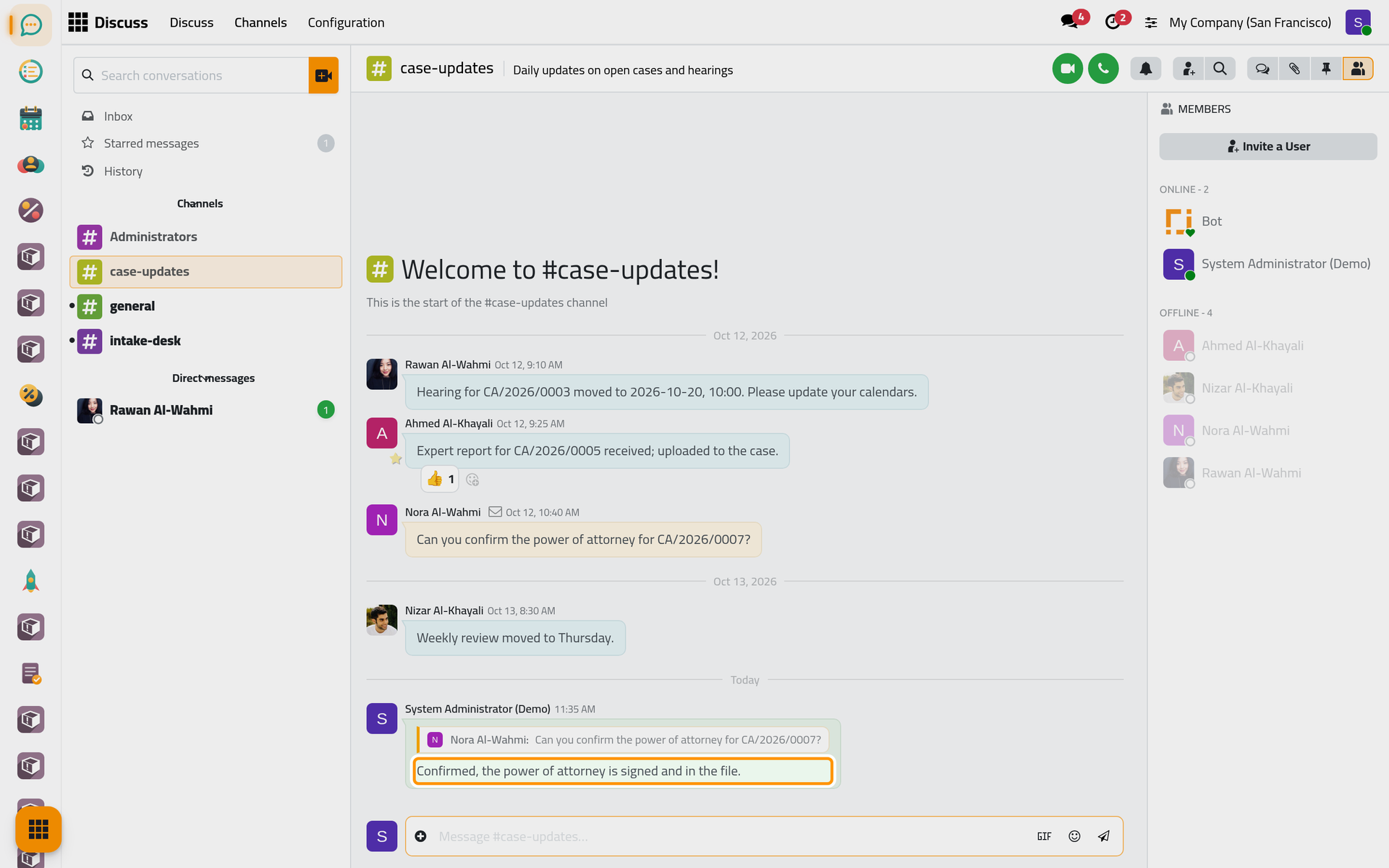
- Under Channels, click case-updates. The messages run from the oldest at the top to the newest at the bottom, and the one that mentions you stands out in colour. Opening the channel marks its messages as read and takes the mention out of your Inbox.
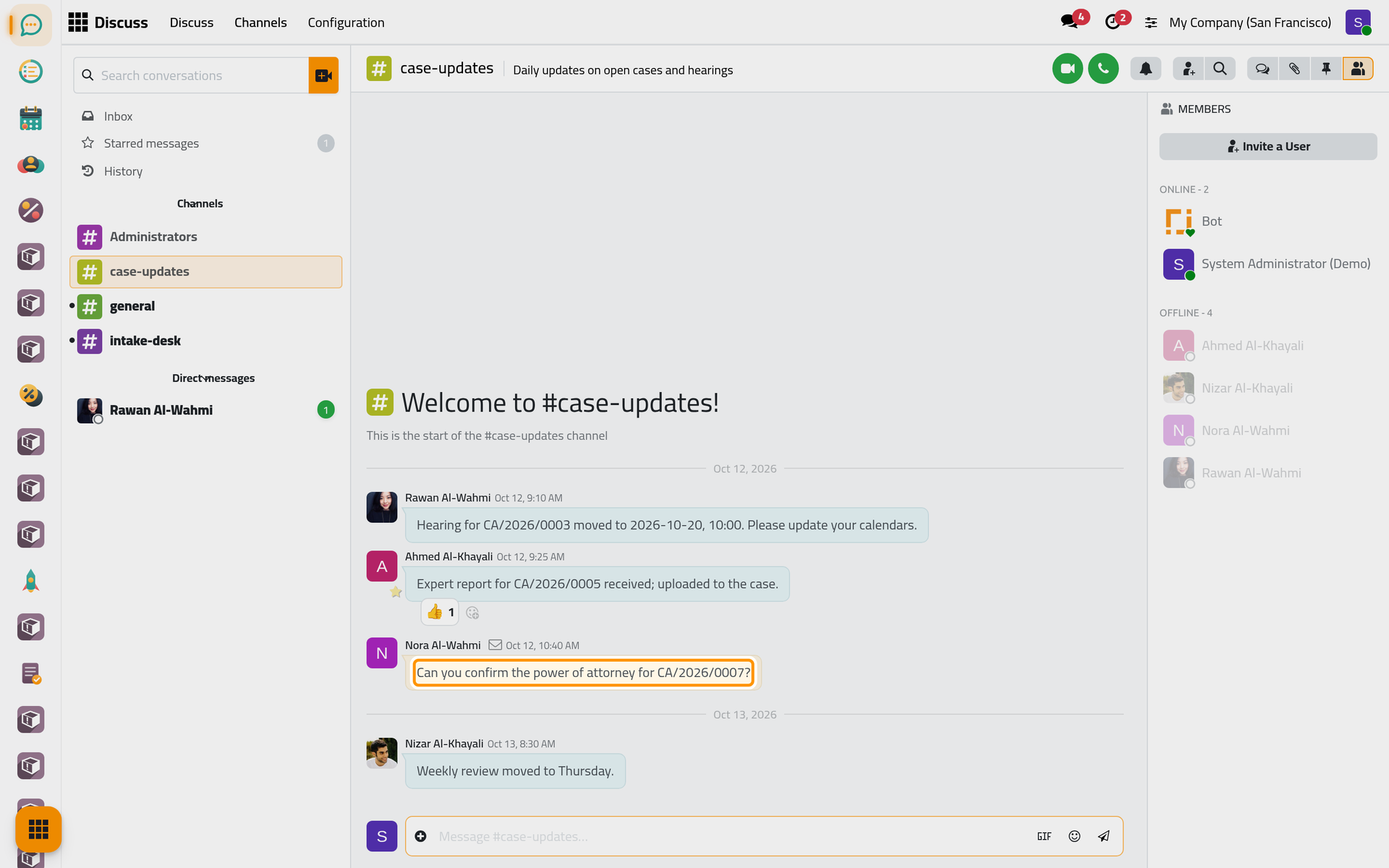
- Point at Nora's message and click Reply. Replying to Nora Al-Wahmi shows above the message box; the cross next to it cancels the reply.
- Type your answer. To mention a colleague, type @ and the first letters of the name, then pick the name in the list: the colleague is notified, in the Inbox or by e-mail depending on their own preference.
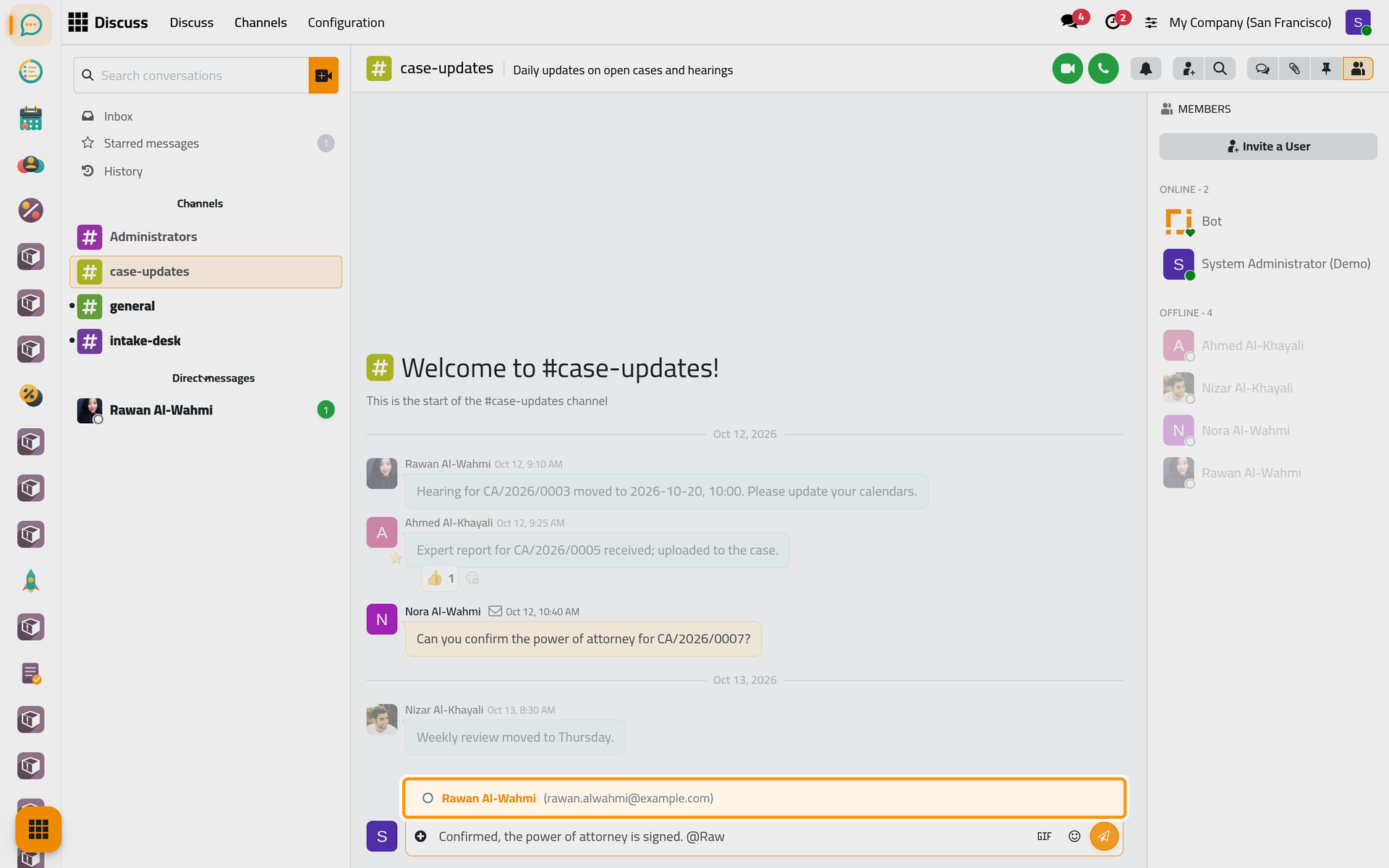
- Click Send, or press Enter. Your answer appears at the bottom, under a quote of Nora's message, so everyone sees what it answers.
Step 4: react to a message
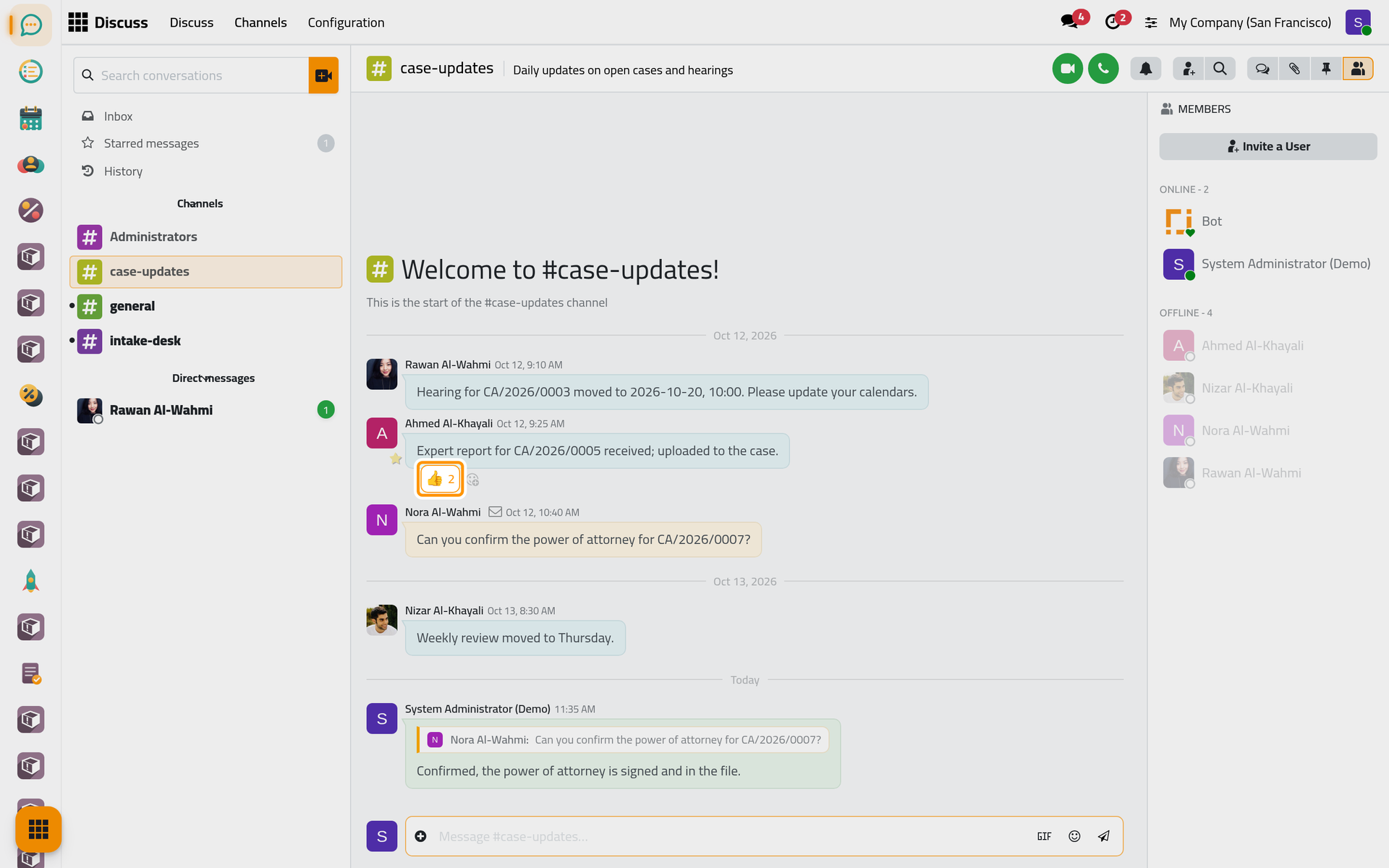
Under Ahmed's message, click the 👍 that Nizar already gave: your reaction is added and the counter goes from 1 to 2. A second click takes it back. For another emoji, point at a message and click Add a Reaction. A reaction acknowledges a message without adding a new one to the channel.
Step 5: answer a direct message
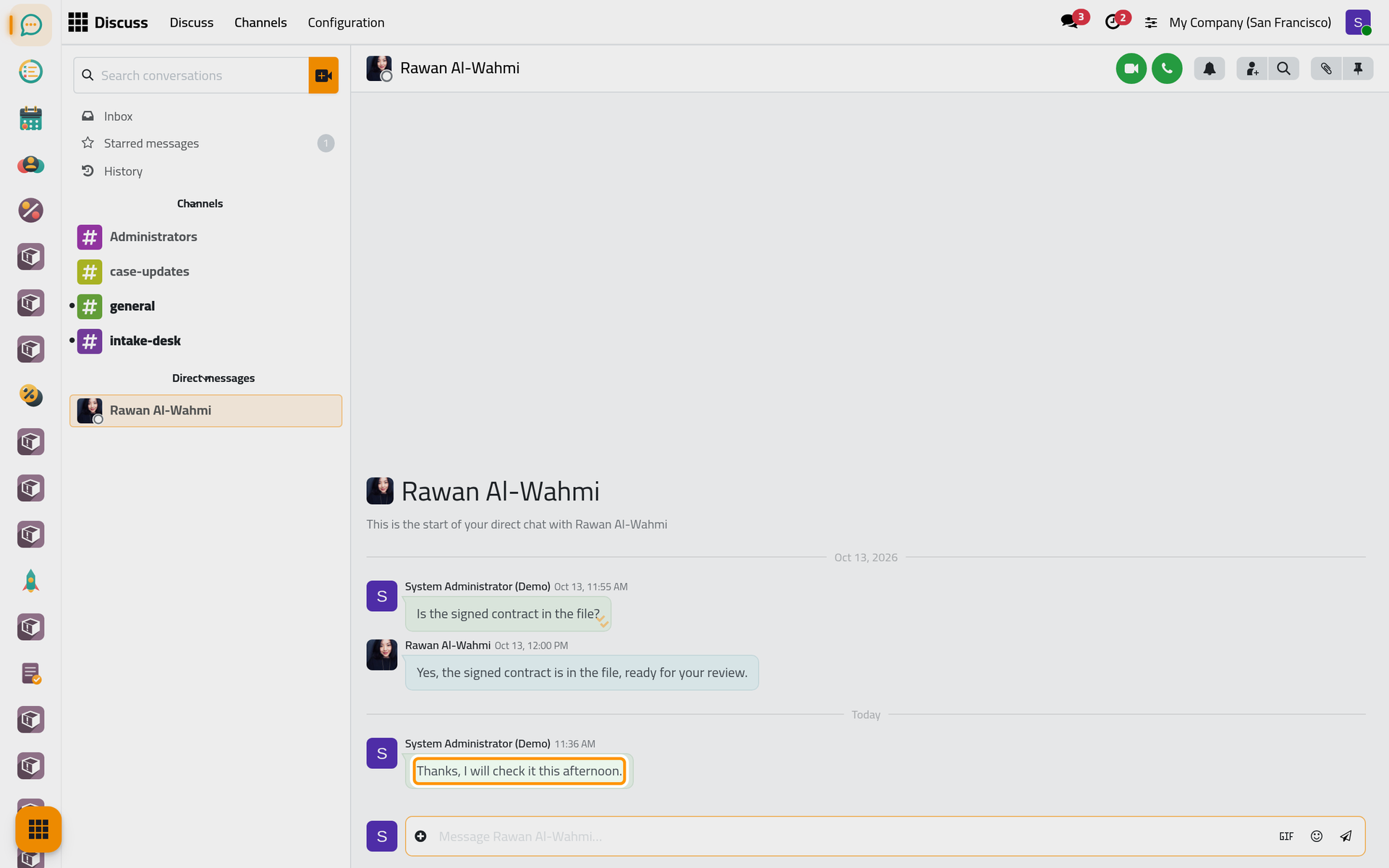
- Under Direct messages, click Rawan Al-Wahmi. A red line marked New shows where the messages you have not read begin.
- Type your answer in the message box and click Send. A direct chat is seen by the two of you only.
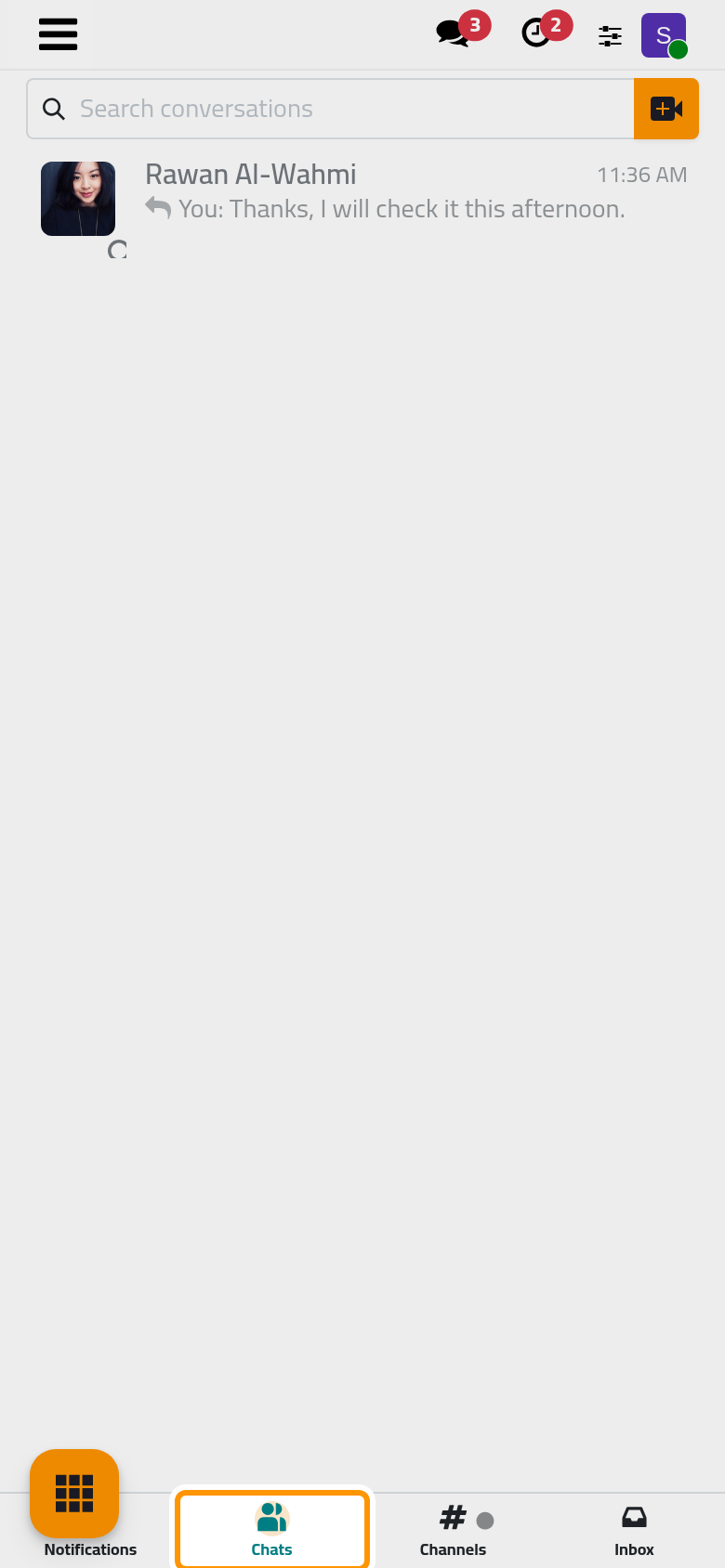
On a phone, the chat sits under the Chats tab, with the last message under the name.
Step 6: find a message again
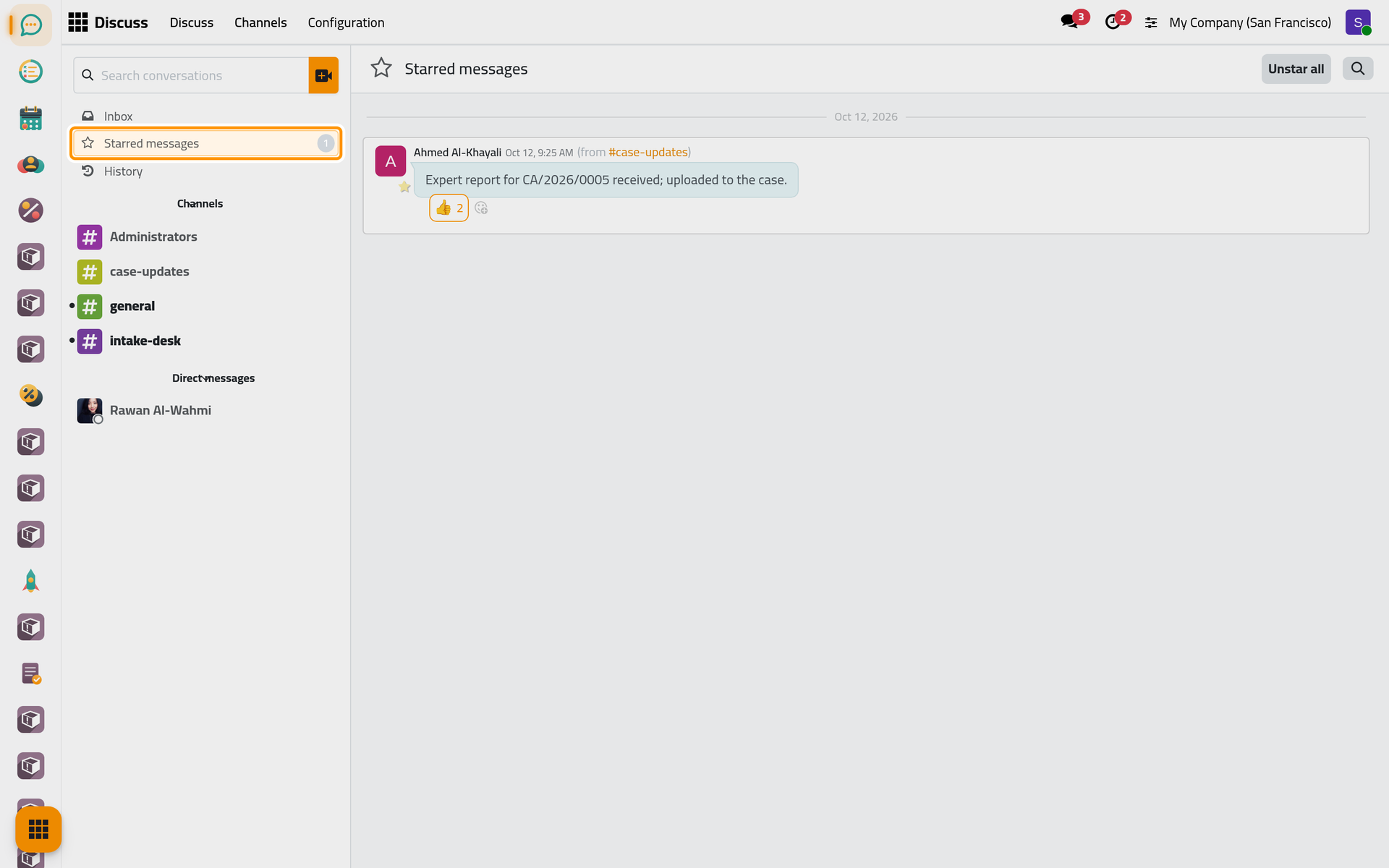
Point at any message and click Add Star to keep it within reach. Click Starred messages in the sidebar: it lists every message you starred, each one with the channel it comes from. Unstar all empties the list; the messages themselves stay in their channels.
What you have done
One morning in Discuss: the Inbox cleared, a question answered in a channel with a reply, a reaction given, a direct chat answered and a starred message found again. The user guide goes further: Create a channel and invite people for your own channels and roles, Choose your notifications and mute a channel to decide what reaches you, and Find, pin and star messages for search, pinned messages and canned responses. How Discuss reaches you explains what lands where.
Was this page helpful?
Thank you for your feedback.