Choose your notifications and mute a channel
On this page
- Before you start
- Choose what a channel notifies you about
- Mute a channel for a while
- Set the default for all your channels
- Turn on browser notifications
- Tell others whether you are available
- FAQ
- I muted a channel: will I miss mentions?
- Why do I receive e-mails for messages I already read in Discuss?
- Does my choice change anything for the other members?
- What does Do Not Disturb change?
Every member of a channel decides how much of it reaches them. By default, a channel notifies you only when someone mentions you; you can ask for every message, for nothing, or silence a channel for a few hours. These choices are yours alone: they change nothing for the other members.
Before you start
- No access right is needed: every user sets their own notifications.
- Whether a notification reaches you in Discuss or in your mailbox depends on your Notification preference, In Jaah or By Emails, chosen in Set your preferences.
- On a phone, open the conversation and tap its name at the top: the menu offers the same Notification Settings.
Choose what a channel notifies you about
- Open and click the channel, here intake-desk.
- Click the bell Notification Settings in the header of the channel.
- Choose one of the four options:
- Use Default: follow your general setting, shown under it (Mentions Only unless you changed it).
- All Messages: every new message of the channel calls for your attention, with a sound.
- Mentions Only: only the messages that mention you.
- Nothing: the channel stays silent; its messages are there when you open it.
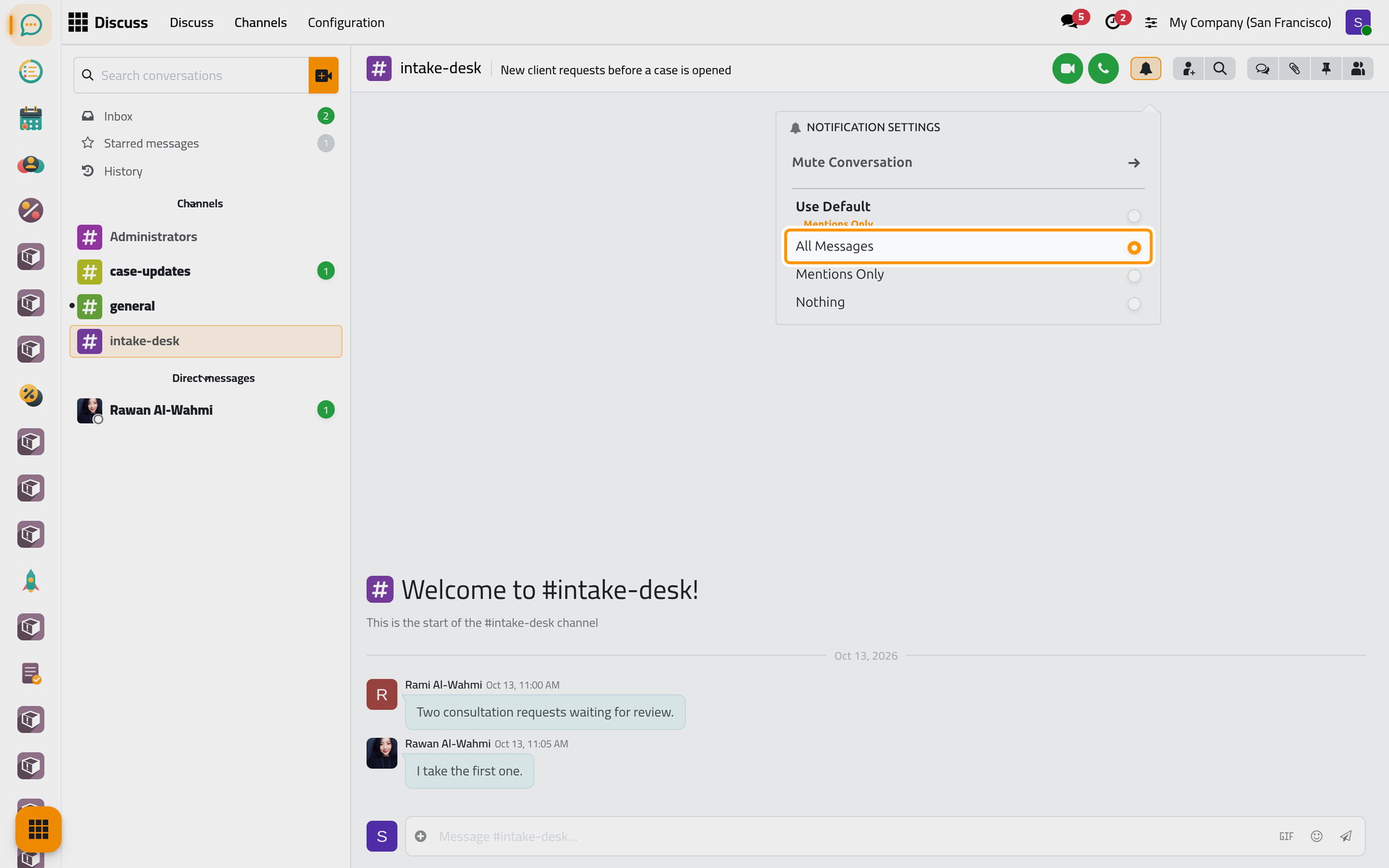
The choice applies at once; click outside the box to close it.
Mute a channel for a while
- In the same box, click Mute Conversation.
- Pick a duration: For 15 minutes, For 1 hour, For 3 hours, For 8 hours, For 24 hours, or Until I turn it back on.
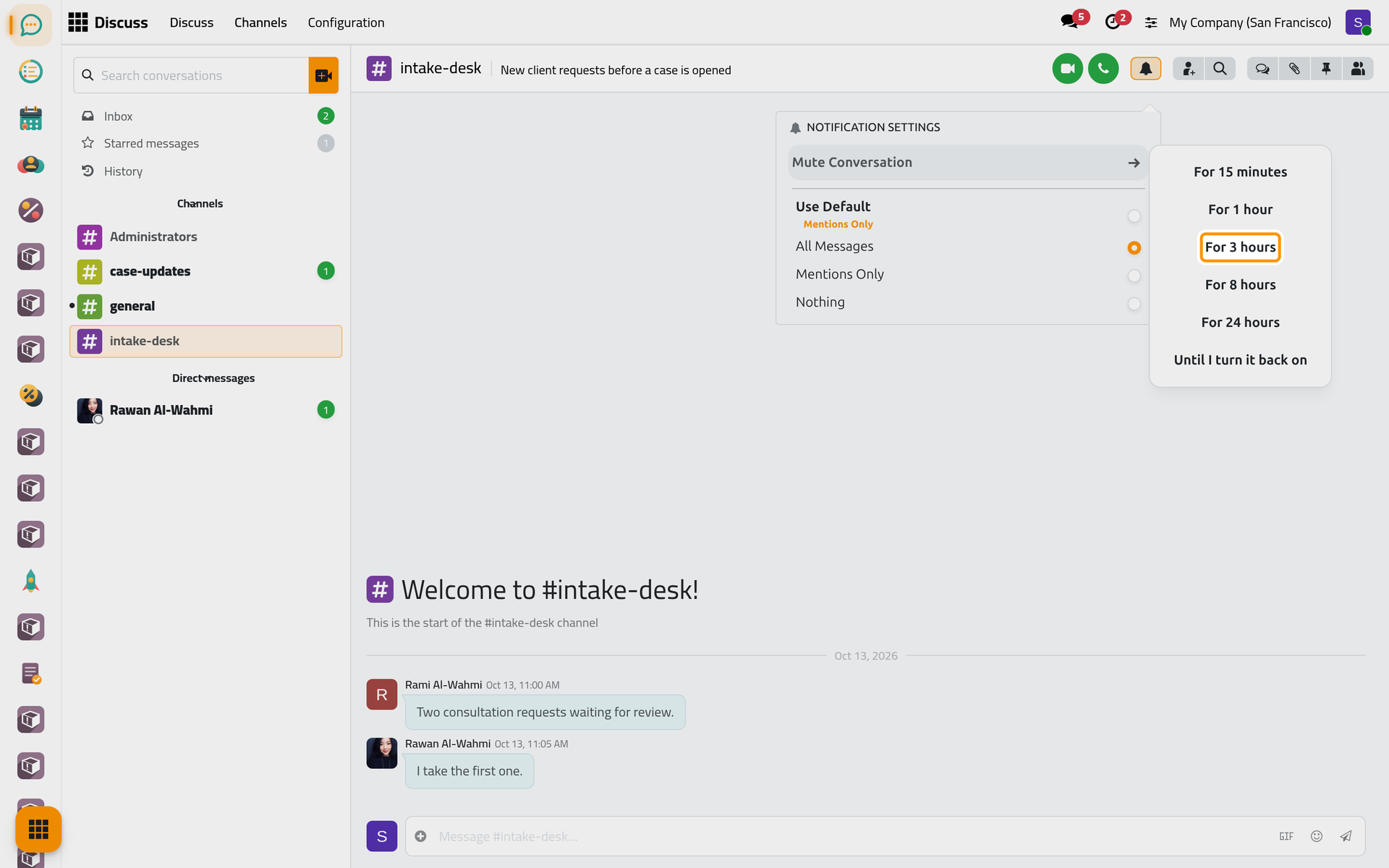
The bell of the channel turns into a crossed-out bell and the channel's name fades in the sidebar.
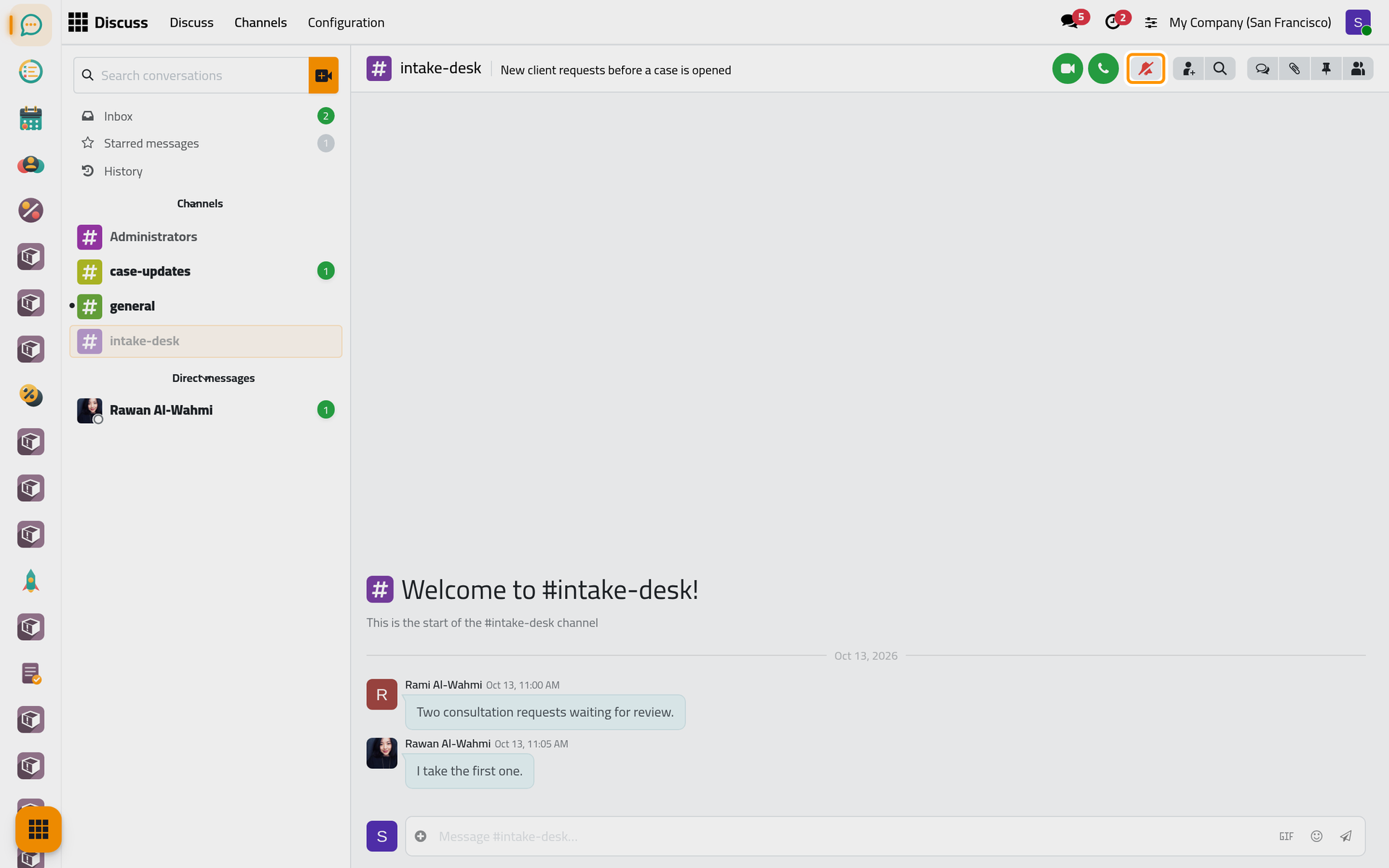
When the time is up, the channel speaks again by itself. To end it sooner, open the bell again: the first line reads Unmute Conversation with the time the mute ends.
Set the default for all your channels
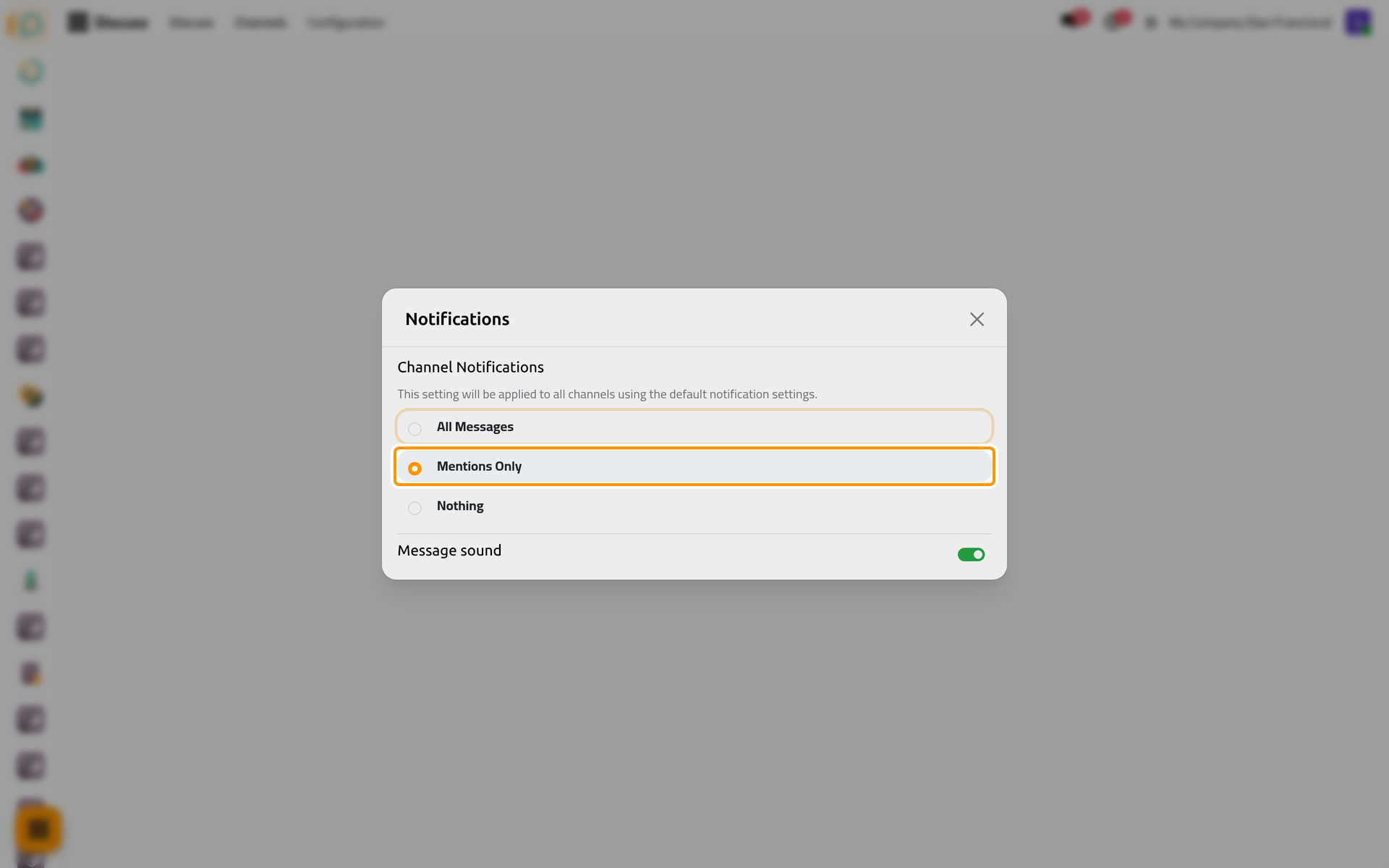
Open . Under Channel Notifications, choose All Messages, Mentions Only or Nothing: the choice applies to every channel left on Use Default. The switch Message sound plays a sound when a new message arrives.
Turn on browser notifications
Click the Messages icon in the top bar. While your browser has not been asked yet, the list starts with Turn on notifications and an Enable button: click it and accept the question of the browser. New messages then also show as notifications of your browser, so you see them while you work in another tab.
Tell others whether you are available
Click your avatar in the top bar and point at your status, Online by default. Choose Away, Do Not Disturb, which stops your notifications, or Offline. Colleagues see the status as a dot on your picture.
FAQ
I muted a channel: will I miss mentions?
No. A muted channel makes no sound and no longer shows its unread messages in bold, but a message that mentions you still adds to its counter, and every message is there when you open the channel.
Why do I receive e-mails for messages I already read in Discuss?
Your Notification preference is By Emails. Switch it to In Jaah in Set your preferences: mentions and the messages of the records you follow then arrive in your Inbox instead.
Does my choice change anything for the other members?
No. Each member keeps their own setting for each channel.
What does Do Not Disturb change?
Your status shows that you are busy and, as the menu says, no sound, pop-up or browser notification reaches you until you choose another status. Mentions and the messages of the records you follow still wait in your Inbox.
Was this page helpful?
Thank you for your feedback.