Organize a record's files in folders
On this page
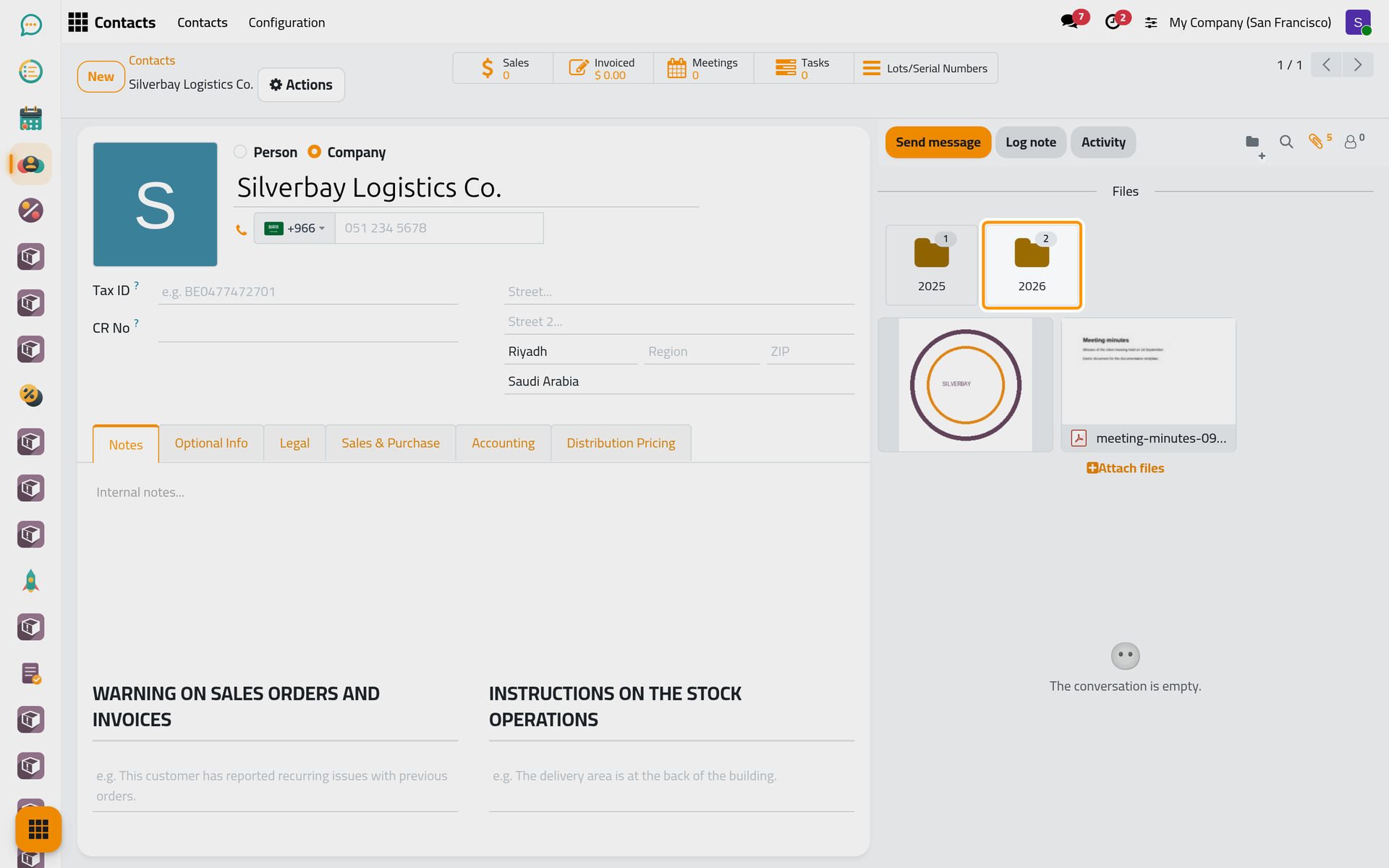
Every record that has a chatter keeps its files in the Files box of that chatter: a client, a case, a contract, an invoice. Attachments and folders adds folders to that box, so the files of one record can be sorted the way the team looks for them: one folder per year, per kind of document or per stage of a matter. This walk-through uses the demo client Silverbay Logistics Co., whose files are already sorted into two folders, 2025 and 2026, with two more files left outside them.
Before you start
- Any internal user can make folders on a record they can open. Moving or deleting the files themselves needs the right to edit the record, as for any attachment.
- Folders live in the chatter of a saved record: a record that is still being created shows the folder button only once it is saved.
- The paperclip opens the Files box only when the record already has a file; on a record without files it opens your file picker instead. Follow a record with the chatter explains the paperclip, the Files box and the buttons of each file.
Step 1: open the record and its files
- Open , search for Silverbay Logistics and open Silverbay Logistics Co.
- Look at the top bar of the chatter. just before the magnifier (Search Messages) sits a folder icon with a small plus sign: New folder. It is there on every record that has a chatter, in every app.
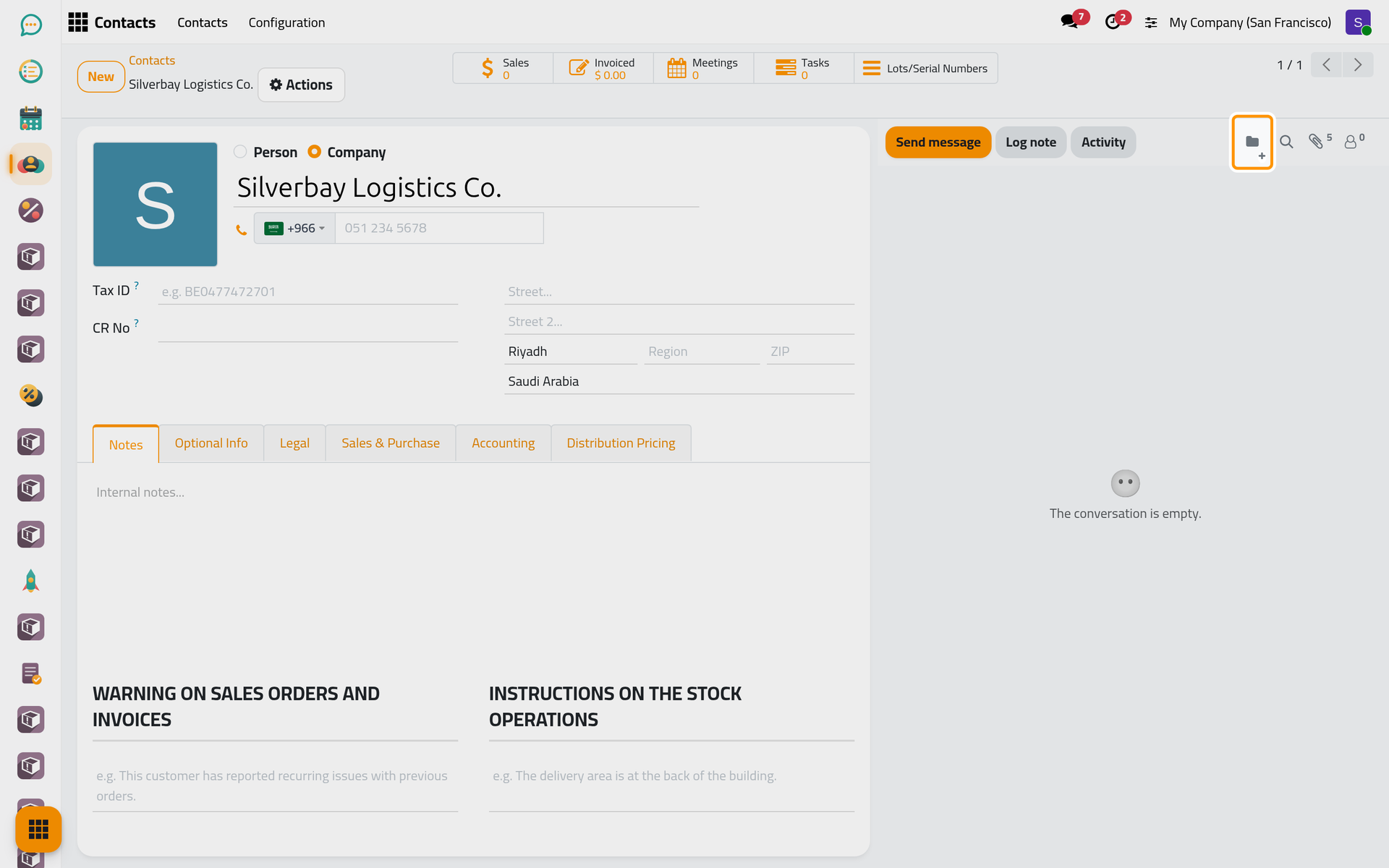
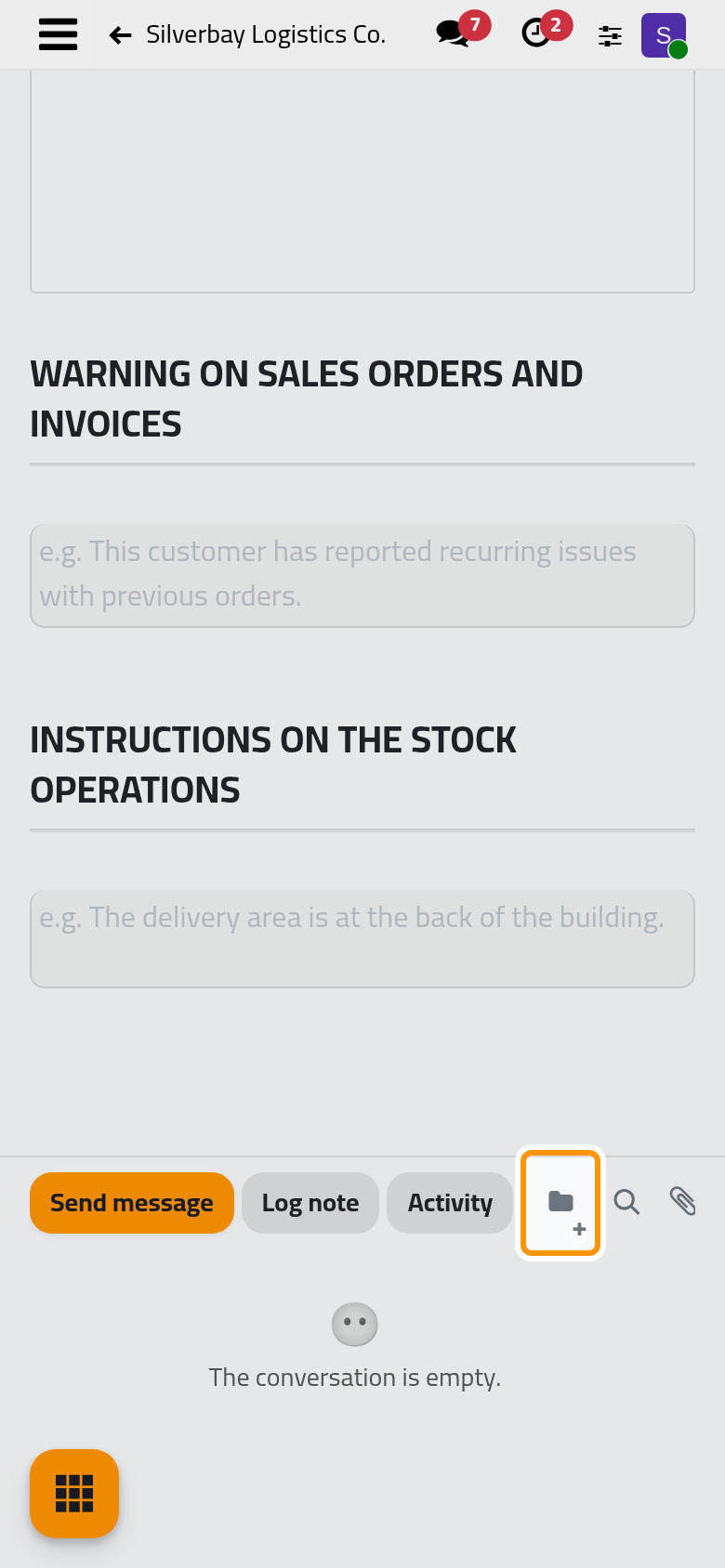
On a phone, the chatter sits below the form: scroll down to reach its top bar.
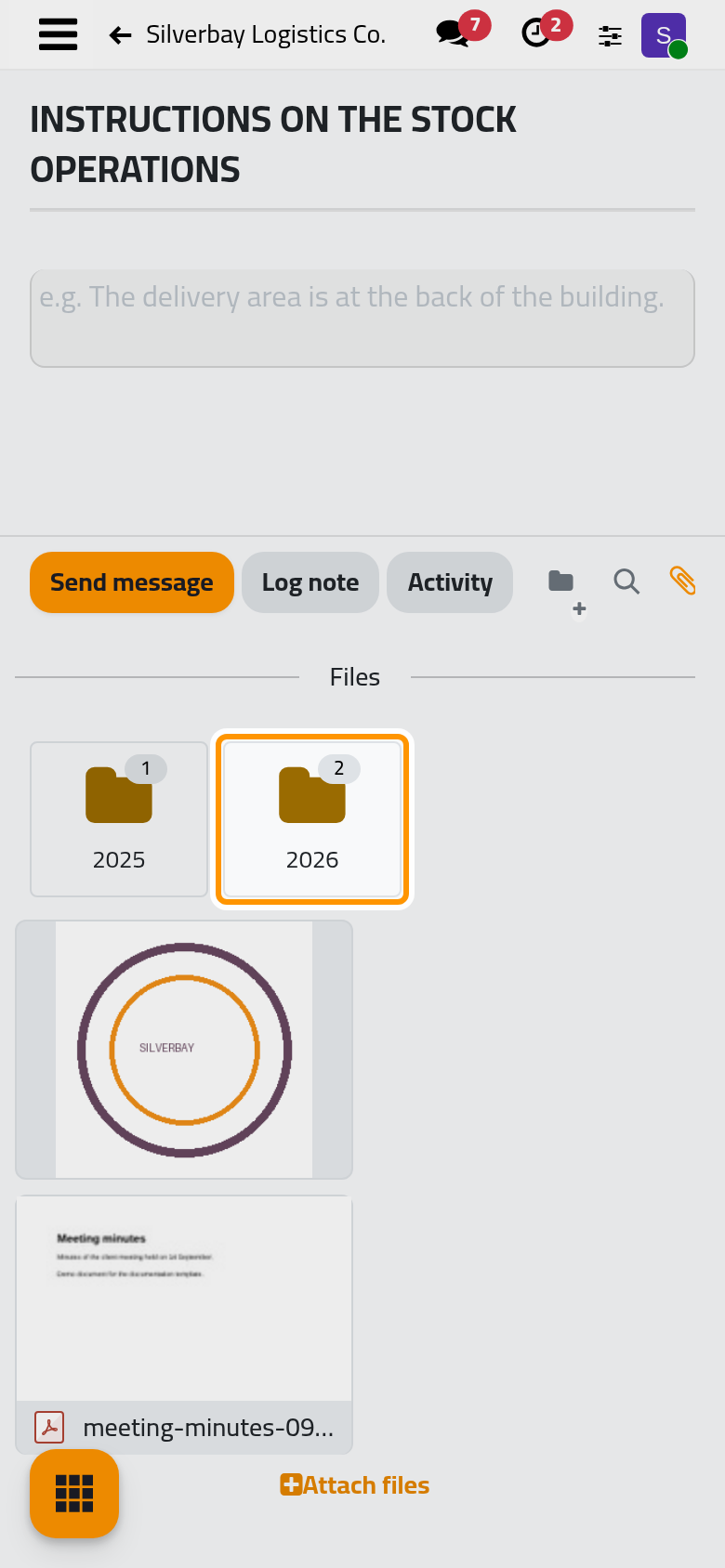
- Click the paperclip (Attach files). Its number, 5, counts every file of the record, whether it sits in a folder or not. The Files box opens with the folders first, each shown as a card with the number of files it holds, then the files that are in no folder.
Step 2: look inside a folder
- Double-click the 2026 card; on a phone, tap it twice. The tooltip of every card says the same: Double-click to open.
- The box now shows only the two files of that folder, the power of attorney and the engagement letter. Above them, All files and the name of the open folder tell you where you are.
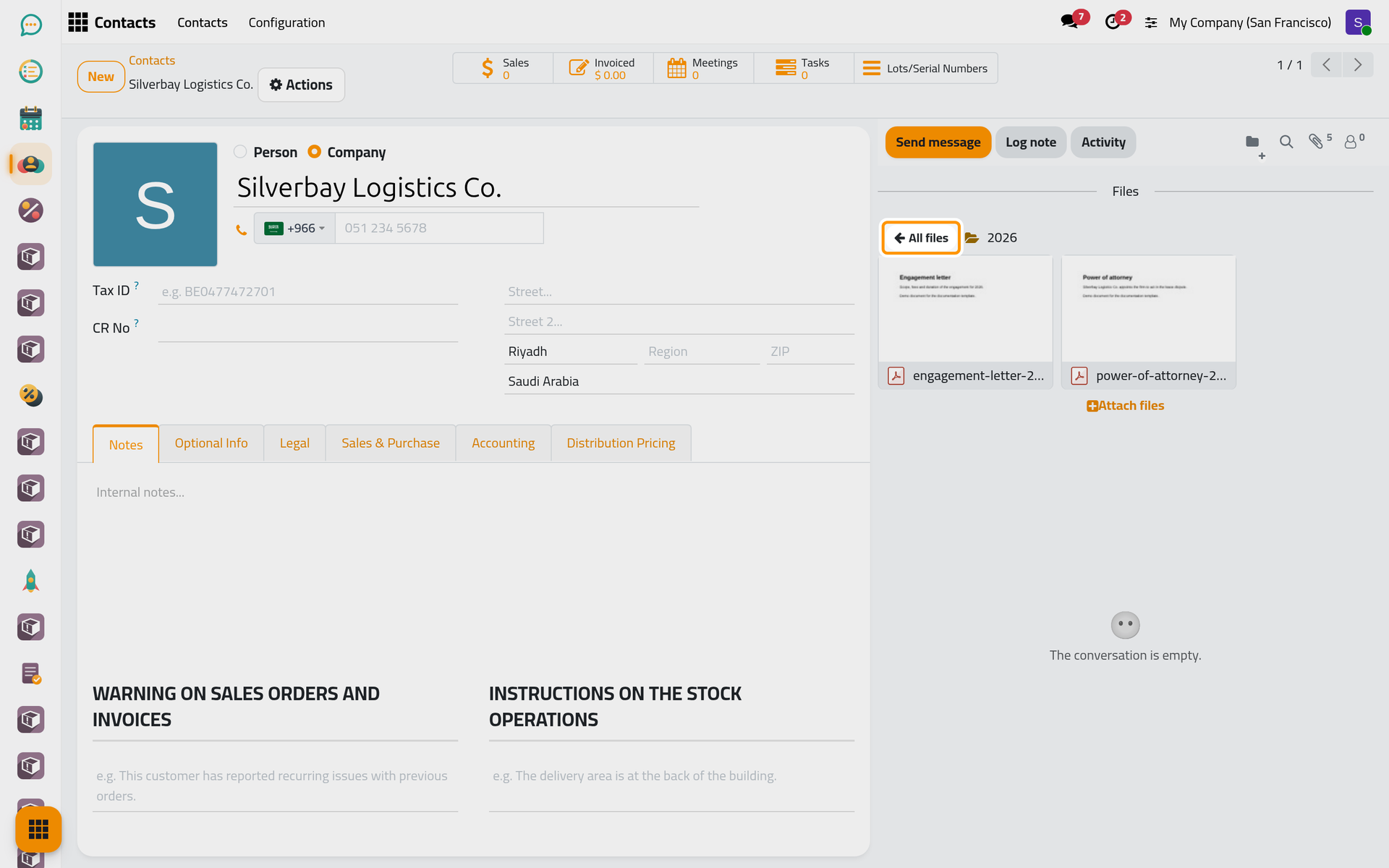
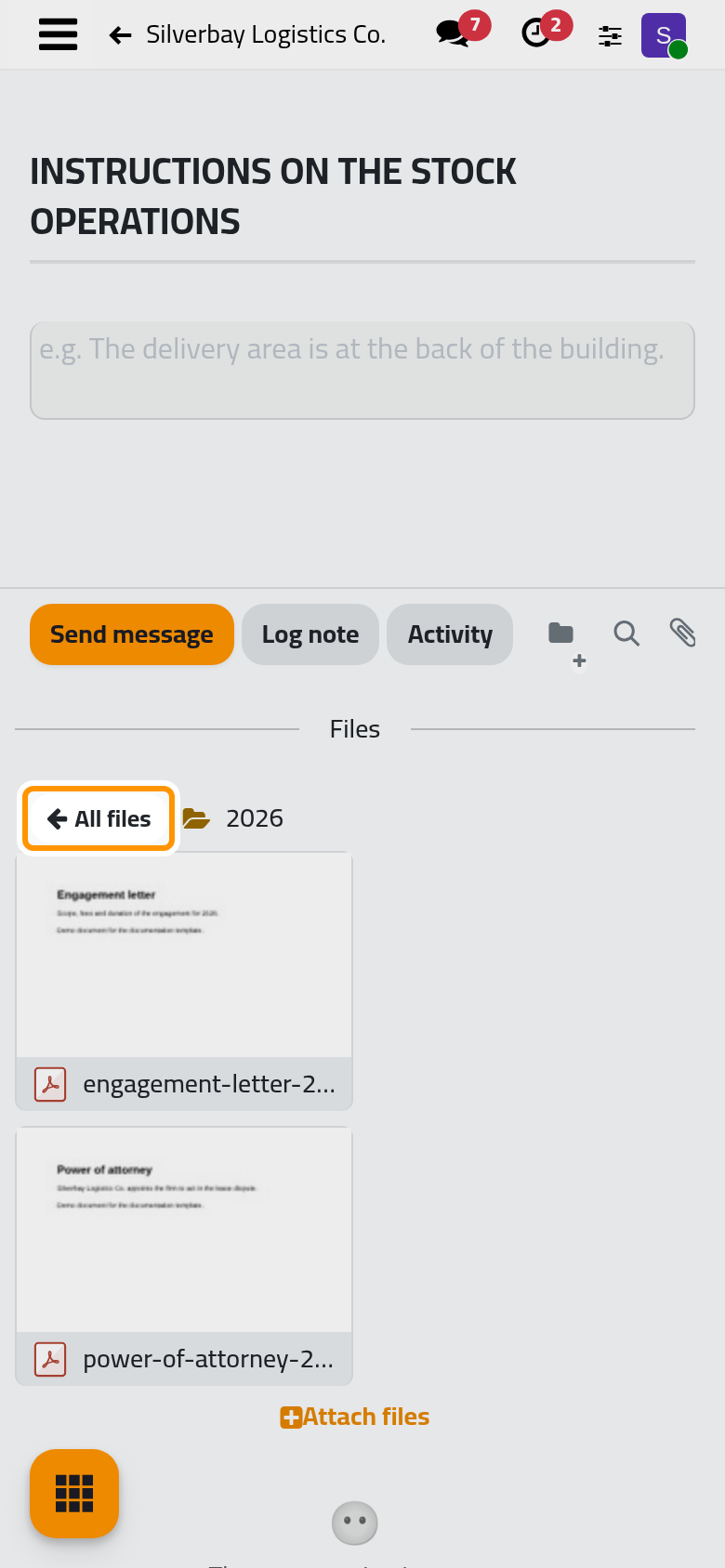
While a folder is open, Attach files at the bottom of the box adds the files you pick straight into it. Each file keeps its usual buttons, Download and Remove, inside a folder as outside.
- Click All files to come back to the folder cards and the loose files.
Step 3: make a new folder
- Click New folder in the top bar. A new card appears after the other folders, its name box already holding "New Folder", selected.
- Type Contracts and press Enter. The folder is saved under that name.
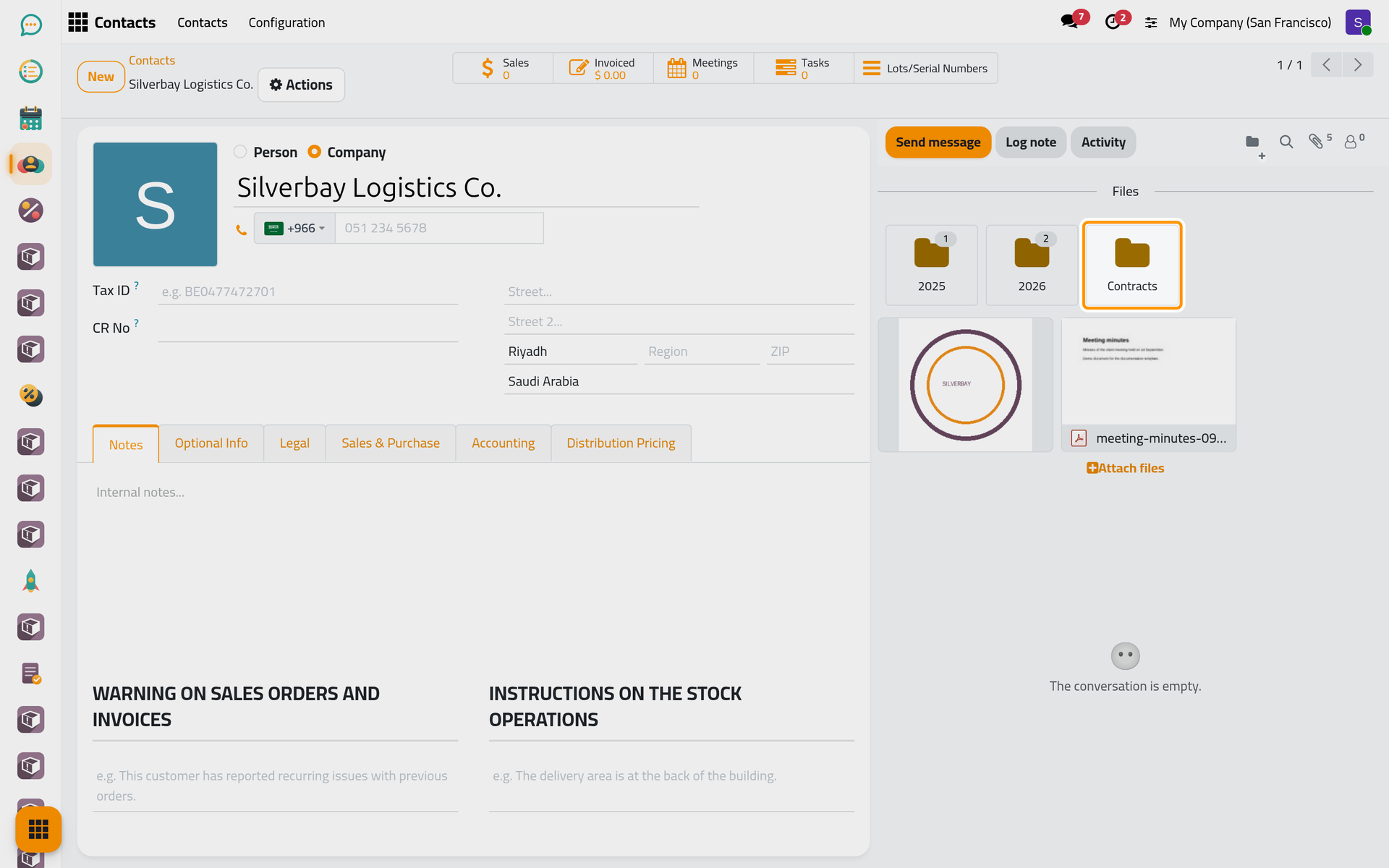
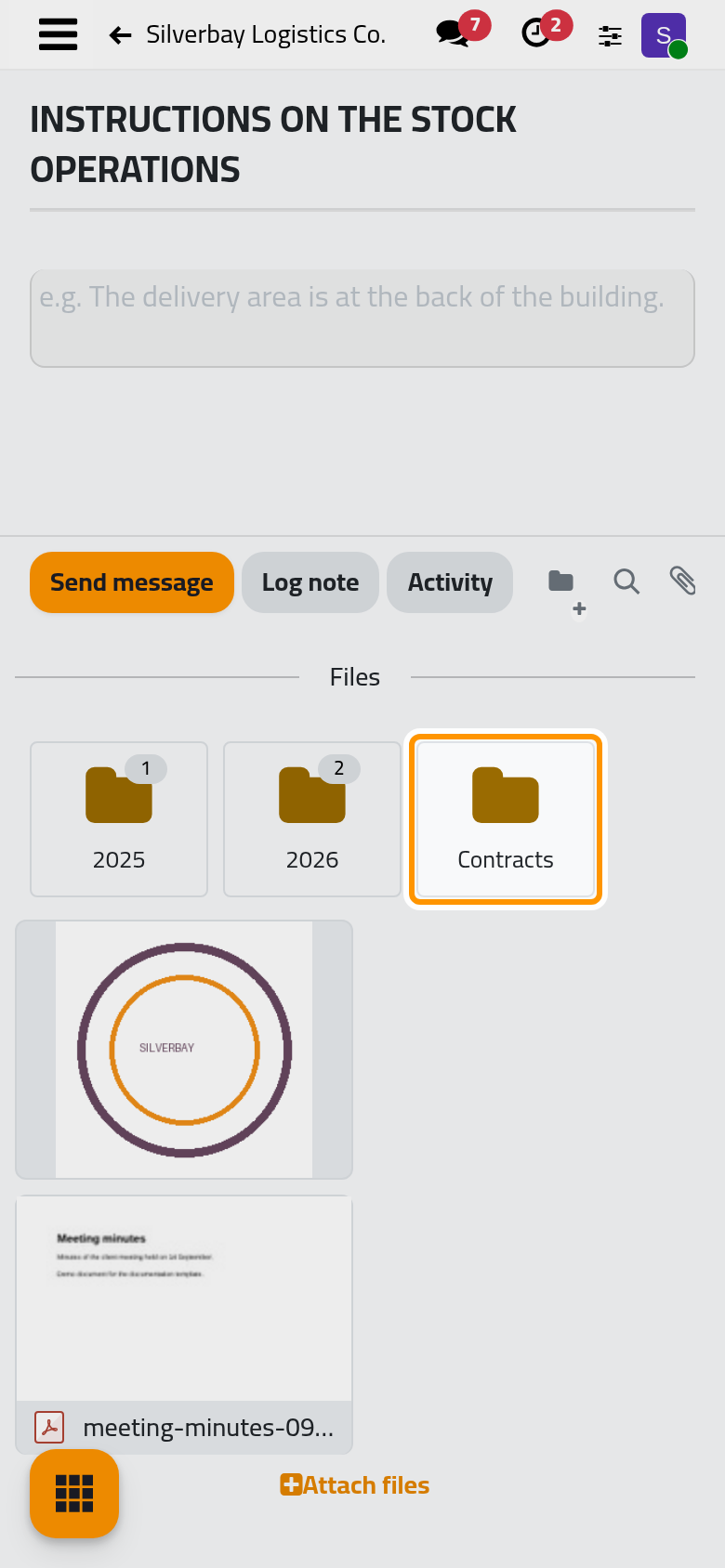
The new card shows no number yet: the number appears once the folder holds a file. The folder belongs to this record only; another client's chatter has folders of its own.
Step 4: put a file in the folder
There is no menu to move a file: it is moved by dragging its card.
- Drag a file card, for example meeting-minutes-0914.pdf, onto the Contracts card. The folder card grows slightly while the file is over it; release the mouse there.
- The file leaves the root of the box, and the Contracts card now shows 1.
- To take a file out again, open its folder and drag the file onto All files.
The paperclip still shows 5: a folder changes where a file is shown, not the record it belongs to. A file dropped onto the chatter straight from your computer always lands outside the folders, even while a folder is open. To file new documents in one go, open the folder first and use Attach files inside it; this is also the simplest way on a phone.
What you have done
You opened the files of a record, looked inside one of its folders, came back to all the files and made a folder of your own, and you know how a file goes in and out of it. The user guide takes each part further: Create and rename a folder, Put files in a folder and Delete a folder. How folders work on a record explains what a folder is, who may change it and what it does not do.
Was this page helpful?
Thank you for your feedback.