Put files in a folder
On this page
- Before you start
- Move a file into a folder
- Add new files straight into a folder
- Take a file out of a folder
- FAQ
- Does moving a file change anything for the record?
- I dropped a file onto the chatter, but it is not in the open folder.
- Can I put a file in a folder of another record?
- The file does not move when I drop it.
A file reaches a folder in two ways: an existing file is dragged onto the folder's card, and a new file is attached from inside the open folder. Either way it stays a file of the same record; only the place where the Files box shows it changes.
Before you start
- The record needs at least one folder: Create and rename a folder.
- Moving a file and adding one both need the right to edit the record, as for any change to its attachments.
- There is no menu or button to move a file: an existing file moves only by dragging its card.
Move a file into a folder
- Open the record, here Silverbay Logistics Co. from , and click the paperclip (Attach files). The Files box shows the folder cards first, then the files that are in no folder.
- Drag a file card onto a folder card, for example meeting-minutes-0914.pdf onto 2026. The folder card grows slightly while the file is over it.
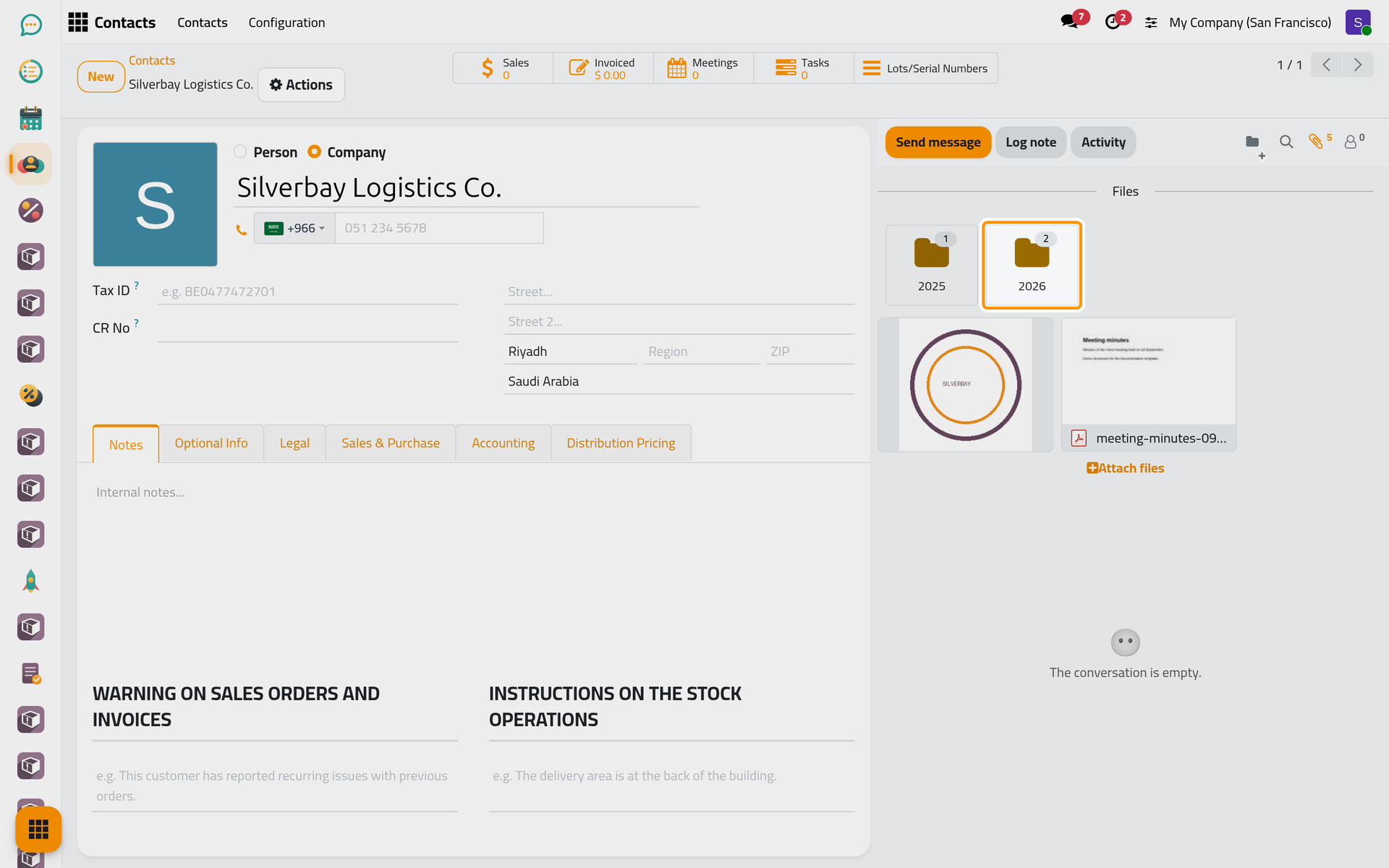
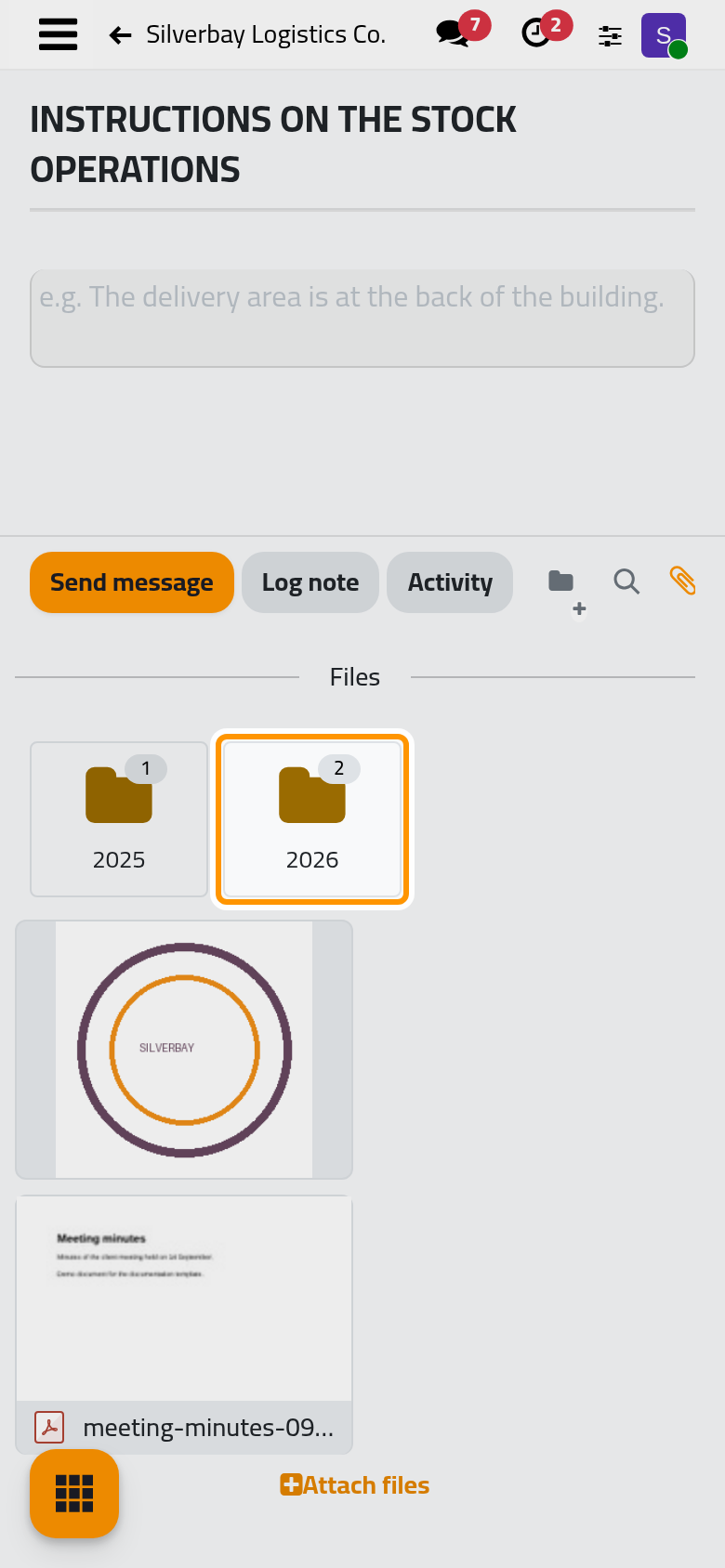
- Release the mouse. The file leaves the root of the box and the number on the folder card goes up by one, here from 2 to 3.
A file sits in one folder at most. To move it from one folder to another, open its folder, drag it onto All files, then drag it from the root onto the other folder.
Add new files straight into a folder
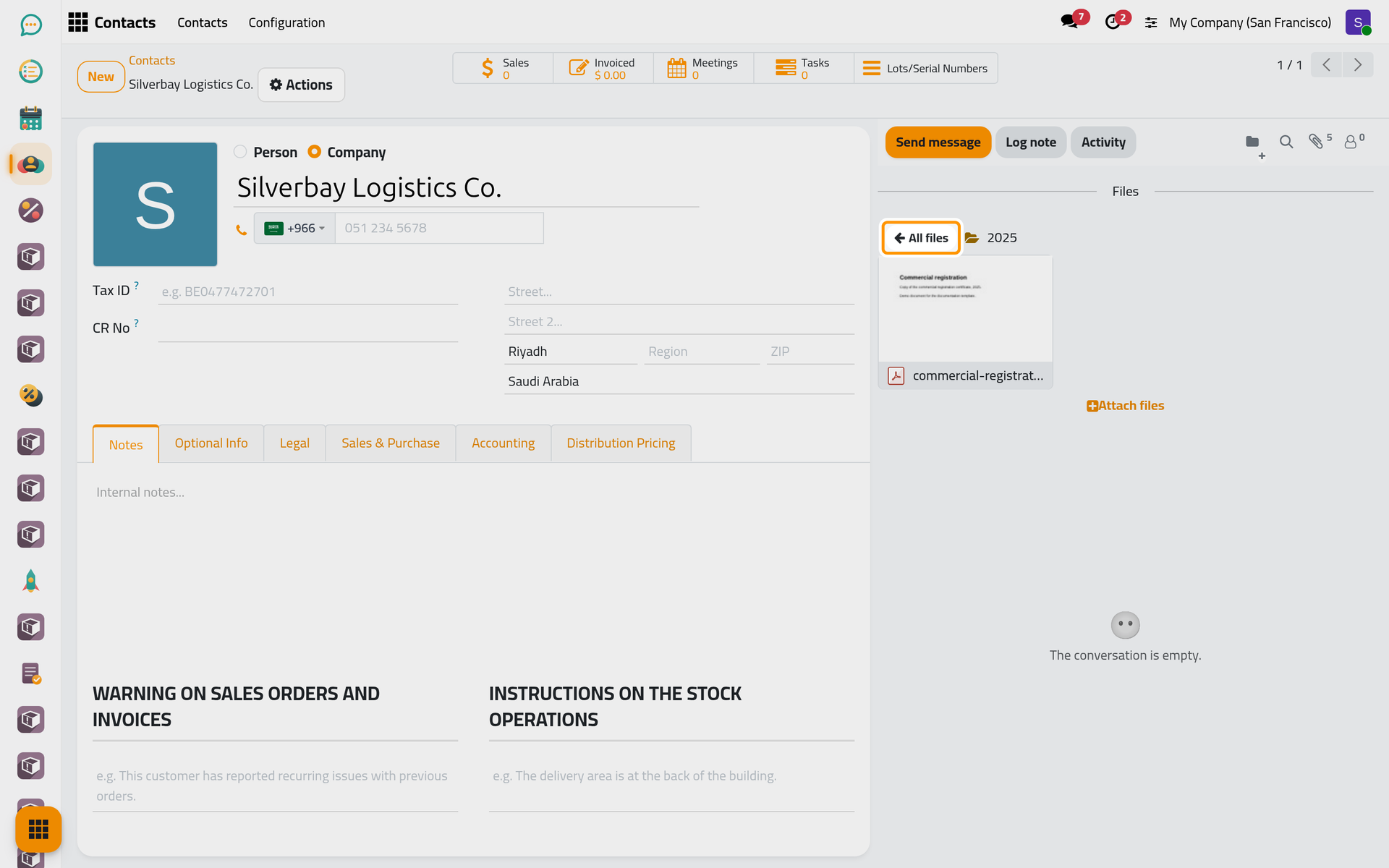
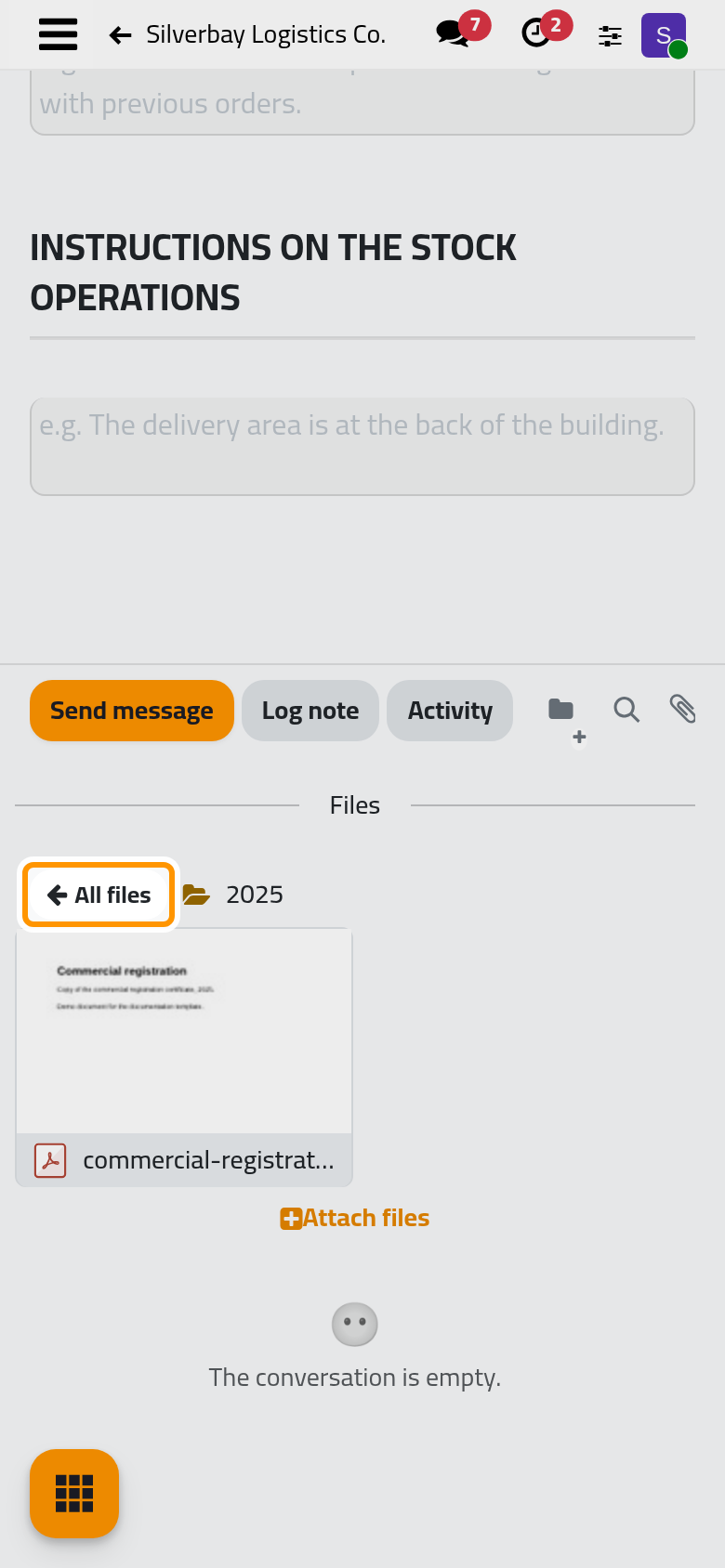
- Double-click the folder card, here 2025. The box shows only that folder's files, under All files and the folder's name.
- Click Attach files at the bottom of the box and pick the files on your computer. They are attached to the record and placed in the open folder at once, and the folder's number grows with them.
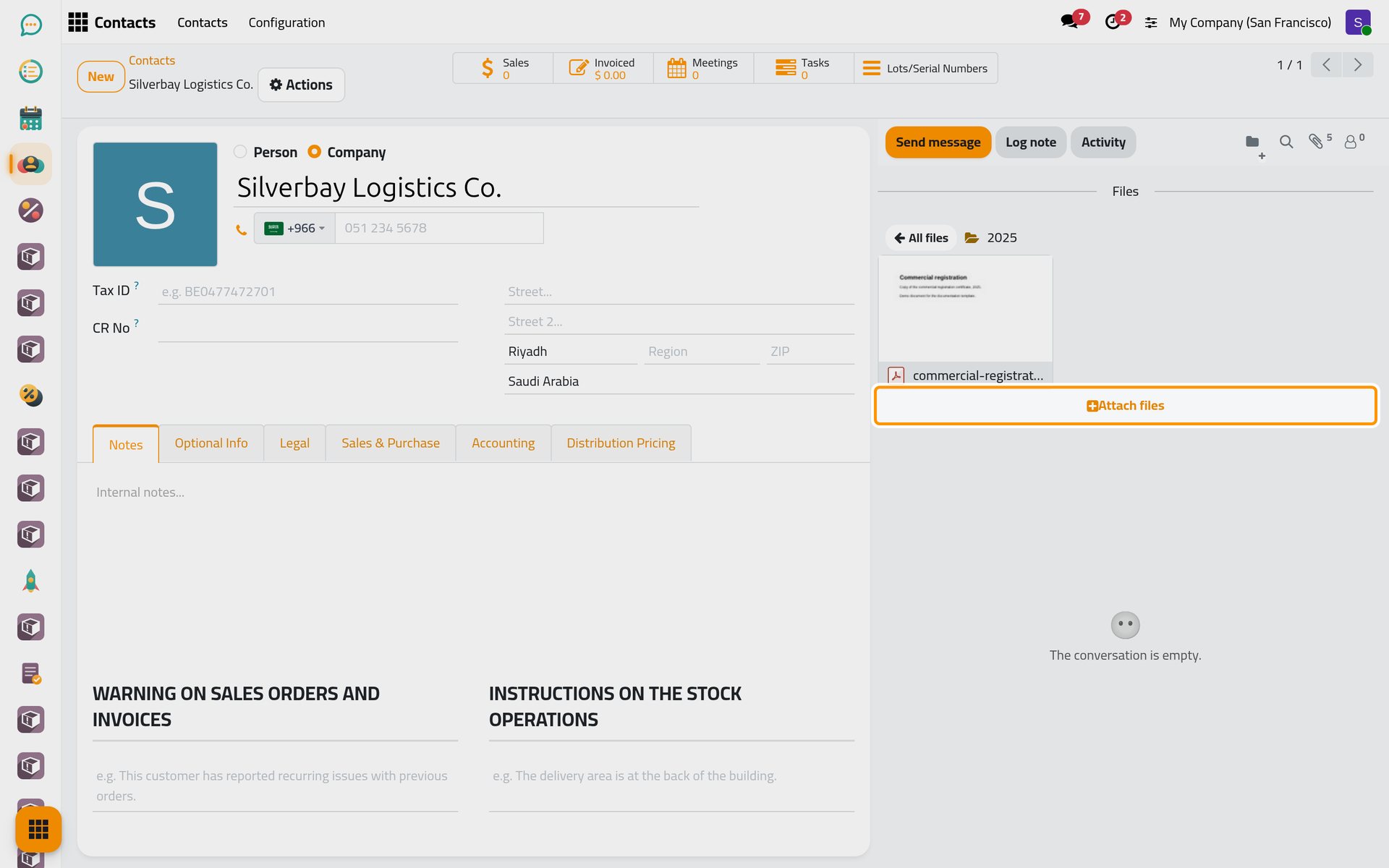
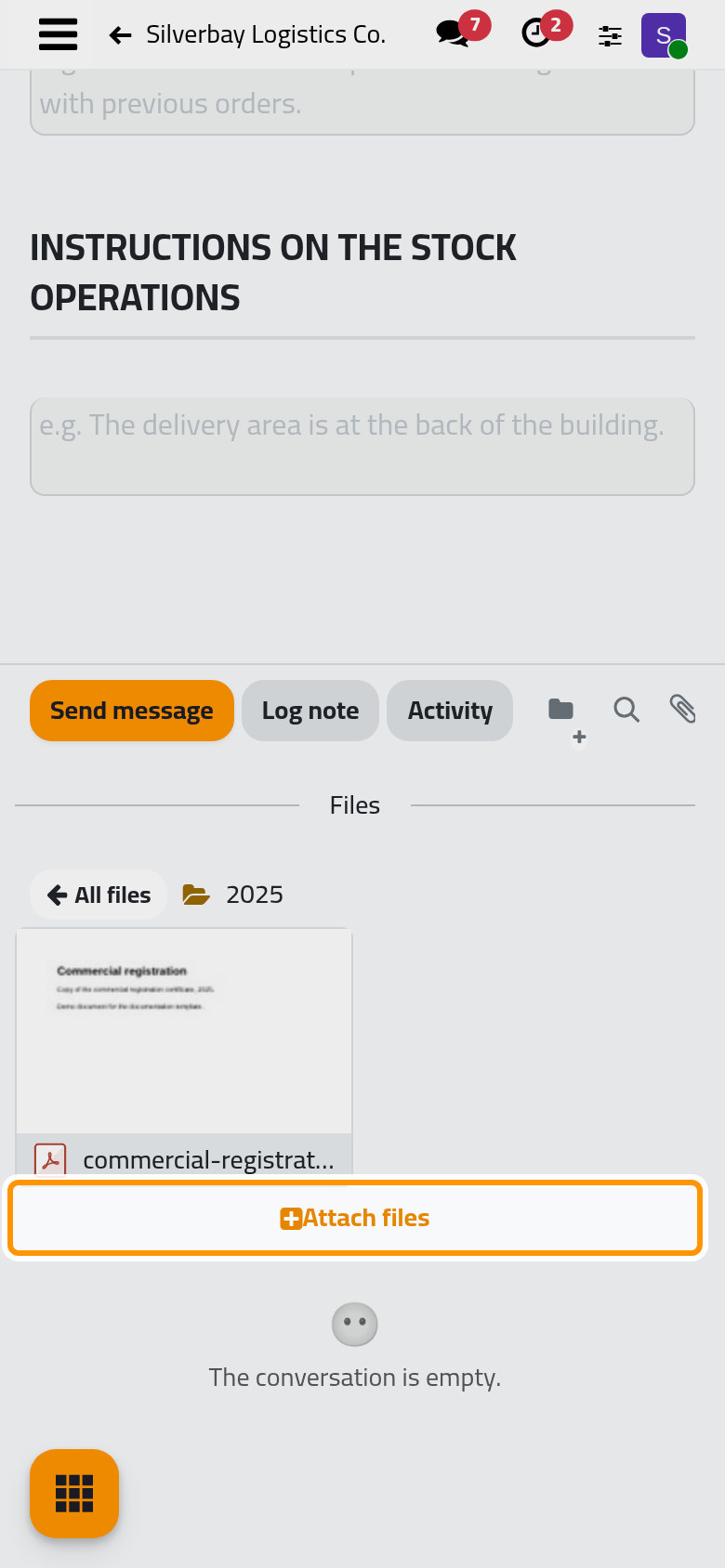
Use this button rather than dropping files from your computer onto the chatter: a dropped file always lands at the root of the box, even while a folder is open. On a phone, this button is the simplest way to put documents in a folder, since existing files move only by dragging.
Take a file out of a folder
- Open the folder.
- Drag the file onto All files. It goes back to the root of the box, outside any folder, and the folder's number goes down by one.
FAQ
Does moving a file change anything for the record?
No. The file stays an attachment of the same record: the paperclip counts it whether it is in a folder or not, and Download and Remove work the same everywhere. Follow a record with the chatter explains those buttons.
I dropped a file onto the chatter, but it is not in the open folder.
Files dropped from your computer always land at the root. Click All files, find the file among the loose ones and drag it onto its folder. Next time, open the folder and use Attach files inside it.
Can I put a file in a folder of another record?
No. A record's Files box lists only that record's folders, and a folder shows only files of its own record. To keep a document on two records, attach it to each of them.
The file does not move when I drop it.
Drop it right on the folder card, which grows when the file is over it. If the record refuses the change, you do not have the right to edit it; ask someone who has.
Was this page helpful?
Thank you for your feedback.