Recycle bin settings
On this page
- Before you start
- Keep Trash Duration
- Save Snapshot
- Enable Trash for Models
- Empty Recycle Bin Trash
- FAQ
- I shortened the duration. Are old entries removed at once?
- Does turning off the snapshot affect Restore?
- The bin fills with technical entries. Can I keep them out?
- Do these options apply to every company?
The options of the bin sit in General Settings, not in the app itself. Open and type Recycle in the search bar, or scroll down to the Recycle Bin section, just above Developer Tools. The defaults keep every kind of record for 30 days with a snapshot, which suits most companies.
Before you start
- Only an administrator sees the section; the Manager right on the bin is not needed for it.
- Every option belongs to the current company: switch company in the top bar to set another one. When a record is deleted, the options read are those of the company the deleting user is working in, and the entry belongs to that company.
Keep Trash Duration
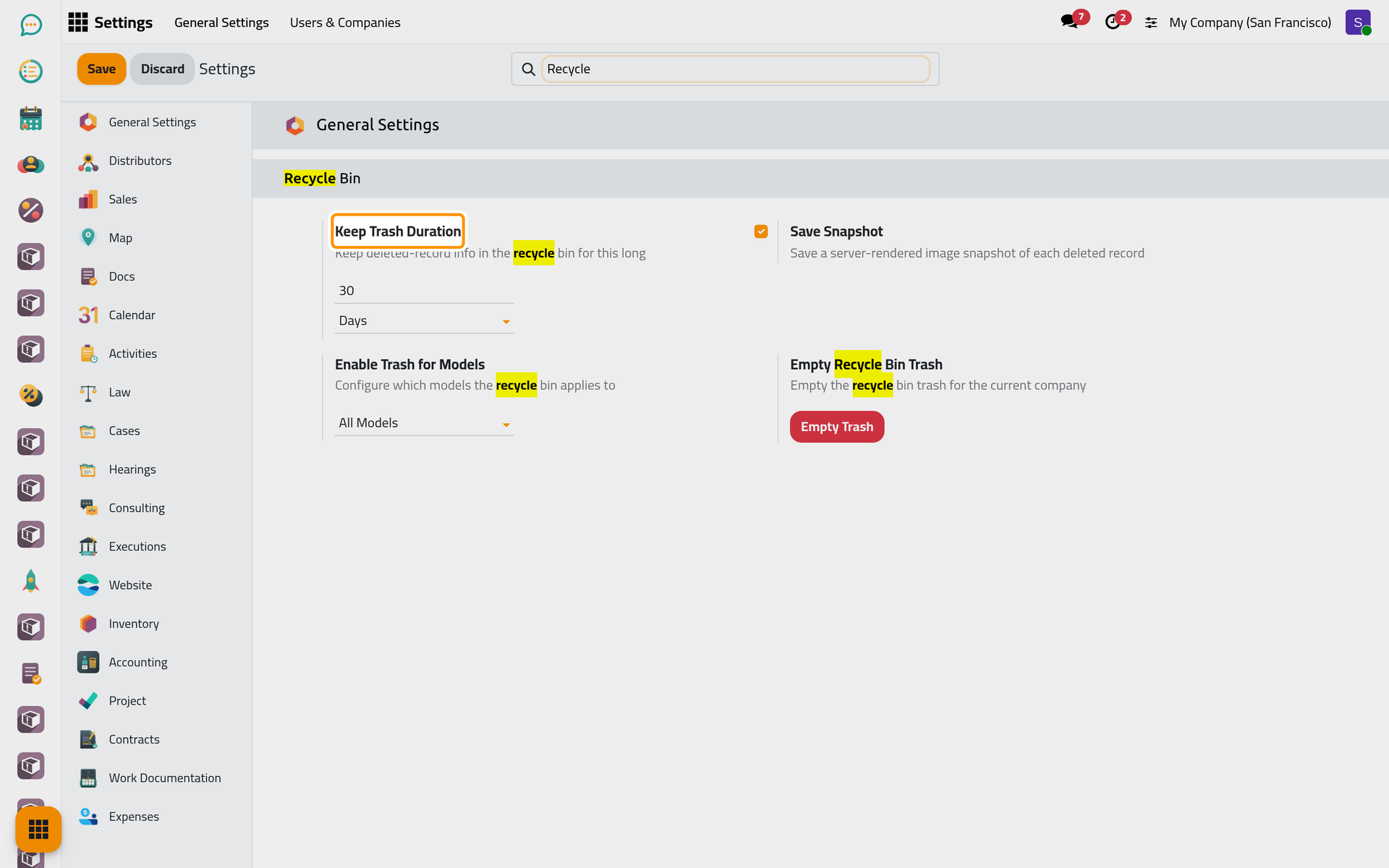
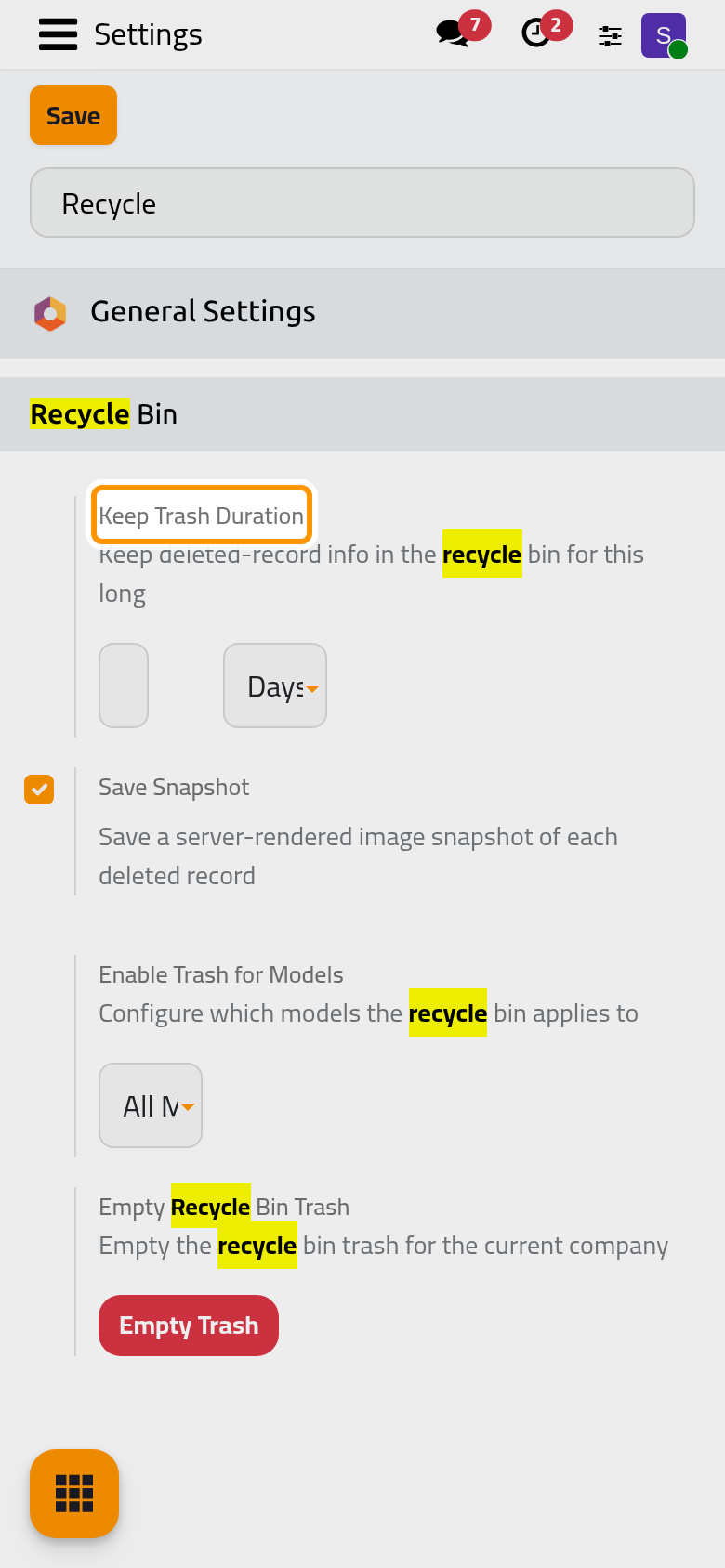
How long an entry stays in the bin: a number and a unit, Days, Months or Years. The default is 30 Days. Once a day, a scheduled job removes the entries whose Deleted at is older than that, restored ones included, with their snapshot; see Recycle bin automations. A restored entry counts from its deletion, not from its restore.
Save Snapshot
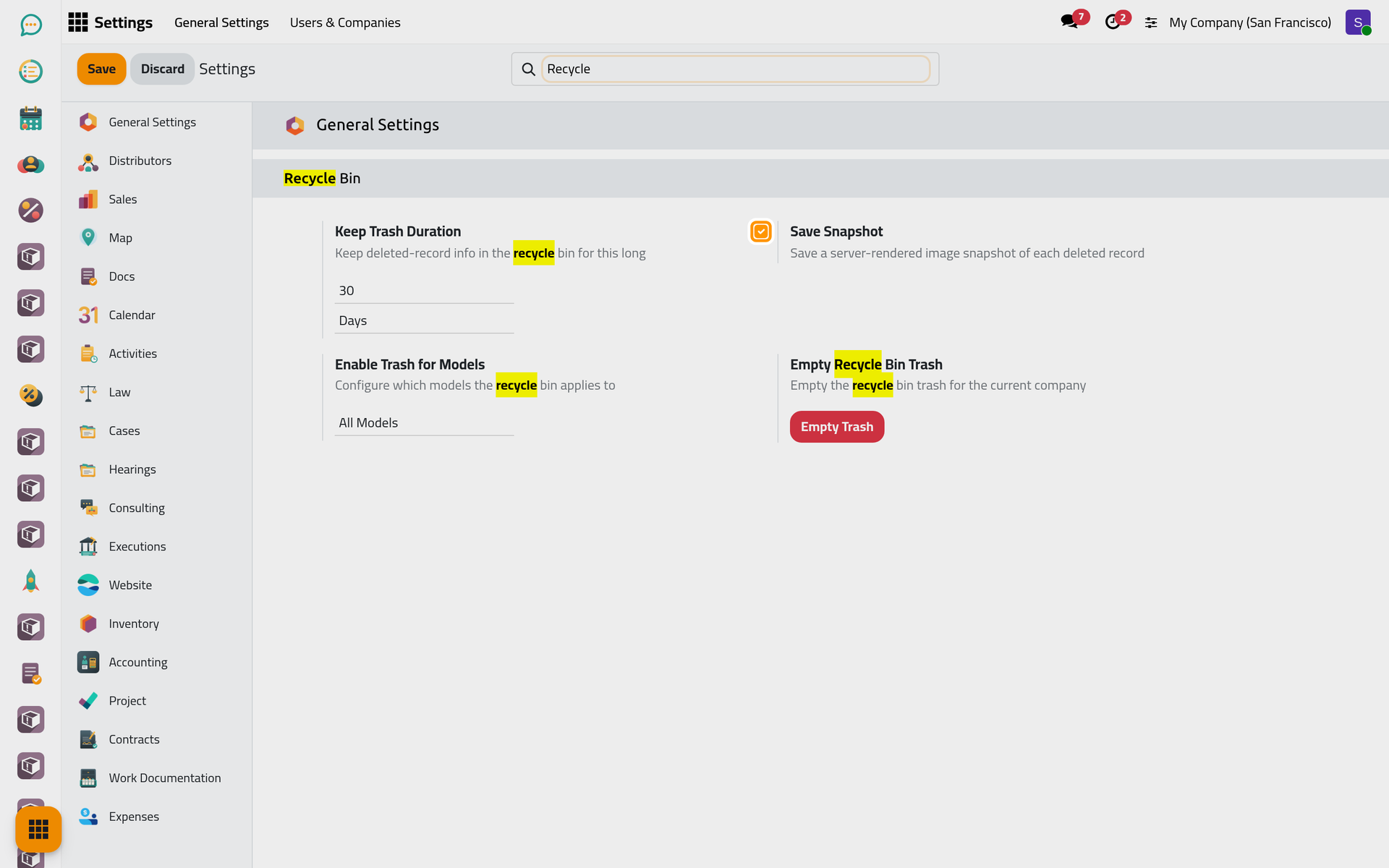
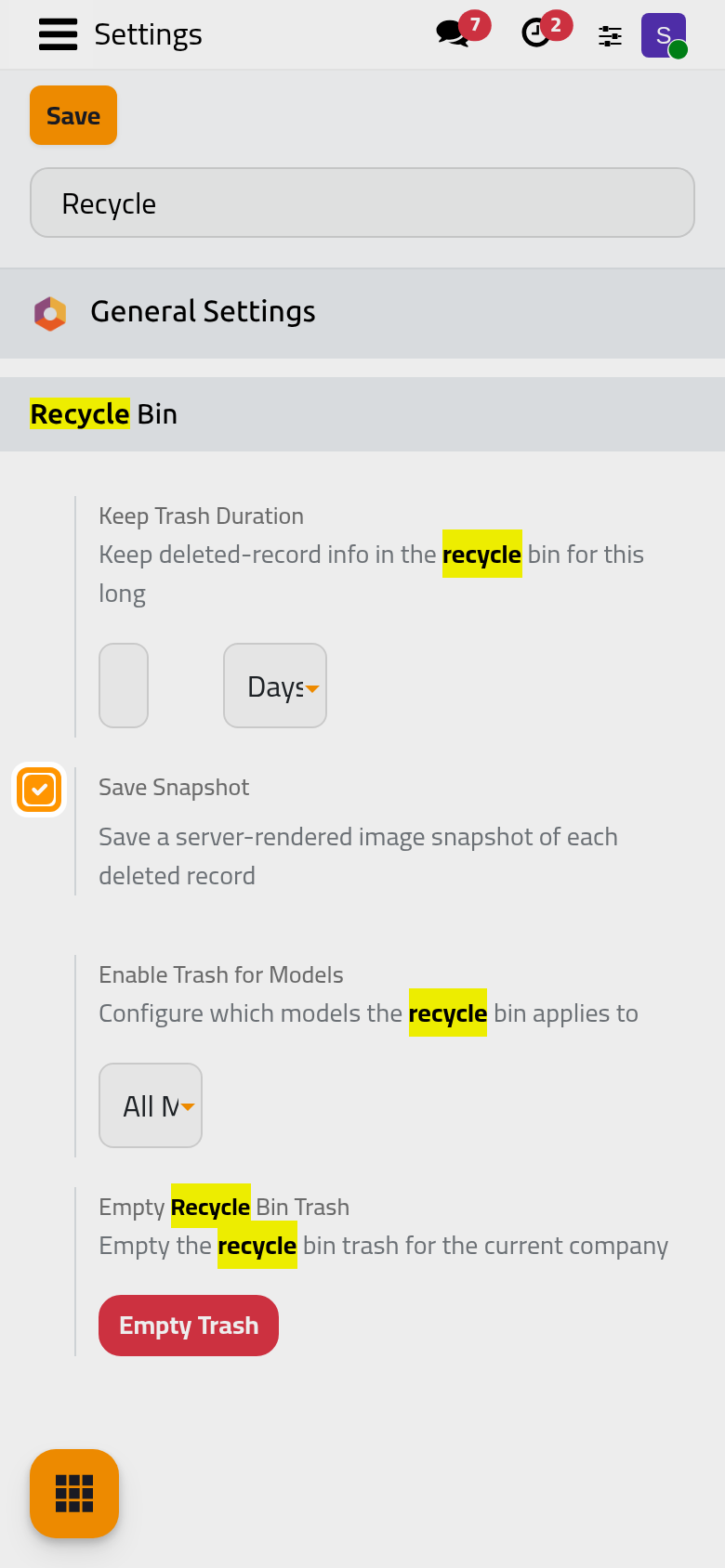
On by default. Each delete then draws an image of the record's values, shown as the Snapshot of the entry. Turned off, new entries have no image; they still keep the values, and Restore works the same. Drawing the image takes a moment for each record, which adds up when many records are deleted at once or when an app is uninstalled.
Enable Trash for Models
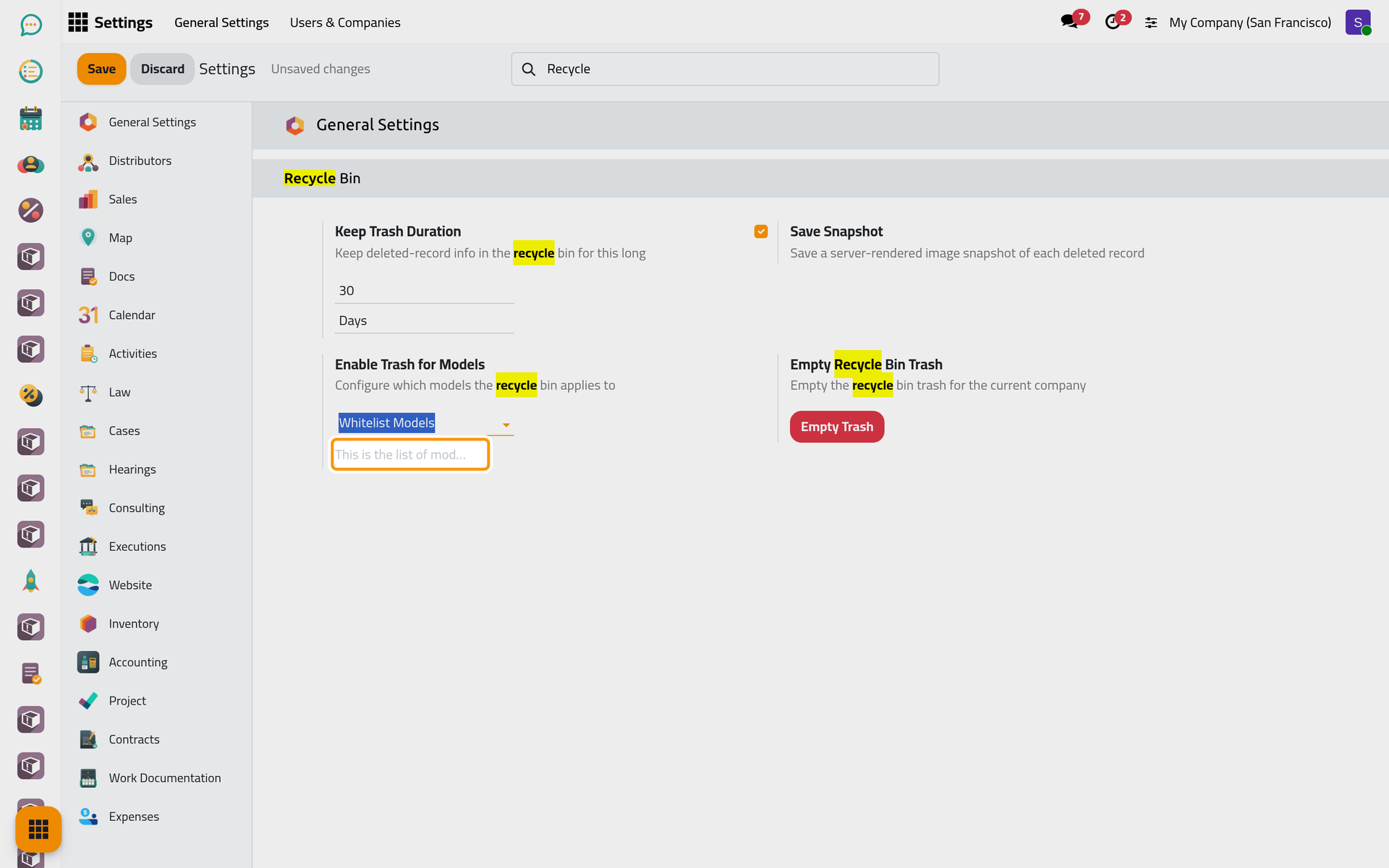
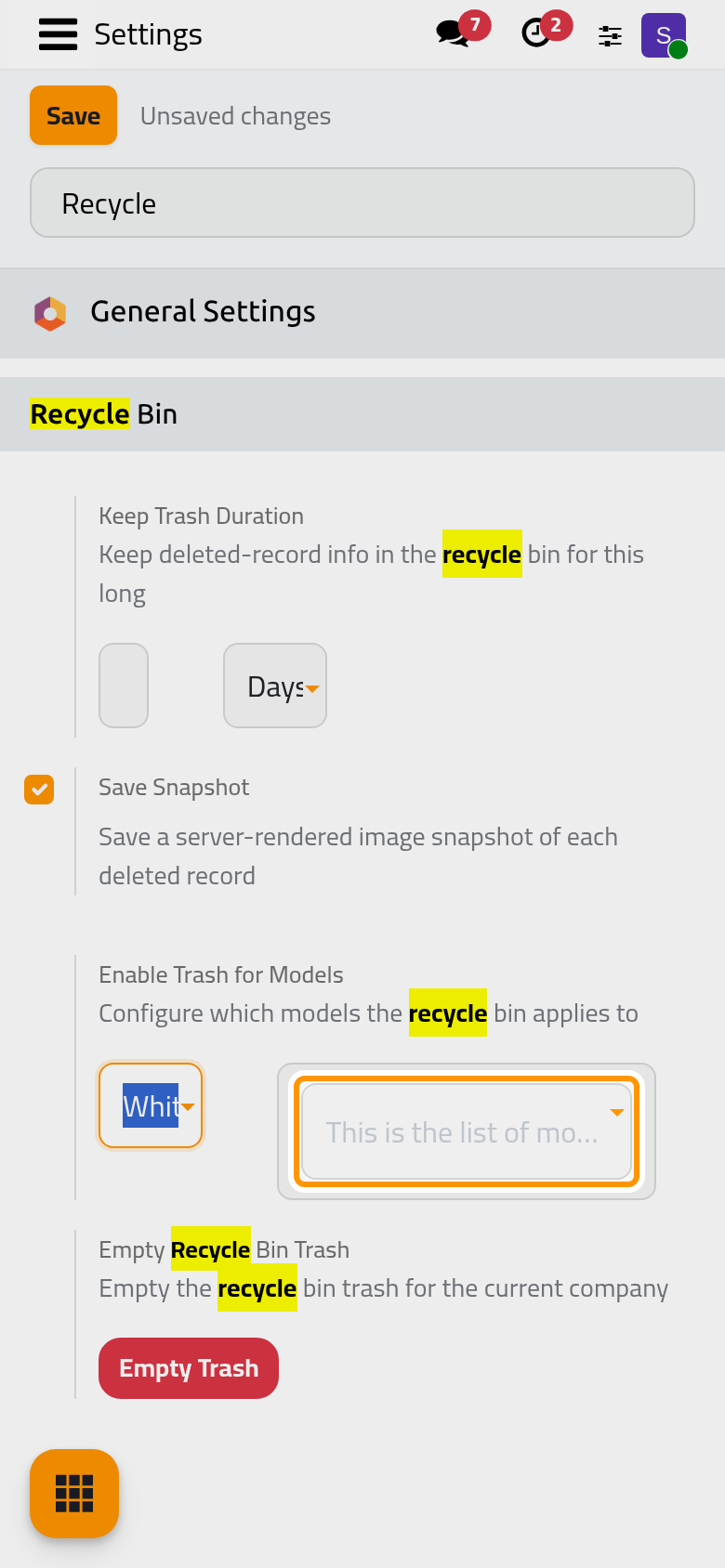
Which kinds of records the bin keeps:
- All Models, the default: everything that can be kept.
- Whitelist Models: only the models listed in the field that appears next to it.
- Blacklist Models: everything except the models listed there.
The list field, with the hint "This is the list of models", is required for the last two choices. Type the model as the platform names it, such as Contact or Partner Tags. Whatever the choice, a few kinds of records are never kept; How the recycle bin works lists them.
Click Save to apply your changes to these three options.
Empty Recycle Bin Trash
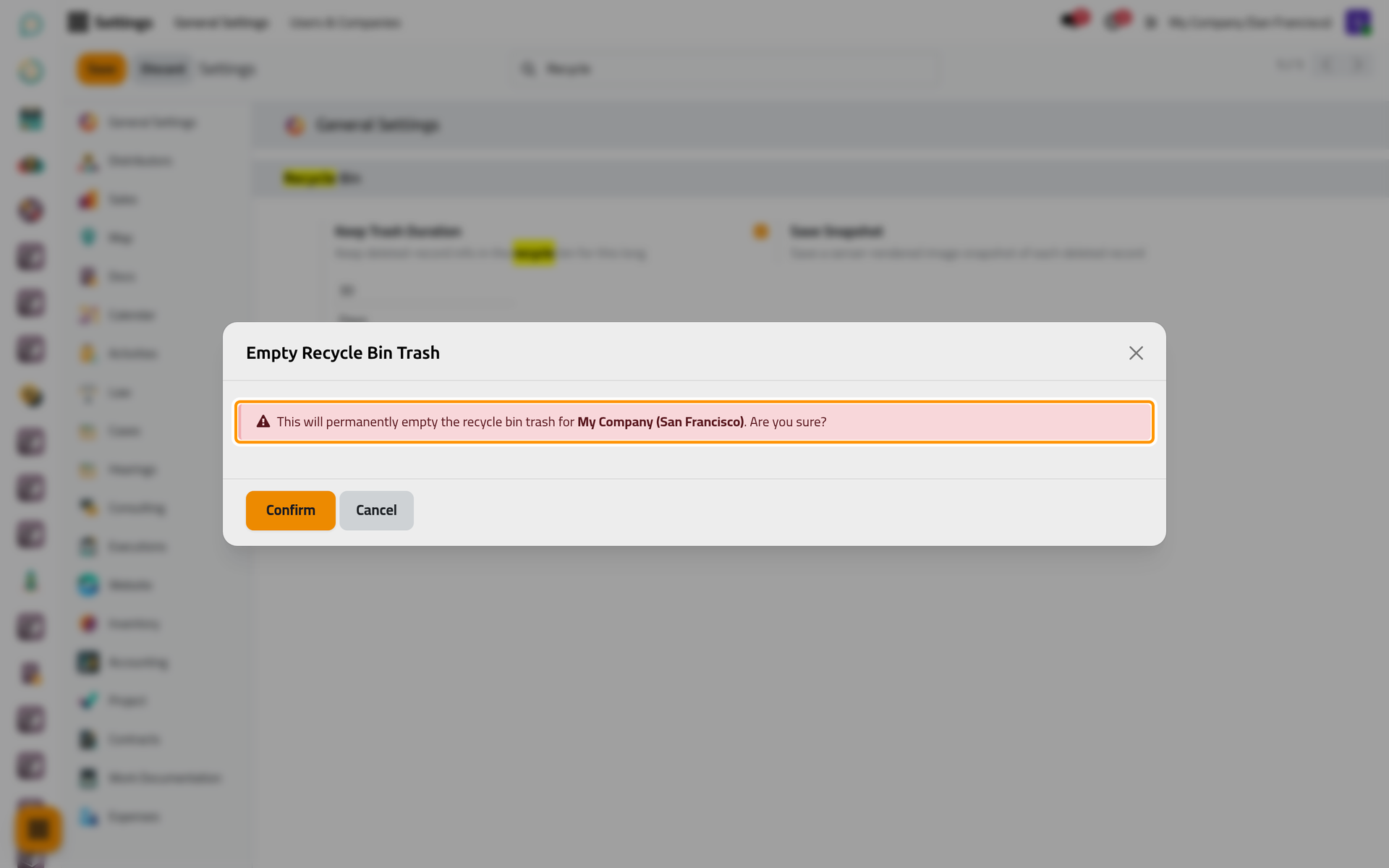
Empty Trash opens a dialog that names the current company and asks for a confirmation. Confirm deletes at once and for good every entry of that company, whatever its age or status, with the snapshots; nothing asks for Save and nothing can bring the entries back. Cancel closes the dialog. The entries of the other companies stay.
On a phone, the dialog fills the screen, with the same buttons at the bottom.
FAQ
I shortened the duration. Are old entries removed at once?
No. They are removed at the next daily run of the scheduled job, or at once if you empty the bin.
Does turning off the snapshot affect Restore?
No. Restore uses the values of the Data in JSON tab, which every entry keeps.
The bin fills with technical entries. Can I keep them out?
Yes, with Blacklist Models: list the models you do not need, such as Calendar Filters or Message Reaction. Uninstalling an app also adds many technical entries; they leave with the retention period.
Do these options apply to every company?
No. Each company has its own duration, snapshot and models; change them while working in that company.
Was this page helpful?
Thank you for your feedback.