From delete to restore
On this page
Recycle Bin is a safety net for a wrong delete. Before any record is removed, the app keeps a copy of it: one entry per record, with who deleted it and when, the values it held and an image of those values called the snapshot. A manager opens the entry and restores the record. This walk-through deletes a contact tag of its own and brings it back, from the delete to the record you can open again. A tag is used because nothing depends on it.
Before you start
- You need the Manager access right on Recycle Bin, in the Administration section of your user. At installation only the administrator has it; Give access to the recycle bin shows how to grant it.
- Creating and deleting a contact tag needs the Contact access right at Creation, the same as for contacts.
- Nothing has to be switched on: by default the bin keeps every kind of record a user can delete, except a few technical ones such as attachments and messages (How the recycle bin works). Recycle bin settings explains how to narrow it.
Step 1: delete a tag
- Open and click New. A new line opens at the end of the list.
- Type the name
Recycle bin demo: Pending filesand click Save. The tag takes a color of its own. - Tick the box at the start of its line, then open the Actions menu, the gear button above the list, and choose Delete.
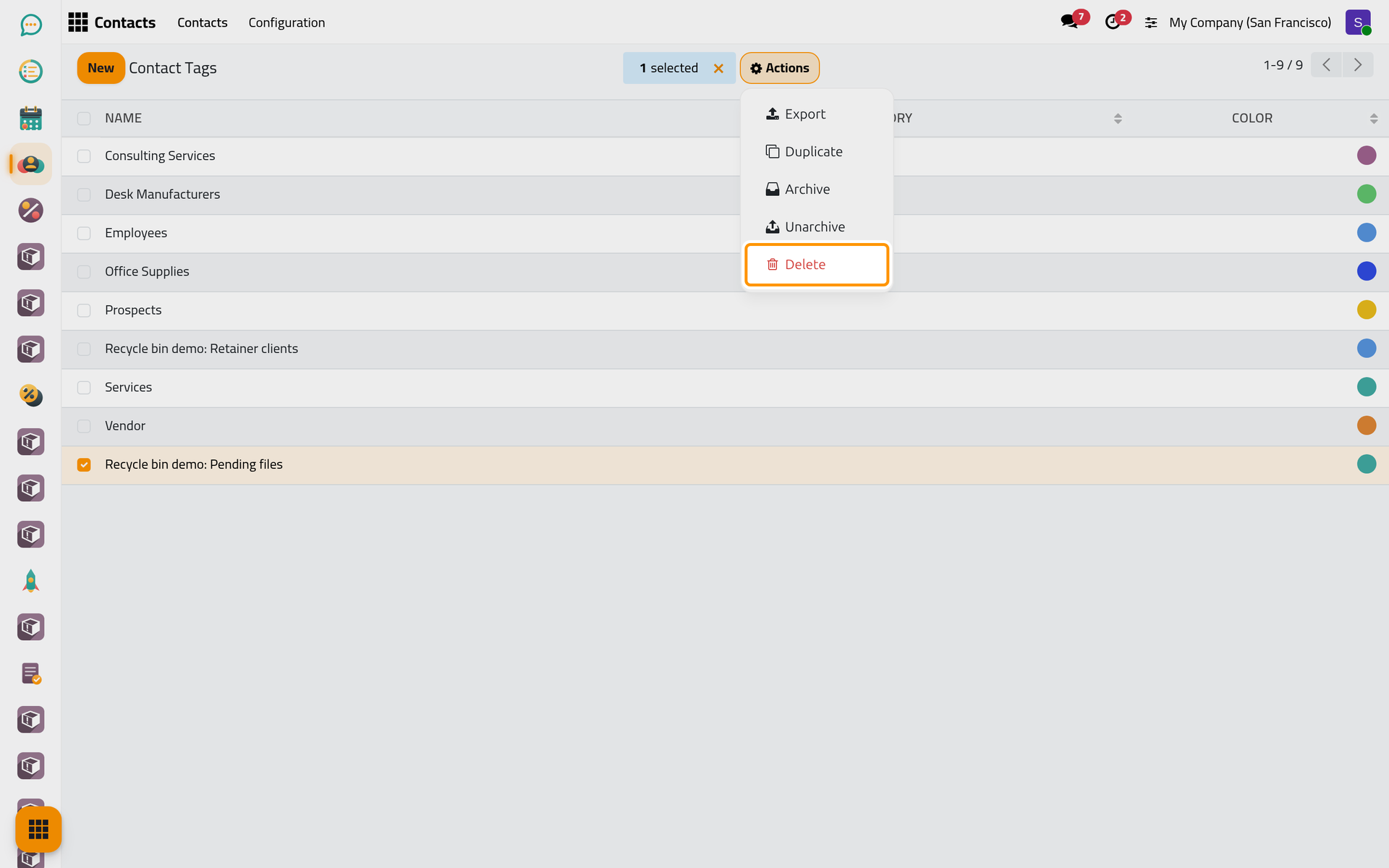
On a phone, the list shows no boxes: touch and hold the line until it is selected, then open Actions at the top of the list.
- The dialog Bye-bye, record! warns that the record will be gone forever. Click Delete. The tag leaves the list, but the bin has already kept its copy. Deleting and archiving are explained in Create, edit and delete a record.
Step 2: find it in the bin
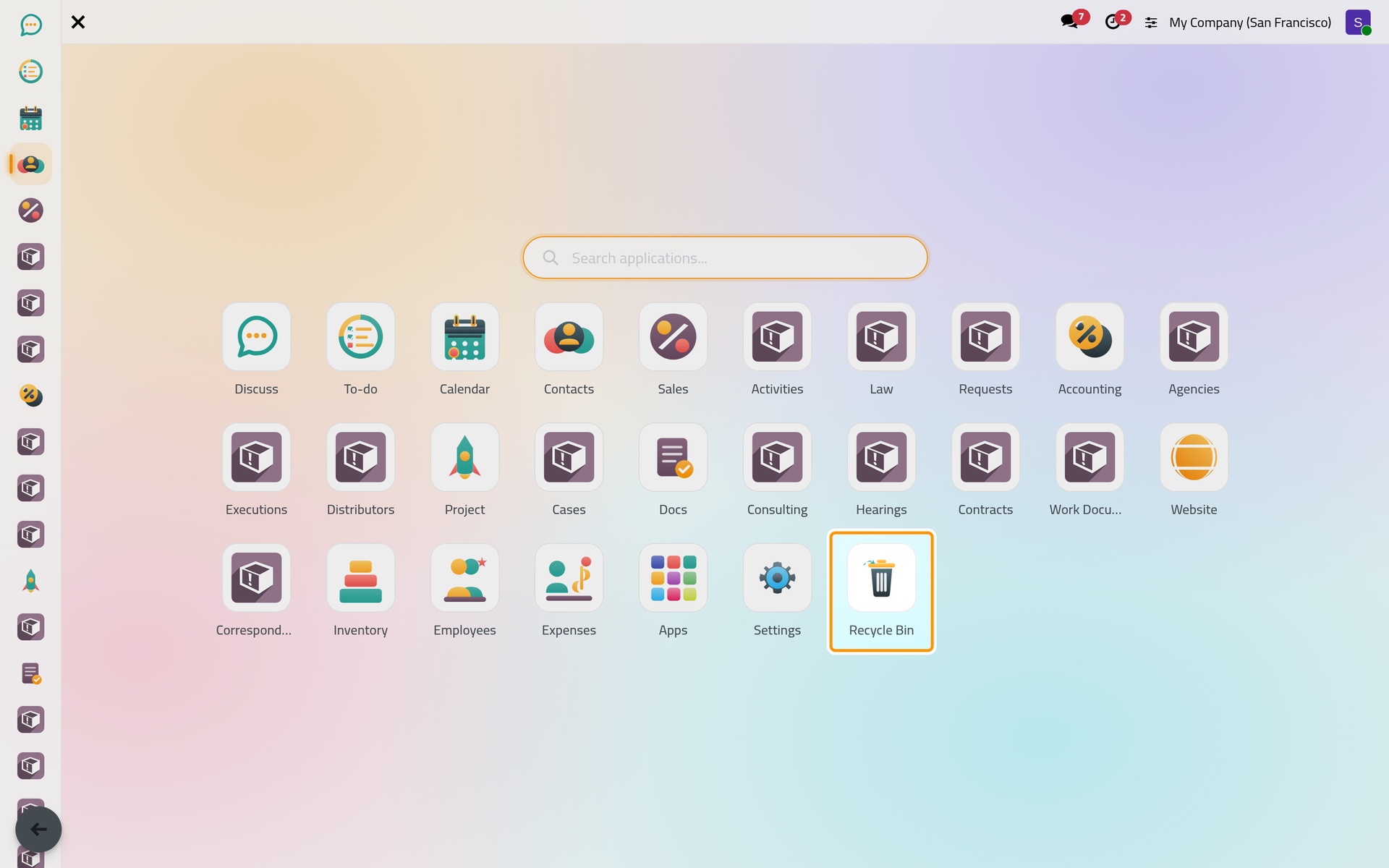
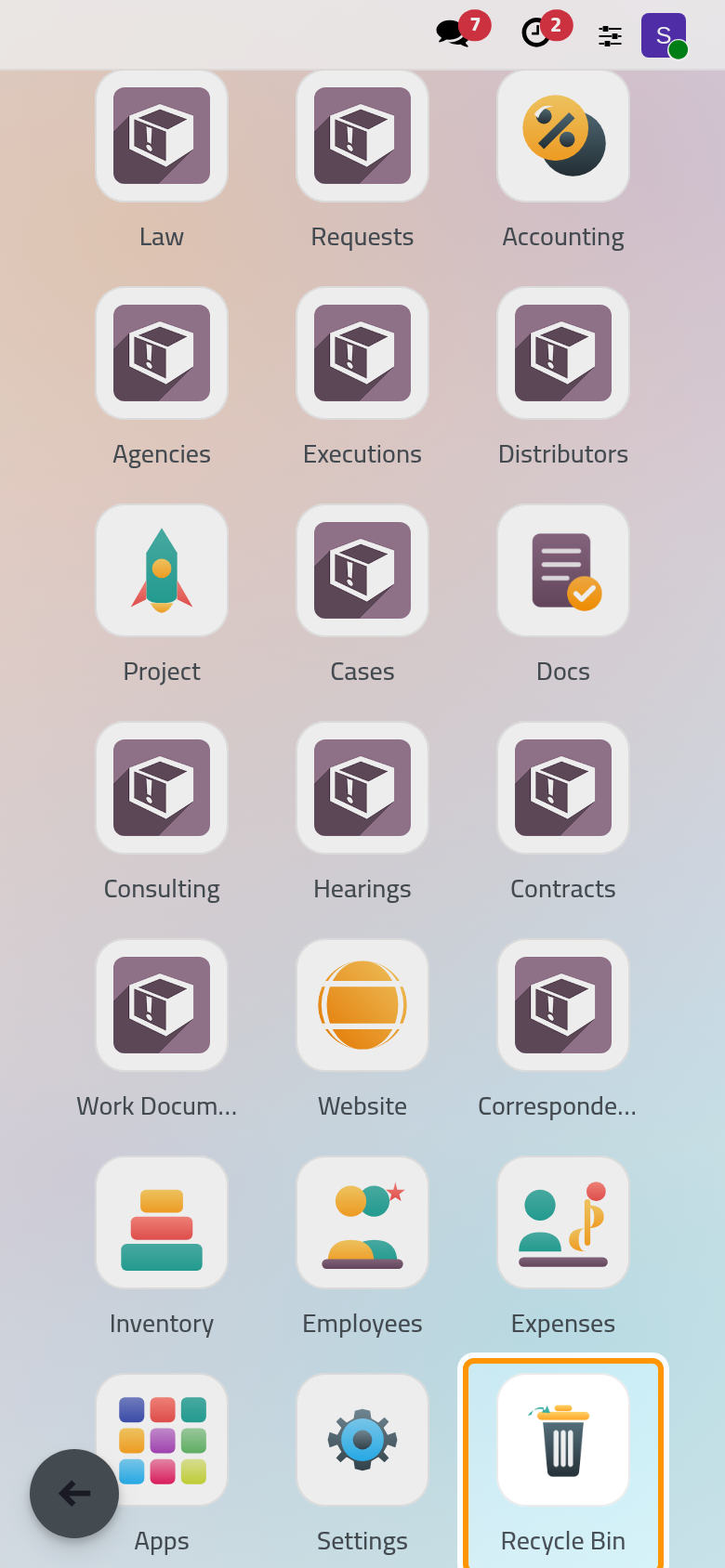
- Click the home menu button at the top left and open Recycle Bin, the last app of the grid.
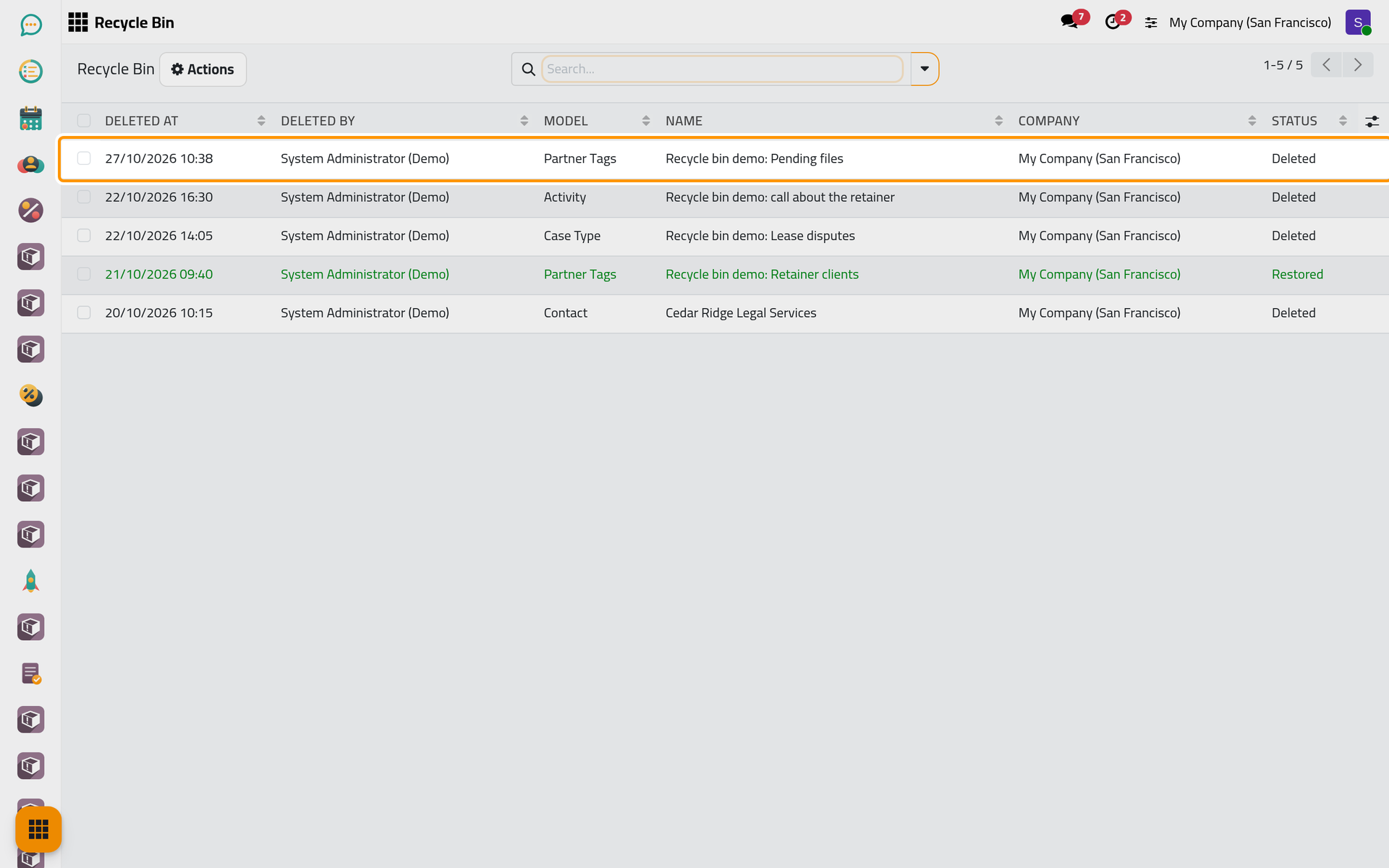
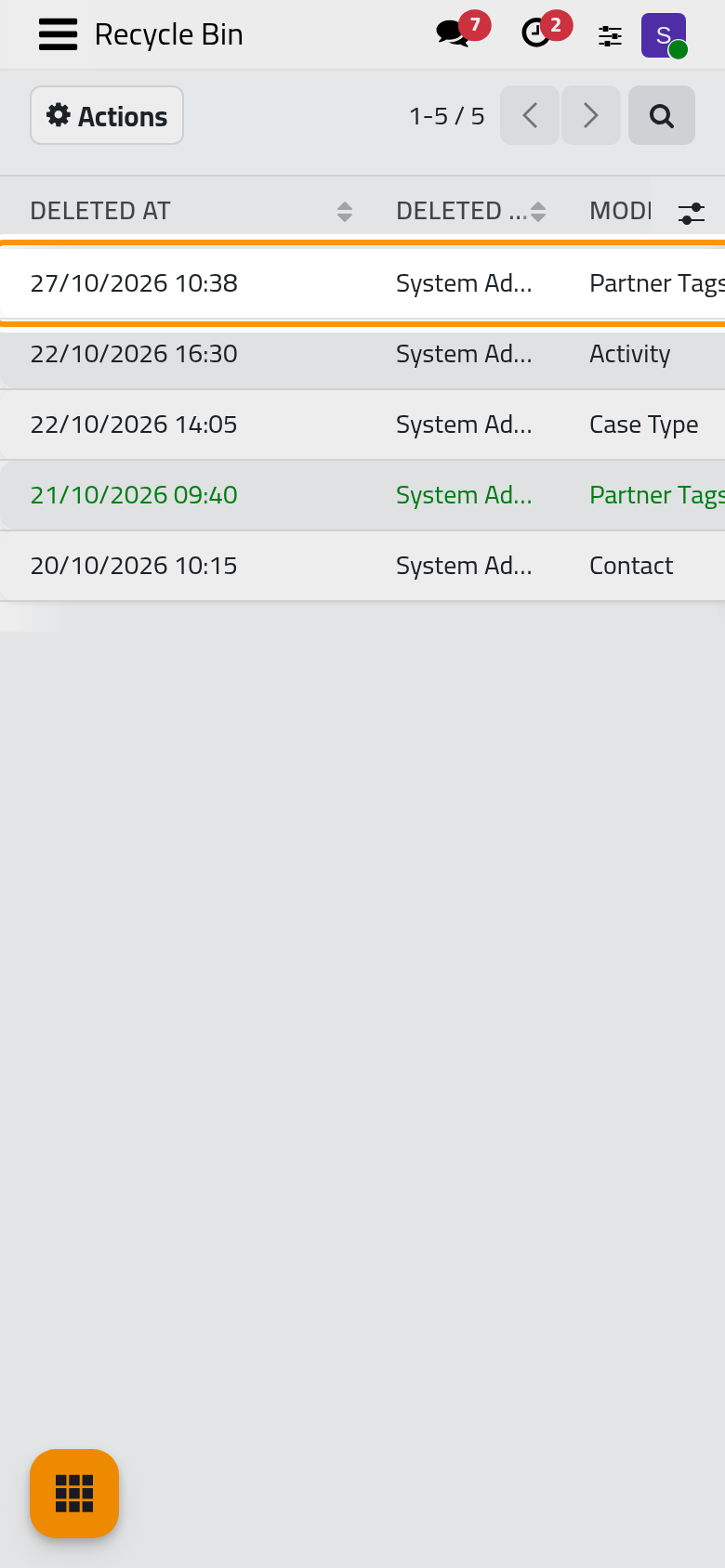
- The list shows the newest deletion first, so your tag is the first line. Deleted at is the time of the delete in your time zone, Deleted by is you, Model names the kind of record (Partner Tags for a contact tag), Name is the name the tag had, and the Status reads Deleted. The demo lines below it were deleted between 20 and 22 October 2026.
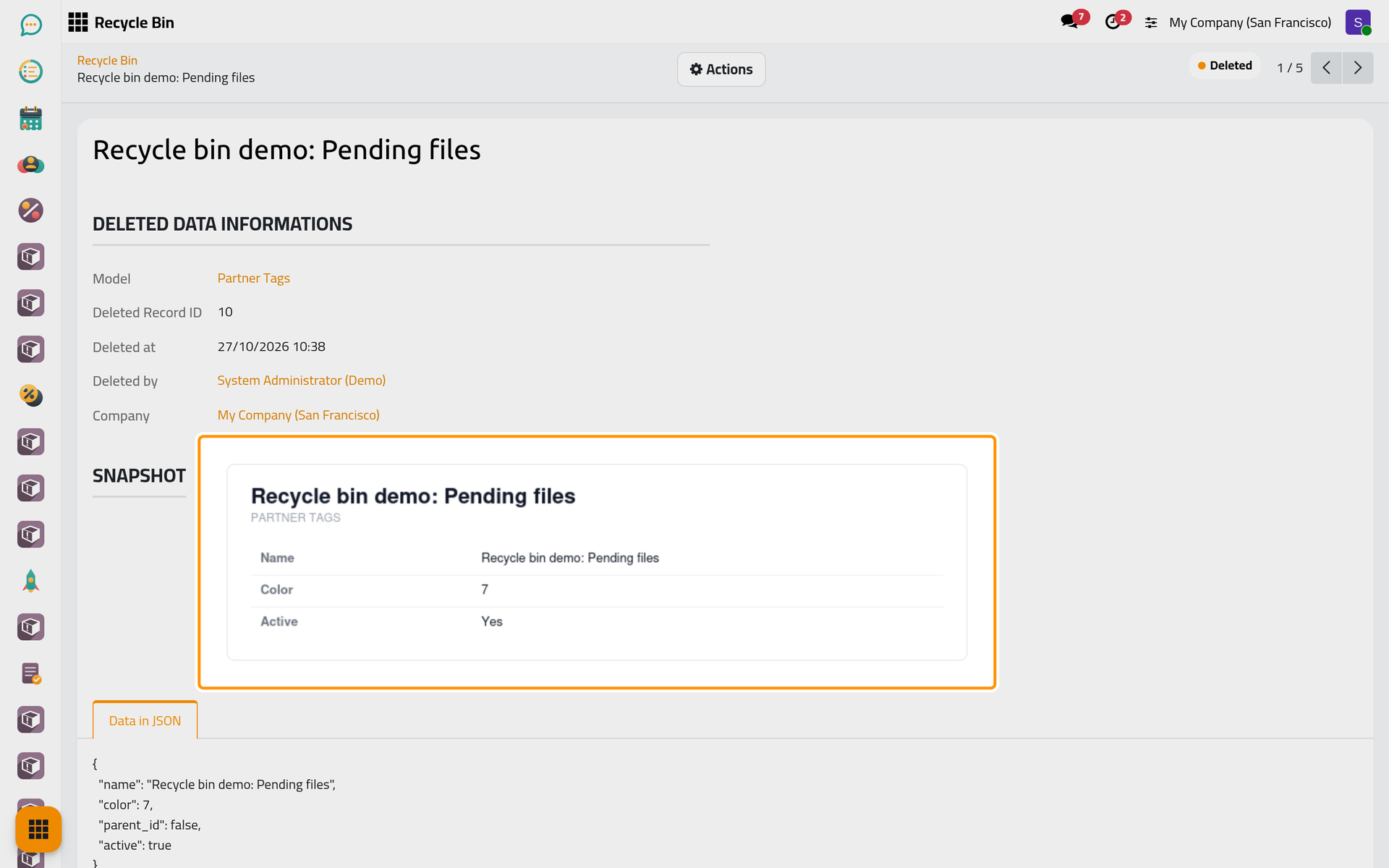
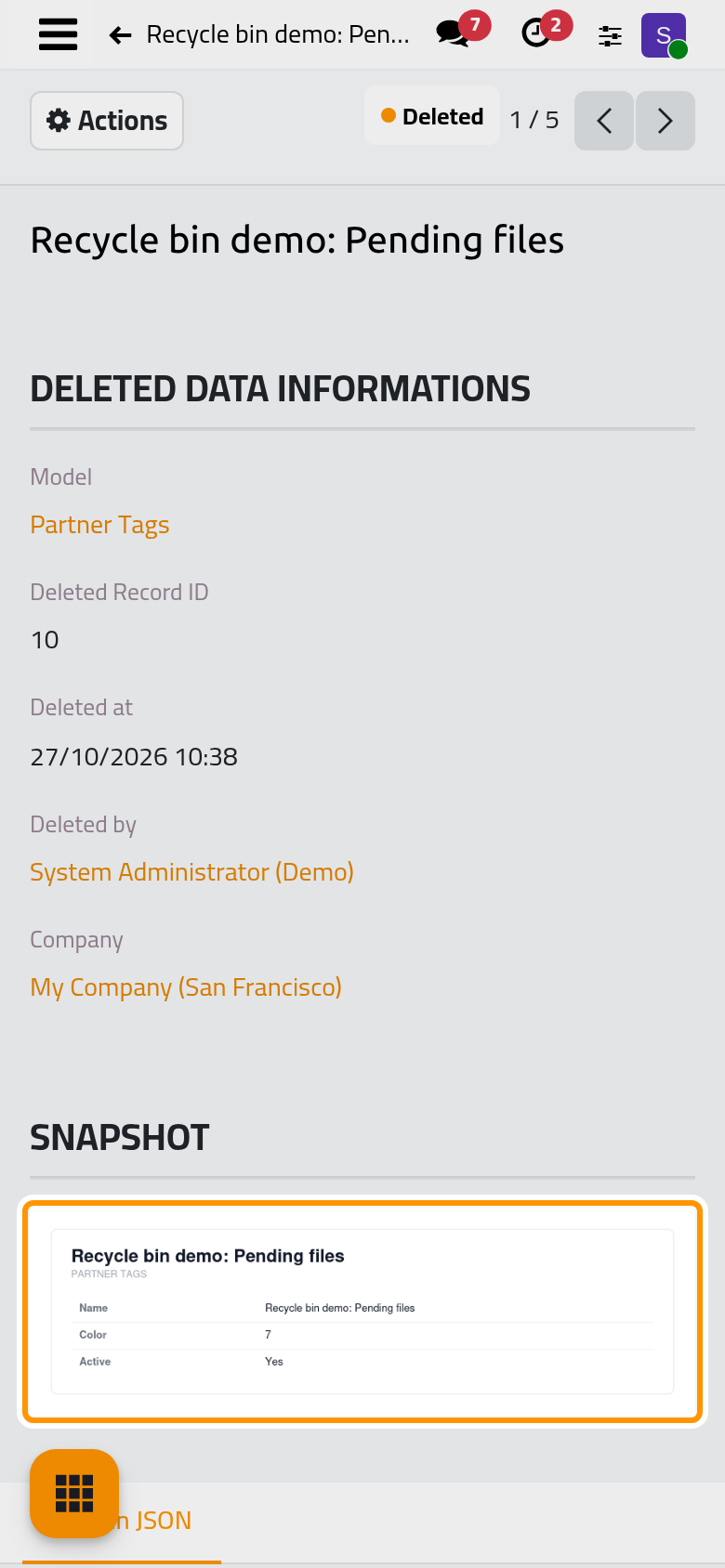
- Click the line to open the entry. The group Deleted Data Informations repeats the model, gives the Deleted Record ID, the number the tag had in the database, and names the company. Below it, the Snapshot shows what the tag held at the moment of the delete: its name, its color as a number and Active. It is drawn in your language at the time of the delete. The Data in JSON tab under it holds the same values in technical form: those are the values a restore uses.
Step 3: restore it
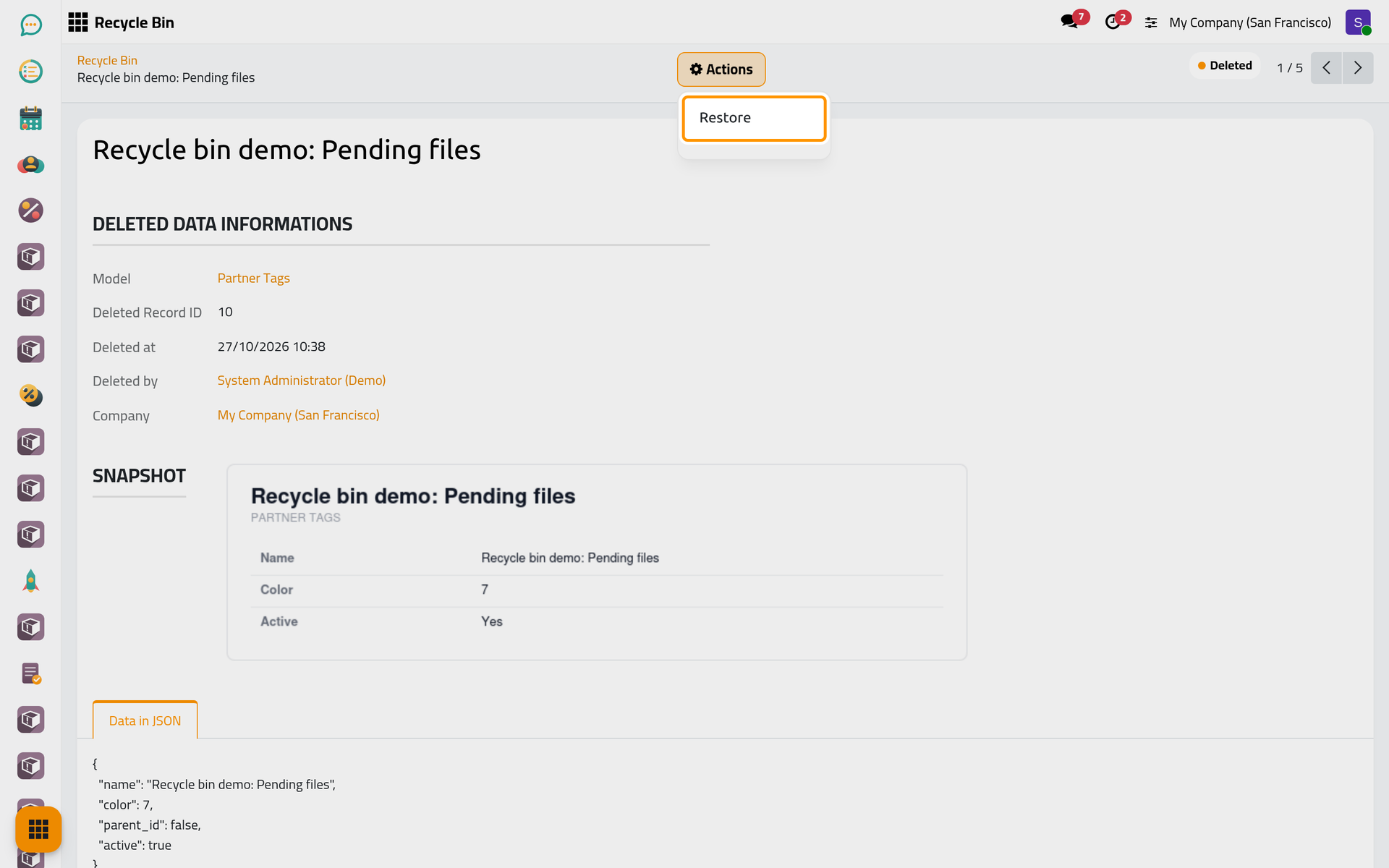
- Open the Actions menu of the entry and choose Restore. The choice is there only while the entry is Deleted.
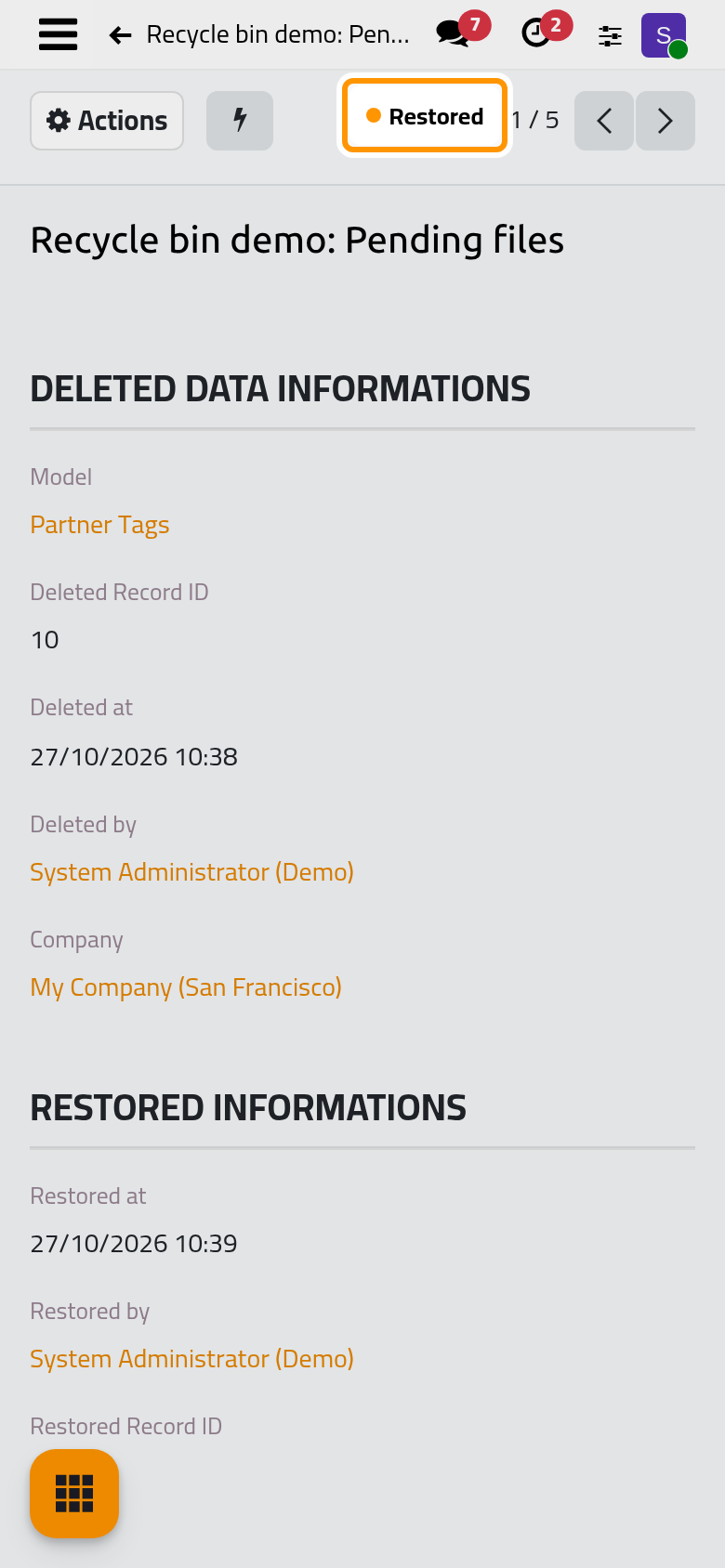
On a phone, the Actions button sits at the top left of the entry.
- The dialog asks "Are you sure to restore this data?". Click Ok.
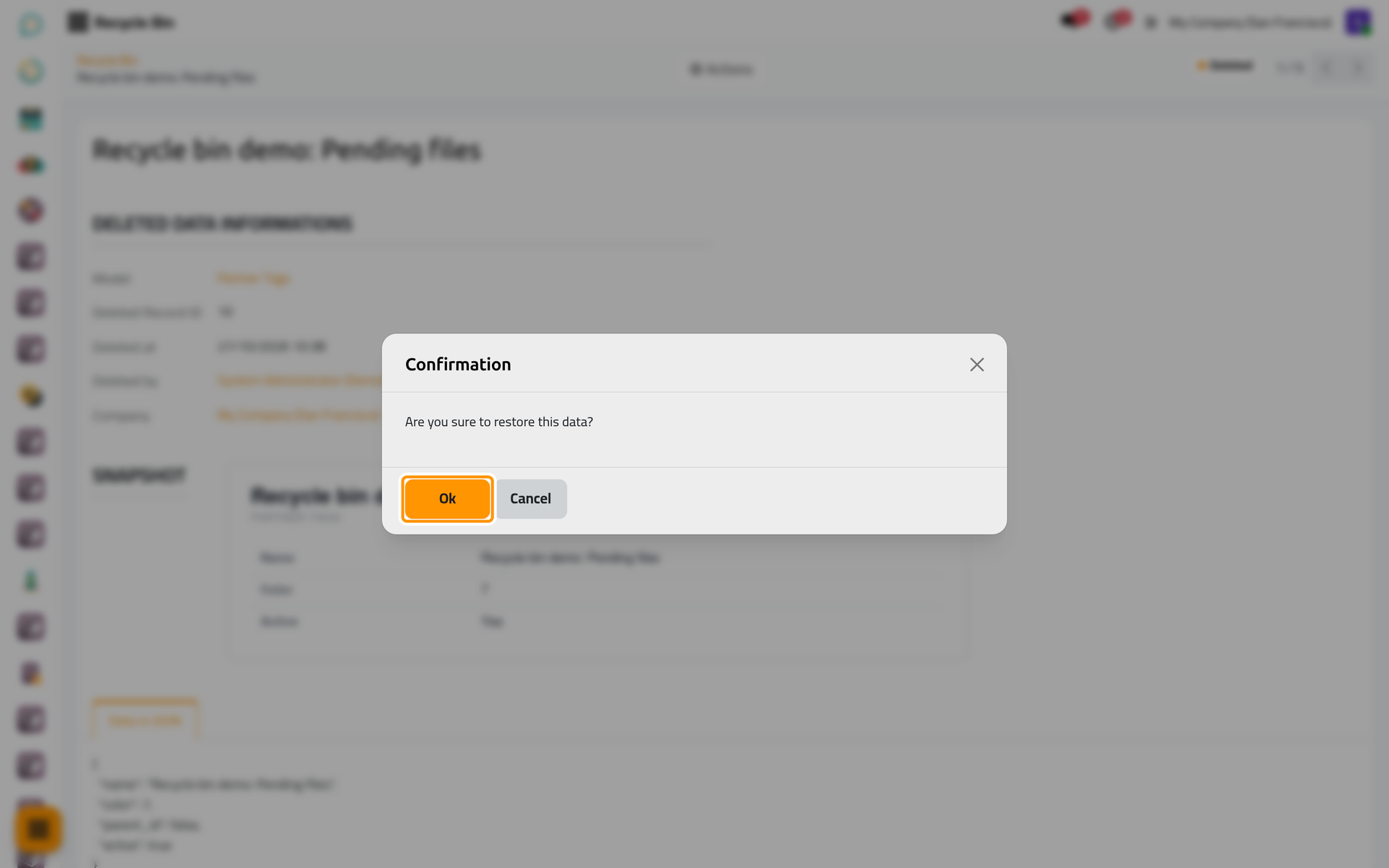
On a phone, the dialog fills the screen, with the same buttons at the bottom.
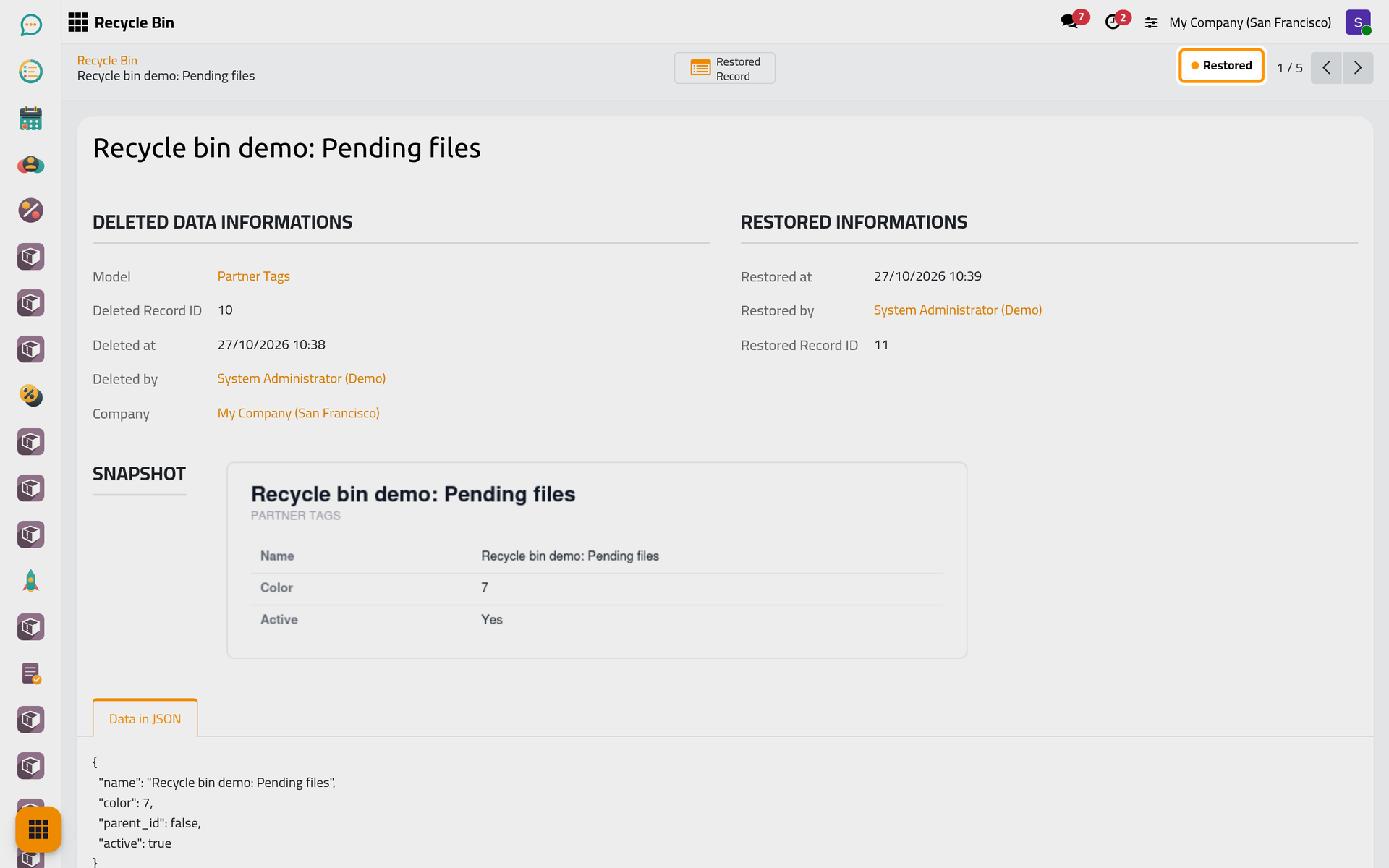
- The status turns Restored, and the group Restored Informations appears: Restored at, Restored by and the Restored Record ID. Compare that number with the Deleted Record ID: they differ, because the tag was created again as a new record from the saved values. The delete itself is not undone.
Step 4: open the record that came back
- Click the Restored Record button at the top of the entry. On a phone, it sits behind the lightning button next to Actions.
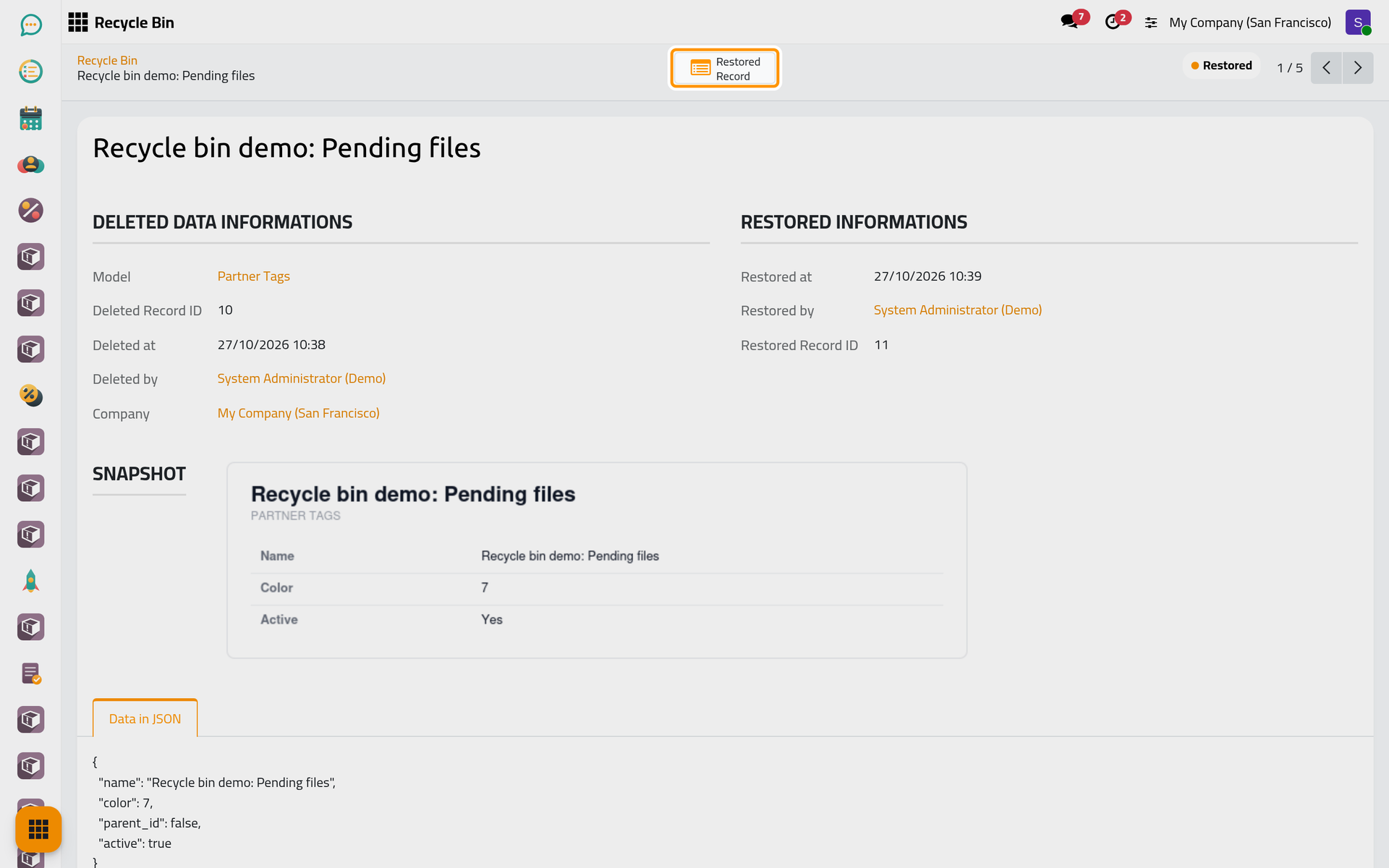
- The tag opens with its name and its color, ready to use. It is back in as well, and you can put it on contacts again.
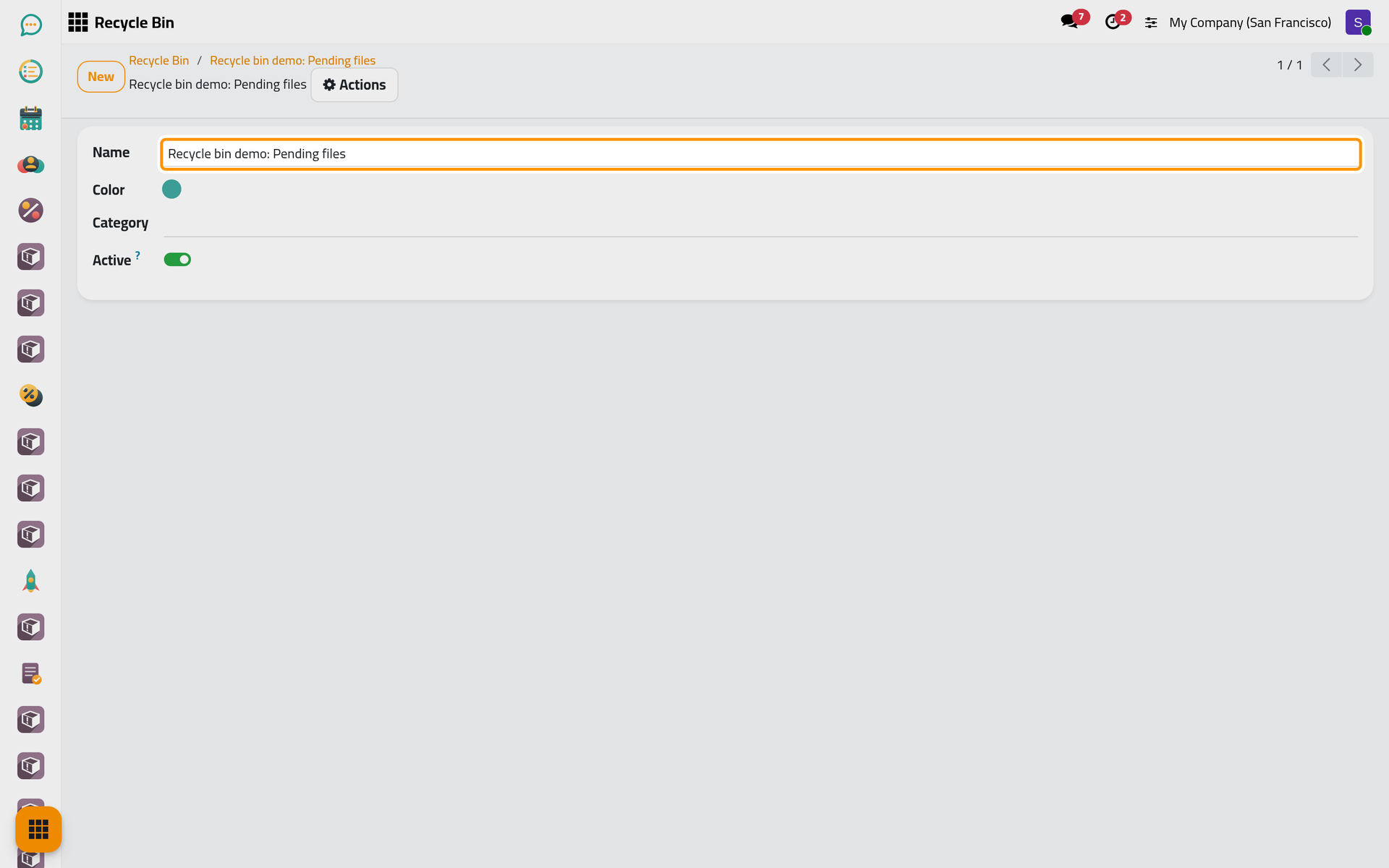
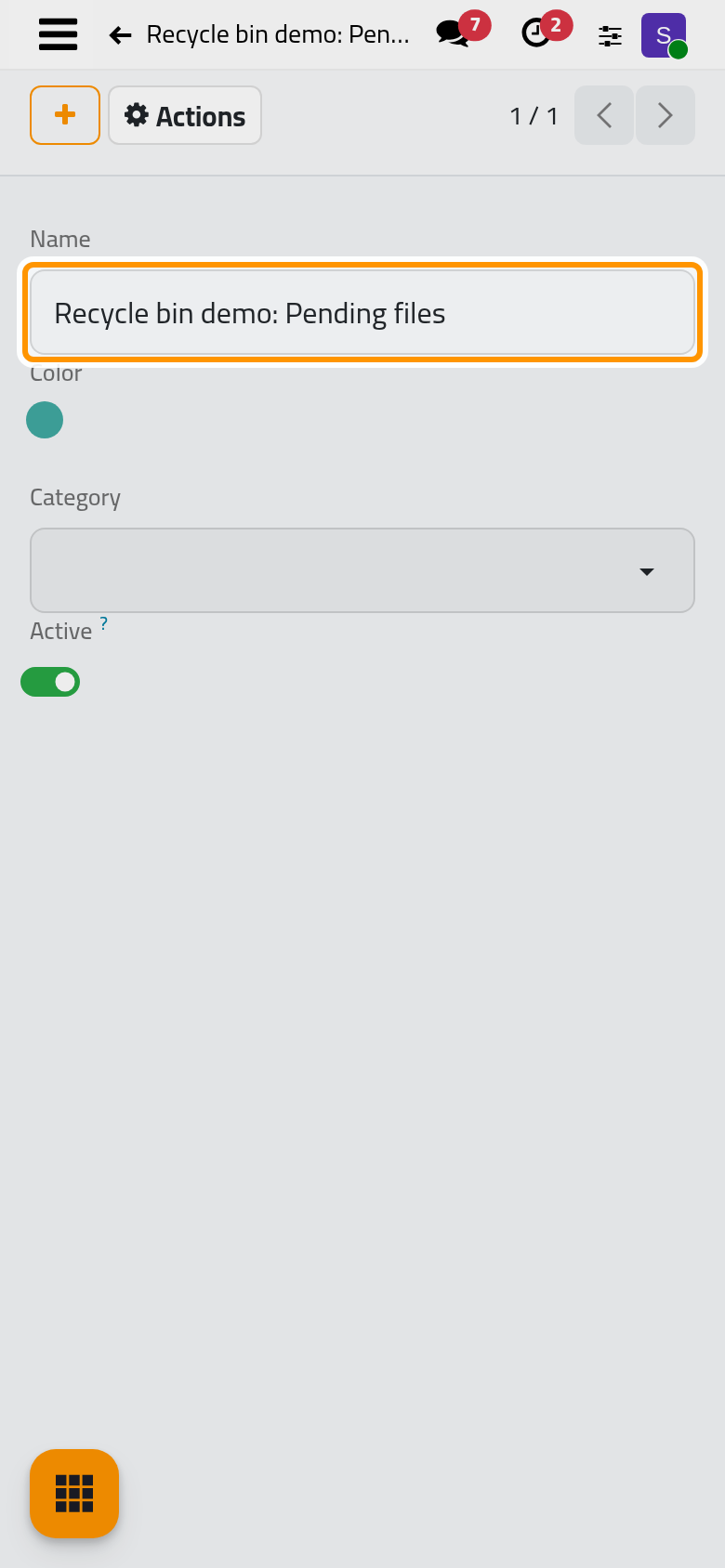
The entry stays in the bin, now marked Restored and shown in green in the list. It is removed with the other entries once it is older than the retention period of Recycle bin settings, 30 days by default.
What you have done
You deleted a record, found its entry in the bin with who deleted it and when, read the values it held in its snapshot, and restored it as a new record with the same name. This tag comes back whole because nothing used it yet. A contact, a document or a case carries more: its messages, its files, its activities and the links from other records. Restore a record and check the result lists what comes back and what does not, and Find a deleted record shows how to search a busy bin. How the recycle bin works explains what the bin keeps and which deletes never reach it.
Was this page helpful?
Thank you for your feedback.