Repeat an activity
On this page
A weekly file review, a monthly report to a client: a recurring activity schedules its next occurrence by itself when you mark it done. The demo's "Weekly file review" repeats every Sunday until 31/03/2027.
Before you start
- You need the User access right on Activities.
- The rule lives on the activity itself, in its Recurrence tab. An activity scheduled from a chatter gets it the same way, once opened from My Activities.
Set the rule
- Open and click New, or open an existing activity.
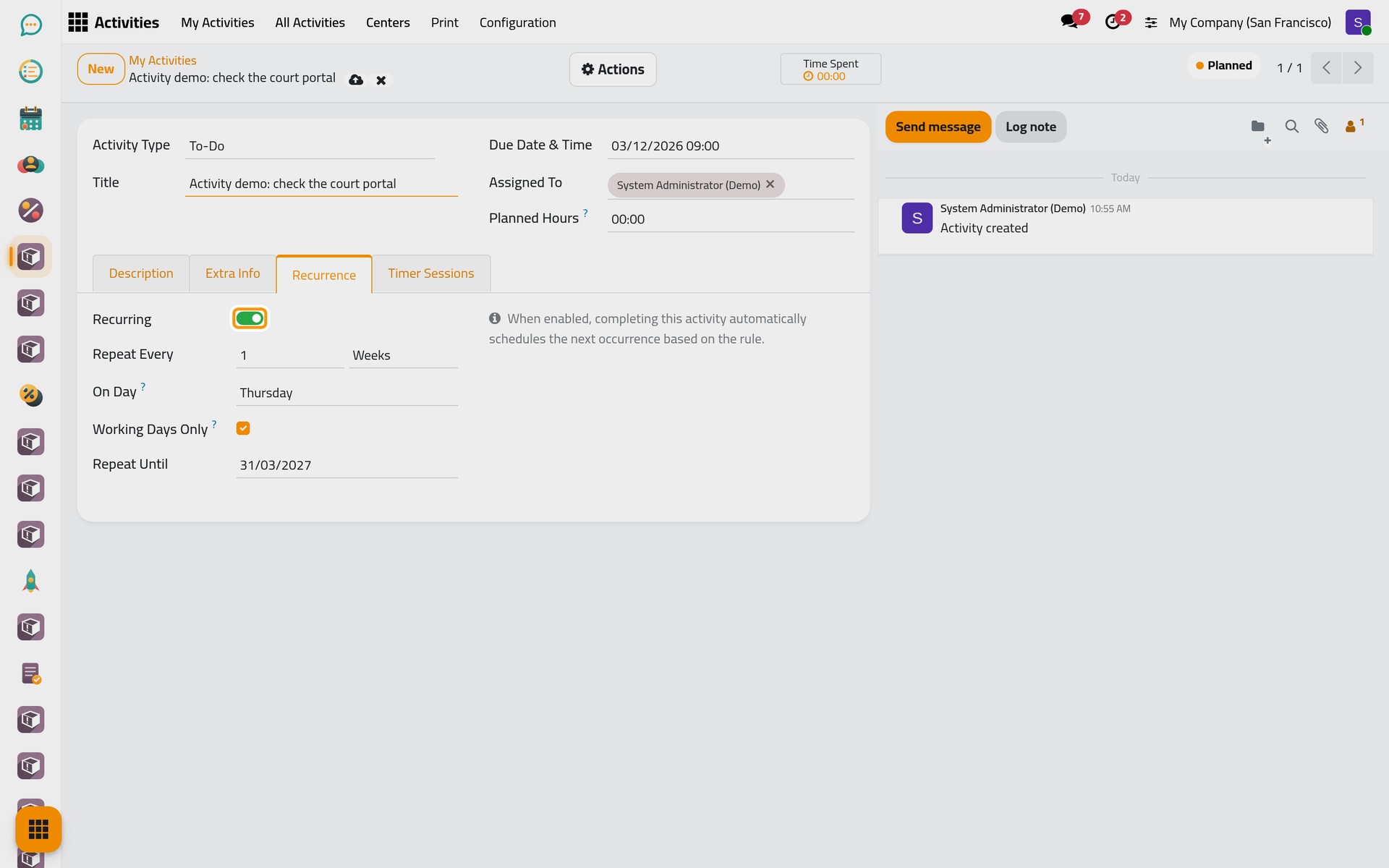
- Type the Title, here "Activity demo: check the court portal", and set Due Date & Time to the first occurrence: Thursday 3 December 2026 at 09:00.
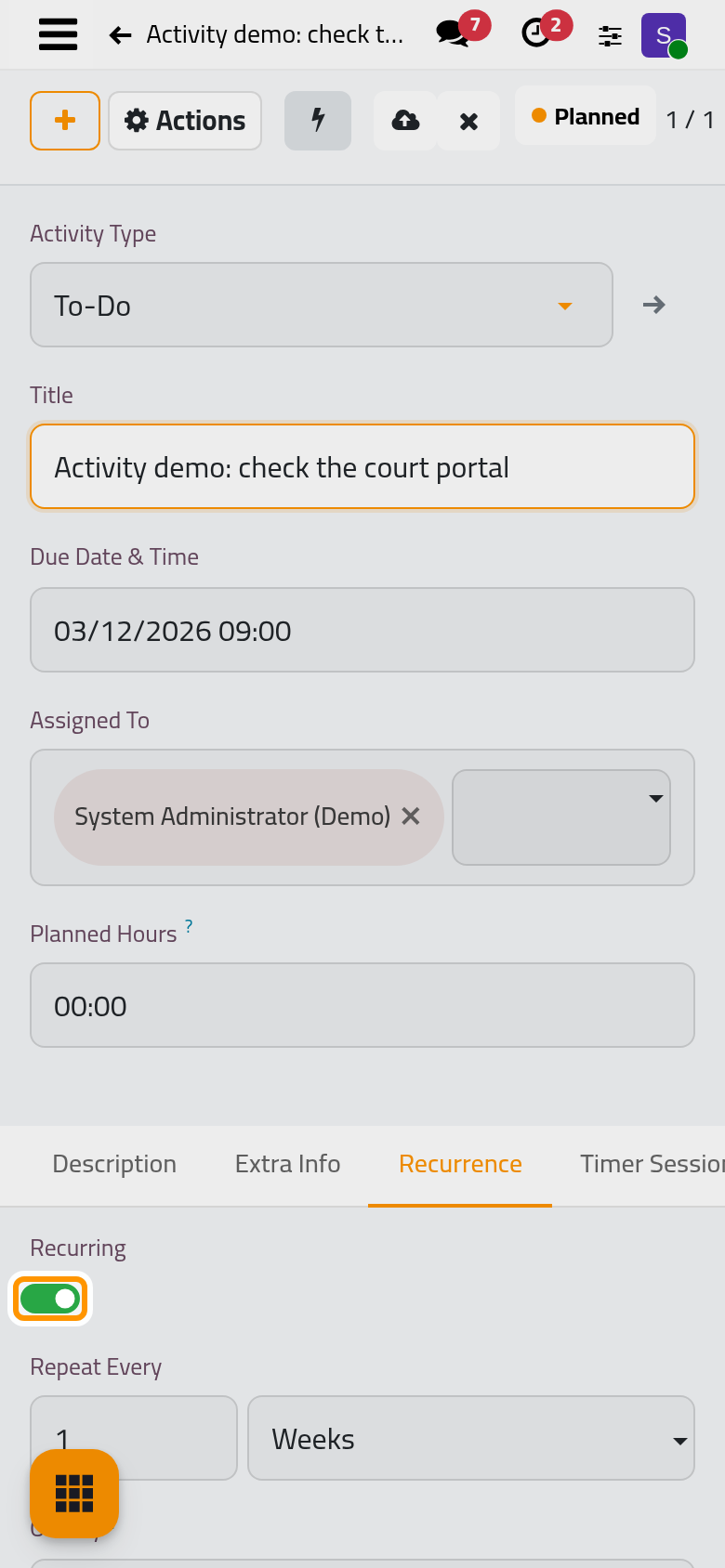
- Open the Recurrence tab and switch on Recurring. The switch saves the activity at once; the fields of the rule appear.
- Fill the rule:
- Repeat Every: a number, then Days, Weeks or Months.
- On Day: the weekday of a weekly rule, here Thursday.
- Day of Month: the day of a monthly rule; in a shorter month, the last day is used.
- Working Days Only: an occurrence that falls on a Saturday or a Sunday moves to the next Monday.
- Repeat Until: the last date of the series, here 31/03/2027. Leave it empty for a series without end.
- Click Save manually.
Mark it done
Choose Mark Done in the Actions menu. The activity is archived as done, and the next occurrence is created at once: same title, type, assignees, tags and rule, due on the next Thursday at the same time, 10/12/2026 at 09:00. It waits in My Activities with the others.
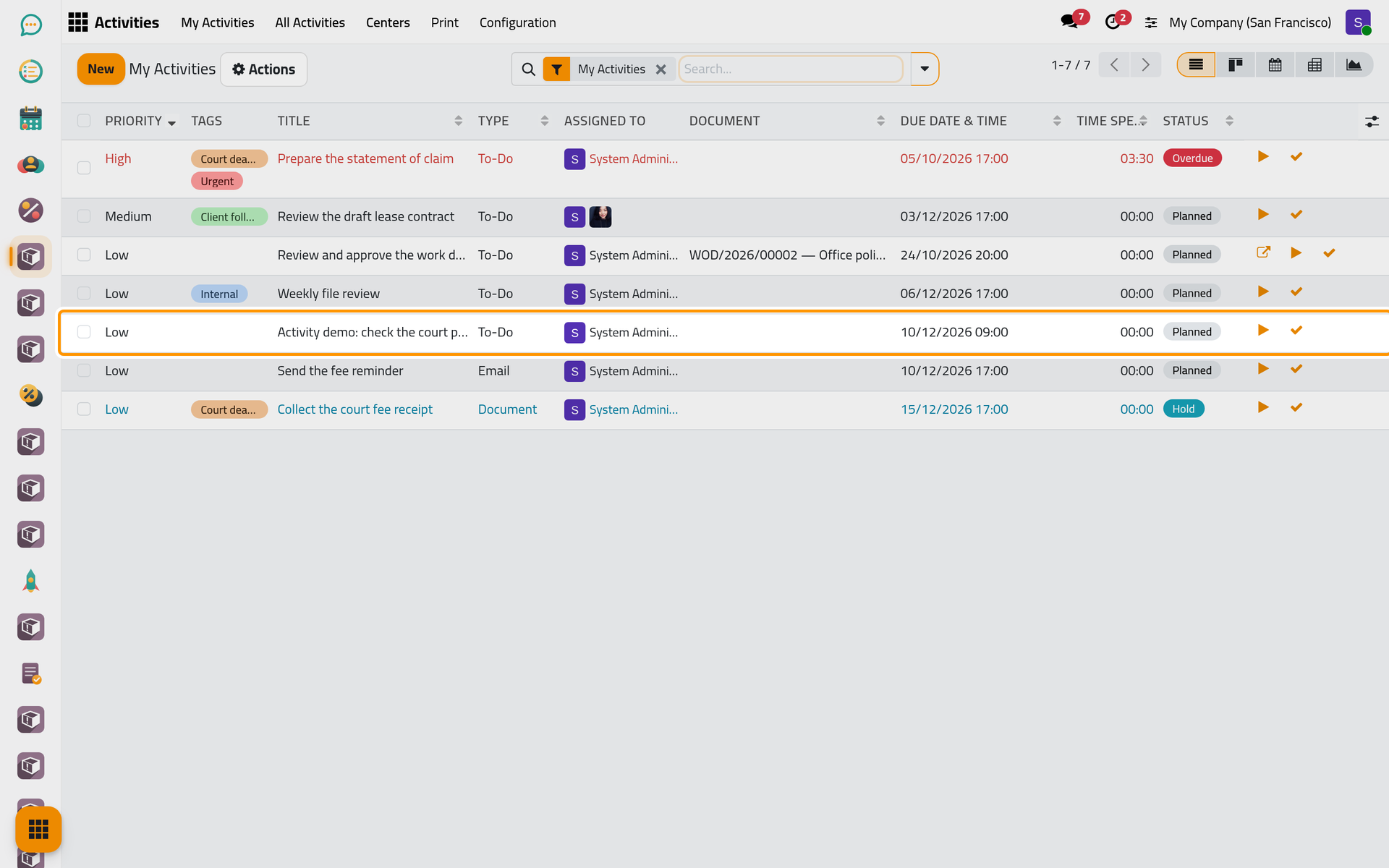
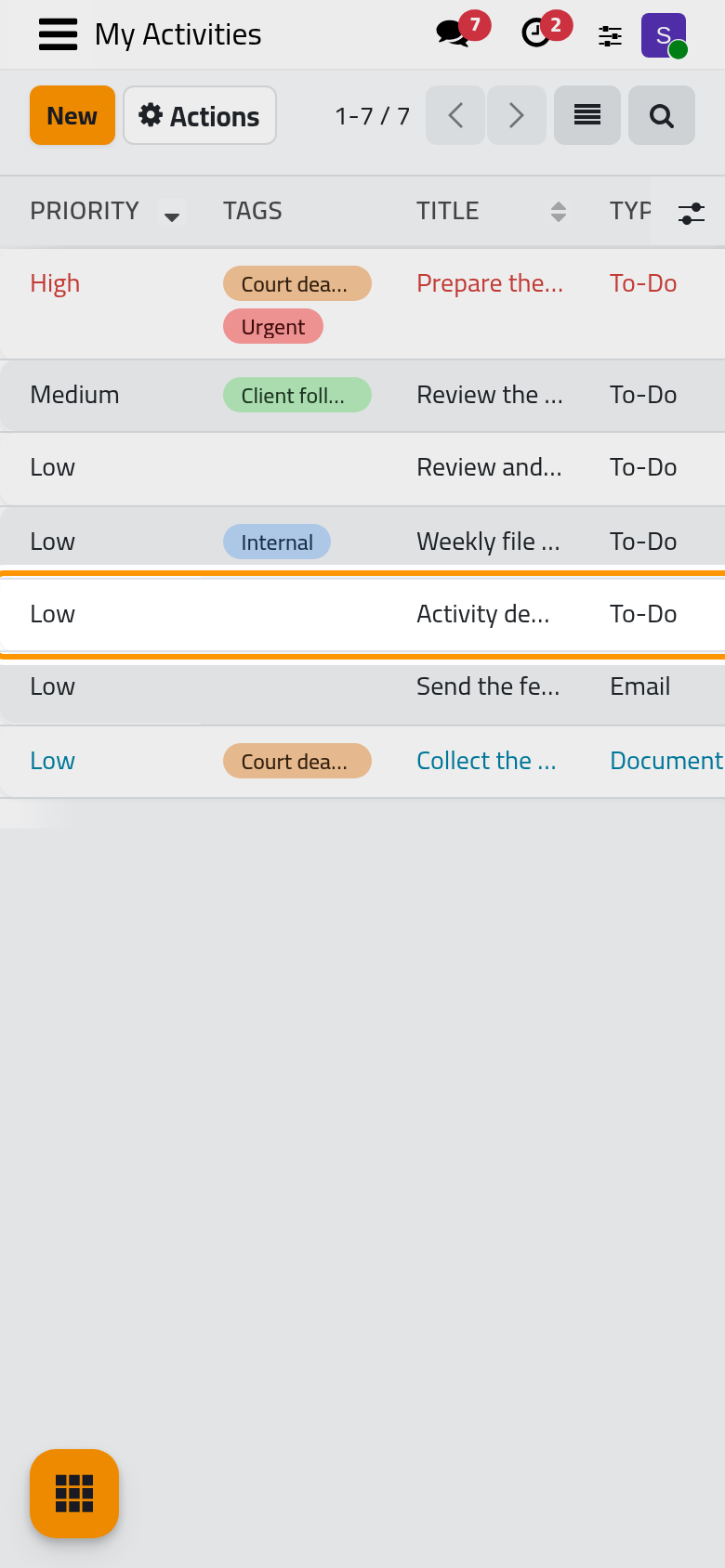
The next date counts from the due date, not from the day you finish: an occurrence done late does not shift the series. No occurrence is created after Repeat Until.
When nobody marks it done
Once a day, a scheduled job looks for open recurring activities whose due time has passed. For each one it creates the next occurrence and archives the late one, which then appears under the Done filter although nobody finished it. After Repeat Until, the late one simply stays open. Activities automations describes the job and how to stop it.
FAQ
Our weekend is Friday and Saturday. What does Working Days Only do?
It treats Saturday and Sunday as the weekend: a Friday stays where it is and a Sunday moves to Monday. With a Friday and Saturday weekend, switch it off and choose the day yourself in On Day.
How do I stop a series?
Open the occurrence that is still open and switch Recurring off, or set Repeat Until to an earlier date. Occurrences already done stay as they are.
Does the next occurrence keep the hour?
Yes. With Due Date & Time on, the next occurrence keeps the time of day of the previous one, in the assignee's time zone.
Does the next occurrence keep the time spent?
No. Each occurrence starts with its own empty timer; the sessions stay on the occurrence they were recorded on.
Was this page helpful?
Thank you for your feedback.