Print activities
On this page
Two prints come with the app: the Activity List, a landscape table of the activities you choose, for a weekly meeting or a file review; and Activity Details, one activity on one page.
Before you start
- The Activity List needs the User access right on Activities; Activity Details can be printed by anyone who can open the activity.
- A print holds only the activities you may see: your own and those of the records you can read, or every activity for a Supervisor.
Print a list
- Open . The Activity List dialog opens.
- Under Due Date Range, Print all due dates is on: every due date is printed. Switch it off and a Due Date range appears, from one date to another, with the time when due dates carry one. Group by due date prints one block per day.
- Under Optional Filters, narrow the list: Status, Priority, Types, Tags, Assigned To, Clients and Centers. Several values can be chosen in each; an empty filter reads All. Here, the overdue activities of the center "Lease dispute file".
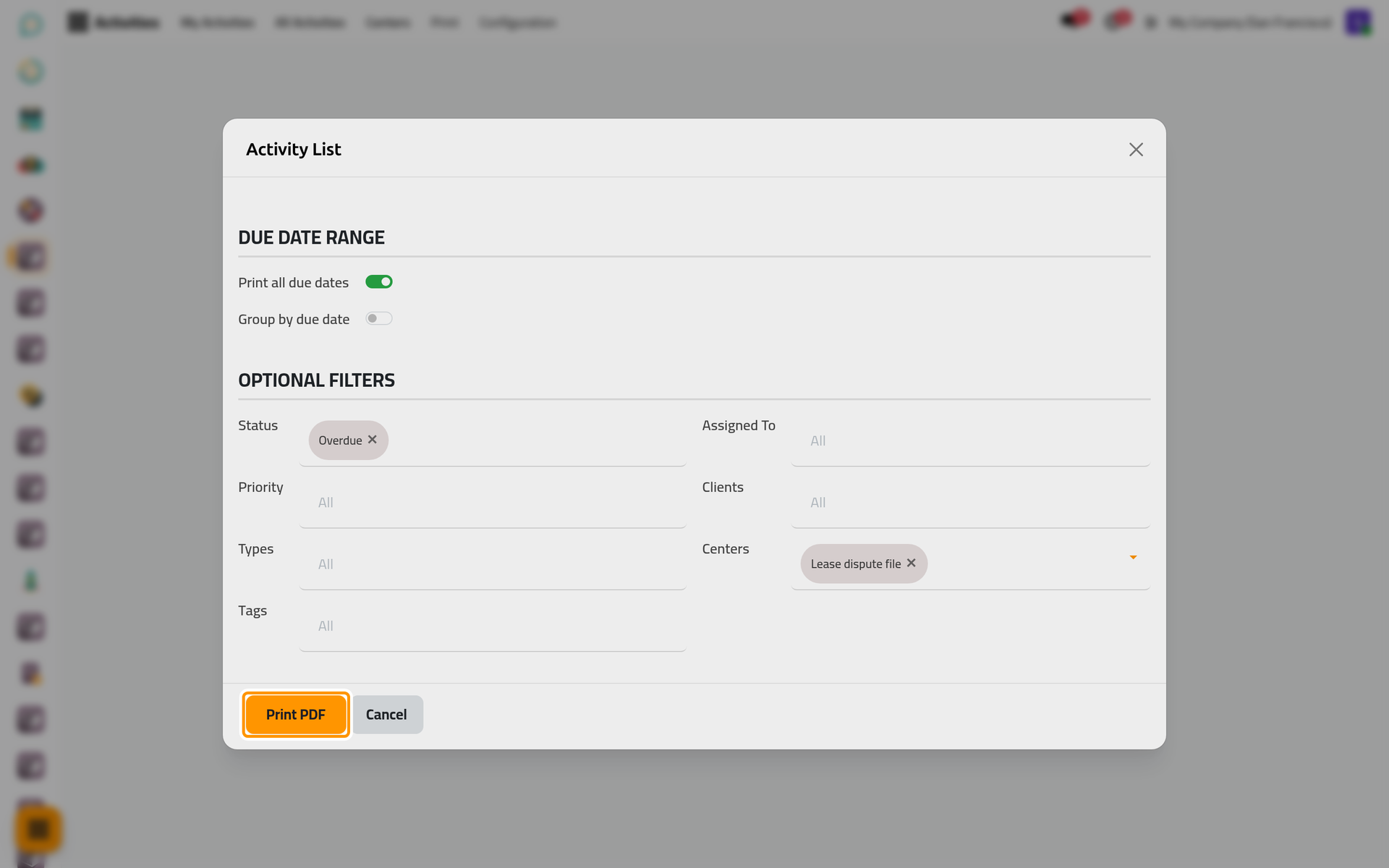
On a phone, the dialog opens full screen with the same fields and buttons.
- Click Print PDF. The table lists, in order of due date, the Summary, the type, the first assignee, the client, the center, the document, the priority, the status and the due date; its header repeats the filters used.
Print one activity
Open the activity and choose Activity Details in the Actions menu. The page gives the type, the first assignee, the supervisor, the client, the center, the document, the priority, the status, the due date, the tags and the description. The file is named after the activity's title.
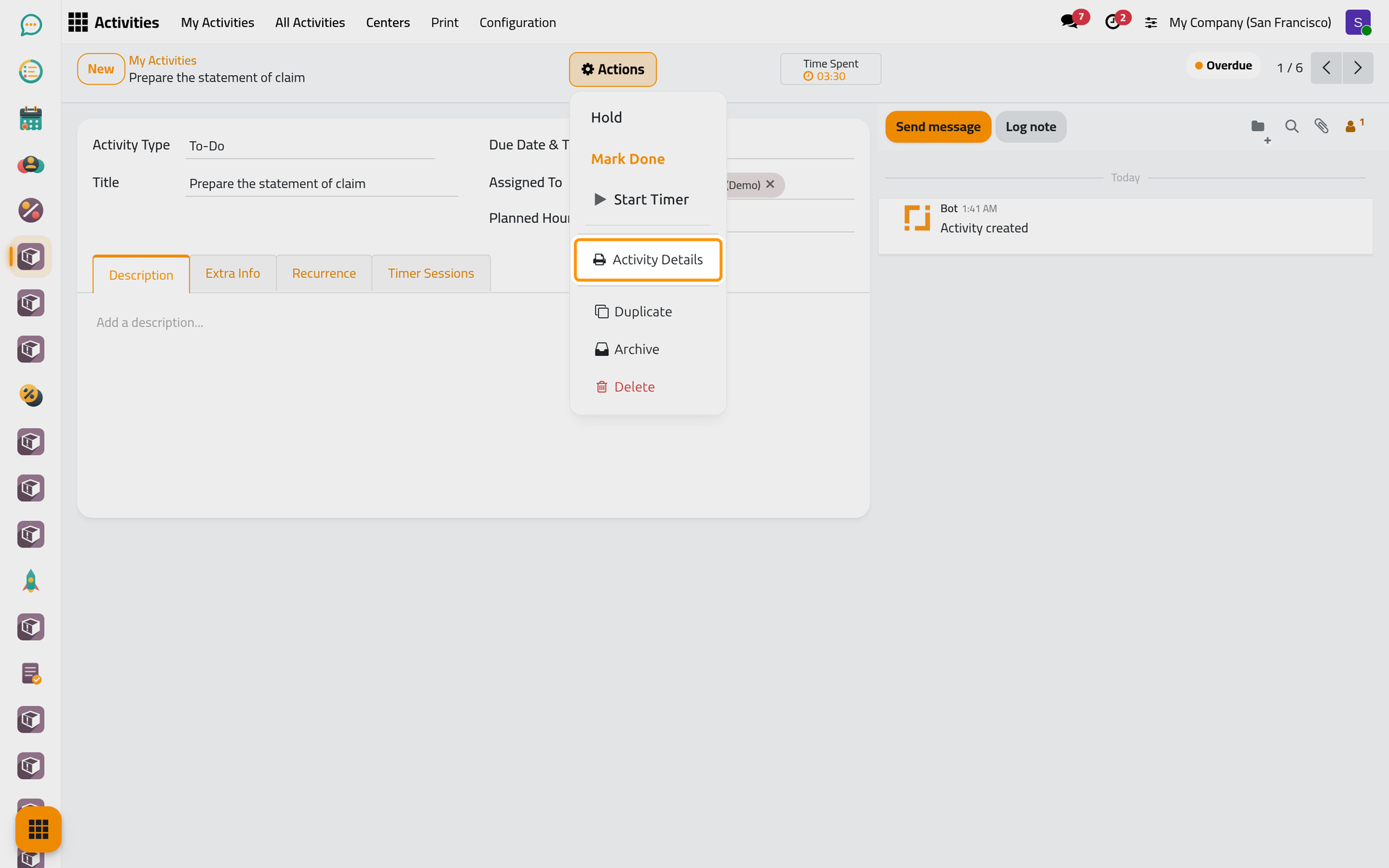
On a phone, the Actions menu holds the same item.
To print several at once, tick their rows in and choose Activity Details under Print: each activity gets its own page.
FAQ
Why does my list include finished activities?
With no Status filter, the list includes the done activities as well. Choose the statuses you want, Overdue, Today, Planned and Hold for the open work.
The Assigned To filter missed an activity shared with me.
The filter, like the printed column, uses the first assignee of each activity; the people added after the first are not matched. Filter by Centers or Clients instead.
The list says Summary and the screens say Title.
They are the same field: the title you give the activity.
Can I print a week?
Switch off Print all due dates and give the first and the last day of the week, with Group by due date for one block per day.
Was this page helpful?
Thank you for your feedback.