Work through your activity list
On this page
My Activities is the list you work from each day: every open activity assigned to you, whichever app it belongs to. A supervisor also has All Activities, the same screen for every user of the firm.
Before you start
- My Activities needs the Viewer access right on Activities at least; creating an activity and recording timer time need User. All Activities needs Supervisor.
- Searching, filtering and grouping work as everywhere else: Search, filter and group records.
Read the list
Open . The highest Priority comes first, then the nearest due date. A red row is overdue, an amber one is due today, a blue one is on hold.
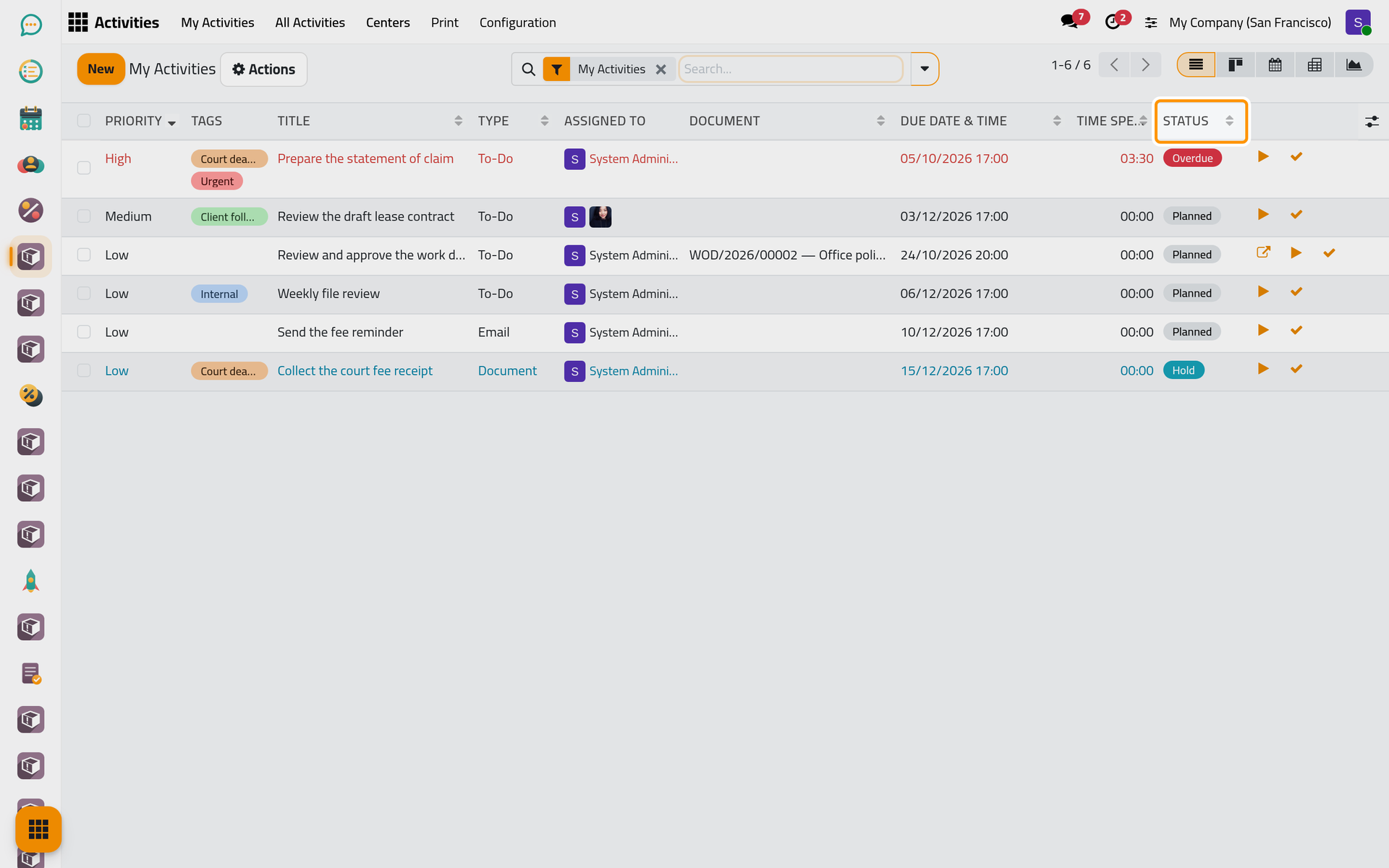
- Title, Type, Assigned To and Due Date & Time say what is due, for whom and when. Document names the record the activity belongs to, when it has one.
- Time Spent adds up the timer sessions, and Status reads Overdue, Today, Planned or Hold.
- The column selector at the end of the header adds Supervisor, Client, Center and Planned Hours.
- The icons at the end of a row open the related record, start or stop the timer, and mark the activity done.
Keep only what matters
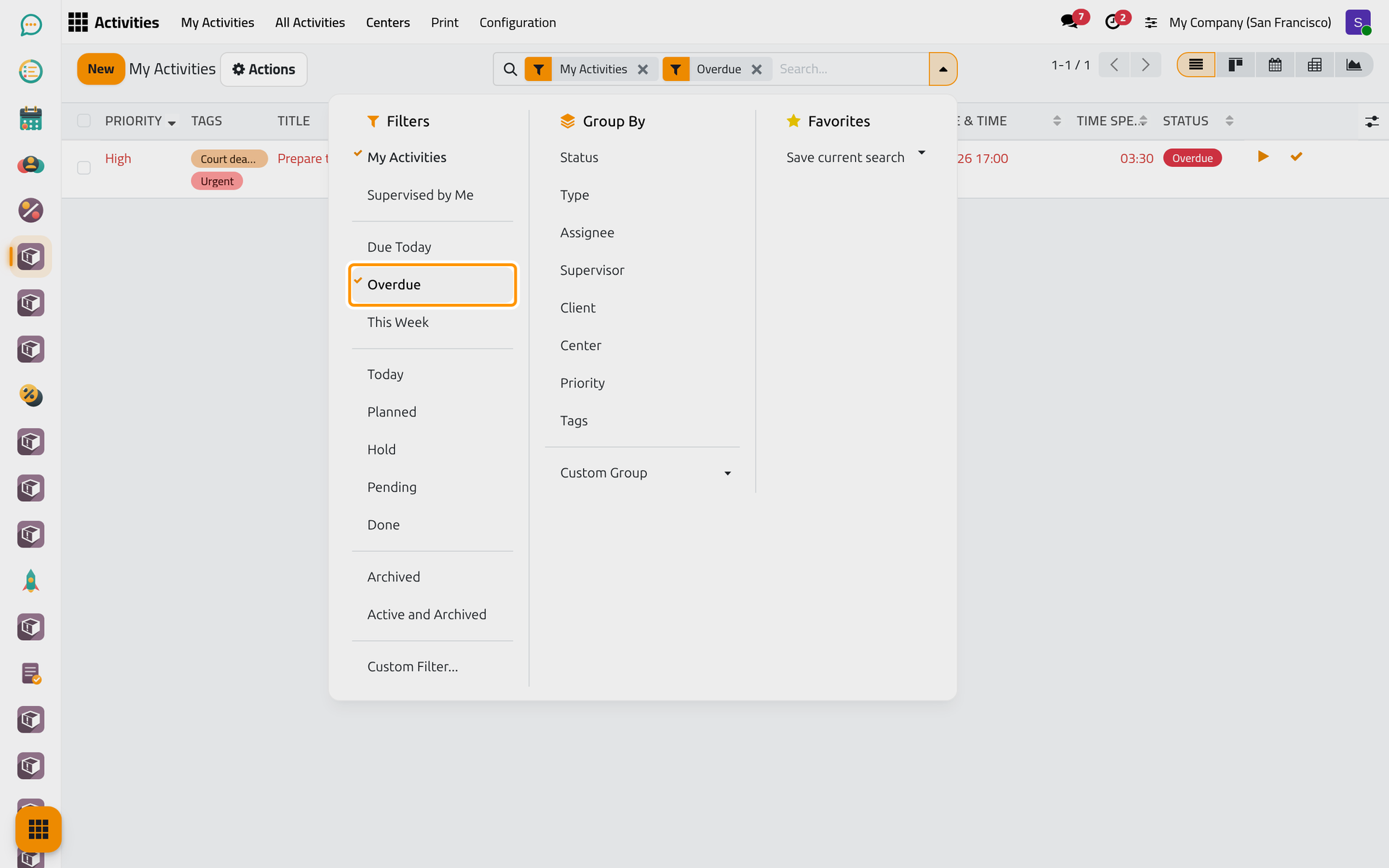
- Click the arrow at the end of the search bar.
- Choose a filter: Overdue, Due Today or This Week by date; Today, Planned, Hold or Done by status; Pending for activities that wait for others; Supervised by Me for those you supervise.
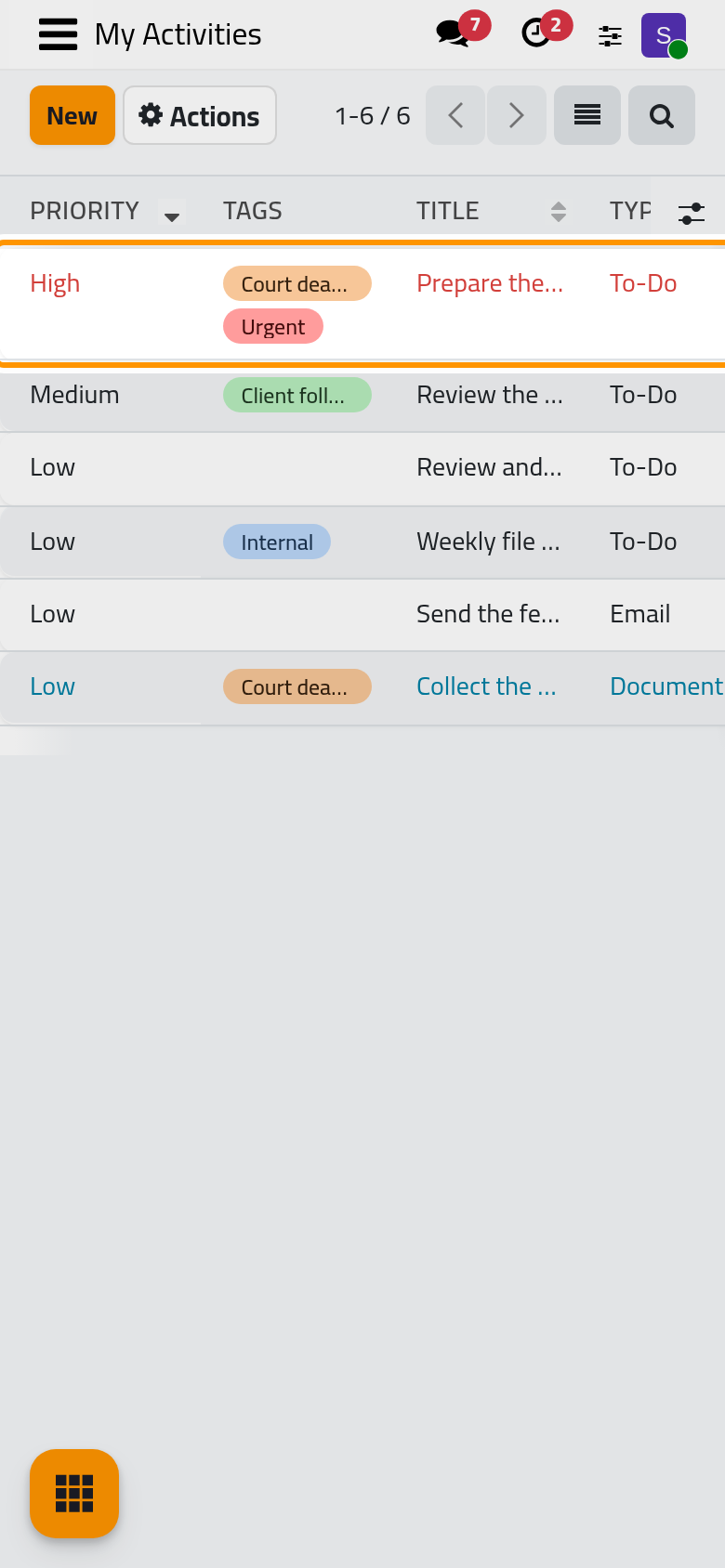
On a phone, the same filters open from the magnifier above the list.
The Group By column of the same panel groups the list by Status, Type, Assignee, Supervisor, Client, Center, Priority or Tags.
See the work by status
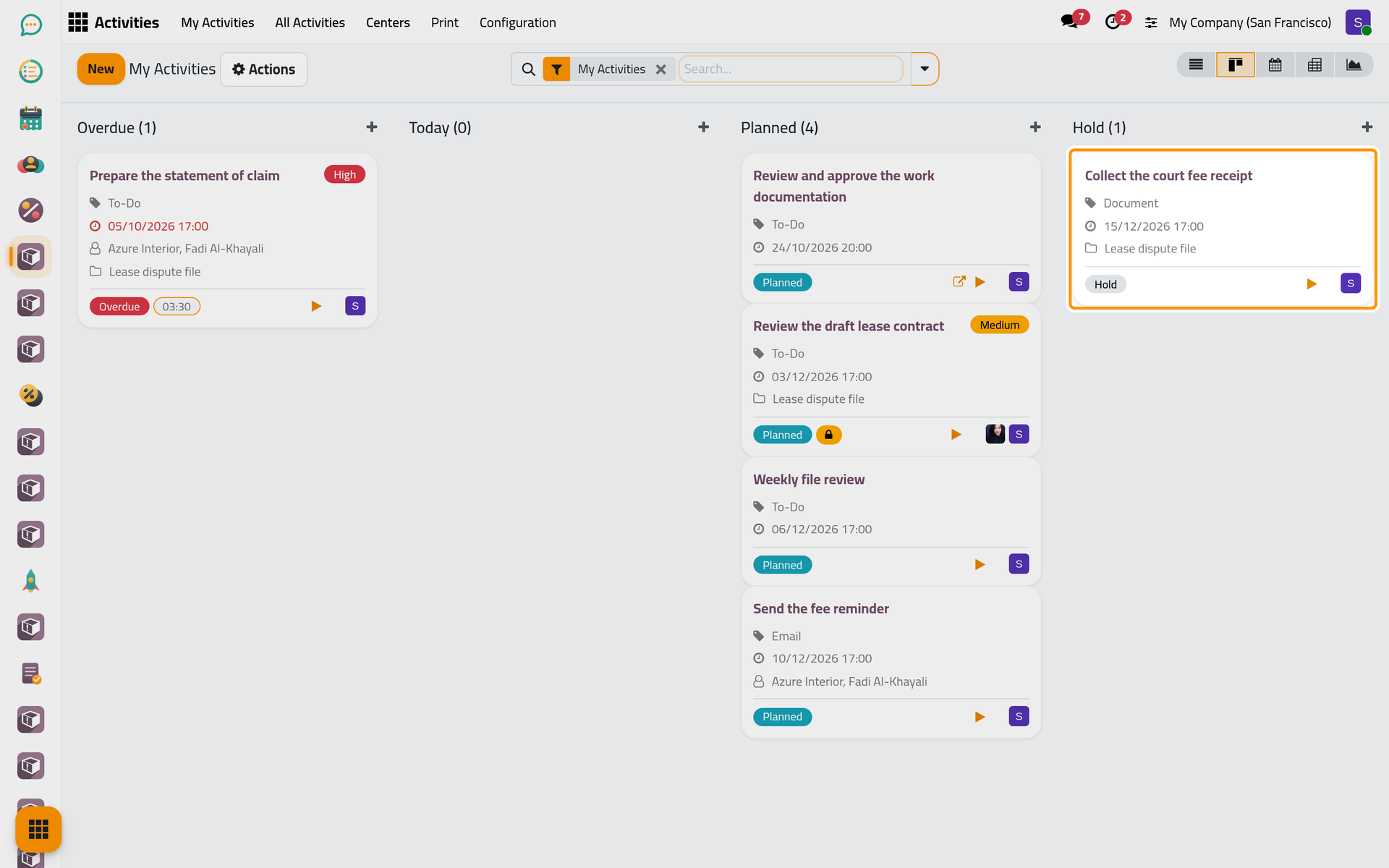
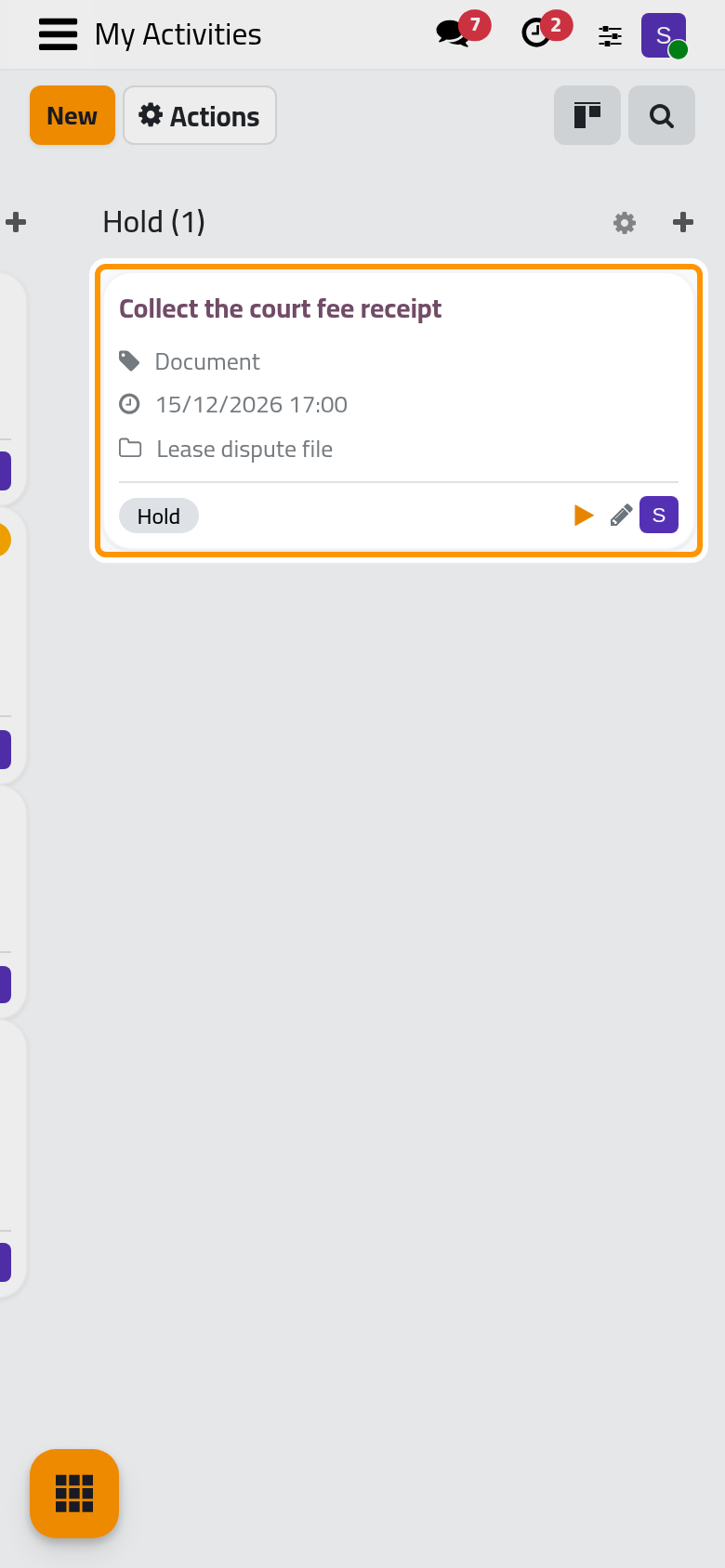
Click the board icon among the views at the top right. The kanban shows one column per status, Overdue, Today, Planned and Hold, even when a column is empty. Each card shows the title, a High or Medium badge, the type, the due date, the client and the center, and a lock when the activity waits for another one. On a phone, My Activities opens on this board.
The calendar view places the activities on their due date and time, one color per assignee. The pivot view crosses the assignees with the statuses and adds up Time Spent and Planned Hours; the graph adds up Planned Hours by type and status, and Measures switches it to Count or Time Spent.
Put an activity on hold
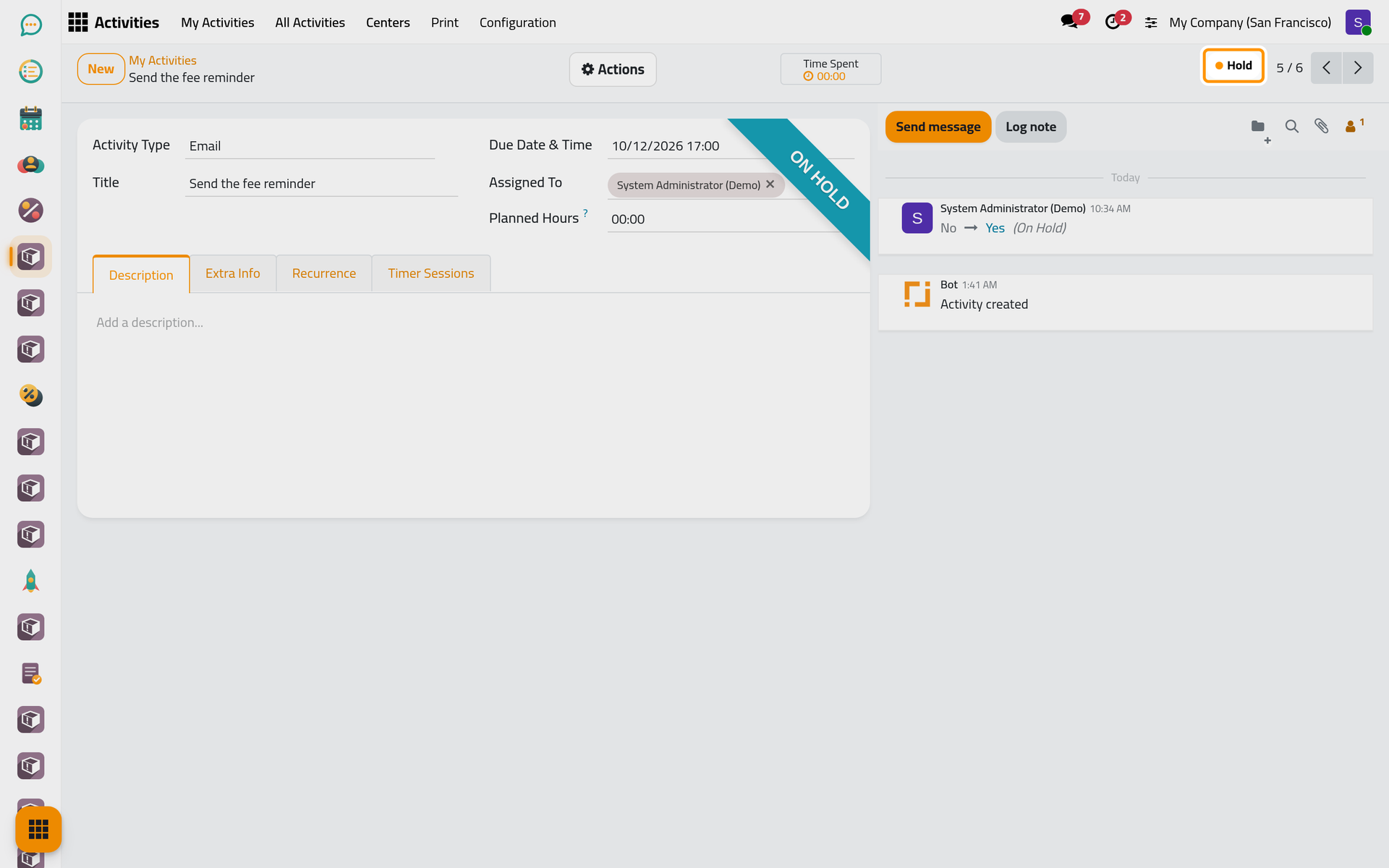
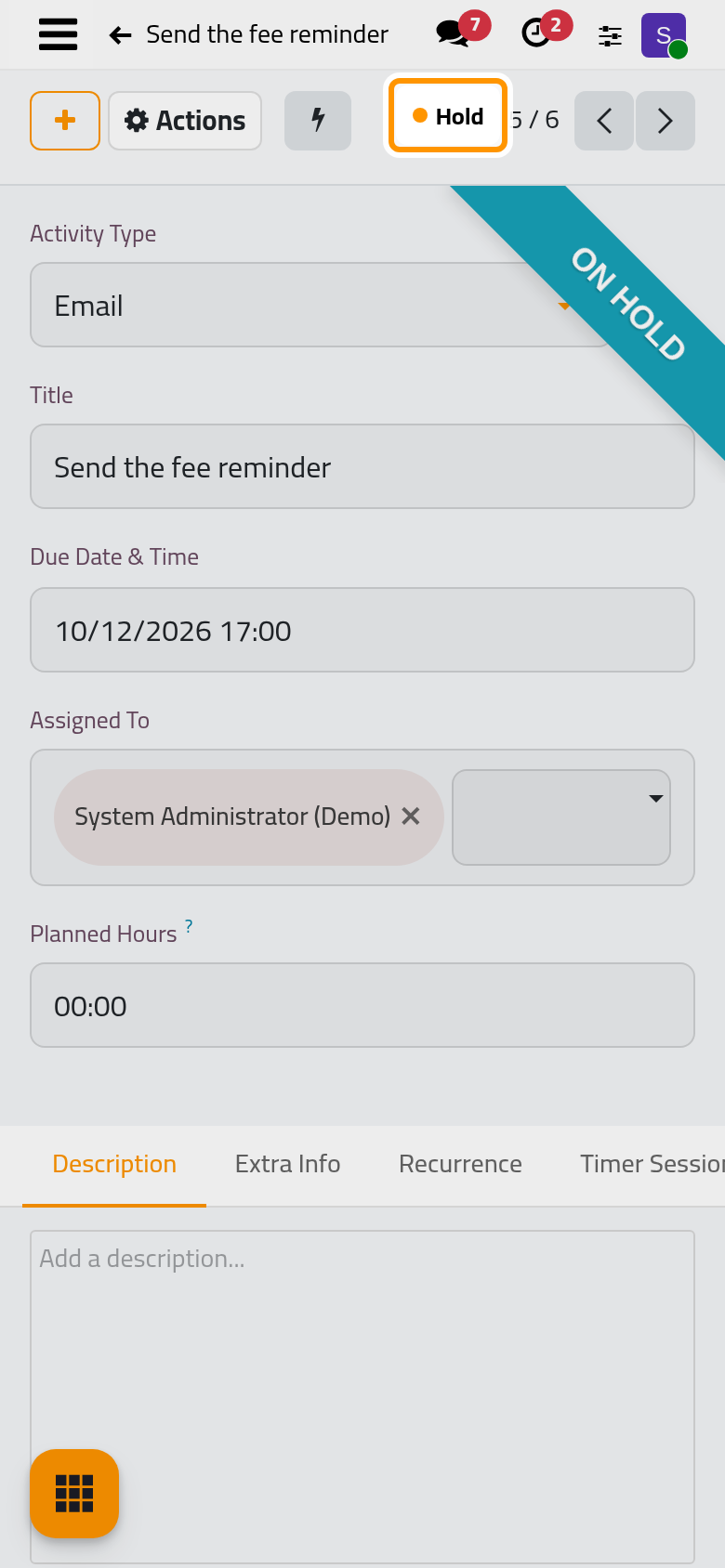
- Open the activity and choose Hold in the Actions menu. A running timer stops, the status turns Hold and an On Hold ribbon crosses the form.
- To work on it again, choose Start in the same menu: the status follows the due date again.
Mark Done archives the activity. A done one comes back with Reopen, in the Actions menu of the activity found with the Done filter.
FAQ
Why is an invoice's activity in my list?
The list shows every activity assigned to you, whatever record it belongs to: an invoice, a case, a contact. The first icon of the row, or Related Document on the form, opens that record.
A due date has passed and the status still reads Planned.
The status is stored and refreshed every ten minutes by a scheduled job; while that job is stopped, the status stays as it was computed. Activities automations explains the job.
Start or Mark Done answers that the activity is pending.
The activity depends on others that are not done yet; the lock on its card says so. Finish those first. How activities work explains dependencies.
How do I see my team's activities?
All Activities lists everyone's activities to a Supervisor; group them by Assignee. Supervised by Me keeps those where you are the supervisor.
Was this page helpful?
Thank you for your feedback.