Track time on an activity
On this page
- Before you start
- Start the timer from the list
- Plan the hours and read the time spent
- Start and stop from the form
- Compare the time of the team
- FAQ
- Whose name does a session carry?
- Can I correct a session that ran too long?
- Does the timer count when I am not on the page?
- Can two activities run at the same time?
Every activity carries a timer. Each time it is started and stopped, a session is kept with who, when and how long, and Time Spent adds the sessions up. Set Planned Hours beside it to compare the work done with the work expected.
Before you start
- You need the User access right on Activities, and the activity must be open: a done activity has no timer.
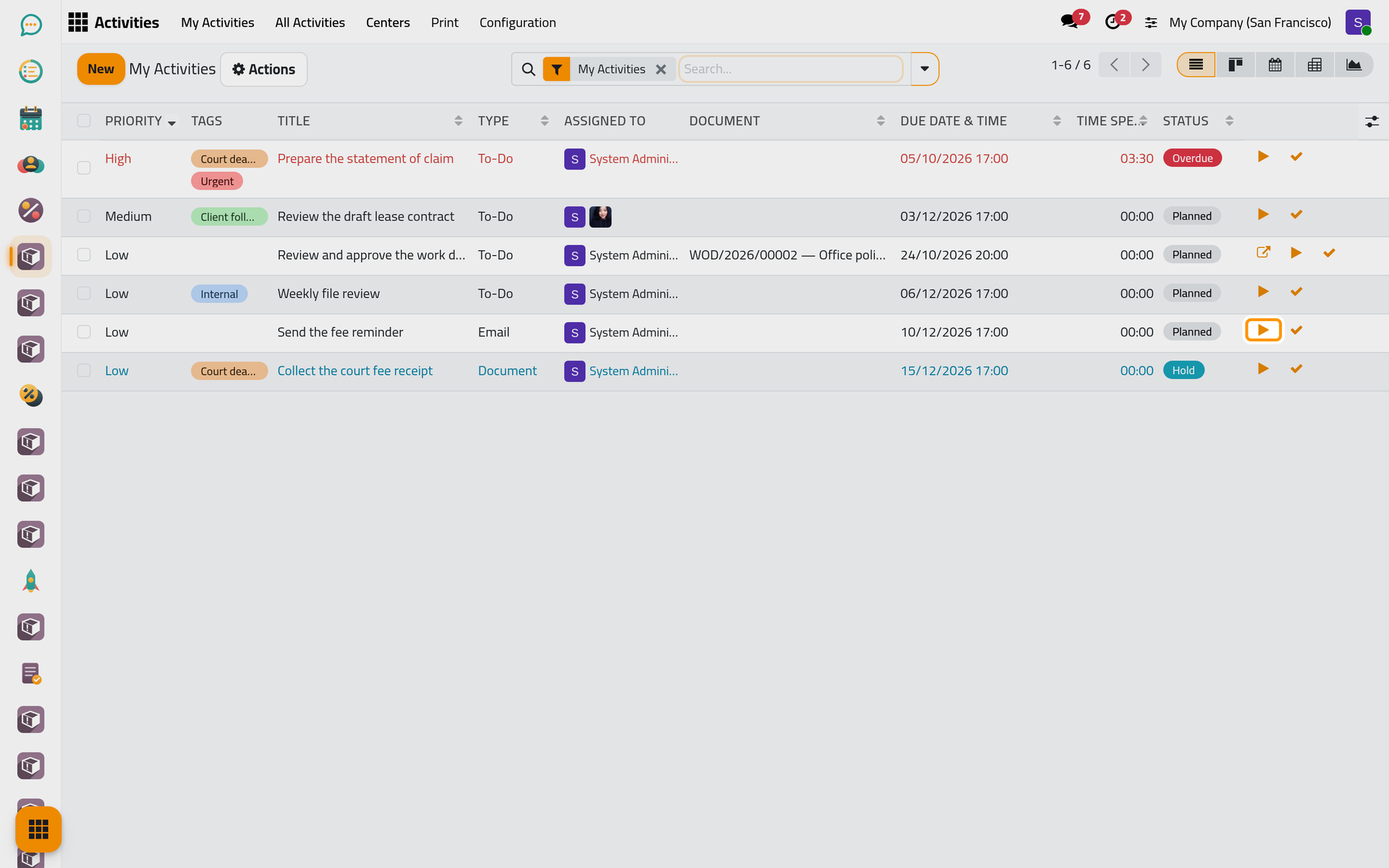
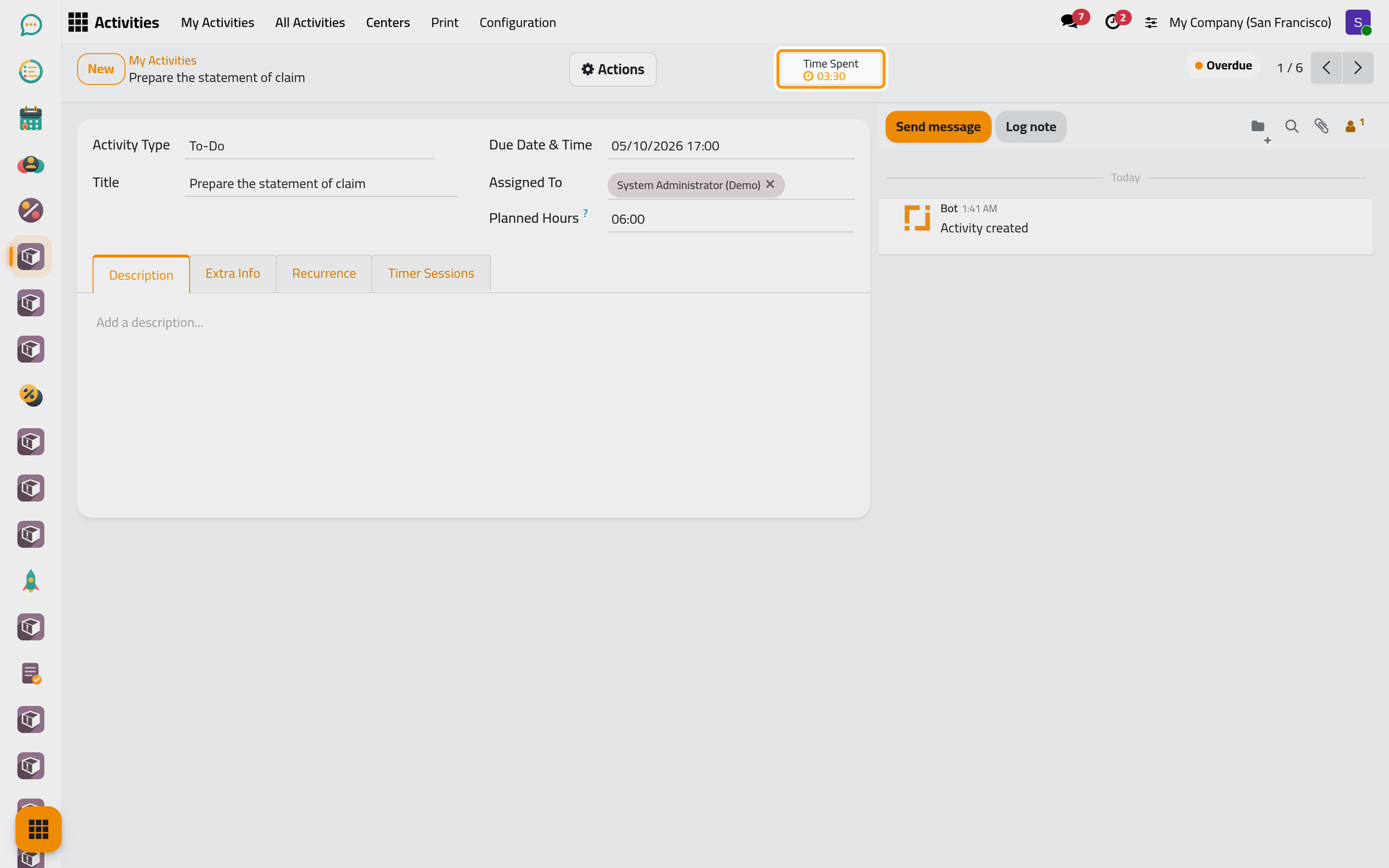
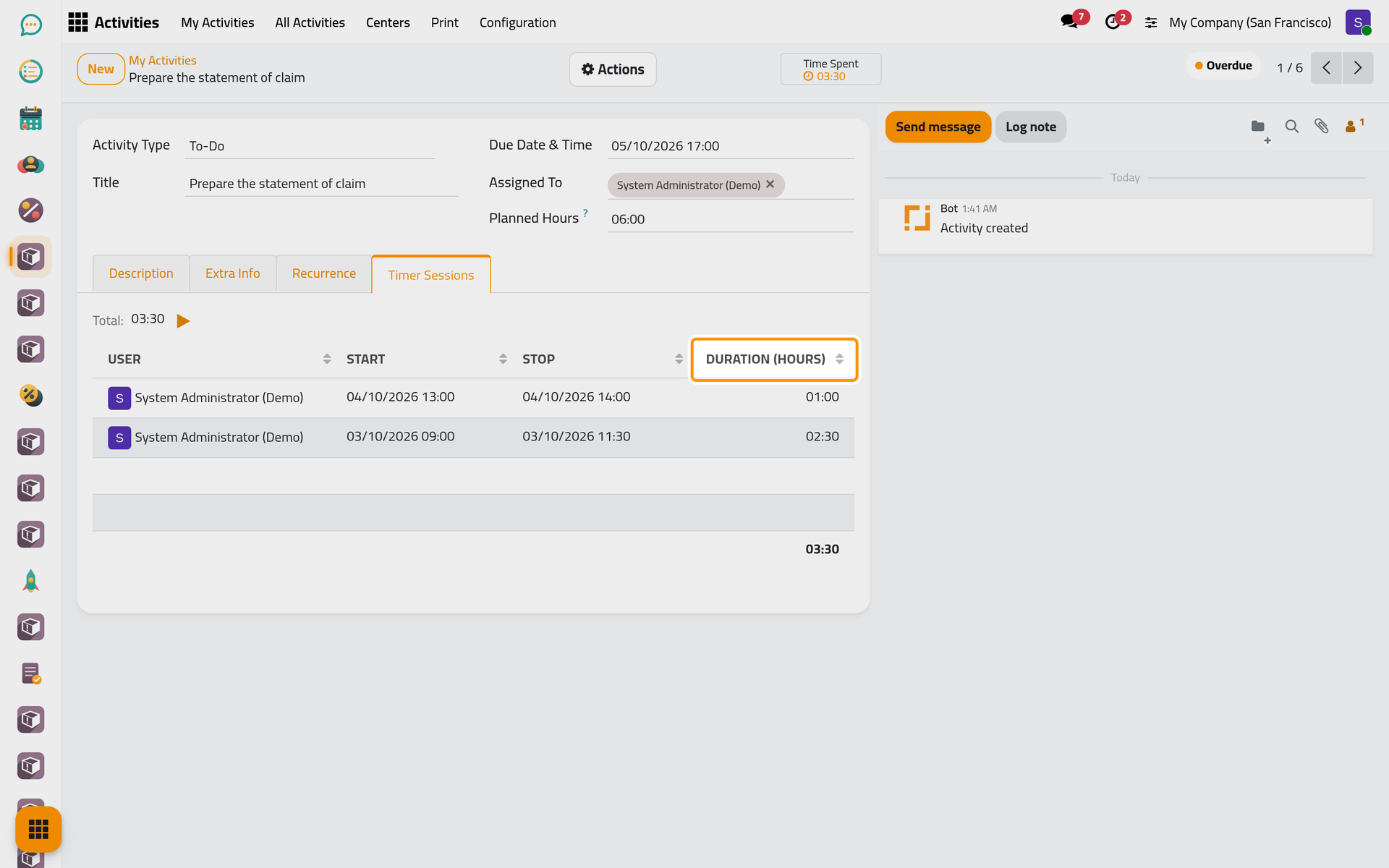
- The demo activity "Prepare the statement of claim" has six planned hours and two sessions, three and a half hours in all.
Start the timer from the list
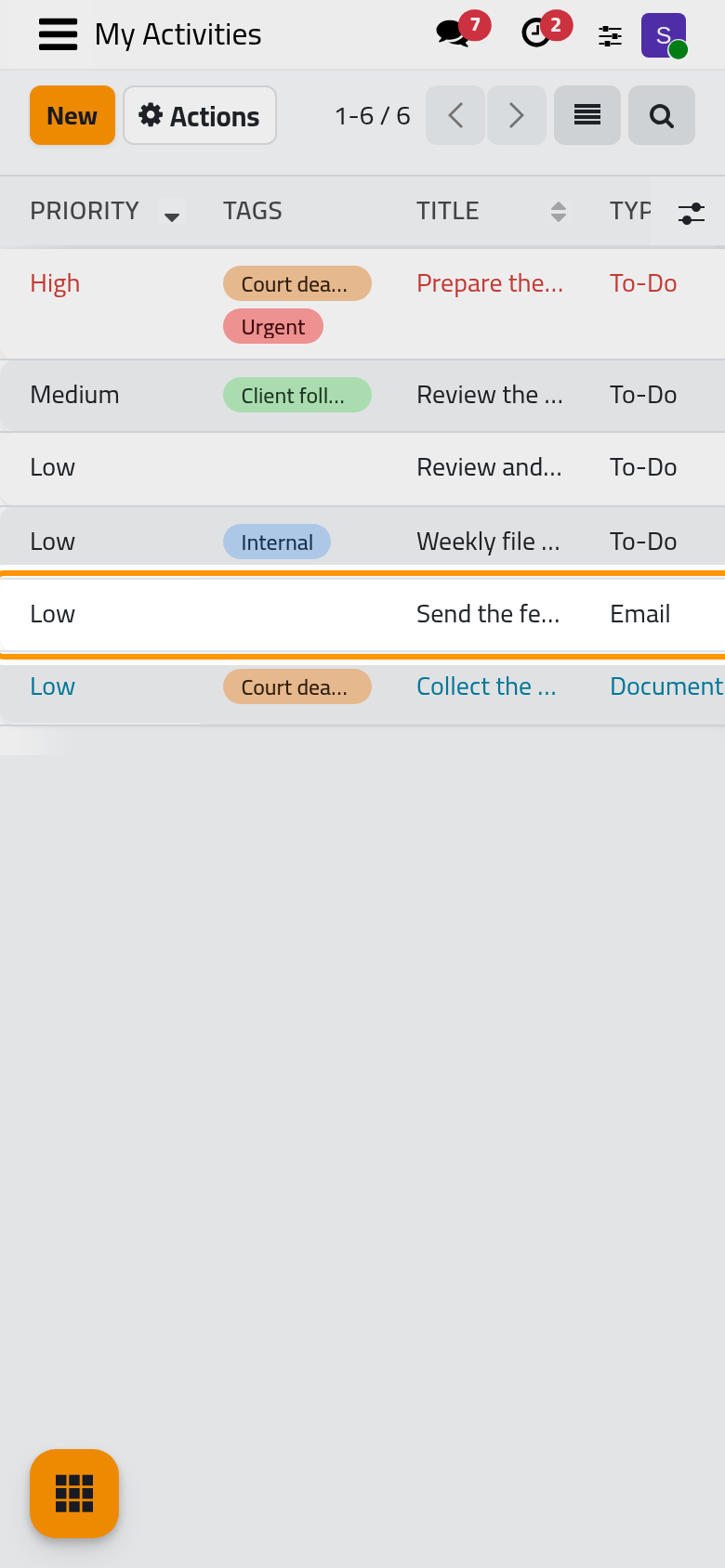
Open . The play icon at the end of a row starts that activity's timer without opening it; it becomes a stop icon until you stop it. The kanban card has the same icons.
Plan the hours and read the time spent
- Open the activity and type the expected effort in Planned Hours, in hours and minutes.
- The Time Spent button at the top shows the total of the sessions. Clicking it starts the timer.
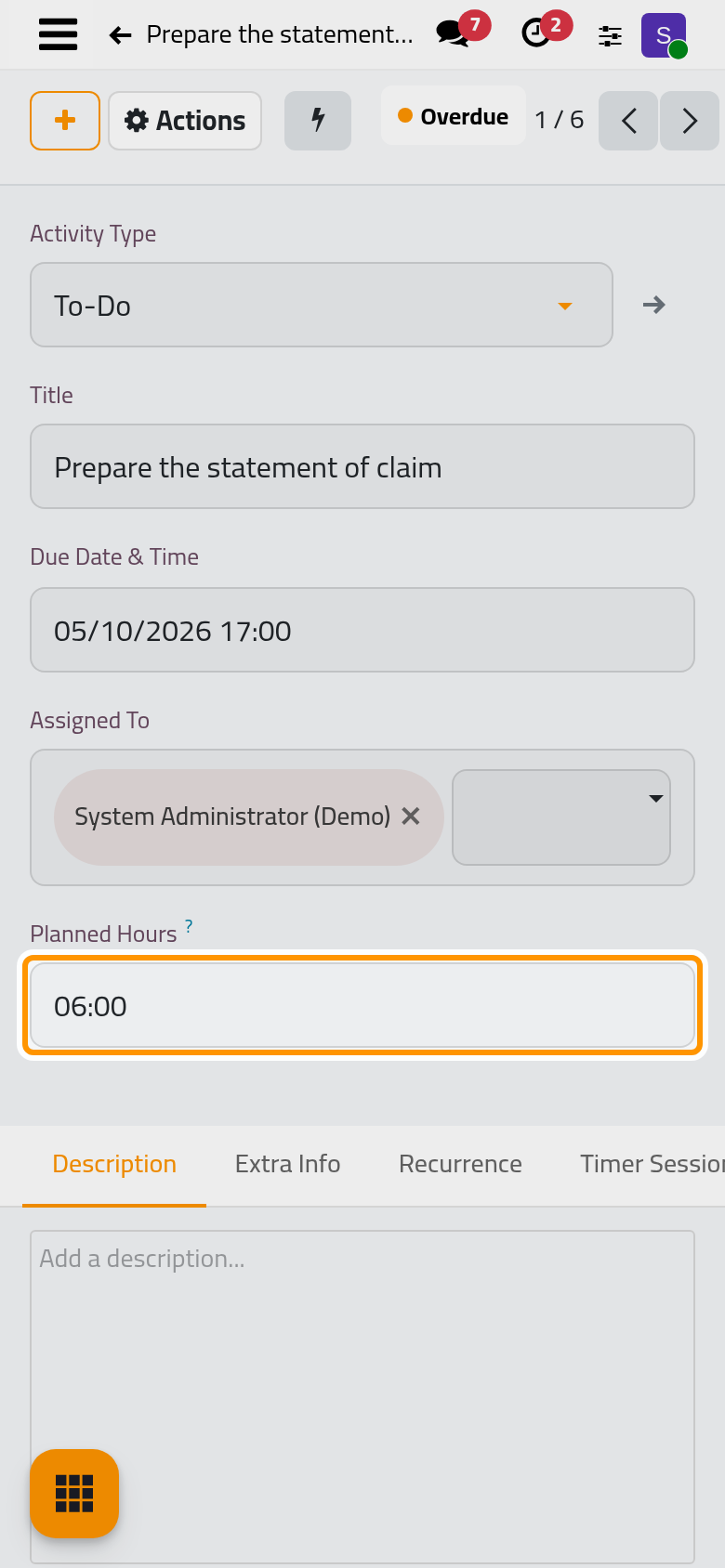
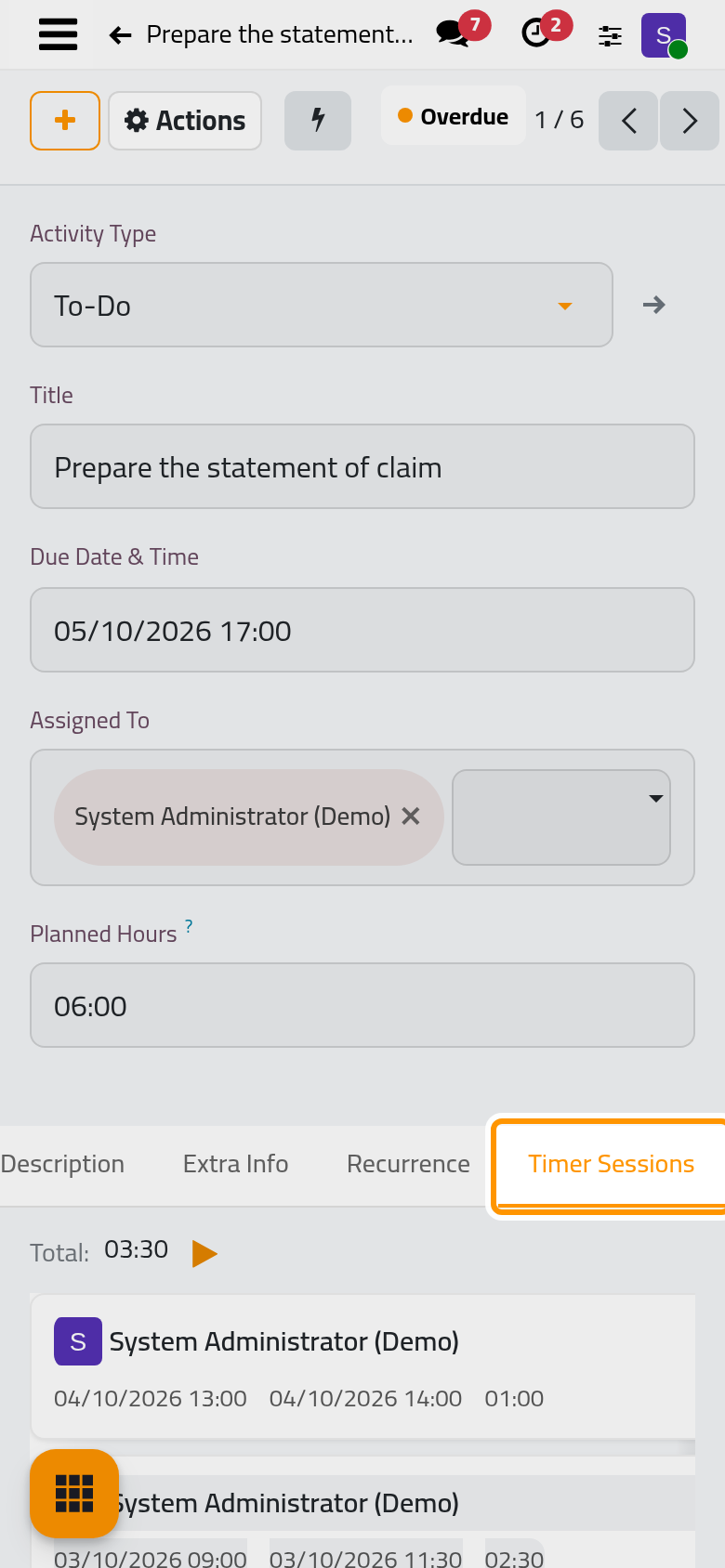
On a phone, the Time Spent button sits behind the lightning button of the form.
- Open the Timer Sessions tab: each line gives the User, the Start, the Stop and the Duration (hours), with the Total above. The list cannot be edited by hand.
Start and stop from the form
Open the Actions menu: Start Timer starts it, and Stop Timer replaces it while the timer runs. The play and stop icons of the Timer Sessions tab do the same.
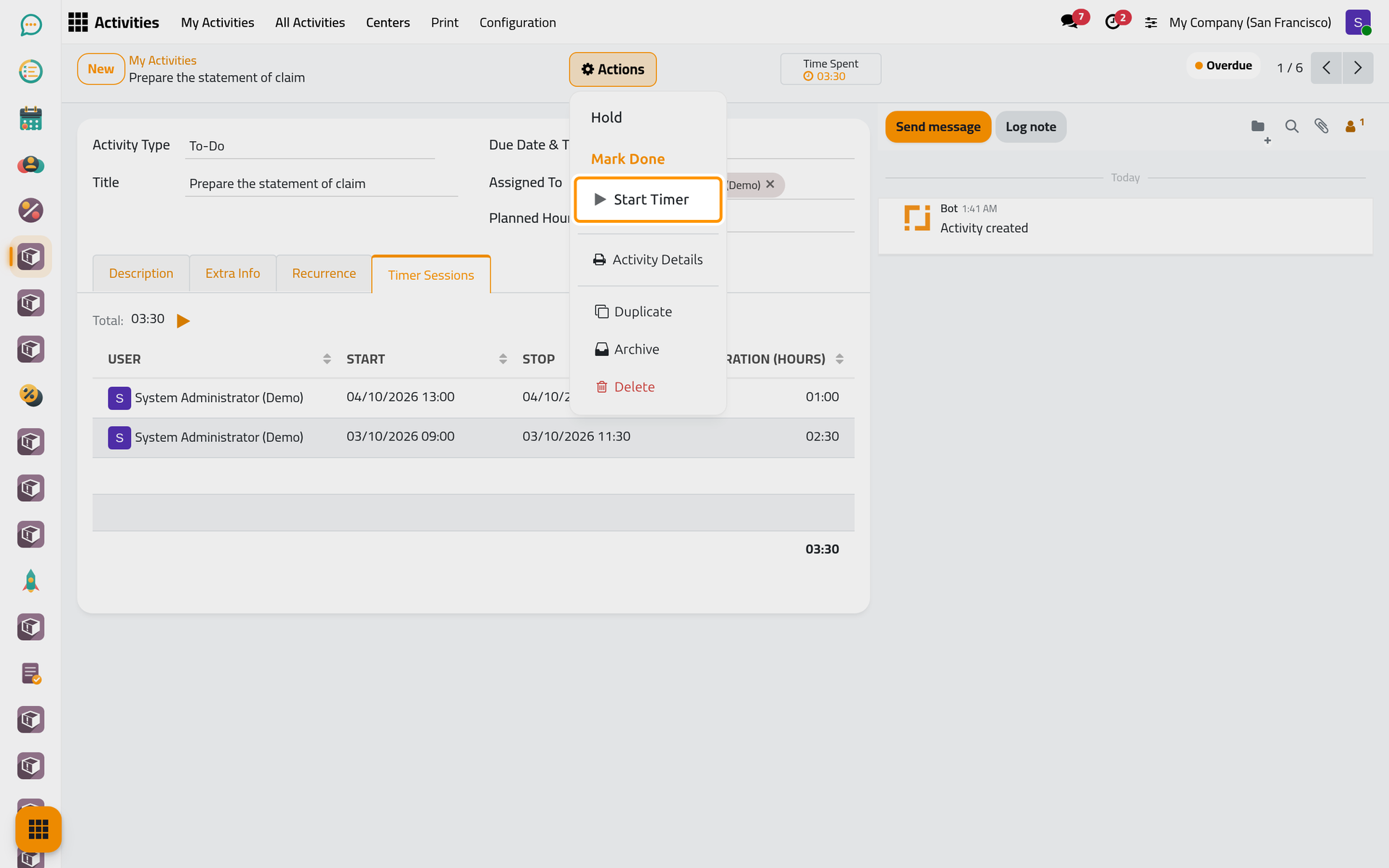
On a phone, the Actions menu holds the same items.
The timer is kept on the activity itself, so it keeps running when you close the page or the browser, until someone stops it. Hold and Mark Done of this app also stop a running timer and keep its session; Mark Done in a record's chatter does not, so stop the timer first.
Compare the time of the team
In , or All Activities for a supervisor, the pivot view adds up Time Spent and Planned Hours by assignee and status. Its measures also offer Remaining Hours, planned minus spent, and Lead Time (Days), the days from creation to completion of the done activities.
FAQ
Whose name does a session carry?
The name of the user who stops the timer. When a colleague stops your timer, the session is in his name.
Can I correct a session that ran too long?
No. The sessions cannot be changed from the activity. Stop the timer as soon as you stop working.
Does the timer count when I am not on the page?
Yes. It measures the time between the start and the stop, whether the page stayed open or not.
Can two activities run at the same time?
Yes. Each activity has its own timer; nothing stops the first when you start the second.
Was this page helpful?
Thank you for your feedback.