Activities settings
On this page
Open . The Activities section has three groups, Behavior, Defaults and Notifications; the activity types and tags, under Configuration, complete them.
Before you start
- The settings need the Manager access right on Activities; types and tags need Supervisor.
- Due Date & Time, Sequential Tasks, Activity Centers and the notification rules belong to the current company; the default time and the Default Supervisor serve the whole database. Click Save to apply a change.
Behavior
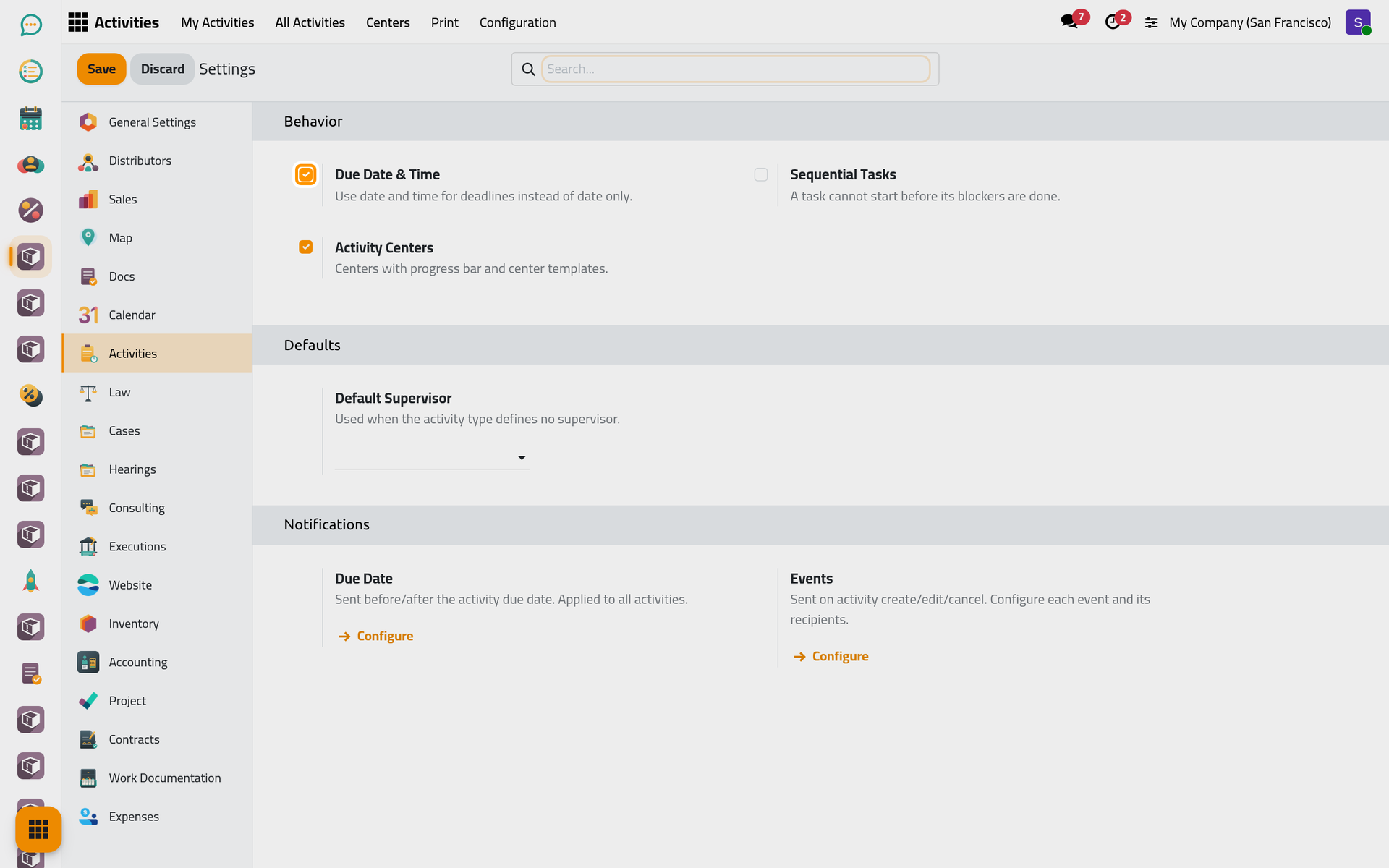
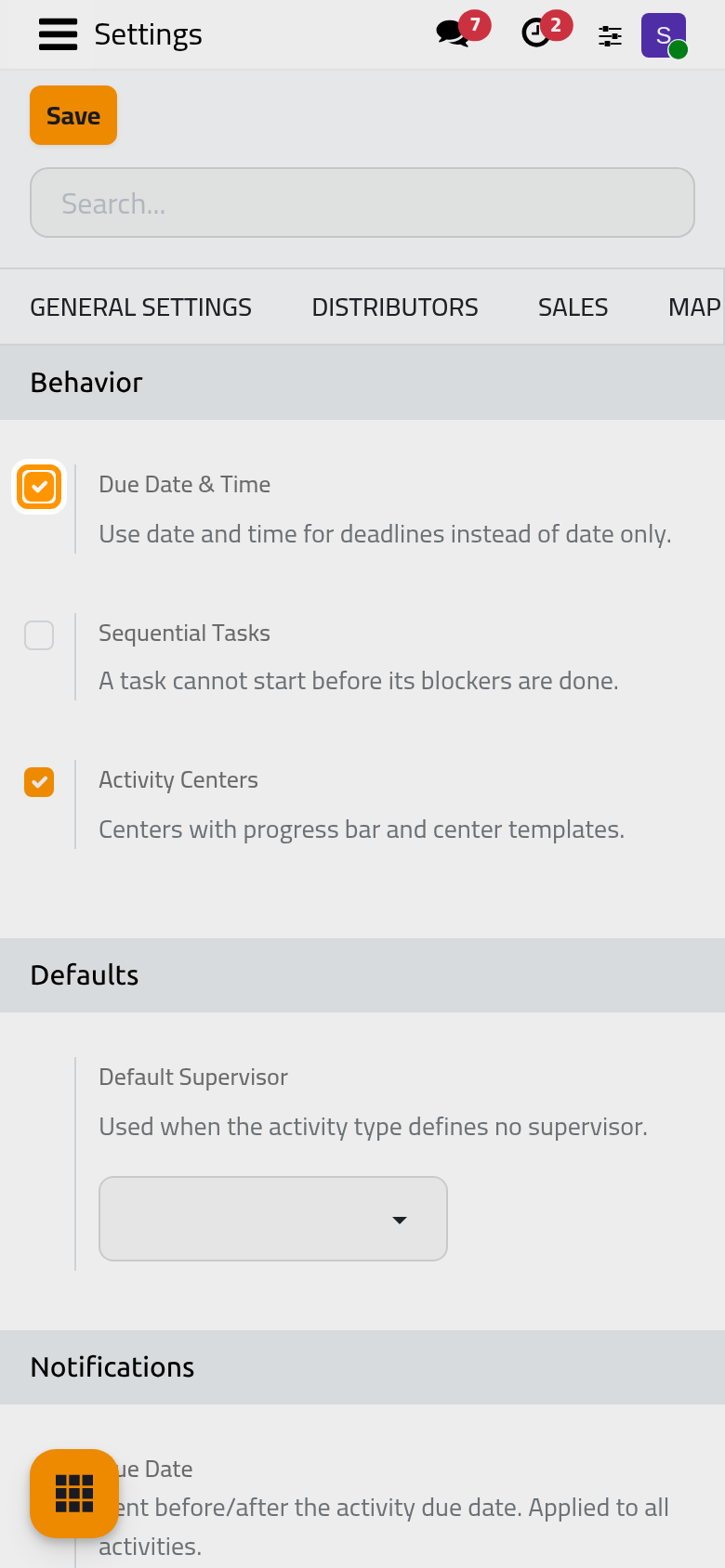
Due Date & Time
On by default: a due date carries a time, shown as Due Date & Time. Off, activities have a date only, and Default time for date-only deadlines appears, 17:00 unless changed. That time, in the assignee's time zone, also serves while the option is on, for an activity created with a date only: by another app, or from a dialog left without a time. Saving a change of this option recomputes the due time and status of every activity.
Sequential Tasks
Off by default. On, Depends On appears on the activity form and in the Schedule Activity dialog, and the form gains Depends On and Blocking buttons when links exist. Dependencies already recorded, such as those of a center template, apply either way: in the Activities app, an activity cannot be started or marked done while one it depends on is open.
Activity Centers
On by default. It shows the Center field in the Extra Info tab of activities. The Centers and Center Templates menus stay when it is off. See Run a matter with a center.
Defaults
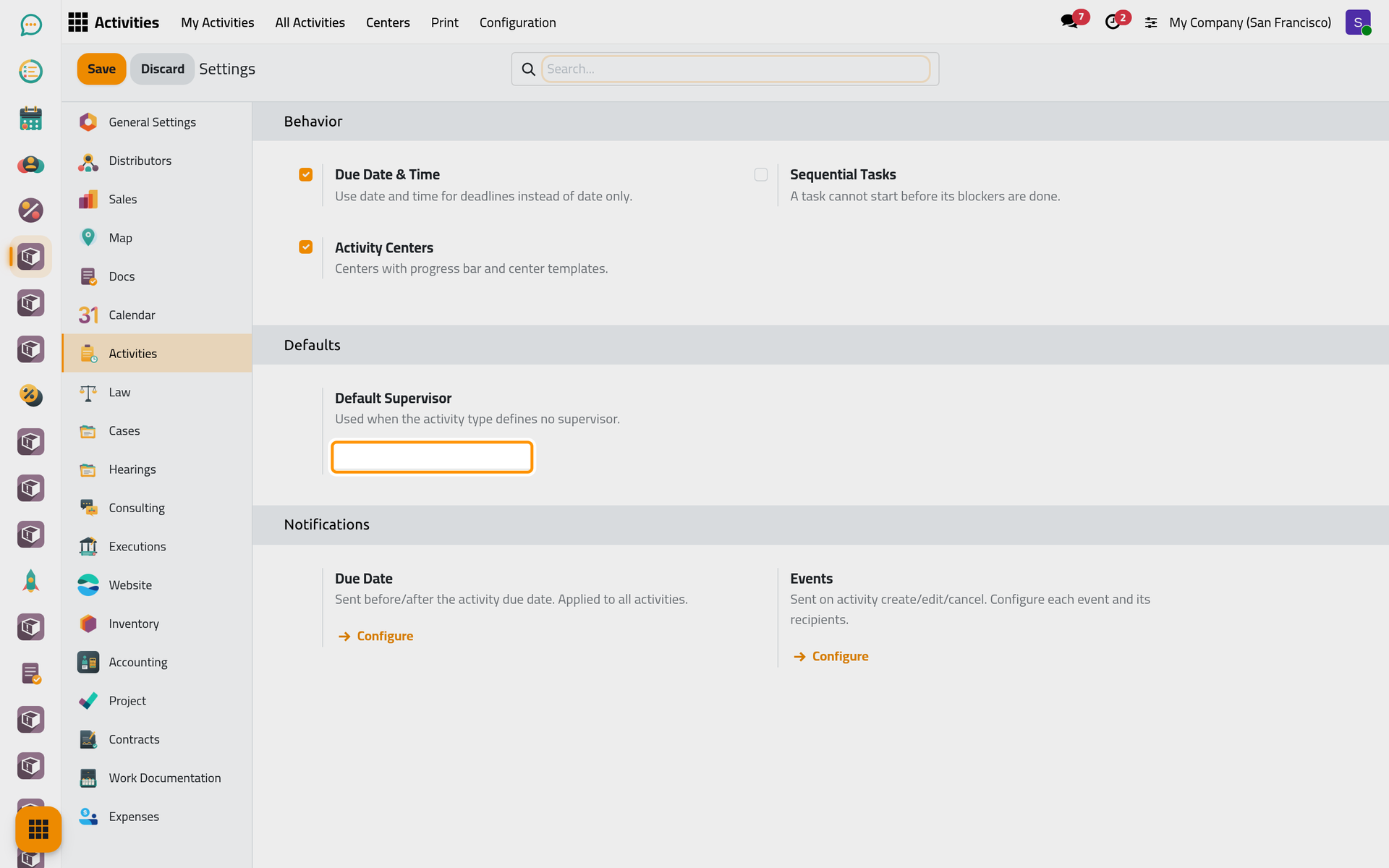
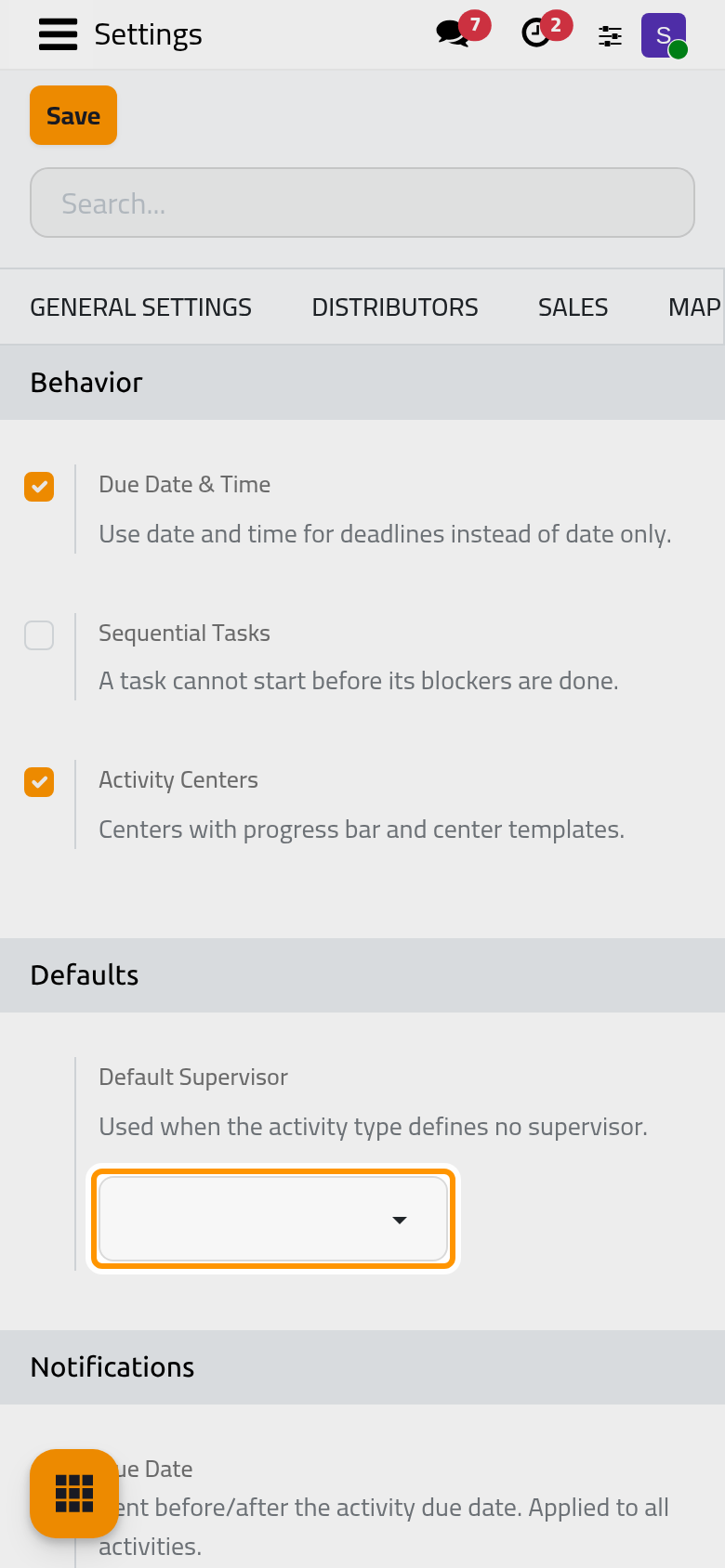
Default Supervisor
The value is saved, but no activity reads it: a supervisor comes from the Default Supervisor of the activity type, or is chosen by hand.
Notifications
Configure under Due Date opens Due Date Notifications. Each line is a reminder: When (Before Due Date or After Due Date), a Period and a Unit (Hours or Days), who receives it (Assigned To, Supervisor, Manager for every holder of that access right) and the Channel, Email. The app ships two lines, one hour and one day before, to the assignees. New adds a line; tick lines to show Delete. Each person gets one email per run listing all the activities due for them.
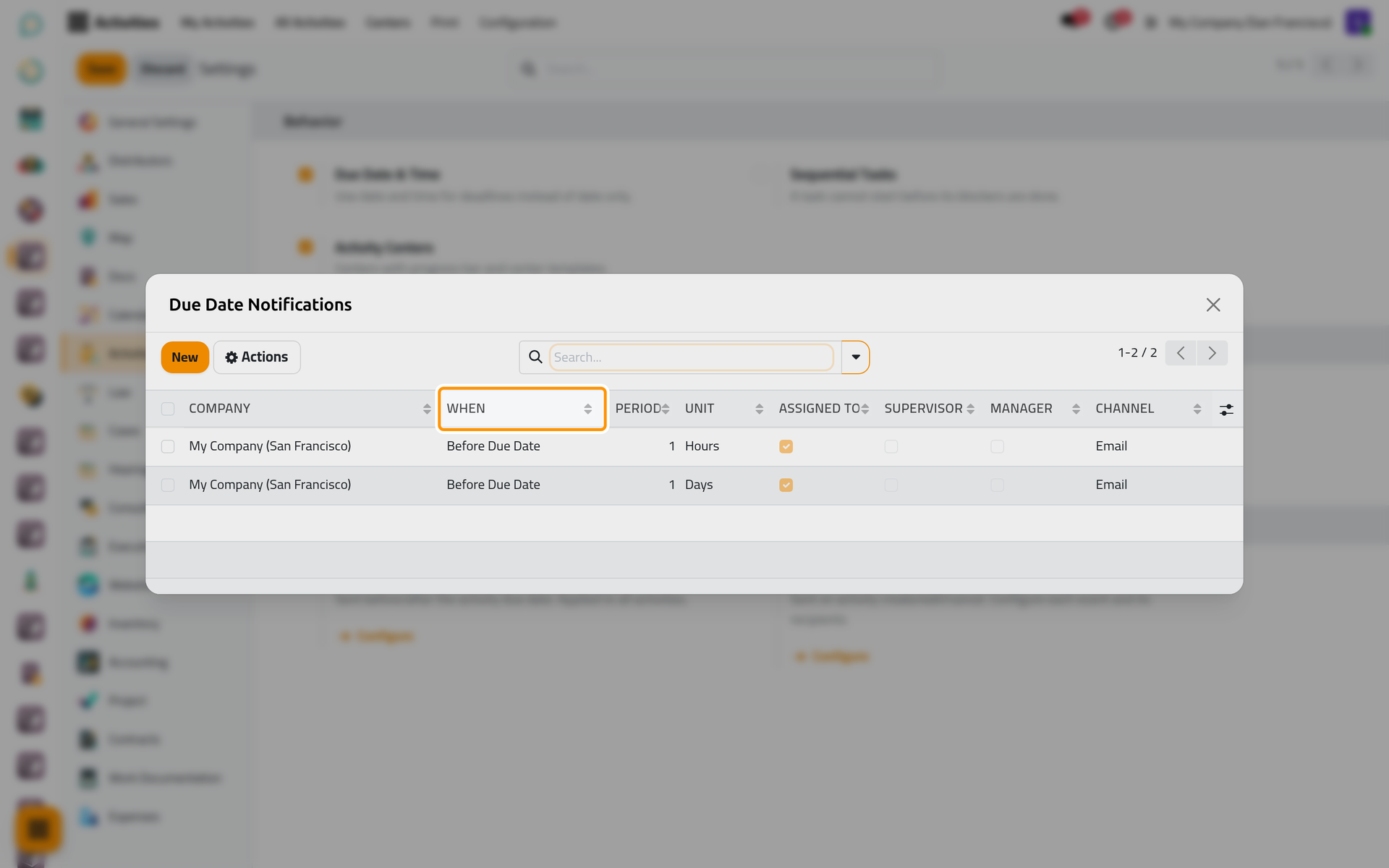
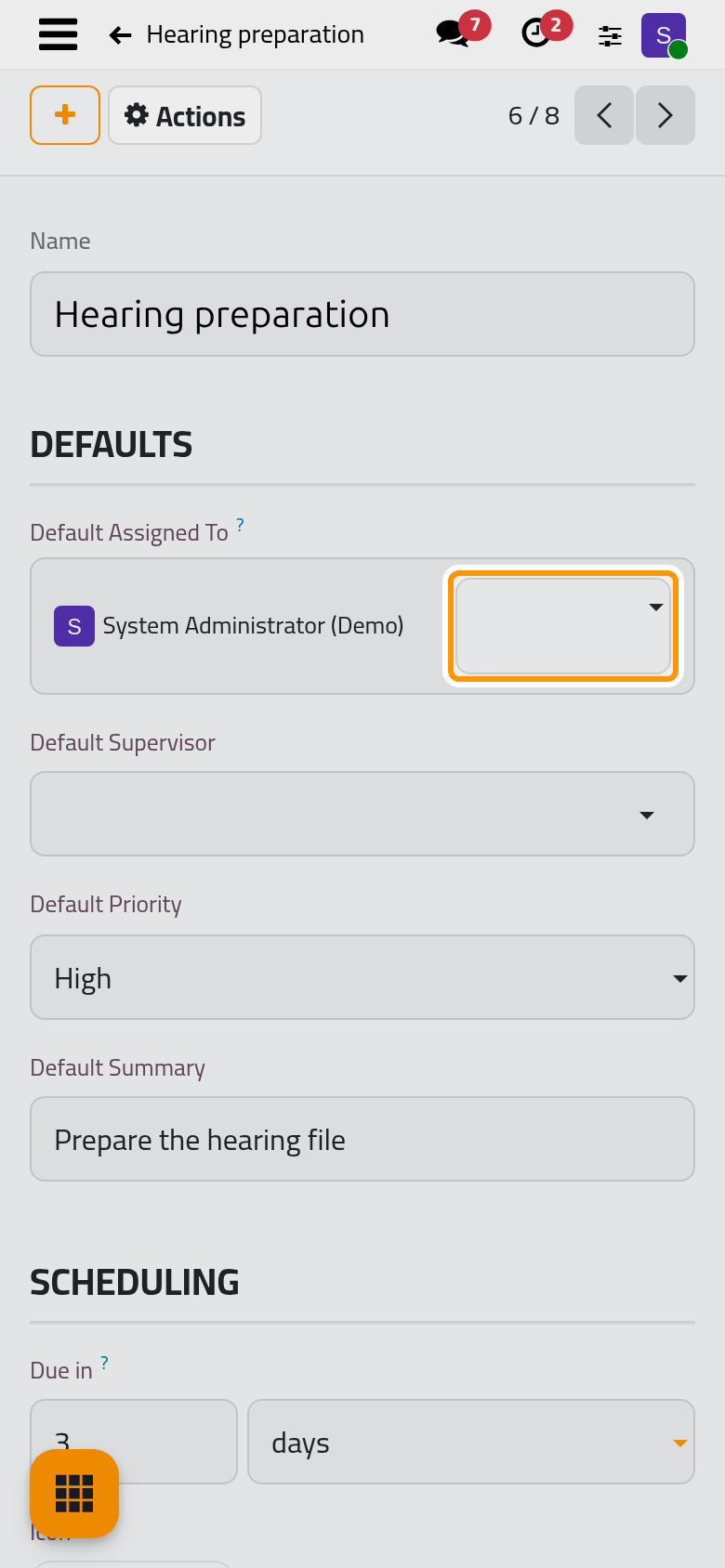
On a phone, both dialogs open full screen.
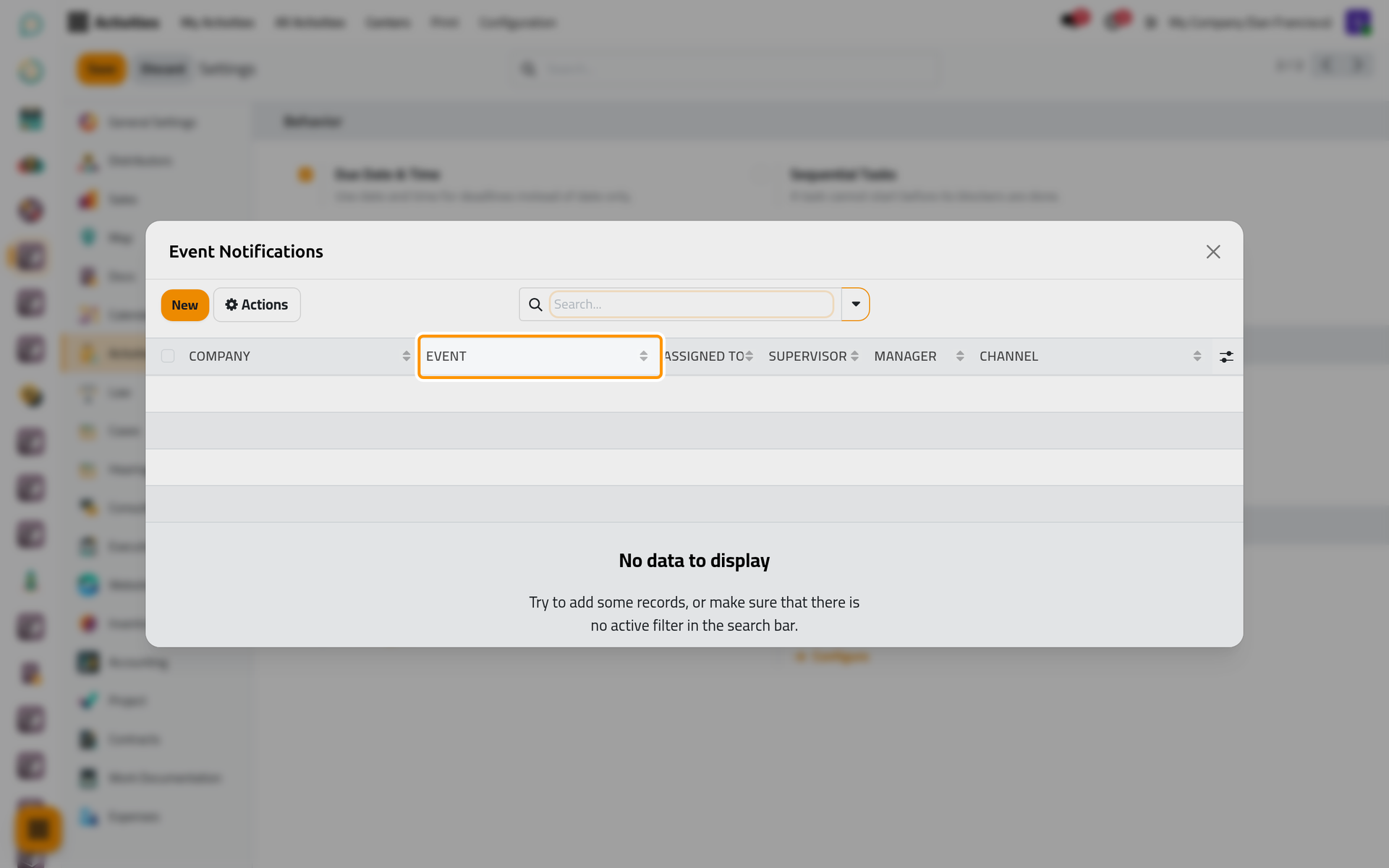
Configure under Events opens Event Notifications: one line per Event, On Create, On Edit or On Cancel/Delete, with the same recipients. It is empty by default, so creating, editing or cancelling an activity sends no email. The platform's own "assigned to you" email is switched off by the app: these lines decide alone.
Activity types
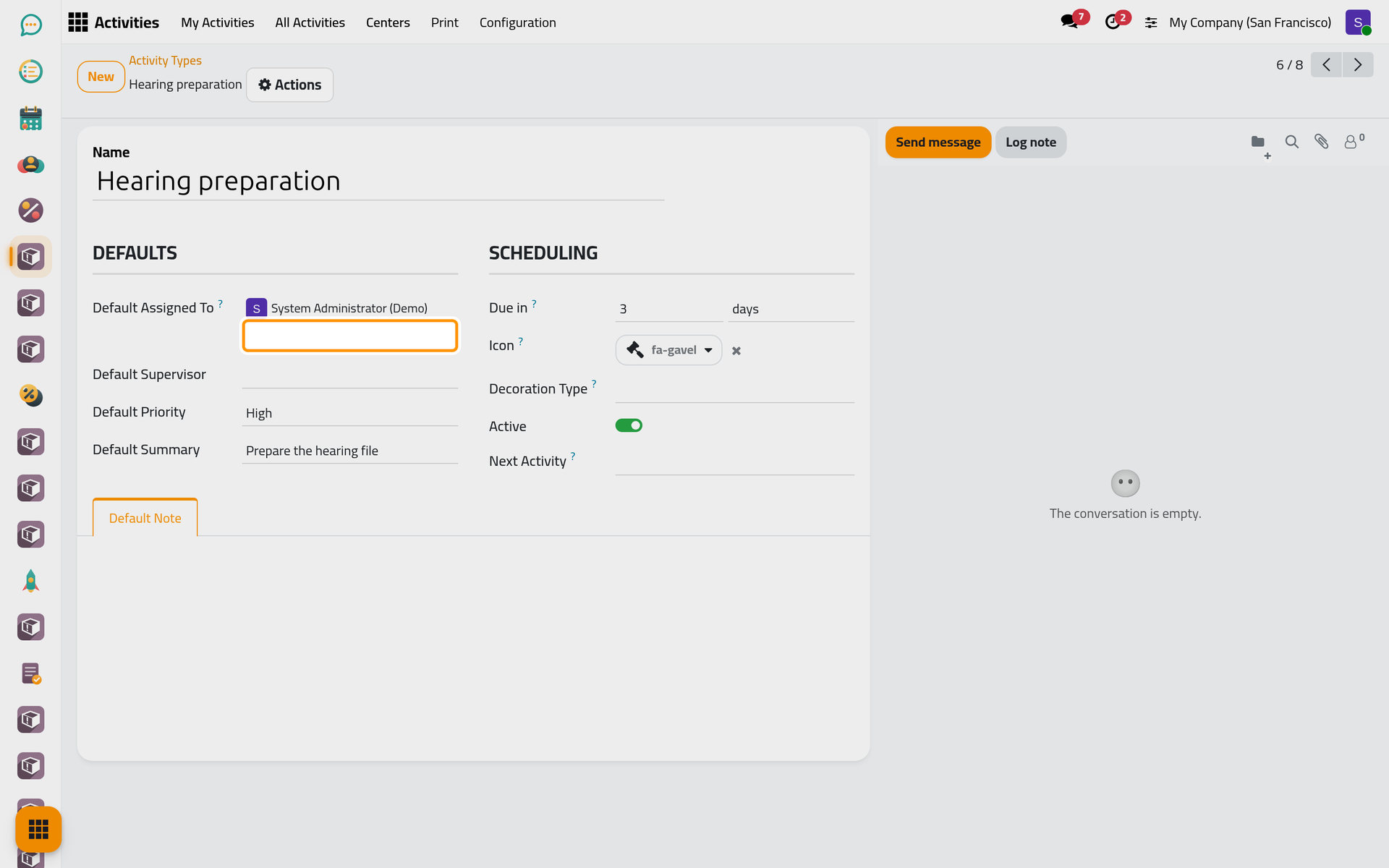
Open . Besides its Name and Icon, a type gives Default Assigned To, Default Supervisor, Default Priority, Default Summary and Due in, a count of Hours, days, weeks or months. Choosing the type on a new activity of the app fills them in. The Schedule Activity dialog of a chatter takes only the summary, and the delay when the due date is left empty.
Next Activity chains types: when an activity of this type is marked done, an activity of the chosen type is created on the same record, assigned to that type's Default Assigned To and due its Due in after the day of completion. The chosen type must have both, or saving is refused.
Activity tags
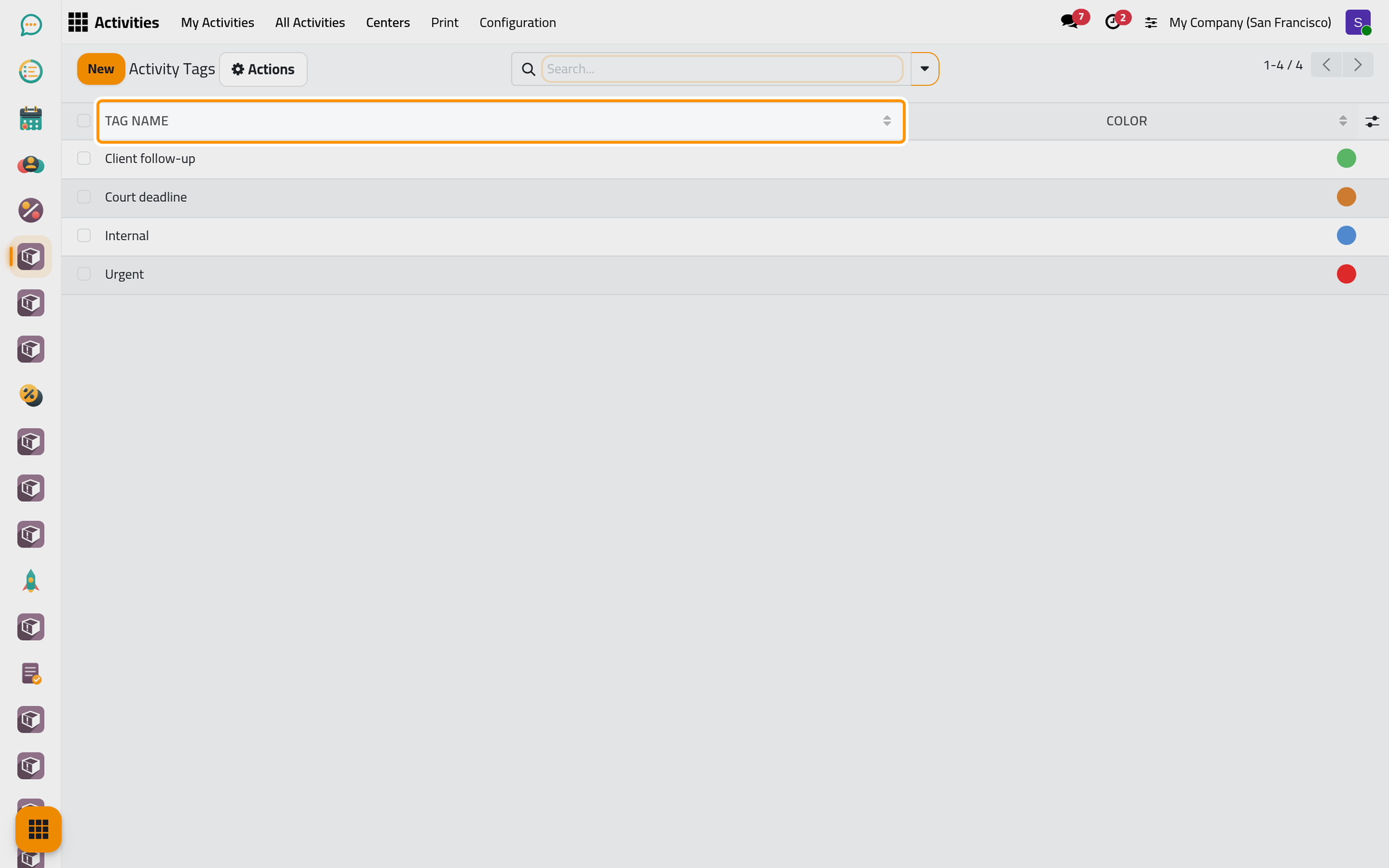
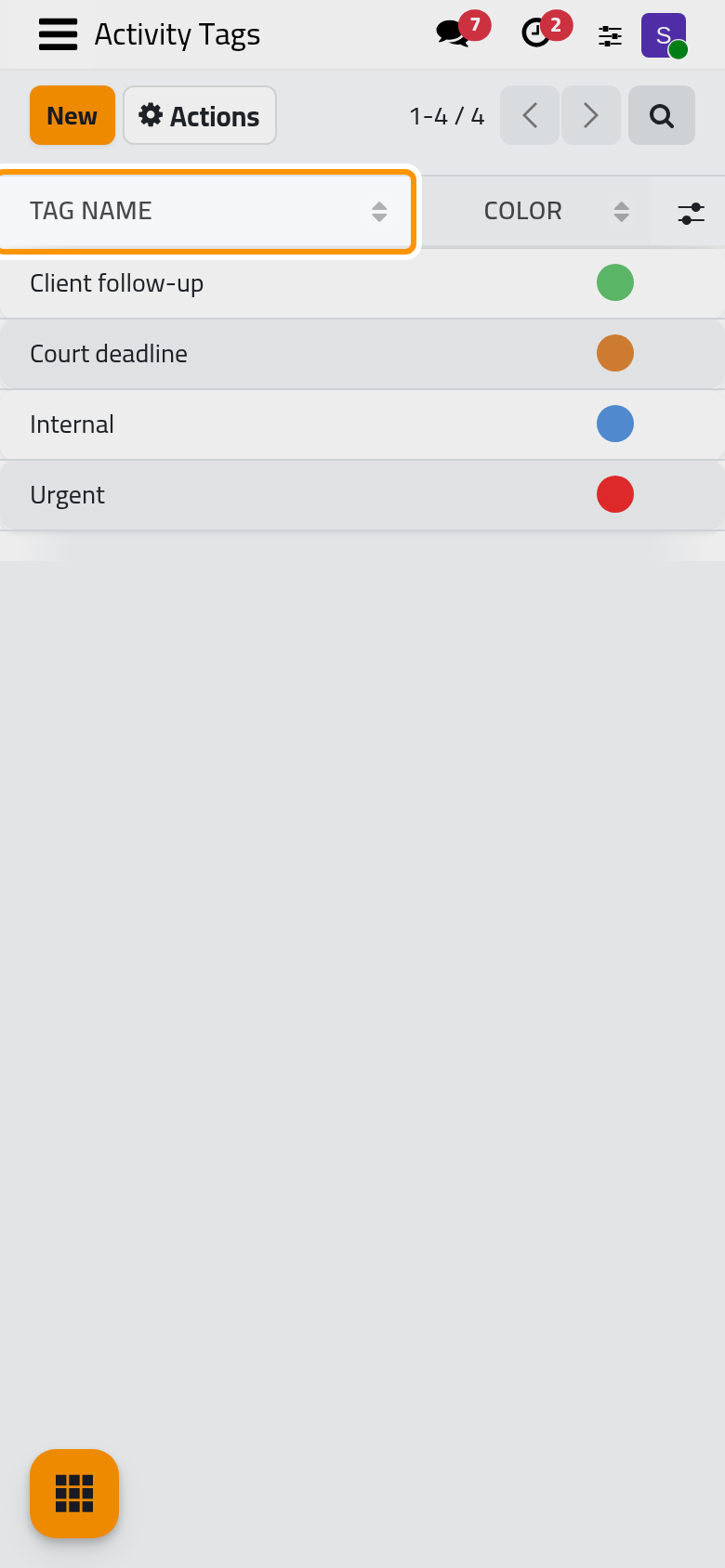
Open . New adds a line: a Tag Name, unique, and a Color. Tags label activities across types and centers; filter or group by them in the lists.
FAQ
Why did no reminder arrive?
Reminders leave from a scheduled job every ten minutes, through the outgoing mail server: see Activities automations and Email: outgoing and incoming servers.
Can each company have its own reminders?
Not separately. The reminder lines are stored per company, but the reminder job applies the lines of every company to every activity of the database. The three options of Behavior and the Event Notifications lines do follow the current company; switch company to set another one's.
Which tasks run by themselves?
Three scheduled jobs and five email templates, listed in Activities automations.
Was this page helpful?
Thank you for your feedback.