Schedule and finish an activity
On this page
An activity is a piece of follow-up work: call a client back, file a claim before its deadline, collect a signed letter. It has a type, a title, a due date and time, and the people it is assigned to. Activities turns them into one task list for the whole firm, and it lists the activities of every app, an invoice's or a case's as well as its own. This walk-through plans a call with the demo client Kenan Al-Wahmi, finds it in your list, times the work and marks it done.
Before you start
- You need at least the User access right in the Activities section of your user; the Viewer access right cannot create activities. Create a user and set access rights shows where it is set.
- You also need the right to edit the record you plan the activity on, here a contact.
- The chatter itself (messages, notes, followers) is explained in Follow a record: chatter, notes, followers and attachments.
Step 1: open the record
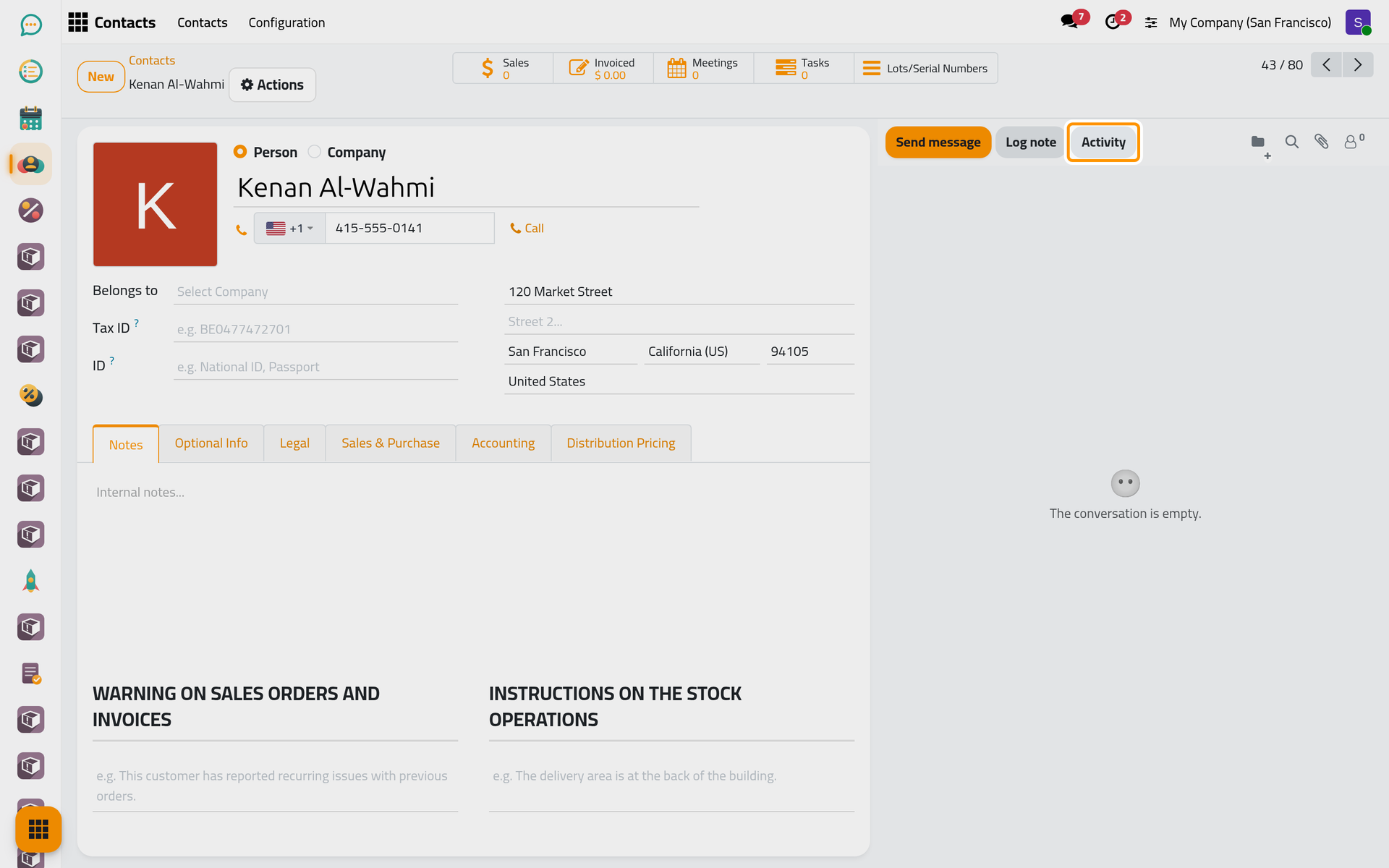
Open and click Kenan Al-Wahmi. The top bar of the chatter, beside the form, holds Activity.
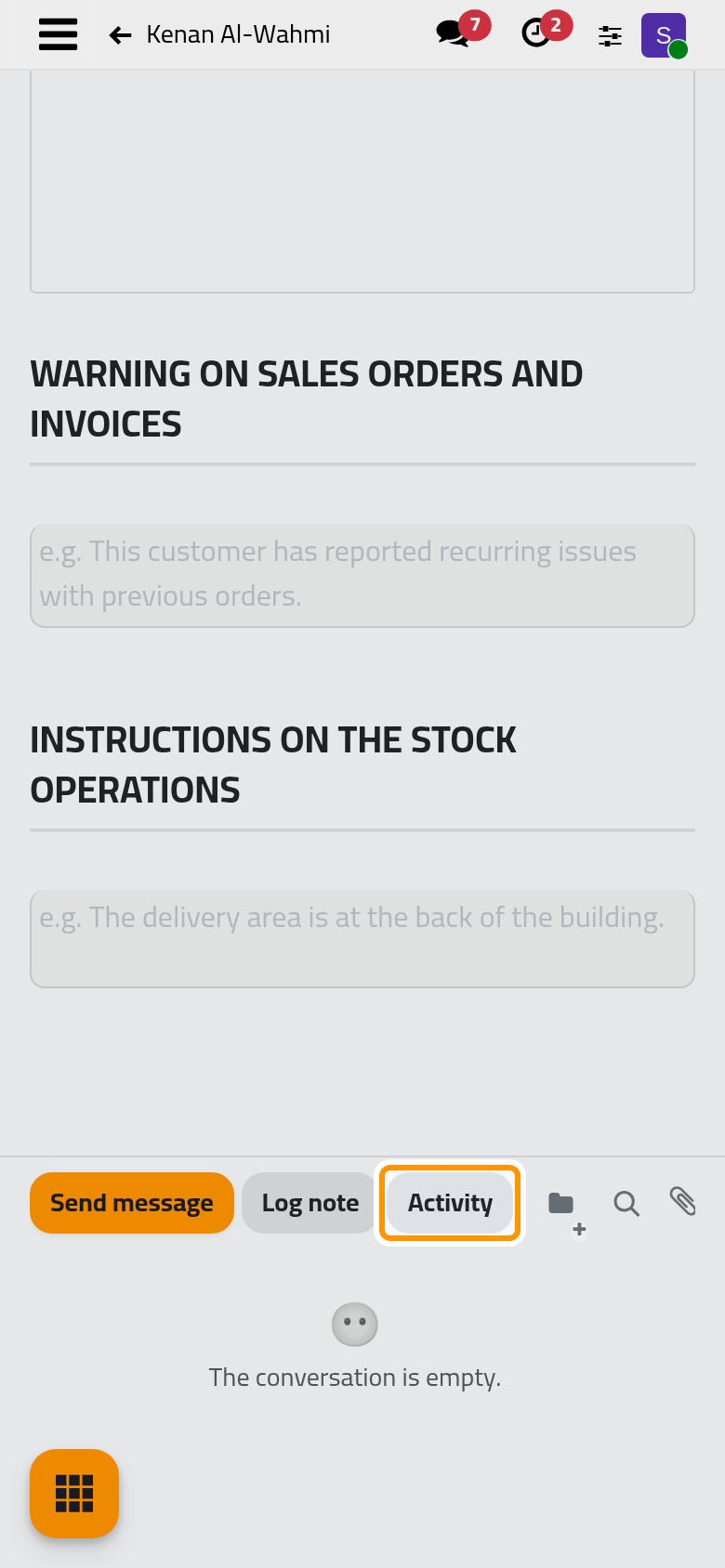
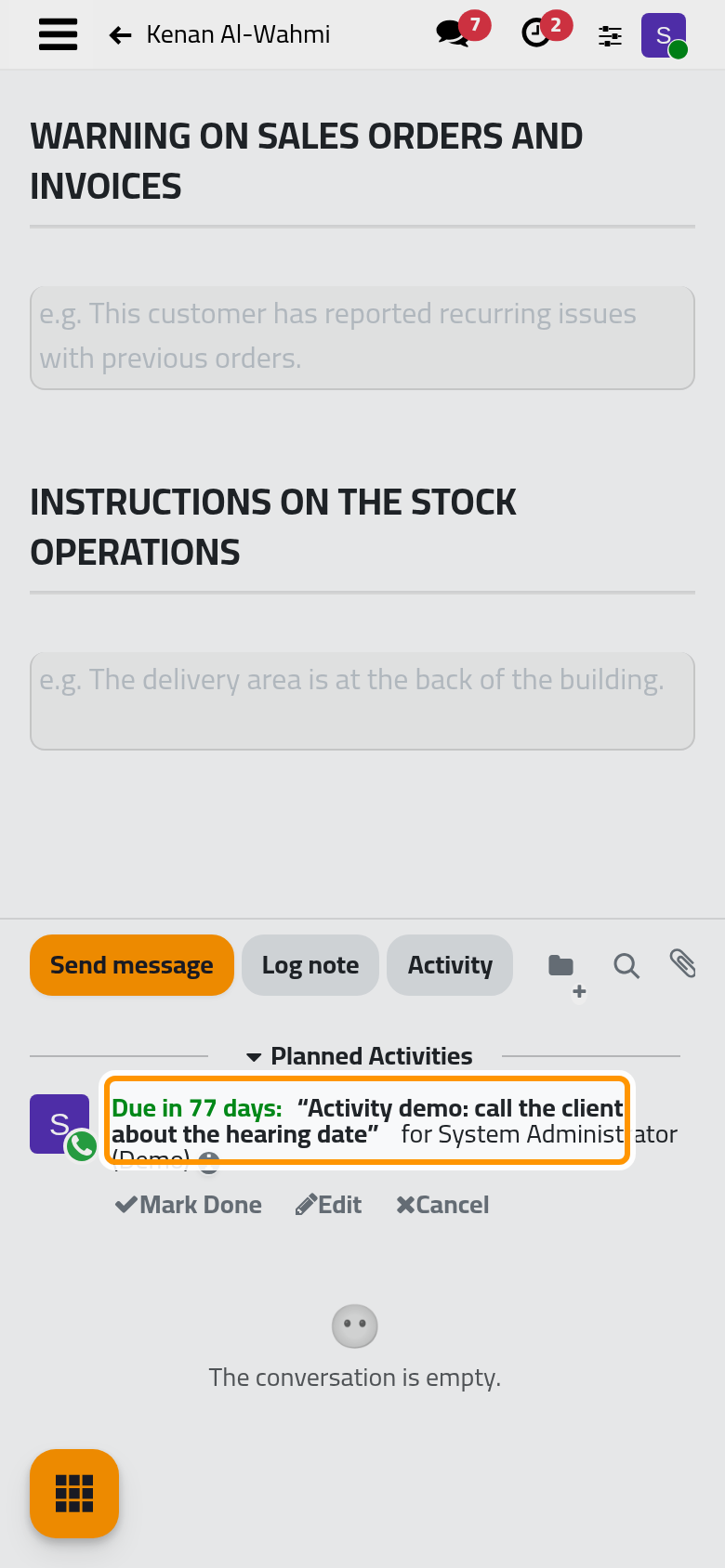
On a phone, the chatter sits below the form.
Step 2: plan the call
- Click Activity. The Schedule Activity dialog opens.
- Click the type Call. The Summary takes the type's default text; replace it with your own title: "Activity demo: call the client about the hearing date".
- Fill Due Date & Time, here 12 January 2027 at 10:00. The field starts empty; left empty, the activity is due on the type's own delay, at 17:00 in the assignee's time zone.
- Assigned To shows you. Add other people when the work is shared: each of them sees the activity in My Activities. Choose a Supervisor when someone must follow it.
- Set the Priority to High and add the tag Client follow-up. Client links a contact when the activity concerns a client other than the record.
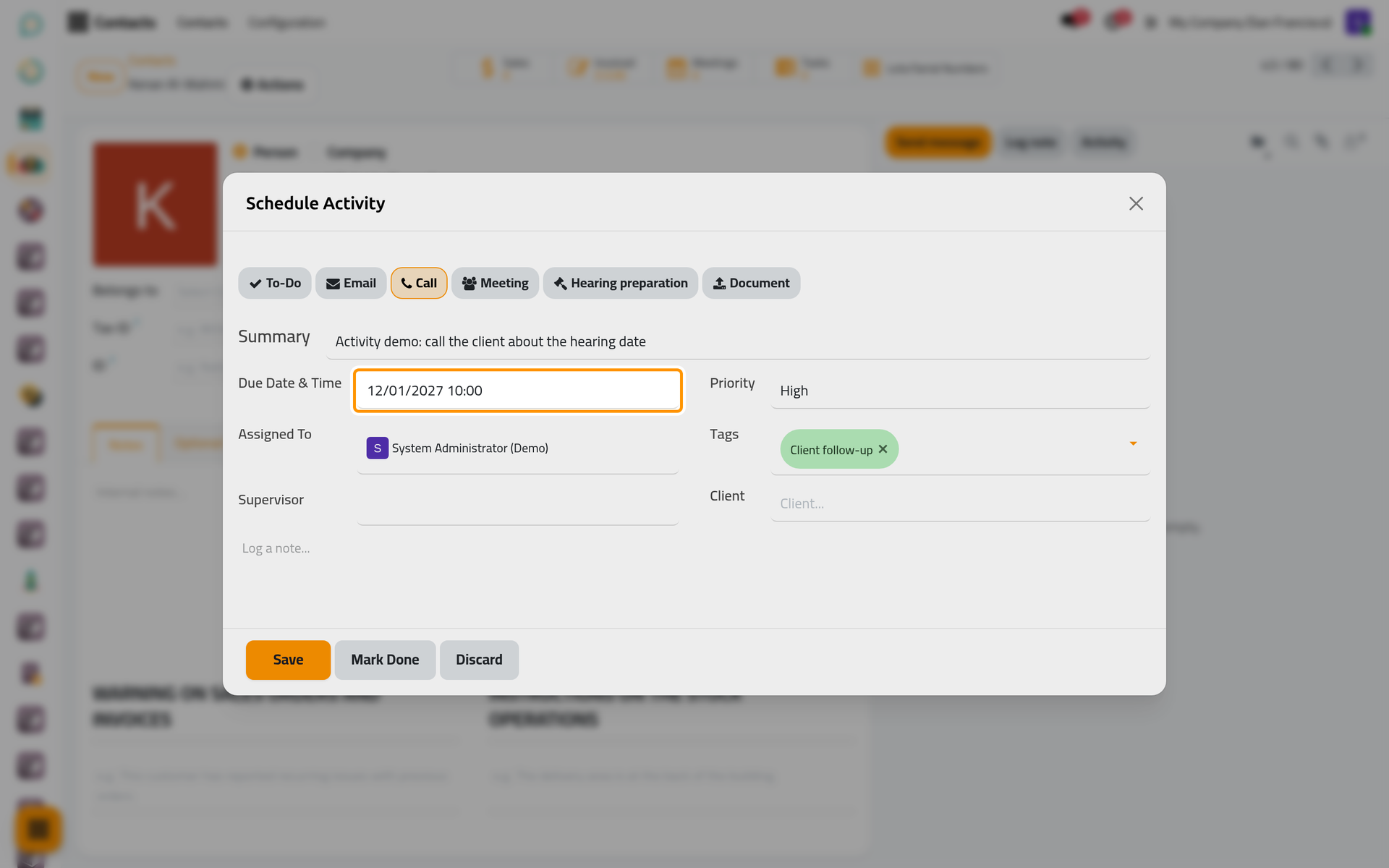
On a phone, the dialog opens full screen with the same fields and buttons.
- Click Save. Mark Done would record the call as already done, and Discard closes the dialog.
The type Meeting books a real meeting in the calendar for everyone assigned; Calendar explains the meeting itself.
Step 3: see it on the record
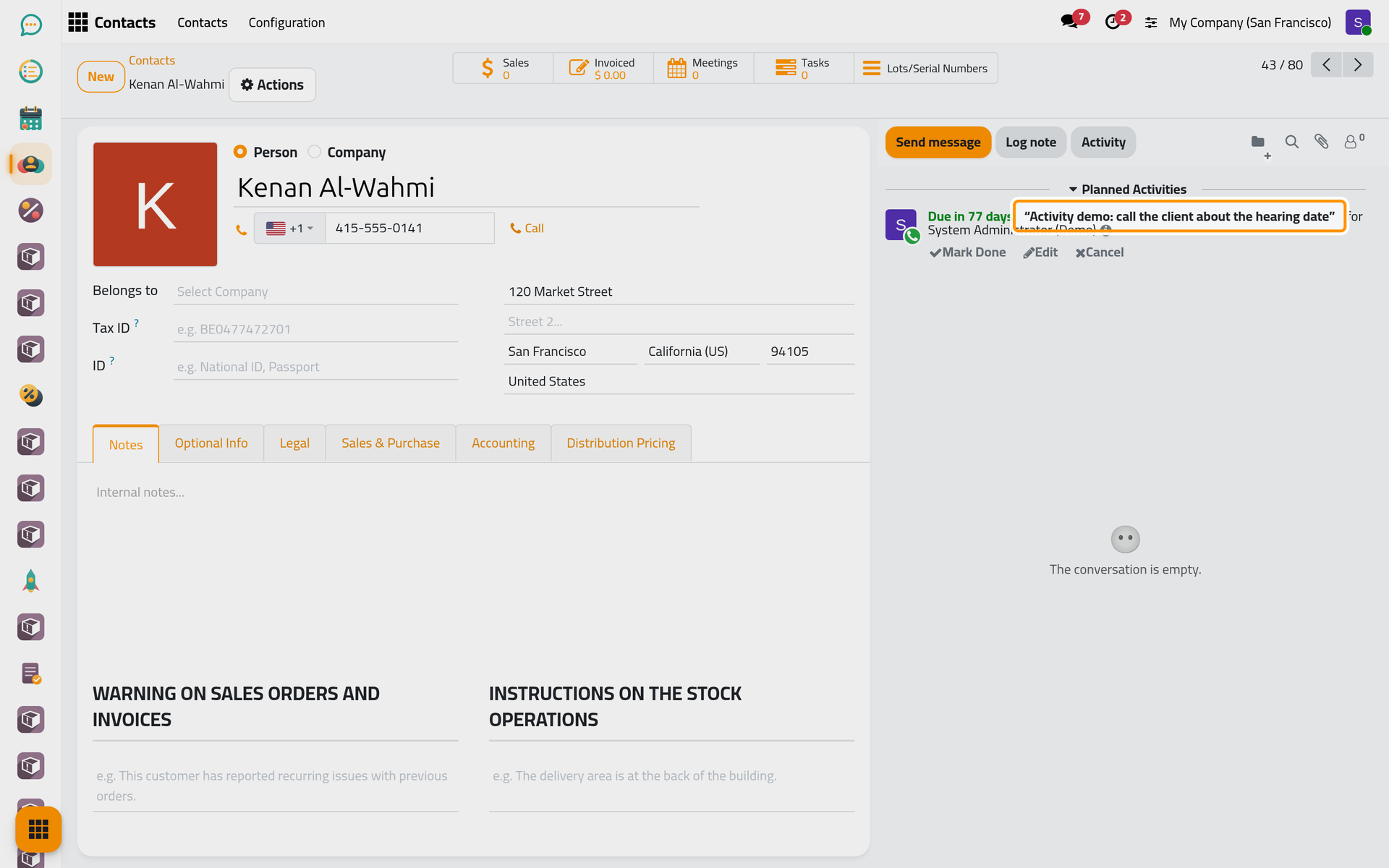
The call now waits under Planned Activities in the chatter, with how many days remain before it is due. Mark Done, Edit and Cancel act on it from there; Cancel deletes it.
Step 4: find it in your list
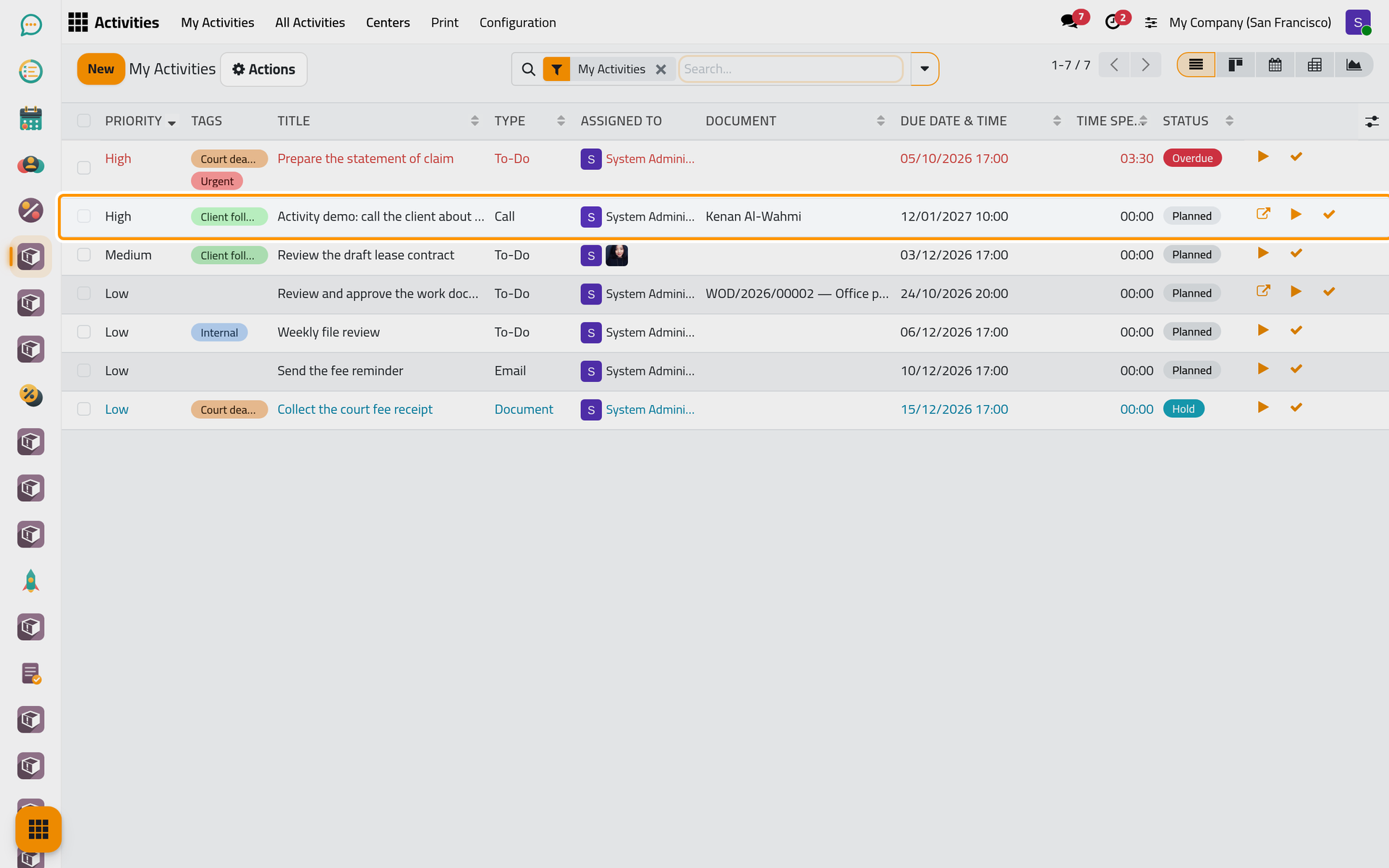
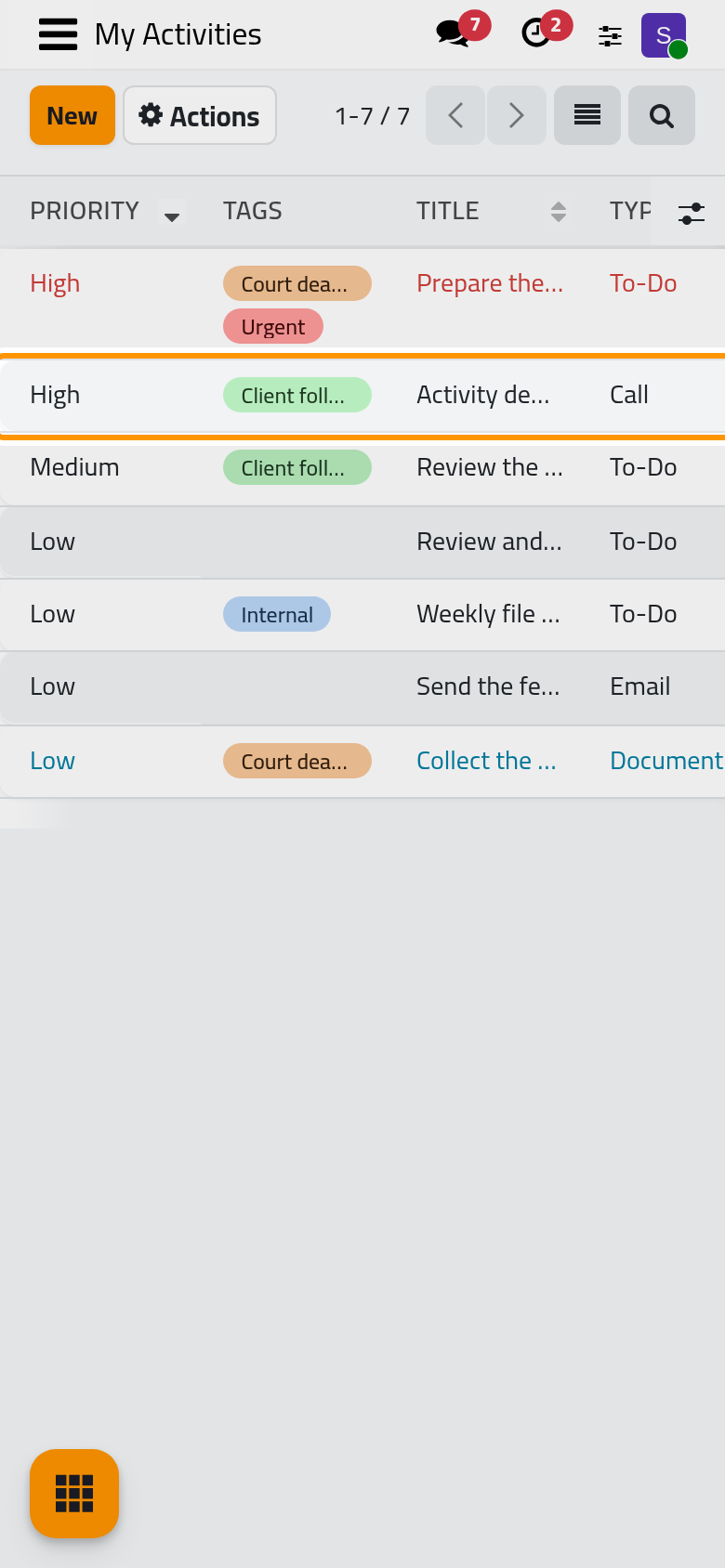
Open . The list holds every open activity assigned to you, from every app, the highest priority first and then the nearest due date. The call shows its tag, its type, the contact in Document and its status, Planned.
Step 5: time the work
- Click the call to open it.
- Open the Actions menu and choose Start Timer. The timer keeps running while you work, even if you leave the page.
- When you stop working, choose Stop Timer in the same menu. Each start and stop is kept as a session in the Timer Sessions tab.
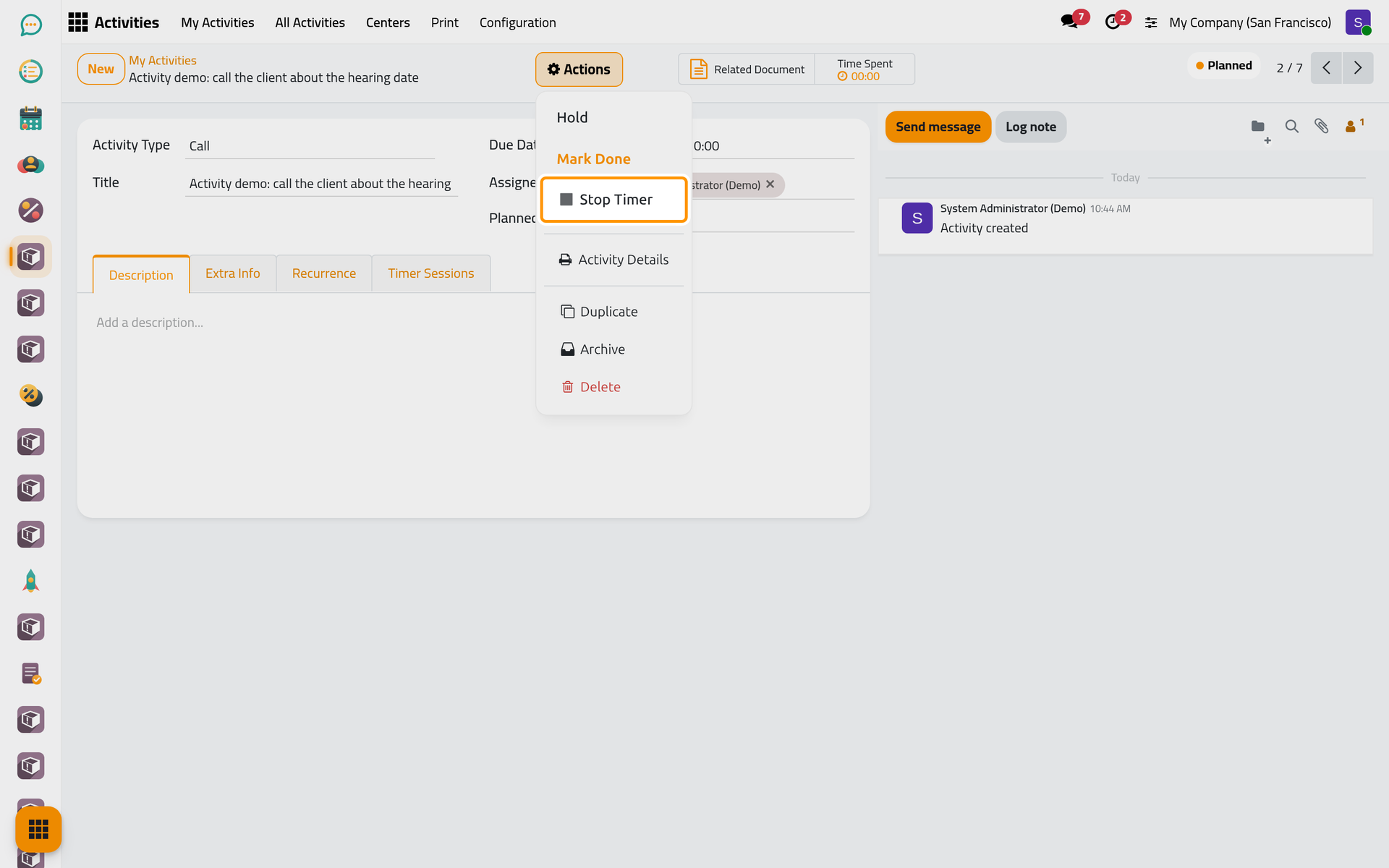
On a phone, the Actions menu holds the same items.
Step 6: mark it done
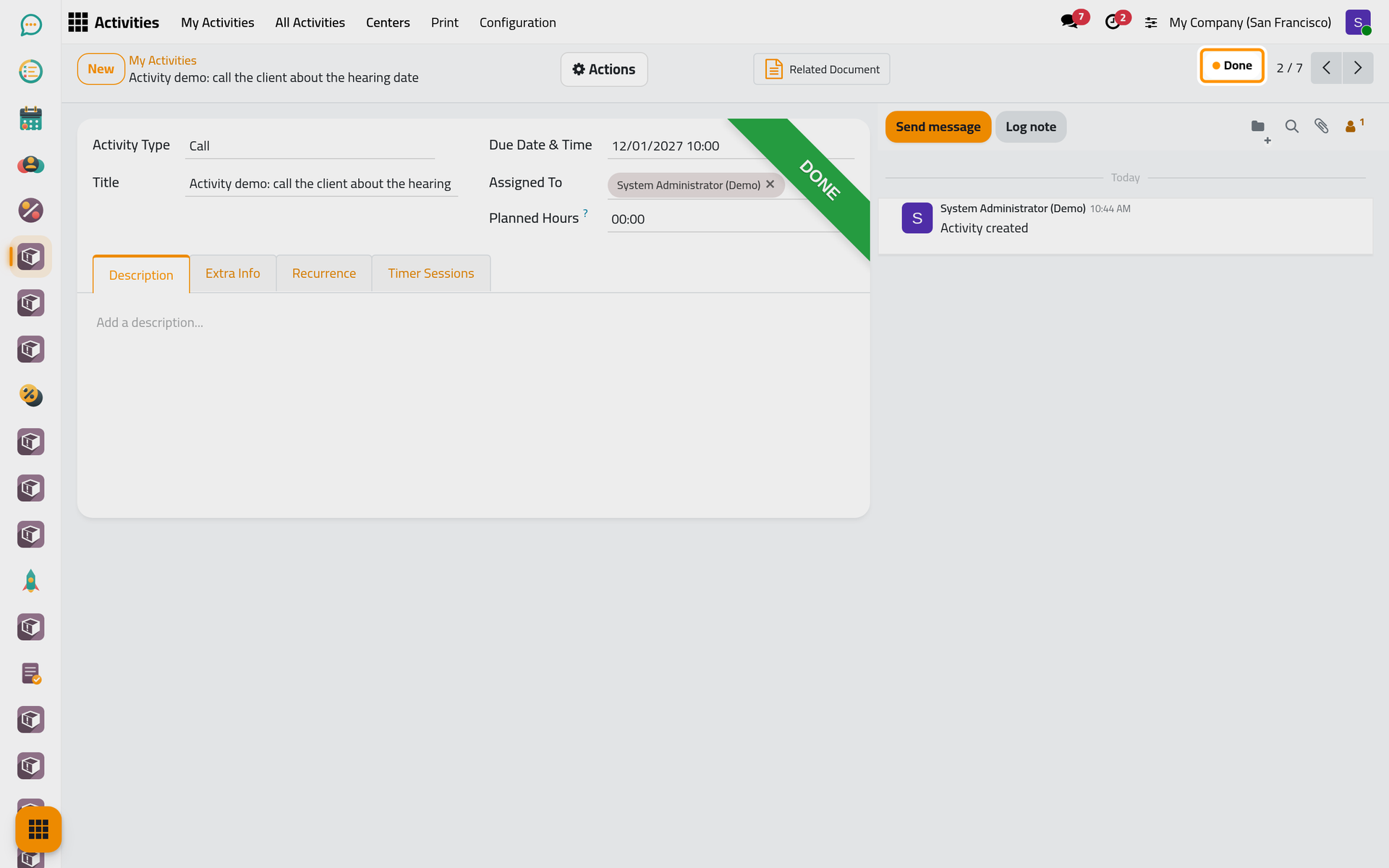
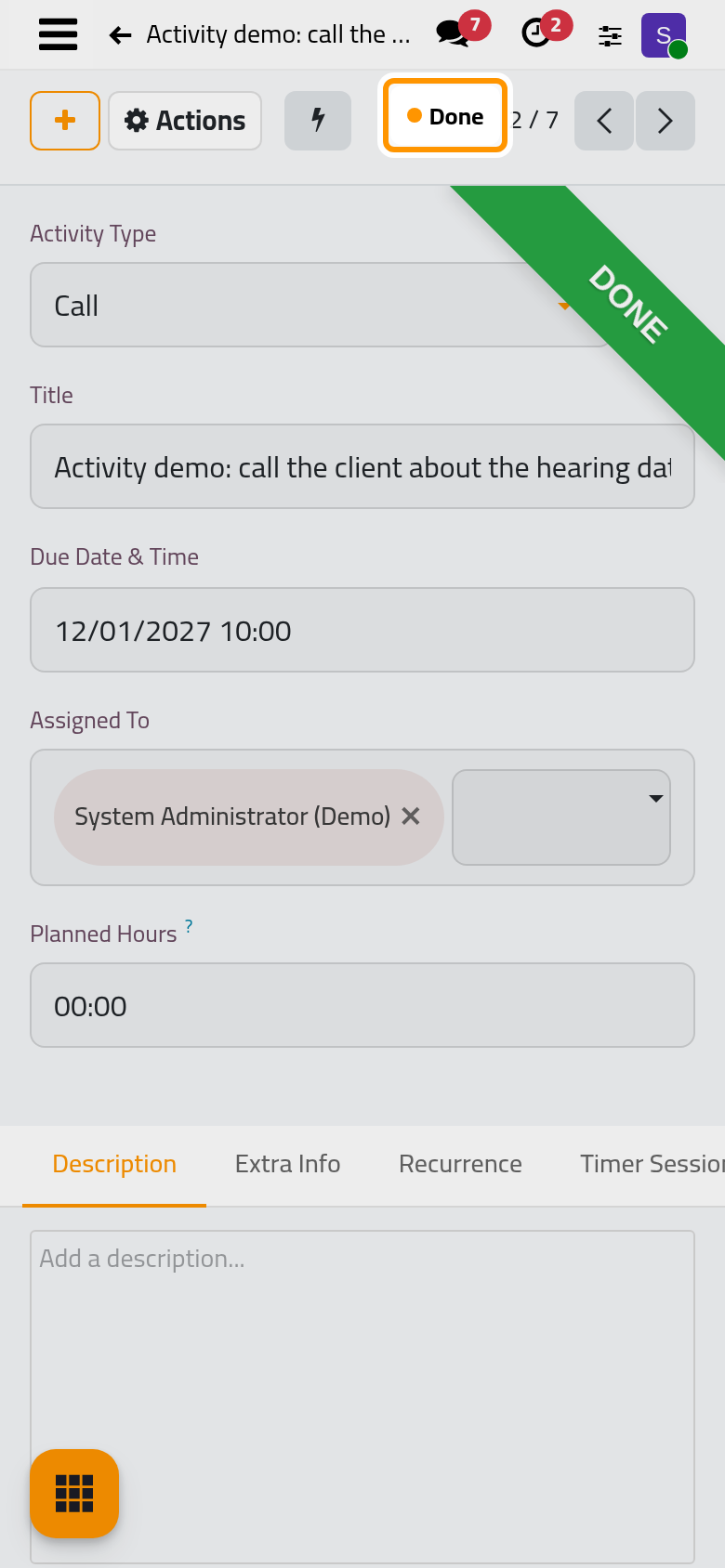
Choose Mark Done in the Actions menu. A running timer stops first and its time is kept. The status turns Done, a green ribbon crosses the form, and the activity is archived: it leaves My Activities and the open lists, and the Done filter finds it again. The contact's chatter keeps a line saying the call is done, with its title.
What you have done
You planned a call on a record, with a date and a time, a priority and a tag, found it in your own list, timed the work and closed it. Every activity follows the same path, whichever app it comes from. The user guide takes each part further: Work through your activity list, Track time on an activity, Repeat an activity and Run a matter with a center. How activities work explains the statuses, the roles and the emails.
Was this page helpful?
Thank you for your feedback.