From a person to their organizations
On this page
Contacts is the address book of the firm: one record for each client, opposing party, court officer, supplier or colleague. Every other app picks its people and companies here, from a case to an invoice. A record is either a Person or a Company, and a law firm often meets one person who owns or runs several companies at once. This walk-through follows the demo client Kenan Al-Wahmi, an investor who owns one company and directs a foundation: you read his record, file a third organization under him, then find his organizations from the list.
Before you start
- Reading contacts needs only a user account. Linking an organization to a person needs the Contact access right at Creation.
- In the demo data, Kenan Al-Wahmi has two organizations filed under him, Cedarbrook Advisory LLC and Harbor Lantern Foundation. Westfield Traders Association is a company that belongs to nobody yet.
- Lists, forms, the search bar and the chatter work as in every app: see Search, filter and group records and Create, edit and delete a record.
Step 1: open the person
- Open . The list shows every person and company of the address book, in alphabetical order.
- Type Kenan Al-Wahmi in the search bar, press Enter, and click his line.
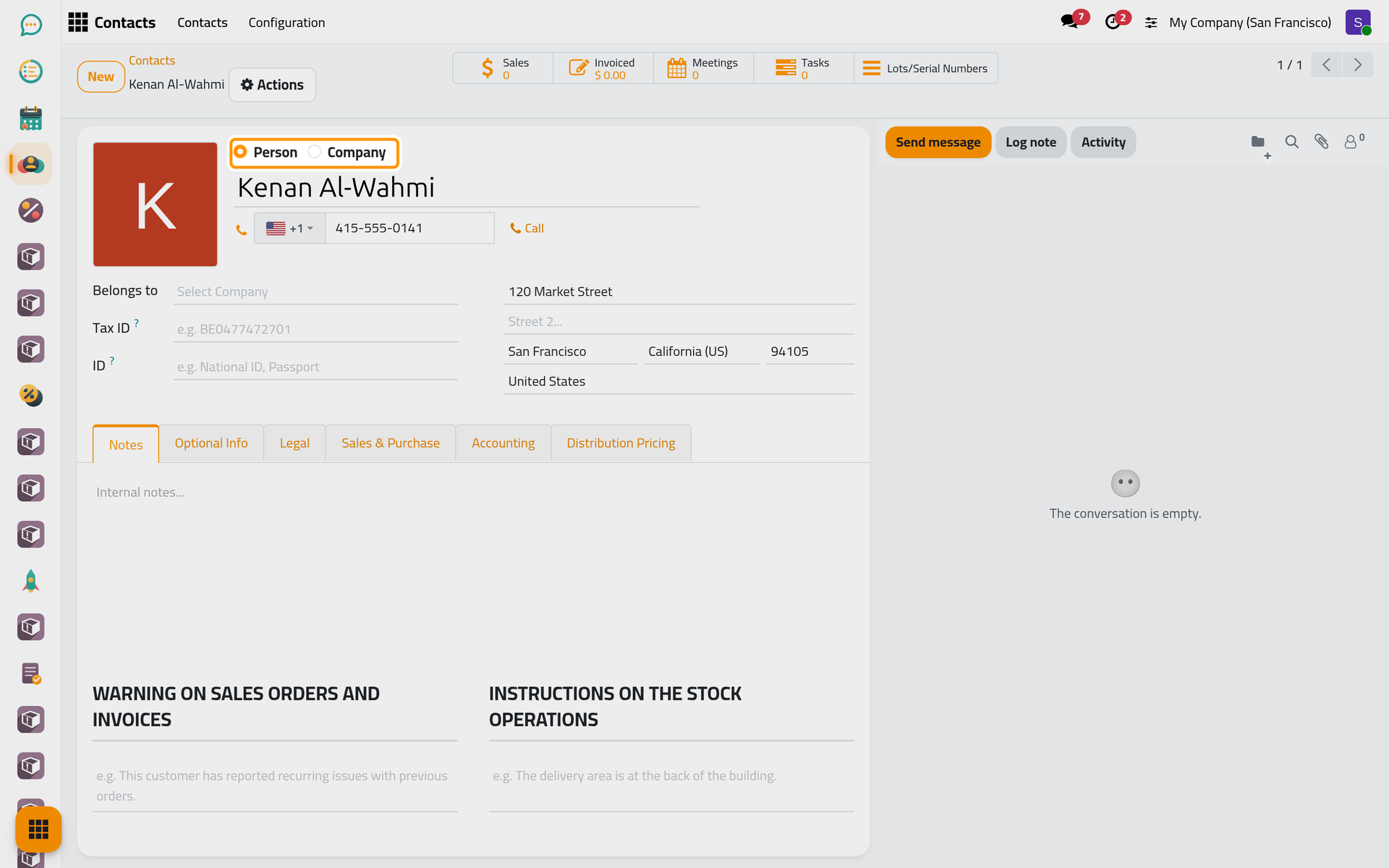
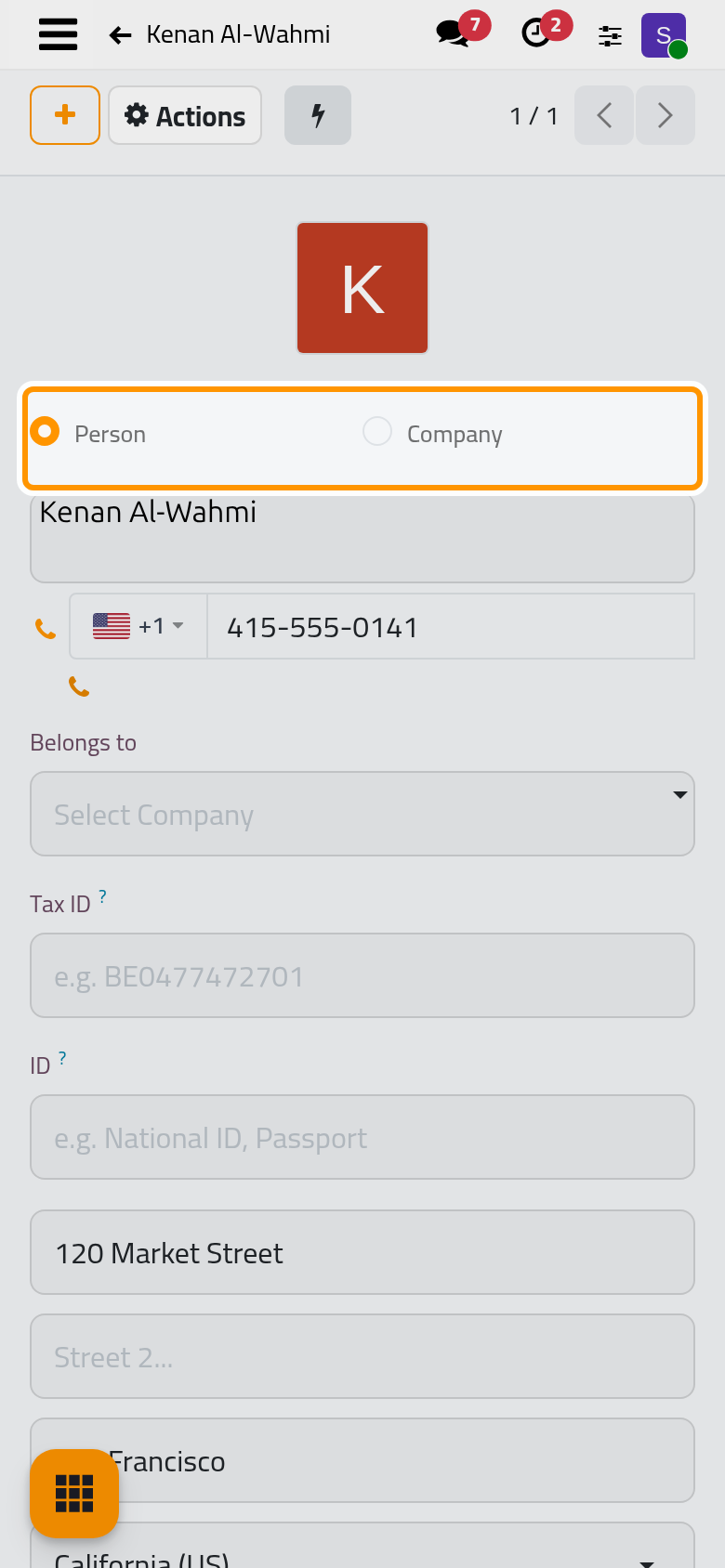
The Type at the top reads Person. Below the name come his phone and the address. Belongs to is empty: Kenan works for no company of the address book. A person's form also holds Tax ID and ID, a national ID or passport number. A company's form shows CR No, its commercial registration number, in place of ID.
Step 2: read his organizations
- Click the Optional Info tab. It holds the Email, the Job Position (here, Investor), the Tags, and at the bottom the Contacts section.
- The section shows one card for each contact filed under Kenan. Cedarbrook Advisory LLC and Harbor Lantern Foundation are organizations. Next to the building icon, a card shows the Organization Type: Company, Foundation. Next to the badge icon, it shows Kenan's Role in that organization: Owner, Director.
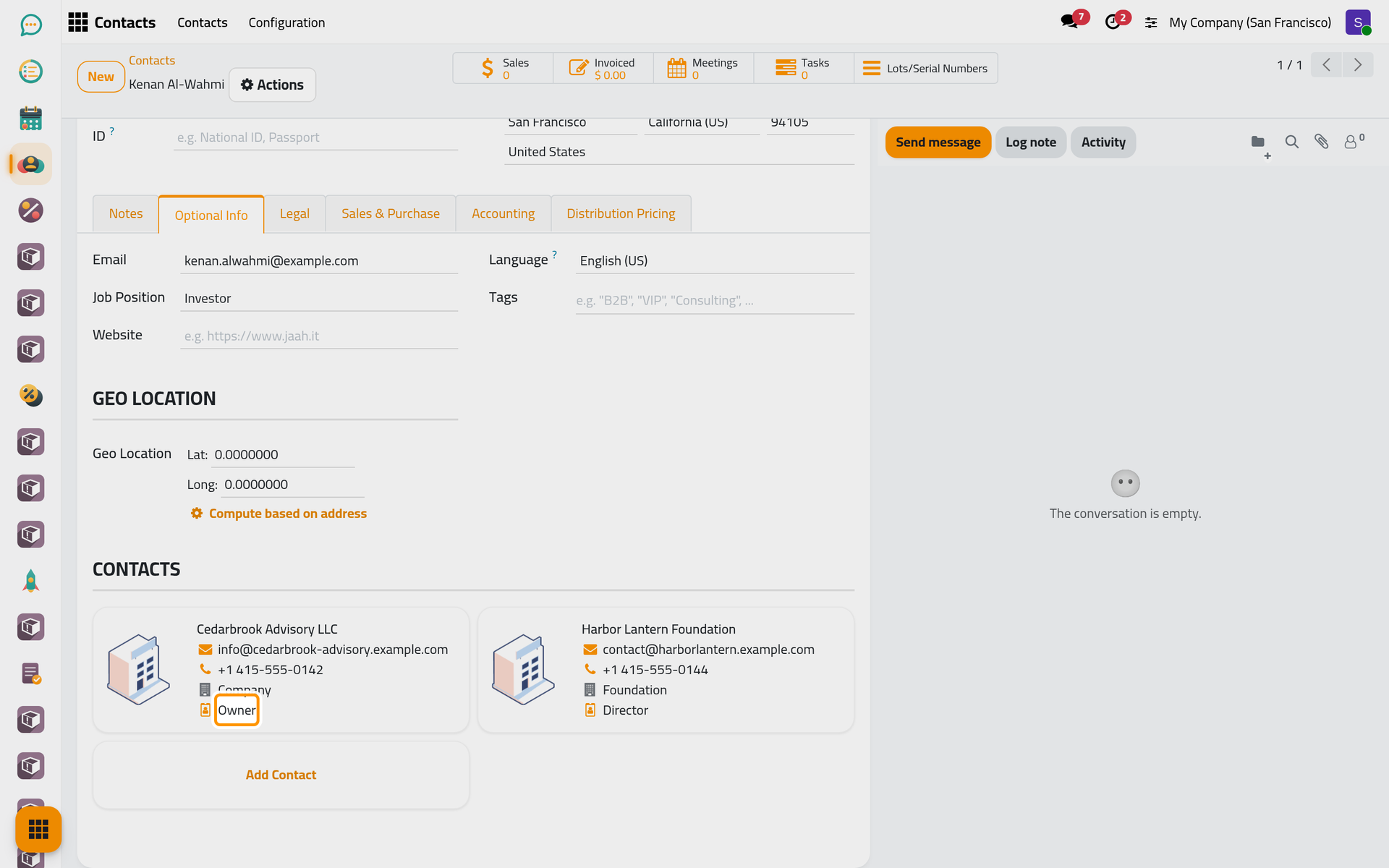
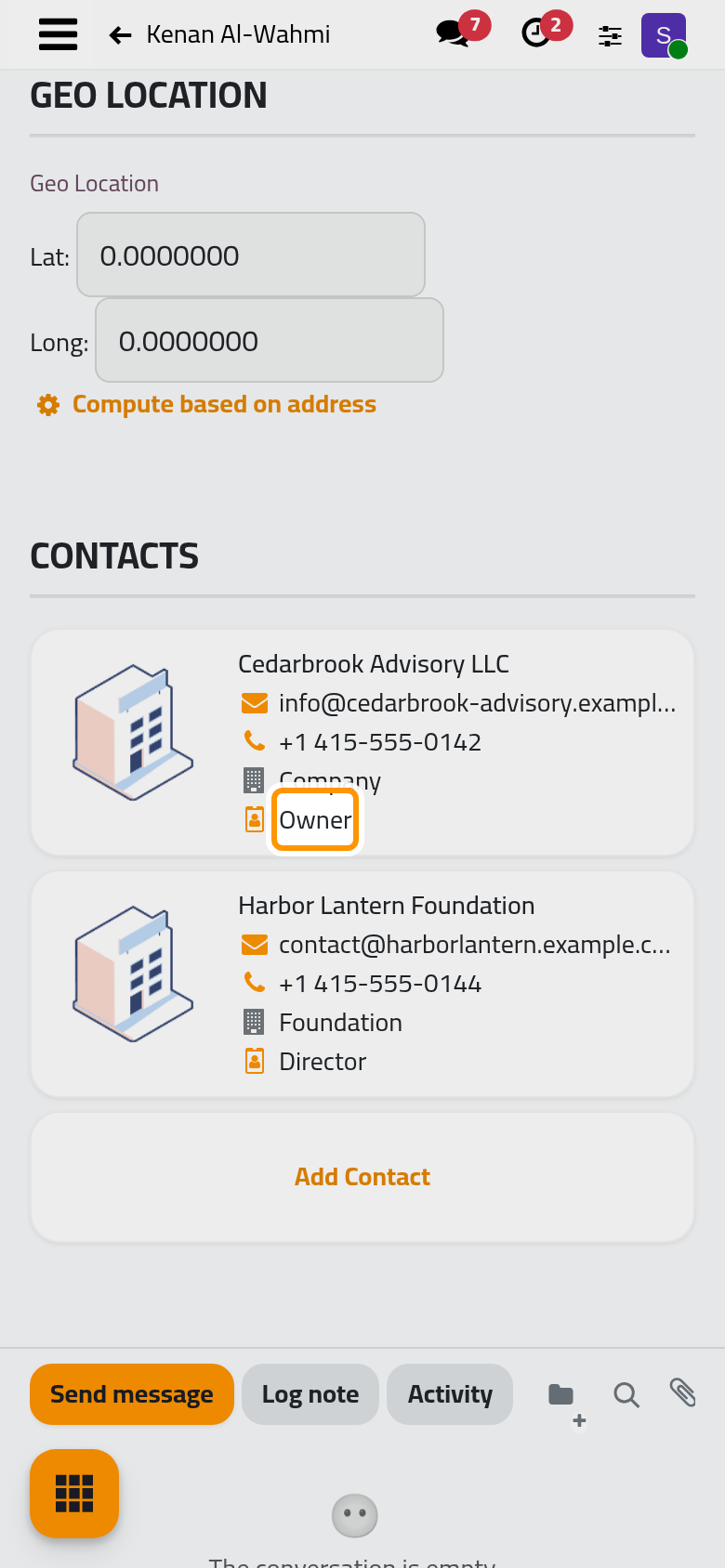
Clicking a card opens the organization in a window. Each organization is a full company record of its own, with its own address, CR No, invoices and chatter; it is only filed under Kenan. Close the window with Discard when you only came to read.
Step 3: link a third organization
Kenan has just taken over Westfield Traders Association, a company already in the address book. The Add Contact card cannot do this: it only creates new contacts. Linking a record that exists already is the job of the Link Existing Organization window.
- Open the Actions menu, the gear button next to the name, and choose Link Existing Organization. The window opens with Kenan in Contact.
- In Organization, choose Westfield Traders Association. The list offers companies only, and leaves out the organizations already filed under Kenan. Once you choose one, Organization Type and Role appear, filled with what the organization already carries: Association, and no role.
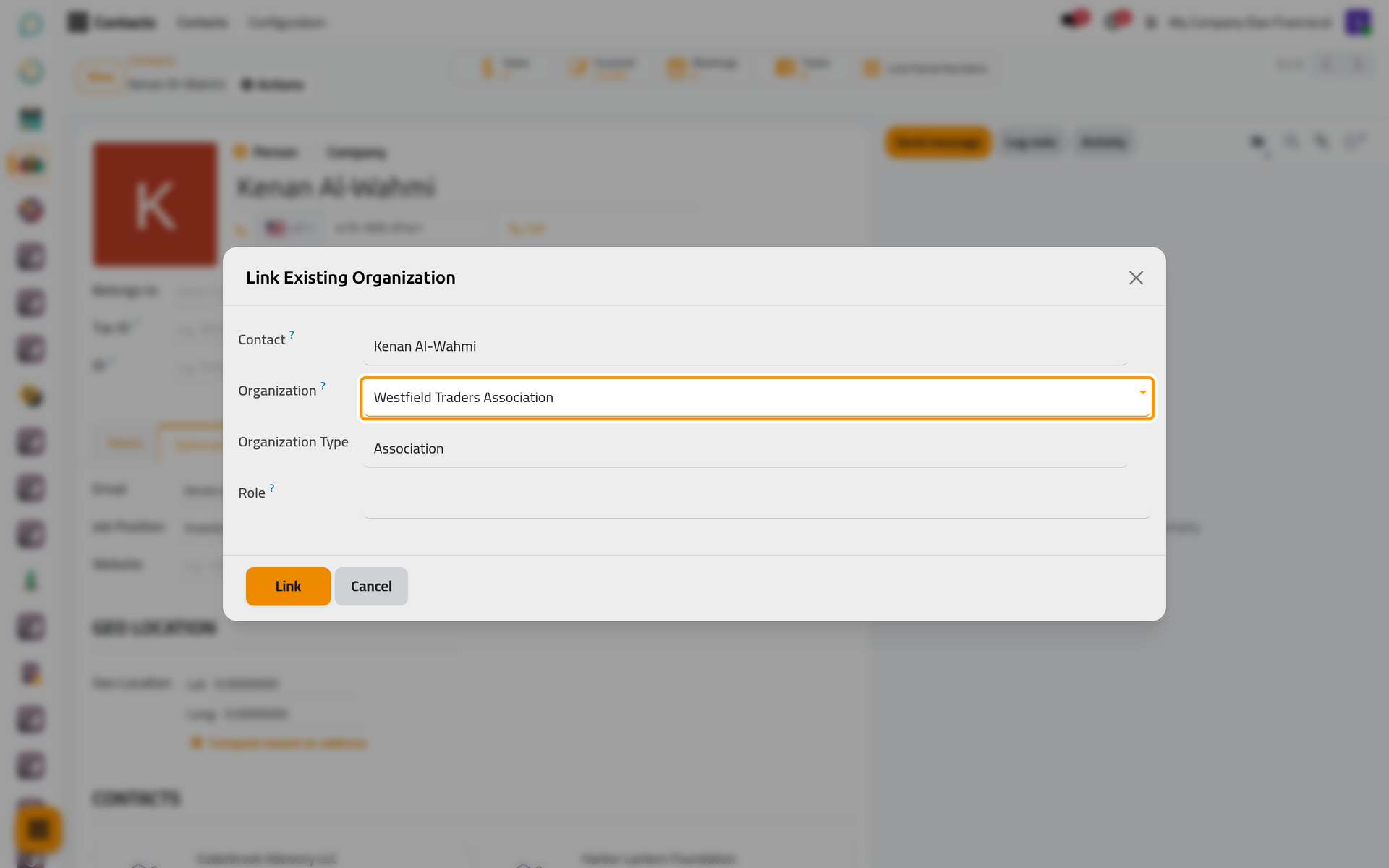
On a phone, the window opens full screen with the same fields and buttons.
- Click Link. The window closes and Westfield Traders Association joins Kenan's cards.
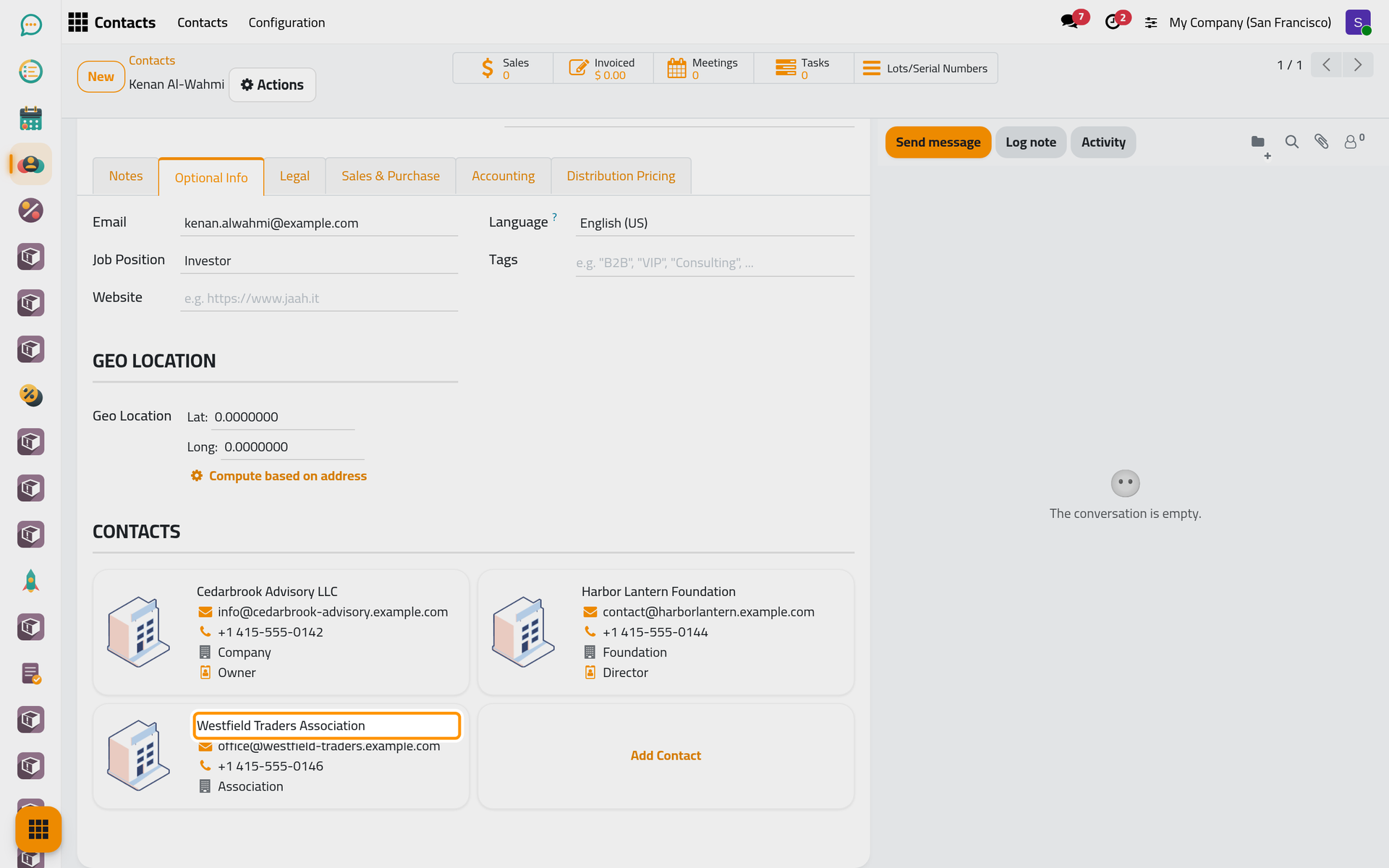
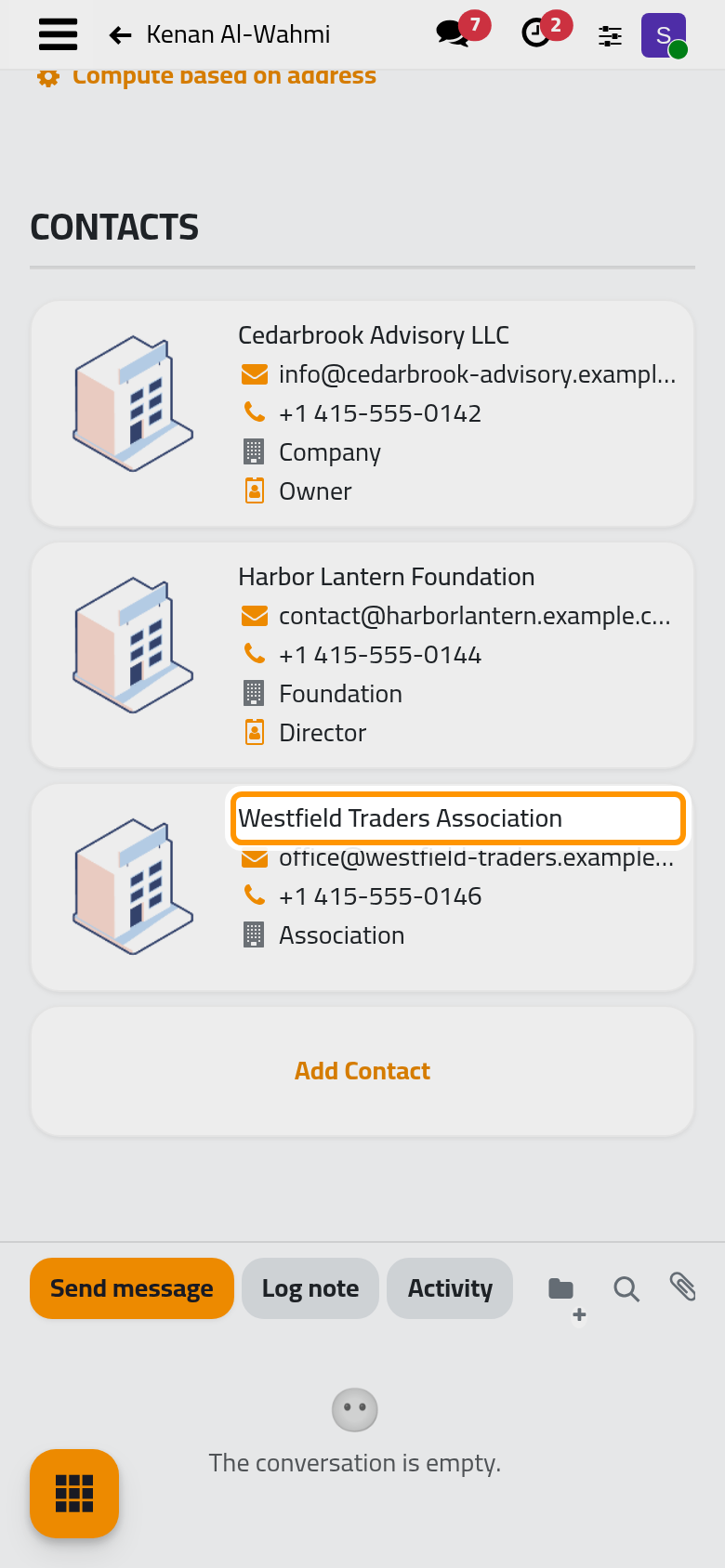
Westfield keeps its own name, address and invoices. What changed is its Belongs to, which now reads Kenan Al-Wahmi. In this version, a type or a role changed in the window is not saved: the organization keeps the ones it already had, which is why the new card shows Association and no role. An organization belongs to one person only: Link a person to an existing organization shows what happens when you link one that is already filed under someone else.
Step 4: find the organizations from the list
- Open again and click the caret at the end of the search bar to open the search panel.
- Under Filters, tick Organizations. Under Group By, tick Parent. Press Escape to close the panel.
- Click the group Kenan Al-Wahmi to open it. It now holds three organizations.
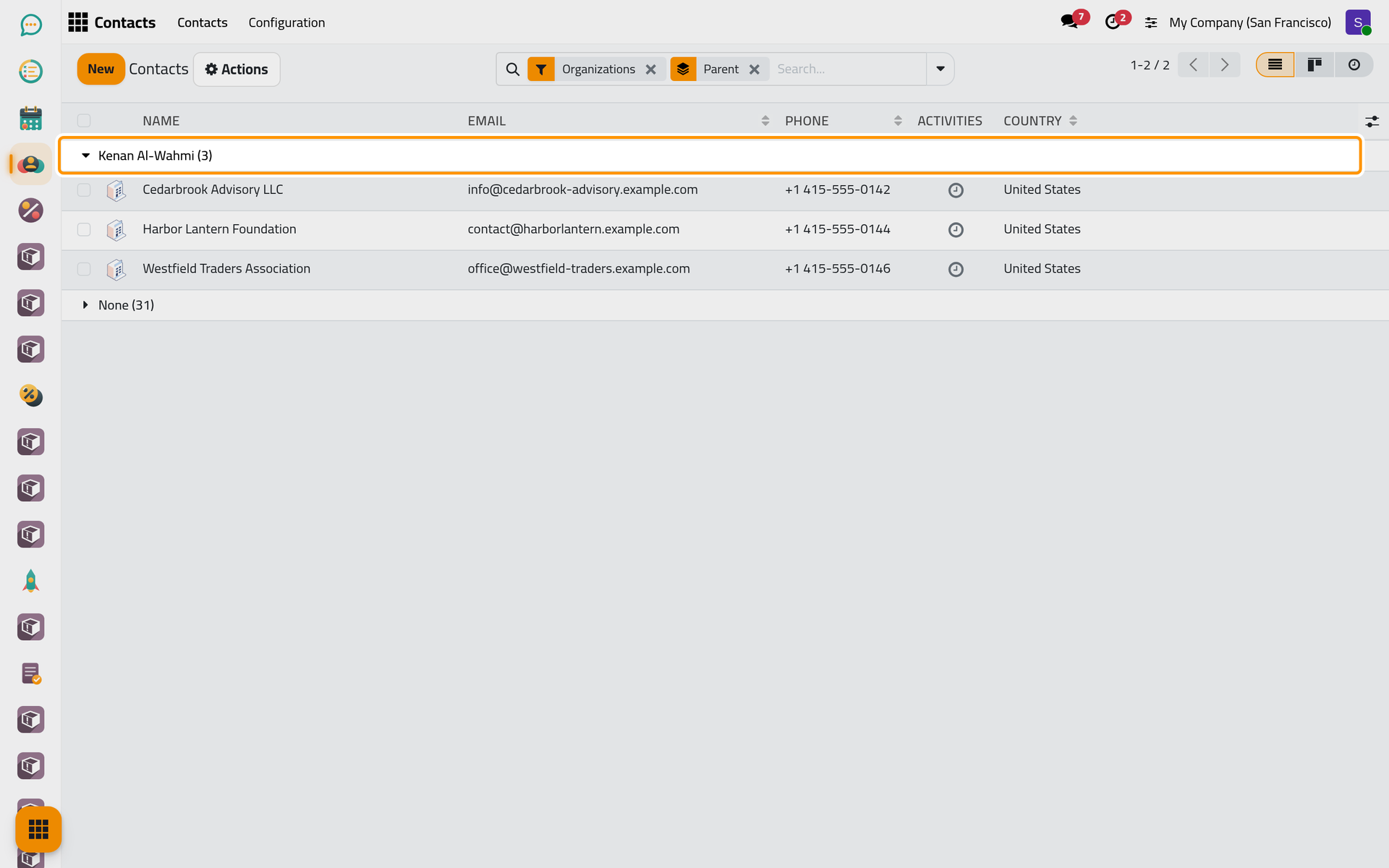
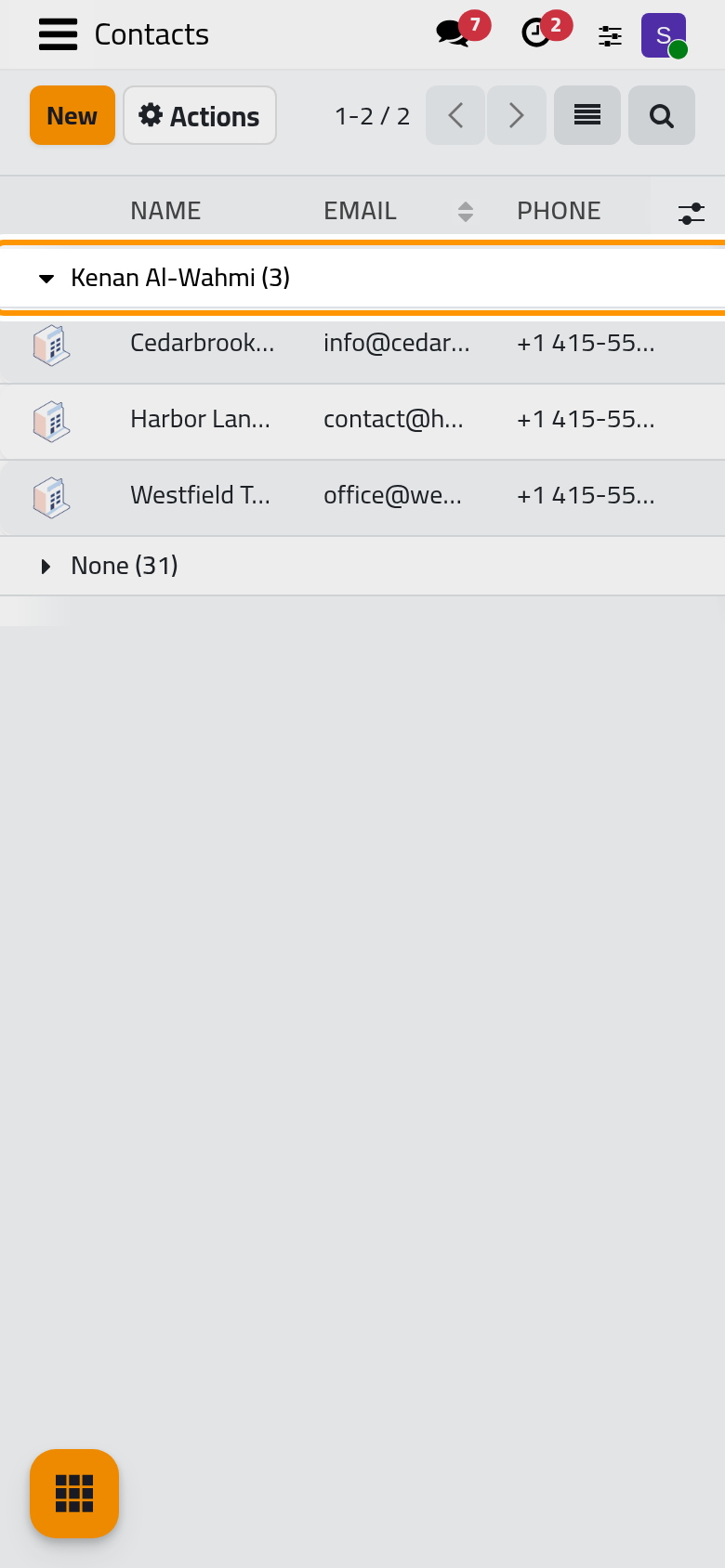
Every company that belongs to someone sits in the group of that person or company; the companies that belong to nobody come last, under None. Without the Organizations filter, the same grouping also shows the people of each company, such as the three people of Acme Corporation.
What you have done
You opened a person, read the organizations filed under him with their type and his role, filed a company that already existed under him with Link Existing Organization, and found his organizations again with a filter and a grouping. The user guide takes each part further: Add a company and its people, Link a person to an existing organization, Organization types, contact roles and tags and Merge duplicate contacts. How people and organizations are linked explains what sits behind the screens.
Was this page helpful?
Thank you for your feedback.