Import and export a dashboard
On this page
Two different things leave a dashboard. Its figures, as they read now, go to a PDF, an Excel workbook or a CSV file for a meeting or a report. Its design, the list of widgets and their settings without any figure, goes to a file that recreates the dashboard in another database or as a fresh copy.
Before you start
- Exporting figures needs the Dashboard Export access right on Analysis, which the Manager right includes. With it, you export the dashboards you own, every dashboard you see if you hold Supervisor, and those whose access lines tick Can Export for you. Without it, the export buttons do not show.
- Exporting a design needs the right to change the dashboard; importing one needs Supervisor or Manager.
Export the figures
- Open the dashboard in , here Activities Analysis, and set the Date Filter if you want a period: the export follows it.
- Click the download button at the top right and choose a format.
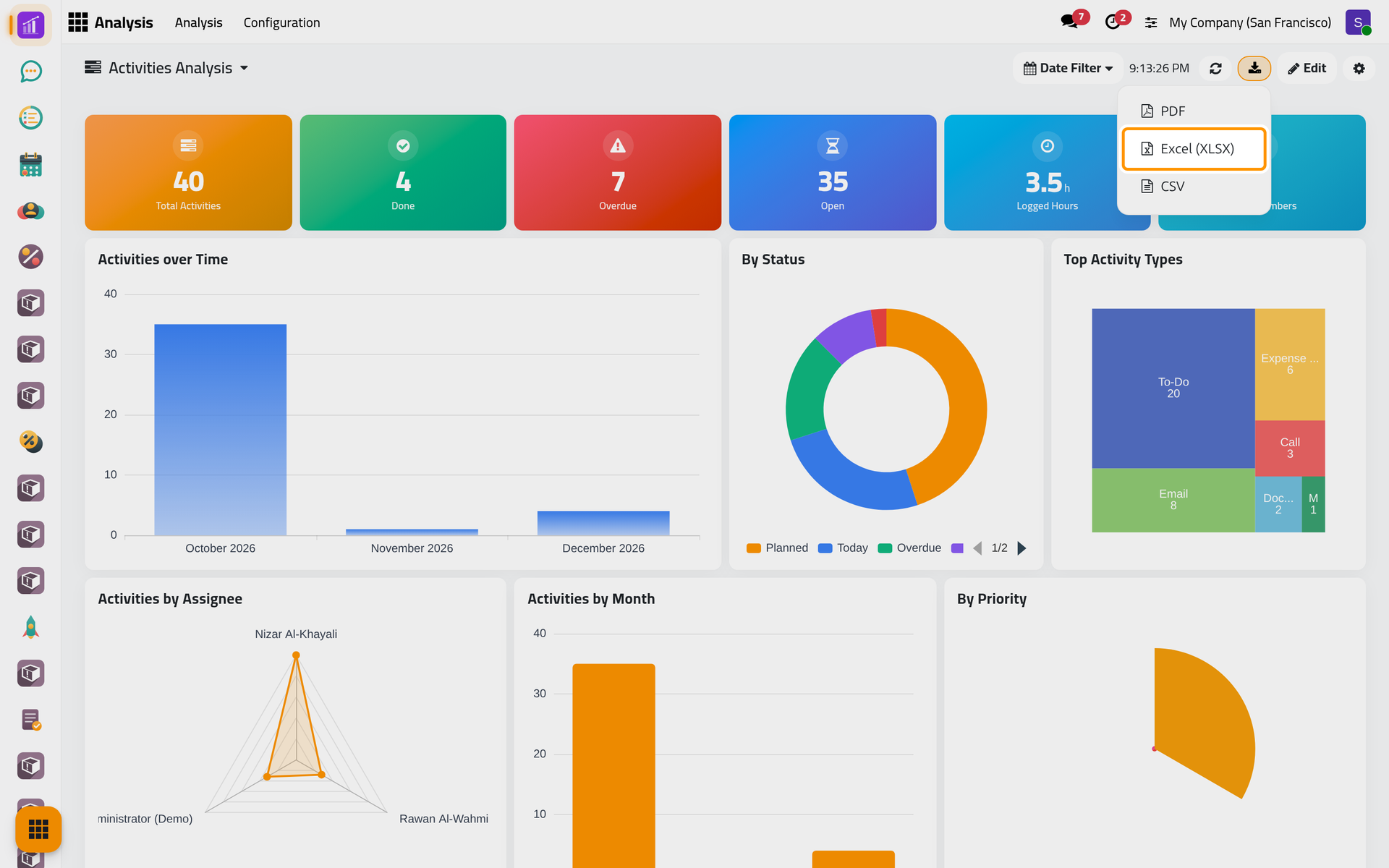
- PDF prints the dashboard on landscape A4 pages: its name, then each widget with its title, the charts as pictures, the figures and the tables.
- Excel (XLSX) writes one sheet per widget, with its groups and values.
- CSV writes the same tables one after the other in a single file.
The file is named after the dashboard. To export a single widget, hover over its tile and click its own download button: PNG for a chart drawn as a picture, XLSX or CSV for its values.
Export the design
- Click the gear button, Configure, to open the form of the dashboard.
- Open Actions and choose Export Config.
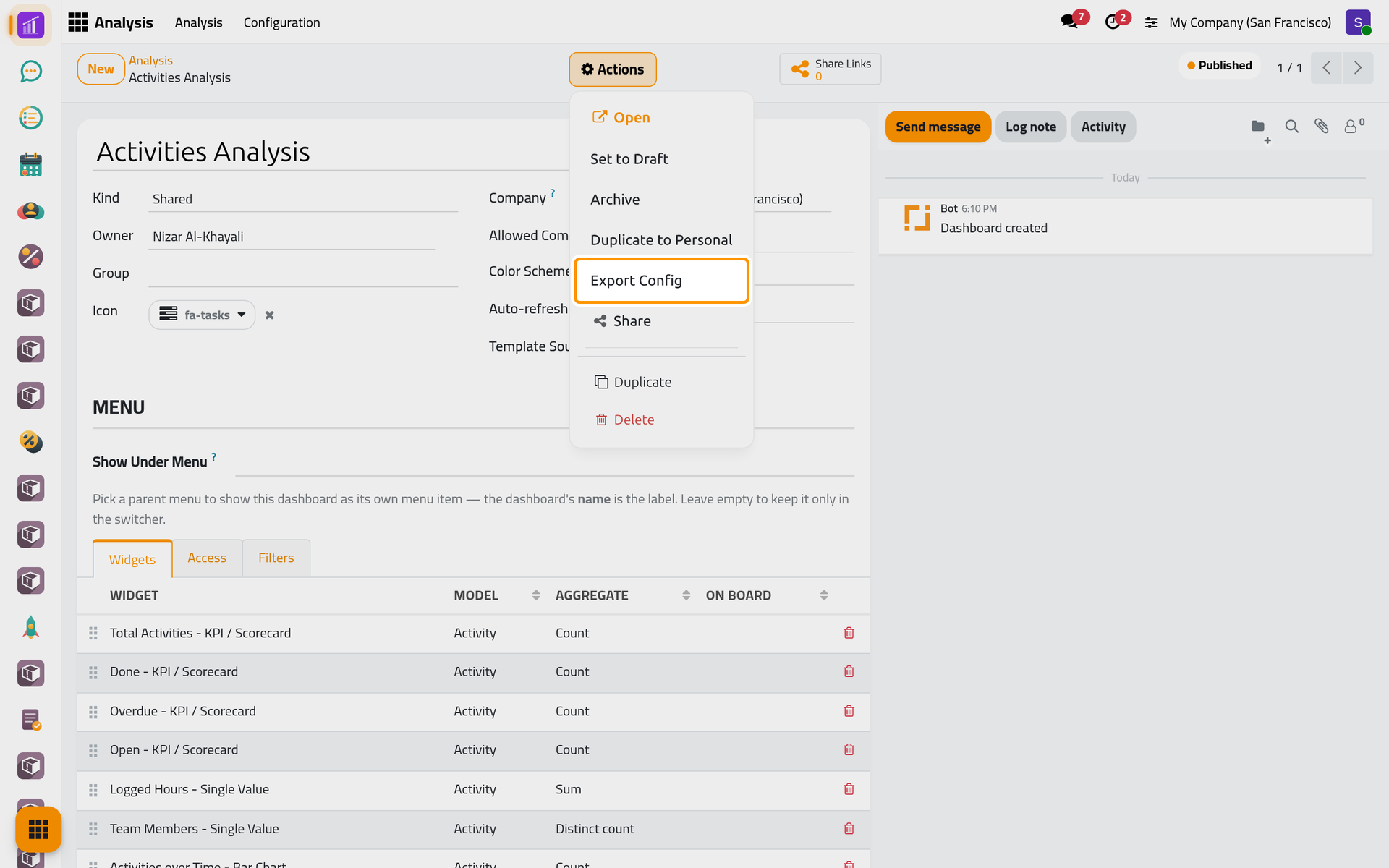
The browser downloads a JSON file named after the dashboard. It holds the name, the icon, the description and every widget with its type, model, fields, filters, display options and place on the board. It holds no figure, no record, no access line and no share link.
Import a design
- Open .
- Upload the file in JSON file, or paste its content in Or paste JSON, here a small design with one KPI.
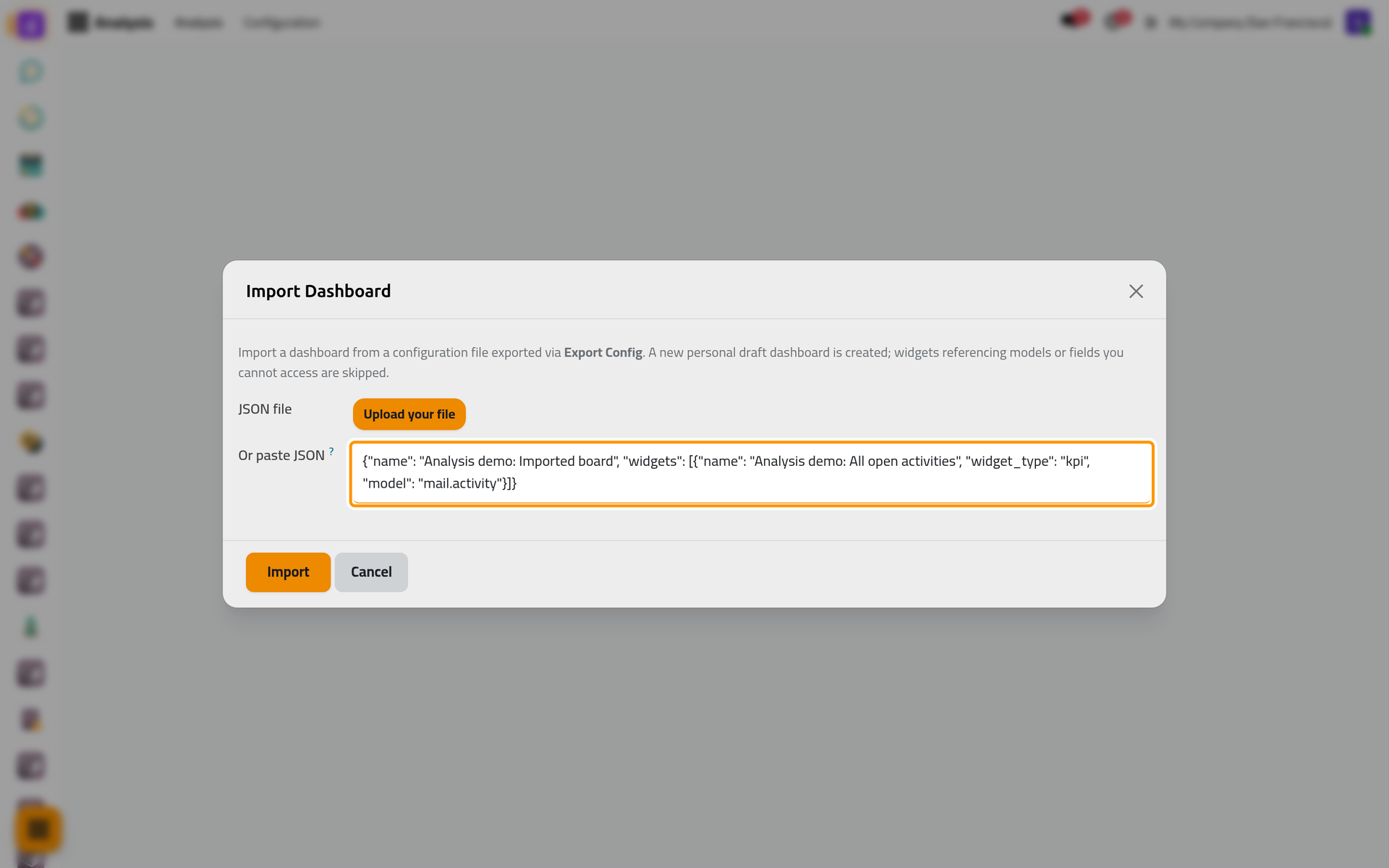
- Click Import. The new dashboard opens on its form: Personal, Draft and owned by you, whatever the file came from.
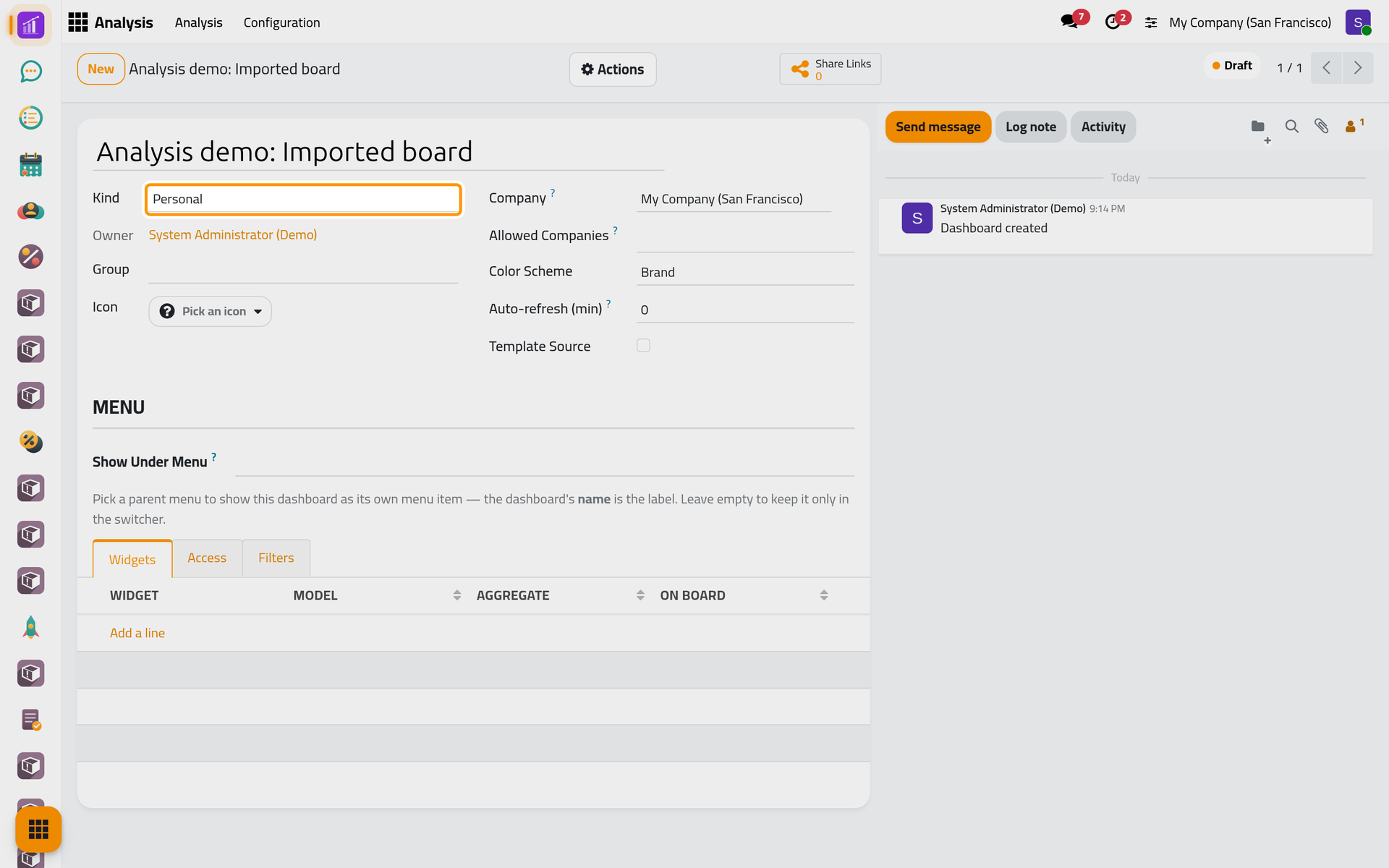
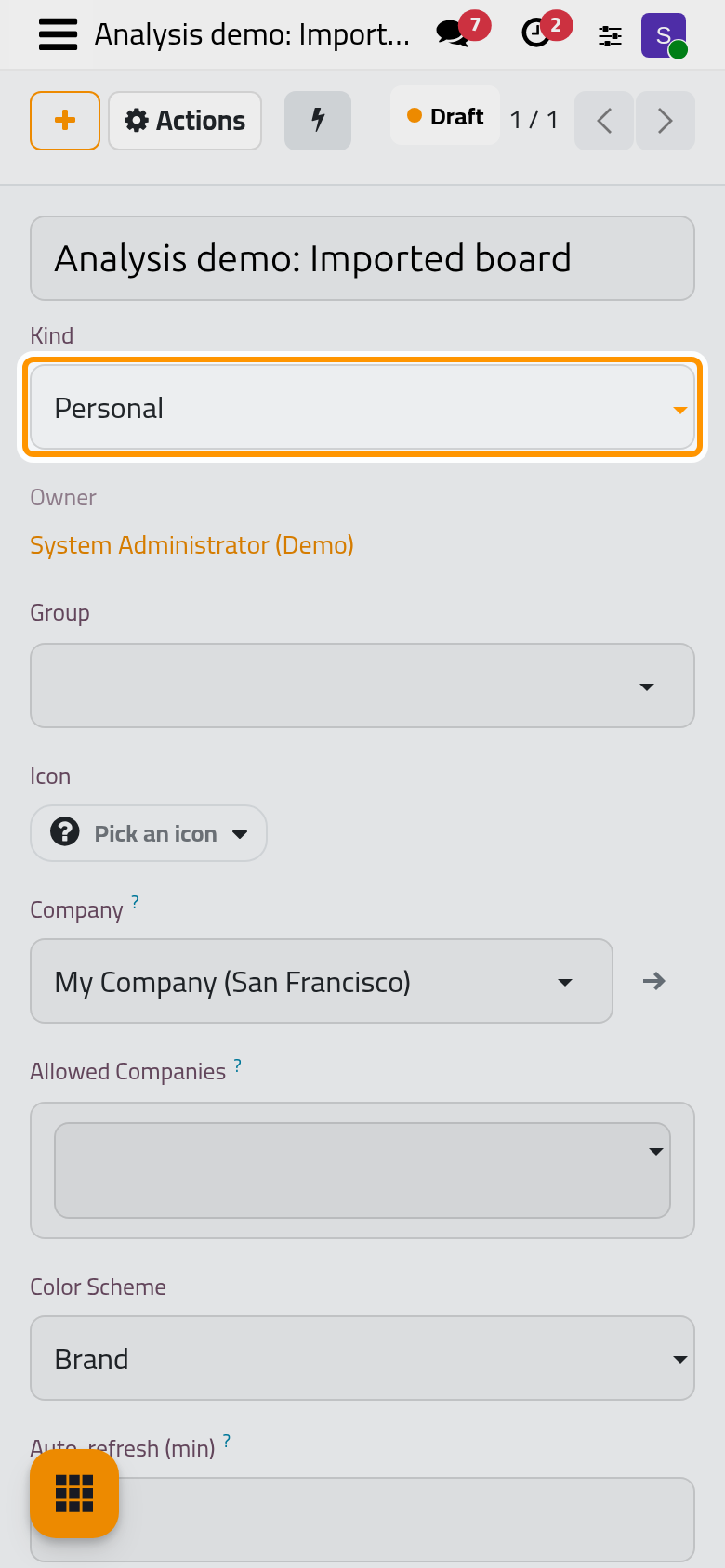
A widget whose model is missing from the database is skipped. A field the database does not know is left empty, and the widget is skipped when it cannot work without it. Check the widgets, then share and publish the dashboard as Share a dashboard explains.
FAQ
Does an export contain the records themselves?
No, only the figures the widgets show. A Table / List widget that lists records exports its rows and columns.
Why don't I see the download button?
You lack the Dashboard Export right, or the dashboard is not yours and no access line gives you Can Export.
Can I import the same file twice?
Yes. Each import creates a new dashboard; nothing is merged.
Can I move a ready-made dashboard to another database?
Yes, with Export Config and Import Dashboard, provided the other database has the same apps installed.
Was this page helpful?
Thank you for your feedback.