Build a dashboard
On this page
- Before you start
- Create the dashboard
- Start from a copy instead
- Add a widget
- Arrange the board
- Show a figure above the list of an app
- FAQ
- Why does my widget say it needs a group-by field?
- Why is my count lower than the list of the app?
- Why can't I find a field in Measure or Group By?
- What does Compare as do?
A dashboard is a board of widgets; each widget reads one kind of record, such as activities or invoices, and shows a figure, a chart or a table. This page builds one from scratch.
Before you start
- Dashboards are created from Configuration, which needs the Supervisor or Manager access right on Analysis.
- You change the dashboards you own; a Supervisor also those where an access line makes them editor or whose team they manage, a Manager all.
Create the dashboard
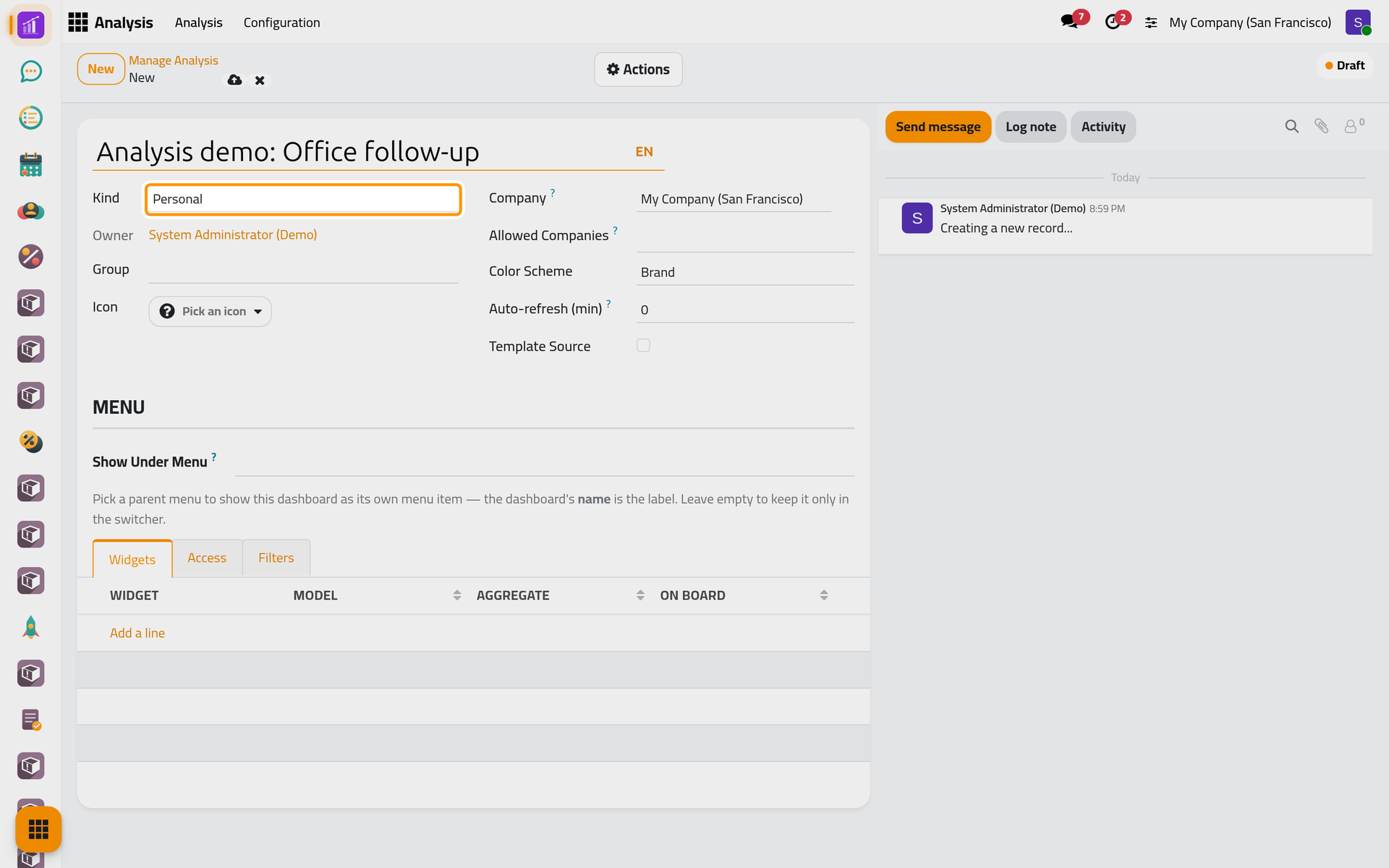
- Open and click New.
- Type the name
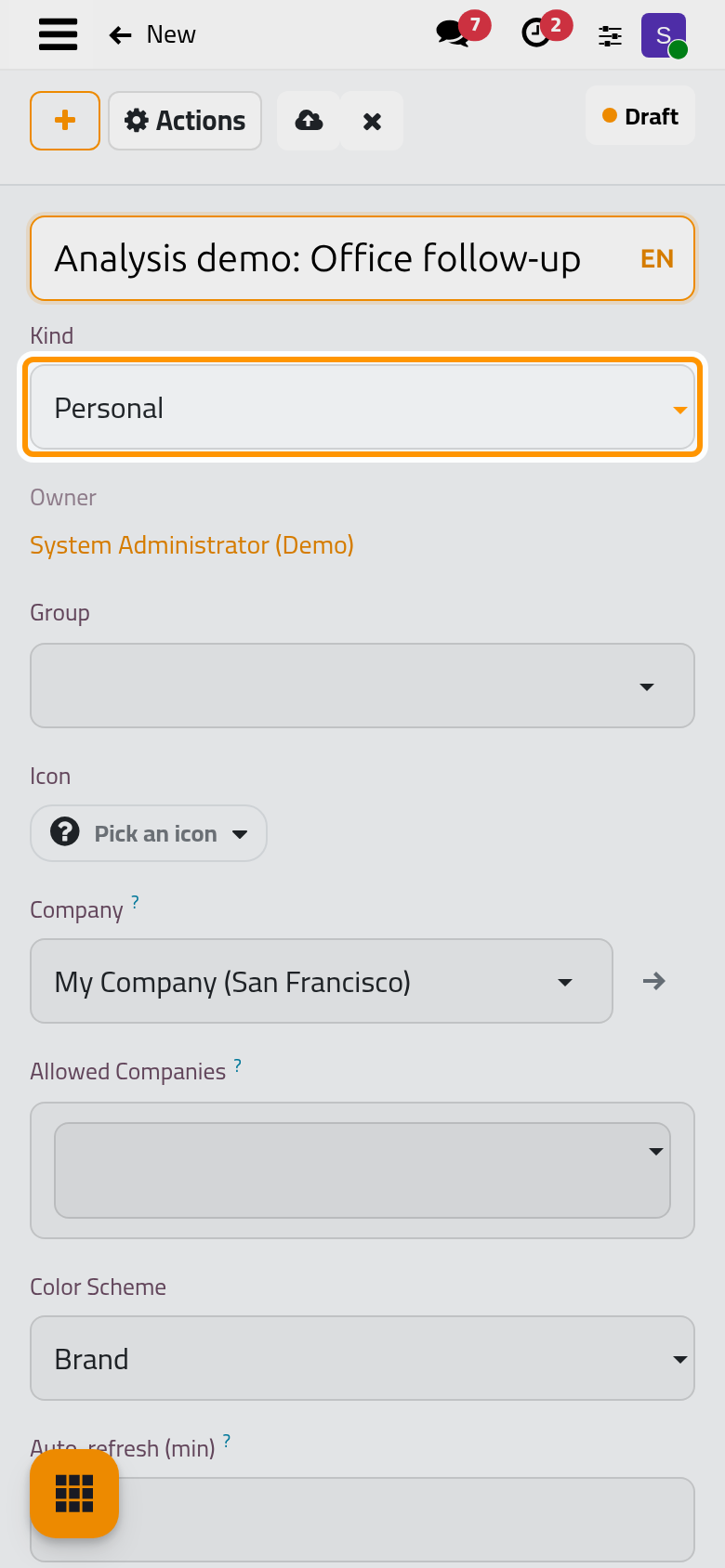
Analysis demo: Office follow-up. Kind stays Personal: only you and the managers see it while you build it. Save.
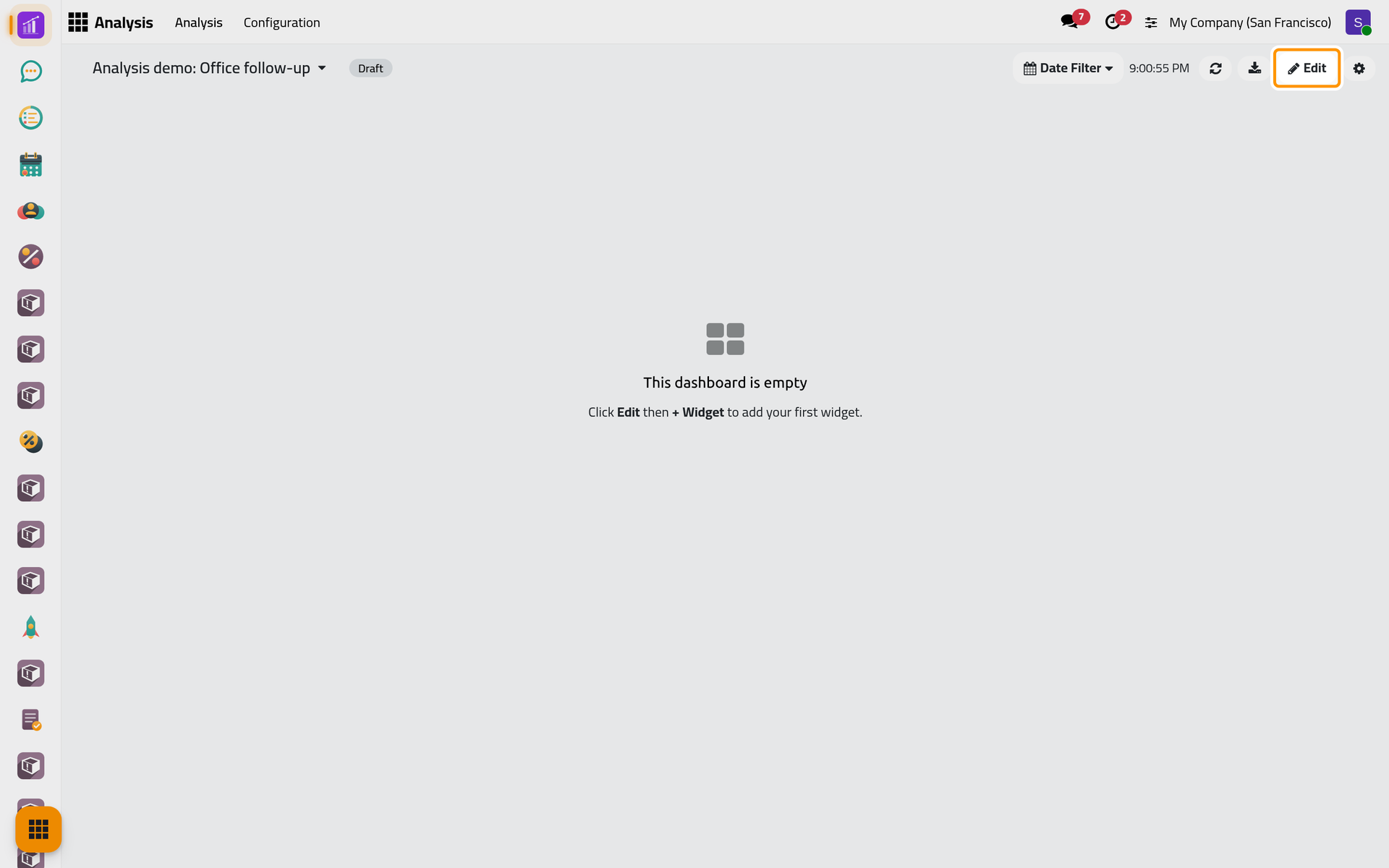
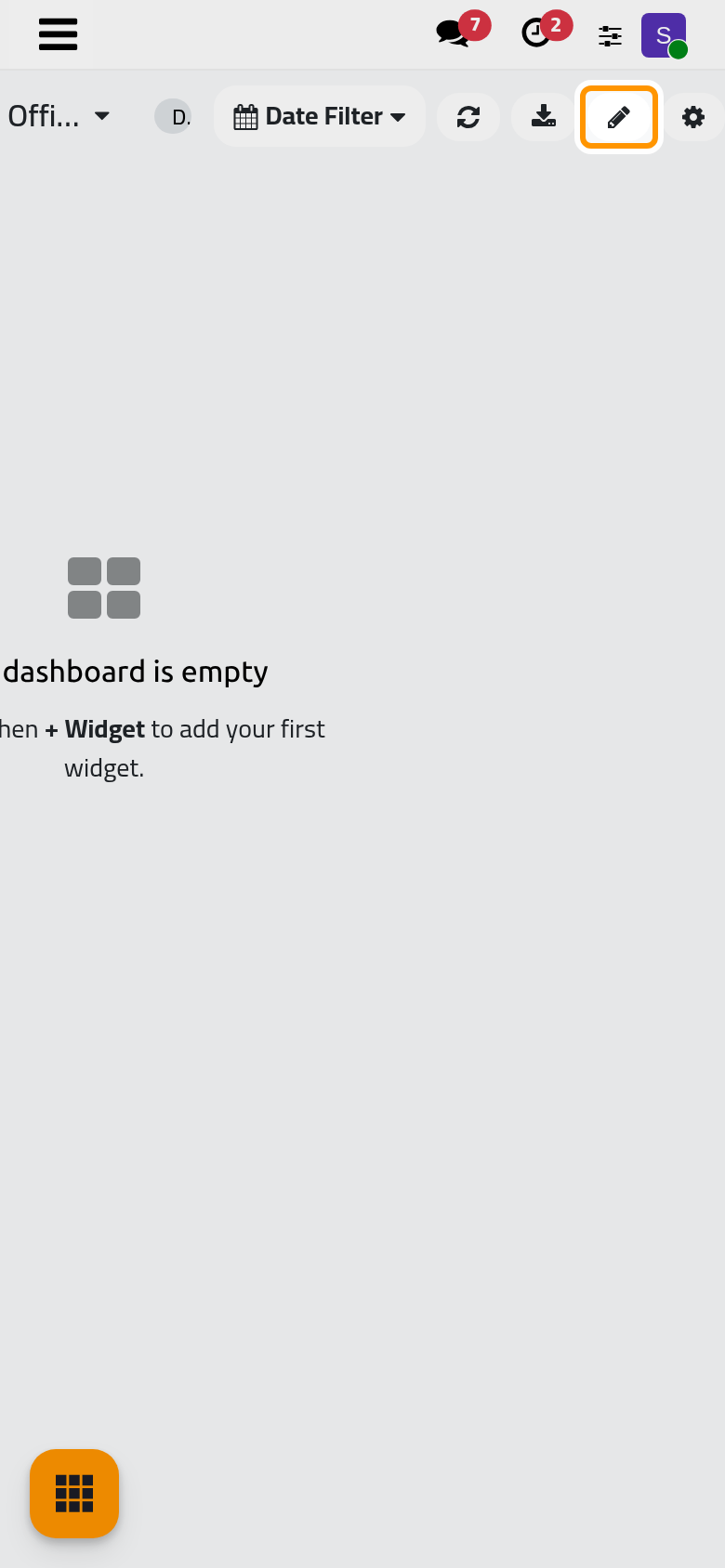
- Open it from the list of dashboards of , or with Actions then Open on its form. It is empty.
Start from a copy instead
On any dashboard's form, Actions then Duplicate to Personal copies its widgets and filters into a personal draft of yours, without its access lines and share links. A copy of a ready-made dashboard also takes the small tiles the original shows above the lists of its app: the rows with an On Board switch on the copy's Widgets tab. Delete them, or the lists show each tile twice.
Add a widget
- Click Edit, then + Widget.
- Type the name
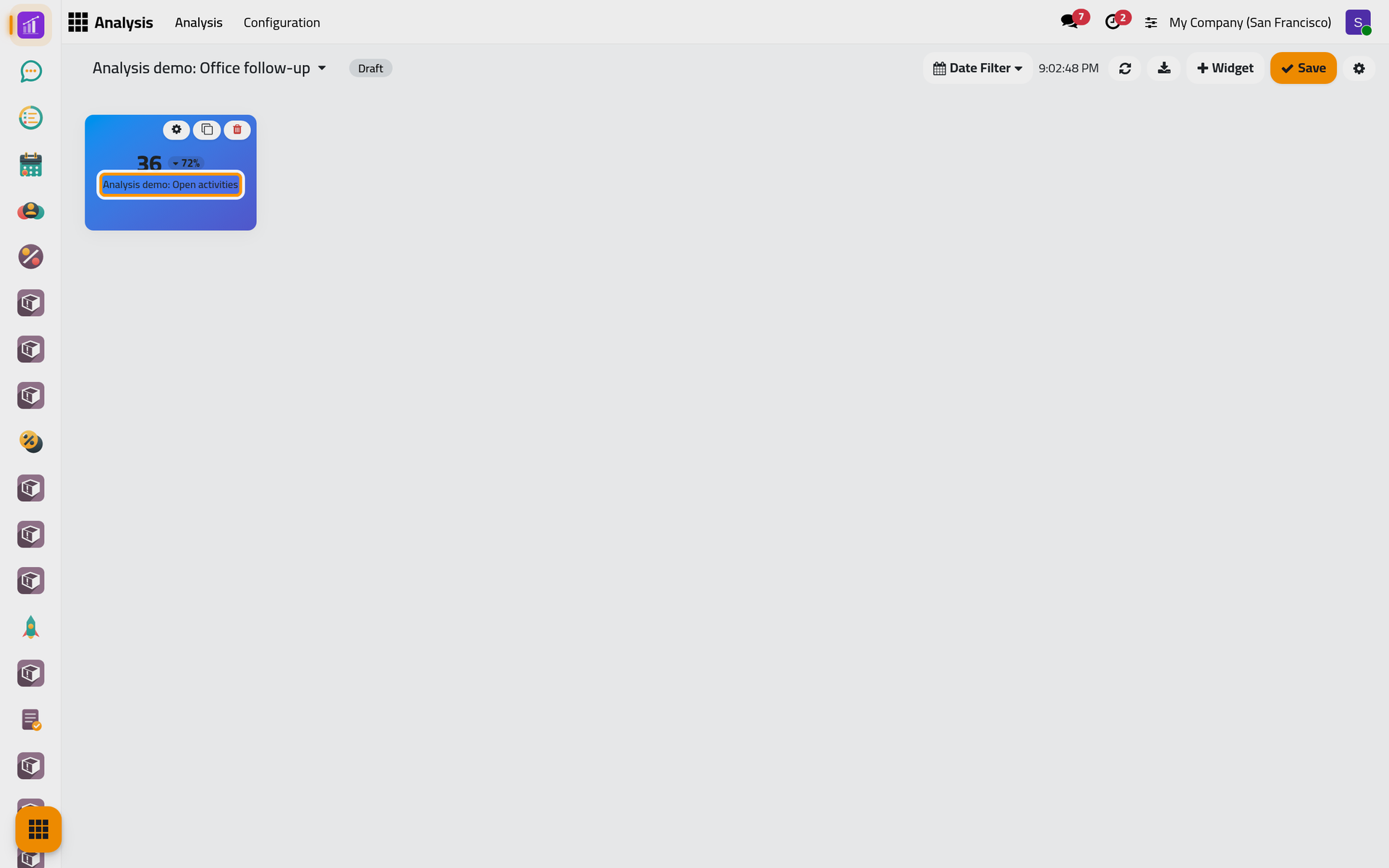
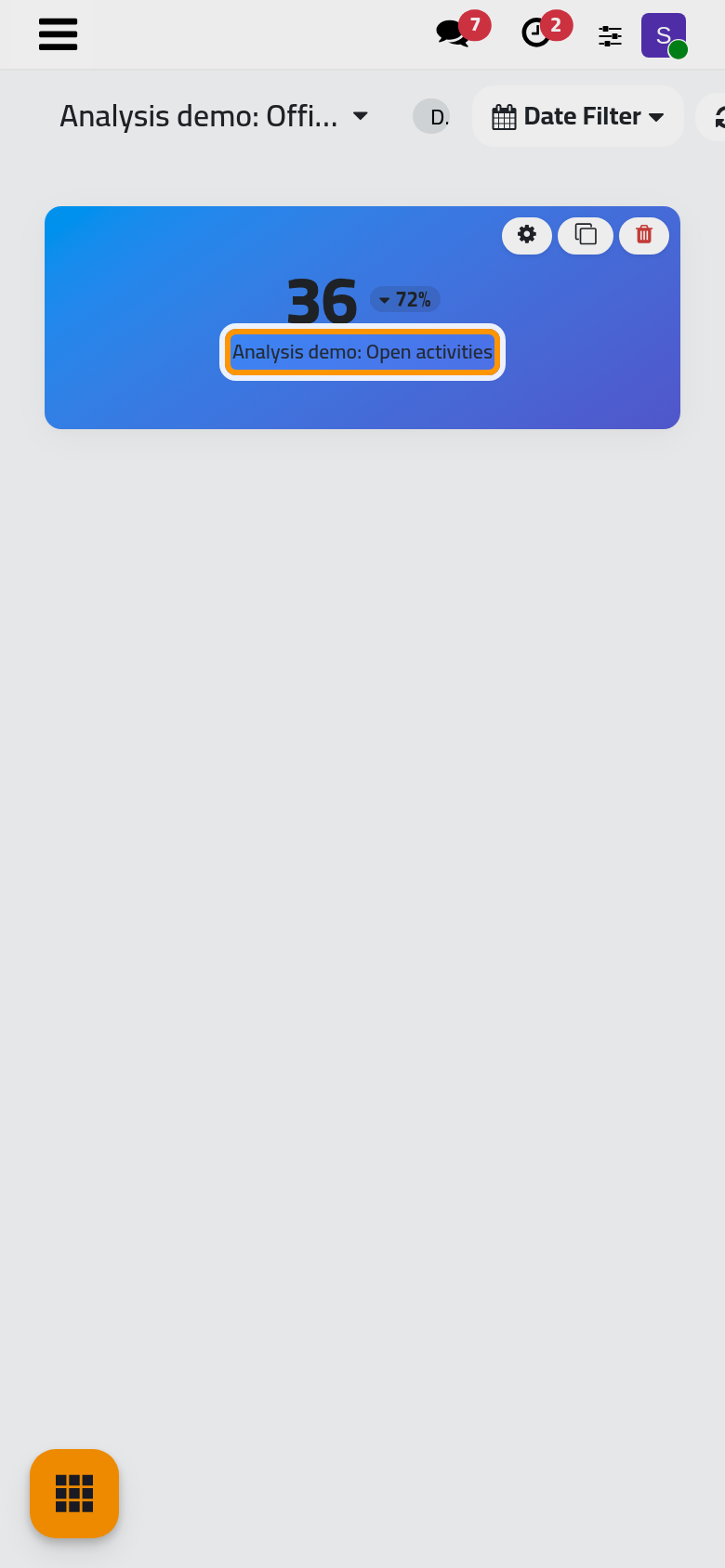
Analysis demo: Open activities, keep KPI / Scorecard in Widget and choose Activity in Model. Aggregate stays Count; type50in Target.
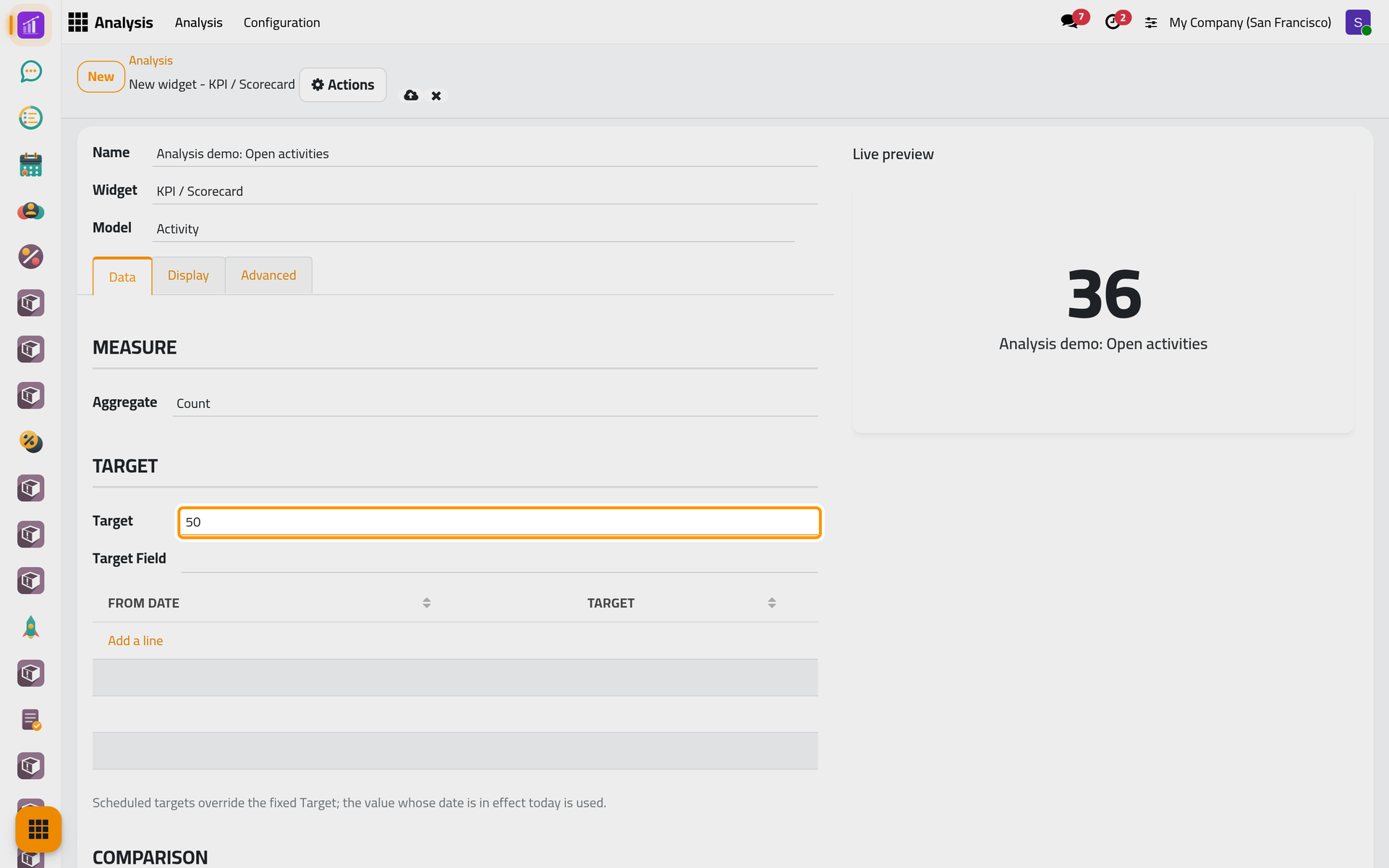
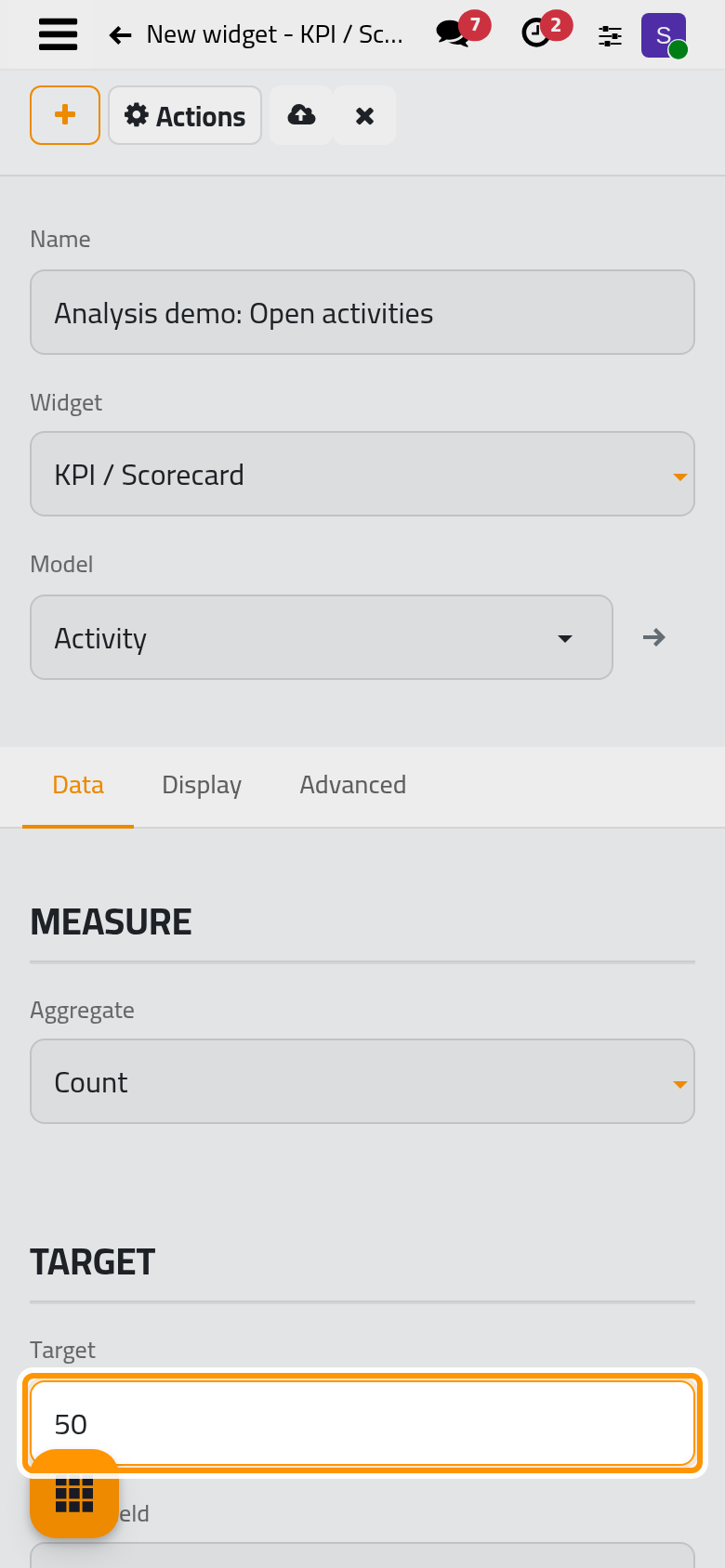
On the Data tab, Aggregate offers Count, Sum, Average, Minimum, Maximum and Distinct count; all but Count need a numeric Measure. Charts need a Group By (with a Granularity for a date), and Then by / Series adds a second grouping, required by Pivot, Heatmap, Sunburst and Sankey. Table / List takes Columns, Geo Map a Location Field, Gauge a target. Filter Domain keeps the matching records; switch Include archived on to count archived ones too, such as done activities. Date Filter Field is the date the board's Date Filter uses.
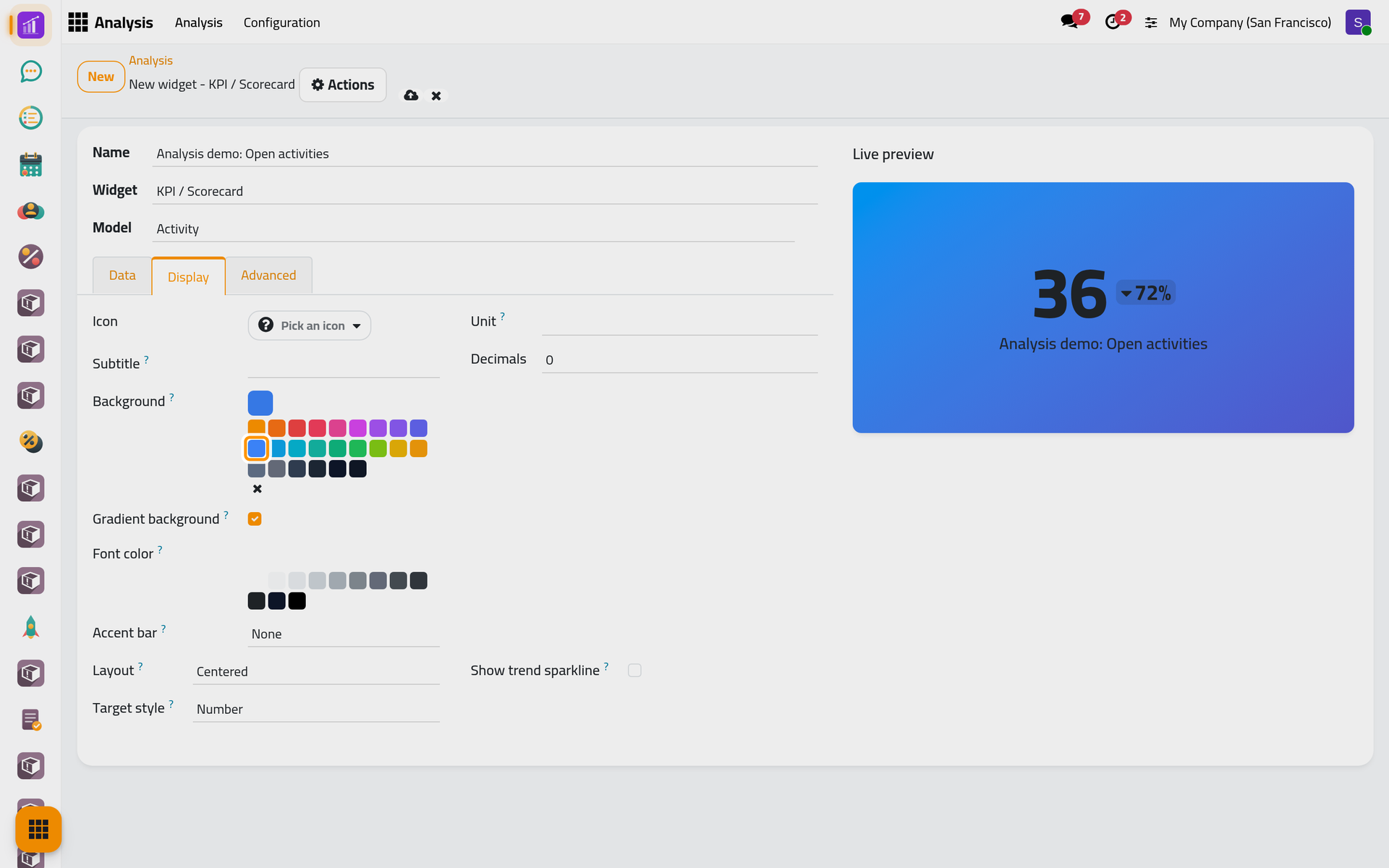
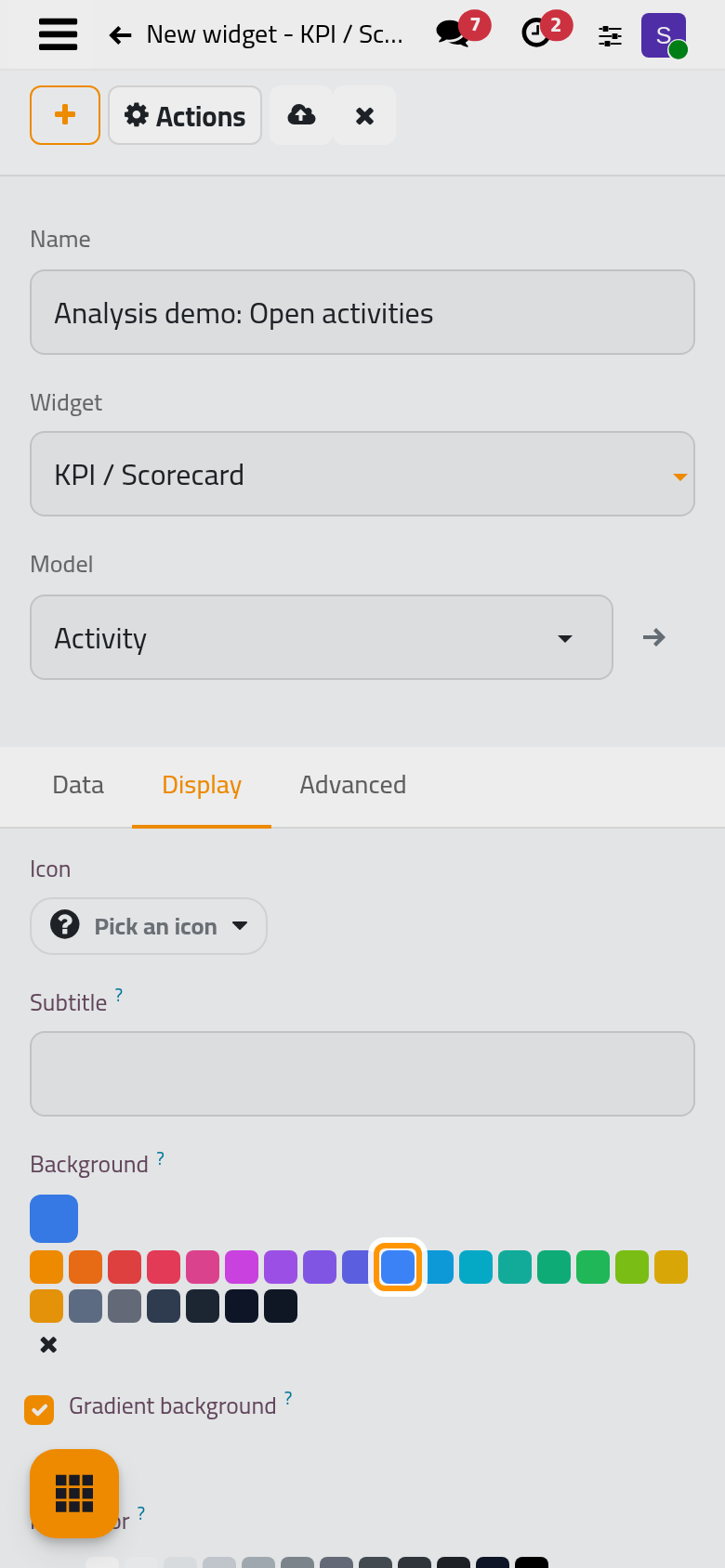
- On Display, choose a Background. The tab also holds the icon, Subtitle, Font color, Accent bar, Unit, Decimals, Layout and, for a KPI, Target style and Show trend sparkline. The preview follows each change.
- Advanced offers Max groups (1 to 100), Sort Order, Multiplier, Running total, Fill empty periods and Compare to previous period.
- Save, then click Analysis in the breadcrumbs. The widget is on the board.
Arrange the board
In edit mode, drag a tile to move it and its corner to resize it. Each tile carries Configure, Duplicate and Remove; Remove deletes the widget at once, without a question. Save leaves edit mode. On a Shared or Team dashboard, moving and resizing change your own view only; the undo button, Reset my layout to the shared layout, brings the shared one back.
Show a figure above the list of an app
Set the Layout of a KPI or Single Value to Small: the KPI bar group appears on Display. Choose a menu in its Show Under Menu: after the browser page is reloaded, the tile shows above the lists and kanbans of that menu and its submenus instead of on the dashboard; tick Show on Board to keep it on the dashboard too. See How dashboards work.
FAQ
Why does my widget say it needs a group-by field?
Every chart but the KPI, Single Value, Gauge and Geo Map groups records: choose a Group By.
Why is my count lower than the list of the app?
Archived records are left out until Include archived is on, a widget counts only the records you may read, and the Date Filter may narrow it.
Why can't I find a field in Measure or Group By?
Only fields stored in the database are offered, and Measure lists numeric fields only.
What does Compare as do?
Compare as, on the Data tab of a KPI, keeps a second measure, but the tile shows the main figure only.
Was this page helpful?
Thank you for your feedback.