Share a dashboard
On this page
A dashboard is shared in three ways: with people of the company through the access lines of its form, with a team that gets its own dashboards, and with someone outside through a read-only link. The ready-made dashboards are already shared with every holder of the Viewer right; the steps below go further with Law Cases Analysis.
Before you start
- Sharing needs the Supervisor or Manager access right on Analysis, and the right to change the dashboard.
- The people you share with need at least the Viewer right; Analysis settings lists the rights.
Prepare a team
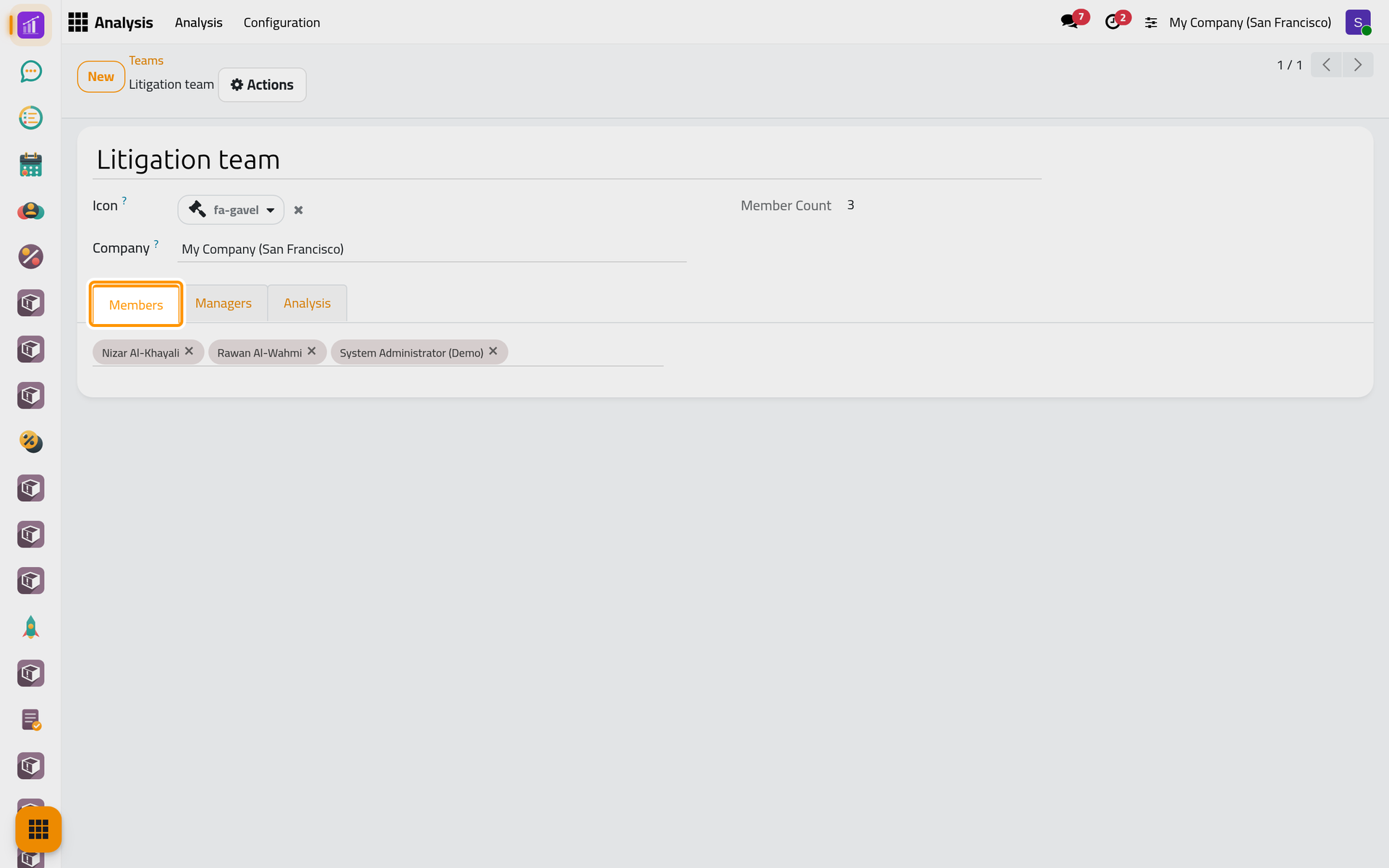
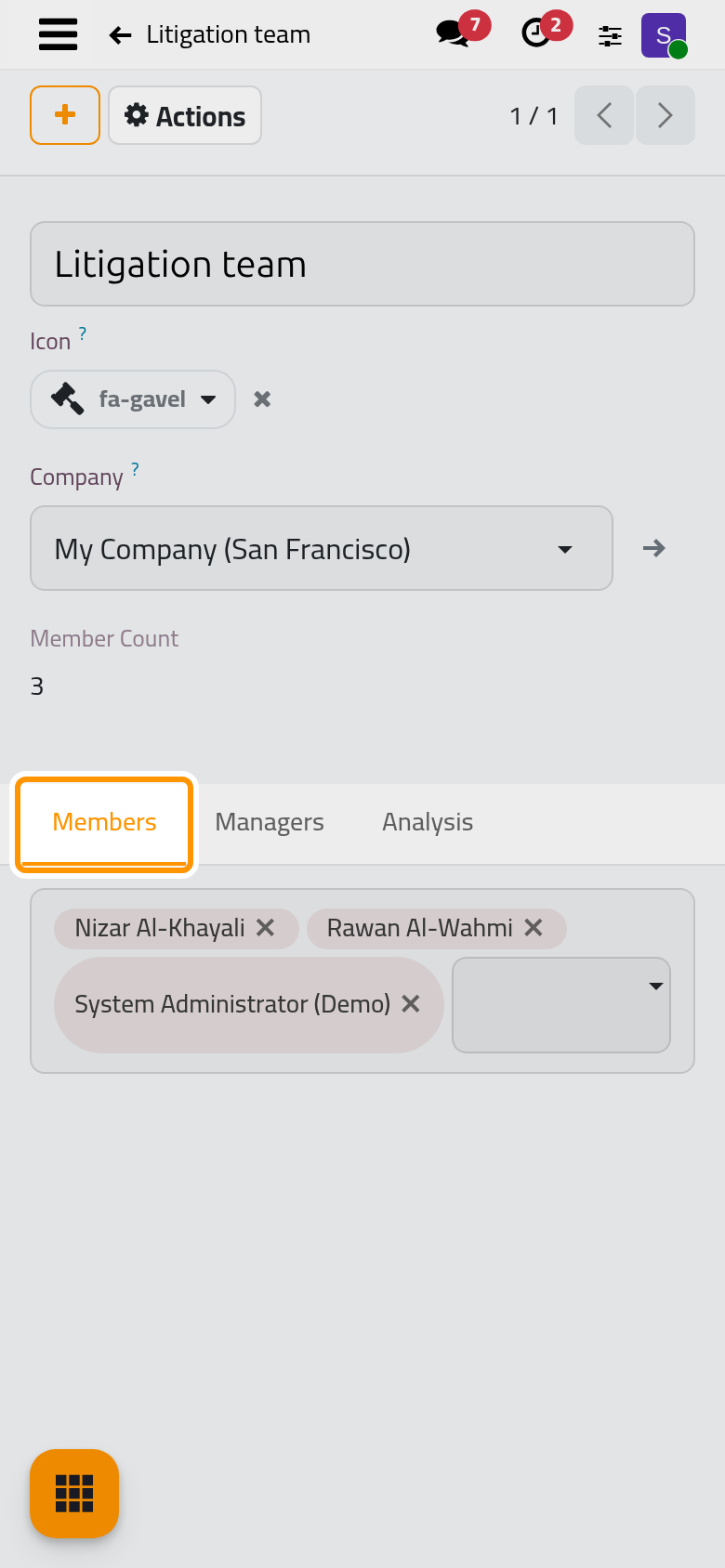
Open . A team has a name, an icon, Members and Managers; every manager must also be a member. The Analysis tab lists the team's dashboards. The demo holds the Litigation team, with three members.
Share inside the company
- Open , remove the My Analysis filter and open Law Cases Analysis.
- On the Access tab, click Add a line. Set Role to Editor, Principal Type to Team and choose Litigation team under Team. Save.
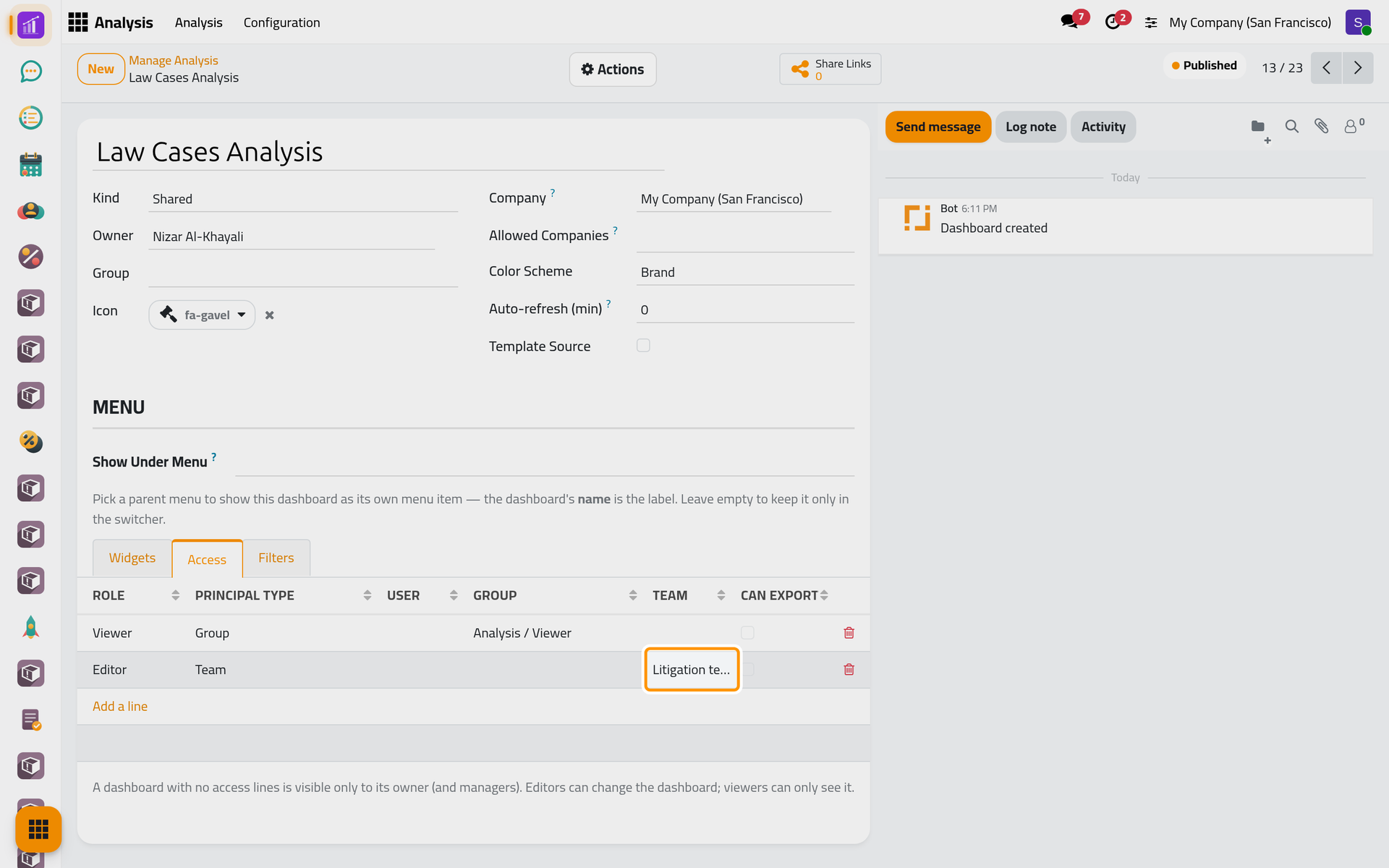
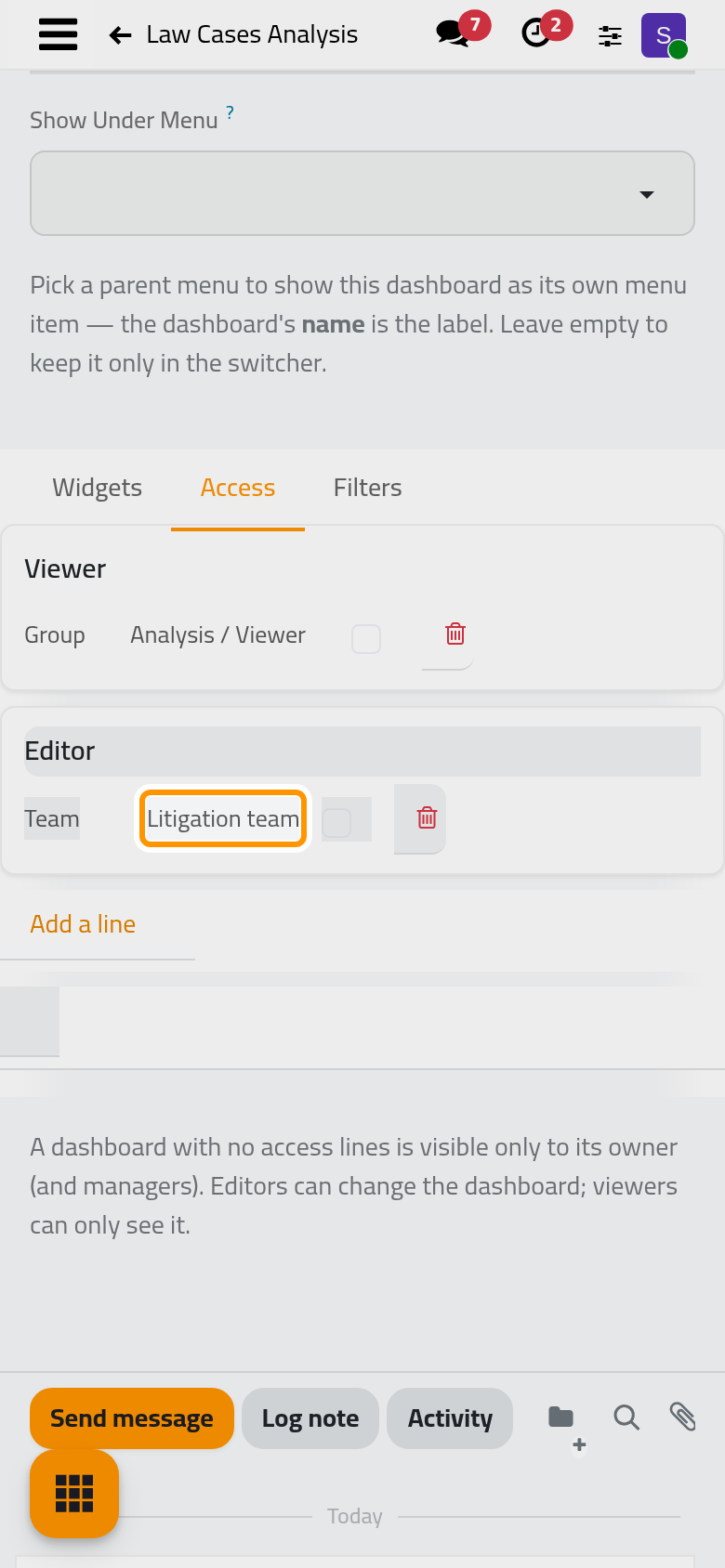
Each line gives a Role to a User, a Group of access rights or a Team, and Can Export lets it export the figures:
- a Viewer sees the dashboard once it is Published and its Kind is Shared or Team;
- an Editor sees it in any state and changes it when they hold Supervisor;
- a dashboard without lines is seen by its owner and the managers only.
Actions then Publish or Set to Draft switches the state.
For a team dashboard, set Kind to Team and choose the Team: once published, its members see it and its managers who hold Supervisor change it.
Send a link outside the company
- On the dashboard's form, open Actions and choose Share.
- Name the link, here
Analysis demo: Partners meeting. Expires on is set 30 days ahead. Tick Require password to ask for a password, once per browser session. Limit to widgets keeps only the widgets you list. Max failed attempts and Window (min) refuse the visitor's IP address after 5 wrong tries in 15 minutes. Allow export is stored on the link, but the page shows no download button.
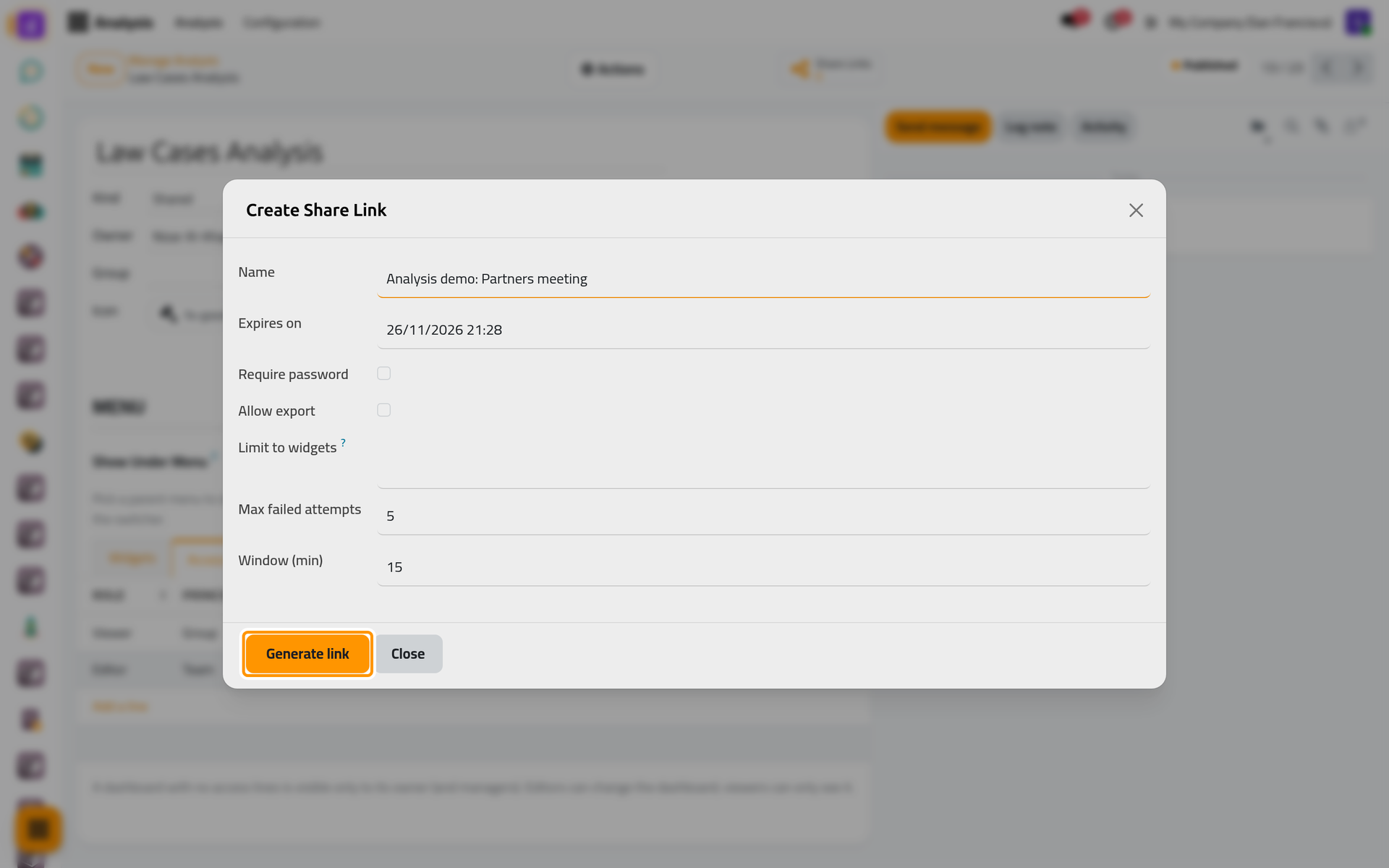
- Click Generate link. The dialog shows the short Share link and the Full URL, each with a copy button; send one of them.
The visitor sees a plain page with the dashboard's name and its widgets, computed with the access rights of the person who generated the link. Figures, tables, maps (as a table) and line, bar, area, pie and donut charts appear; other chart types show their title only.
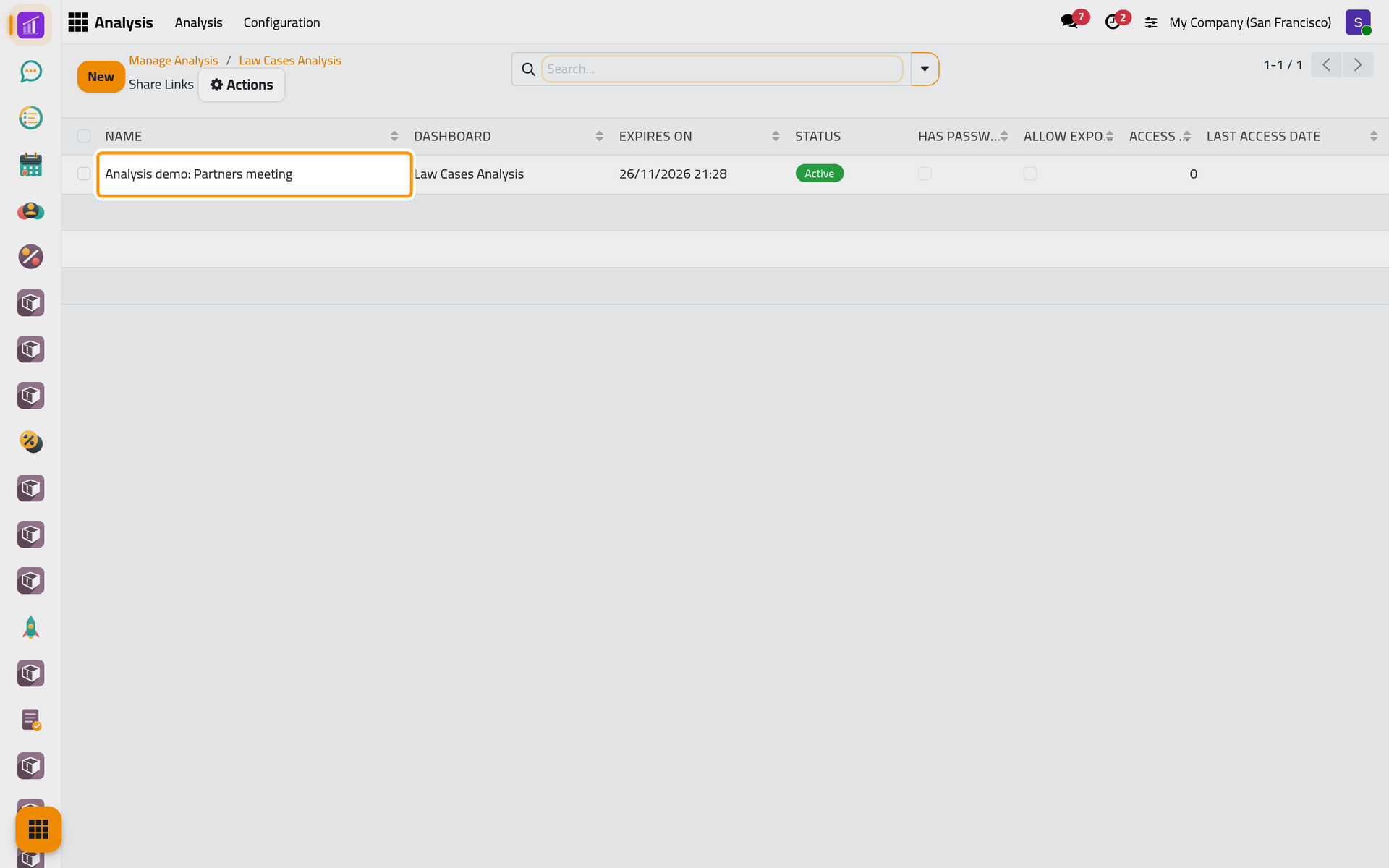
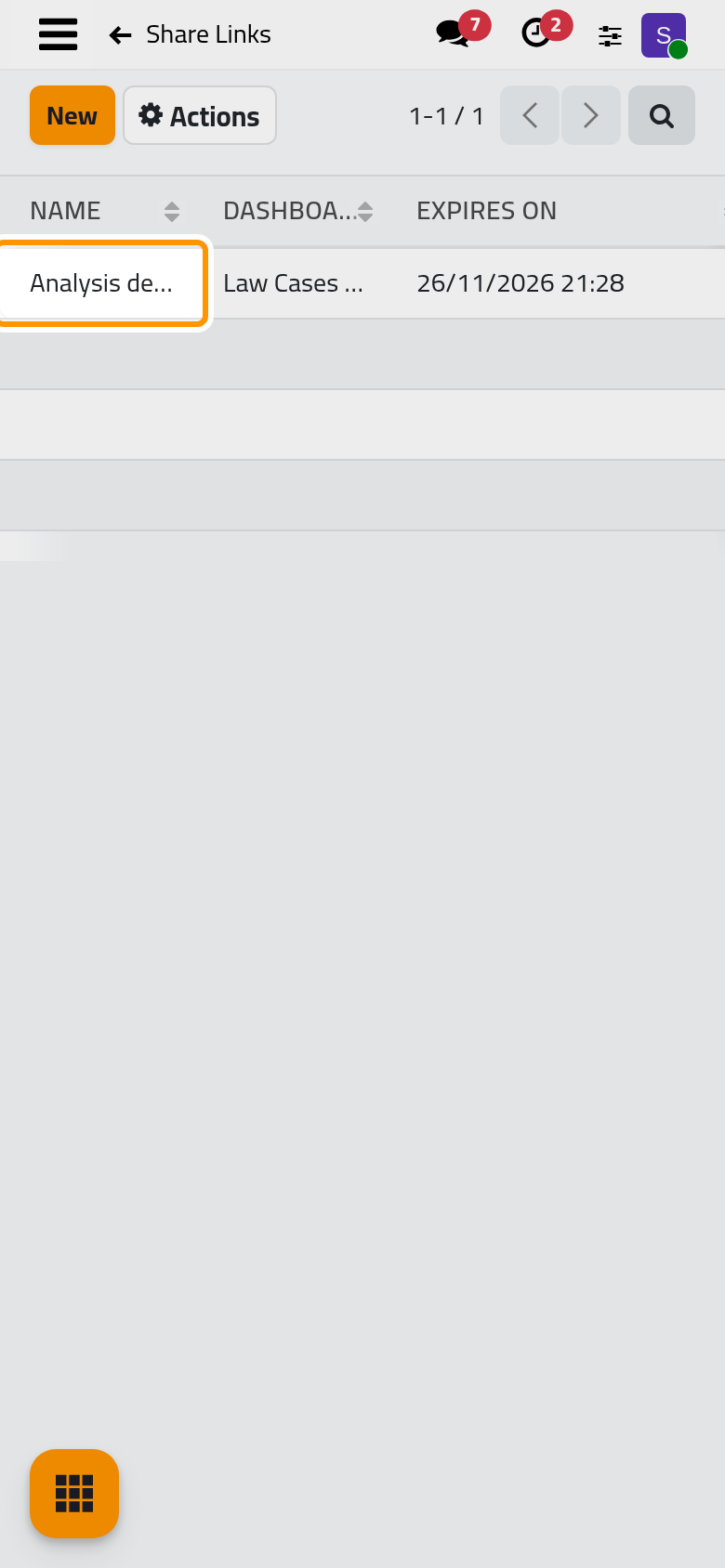
- The Share Links button of the form lists the links of the dashboard with their expiry, status, password and visits; lists them all. Open a link and choose Revoke to stop it at once.
FAQ
Why can't my colleague see the dashboard?
Check that it is Published, that its Kind is Shared or Team, that a line names them, their group or their team, and that they hold the Viewer right.
Can a viewer rearrange the tiles?
No. Only people who may change the dashboard get the Edit button; on a shared dashboard their moves change their own view only.
What happens when a link expires?
From that moment the link answers with a refusal, and its status reads Expired. The next day, the scheduled job of Analysis automations archives it.
Can I see who opened a link?
Not by name. The list shows an Access Count, which grows by two each time the page is opened, and the Last Access Date.
Was this page helpful?
Thank you for your feedback.