Your first dashboard
On this page
Analysis turns the records of your apps into dashboards: figures, charts and tables computed again each time you open them. Most apps come with a ready-made dashboard of their own, about twenty widgets that answer its daily questions, installed with the app and shared with everyone who may use Analysis. Ready-made dashboards lists them. This walk-through starts from one of them, Activities Analysis: you read it, open the records behind a figure, and finish with a copy of your own that carries a chart you added.
Before you start
- Seeing dashboards needs the Viewer access right on Analysis. Steps 1 to 3 need nothing more.
- Copying a ready-made dashboard from its screen, step 4, needs the right to change it, which on a ready-made dashboard only the Manager right gives. A Supervisor opens the dashboard's form from instead, after removing the My Analysis filter, and chooses Actions, Duplicate to Personal there. Adding widgets to your copy, step 5, needs Supervisor or Manager. Analysis settings explains each access right.
Step 1: open a ready-made dashboard
- Open . The app opens on the first dashboard of your list, here Activities Analysis.
- The top row holds the headline figures: all activities, those done, overdue and open, the hours logged and the people involved. Below them, charts break the same activities down by month, status, type, assignee and priority, and the table Assignee × Status crosses people with statuses.
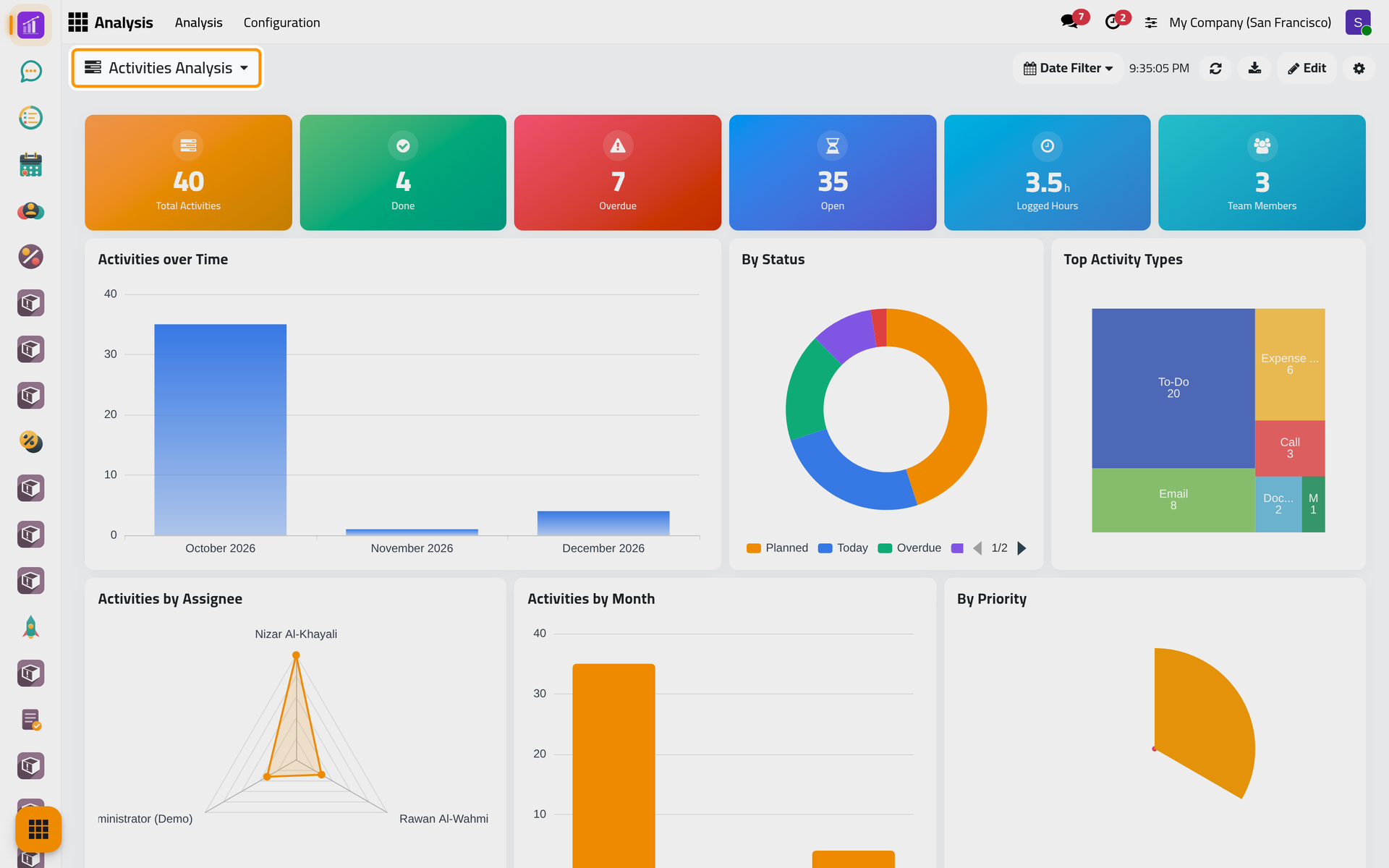
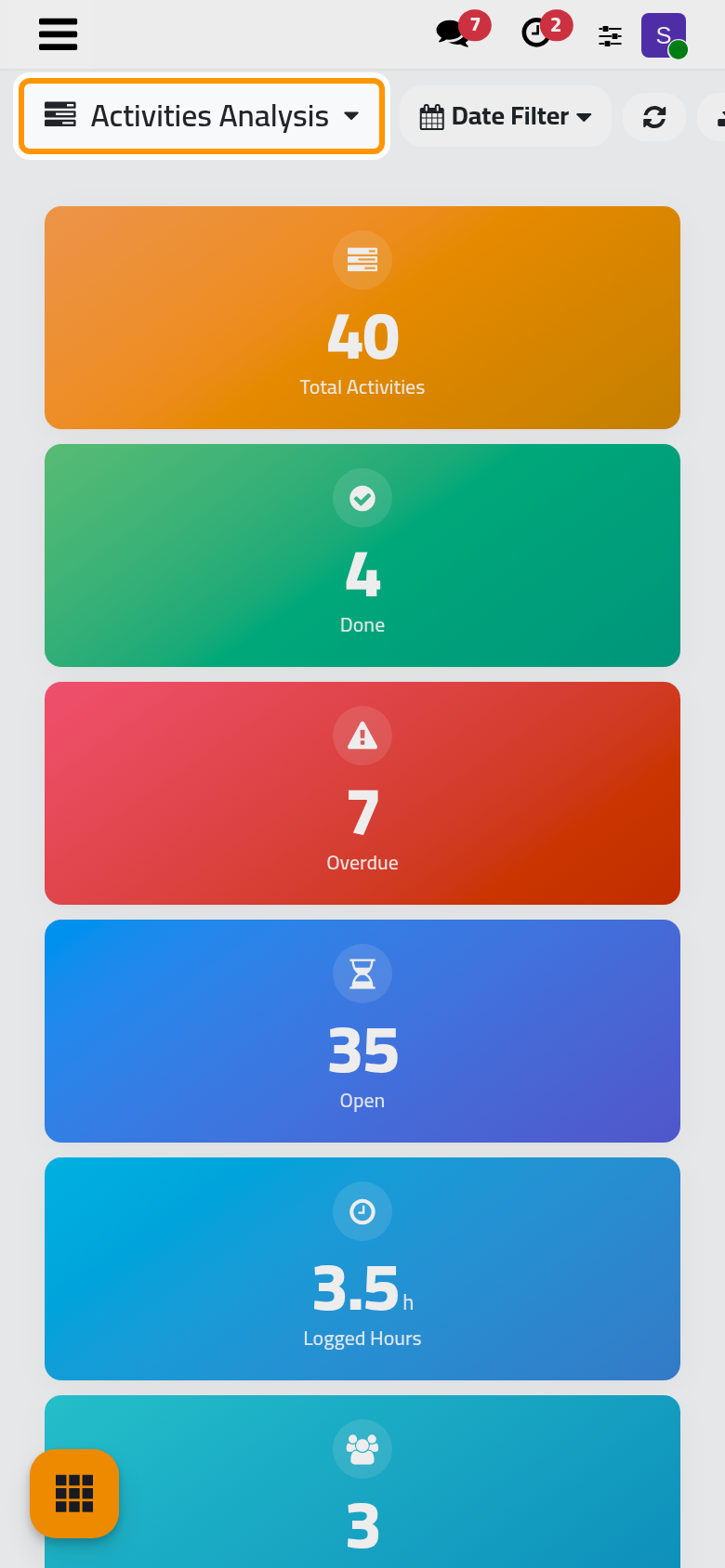
The time shown next to Date Filter is when the figures were computed; the refresh button beside it computes them again.
Step 2: move to another dashboard
Click the name of the dashboard at the top left. The list holds every dashboard you may open, in alphabetical order: the ready-made dashboards of the installed apps and those you create. Choosing one opens it in place. Keep Activities Analysis for now.
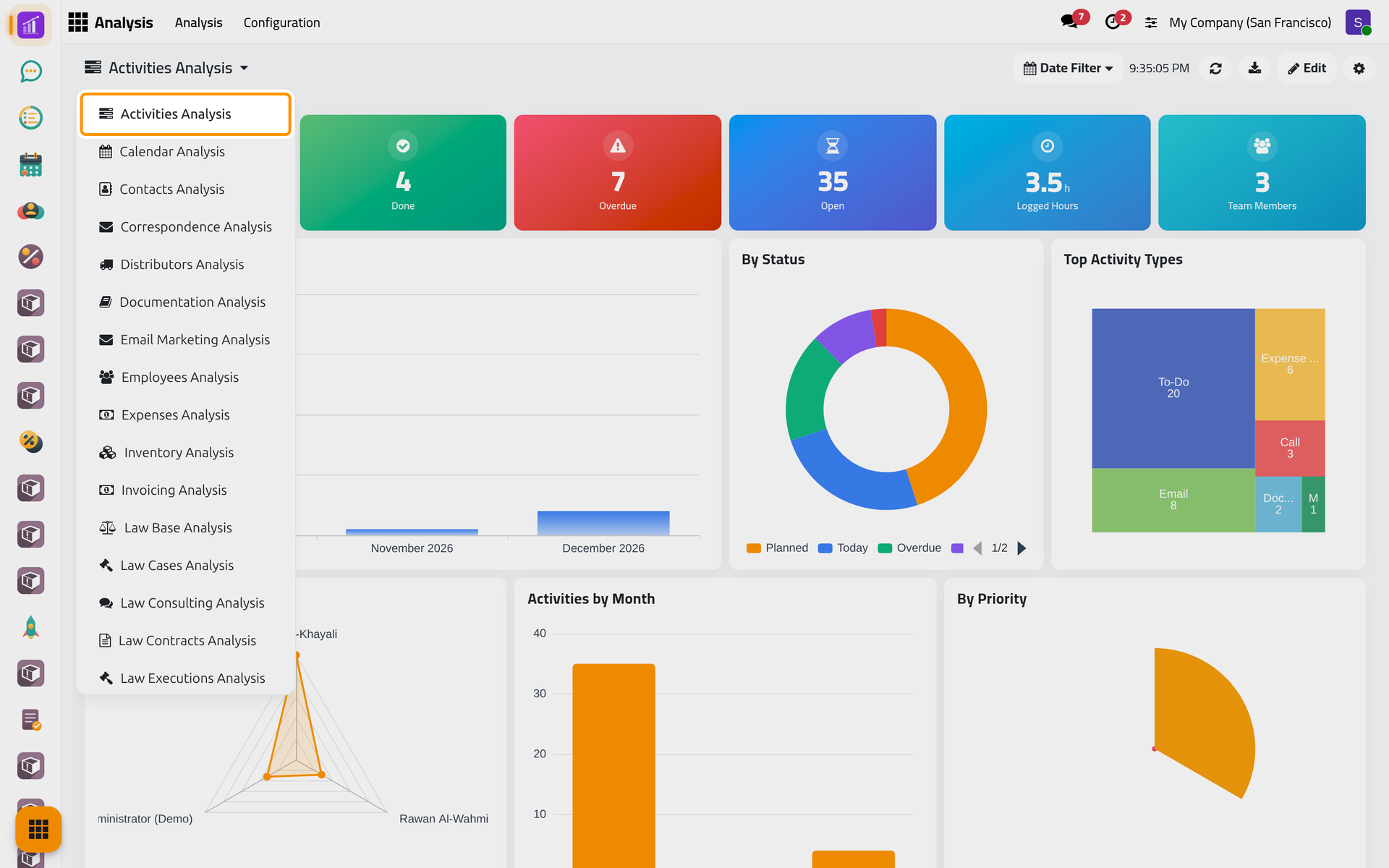
Step 3: narrow the period and open the records behind a figure
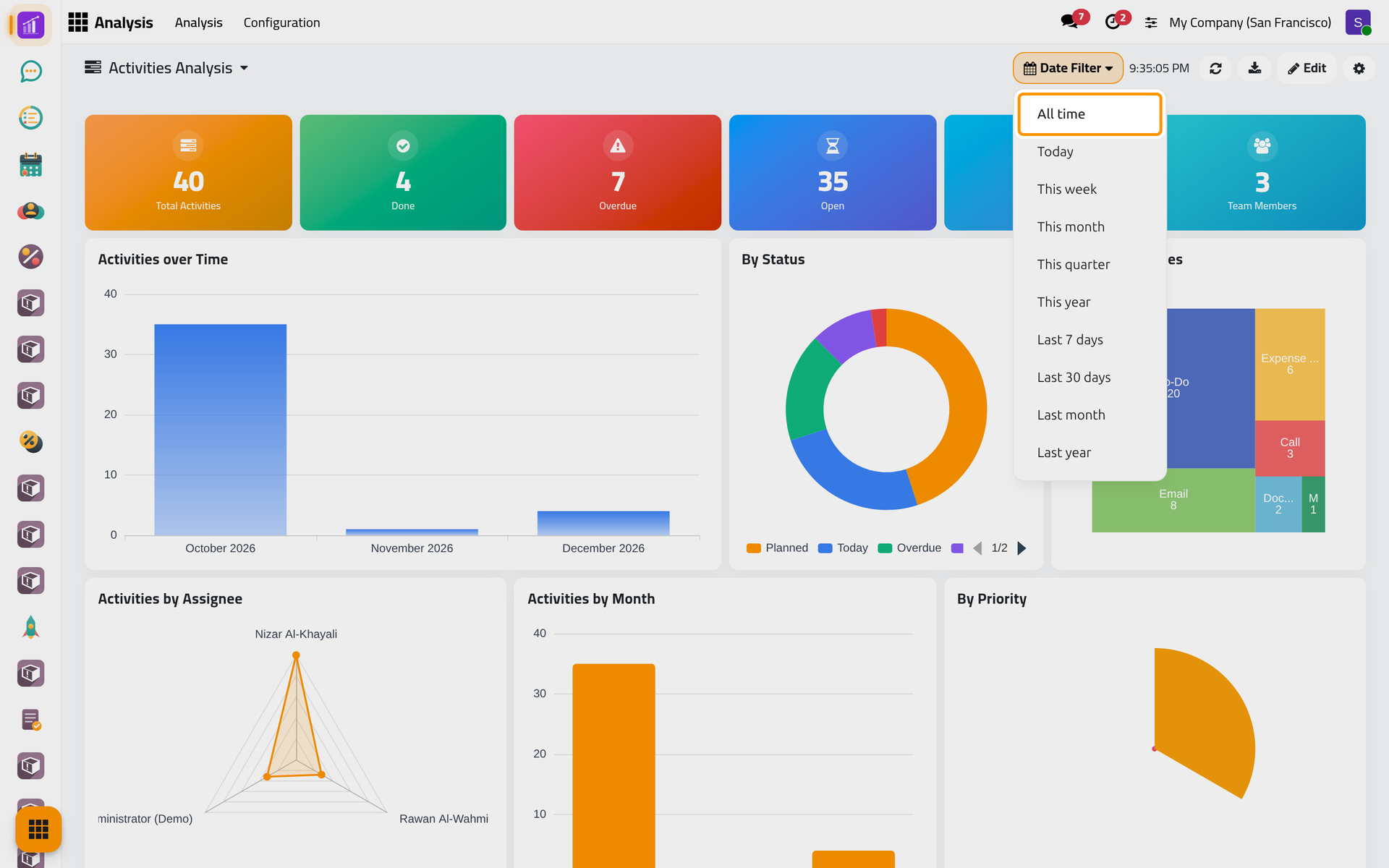
- Click Date Filter. Besides All time, the default, it offers periods counted from today, such as This month or Last 30 days. Each widget then counts only the records whose date falls in the period. Organize and filter dashboards says which date each widget reads. Press Escape to keep All time.
- In the table Assignee × Status, click the number of overdue activities of Nizar Al-Khayali. A list named Details opens with exactly those activities; open, sort or finish them as in the Activities app.
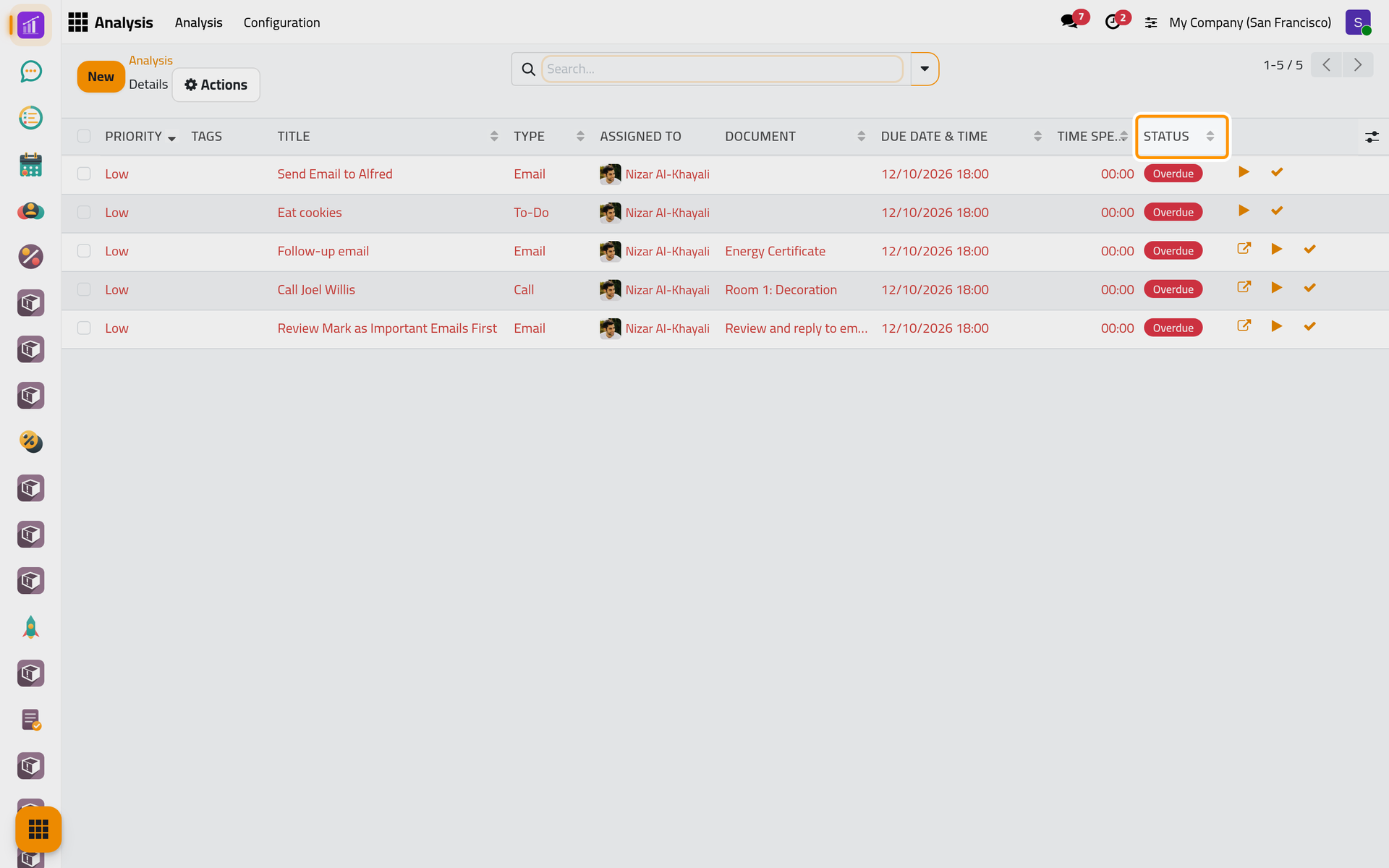
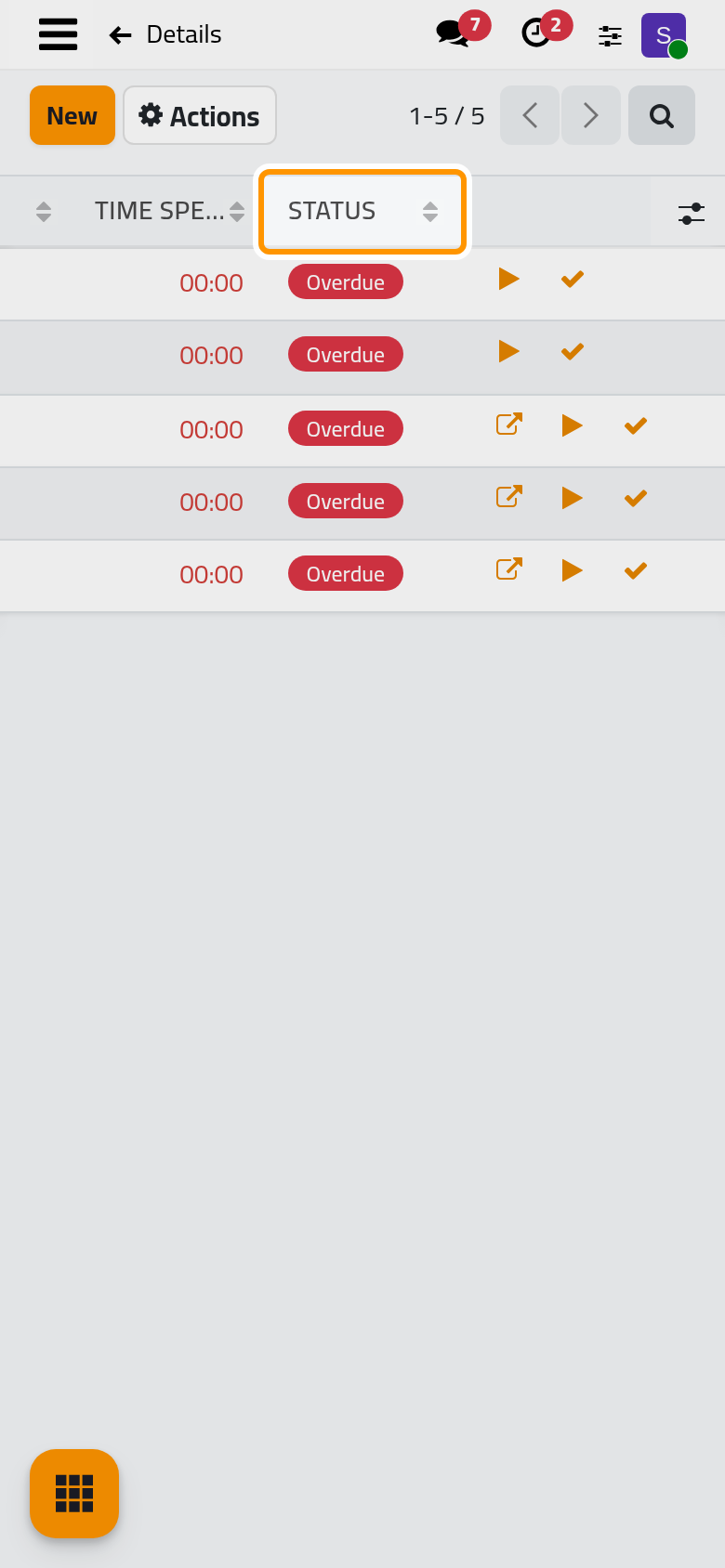
- Click Analysis in the breadcrumbs to come back. Bars, slices and table rows open their records the same way.
Step 4: make your own copy
A ready-made dashboard is shared with everyone, so change a copy rather than the original.
- Click the gear button at the top right, Configure. The form of the dashboard opens.
- Open Actions and choose Duplicate to Personal.
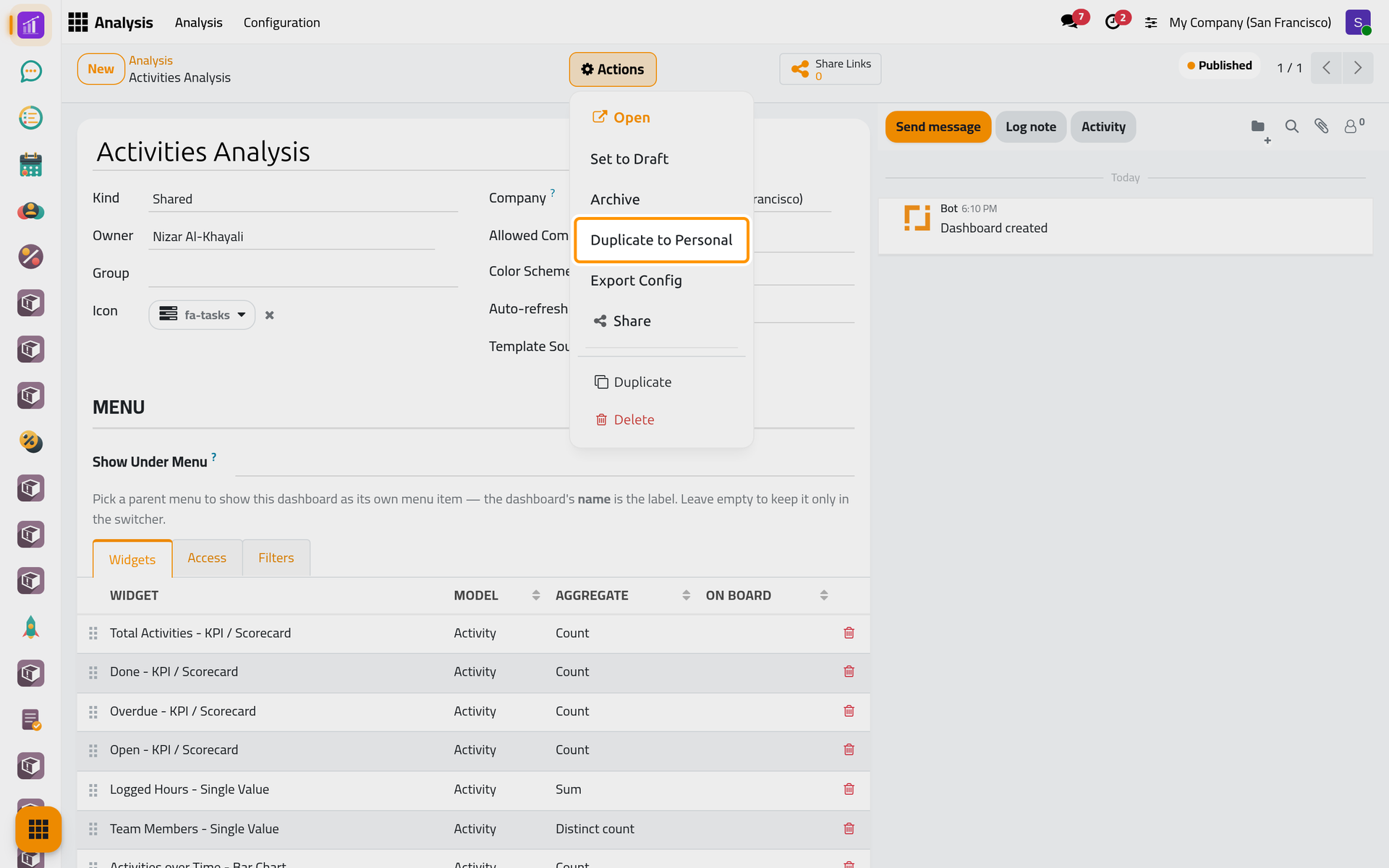
- The copy opens at once, named "Activities Analysis (copy)", with the label Draft: a personal dashboard that only you and the managers see.
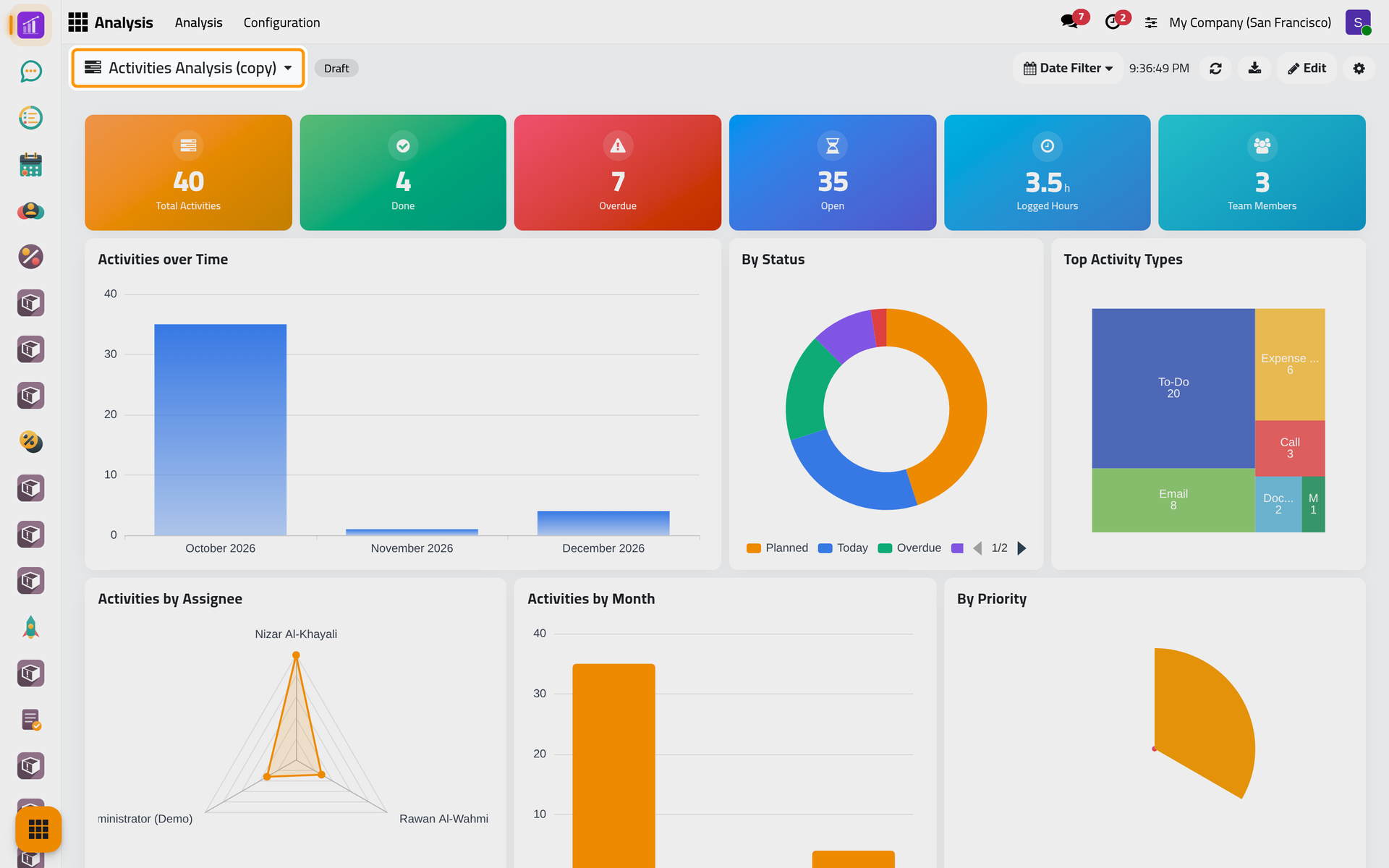
On a phone, the copy opens the same way, with its name at the top of the screen.
- Click the gear button again, replace the name with
Analysis demo: My activitiesand save.
The copy also takes the small tiles that the original shows above the lists of the Activities app, so those lists show each tile twice for you until you remove them from the copy, as Build a dashboard explains.
Step 5: add a chart
- Open again, click the dashboard name and choose
Analysis demo: My activities. - Click Edit, then + Widget. The widget form opens, with a live preview on the right.
- Type the name
Analysis demo: Activities by type, choose Bar Chart in Widget, Activity in Model and Activity Type in Group By. The preview draws one bar per type of open activity.
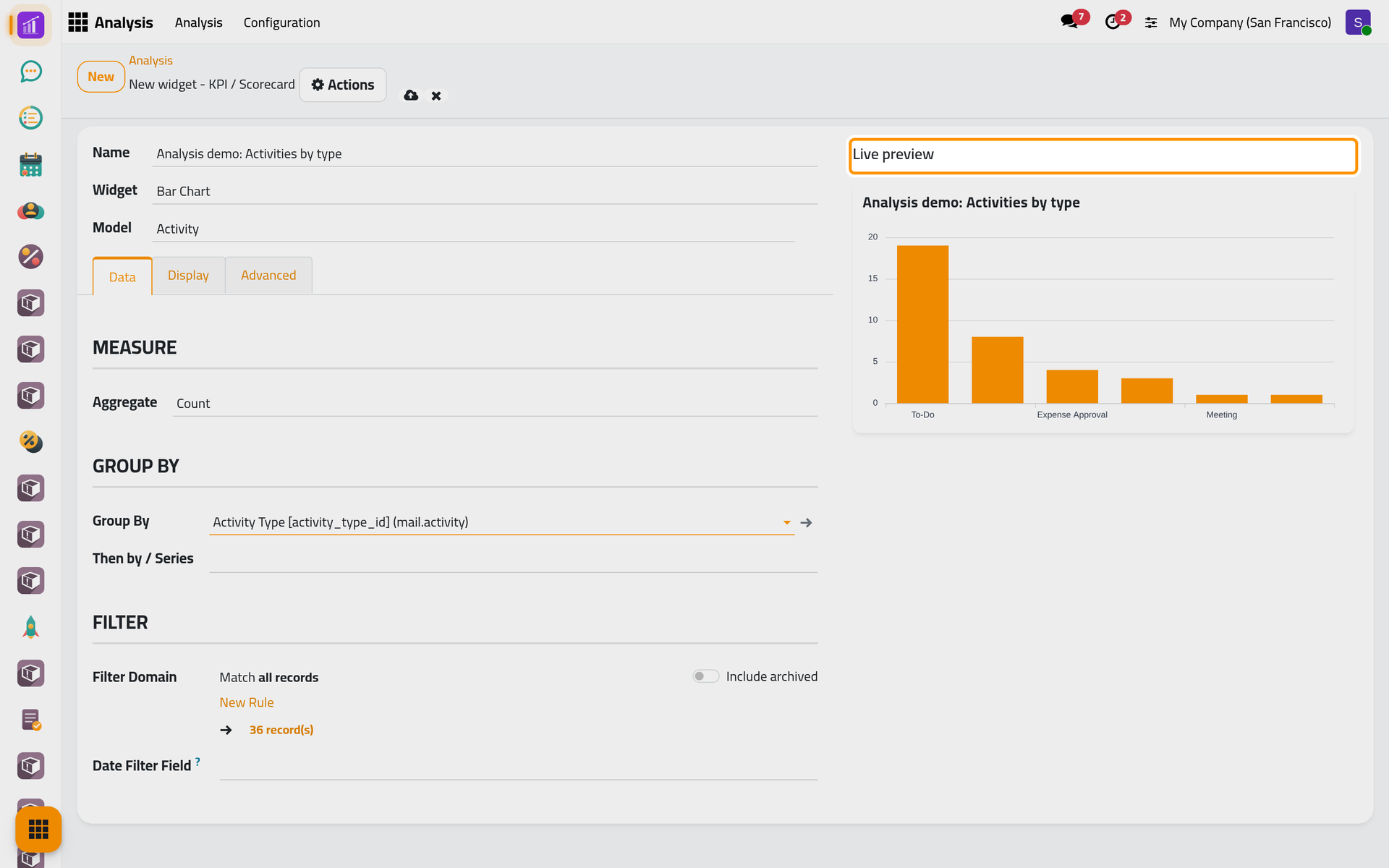
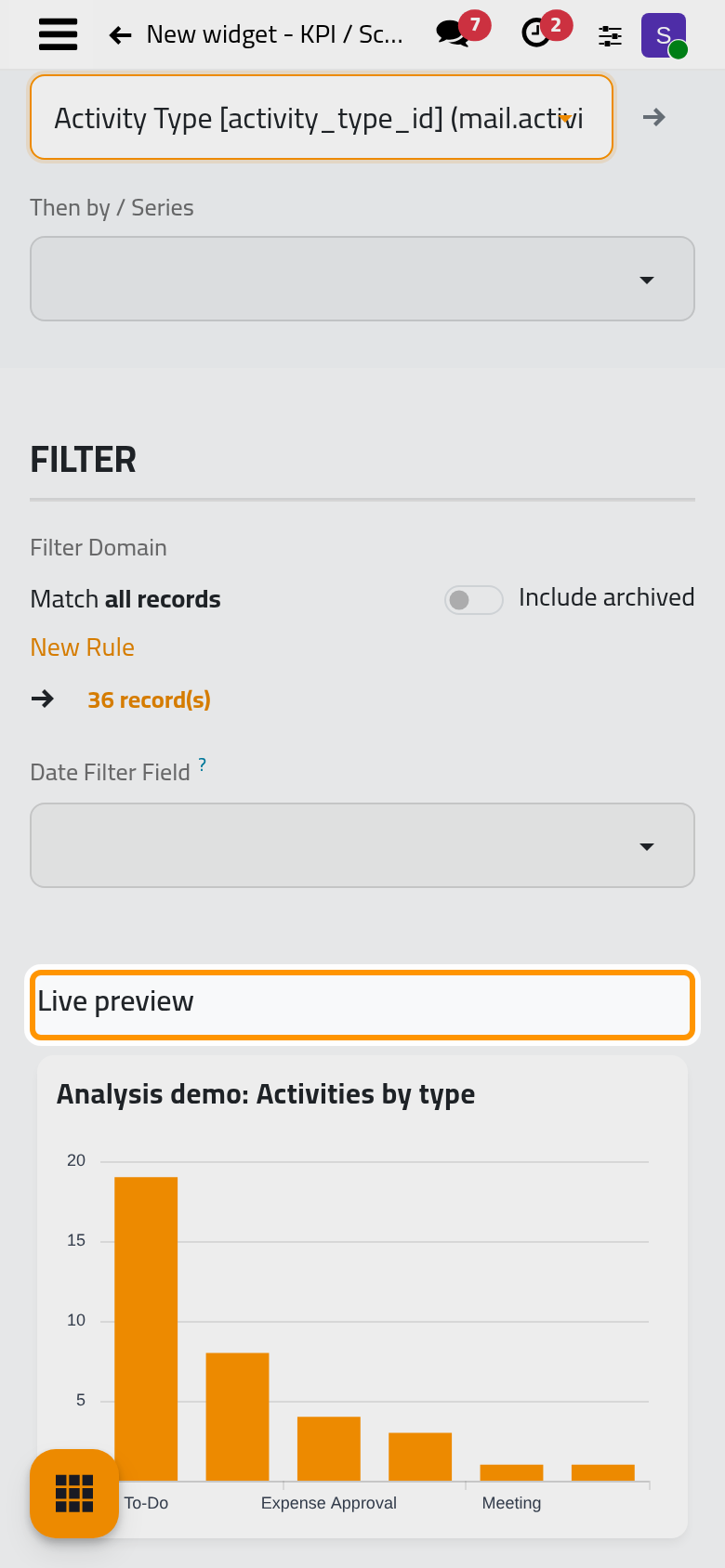
- Save, then click Analysis in the breadcrumbs. Your chart takes the first place on the dashboard, which is still in edit mode.
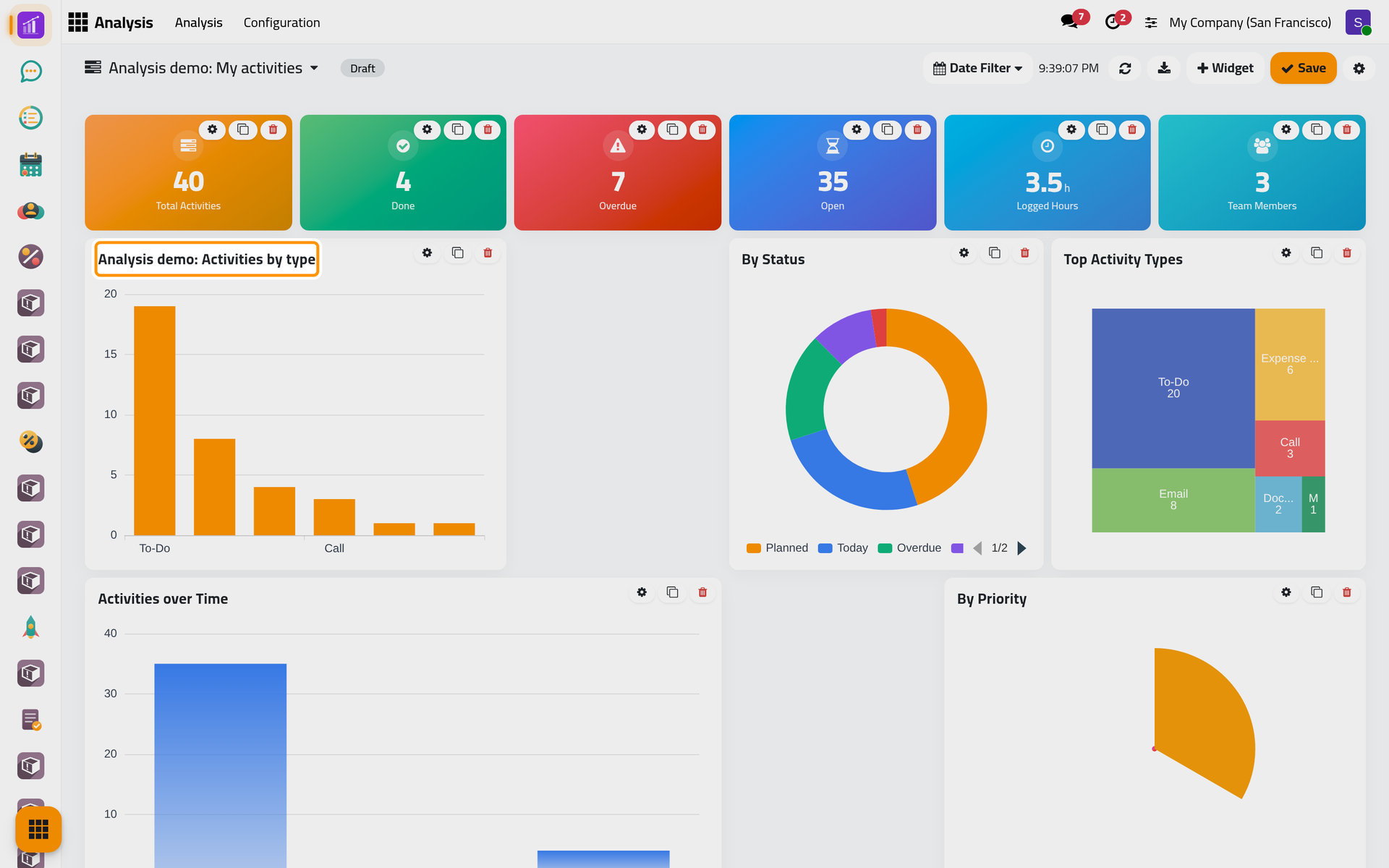
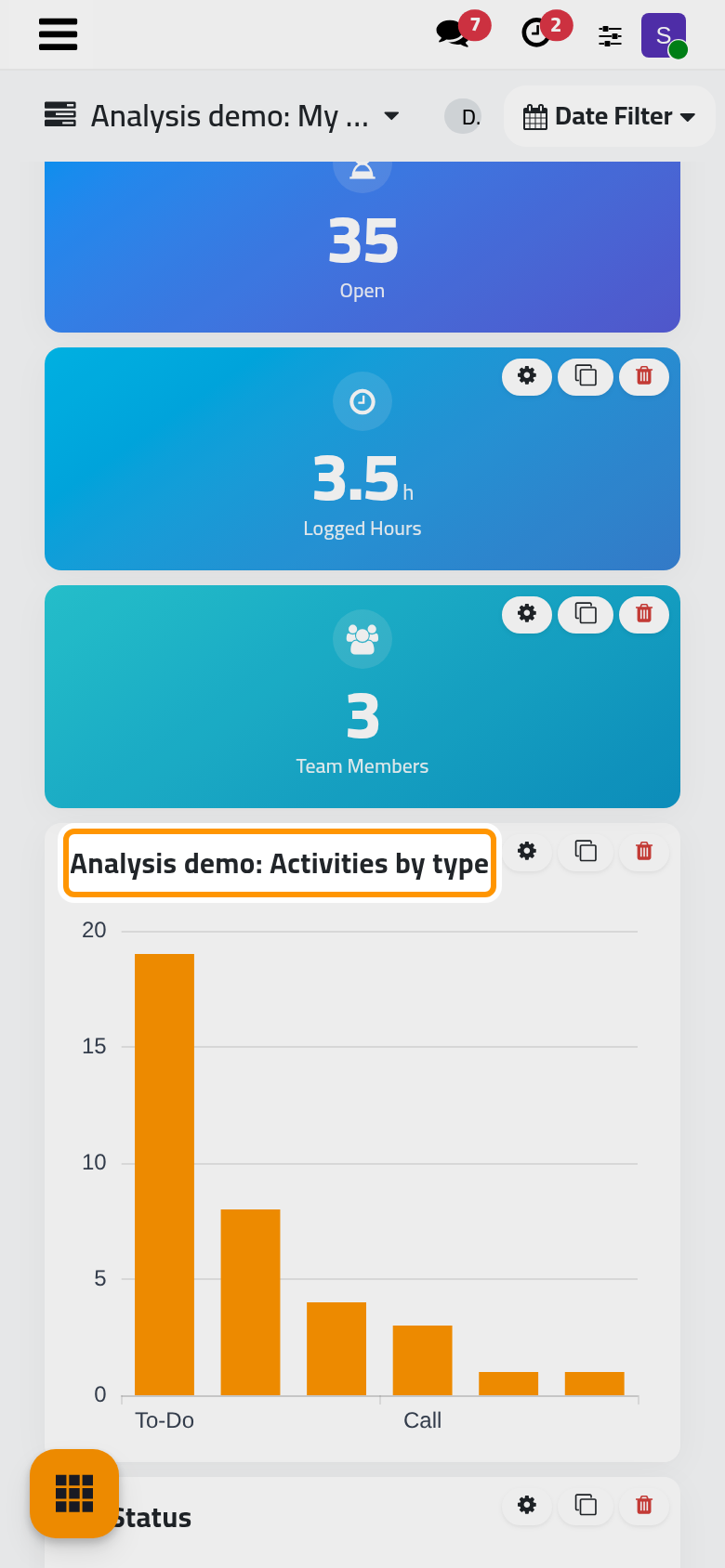
- Click Save at the top right to leave edit mode.
What you have done
You read a ready-made dashboard, moved between dashboards, saw how a period narrows the figures, opened the records behind one of them, and made a private copy with a chart of your own. Nobody else sees the copy until you share it: Share a dashboard. Build a dashboard goes through the options of a widget, and How dashboards work explains why two people can see different figures on the same dashboard.
Was this page helpful?
Thank you for your feedback.