Organize and filter dashboards
On this page
- Before you start
- Find a dashboard
- Gather dashboards in groups
- Give a dashboard its own menu entry
- Archive and restore
- Narrow what a dashboard counts
- FAQ
- Why doesn't the new menu entry appear?
- Why does the app now open on my dashboard?
- Can I change the order of the list?
- Does the period stay for my colleagues?
With a ready-made dashboard for most apps and those your colleagues build, the list grows quickly. This page shows where to find a dashboard, how to group it, how to place it in the menu of the app it serves, how to archive it, and how to narrow what it counts.
Before you start
- Configuration needs the Supervisor or Manager access right on Analysis; groups are created by a Supervisor.
- Changing a dashboard's form needs the right to change that dashboard: see Build a dashboard.
Find a dashboard
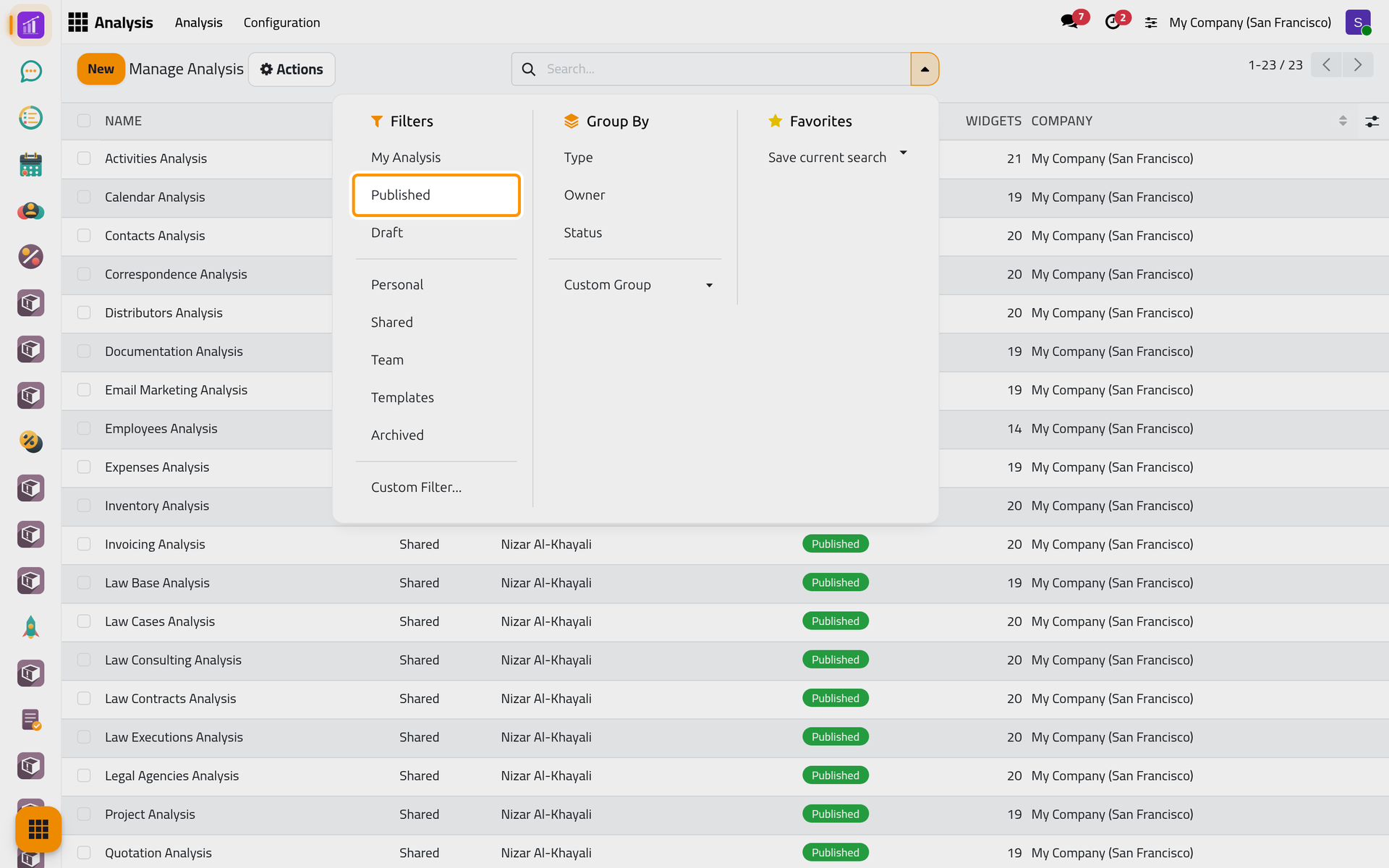
The name at the top left of opens the list of the dashboards you may see, in alphabetical order, each with its icon. lists them as records: it opens on My Analysis, the dashboards you own; remove that filter to see all of them. The filters Published, Draft, Personal, Shared, Team, Templates and Archived, and the groupings Type, Owner and Status, sort a long list.
Gather dashboards in groups
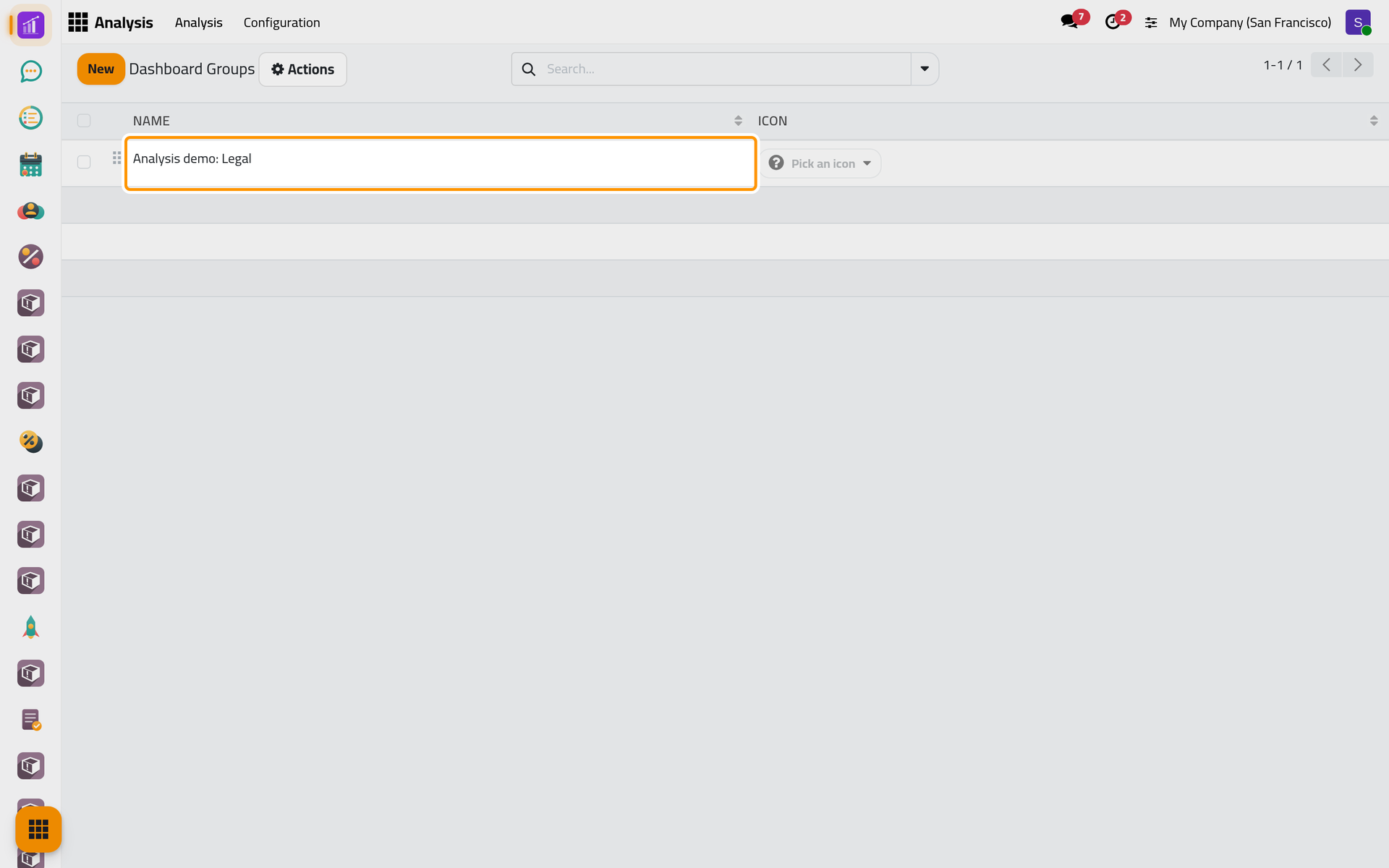
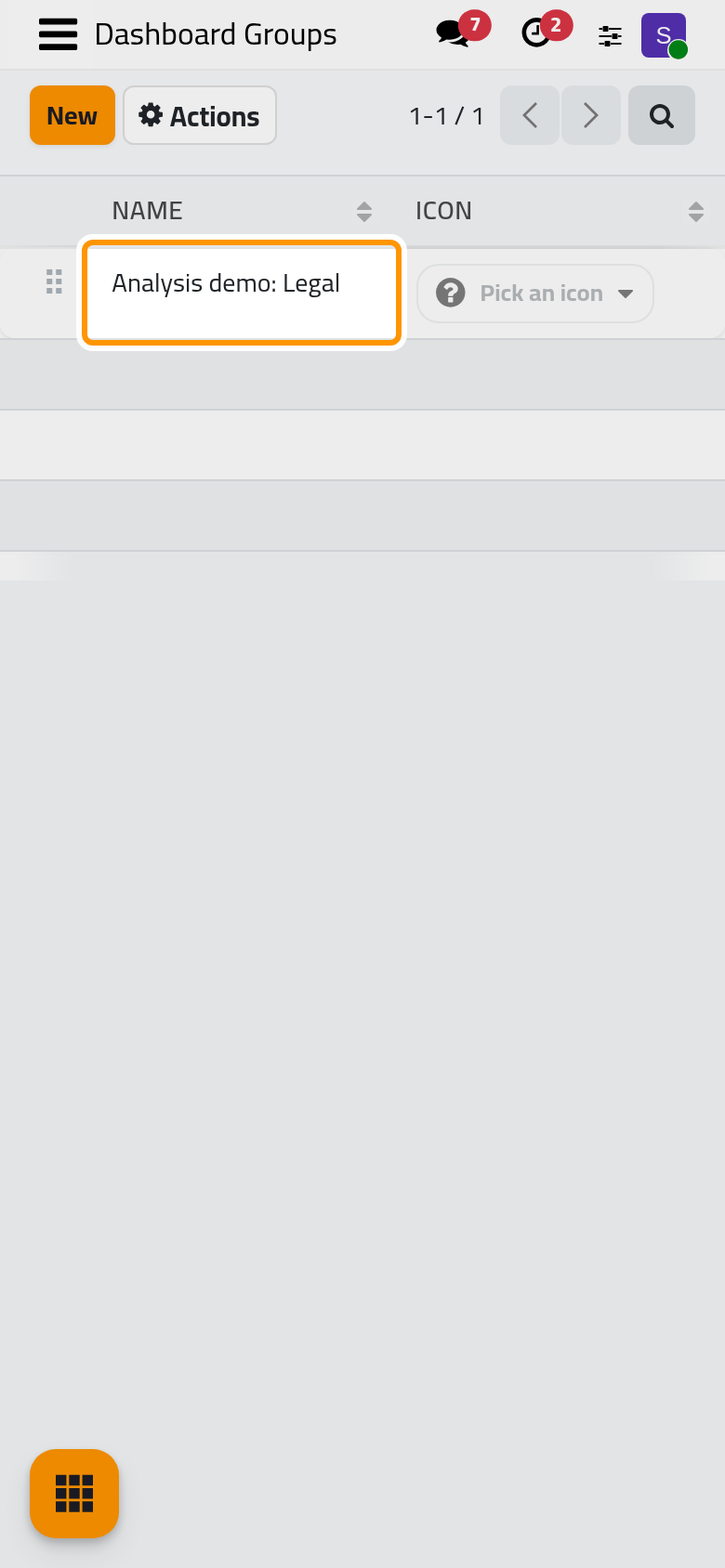
- Open , click New, type
Analysis demo: Legaland save.
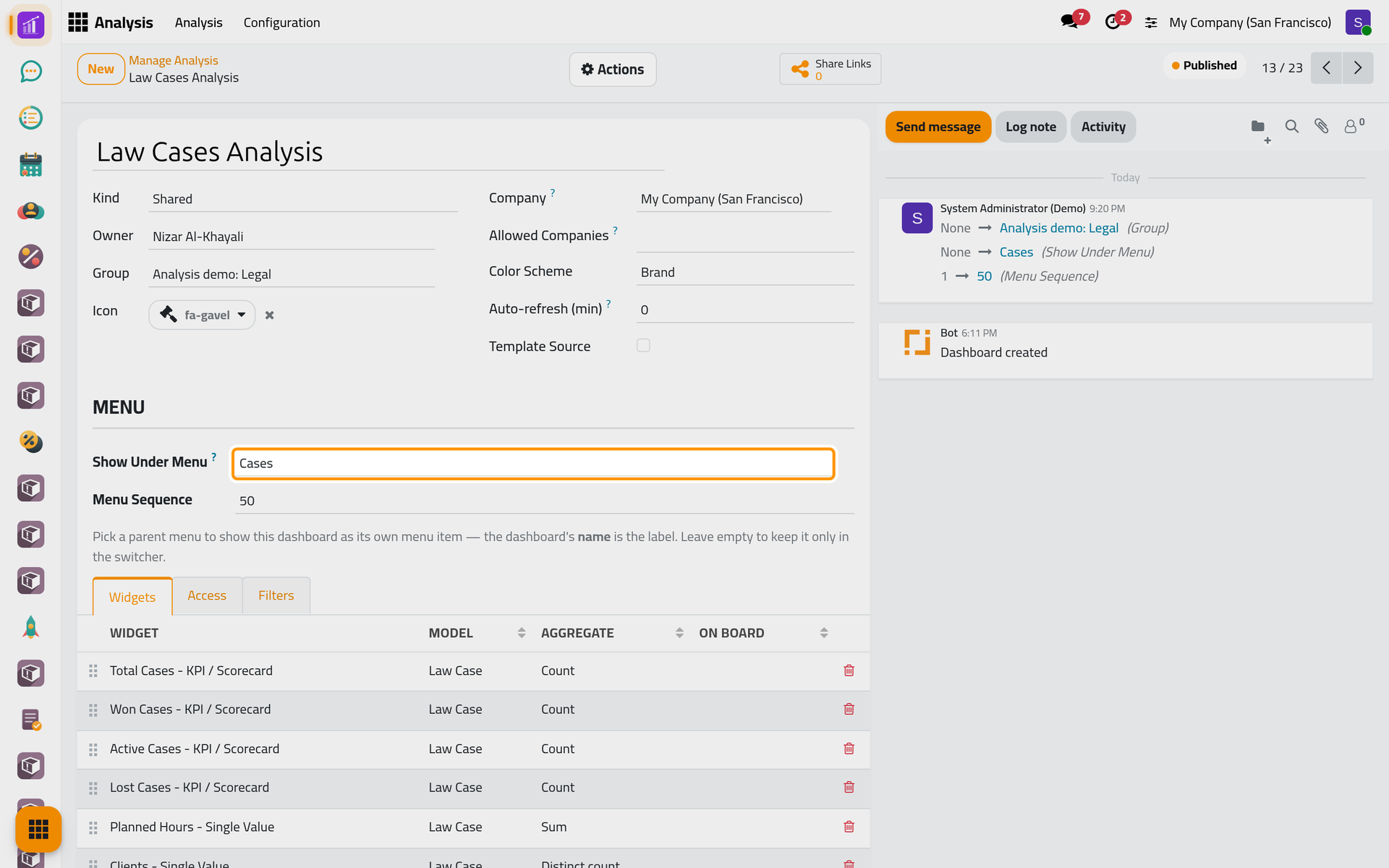
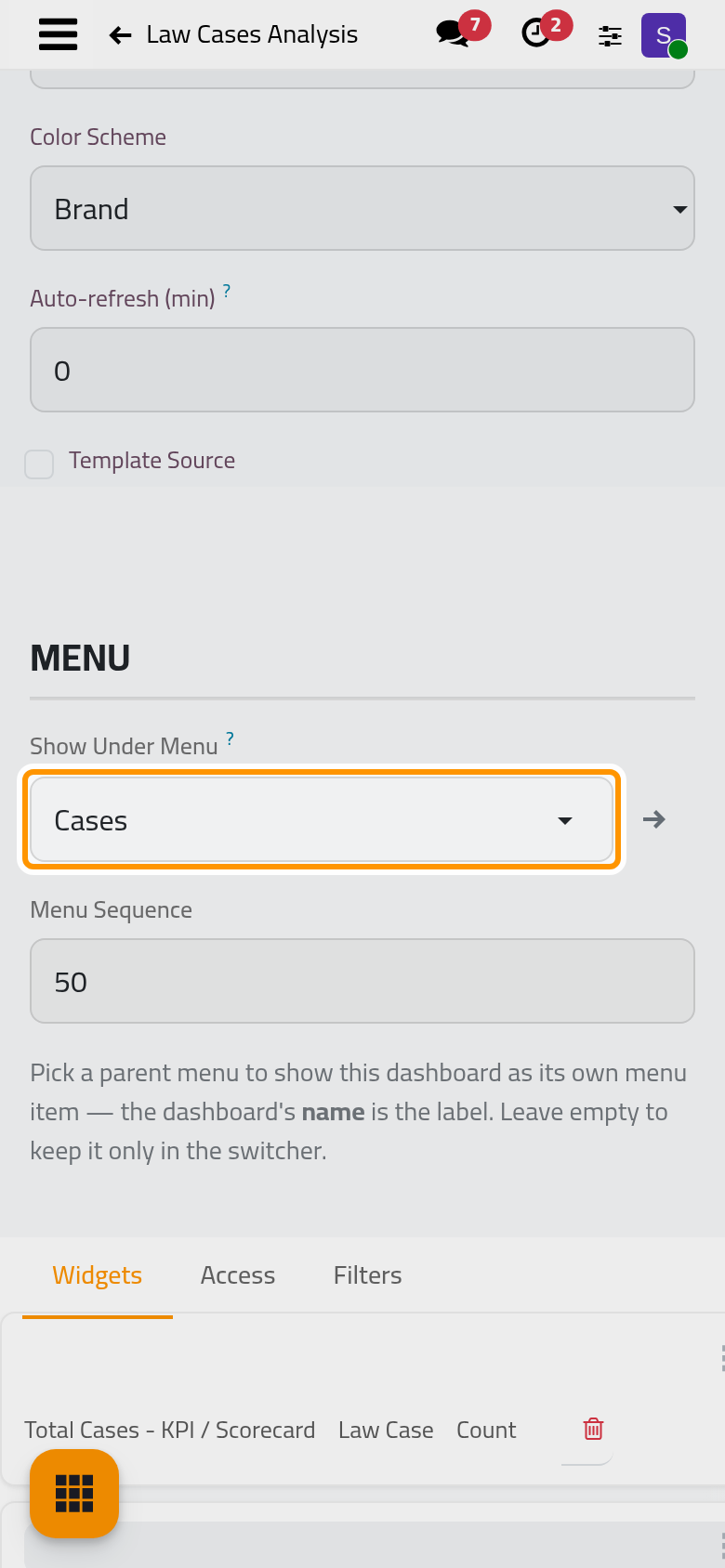
- On the form of a dashboard, here Law Cases Analysis, choose the group under Group.
The list of dashboards on the board does not show groups; group by Group to see them together.
Give a dashboard its own menu entry
- On the same form, choose Cases under Show Under Menu. Menu Sequence appears: type
50and save.
- Reload the browser page and open the Cases app: Law Cases Analysis sits in its menu bar, after Evidences, and opens the dashboard.
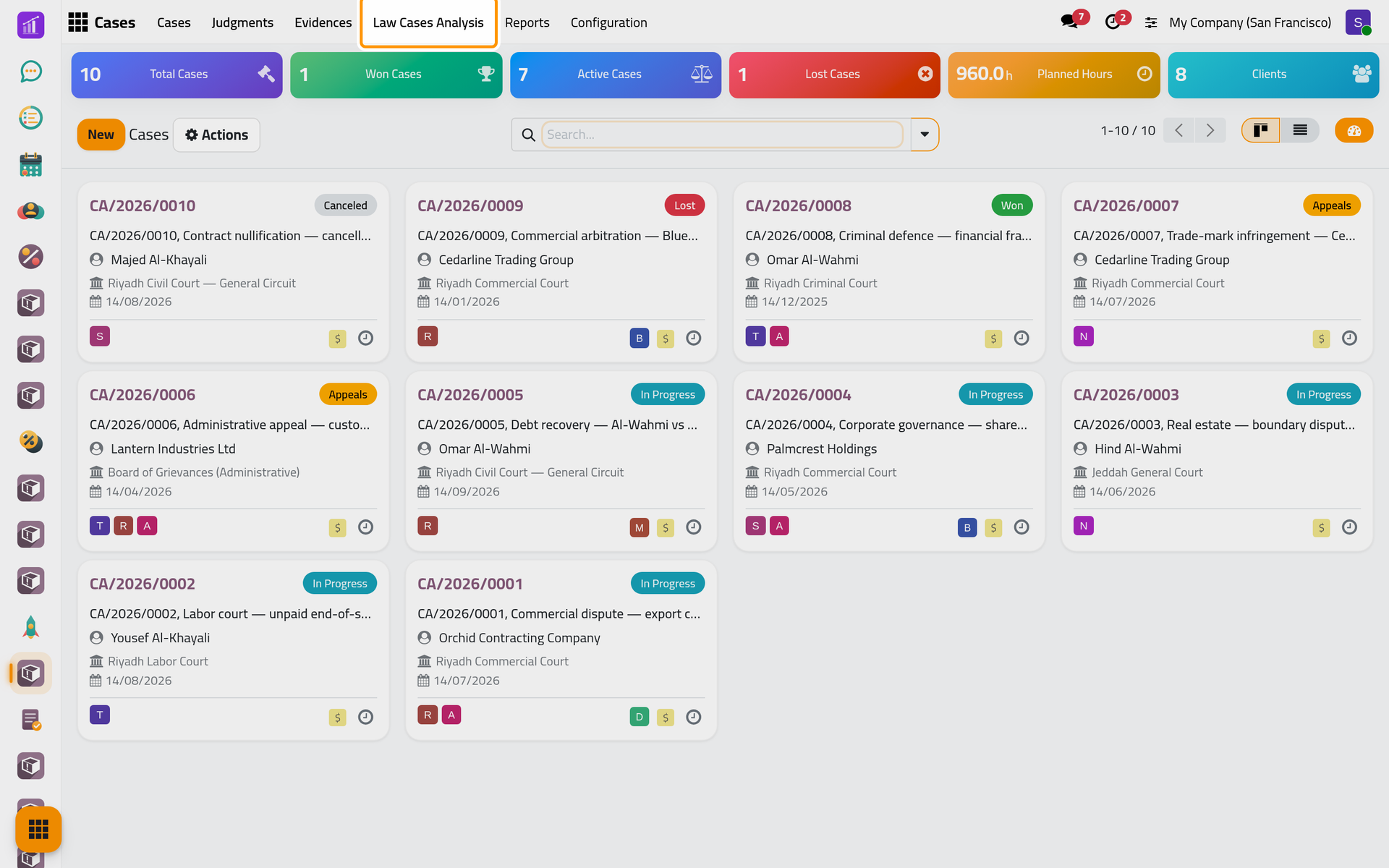
The entry carries the dashboard's name; when its access lines name groups, only those groups see it. Menu Sequence places it among the app's menus, the smallest number first: left at 1, the dashboard comes first and the app opens on it. The ready-made Employees Analysis is placed that way in the Employees app. Clearing Show Under Menu removes the entry.
Archive and restore
Actions then Archive marks the dashboard Archived and removes it from the list and from any menu. To bring it back, filter on Archived, open it and choose Set to Draft, then Publish when it is ready again.
Narrow what a dashboard counts
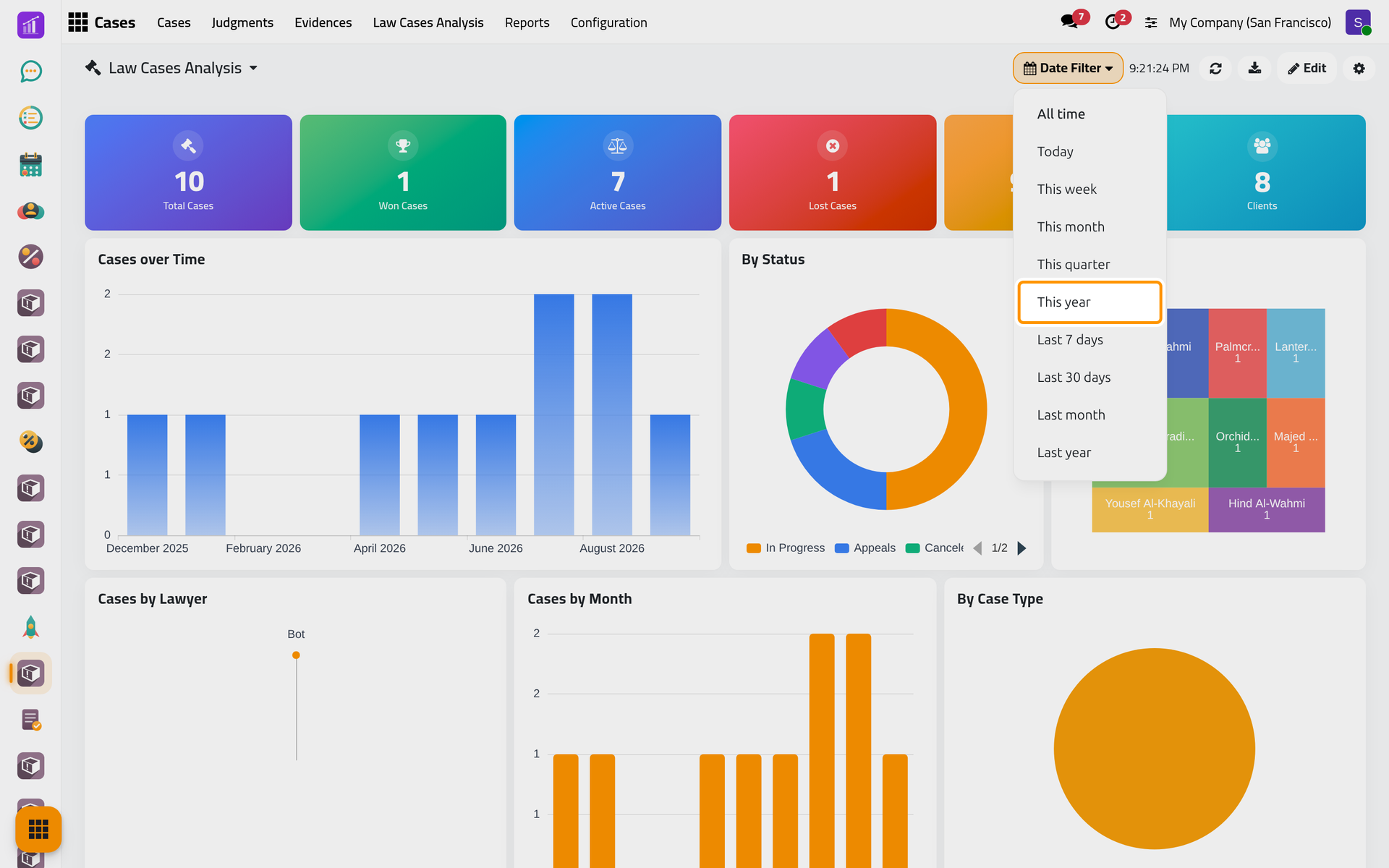
Date Filter at the top of a dashboard offers All time, Today, This week, This month, This quarter, This year, Last 7 days, Last 30 days, Last month and Last year, all counted from today. Each widget applies the period to its Date Filter Field, otherwise to its record's Date, otherwise to the creation date; a widget with none of them ignores the period. The choice stays while you work on the dashboard and goes back to All time when you open the app again.
A widget also keeps its own rules in Filter Domain, on its Data tab: Build a dashboard. The Filters tab of the dashboard's form keeps a list of named filters, but the board offers no control to apply them.
FAQ
Why doesn't the new menu entry appear?
Menus are loaded with the page: reload it.
Why does the app now open on my dashboard?
Its Menu Sequence is smaller than those of the app's menus. Give it a larger number, such as 50.
Can I change the order of the list?
No; the list follows the names. Rename a dashboard to move it.
Does the period stay for my colleagues?
No. The Date Filter applies to your screen only and is not saved.
Was this page helpful?
Thank you for your feedback.