Prepare letter templates
On this page
- Before you start
- See the templates
- Create a template
- Start a letter from a template
- Change or remove a template
- FAQ
- Can a template carry an Arabic and an English version?
- Why is there no Template field on my letters?
- Why does the template show fewer letters than I wrote?
- Can a template choose who receives the letter?
A letter template holds a name, a subject and a text. Choosing it on a letter copies the subject into Main Subject and the text into Description, where you finish the letter. A template does not choose recipients, a date or a state: those belong to each letter.
Before you start
- Templates need the Manager access right on Letters; the Template field of a letter is hidden from the other right.
- The menu sits under Configuration of the Employees app, which only the Administrator access right on Employees shows. Without it, open a template from a letter: the arrow beside the Template field opens the template chosen there.
See the templates
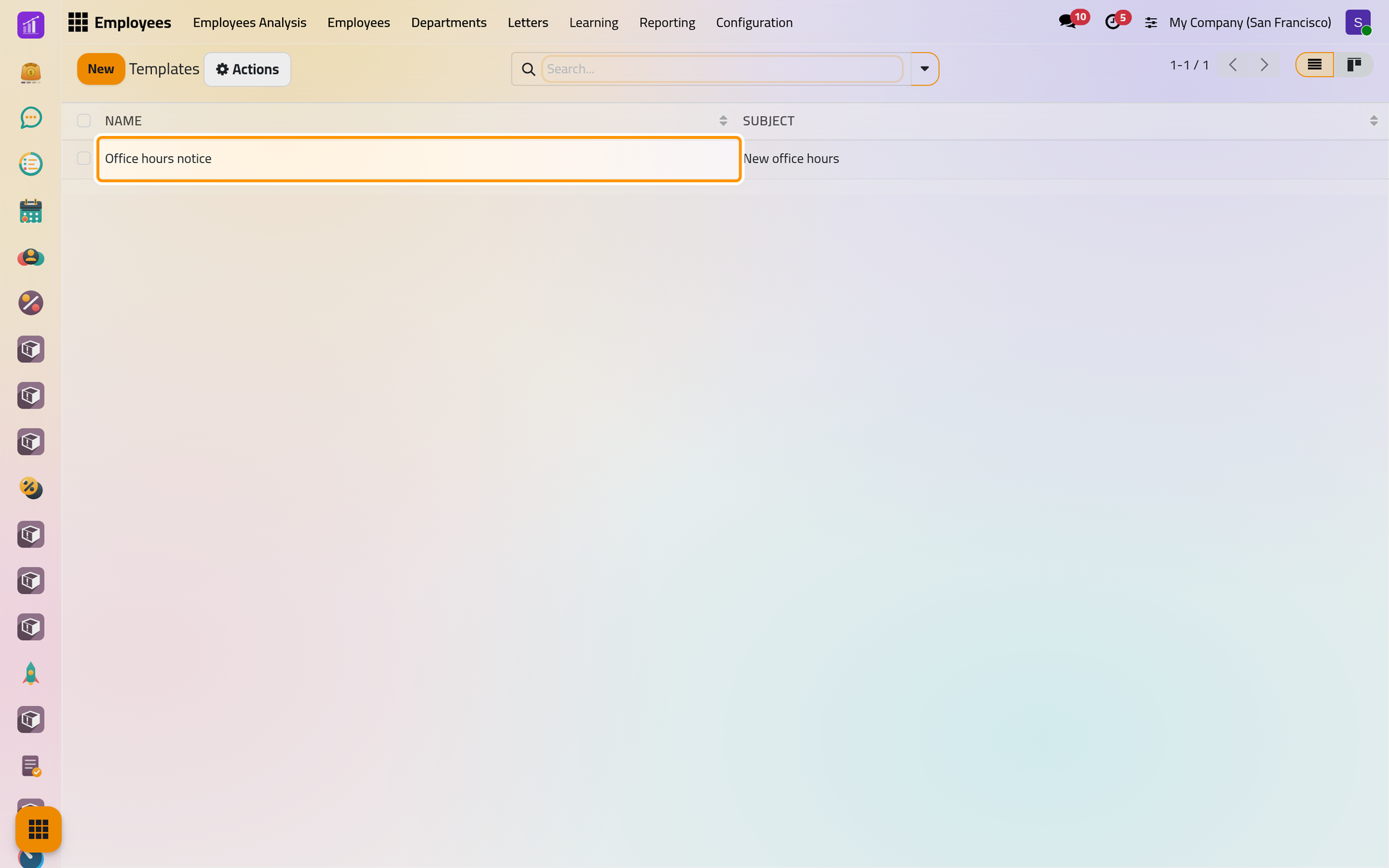
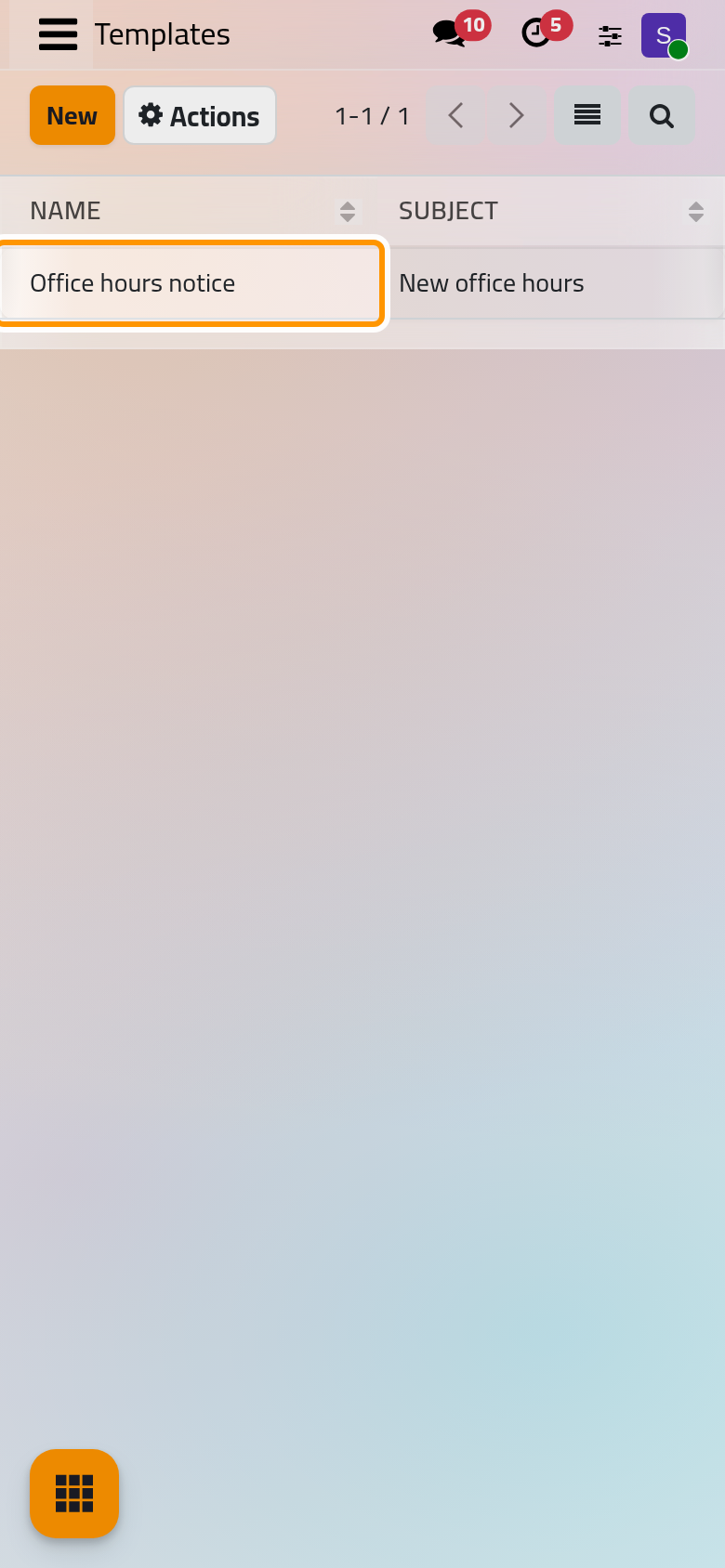
Open . The list shows each template's name and subject; the demo holds Office hours notice. The kanban view, from the button at the top right, also counts the letters made from each template.
Create a template
- Click New.
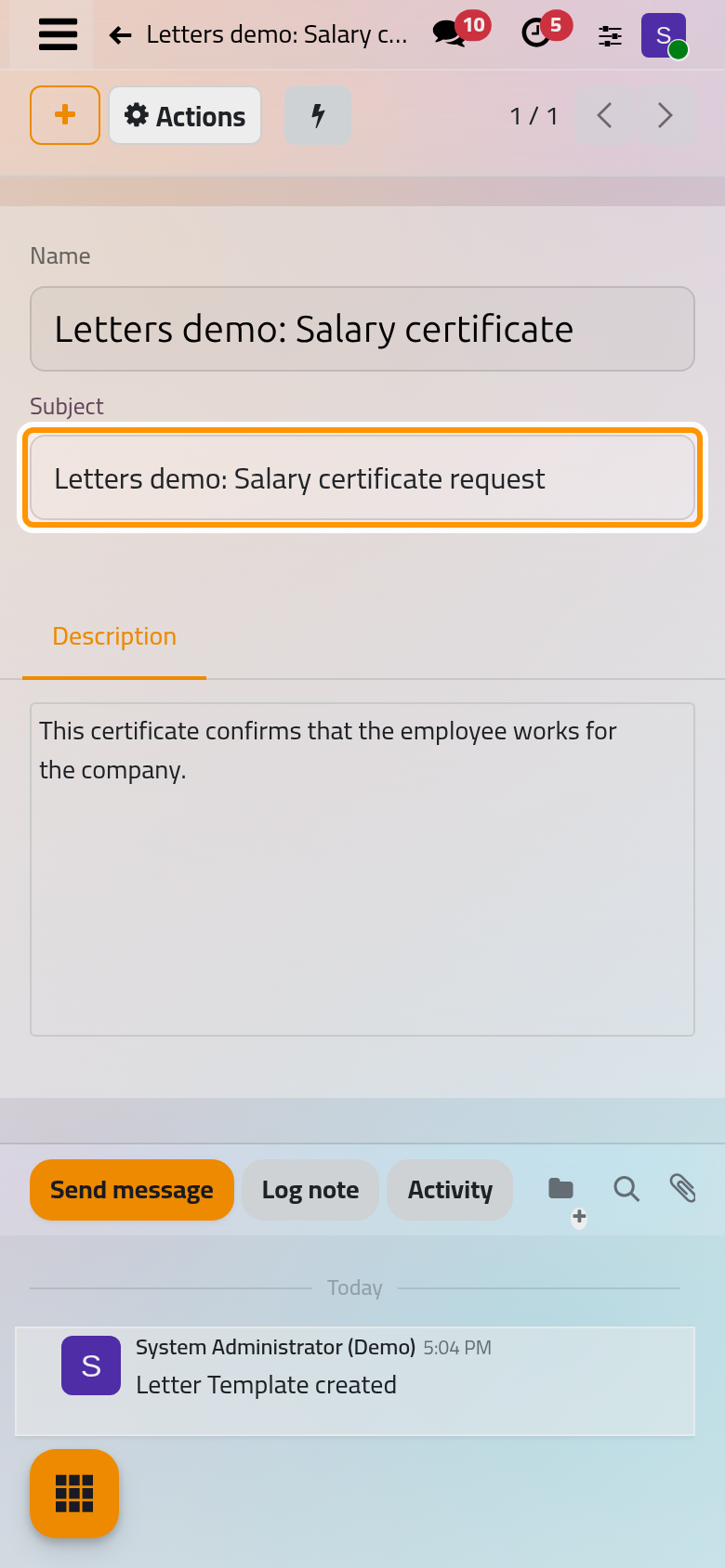
- Type the Name, the label you will pick in a letter, here
Letters demo: Salary certificate. - Type the Subject the letters will start with, here
Letters demo: Salary certificate request. - Write the text in the Description tab. It is rich text, and its formatting travels into each letter and its PDF.
- Save.
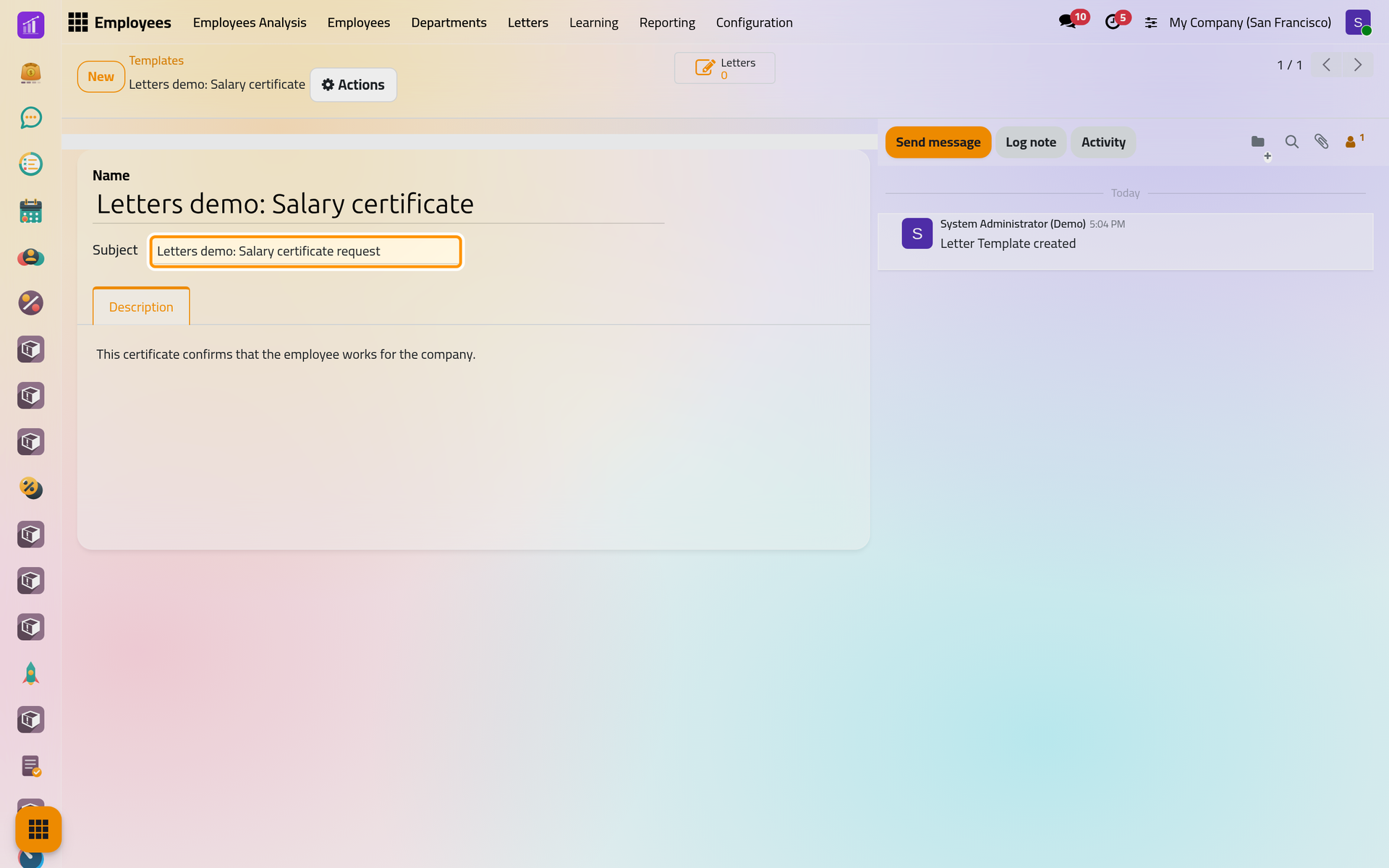
The Letters button at the top counts the letters made from the template, archived ones aside, and opens them.
Start a letter from a template
There are two ways:
- In a new letter, choose the template in Template, as Your first letter shows.
- On the template, click Letters, then New. The letter opens with the template already chosen, its subject and its text filled.
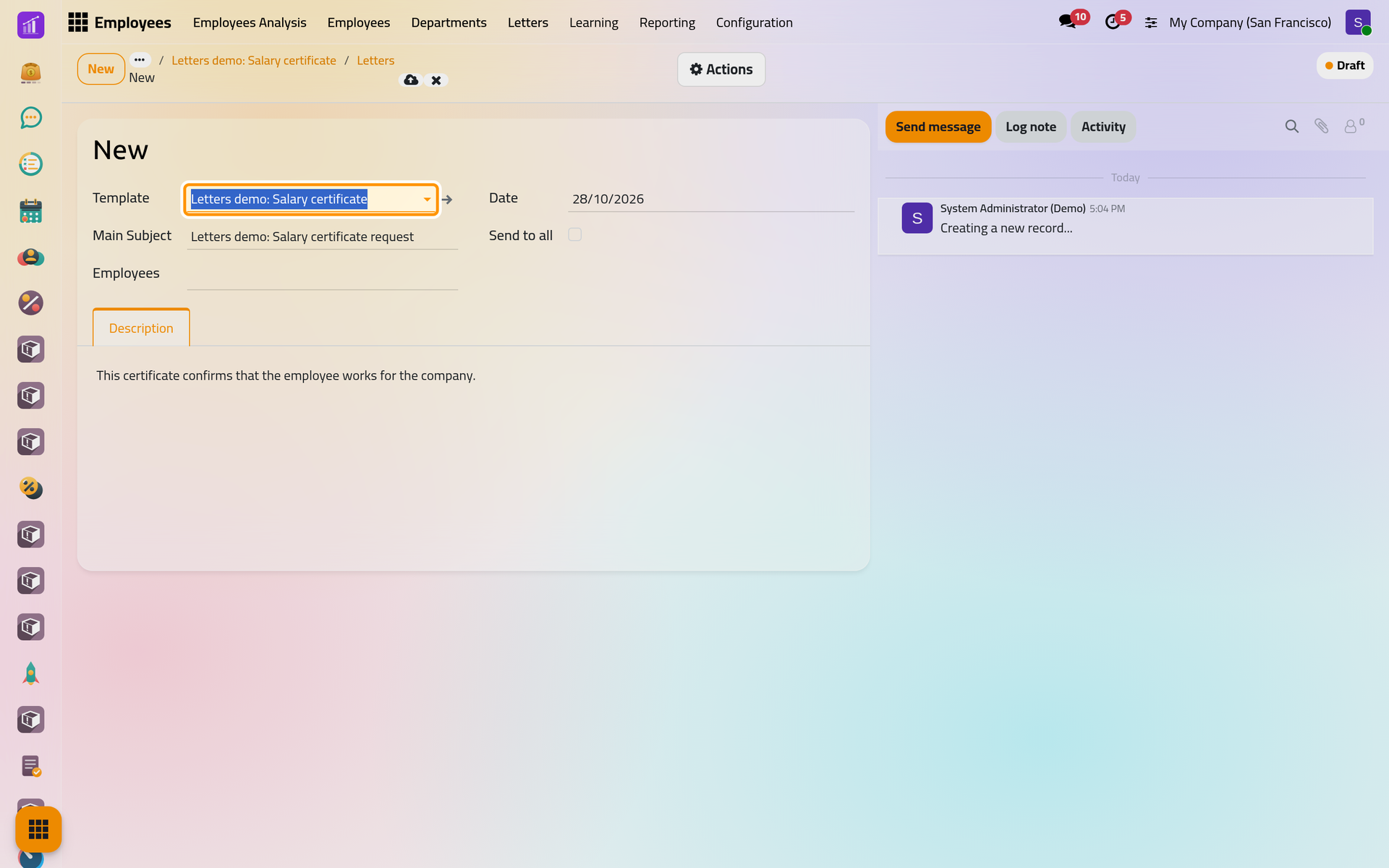
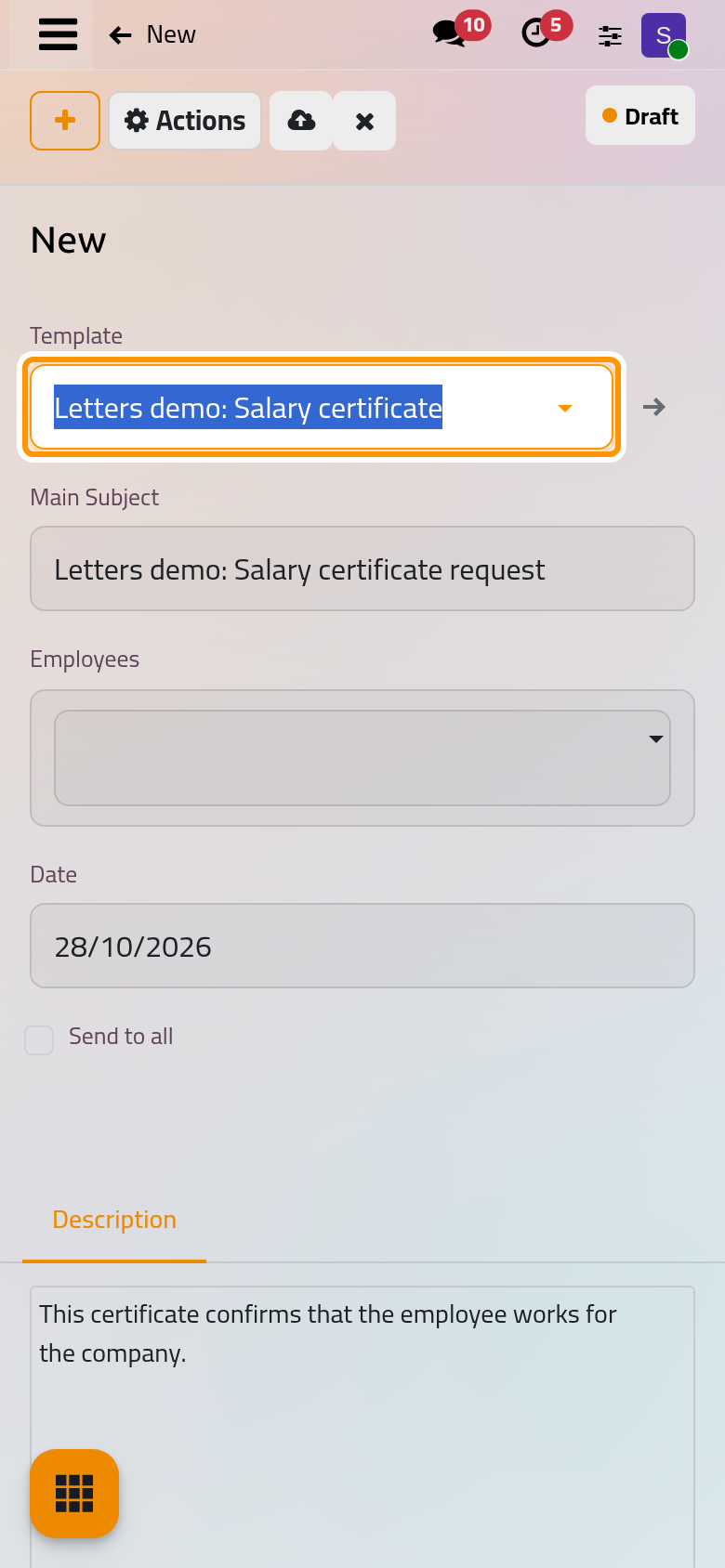
Then choose the recipients, save and approve the letter as usual. Choosing a template on a letter replaces its subject and text with the template's, so choose the template first and write afterwards.
Change or remove a template
A template's subject and text are copied into the letter at the moment you choose it. Editing the template later changes the next letters only; the letters already written keep their own text. Templates have no archive: Actions, then Delete, removes one, and the letters made from it keep their subject and text while their Template field becomes empty.
FAQ
Can a template carry an Arabic and an English version?
Yes. The name, subject and text of a template, like the subject and text of a letter, can hold one version per language through the language button of each field; Languages and translations explains the button. A letter receives the version of the language you work in when you choose the template.
Why is there no Template field on my letters?
The field shows only to the Manager access right on Letters.
Why does the template show fewer letters than I wrote?
The Letters button leaves out archived letters, and it counts only letters whose Template field still names the template.
Can a template choose who receives the letter?
No. Employees and Send to all are set on each letter.
Was this page helpful?
Thank you for your feedback.