Your first letter
On this page
Letters keeps the administrative circulars of the company in the Employees app: a notice about office hours, a move, a new rule. Each letter gets a number, is approved before it leaves, and is sent to the employees by e-mail, through Discuss or by WhatsApp, with a PDF copy that can also be printed. This walk-through writes one letter from a template, sends it to two employees through Discuss and checks what the letter recorded.
Before you start
- Writing, approving and sending letters needs the Manager access right on Letters. The other right, User: Own Documents Only, only reads the letters sent to everyone or naming the user's employee. Create a user and set access rights shows where to set it.
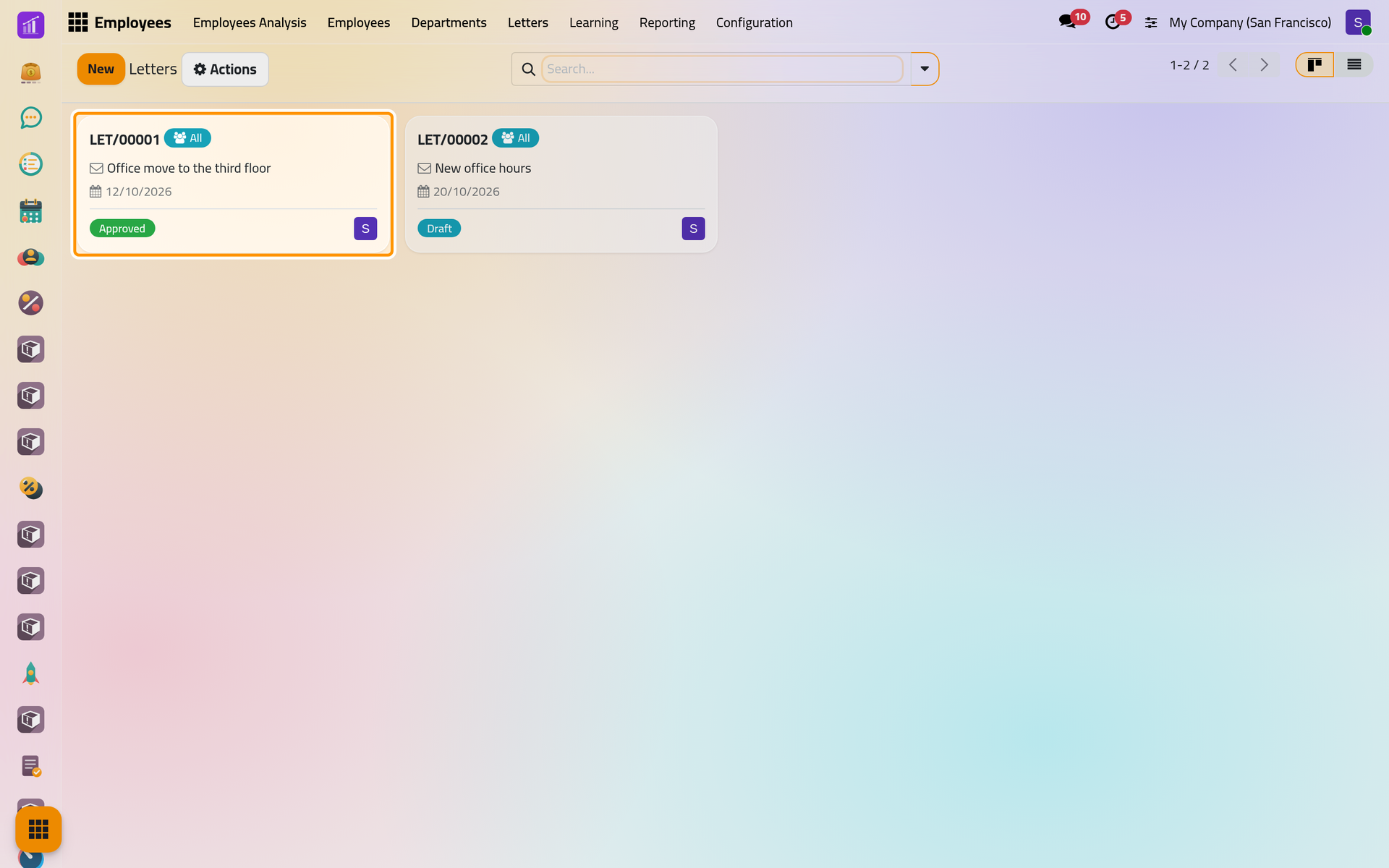
- The demo holds the template Office hours notice and two letters: LET/00001, approved and sent to all employees, and LET/00002, a draft made from the template.
- Discuss reaches only the employees whose employee form names a User: How employee records work.
Step 1: open the letters
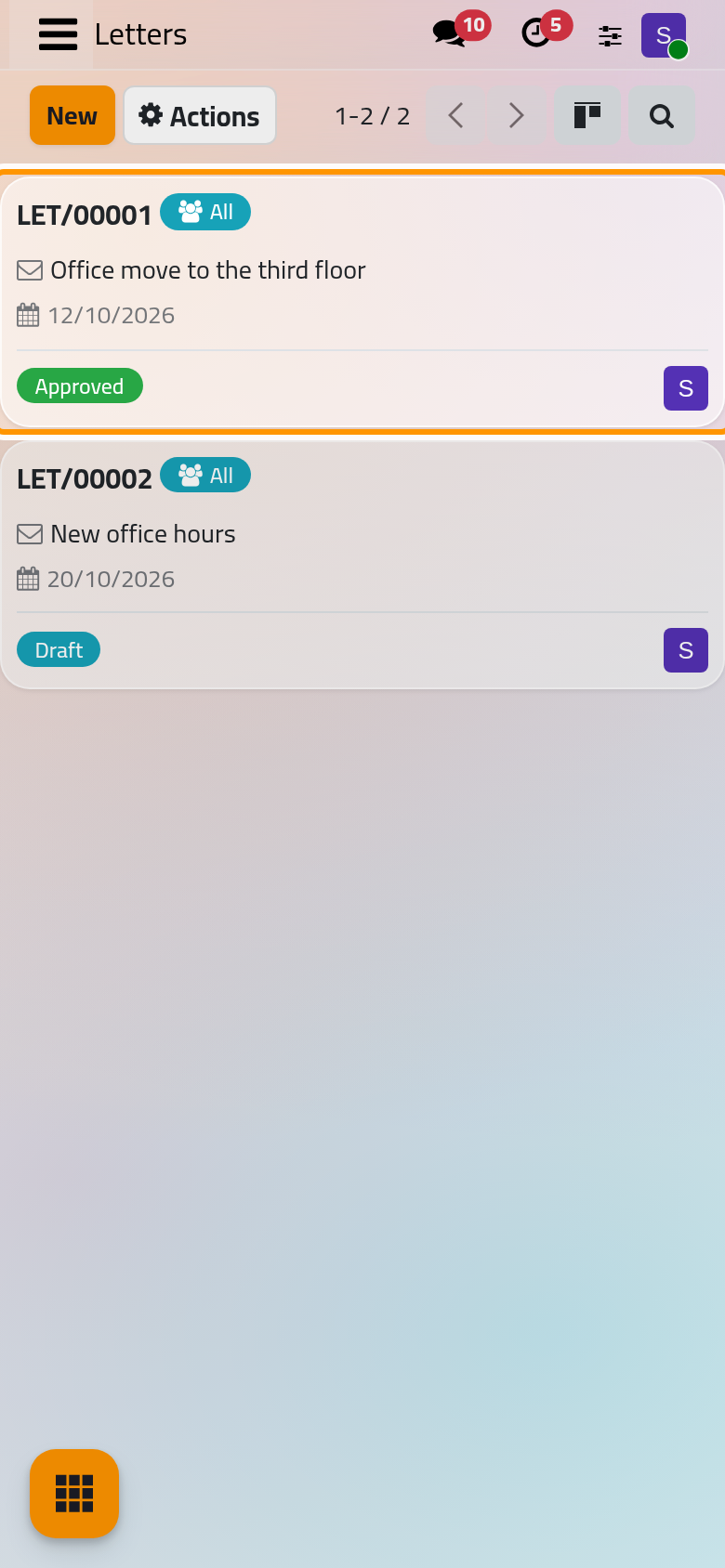
Open . Each card shows the number of the letter, its subject, its date and its state, with the badge All when it goes to every employee; a letter for chosen employees shows how many instead. The list view, from the button at the top right, shows the same letters in rows.
Step 2: start from a template
- Click New. The letter has no number yet: it receives the next one, such as LET/00003, when you save it. Date holds today's date; change it when the letter takes effect another day.
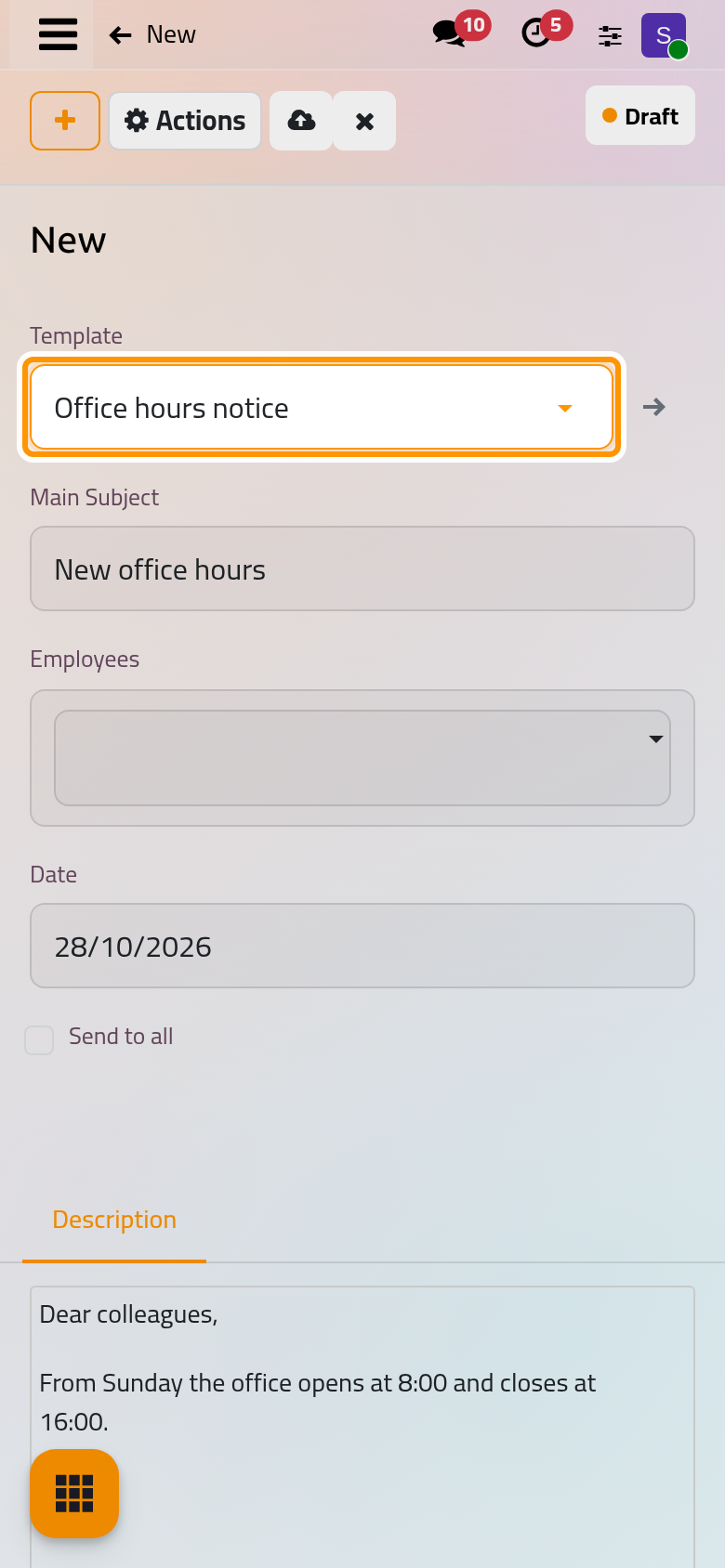
- In Template, choose Office hours notice. Its subject fills Main Subject, and its text fills the Description tab.
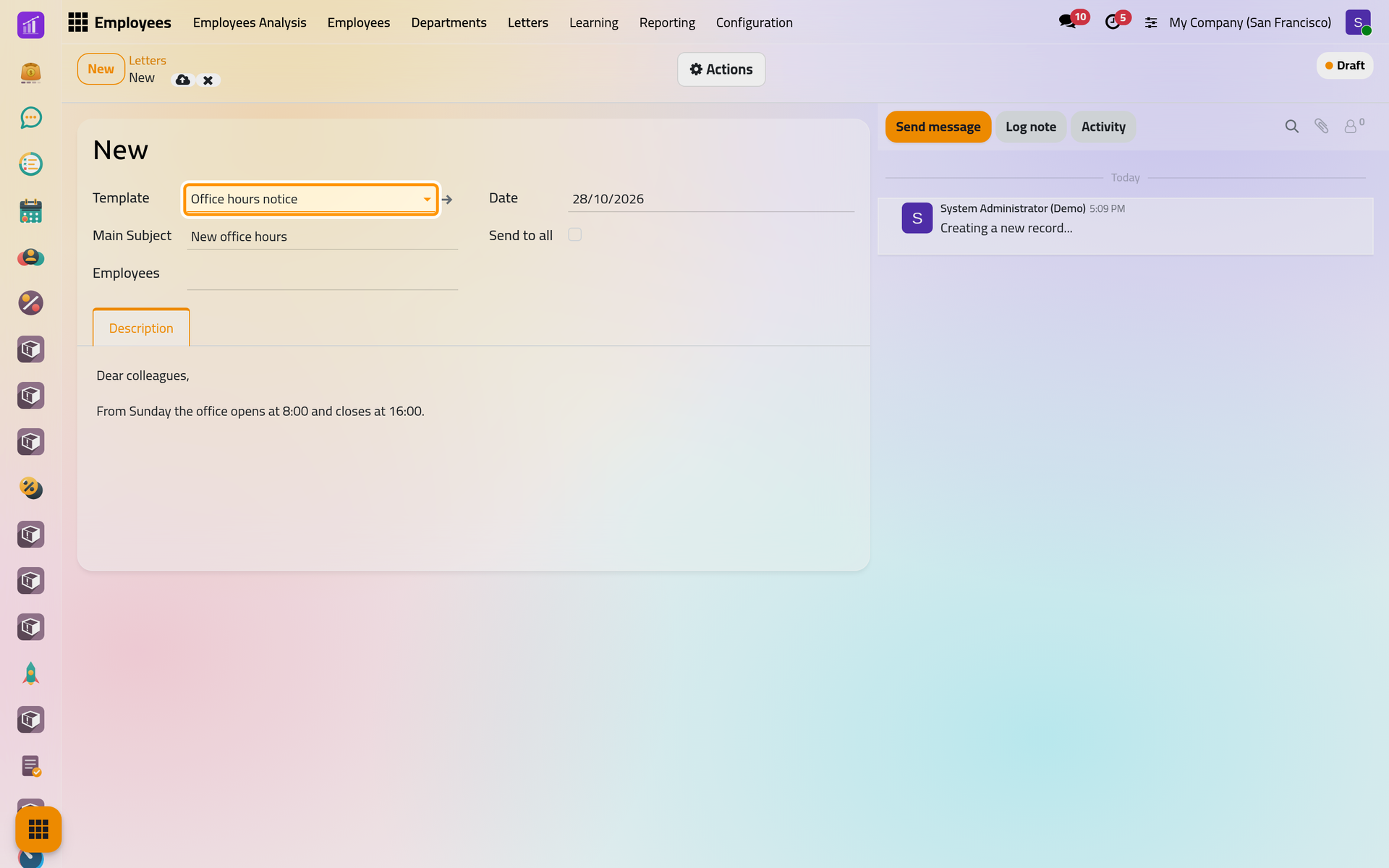
- Everything the template filled stays yours to change. Replace the subject with
Letters demo: Office hours from Sunday, and edit the text as you would any rich text. Choosing another template later replaces both again.
Step 3: choose who receives it
- In Employees, add Rawan Al-Wahmi, then System Administrator (Demo).
- Leave Send to all unticked. Ticking it hides Employees and addresses the letter to every employee instead.
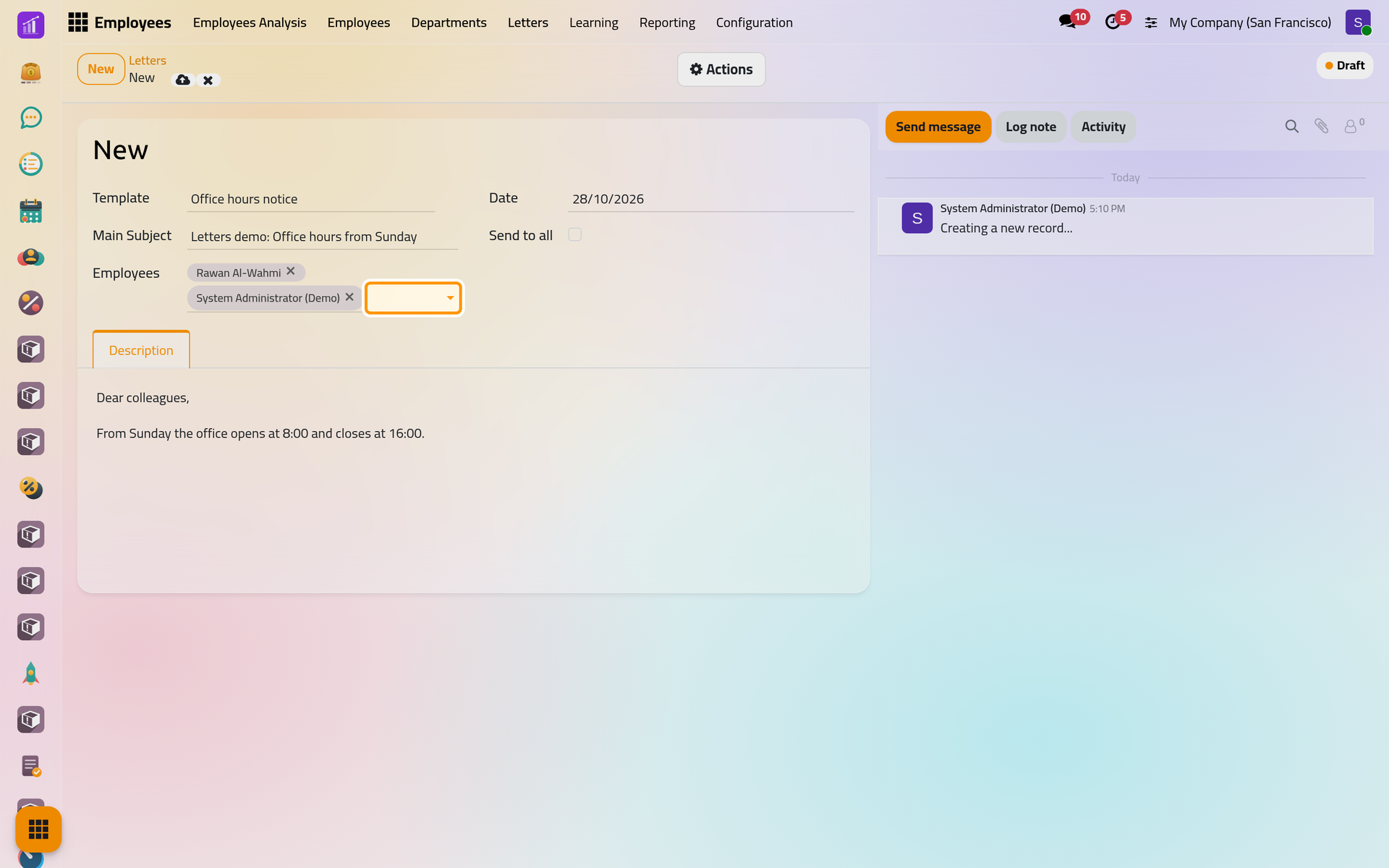
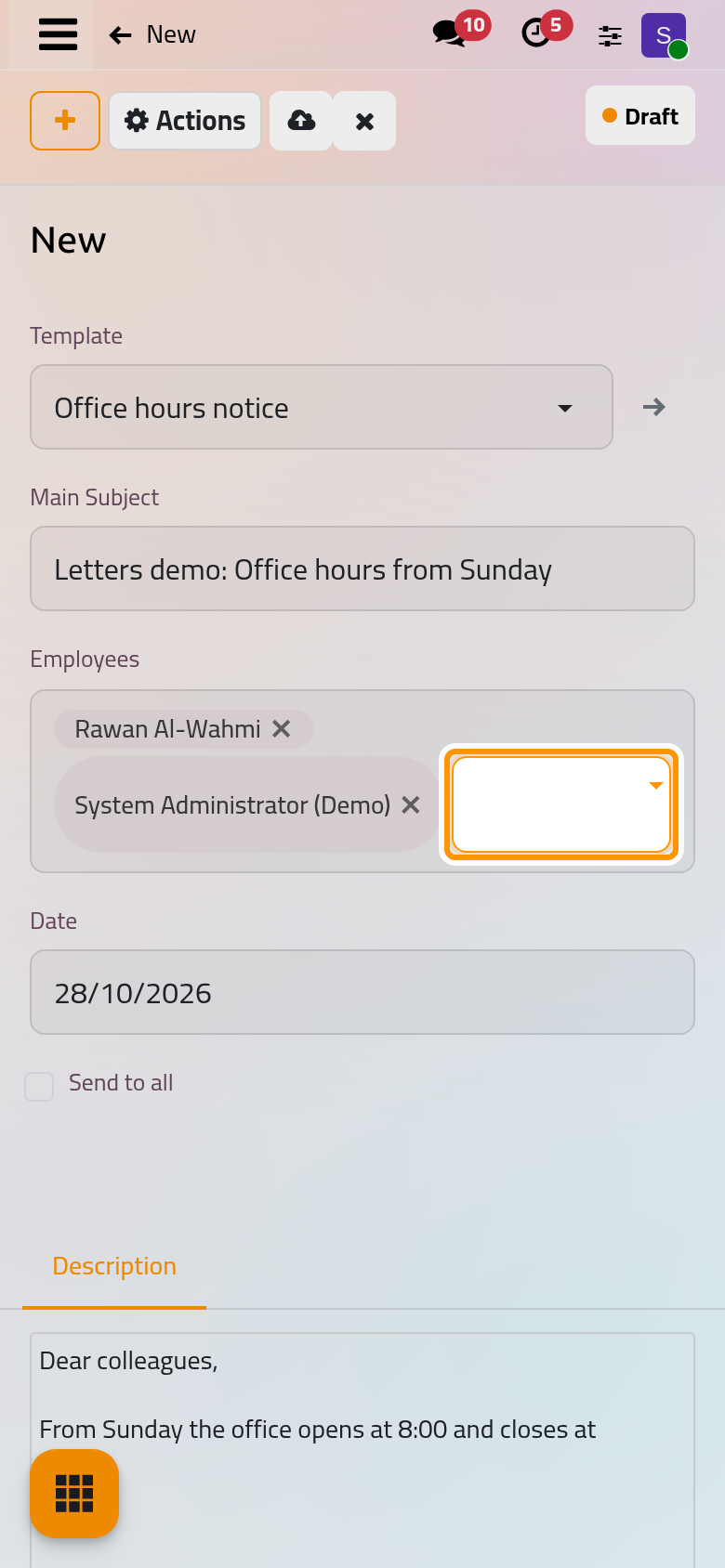
- Save. The letter takes its number, and the chatter records that it was created.
Step 4: approve it
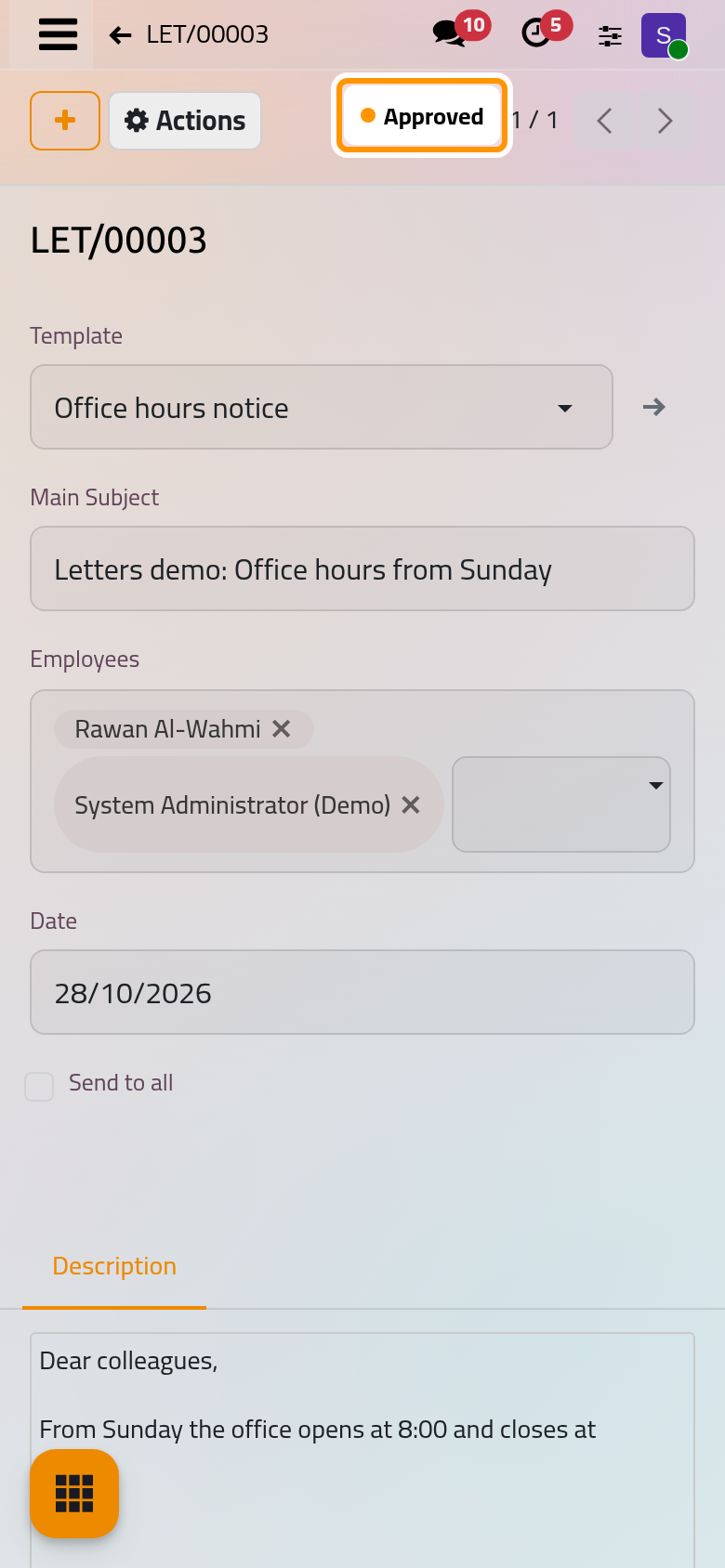
A new letter is a Draft: it cannot be sent yet. Open Actions at the top of the form and choose Approve.
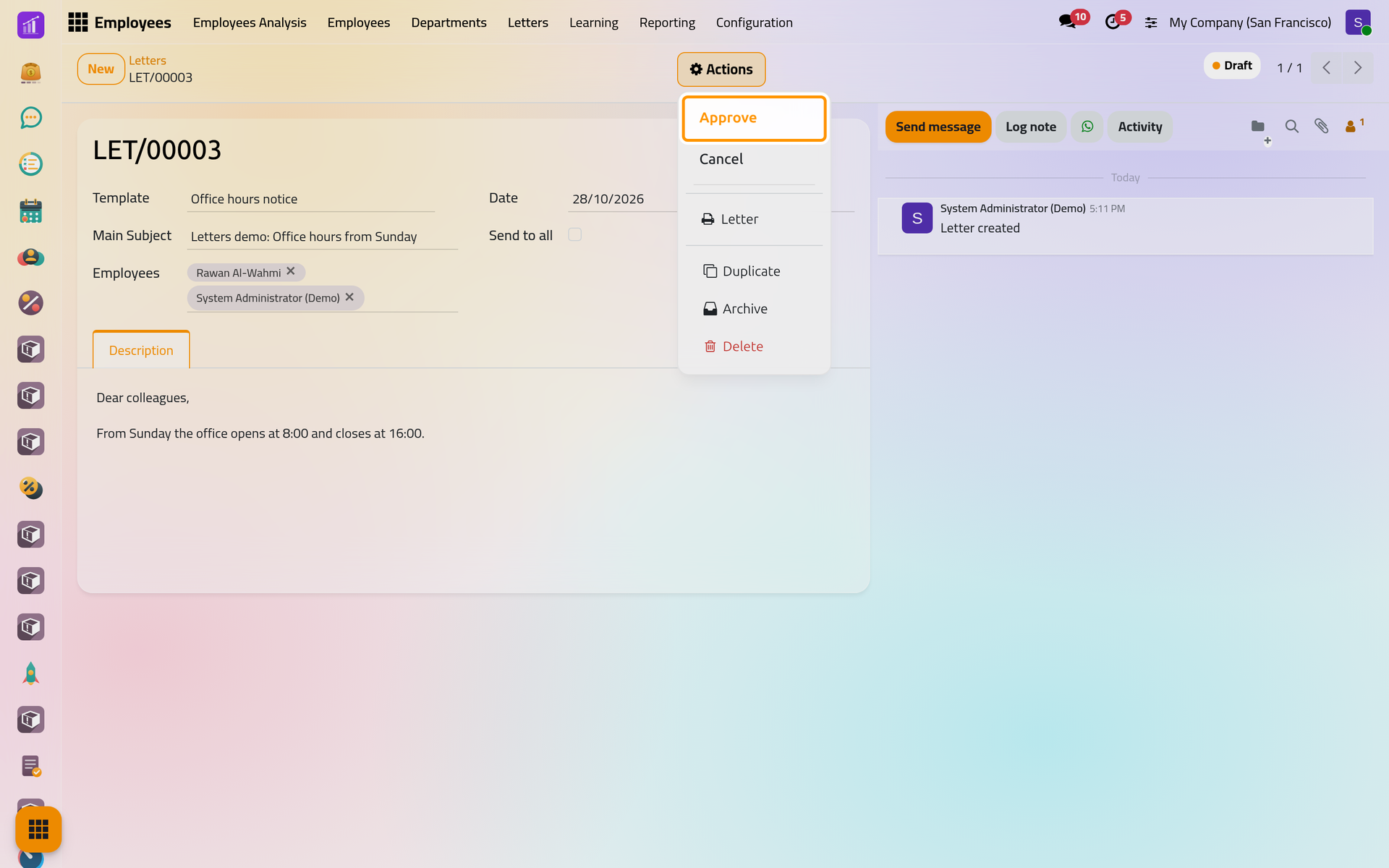
On a phone, Actions sits at the top of the form, beside the + button.
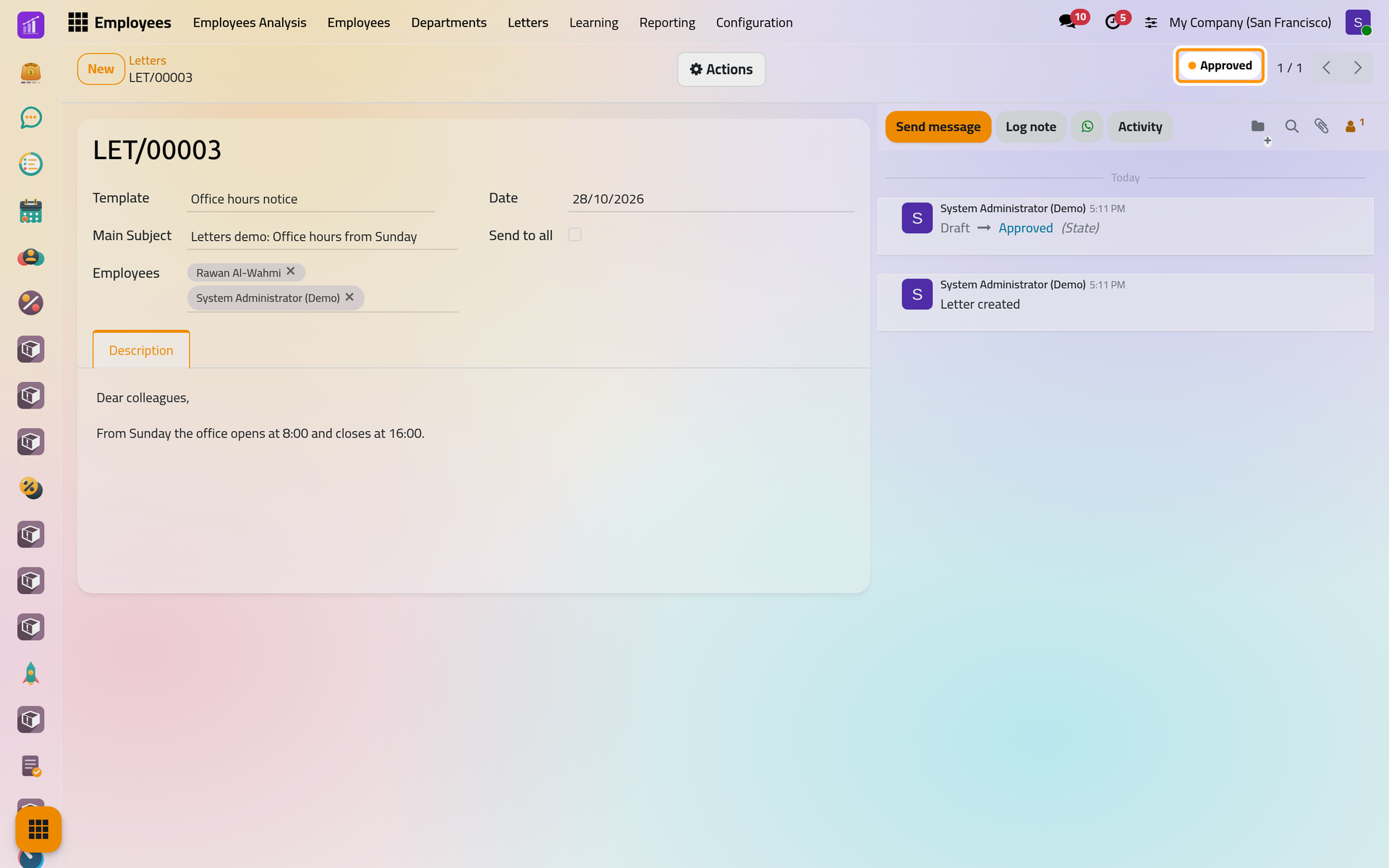
The state at the top right turns to Approved, and the chatter records the change. Approving does not lock the letter: its fields stay editable, and the chatter keeps every change.
Step 5: send it through Discuss
- Open Actions again. An approved letter now offers Send by Email, Send by Discuss and Send by WhatsApp, then Cancel, and under the printer icon Letter, its PDF.
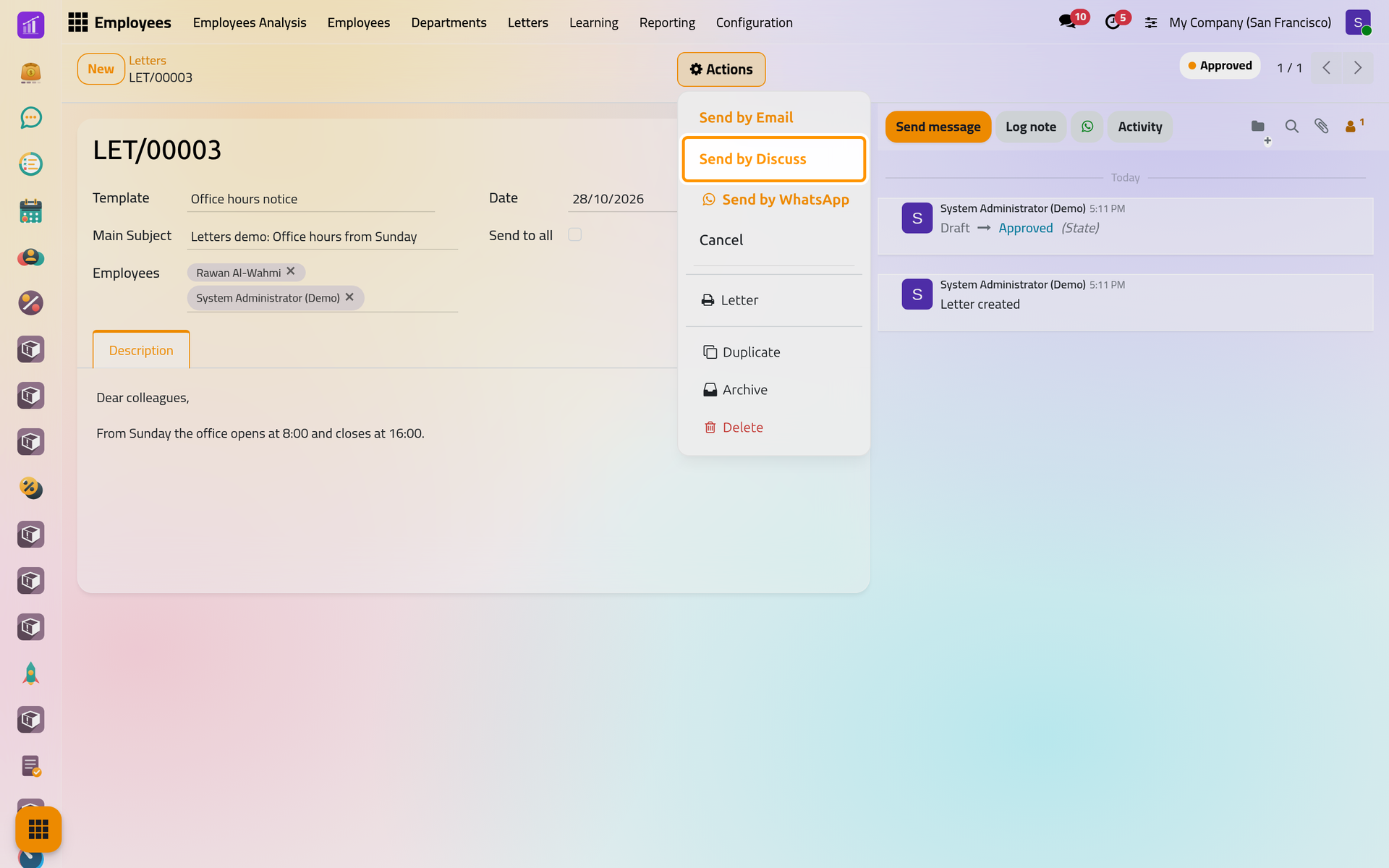
- Choose Send by Discuss. Each chosen employee who has a user receives, in a direct chat with Bot, the message "A new Letter LET/00003 with subject Letters demo: Office hours from Sunday has been added.", whose number opens the letter.
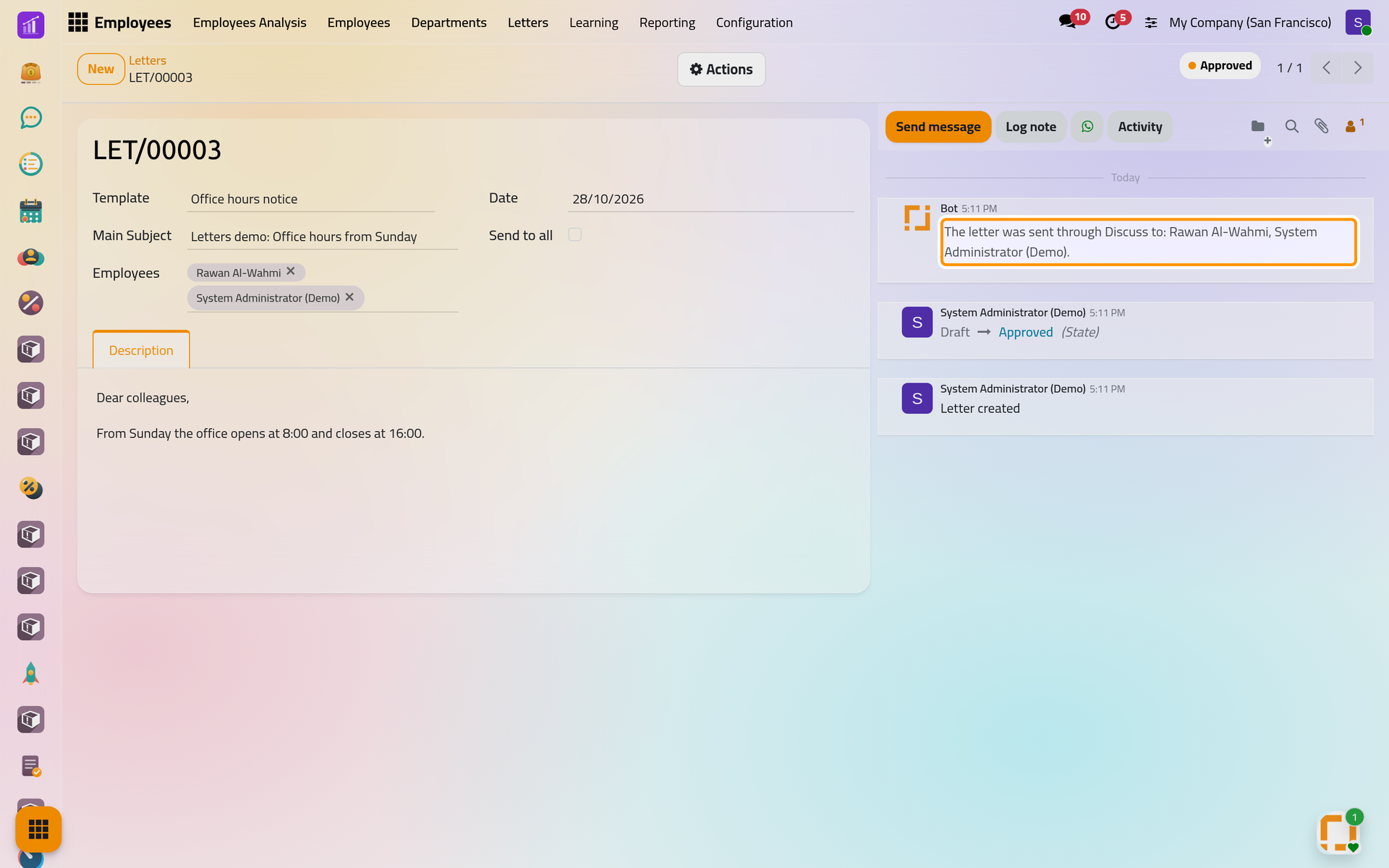
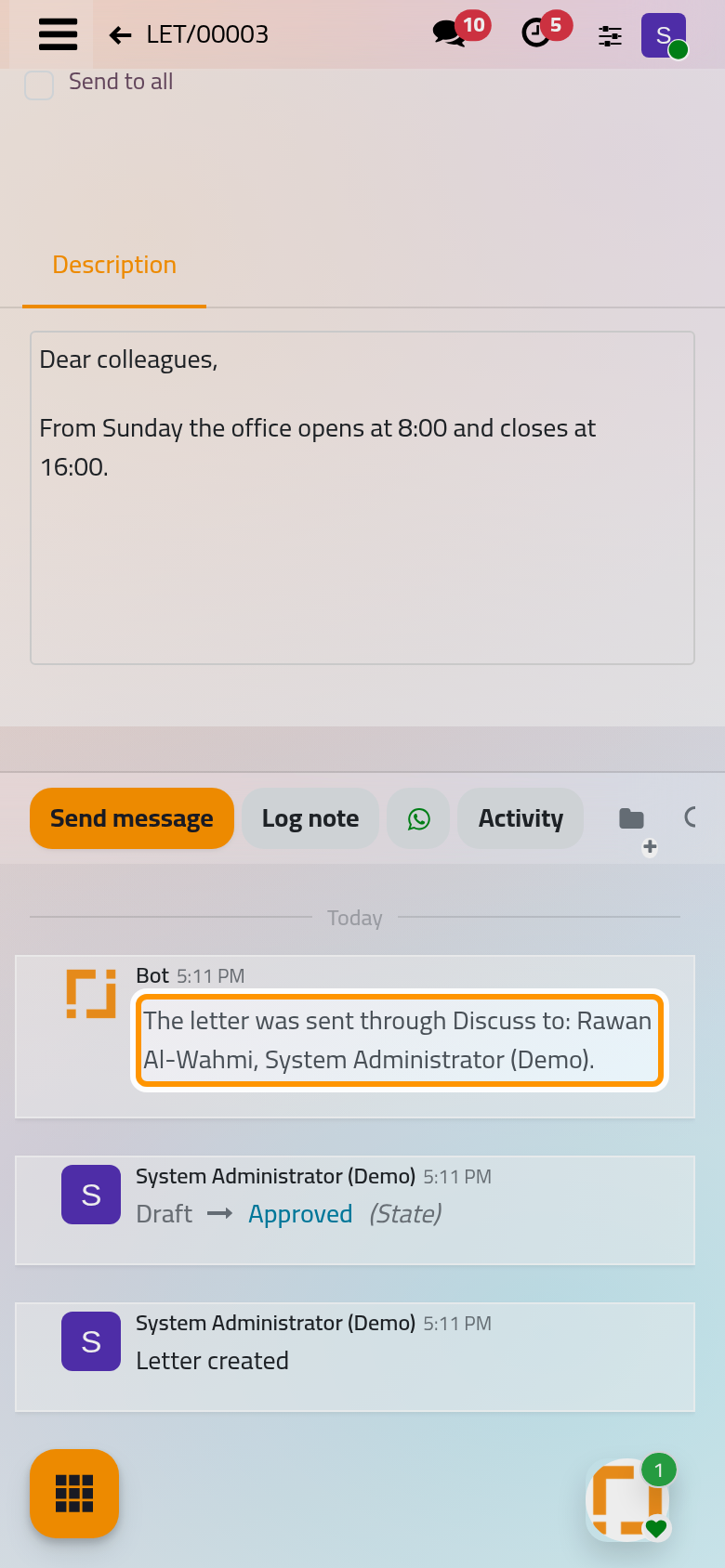
- A note from Bot in the chatter names the employees reached.
An employee whose notifications are set to arrive By Emails also receives the message in their mailbox, as Choose your notifications explains.
What you have done
You wrote a letter from a template, chose its recipients, approved it and sent it to them through Discuss, and the chatter now keeps each of those steps. Send a letter covers e-mail, WhatsApp and the printed copy, Prepare letter templates builds your own templates, Cancel a letter and issue it again handles a letter that must be withdrawn, and How letters work explains who sees and receives what.
Was this page helpful?
Thank you for your feedback.