Open a request for a customer
On this page
Most requests reach a desk by e-mail or from the website, but an agent on the phone opens one by hand. A request needs only a title and a Desk: the desk brings its stages, its agents and, when it measures them, its service targets. To add a request straight from a desk's board, see Your first request.
Before you start
- You need the User or the Administrator access right on Help Desk.
- The customer exists as a contact (Contacts), or you know their name and e-mail address.
Steps
- Open . The list shows the requests that are Still Open, the most urgent first.
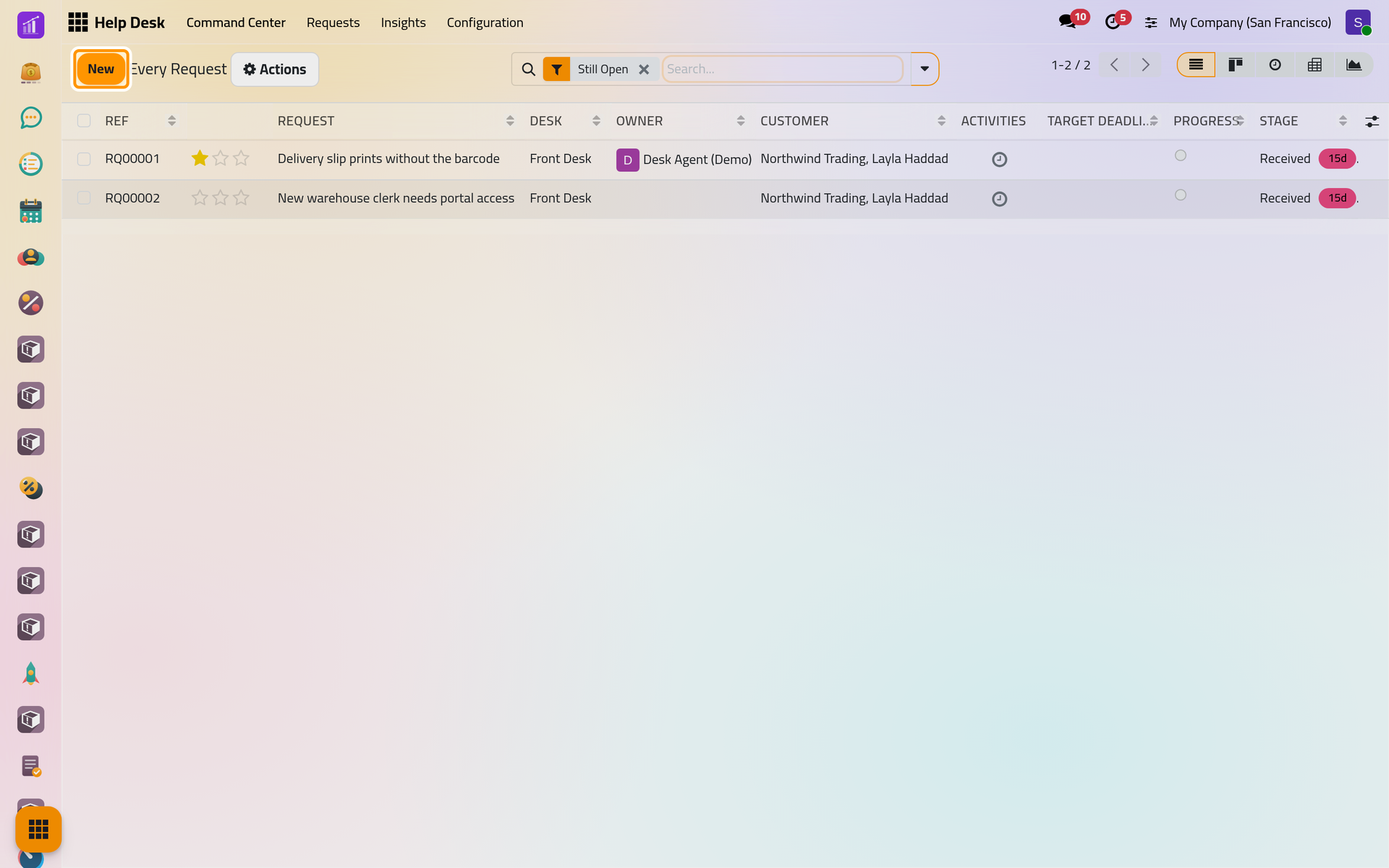
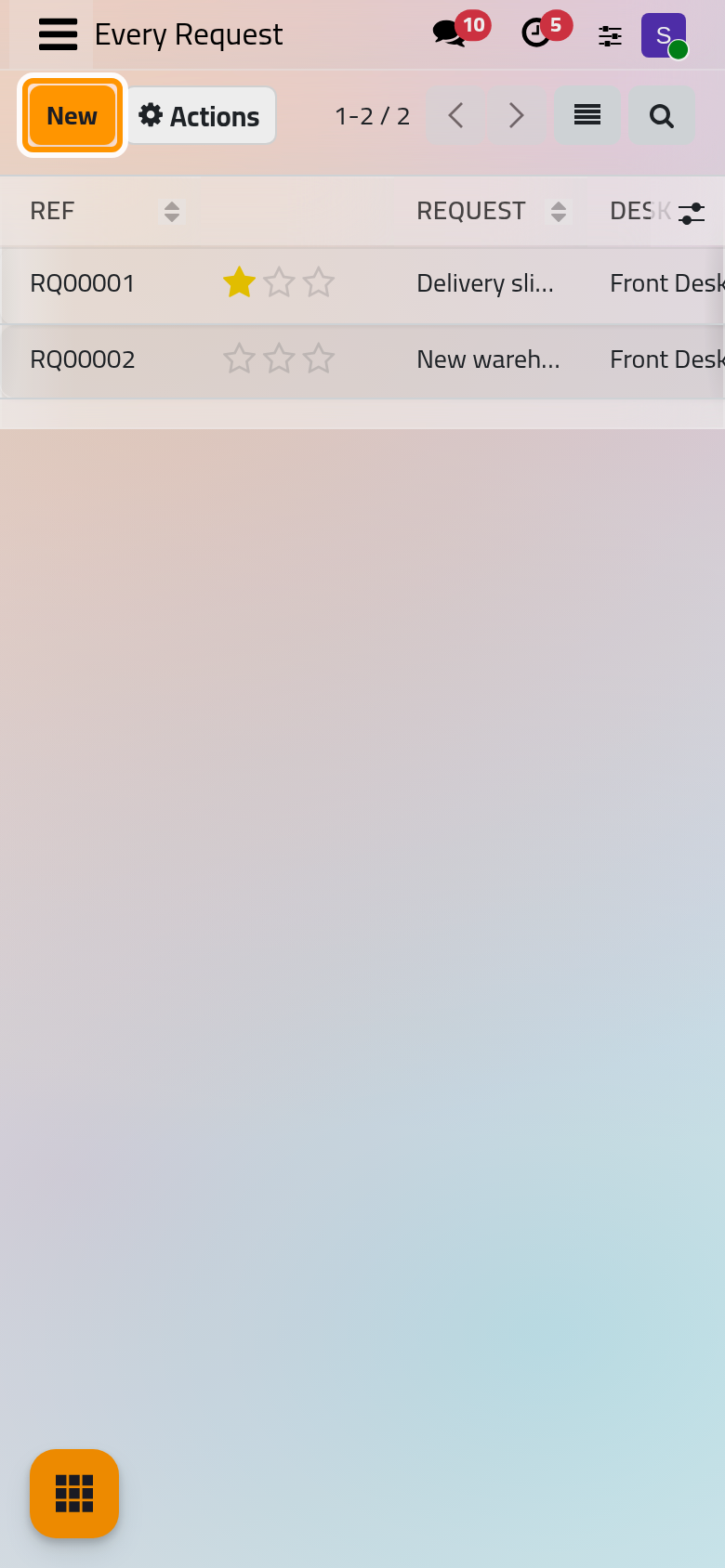
- Click New.
- Type the title on the first line, the way the customer describes the problem. It is the subject of the messages sent from the chatter; the automatic e-mails quote the reference instead.
- Check the Desk. The form proposes the first desk of your company; change it when the request belongs to another desk. The stages offered are those of the desk.
- Choose the Customer. Reported By, Reply To and Phone fill in from the contact.
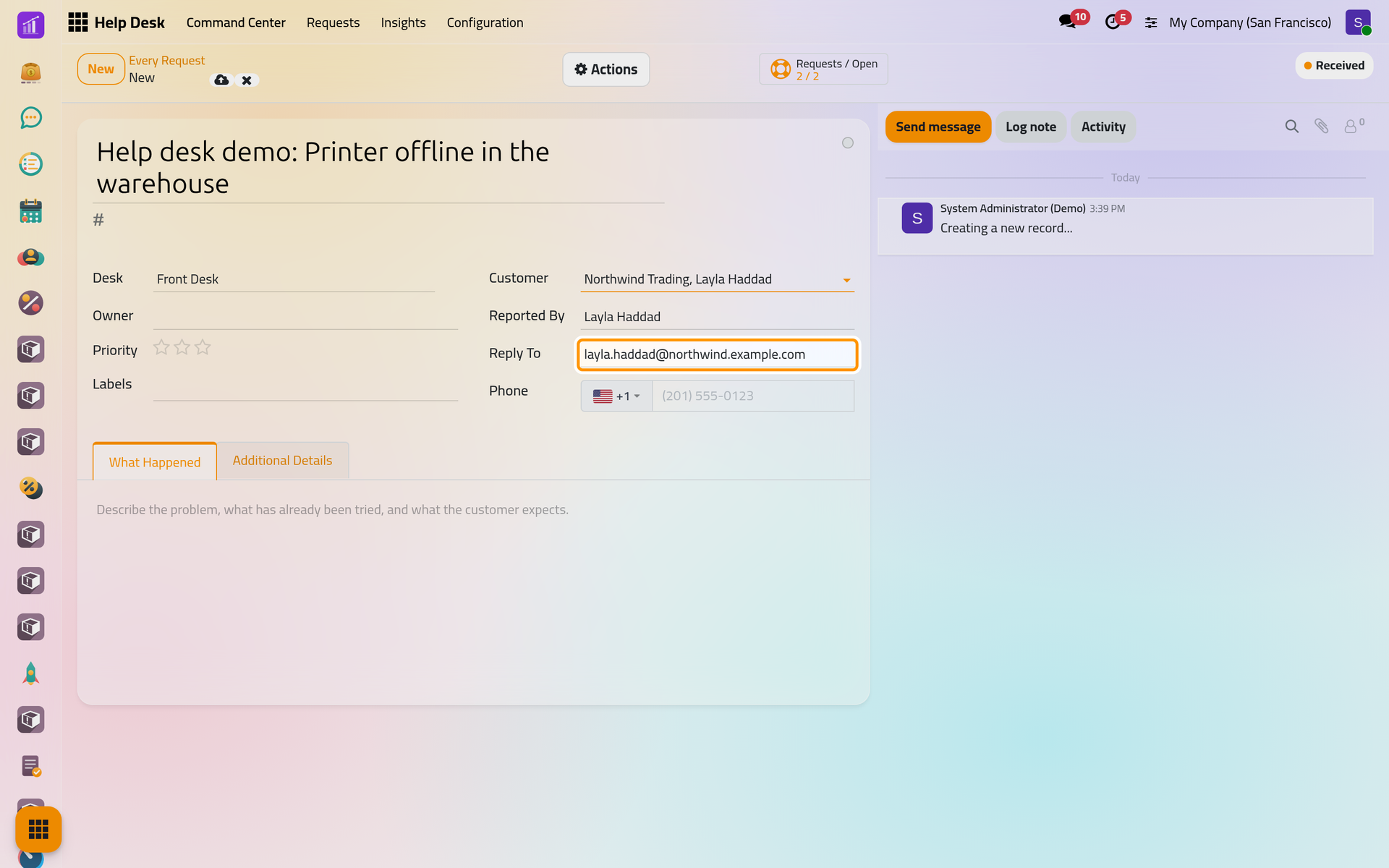
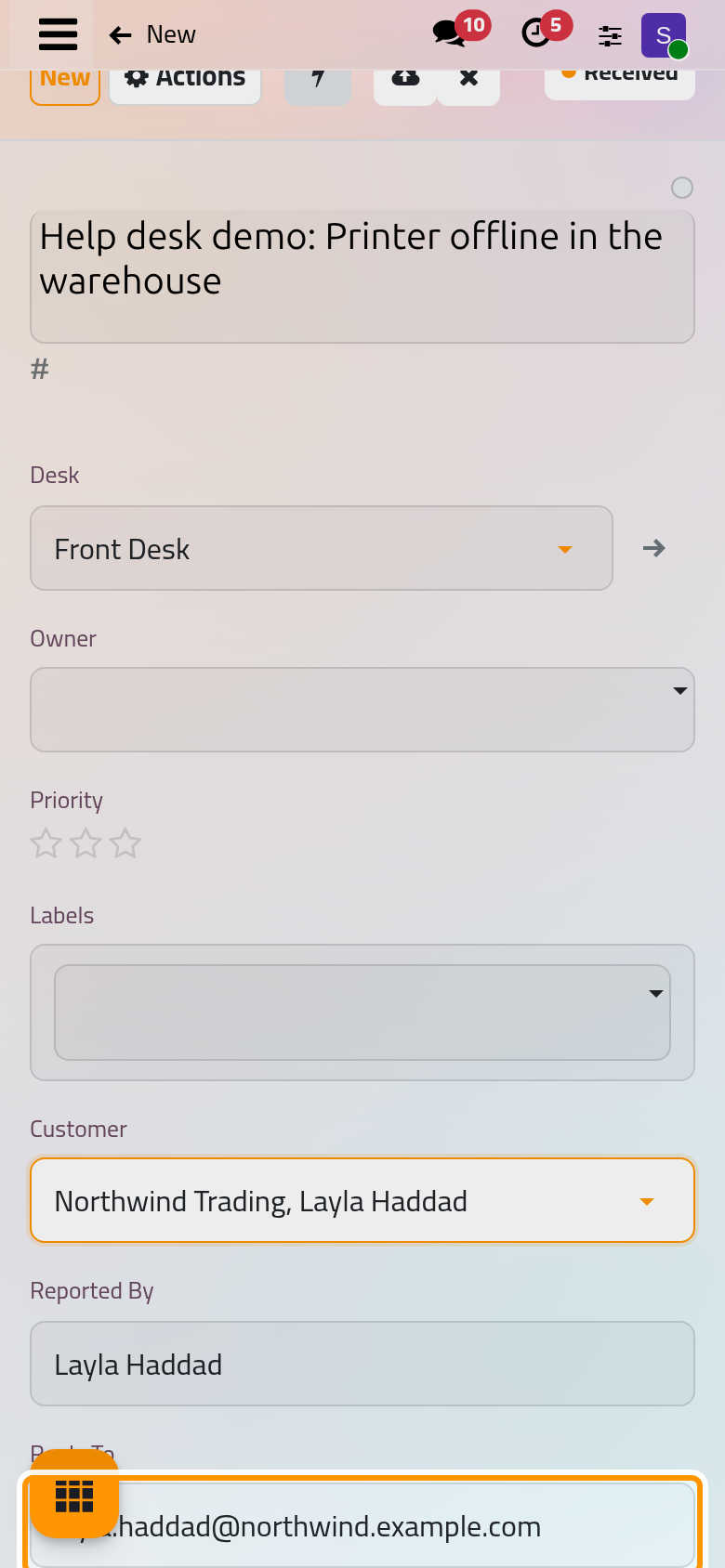
- Choose an Owner if someone takes the request on now. Set the Priority with the stars: no star is Routine, then Elevated, Pressing and Critical. A click on a star saves the request at once.
- Describe the problem in the What Happened tab, then click the cloud icon Save manually.
Result
The request gets its reference, such as RQ00003, and sits in the first stage of its desk, Received on the Front Desk. When that stage carries an arrival message, the customer receives it by e-mail and the chatter keeps a copy. When the desk hands requests out automatically and nobody owns this one, an owner is chosen at once; when the desk measures service targets, the matching targets appear under the title with their deadline (Set service targets).
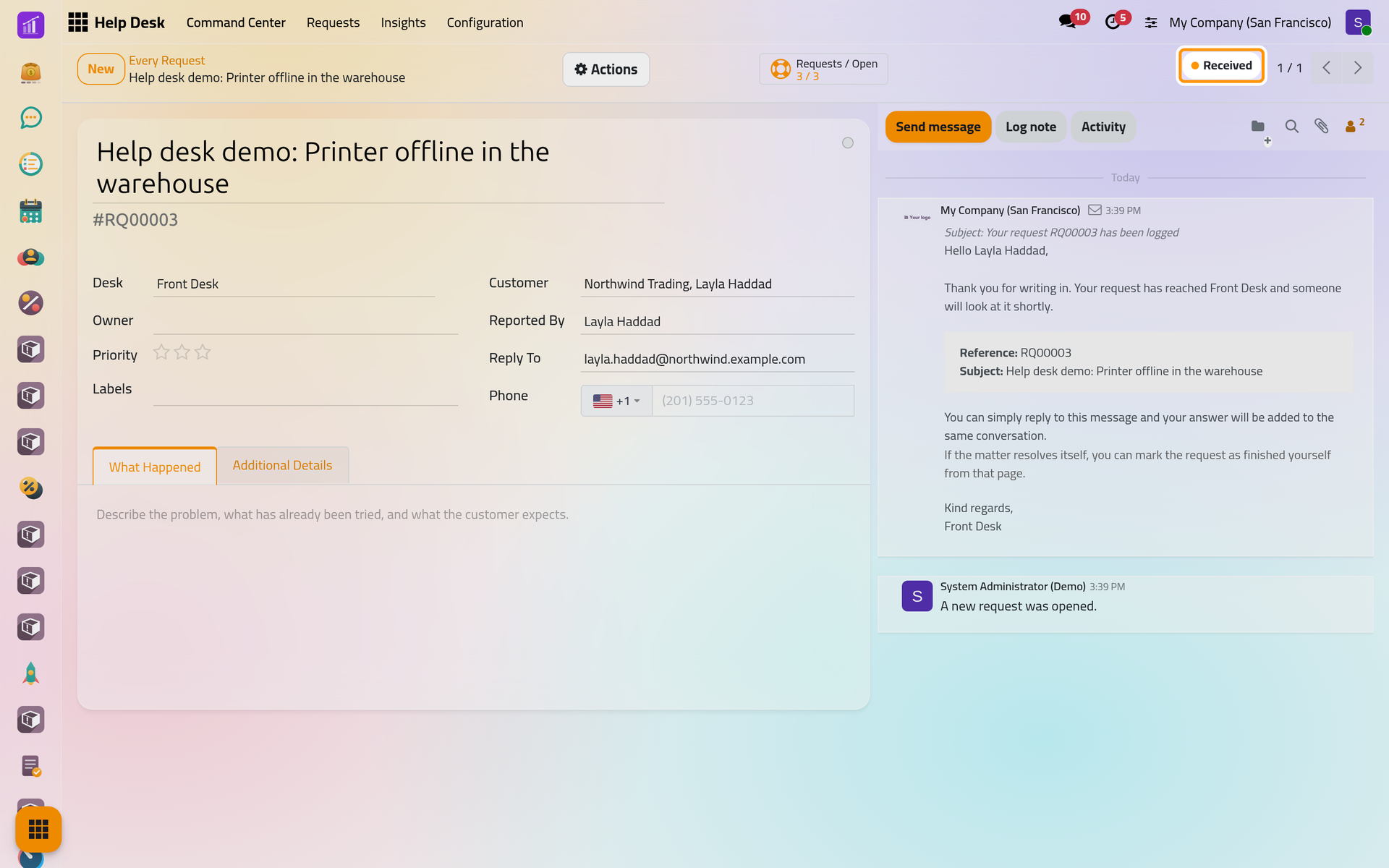
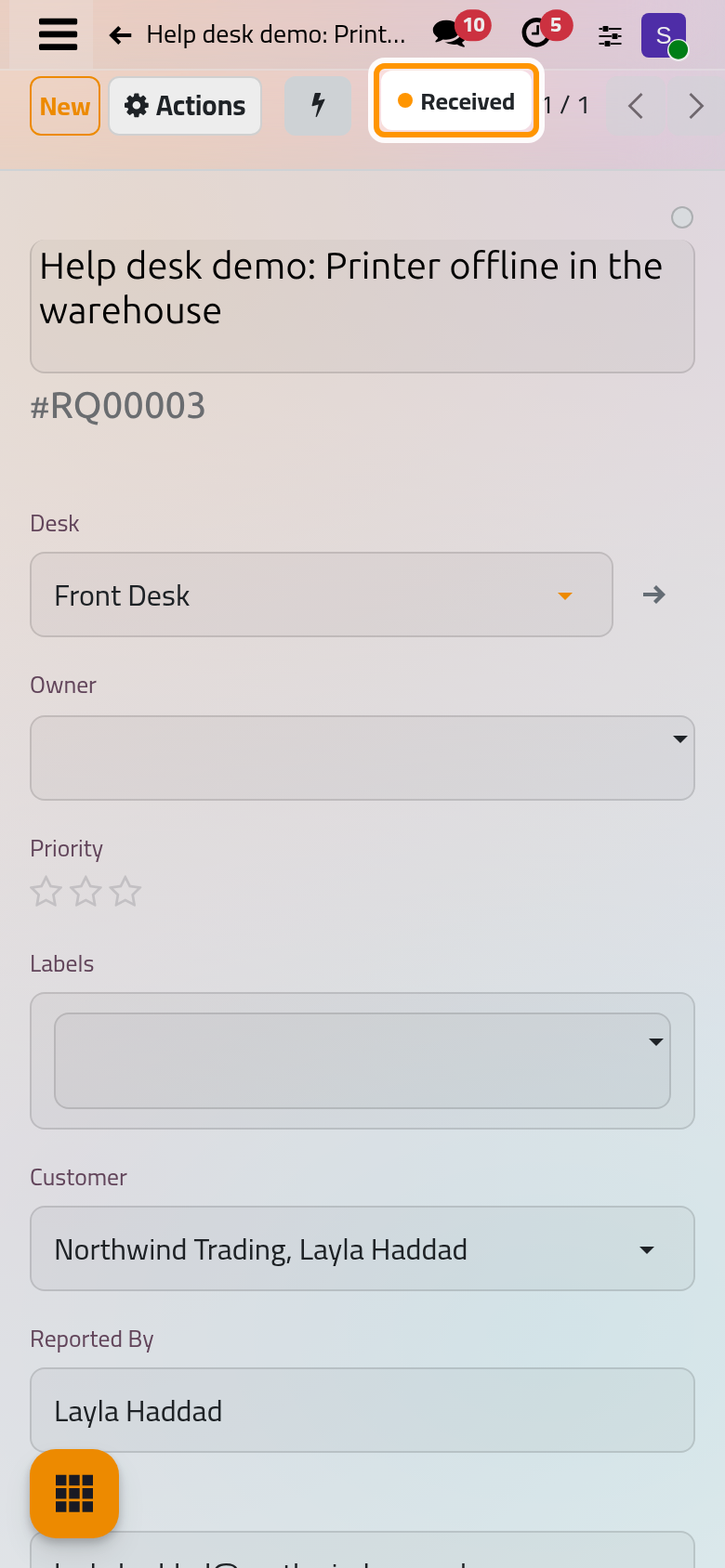
The Requests / Open button at the top counts the requests of the same customer, all of them and those still open, and lists them.
FAQ
The desk I need is not in the list. Why?
Its audience leaves you out, or it belongs to another company. An administrator sets the audience of a desk: Help Desk settings.
Can I open a request for someone who is not a contact yet?
Yes. Leave Customer empty and fill Reported By, Reply To and Phone. When you save, a contact that already has that e-mail address becomes the customer; otherwise the request keeps the name and the address, and the e-mails go to that address.
What happens if I move a request to another desk?
Change the Desk. The request takes the first stage of the new desk when its stage is not one of them, its service targets become those of the new desk, counted on its working hours, and an owner who is not eligible on the new desk is removed, with a note in the chatter.
Who sees the request I open?
Everyone who can see its desk, and its followers. How Help Desk works gives the rules.
Was this page helpful?
Thank you for your feedback.