Your first request
On this page
Help Desk turns each customer question into a request. Every request belongs to a desk: a queue with its own people, its own stages and its own rules. This walk-through follows one request on the Front Desk of the demo, from the moment a customer calls to the moment the desk counts it as wrapped up. It takes the shortest path; the pages it links to go further.
Before you start
- You need the User access right on Help Desk. The Administrator right adds the Configuration menu. Help Desk settings explains both.
- You see the desks whose audience includes you. The Front Desk is open to every internal user.
Step 1: find your desk on the Command Center
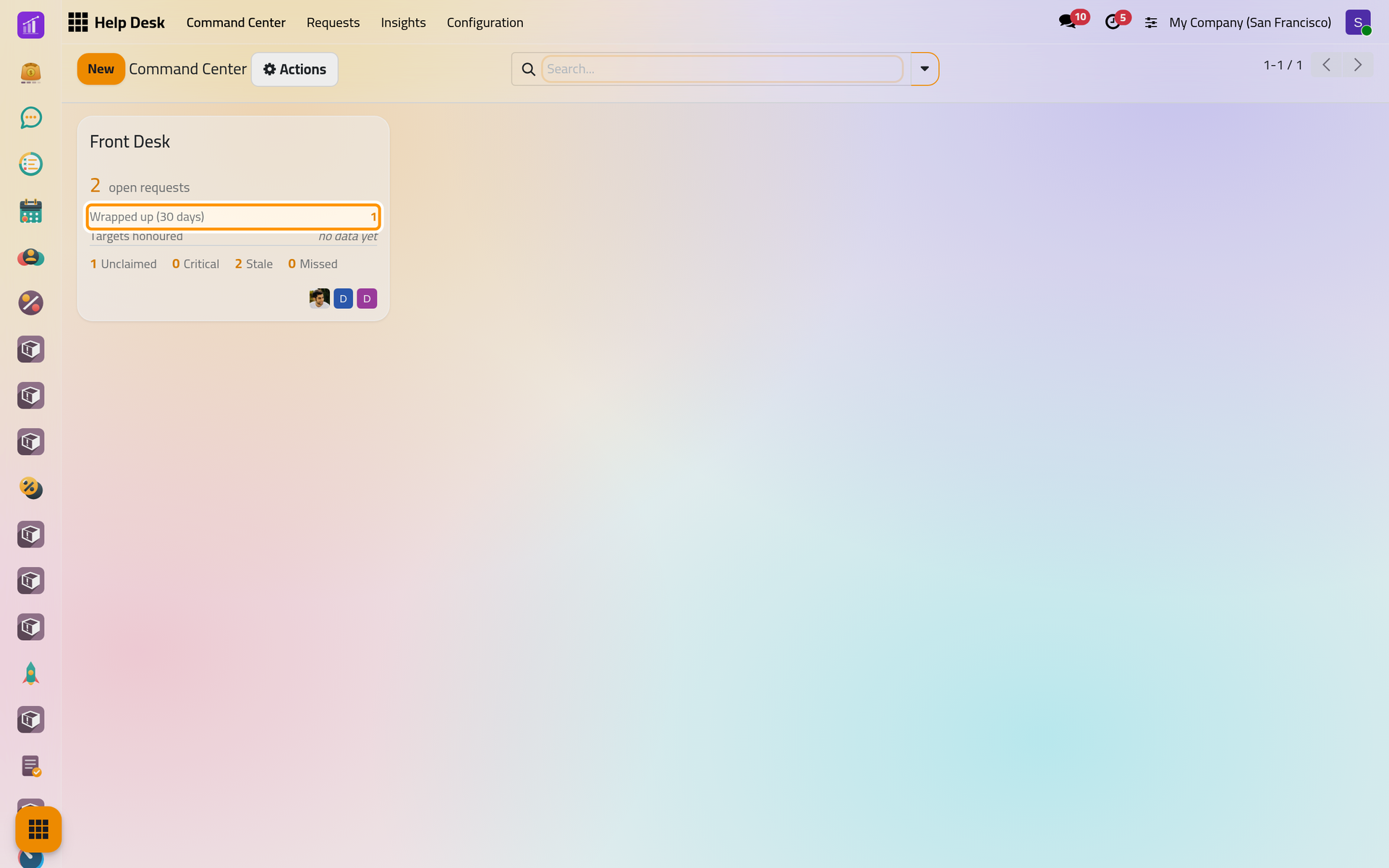
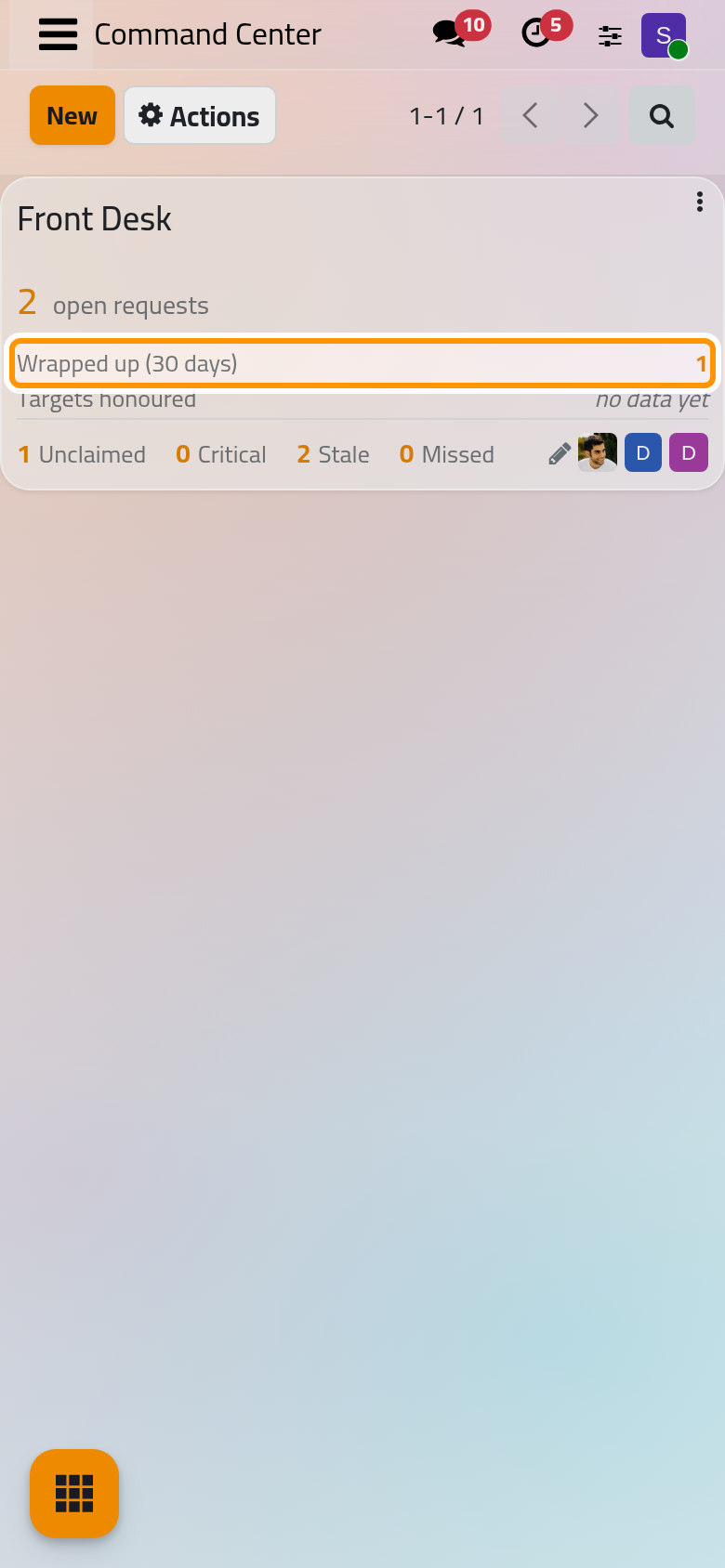
Open . Each desk has one card. The large figure counts its open requests. Below it, Wrapped up (30 days) counts the requests finished in the last 30 days, and Targets honoured gives the share of those that kept their service targets, or no data yet while none of them carried a target. The footer counts the open requests that are Unclaimed (nobody owns them), Critical, Stale and, when the desk measures targets, Missed, and shows the desk's agents.
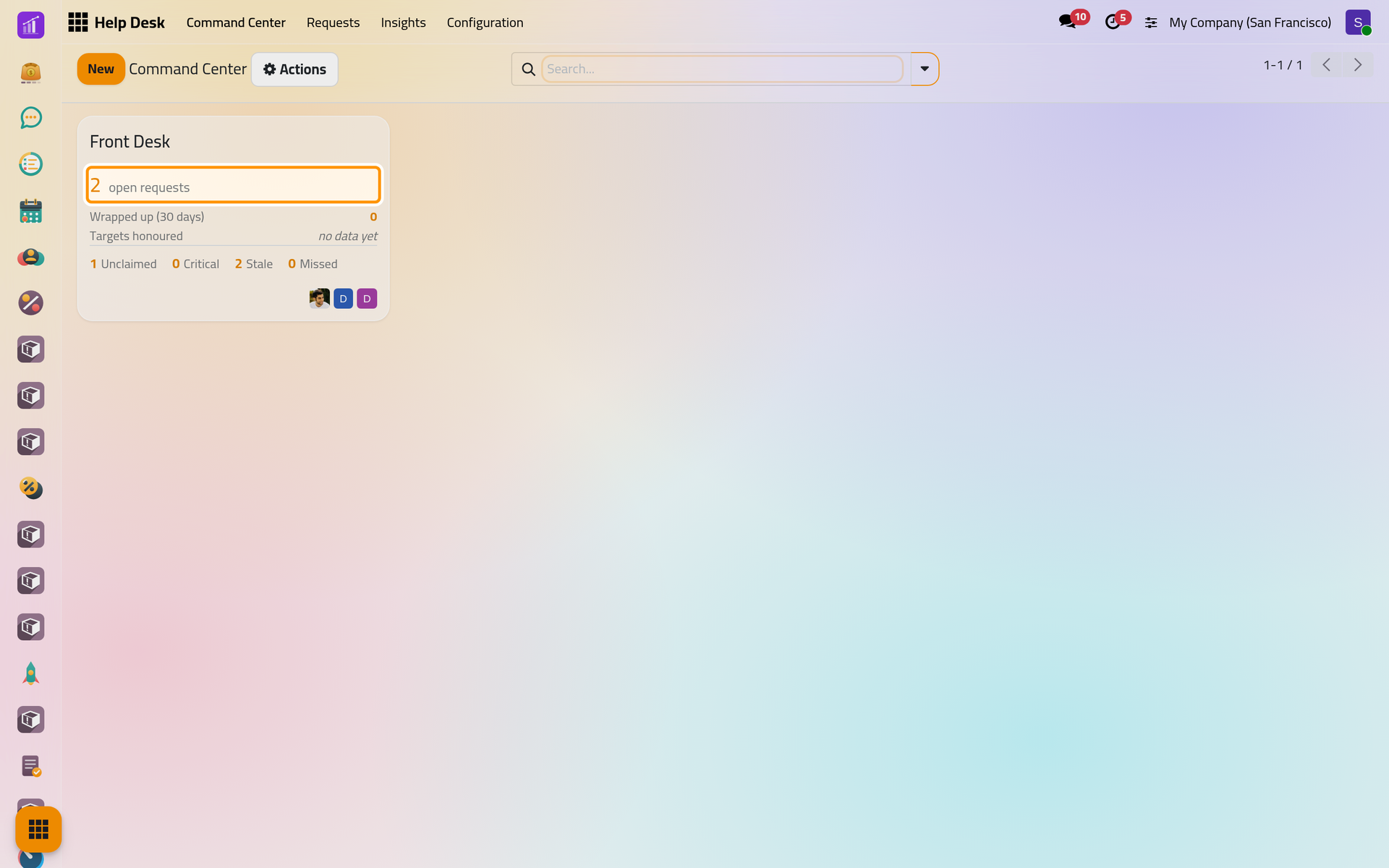
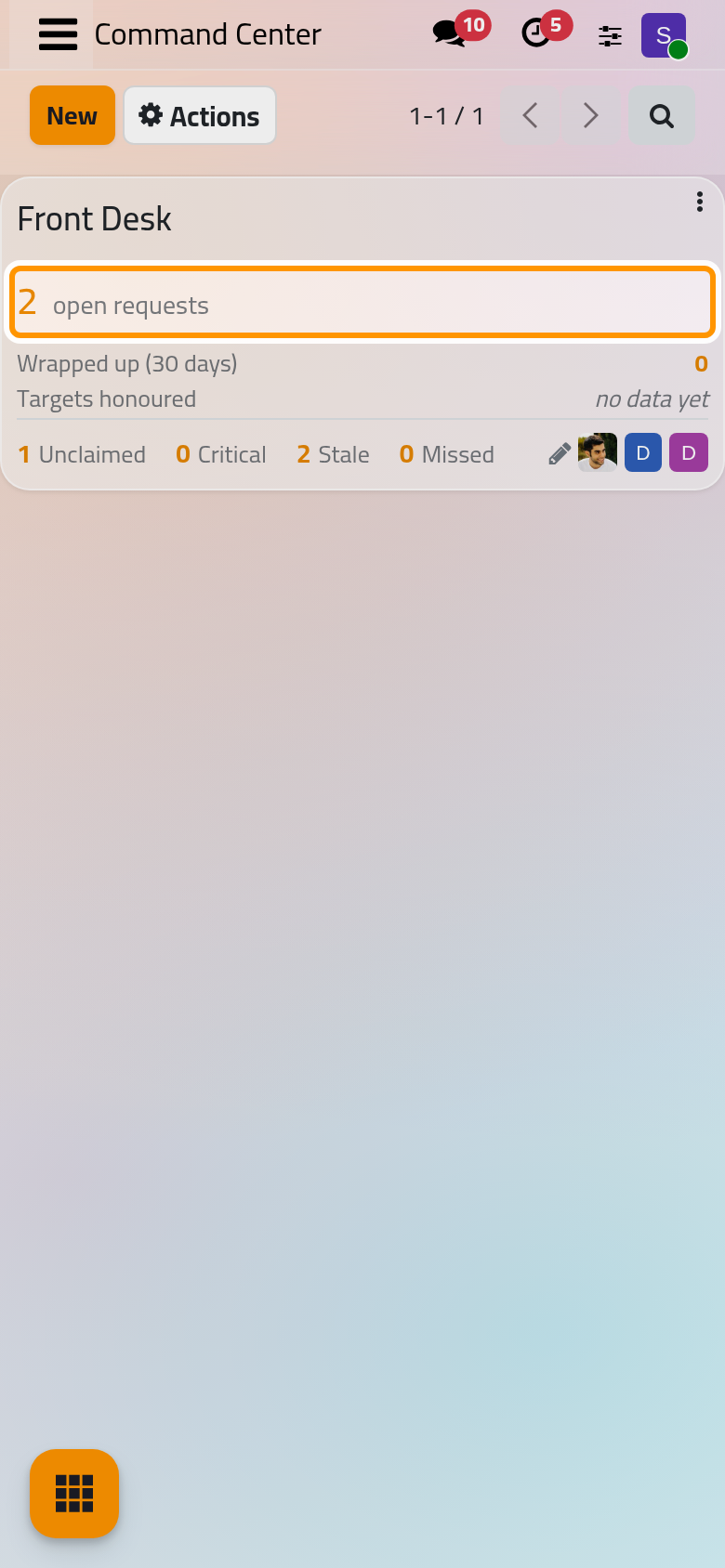
Every figure opens the requests behind it. The menu at the top right corner of the card, shown when you point at the card, opens the same lists, the analyses of the desk and, for administrators, its set-up.
Step 2: open the desk's board
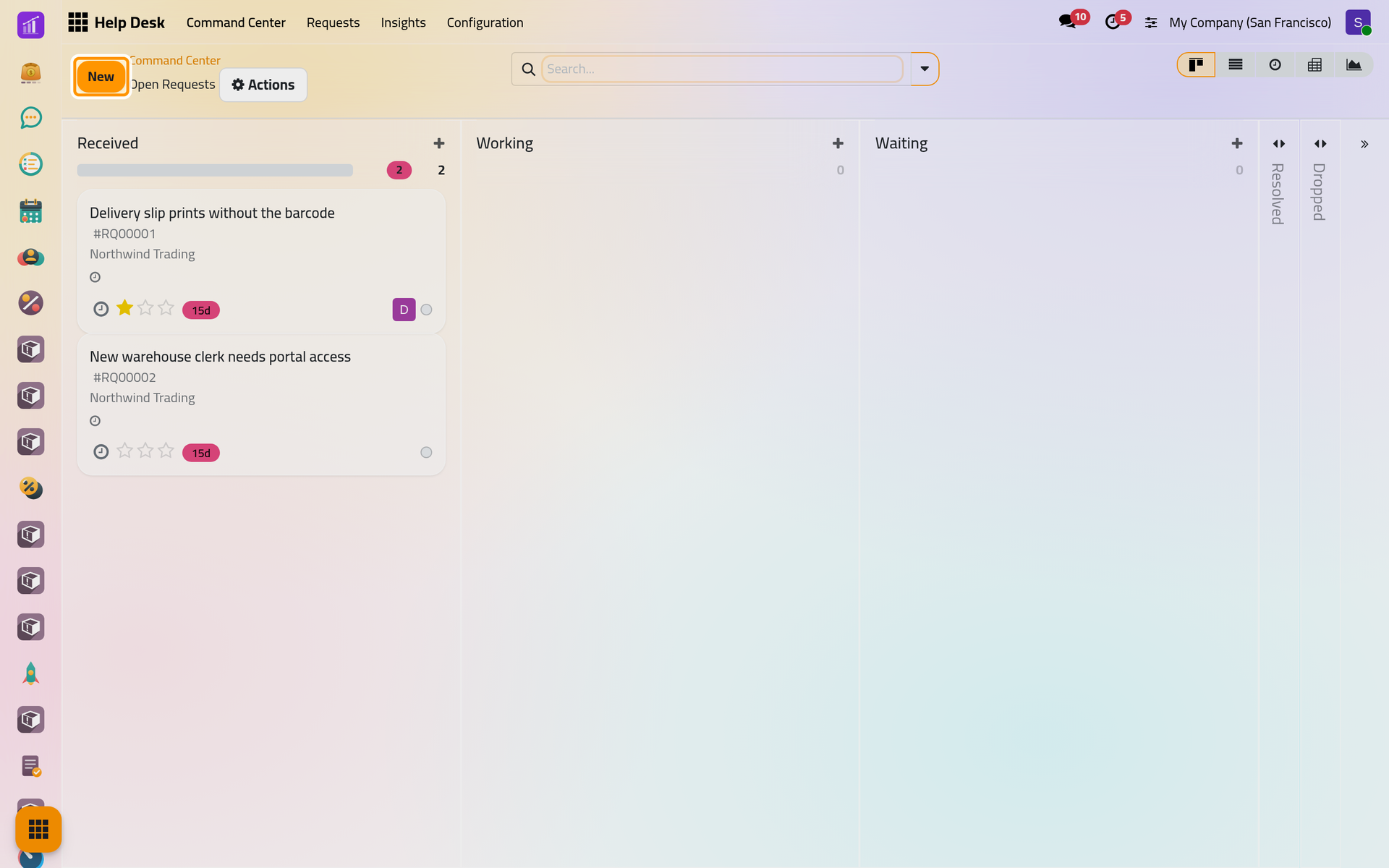
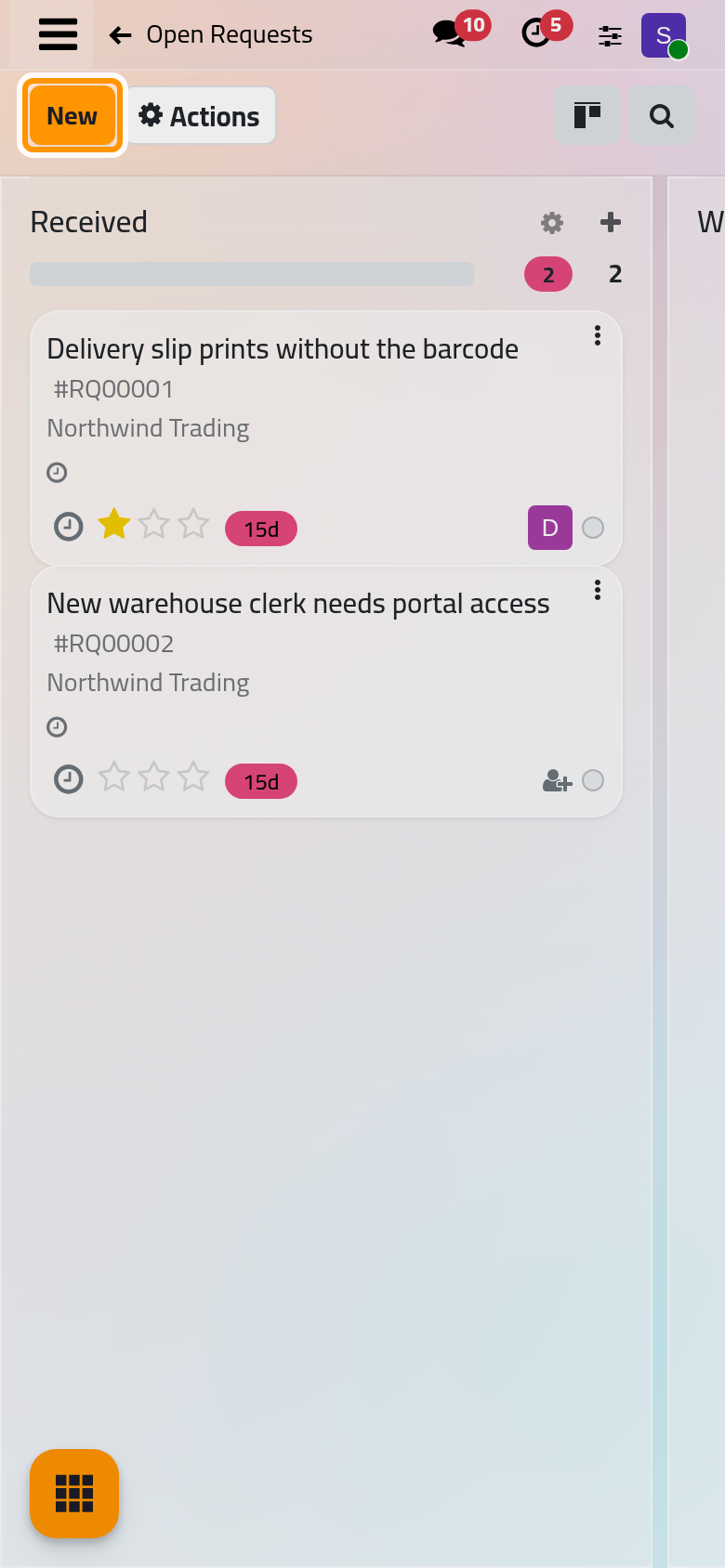
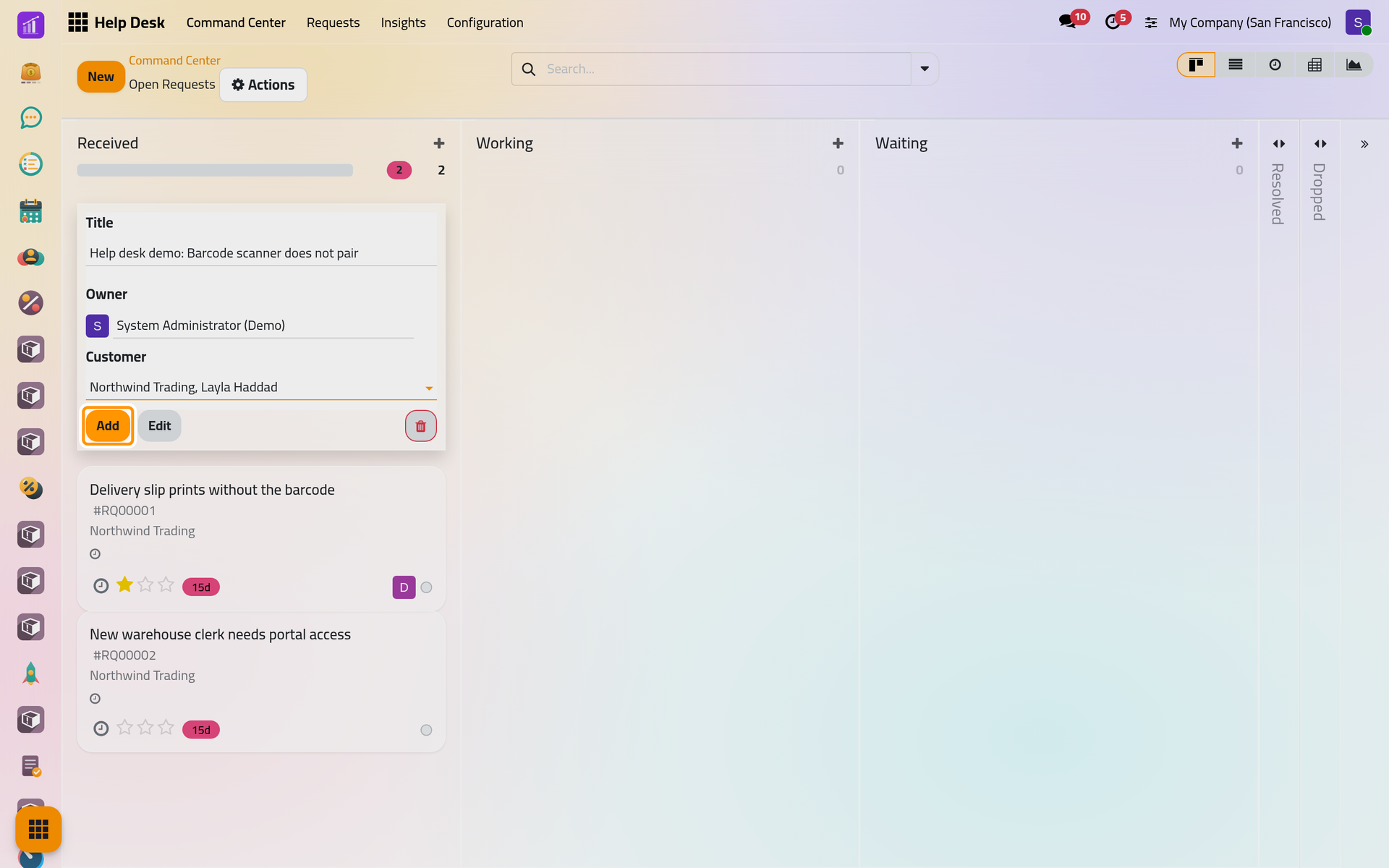
Click open requests. The board shows one column per stage of the desk. Received, Working and Waiting hold open requests; Resolved and Dropped are folded on the right, because a request there is finished. The heading of a column counts its cards, with a red count of those going stale; on a card, a red badge such as 15d gives the days the request has spent in its stage once that passes the limit of the stage.
Step 3: add a request
- Click New. A quick card opens at the top of the first column.
- Type the Title the way the customer put it, for example
Help desk demo: Barcode scanner does not pair. - Choose yourself as Owner, and the customer, here Layla Haddad, as Customer.
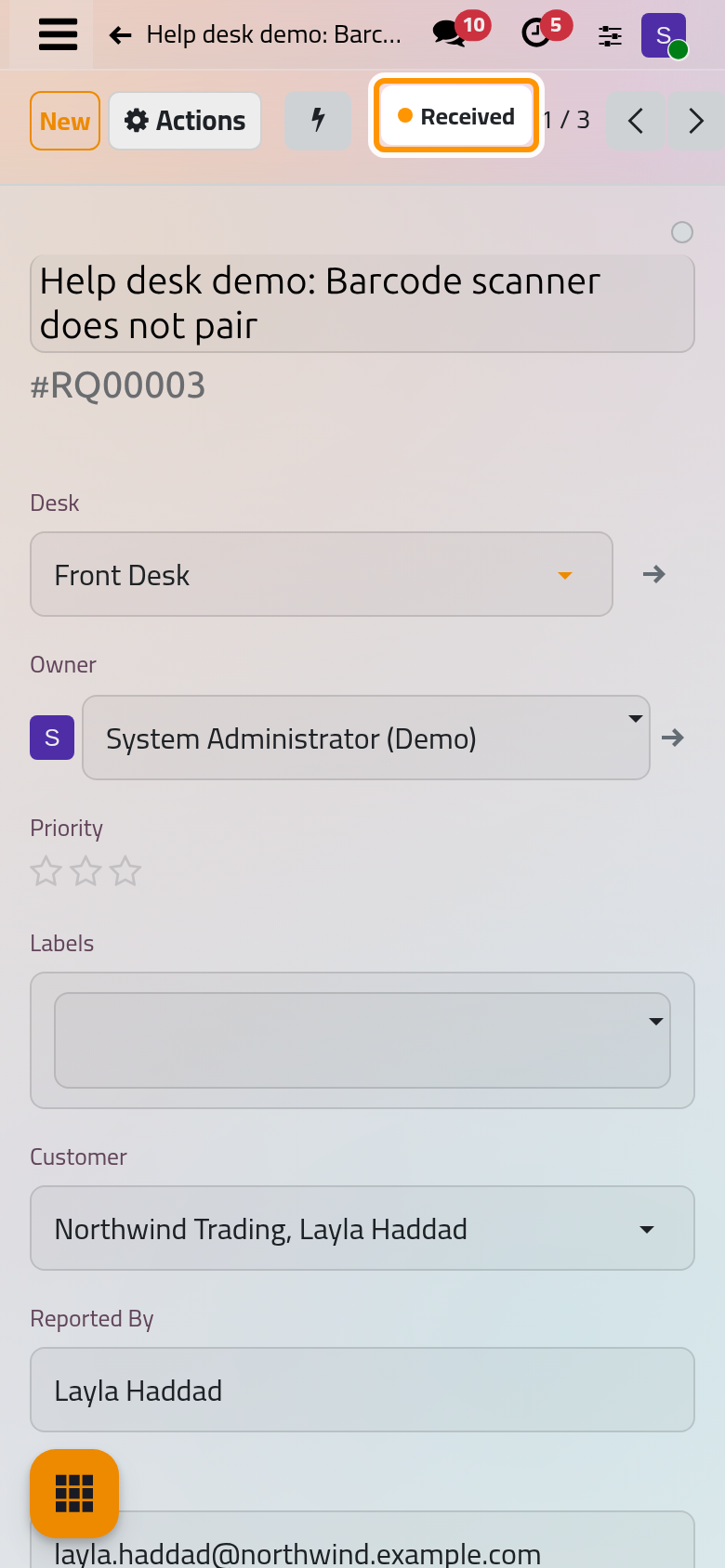
On a phone, the quick card opens at the top of the first column in the same way.
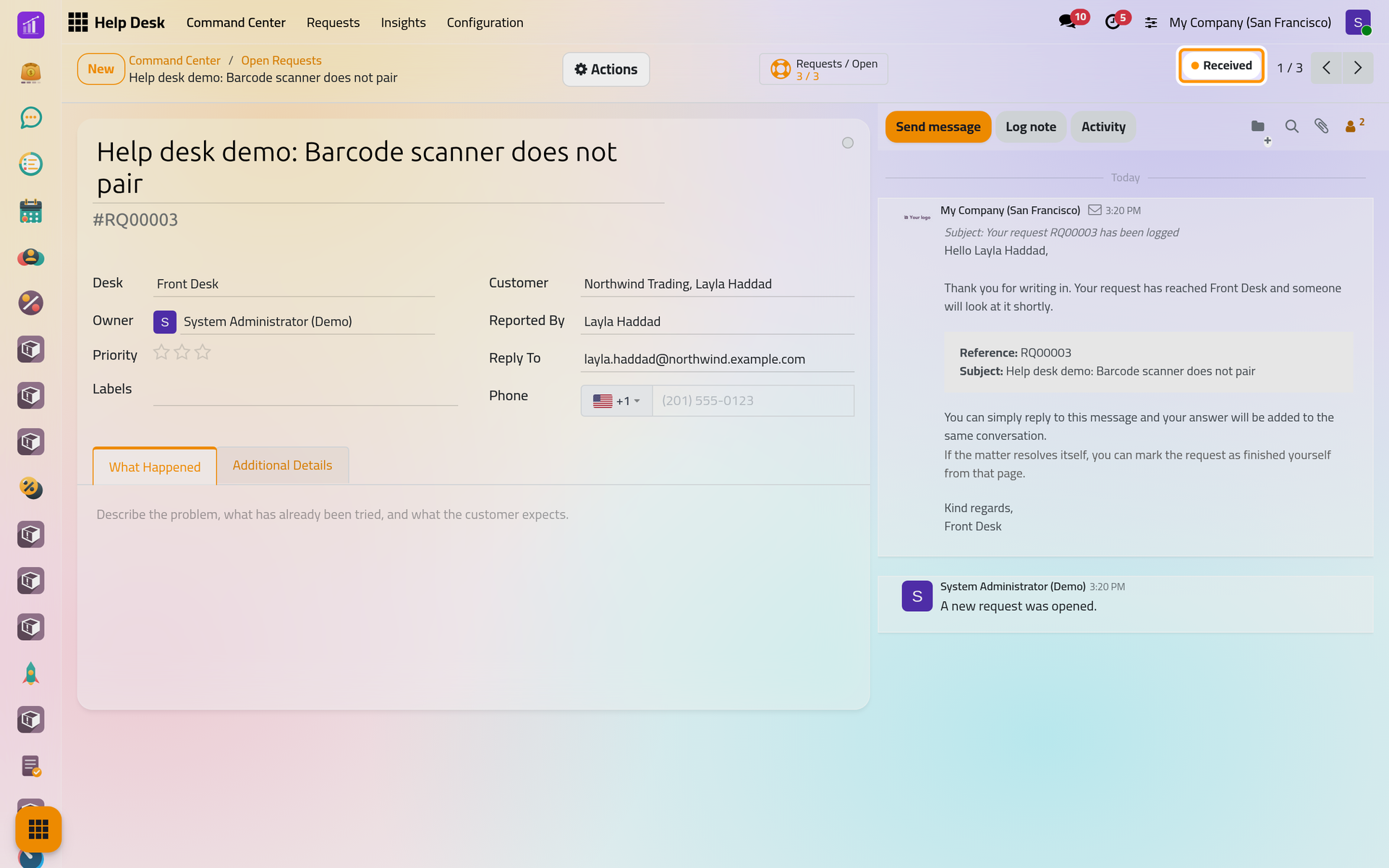
- Click Add. The card takes its place in Received with its reference, such as RQ00003. Because Received carries an arrival message, an acknowledgement is e-mailed to the customer and written in the chatter of the request.
The requests you own are always listed under .
Step 4: open the request
Click the card. On the left, the form shows the Desk, the Owner, the Priority stars and the Labels; on the right, the Customer, with Reported By, Reply To and Phone filled from the contact. The What Happened tab holds the description, Additional Details the dates. The stage sits at the top right.
Step 5: work on it
- Click the stage, Received, and choose Working. The move is recorded in the chatter.
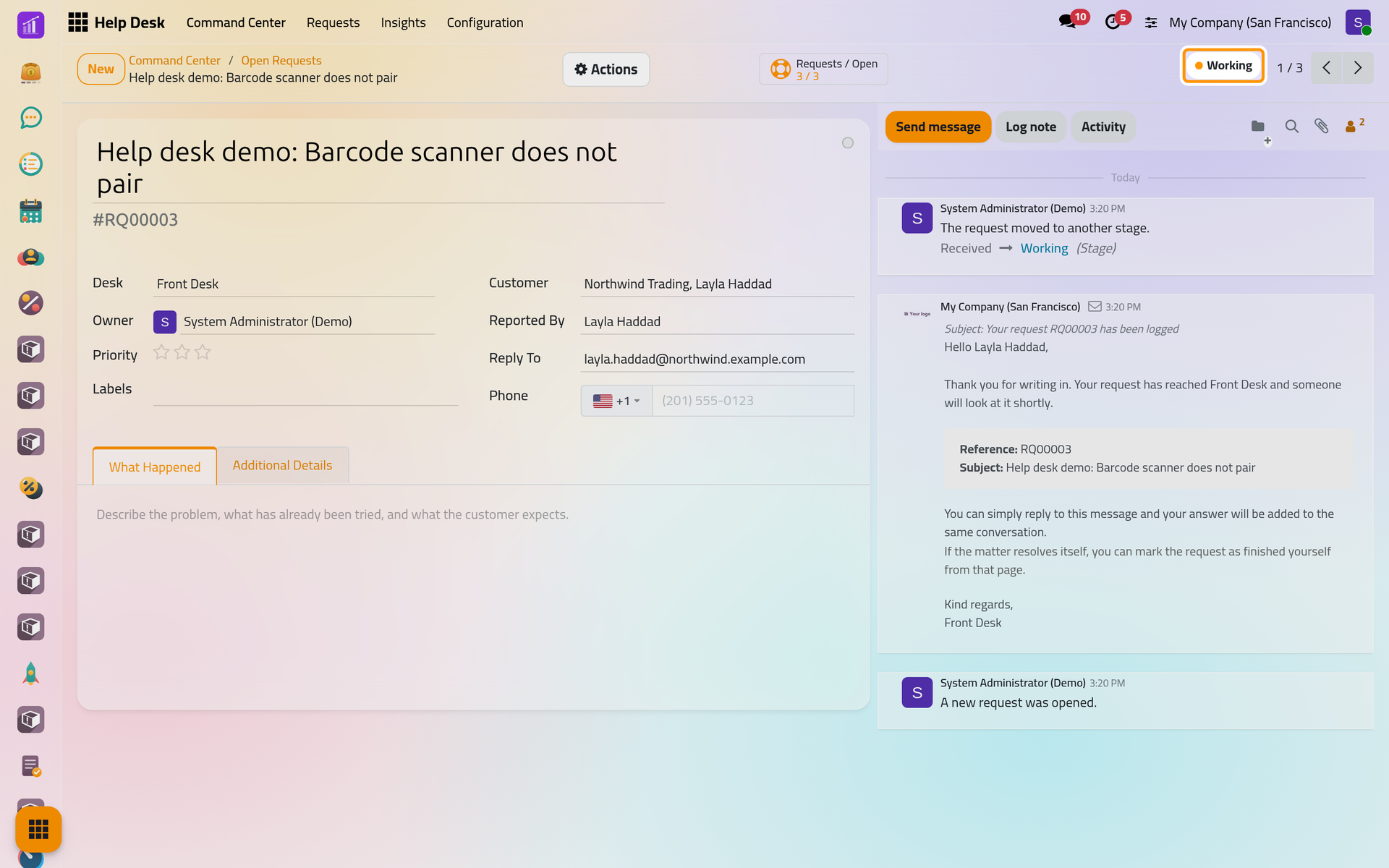
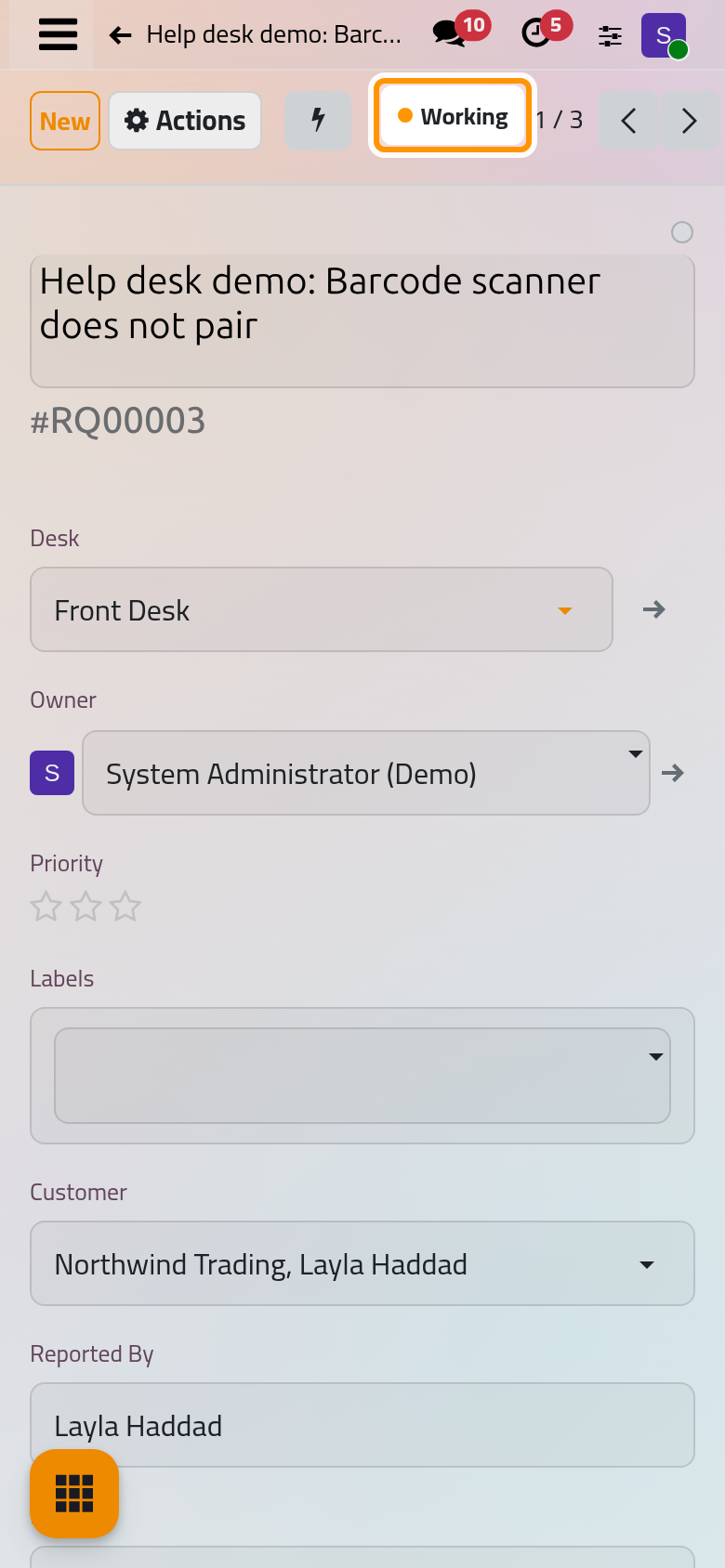
- Answer the customer with Send message: the message is e-mailed, and the reply of the customer comes back into the same conversation. Keep internal remarks in Log note. Follow a record with the chatter explains the chatter.
- While you wait for the customer, move the request to Waiting the same way, and back to Working when the answer arrives.
Step 6: wrap it up
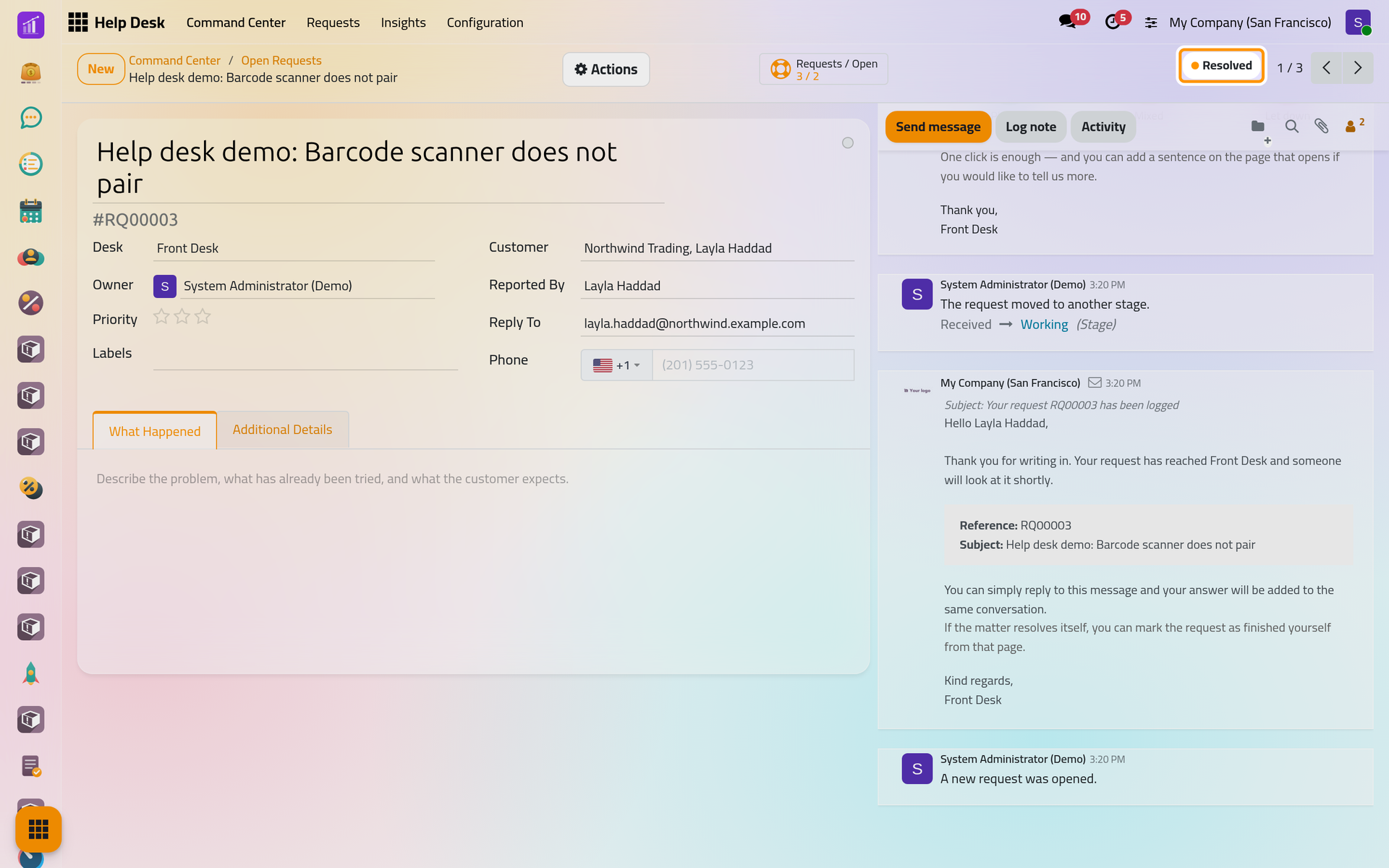
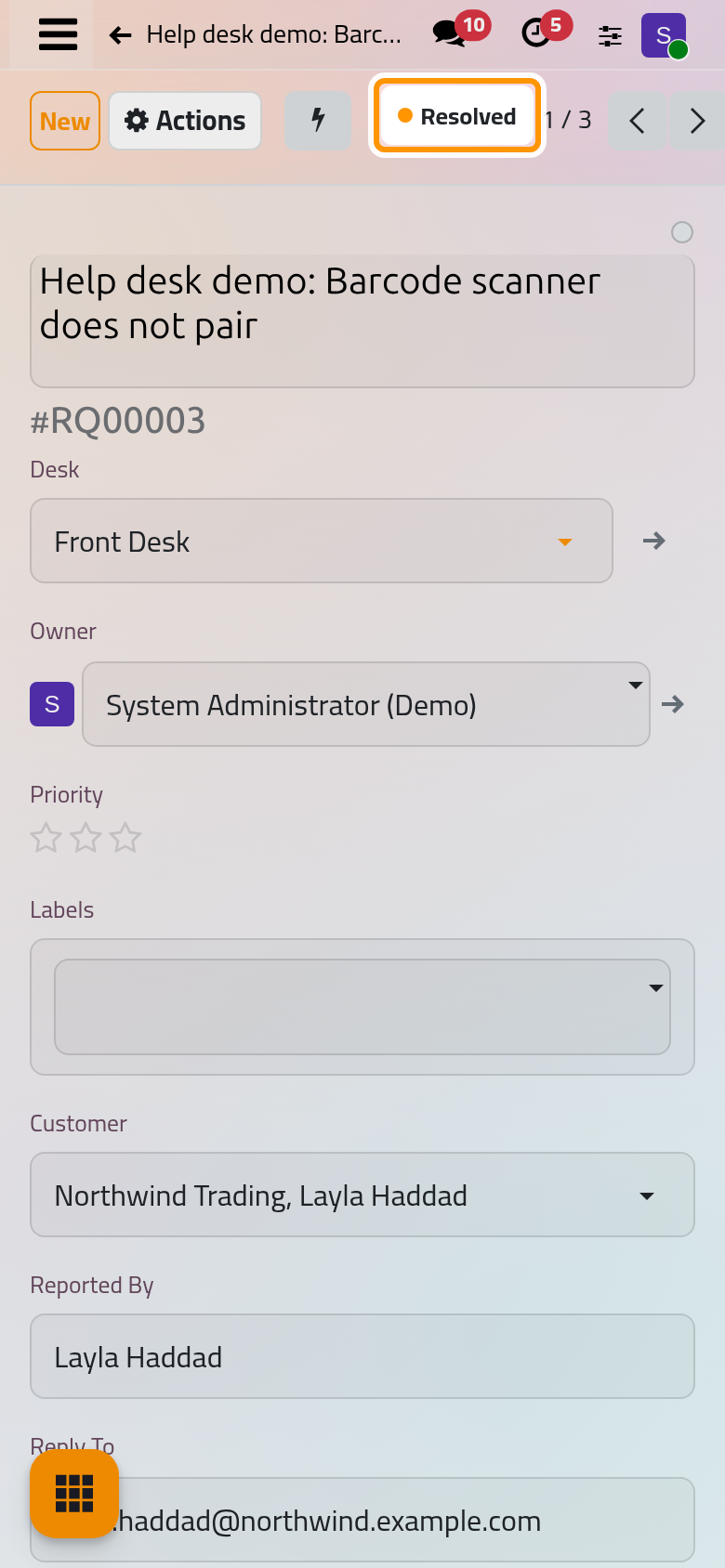
Click the stage and choose Resolved. The request is wrapped up: the desk e-mails the customer a closing notice and, because the Front Desk collects feedback, a short satisfaction request, both written in the chatter. If the customer answers the closing notice, the request opens again in the stage it left.
Step 7: see the desk's figures change
Open again. Wrapped up (30 days) now counts your request.
What you have done
You found your desk, added a request from its board, took it on, worked on it and wrapped it up, and saw the desk count it. Open a request for a customer uses the full form, Move a request through the pipeline covers the stages and the progress flag, and Set service targets puts a clock on requests. How Help Desk works explains desks, stages, owners and targets together.
Was this page helpful?
Thank you for your feedback.