Help Desk settings
On this page
- Before you start
- Who Sees This Desk
- Where New Requests Land
- How Requests Reach You
- Promises and Feedback
- What Customers Can Do Themselves
- Default Desk
- Stages, labels and reply snippets
- Access rights
- FAQ
- Why does a box in the desk form have no label?
- Why can't I delete a stage?
- Can I start a new desk from an existing one?
Help Desk has no settings screen of its own: each desk carries its options on the Desk Setup tab of its form, reached from or from Configure in the menu of its card on the Command Center.
Before you start
- You need the Administrator access right on Help Desk, and for the Default Desk the right to manage the settings.
- Click the cloud icon Save manually to apply a change.
Who Sees This Desk
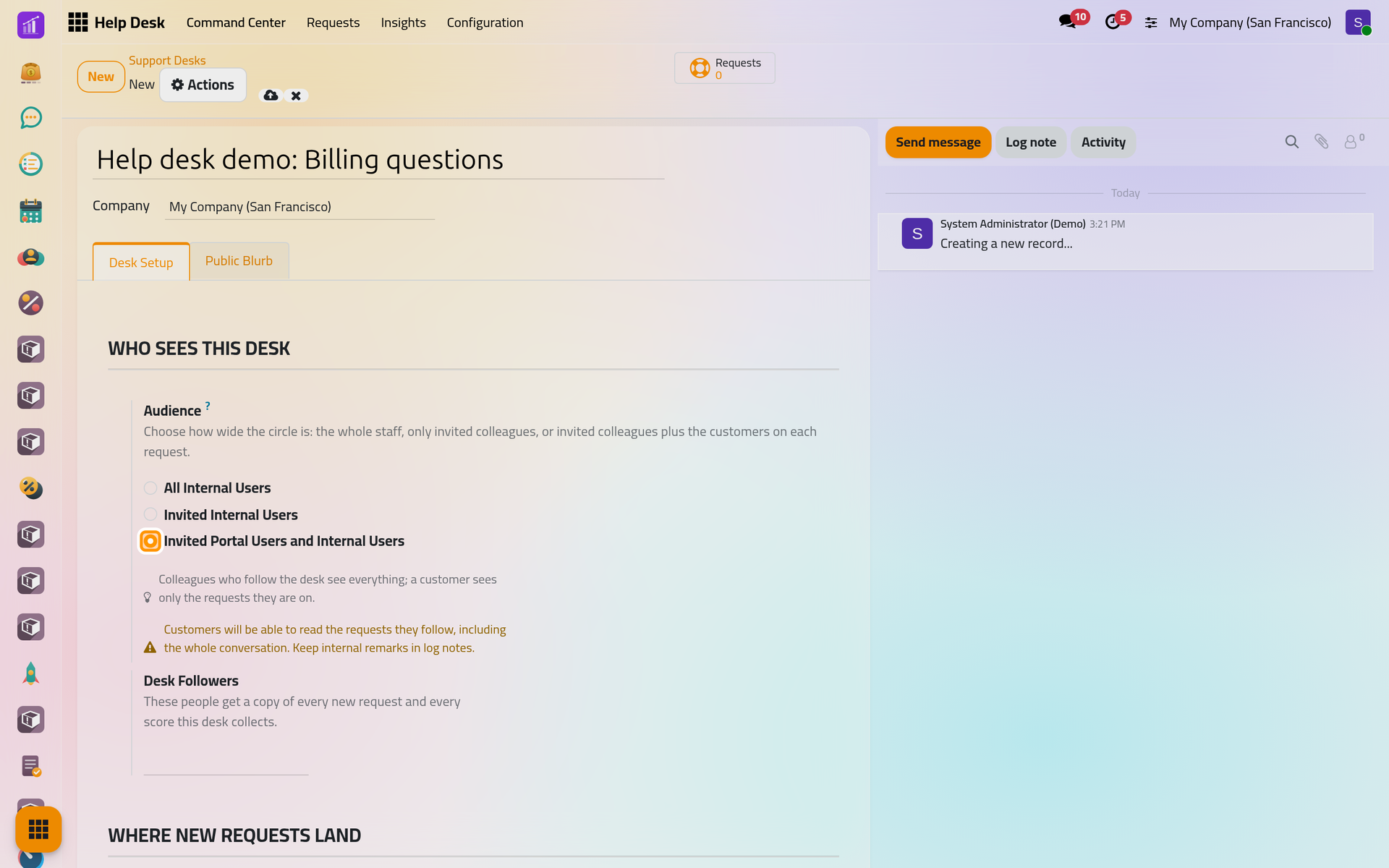
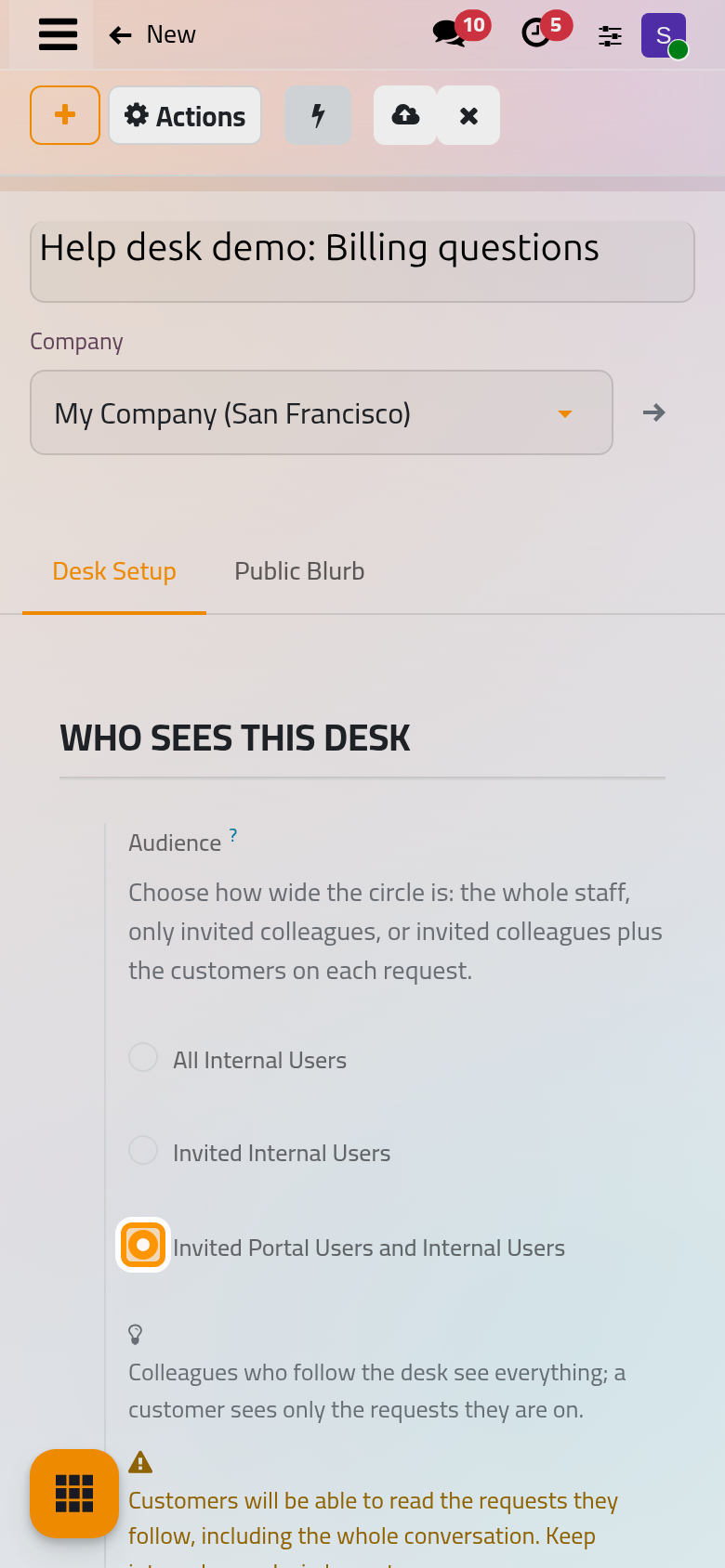
Audience decides who reaches the desk: All Internal Users; Invited Internal Users, who follow the desk or one of its requests; or Invited Portal Users and Internal Users, which also lets each customer read their requests, conversation included. The Desk Followers receive every new request and every score.
Where New Requests Land
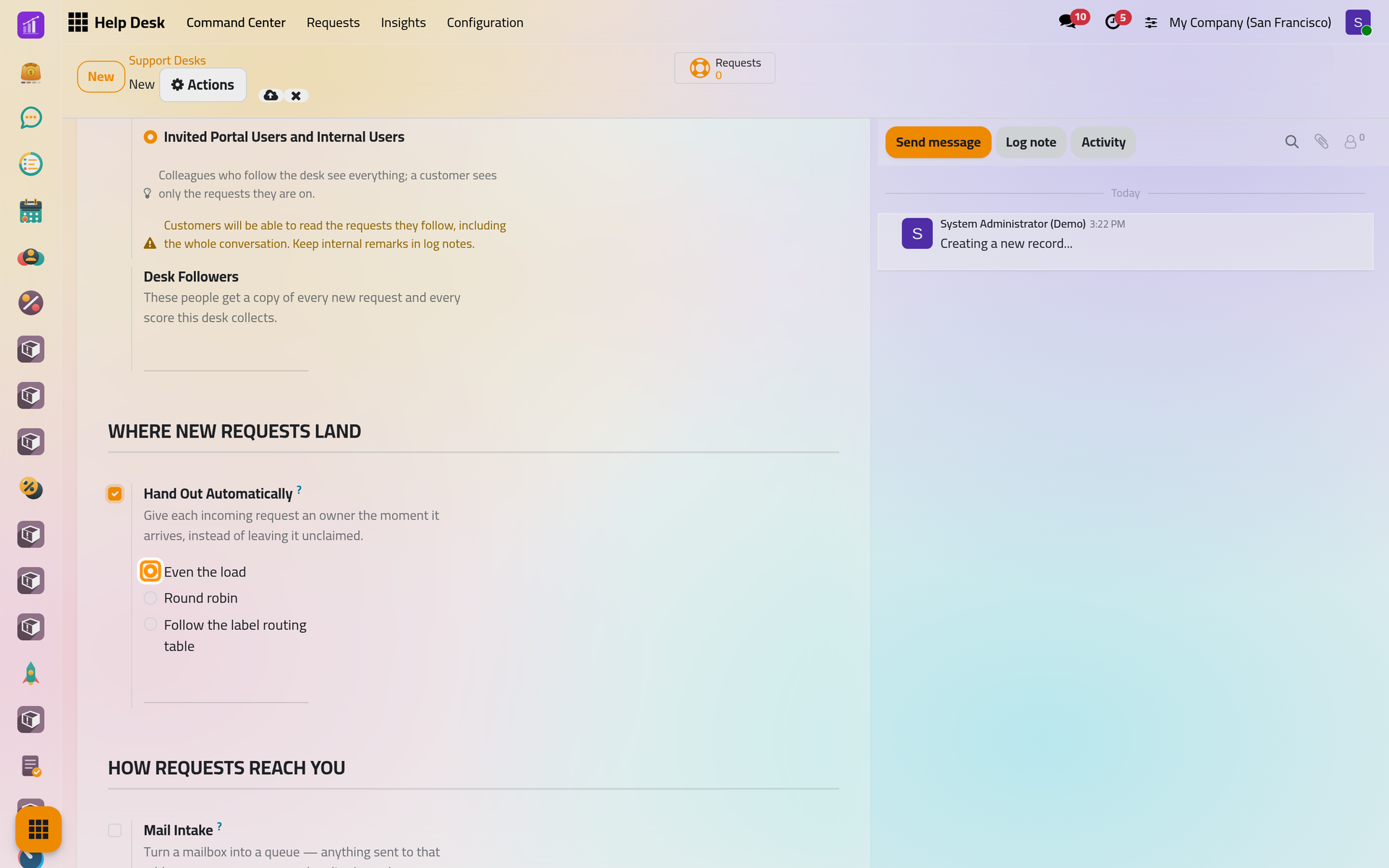
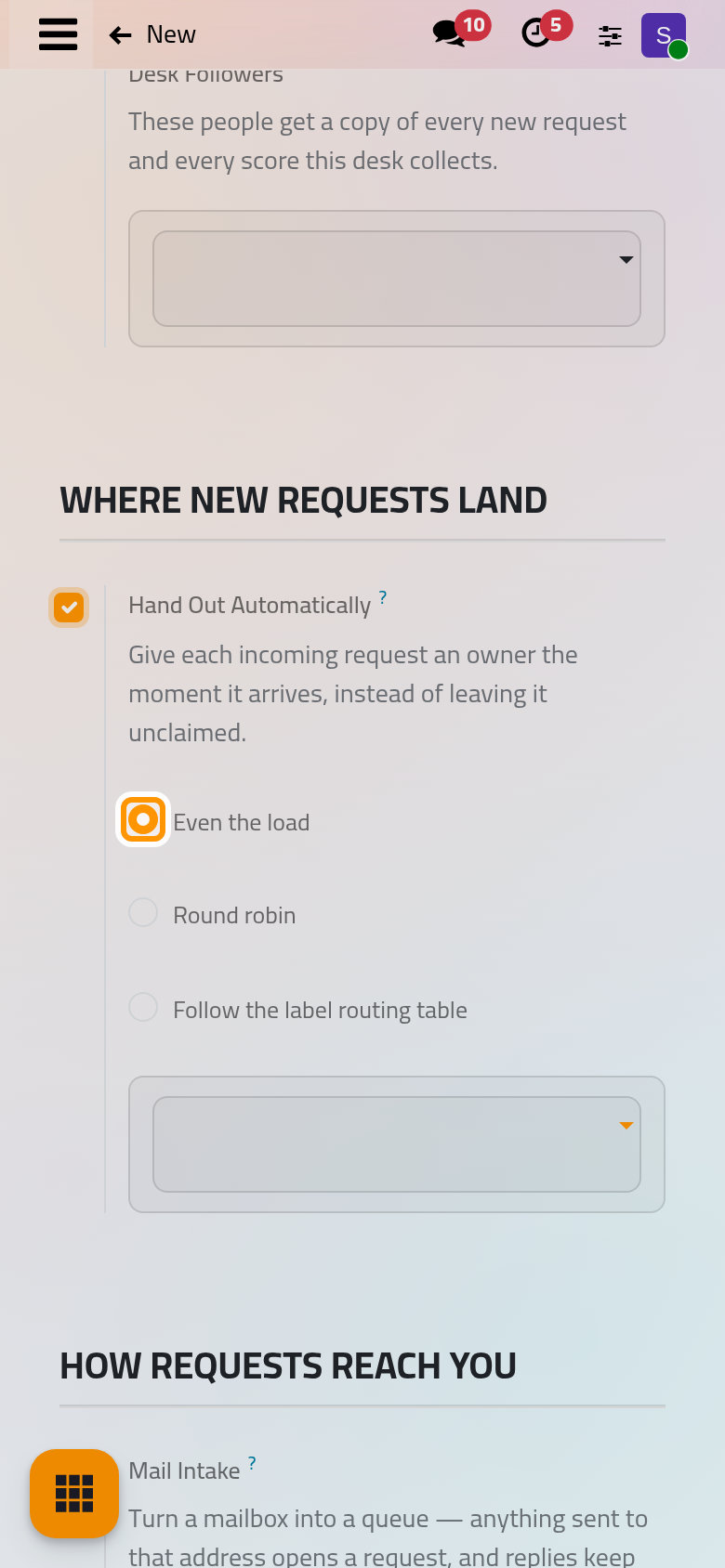
Hand Out Automatically gives each new request an owner as it arrives: Even the load picks the agent with the fewest open requests, Round robin takes the agents in turn, Follow the label routing table applies the first rule matching a label of the request. Choose the agents in the box without a label under the choices, or open the rules with Edit the label routing table.
How Requests Reach You
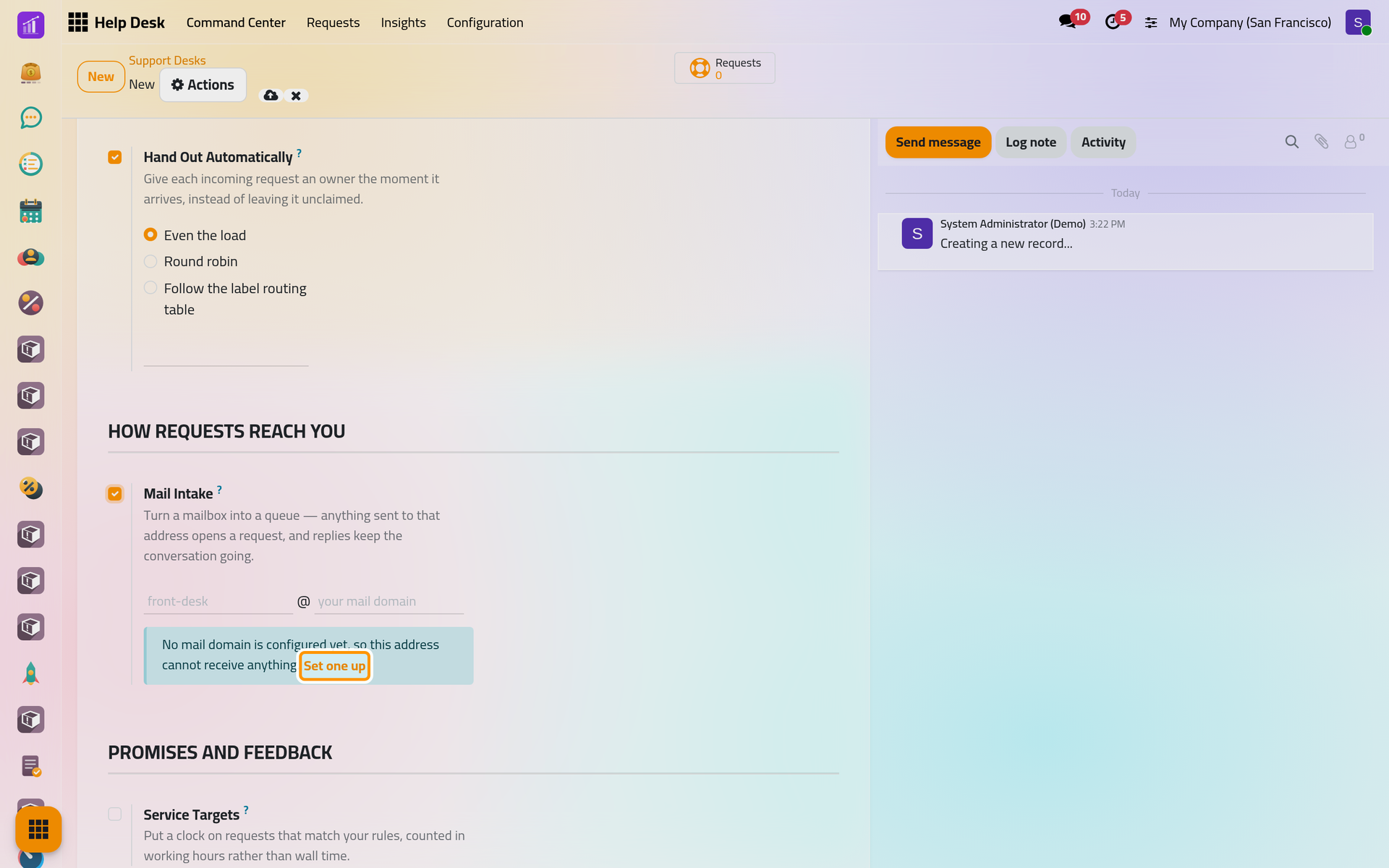
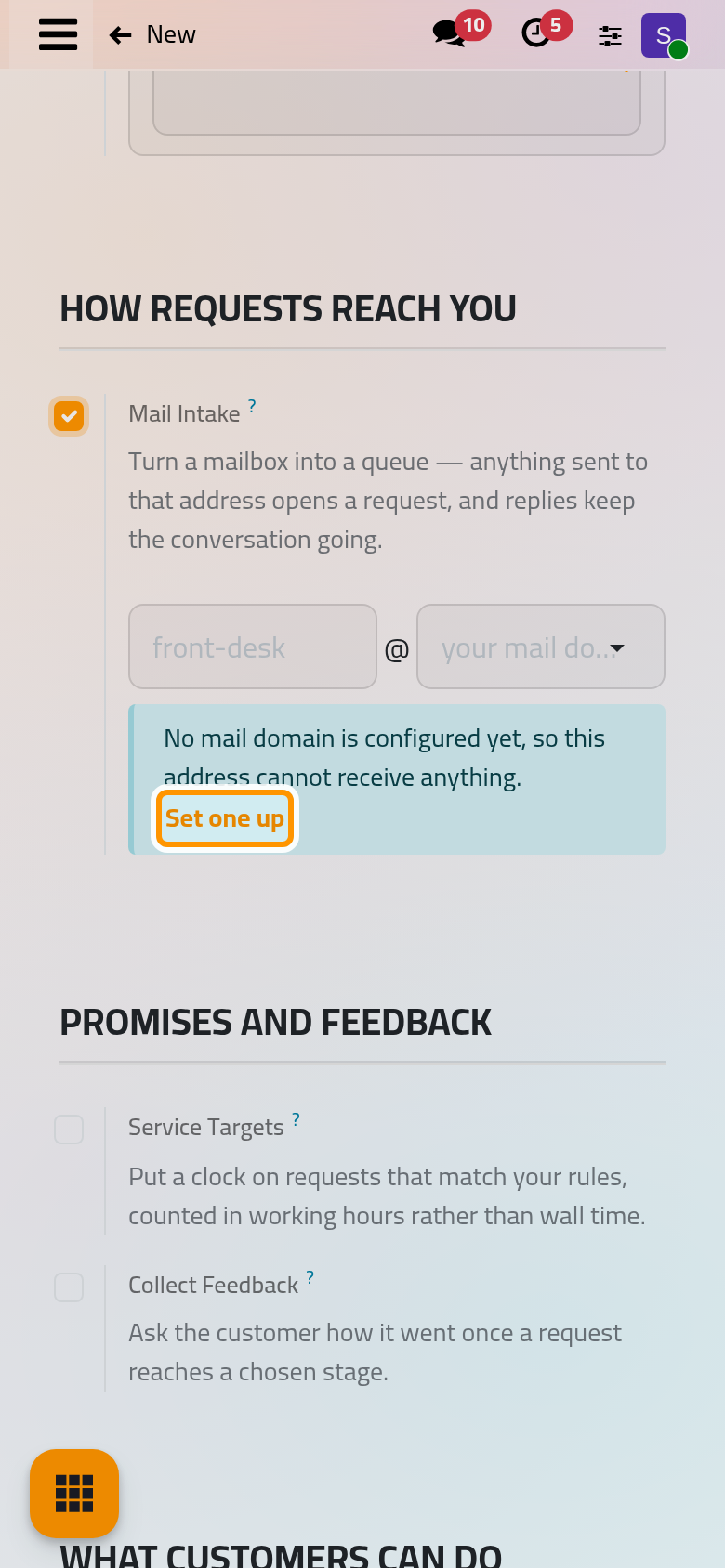
Mail Intake turns an address into a queue: type the name before the @ and choose the mail domain. Every e-mail sent there opens a request; replies continue the same conversation. Set one up appears while the database has no mail domain: Email servers.
Promises and Feedback
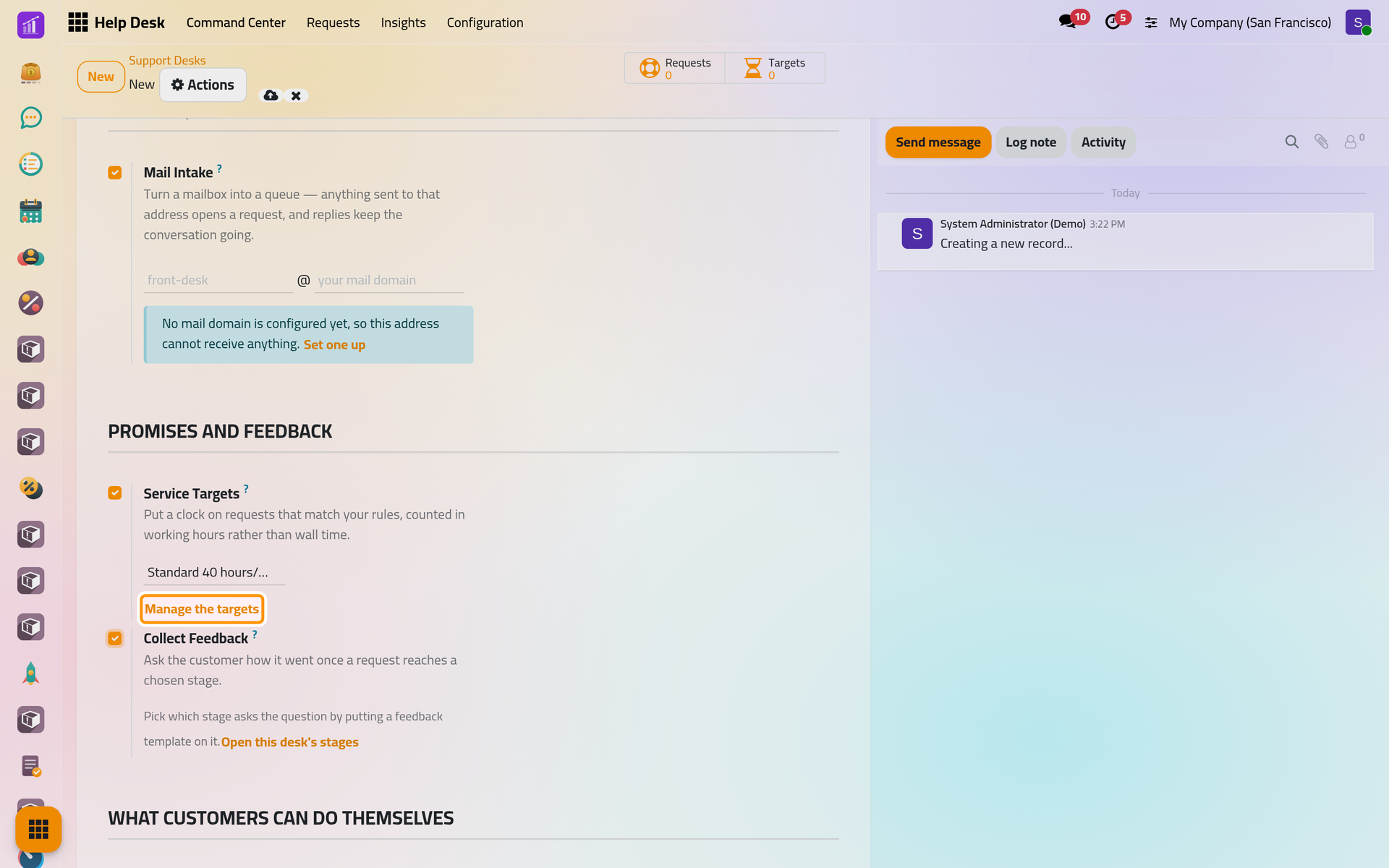
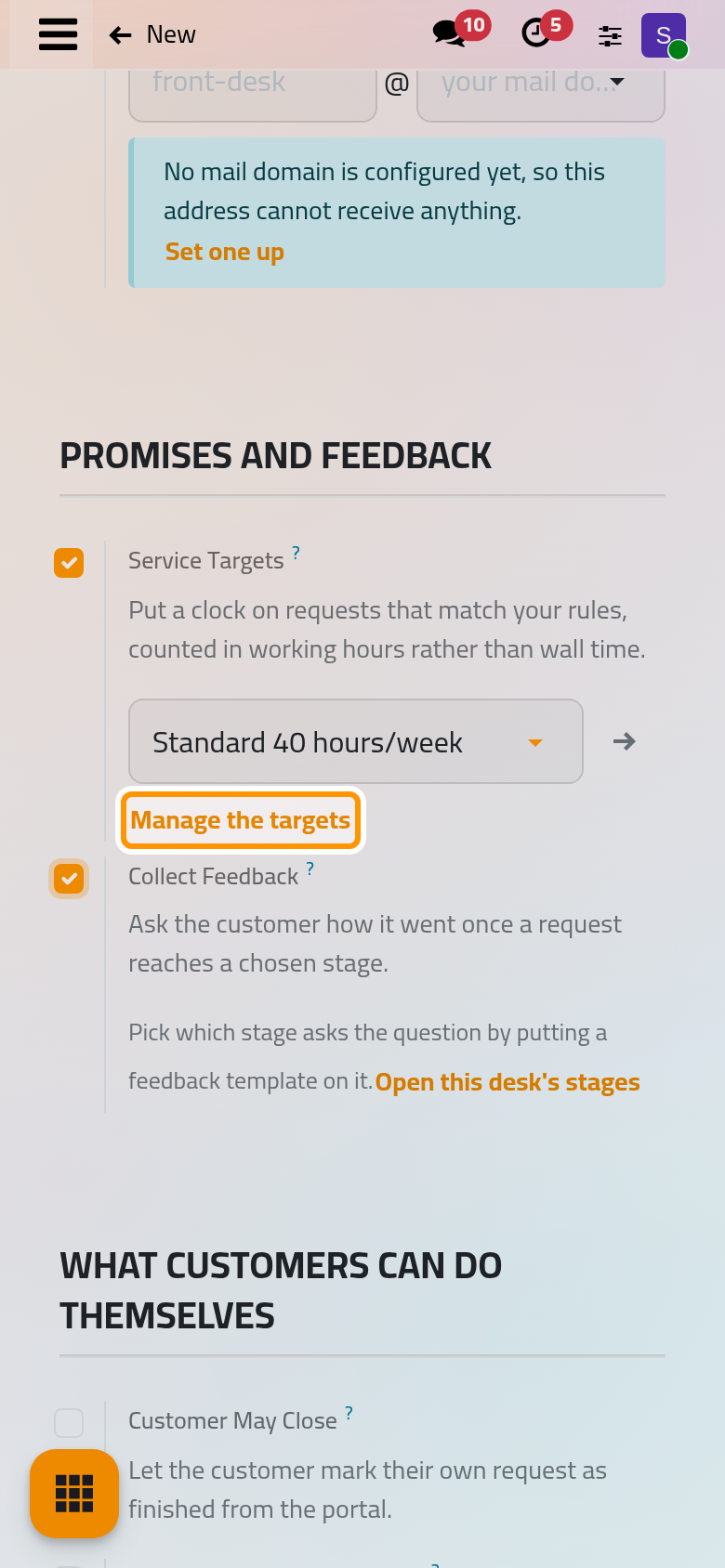
- Service Targets puts clocks on the requests; the box under it holds the working calendar they count on: Set service targets.
- Collect Feedback asks the customer how it went when a request reaches a stage with a Feedback Request template.
Switching one of these, or the hand-out, on for any desk shows its menus to every Help Desk user.
What Customers Can Do Themselves
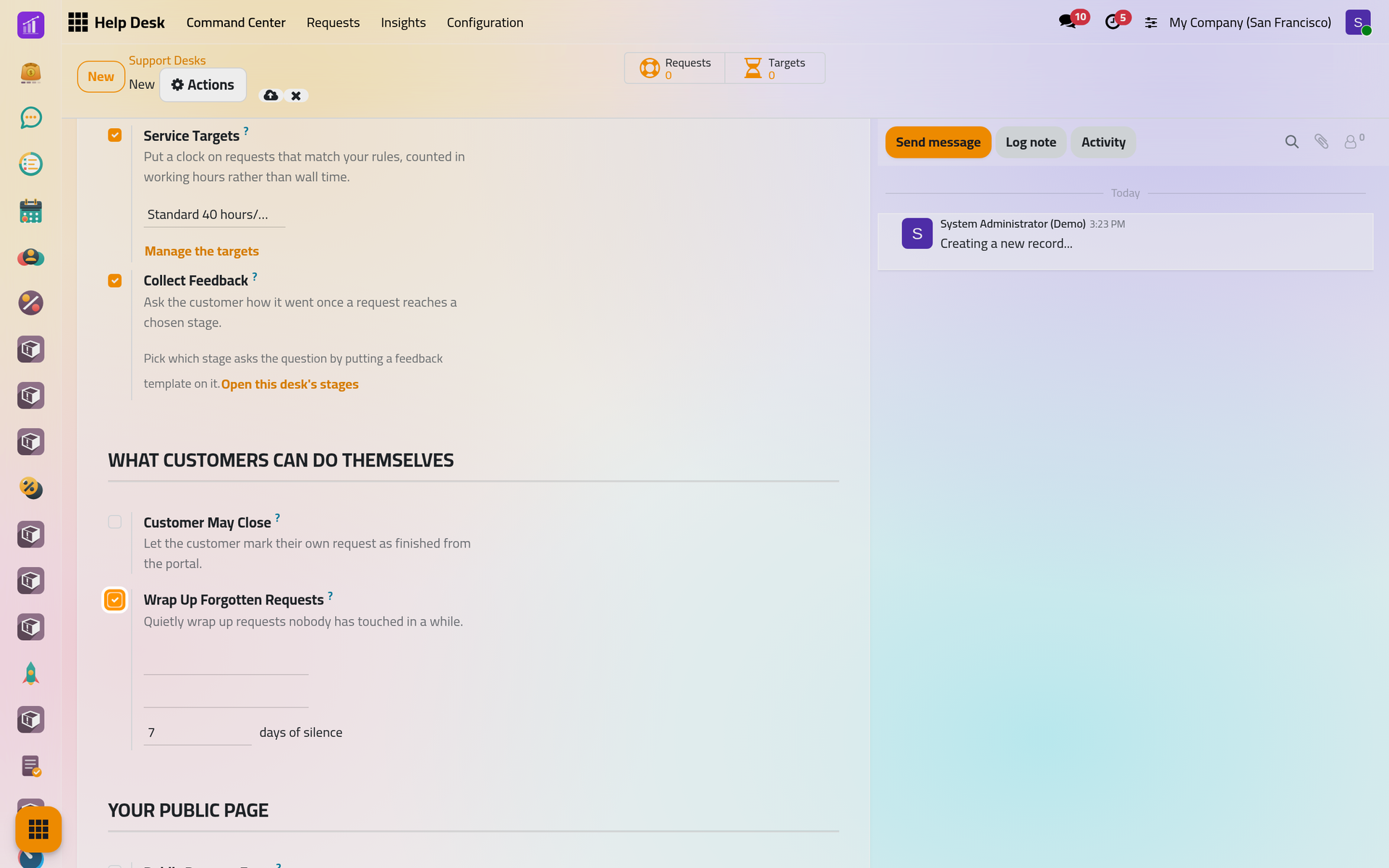
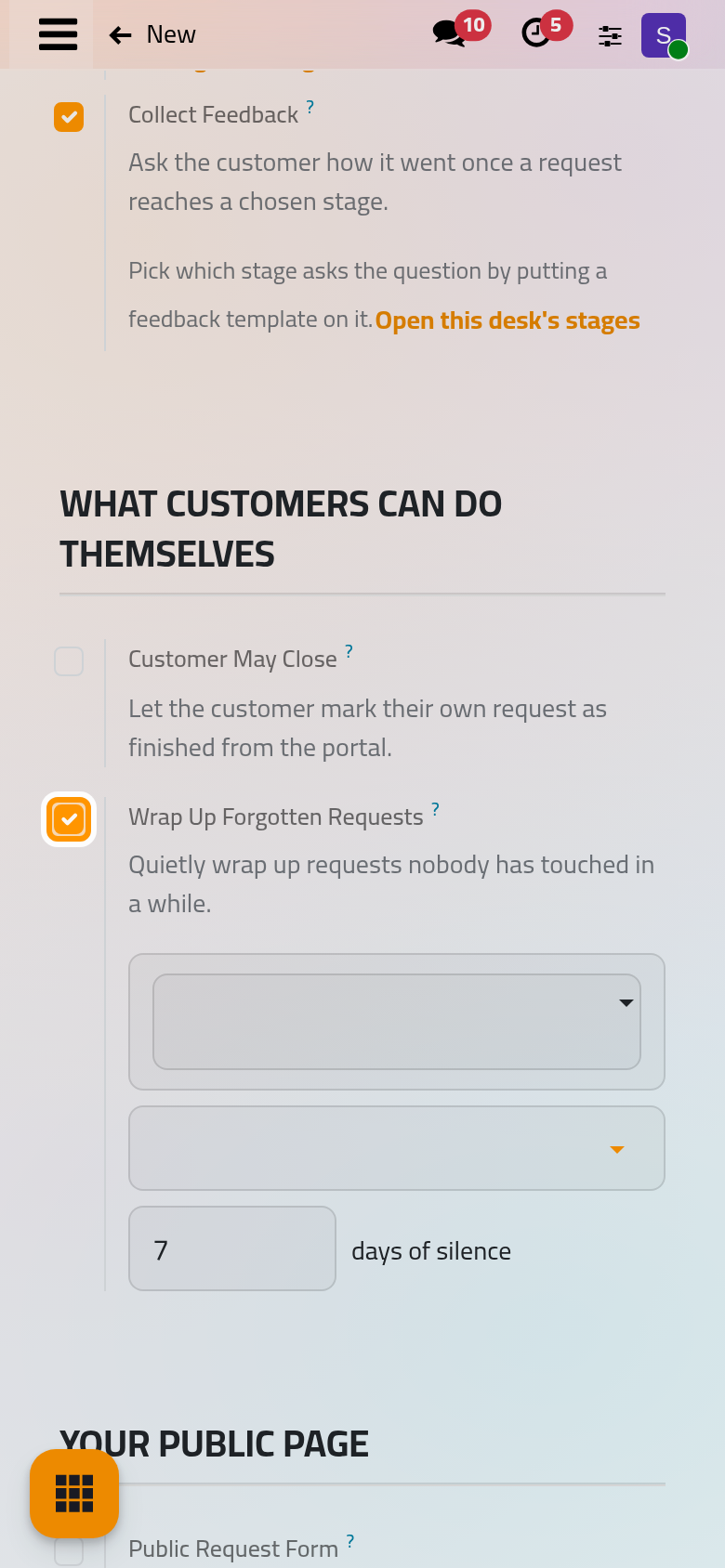
- Customer May Close lets the customer mark a request as finished from the portal.
- Wrap Up Forgotten Requests moves to a wrap-up stage the open requests whose stage has not changed for a number of days of silence (7 by default); messages on the request do not reset that count. Of the two boxes without a label, the first limits it to some stages, the second is the stage to move them to: Help Desk automations.
Your Public Page: Take requests from the website.
Default Desk
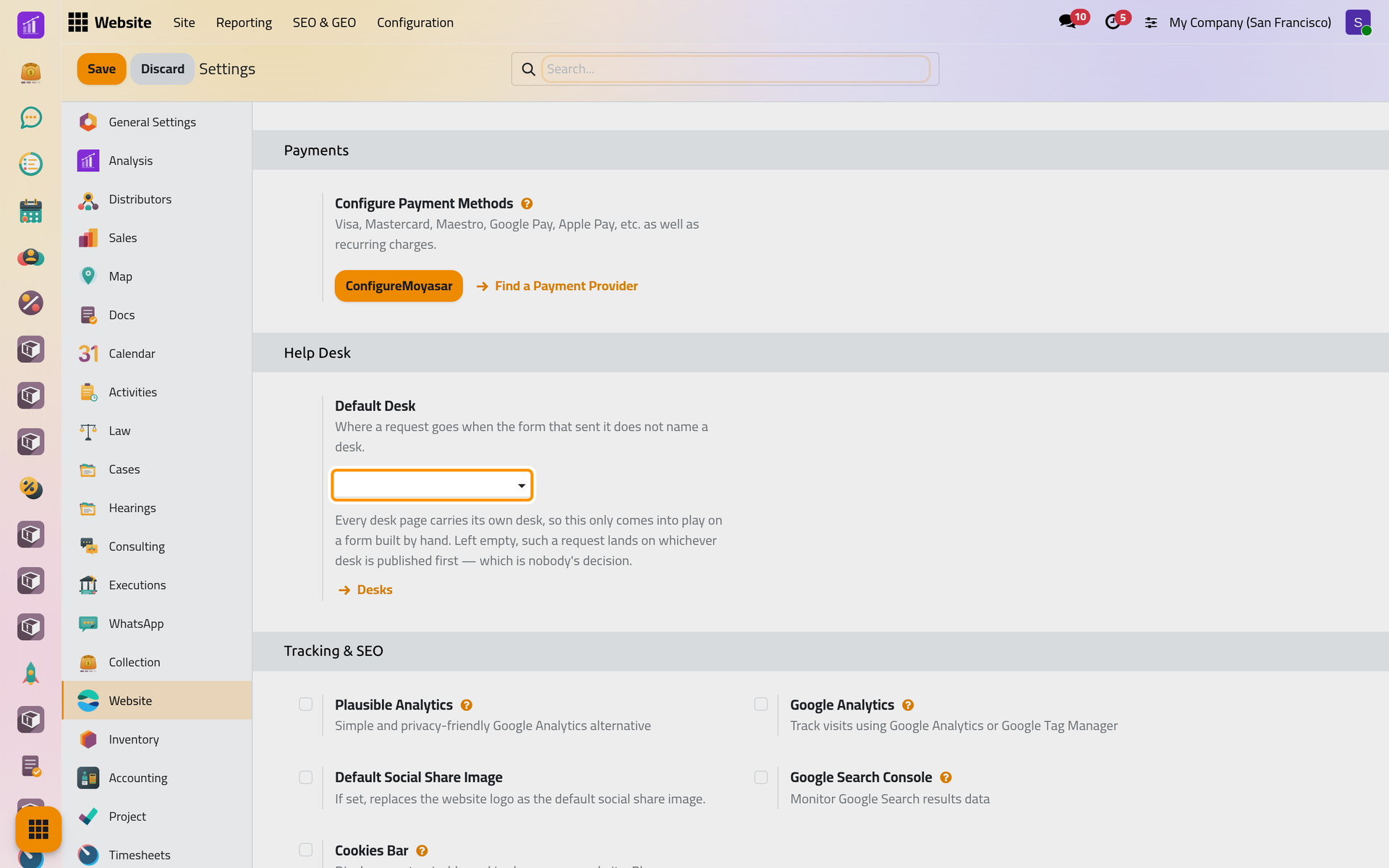
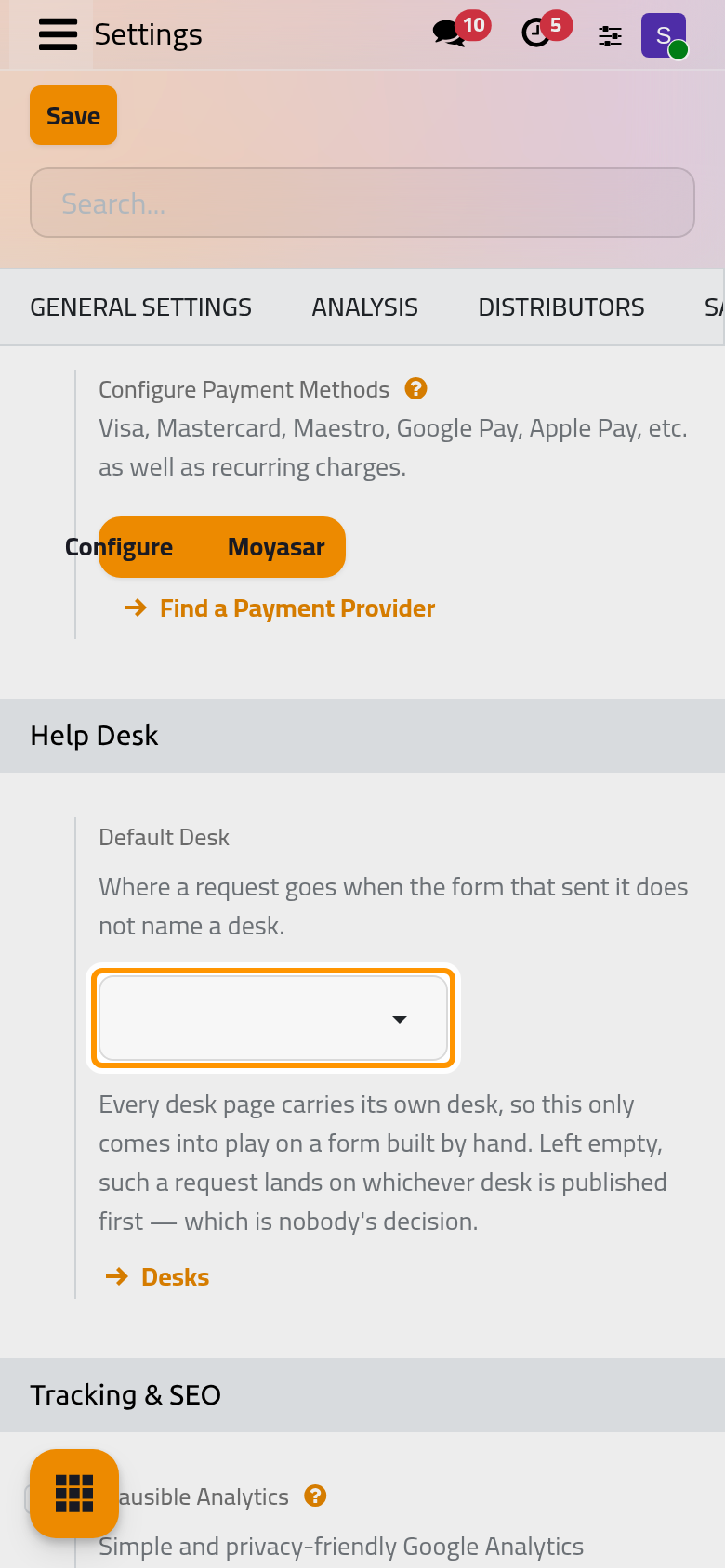
In , the Help Desk group holds Default Desk: the desk of the requests sent by a form that names none, such as a form built by hand. Left empty, they go to the first published desk.
Stages, labels and reply snippets
- : a stage can serve several desks and sets Counts as Wrapped Up, Counts as Dropped, Message on Arrival, Feedback Request, Flag as Stale After (days), the Kanban Labels of the progress flag and What This Stage Means.
- Labels sort requests and drive targets and routing; Reply Snippets are canned responses.
Access rights
| Access right | Can |
|---|---|
| User | Open the app, see the desks open to them, create and change requests and labels |
| Administrator | Also the Configuration menu, deleting requests, and every desk of their companies whatever its audience |
They are set on the user's form, where the Help Desk Goals tab also holds weekly goals: Create a user and set access rights.
FAQ
Why does a box in the desk form have no label?
The boxes inside these groups show no label. This page names each one.
Why can't I delete a stage?
It still holds requests. Remove in Actions archives the stage and its requests instead, after naming the desks that lose it.
Can I start a new desk from an existing one?
Yes: Duplicate in Actions creates "name (copy)" with the same options and stages; its public page starts unpublished.
Was this page helpful?
Thank you for your feedback.