Set service targets
On this page
A service target is a written promise: the requests that match its rules must reach a given stage within a number of working hours. The hours are counted on the working calendar of the desk, so nights, days off and the leaves of the calendar do not use the budget. Each request carries one clock per target it matches.
Before you start
- You need the Administrator access right on Help Desk to write targets.
- The desk has Service Targets switched on, with the calendar its hours are counted on: Help Desk settings. The Front Desk has them on.
Write a target
- Open and click New. Manage the targets on the form of a desk opens the same list for that desk.
- Name the promise, for example
Help desk demo: First answer within a working day. - Under Applies When Every Line Below Matches, choose the Desk, then narrow the target if needed: From Priority covers that priority and the ones above, Carrying any of these labels and Limited to these customers cover only those. An empty line covers everything. A click on a star saves the target at once, so choose the desk and the stage first.
- Under The Promise, choose the stage the request Must reach, the Working Hours it has (8 by default), and the stages the Clock pauses in, usually the stage where you wait for the customer.
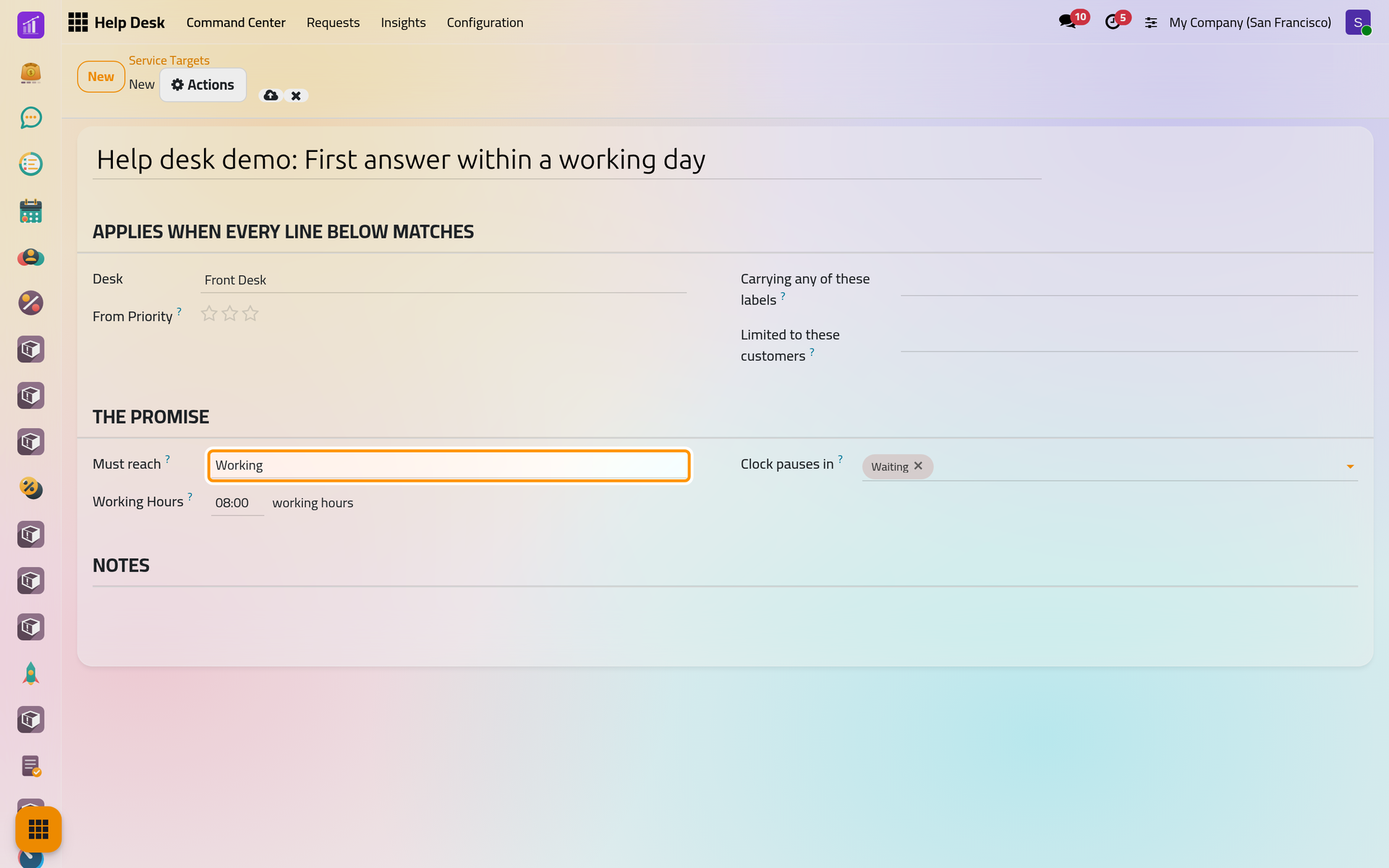
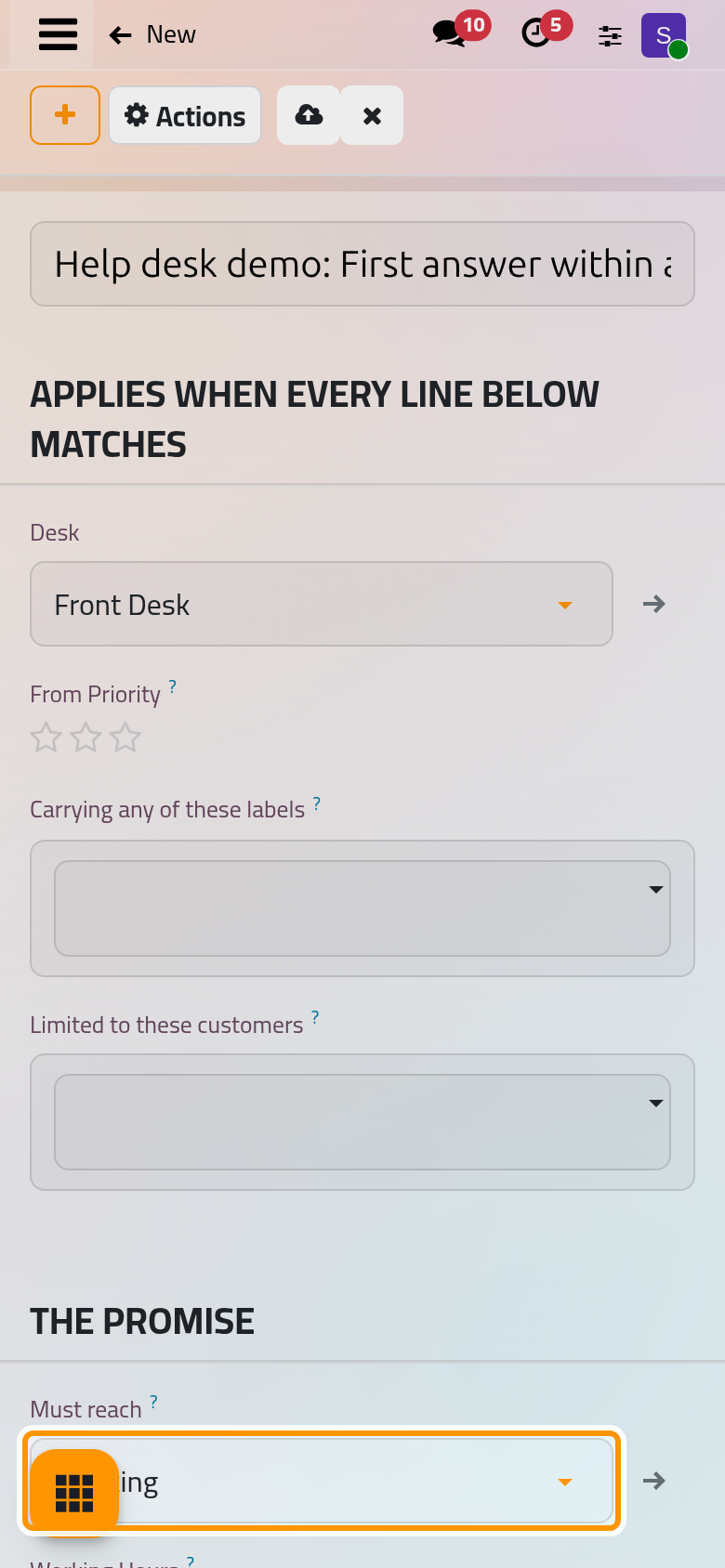
- Click the cloud icon Save manually.
Read the clock on a request
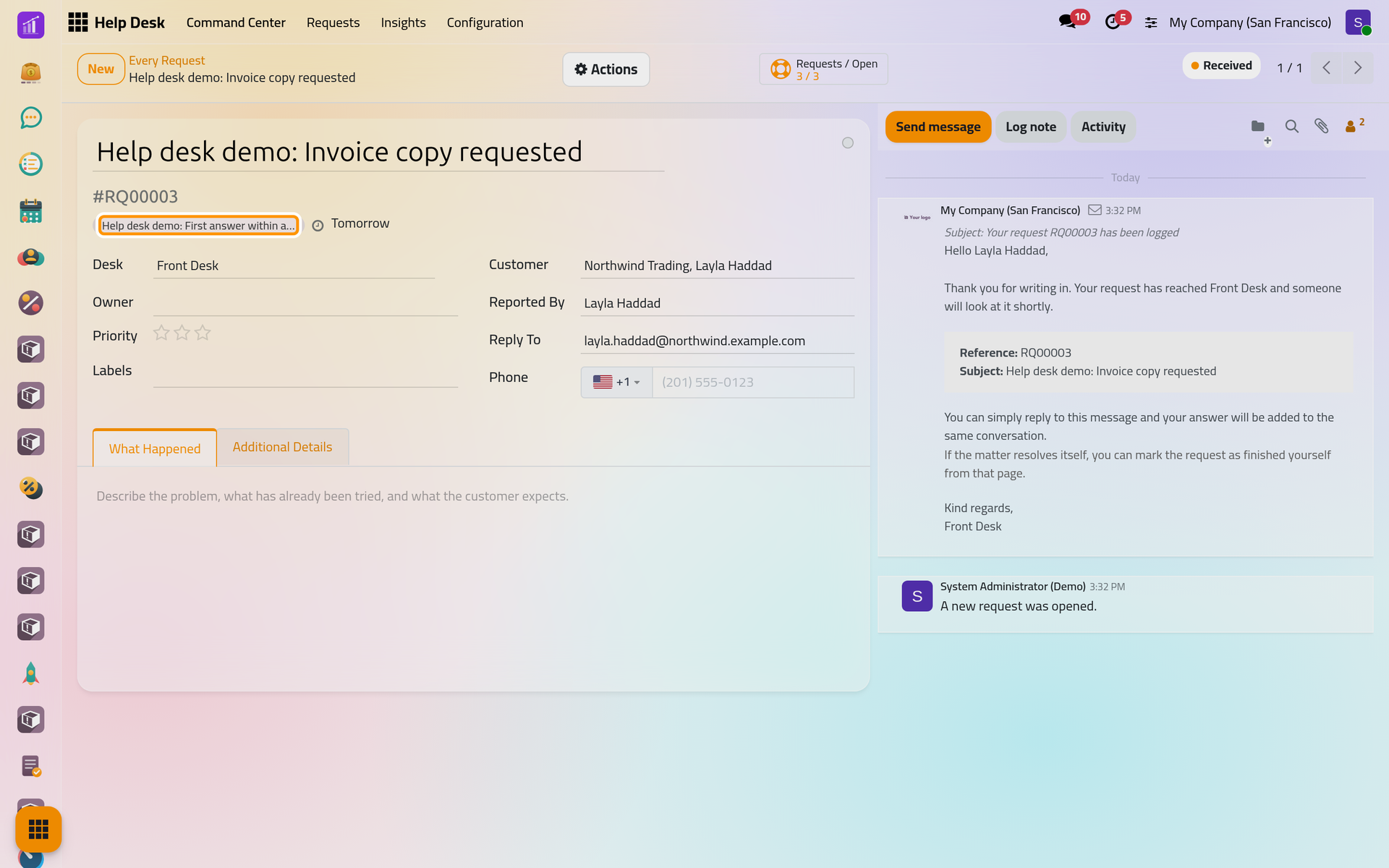
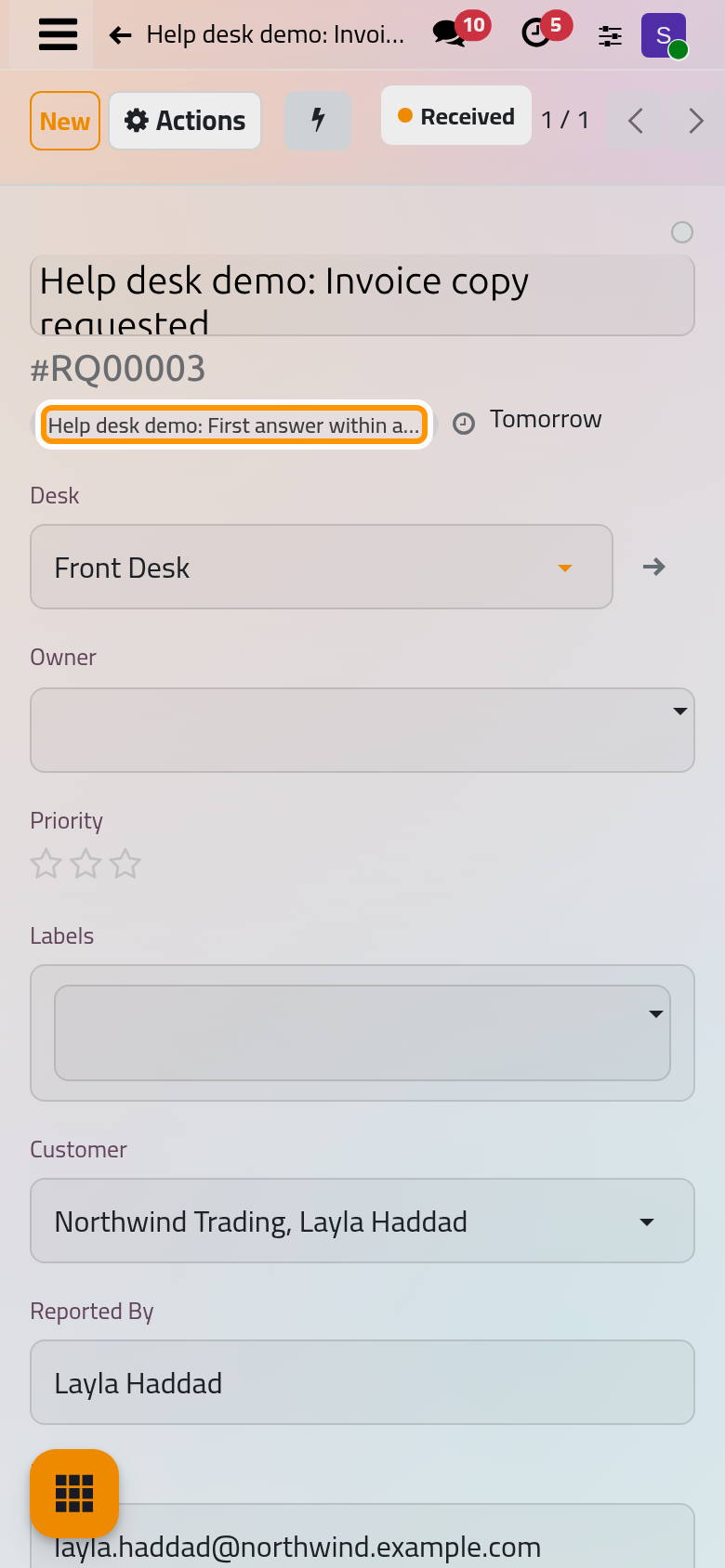
Open a new request of the desk. Under its title, a tag names each target it carries, followed by the time left before the nearest deadline; the tag turns yellow while the clock is paused, green when the promise is met and red when it is missed. The line disappears once the request is wrapped up.
The Additional Details tab details each clock under Service Target Clocks: its Status (Running, Paused, Met or Missed), its Deadline, the moment it was Reached On, the hours Credited Back for the time spent in a pause stage, and the Overrun past the deadline.
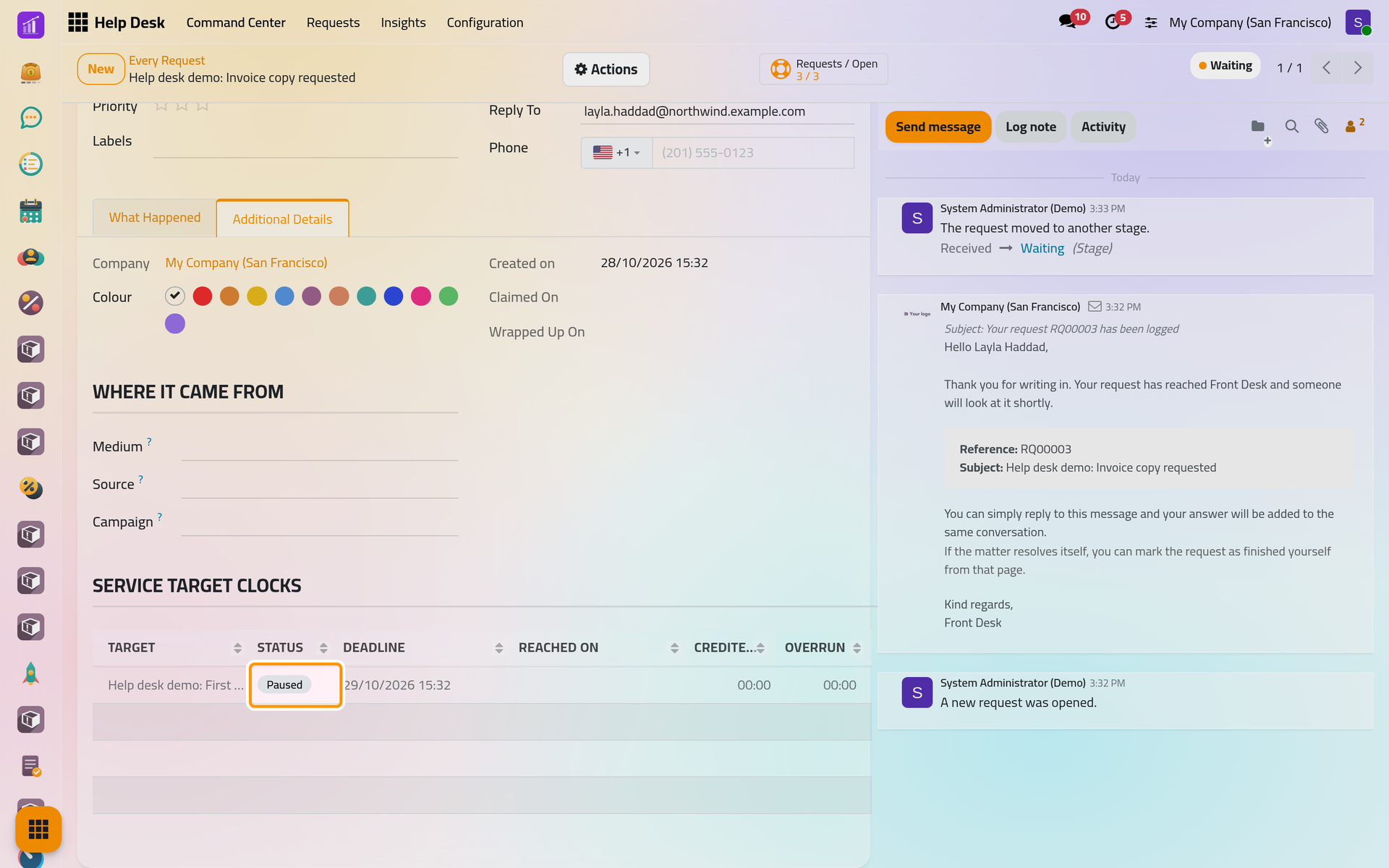
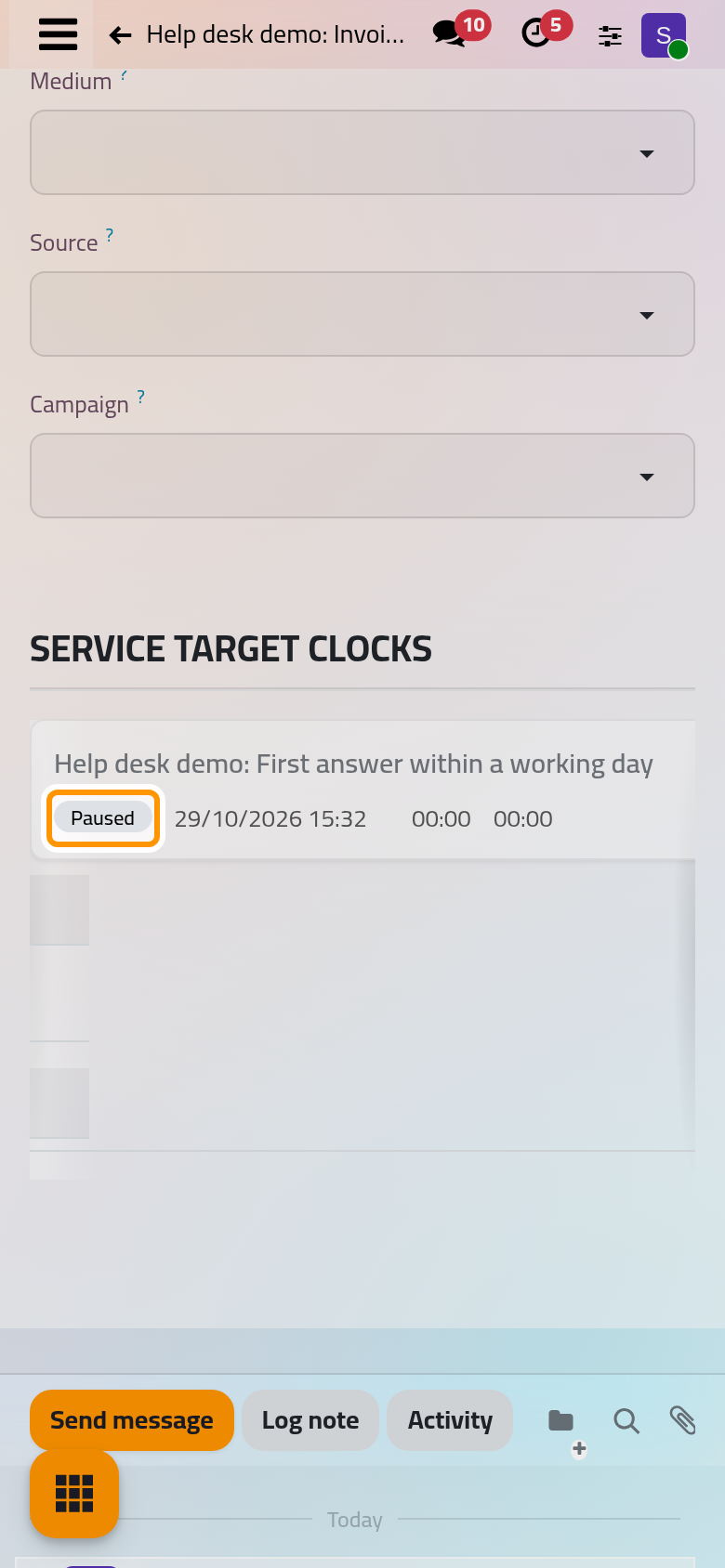
Here the request moved to Waiting, so its clock is Paused. When the request leaves Waiting, the working hours spent there are credited back and the deadline moves later by as much. A clock still paused when its deadline passes is marked Missed by the hourly job, and nothing is credited back after that.
How a promise is settled
- Reaching the target stage, or a later stage of the desk, before the deadline marks the clock Met; reaching it after the deadline marks it Missed. A pause stage and a dropped stage never count as reaching it.
- A scheduled job marks Missed, every hour, the clocks whose deadline has passed: Help Desk automations.
- In the lists, a request that missed a target is shown in red; the filters Target Met and Target Missed find them. The Command Center counts Missed and Targets honoured, and analyses the clocks by desk and target.
FAQ
My open requests did not get the new target. Why?
A request is matched against the targets when it is opened, and again when its desk, priority, labels or customer change. A request opened before the target was written carries it only after such a change.
Can one request carry several targets?
Yes, with one clock each. The deadline under the title is the nearest one still running or paused, and the request counts as having kept its targets only when every clock is Met.
What happens when I change a target?
Changing the Working Hours, the stage to reach or the pause stages dates again the clocks that are still running or paused. Clocks already Met or Missed keep their result.
Why do the hours not match the clock on the wall?
They are working hours on the calendar chosen under Service Targets on the form of the desk. A request opened in the evening starts using its budget the next working morning.
Was this page helpful?
Thank you for your feedback.