Take requests from the website
On this page
Each desk can have its own page on the website, with a request form that anyone can fill in without an account. The Help entry of the site menu leads to the list of the published desks, and straight to the desk when only one is published.
Before you start
- You need the Administrator access right on Help Desk to change a desk.
- The site is the one of the Website app. The Help menu entry and the confirmation page come with the public form.
Switch on the page of a desk
- Open , then the desk, or click New.
- In the Your Public Page group, tick Public Request Form. A box without a label appears below it: choose there the website the page belongs to.
- Click the cloud icon Save manually. The desk receives its own copy of the request form, and the Go to Website button appears at the top of the form, showing Unpublished.
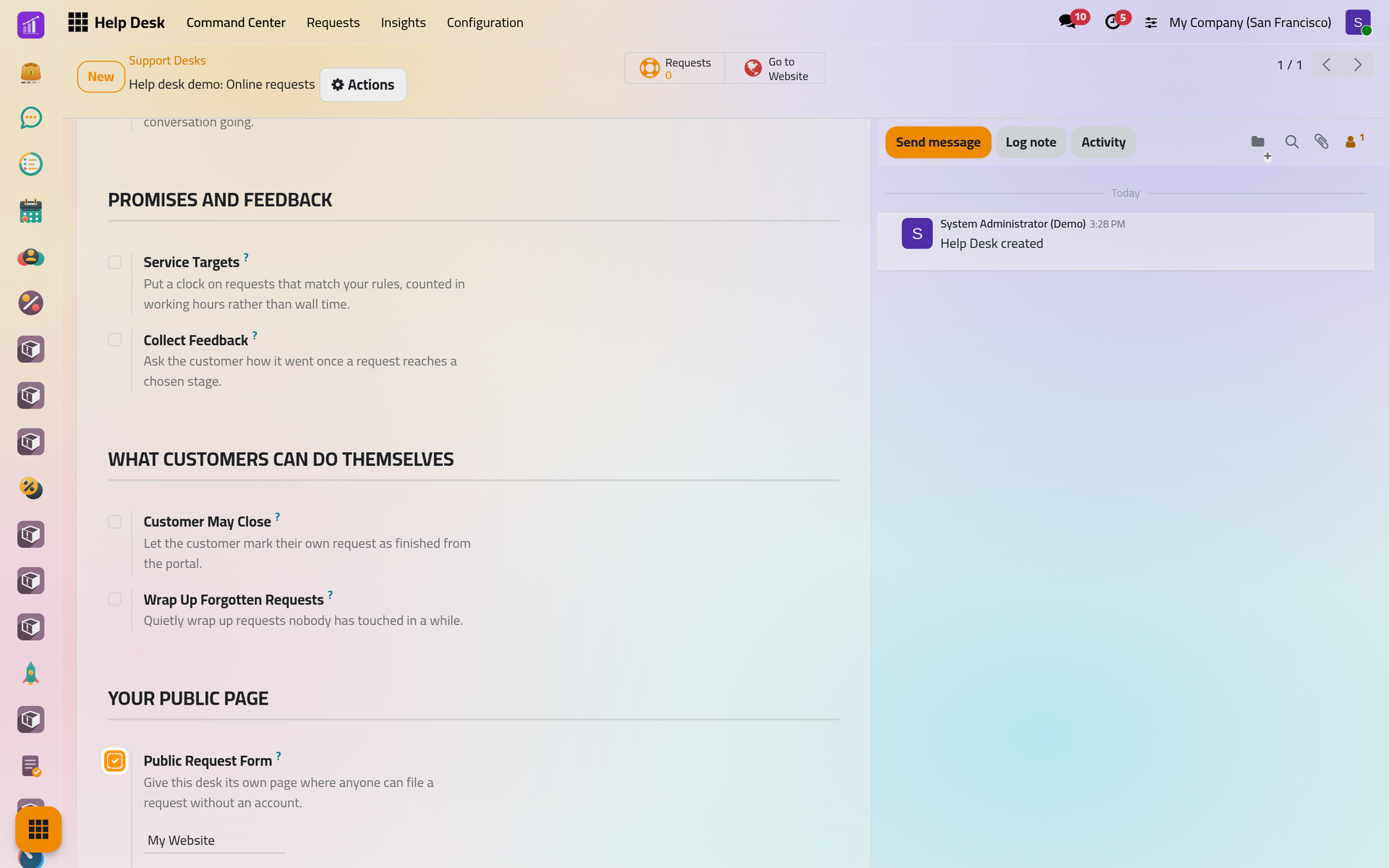
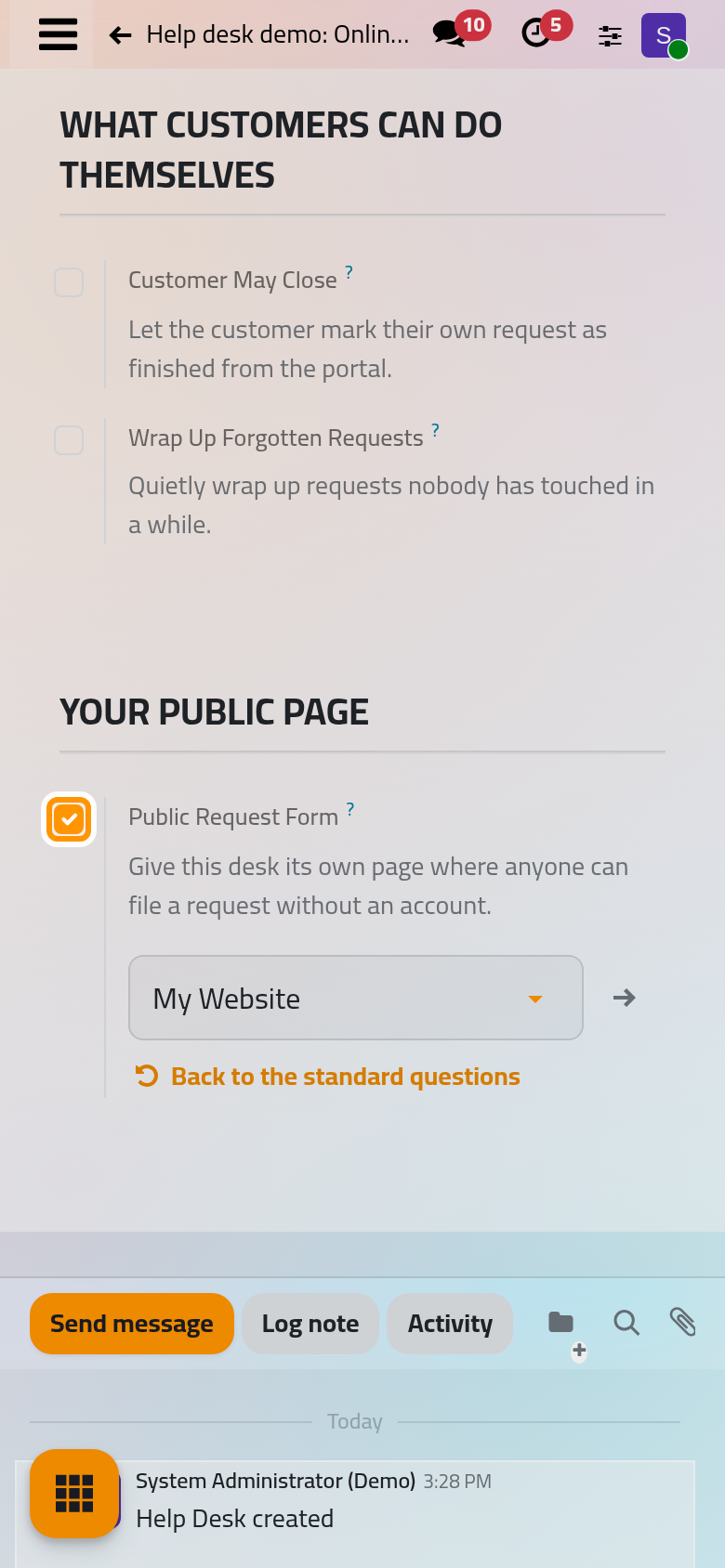
On a phone, the Go to Website button sits behind the lightning button at the top of the form.
Publish the page
A desk page is never public by accident: the site shows it only once the desk is published. The Help Desk screens hold no switch that publishes it. Go to Website opens the address of the page, /desk/ followed by the name of the desk, and while the desk is unpublished the site answers there that the page does not exist.
What the visitor fills in
The page of a published desk is titled Open a request, with the name of the desk when several desks are published. The form asks for:
- Your name and Email, both required;
- Phone (optional) and Company (optional);
- a One-line summary and a Description, both required;
- Attachments: a PDF or a picture, up to 10 MB each. The server checks the content of the file, not its name.
For a visitor who is signed in, the name, the e-mail, the phone and the company are filled in already.
Beside the form, About this desk shows the Public Blurb of the desk and, when the desk measures service targets, a line saying that it answers within its targets, counted in working hours. Send it over sends the request; the confirmation page then shows Your reference.
Where the request lands
- The request is created on the desk of the page, in its first stage, with the name, e-mail, phone, summary, description and files of the visitor. A form that names no desk published on this website, such as a form built by hand, sends its requests to the Default Desk of the website: Help Desk settings.
- A contact that already has the e-mail address becomes the customer; otherwise the request keeps the name and the address.
- The first stage sends its arrival message, if it has one, through the outgoing mail queue.
- The Where It Came From group of the Additional Details tab records the Medium of a website request and, when the visitor came from a tracked link, its Source and Campaign.
Once the page is published, Change the questions opens it in the website editor; the questions you change belong to this desk only. Back to the standard questions asks for a confirmation, then puts the original form back.
FAQ
The Help page of the site says that no desk is open to the public. Why?
No desk of this website has both Public Request Form switched on and its page published, and the Help Desk screens hold no switch that publishes a desk (Publish the page).
Which files can a visitor attach?
PDF files and pictures (PNG, JPEG, GIF, WEBP, BMP or TIFF), up to 10 MB each. Any other file is refused with a message, and the request is not sent.
Can the customer follow the request afterwards?
By e-mail, always: the replies of the desk reach the address typed in the form. Online, when the desk's audience includes customers and the customer has a portal account: How Help Desk works.
Was this page helpful?
Thank you for your feedback.