Allocate time off
On this page
An allocation gives an employee a number of days, or hours, of one time off type for a period. Requests of a type that Requires allocation draw on it. You can give days to one person, to a whole group at once, or let employees ask for days themselves. Days earned month after month come from an accrual plan instead: Set up accrual plans.
Before you start
- Officer: Manage all requests allocates to every employee. A Time Off Responsible allocates only to the employees he approves, and in a group only employee by employee.
- Nobody approves an allocation for himself, except an Administrator.
One employee
- Open and click New.
- Choose the Time Off Type and the Employee. The title fills itself from the type and the amount; you may write your own.
- Keep Regular Allocation, give the Validity Period and the amount in Allocation. An empty end date means the days never expire. The amount is in days or in hours, as the type counts its time off.
- Save, then approve from Actions, as Your first time off shows step by step.
Who approves an allocation is set on the type, under Allocation Requests, the same way as for time off: Approve time off requests.
Many employees at once
- On the same list, click New Group Allocation.
- In Grant, choose who receives the days: By Employee, By Company, By Department or By Employee Tag, then name them.
- Choose the Time Off Type, the Allocation Type (a regular amount, or Based on Accrual Plan), the Validity Period and the Allocation, and add a reason.
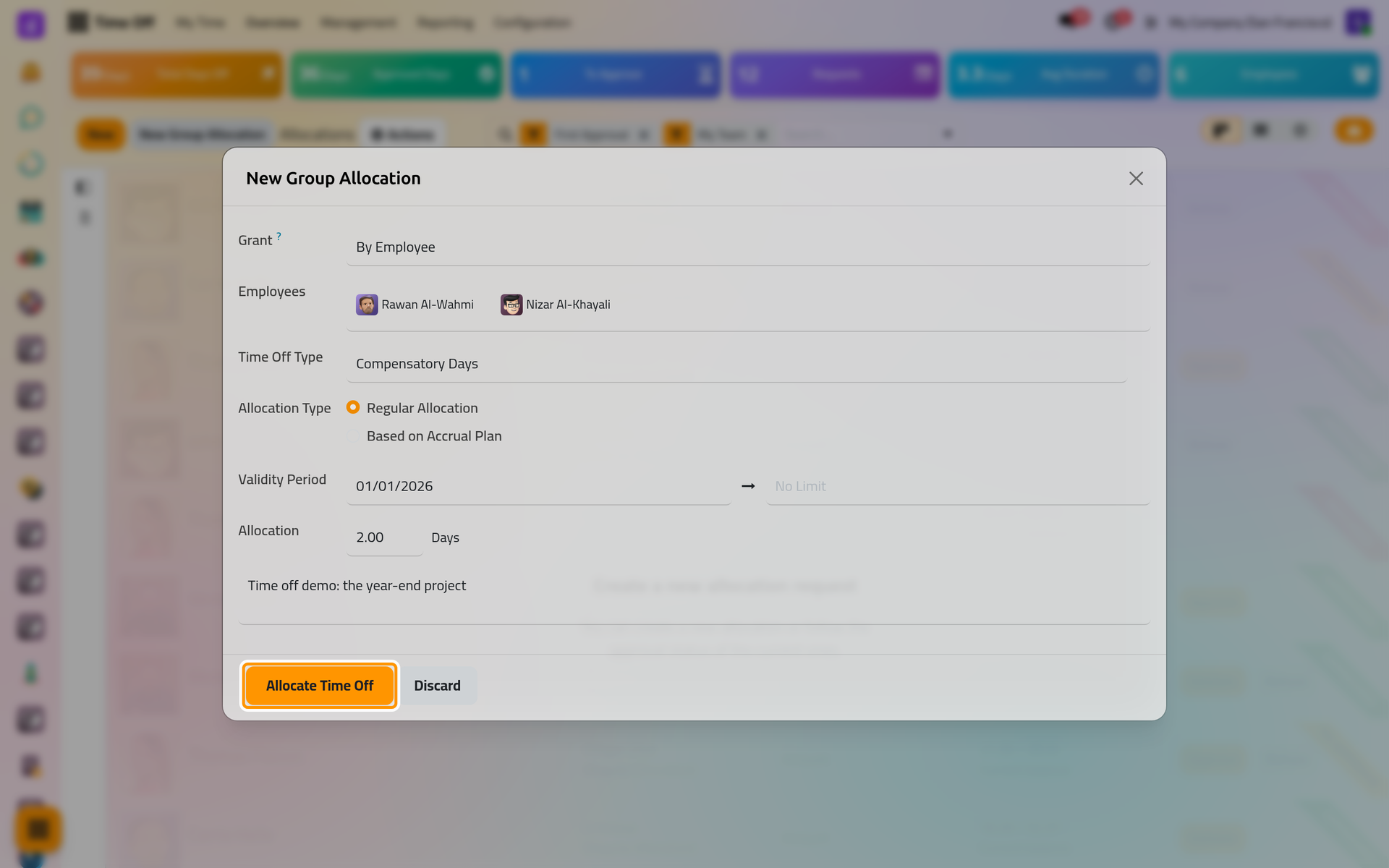
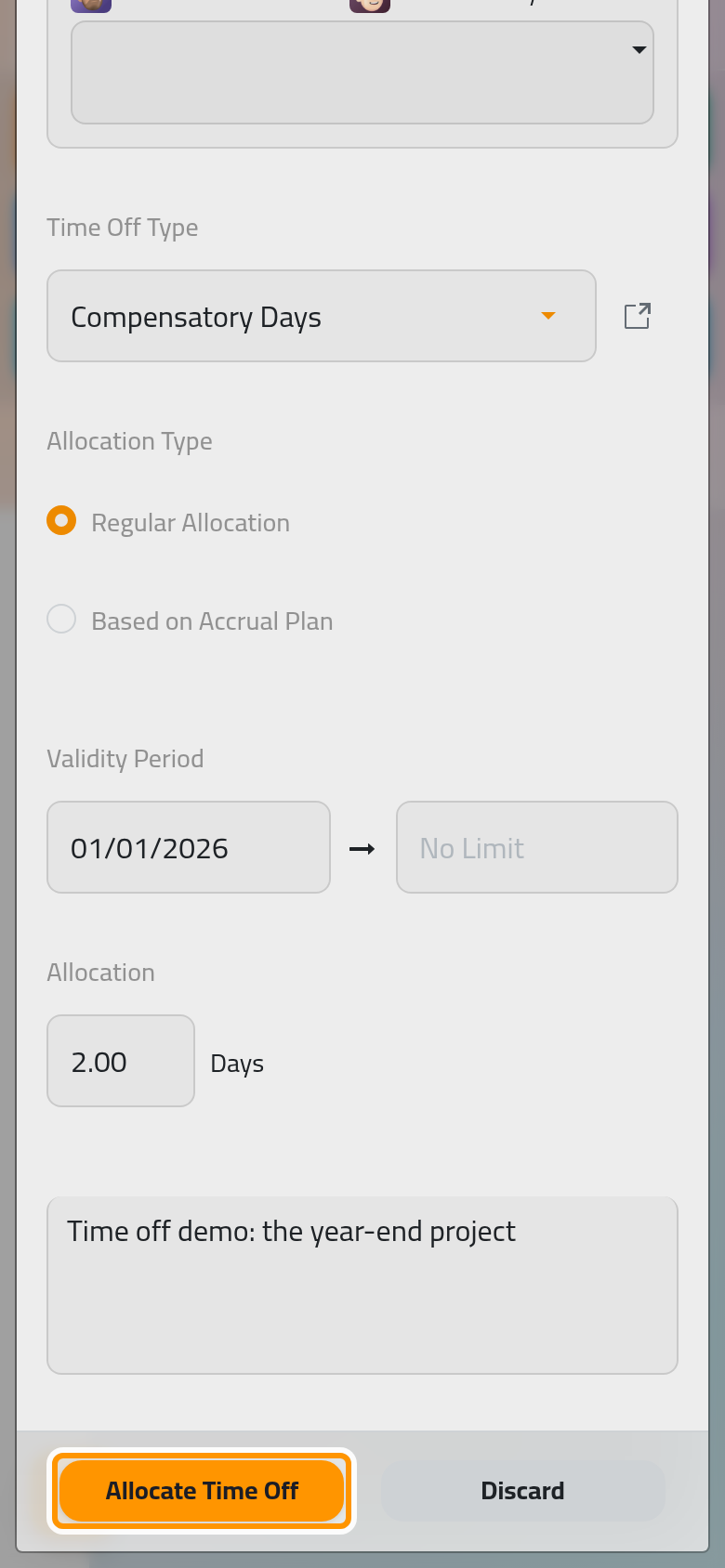
- Click the button at the bottom of the dialog, Allocate Time Off.
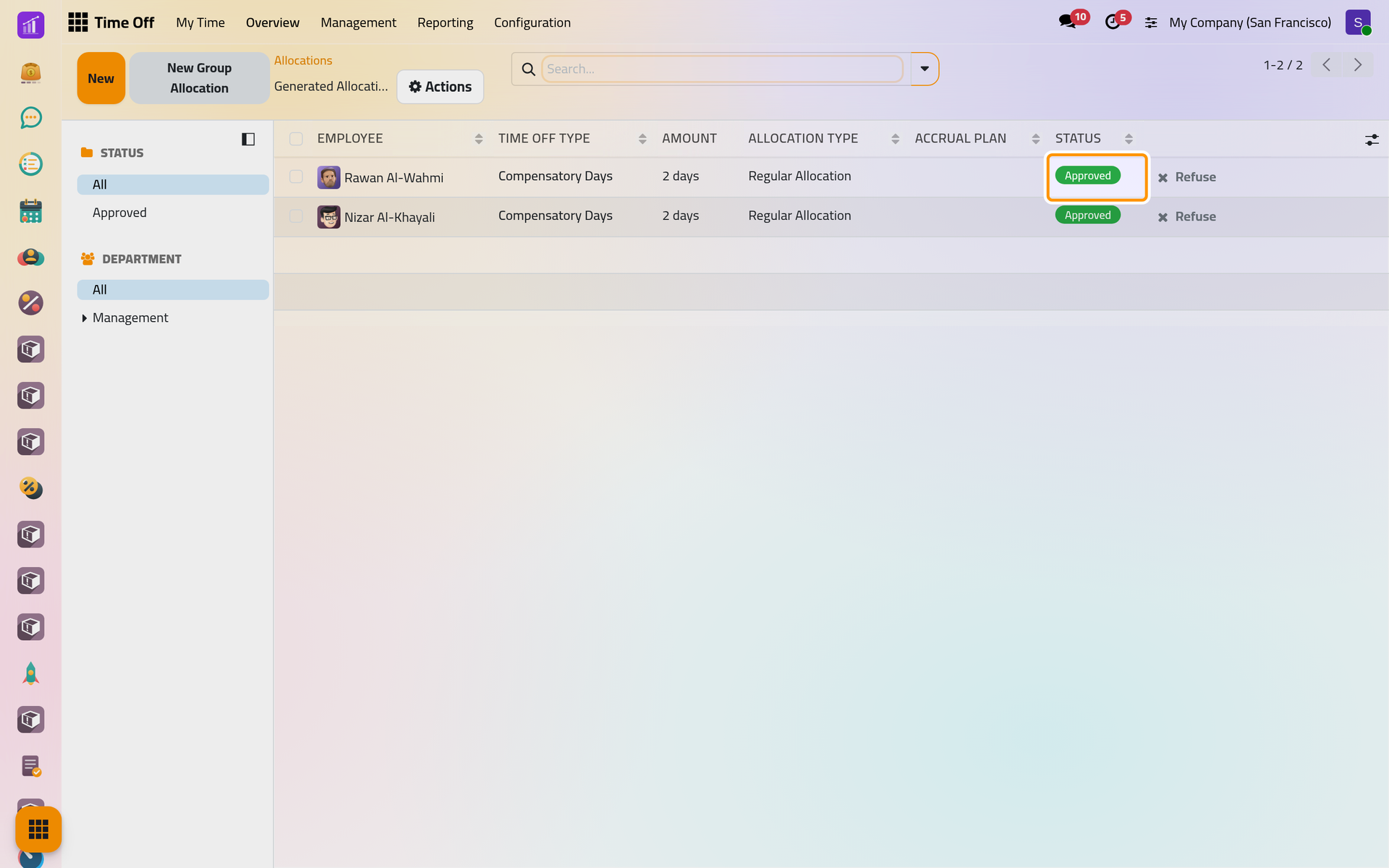
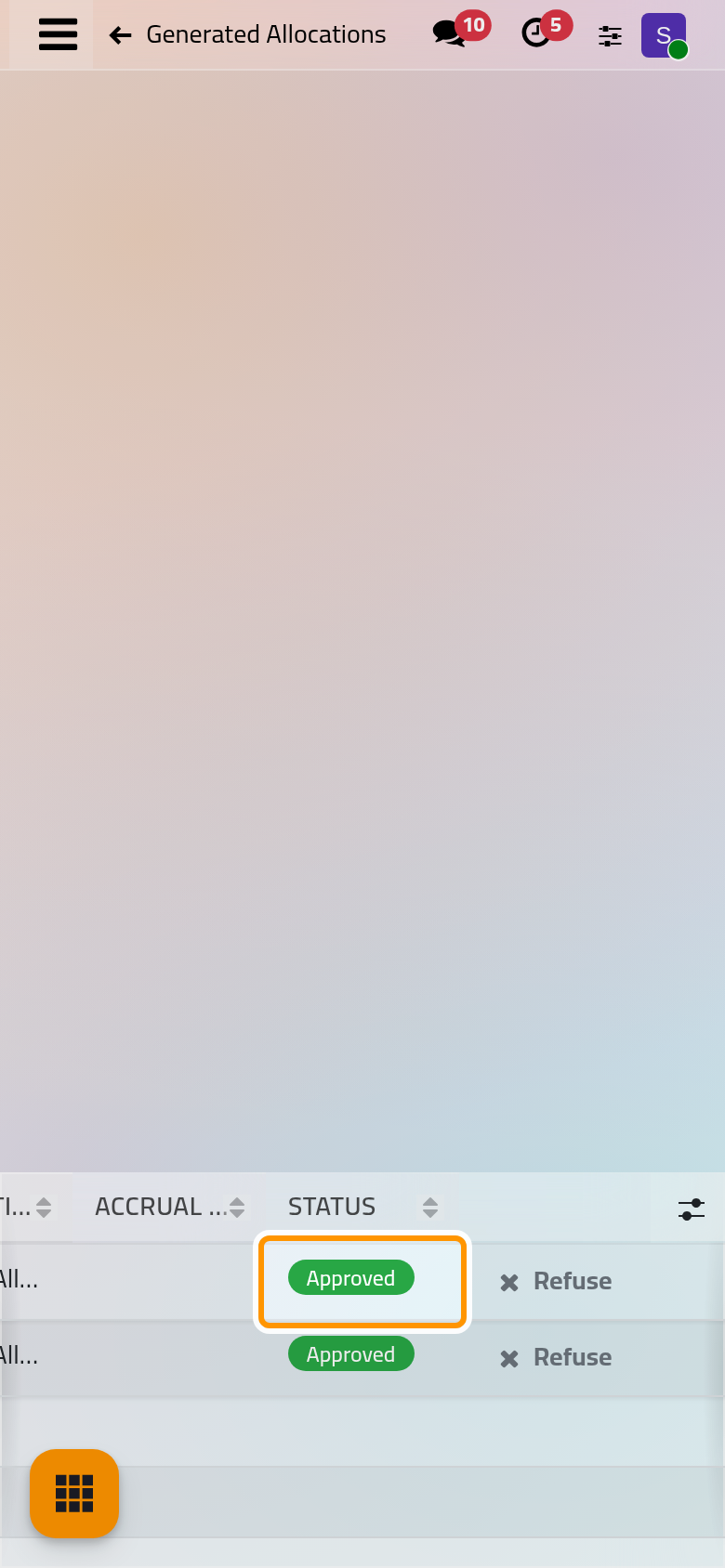
One allocation is created for each employee, and the list Generated Allocations opens. When you hold the officer right, they are approved at once.
Let employees ask for days
Tick Allow Employee Requests on a type that requires an allocation: Configure time off types. An employee then asks from his own dashboard:
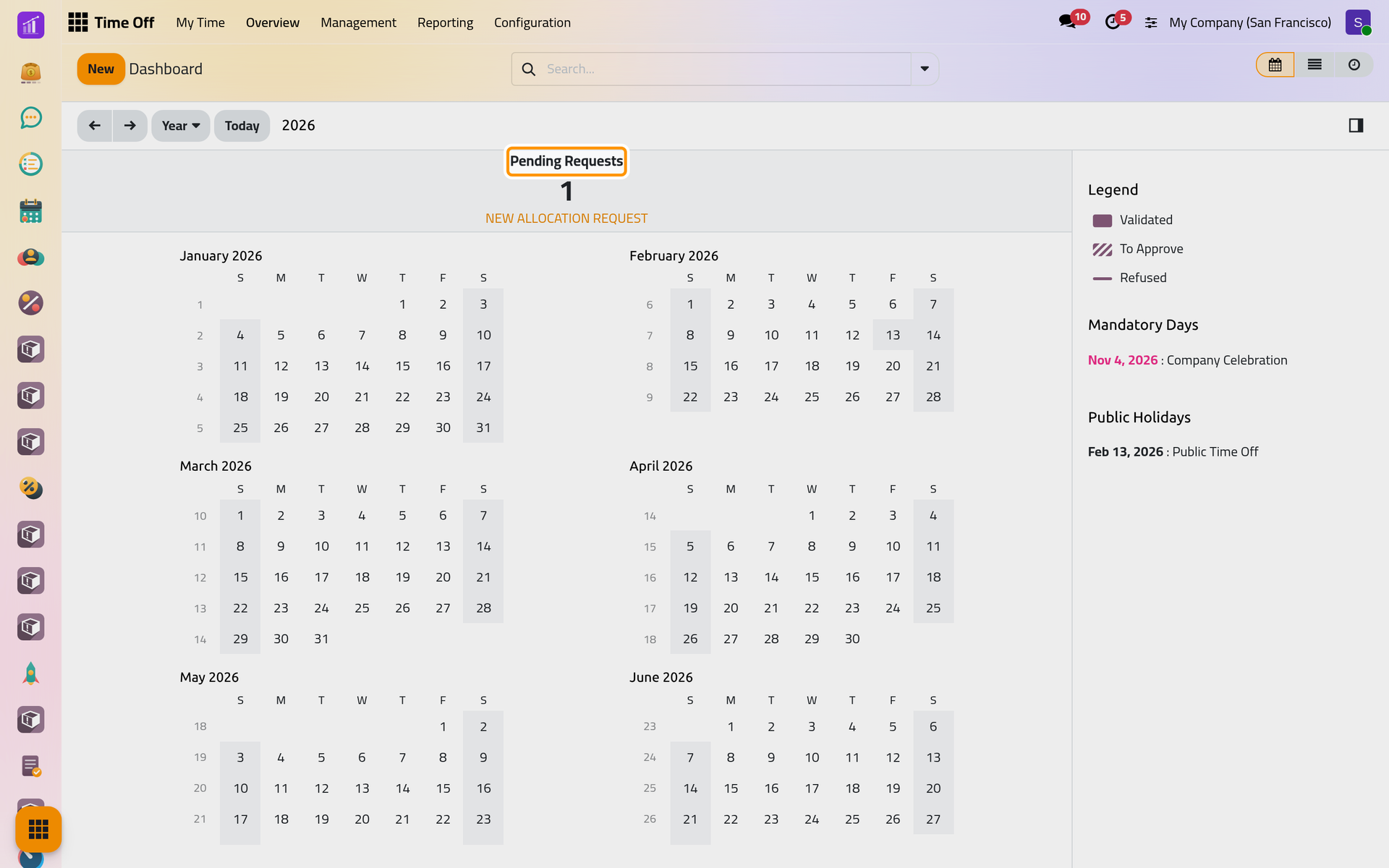
- Open and click New Allocation Request.
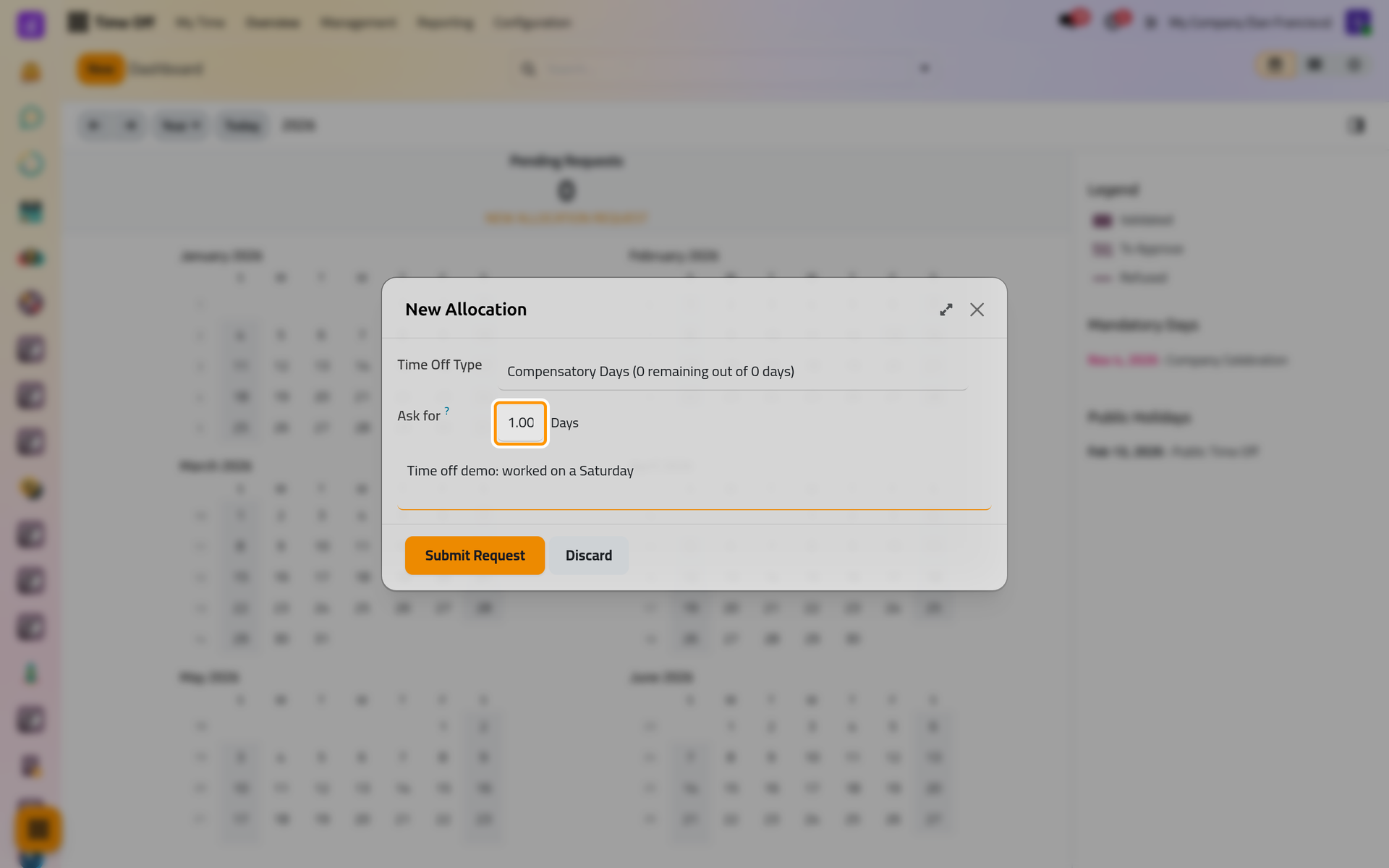
- Choose the Time Off Type, the number of days in Ask for, and say why.
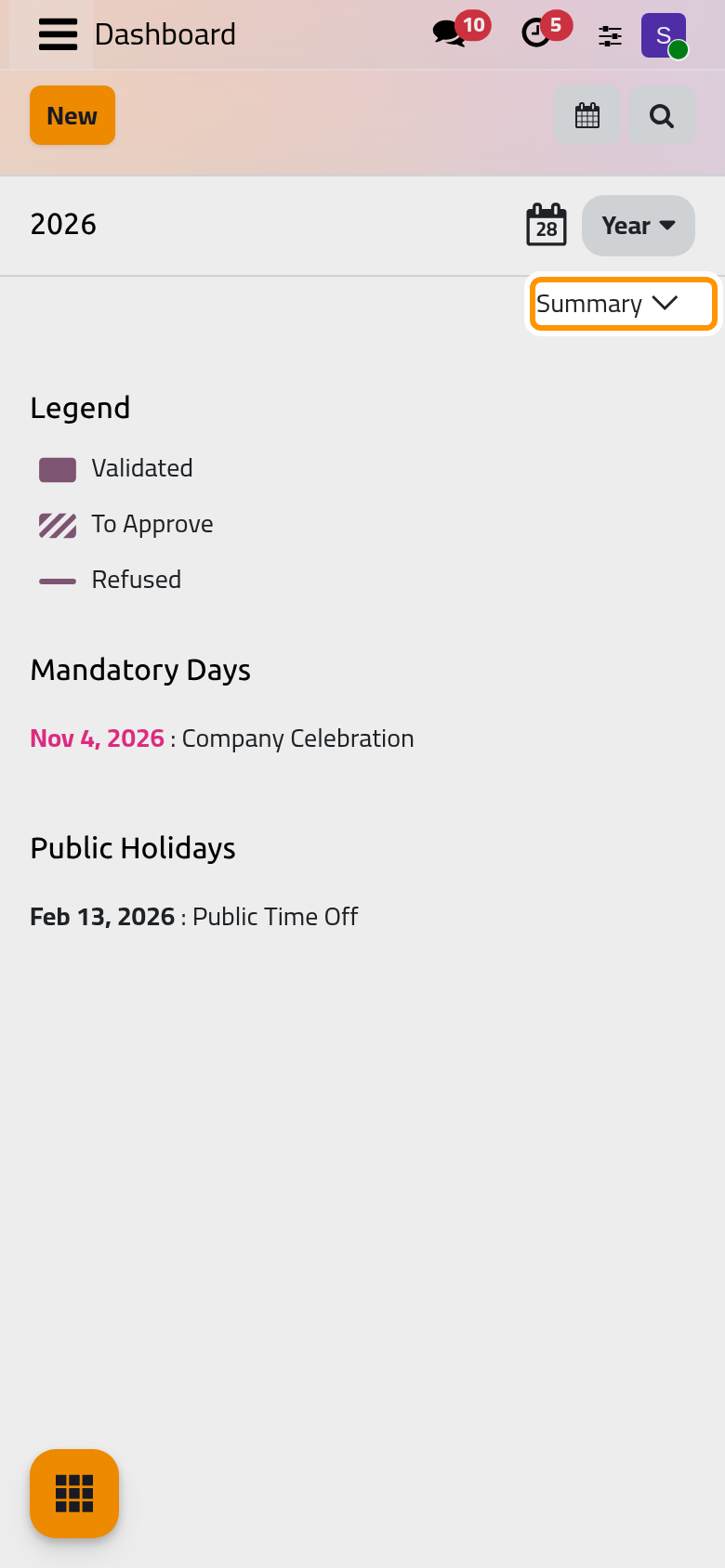
On a phone, the link sits under Summary at the top of the calendar.
- Click Submit Request. The request counts under Pending Requests until it is approved, and it shows in .
Change or withdraw an allocation
- While it is To Approve, the allocation can be changed freely.
- Once approved, an officer can still change the amount, but not below the days the employee already took.
- Only an allocation To Approve or Refused can be deleted, and never one whose days were already taken. To withdraw an approved one, refuse it from Actions.
FAQ
What happens when the validity ends?
The days left can no longer be taken after the end date. Until then, the dashboard card shows the date with valid until.
Can an employee hold two allocations of the same type?
Yes. They add up on the card, and requests use first the allocation that ends soonest, then those without an end date.
Why can an employee not find a type in the request dialog?
Only the types that allow employee requests are offered to employees; officers see every type that requires an allocation.
Can I allocate hours?
Yes, when the type counts in hours: its Duration Type is Hours, and the allocation is then typed in hours.
Was this page helpful?
Thank you for your feedback.