Your first time off
On this page
Time Off follows the days off of every employee: the days each one may take, the requests, the approvals and the calendar of who is away. Most kinds of time off draw on days given beforehand, called an allocation; others, such as sick days, are simply requested. This walk-through goes once around the whole circle on your own employee record: you give yourself days, ask for some of them, approve the request and see the result.
Before you start
- Your user must be linked to an employee record. The demo user is linked to System Administrator (Demo).
- Here you play both roles, the employee who asks and the person who approves. Giving days and approving needs the Officer: Manage all requests access right on Time Off, and approving an allocation for yourself needs Administrator. The access rights are set on the user's form: Create a user and set access rights.
Step 1: give yourself days
- Open and click New.
- Replace the title with
Time off demo: Paid days 2026. - Choose Paid Time Off in Time Off Type. Employee already shows your own employee.
- Type
10in Allocation, and01/01/2026as the start of the Validity Period. Leave its end empty: the days then stay valid with no limit. - Save. The allocation is To Approve, and an approval activity appears in the chatter for the person named under Notify HR on the type.
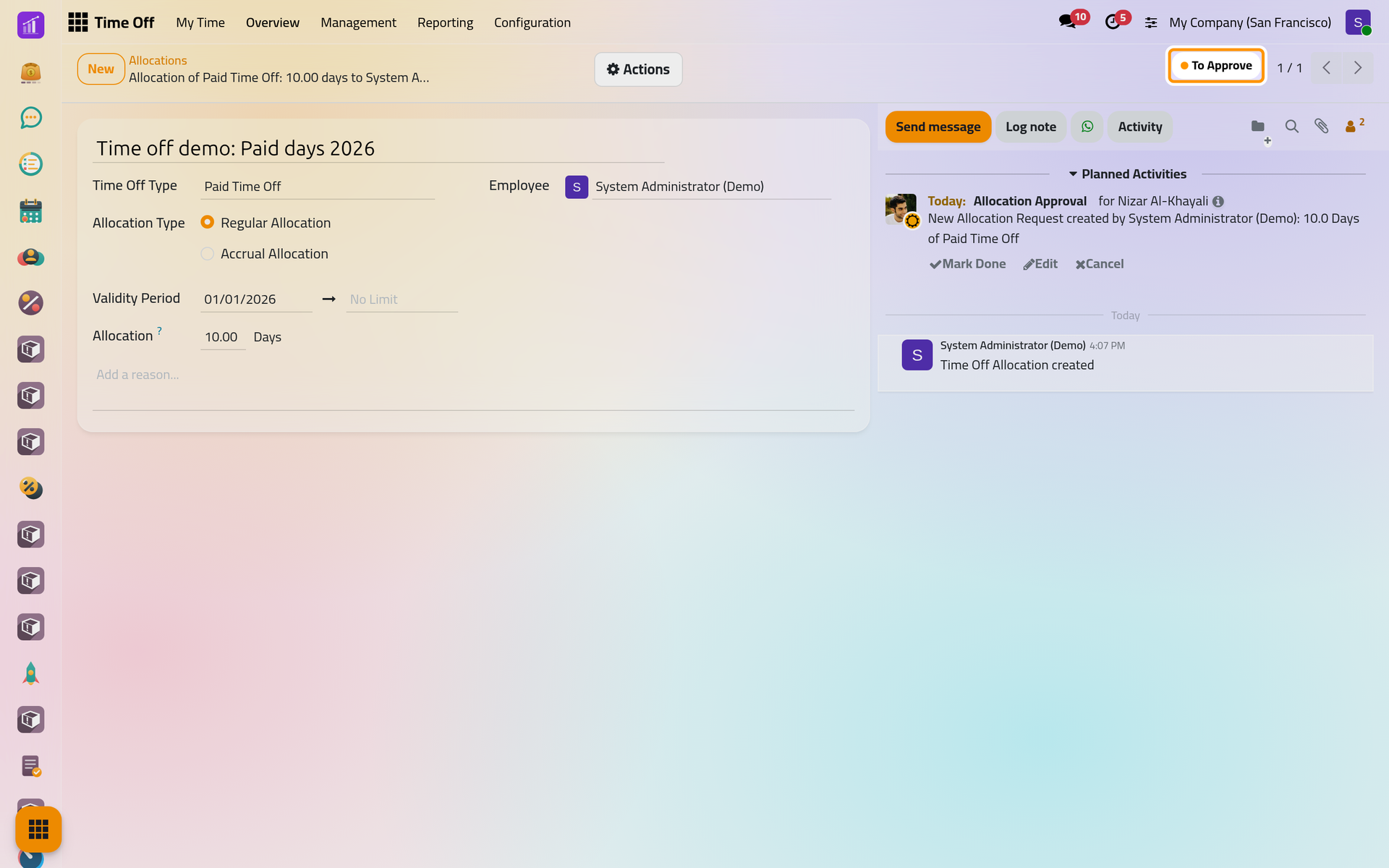
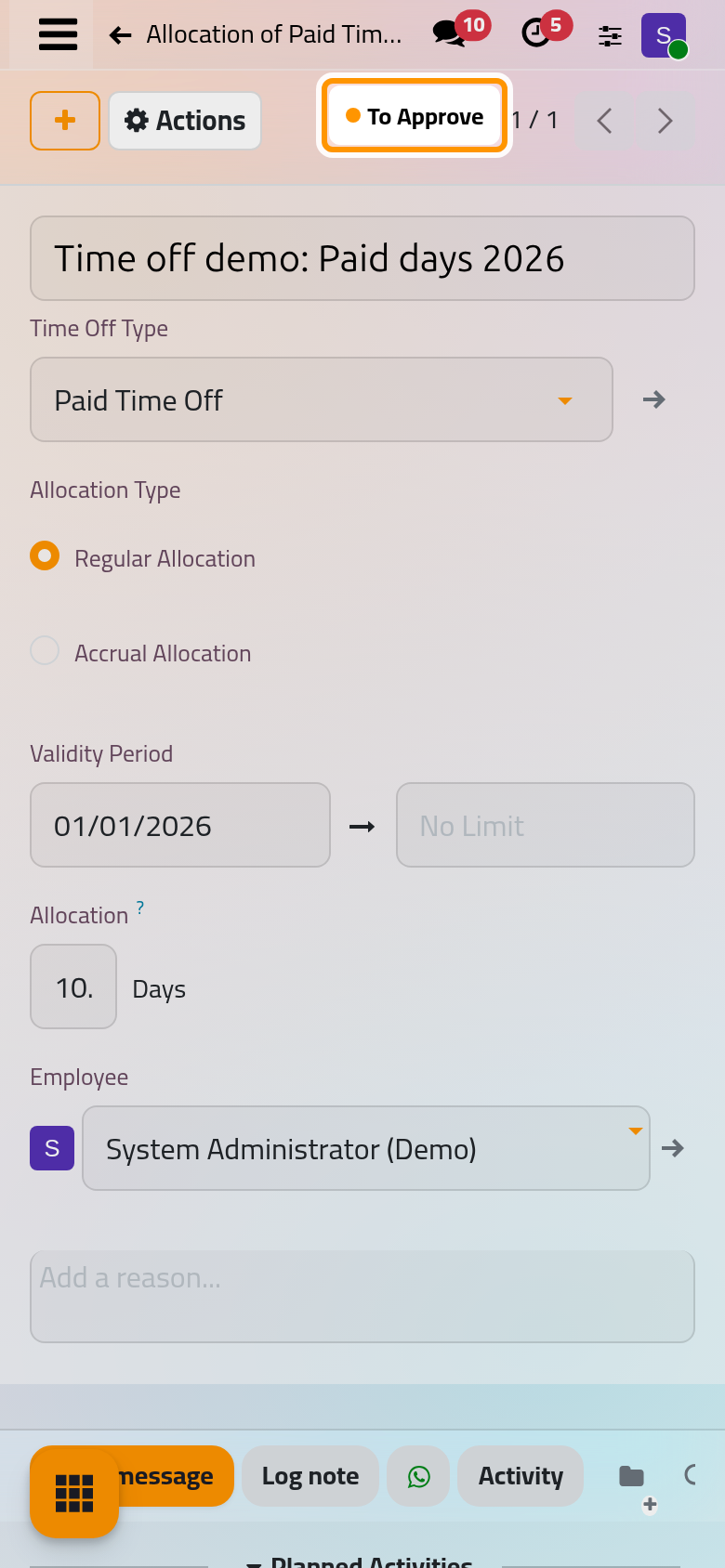
- Open Actions and choose Validate.
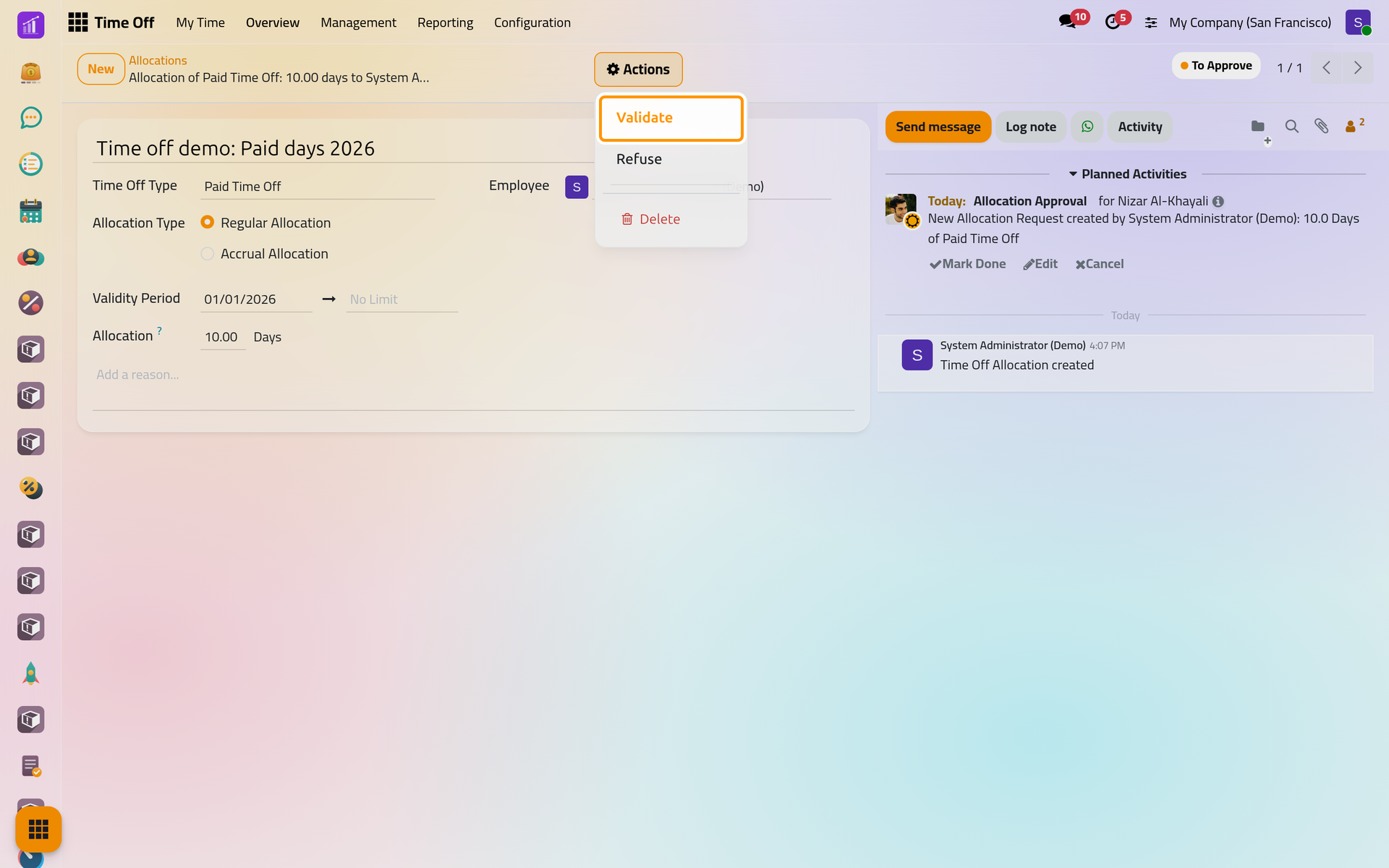
The status turns Approved: the ten days are now yours to take.
Step 2: check your balance
Open . The dashboard shows the whole year as a calendar, with one card above it for each type you hold days of. The Paid Time Off card reads 10 days available. Click days available to see the detail: the days allocated, approved, planned and still available.
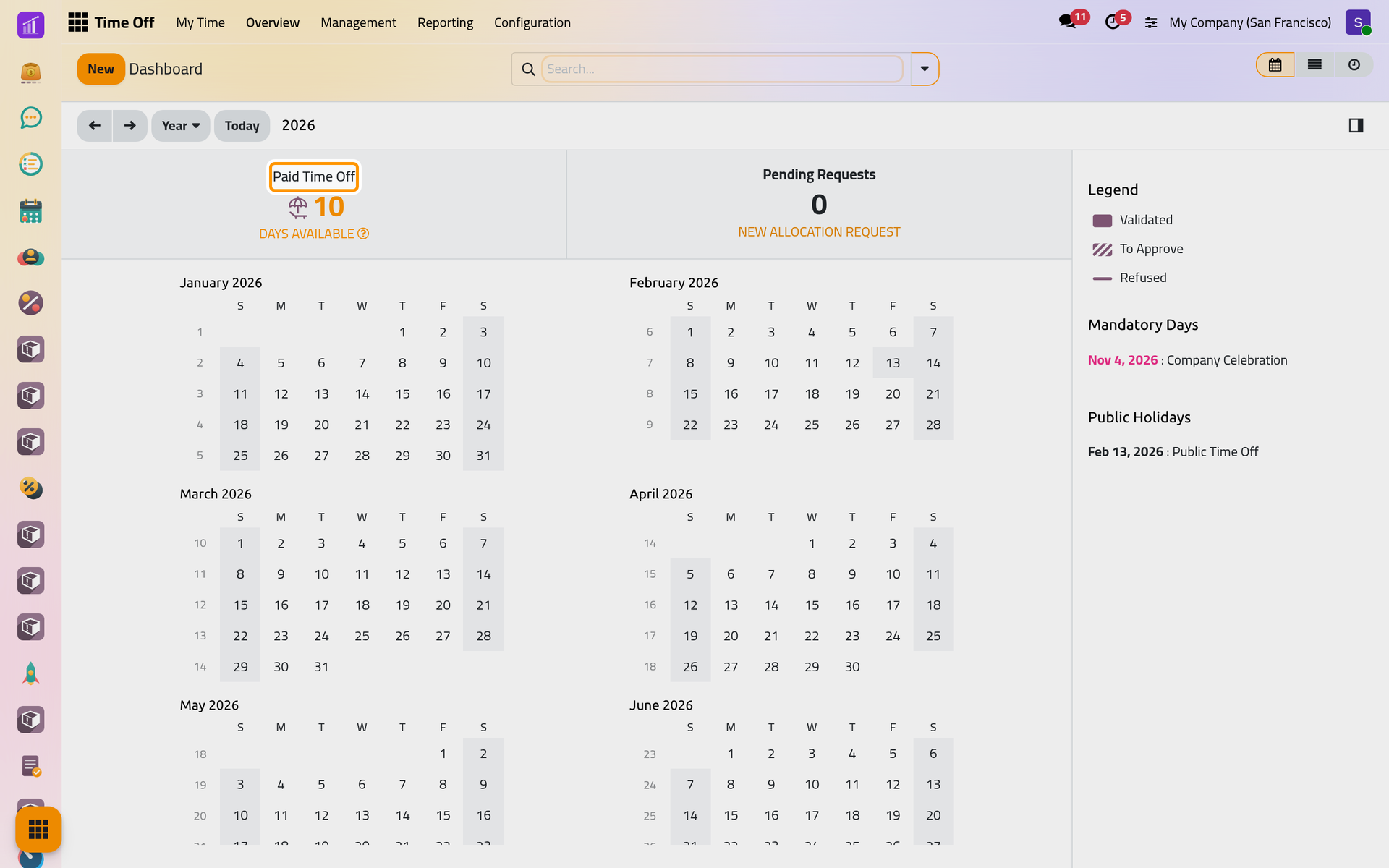
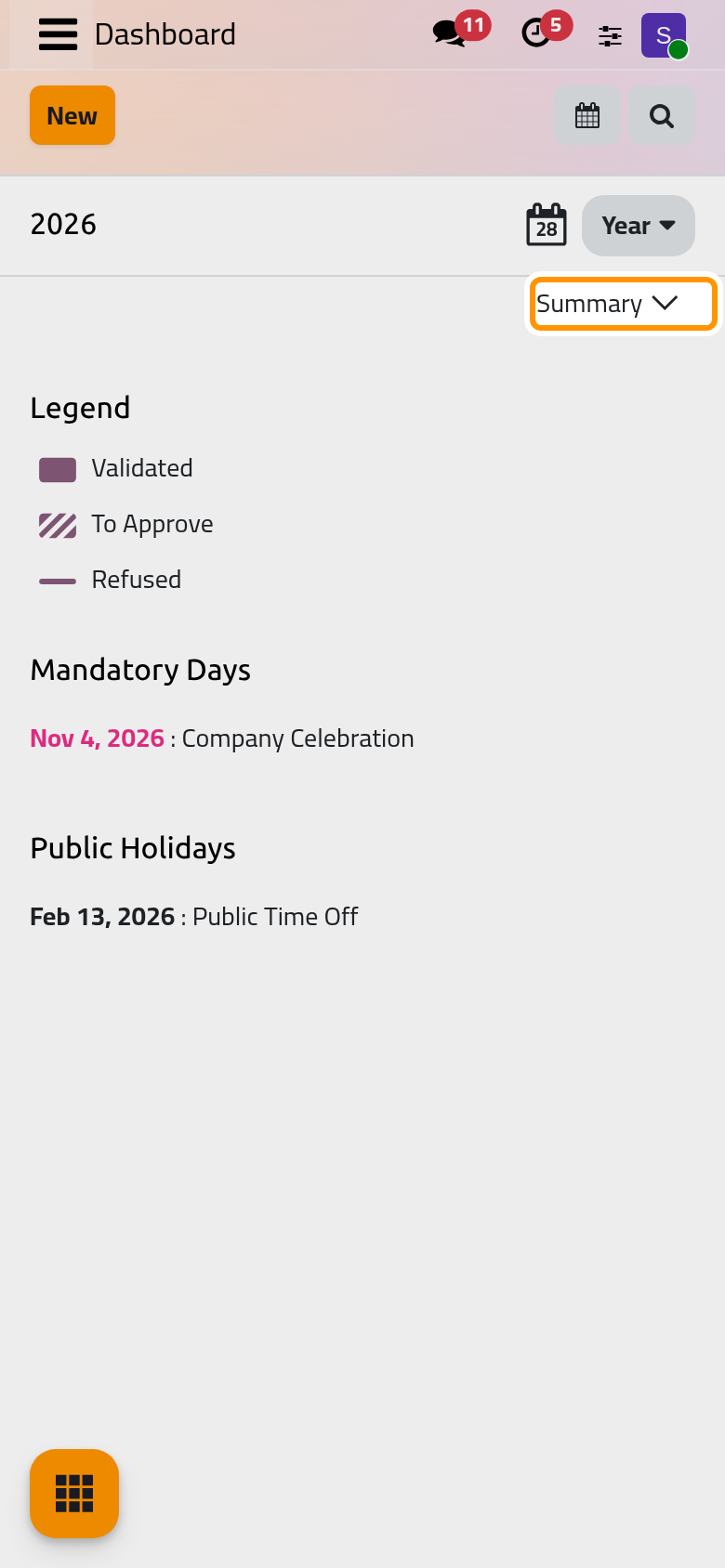
On a phone, the cards are folded under Summary at the top of the calendar.
Step 3: ask for the days
- On the dashboard, click New. The New Time Off form opens.
- Choose Paid Time Off in Time Off Type. The list shows next to each type how many days remain.
- In Dates, type
15/12/2026and17/12/2026. The form counts the working days of your schedule in between: 3 days. - Write
Time off demo: family tripas the description.
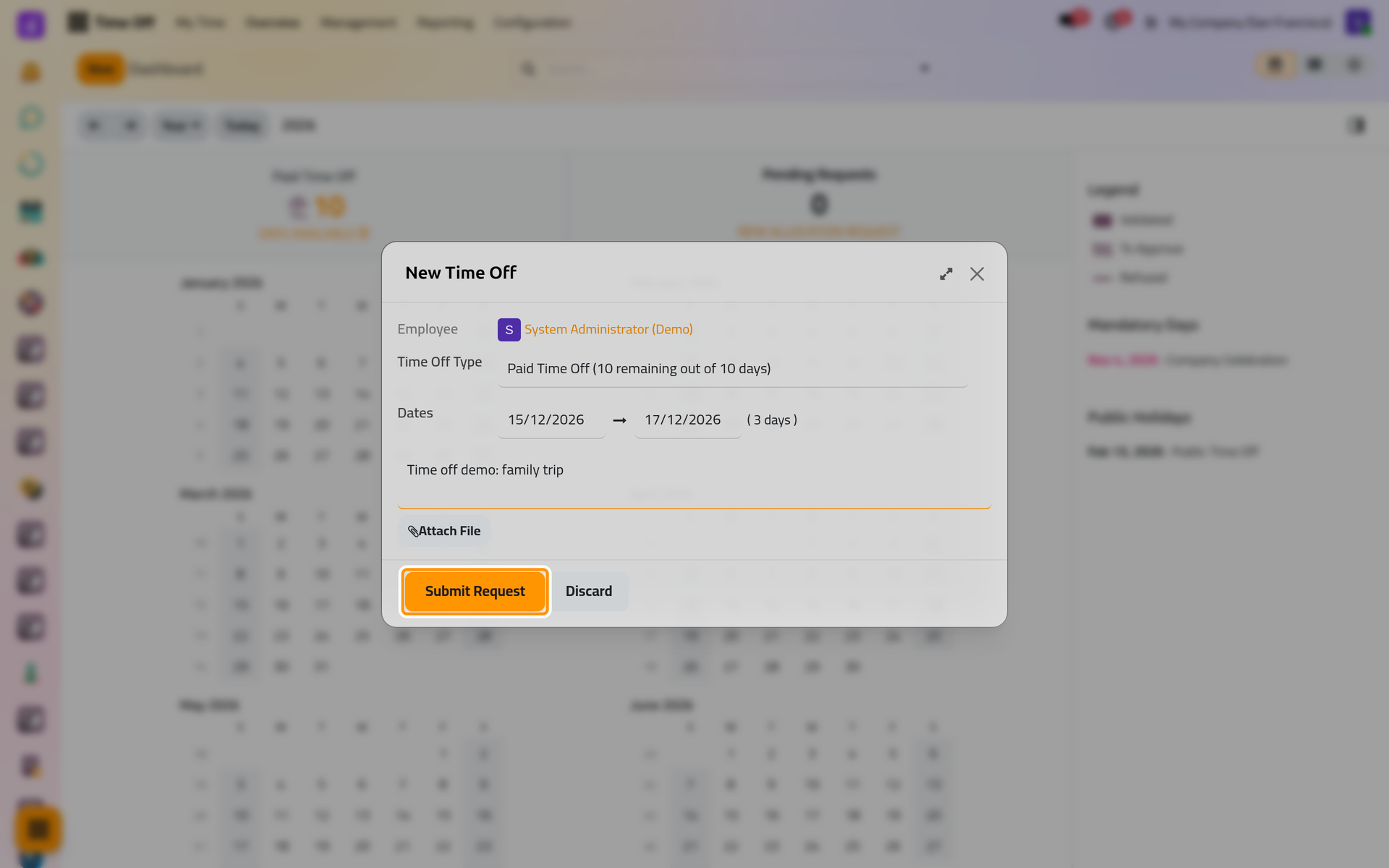
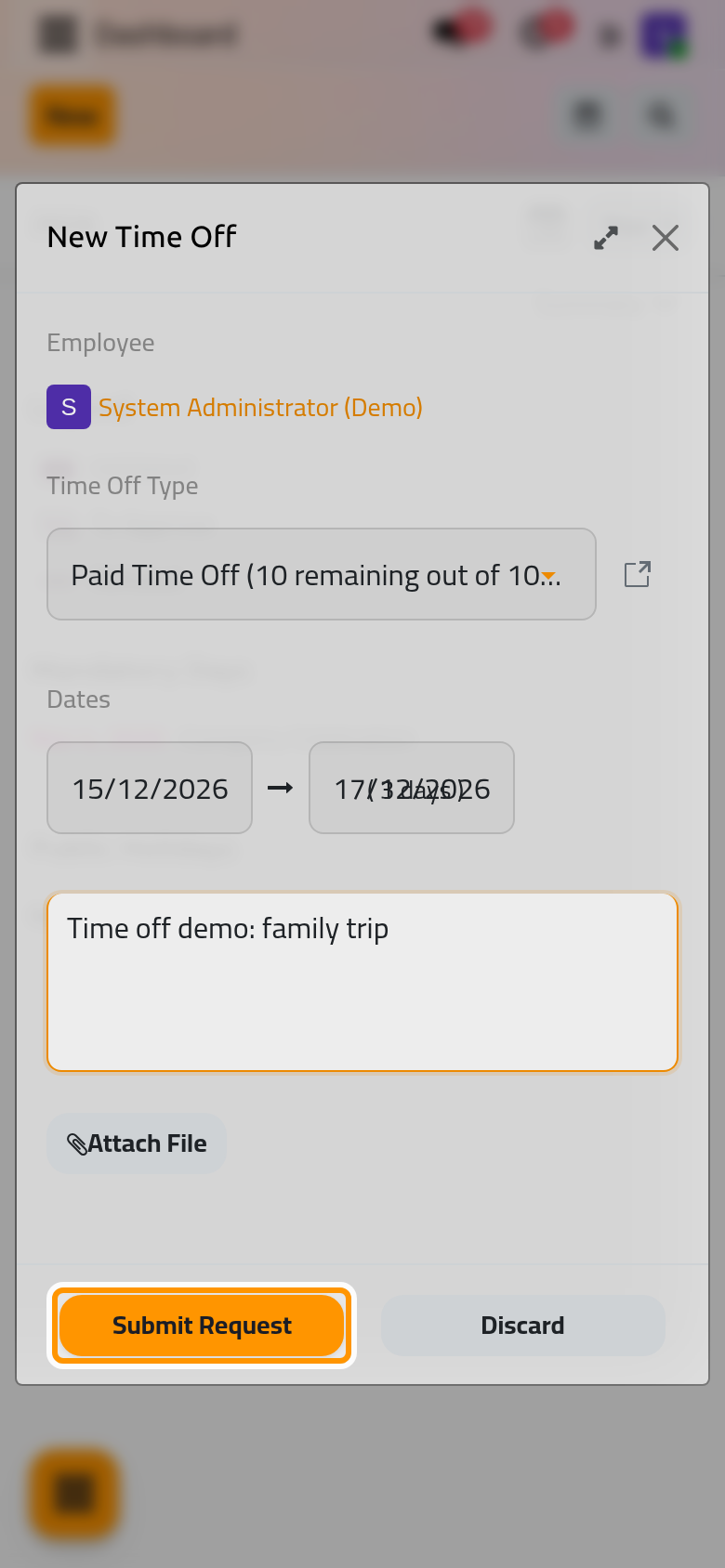
- Click Submit Request.
The request appears striped on the calendar while it waits, and the card drops to 7 days available: days already requested are kept aside, so they cannot be asked for twice.
Step 4: approve the request
- Open . It opens on the Waiting For Me filter, which leaves out your own requests that first wait for your own approver.
- Remove the filter, then click To Approve under Status in the left panel.
- Your request shows with an Approve button.
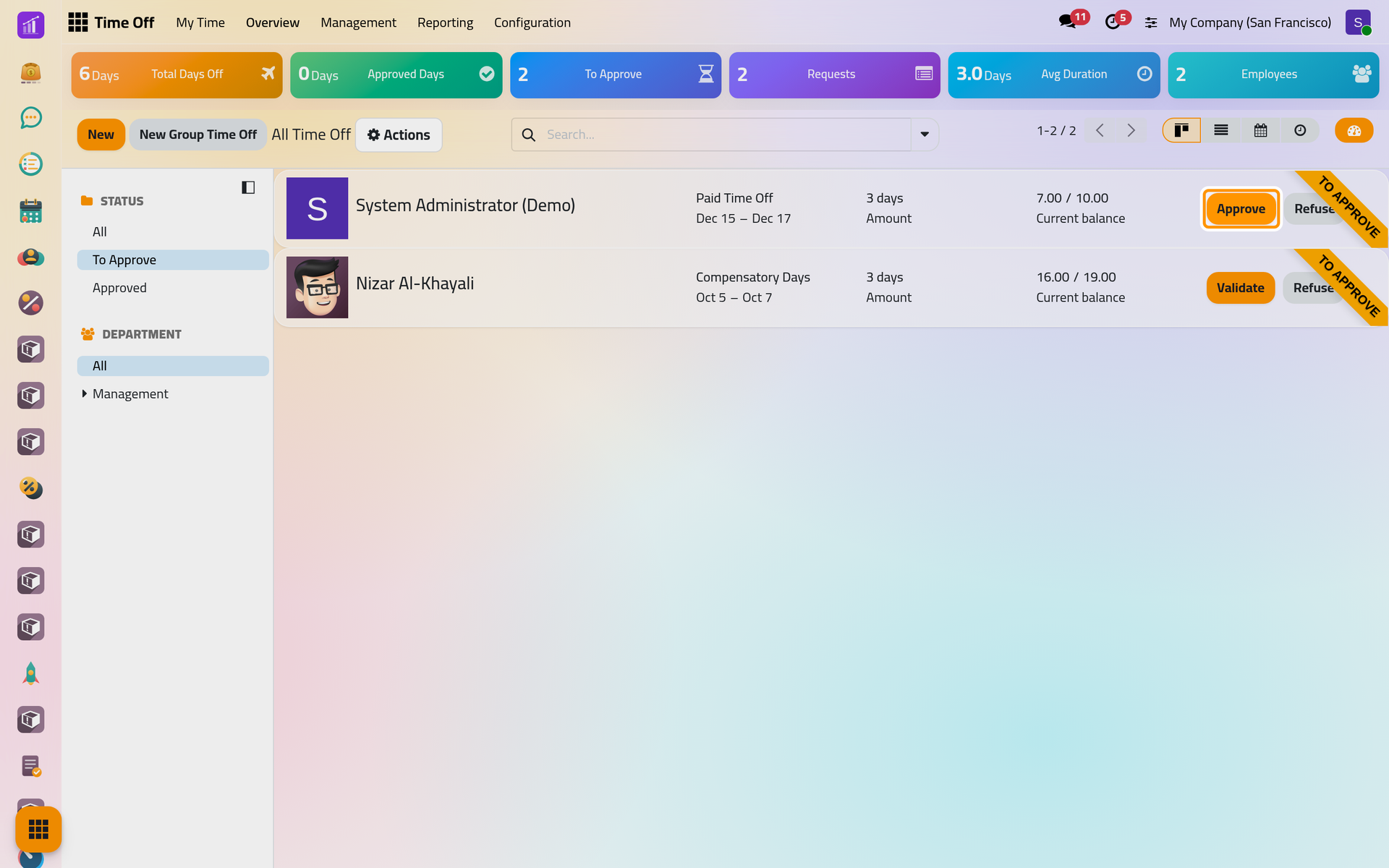
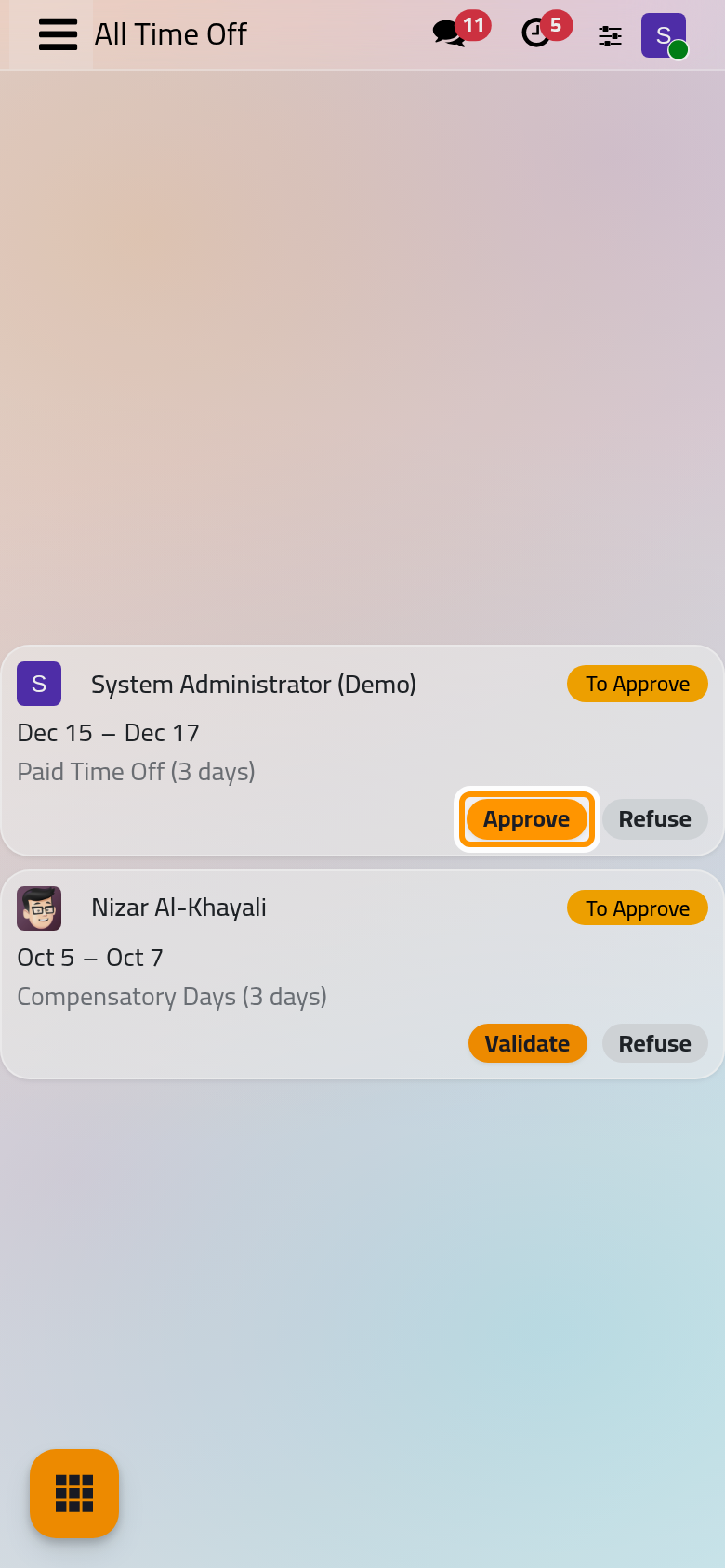
- Click Approve. The request leaves the list.
Paid Time Off asks for two approvals, the employee's approver and then a time off officer. Because you hold the officer right, one click gives both. An approver without that right gives only the first one, and the request waits under Second Approval for an officer. Approve time off requests goes through each case.
Step 5: see the result
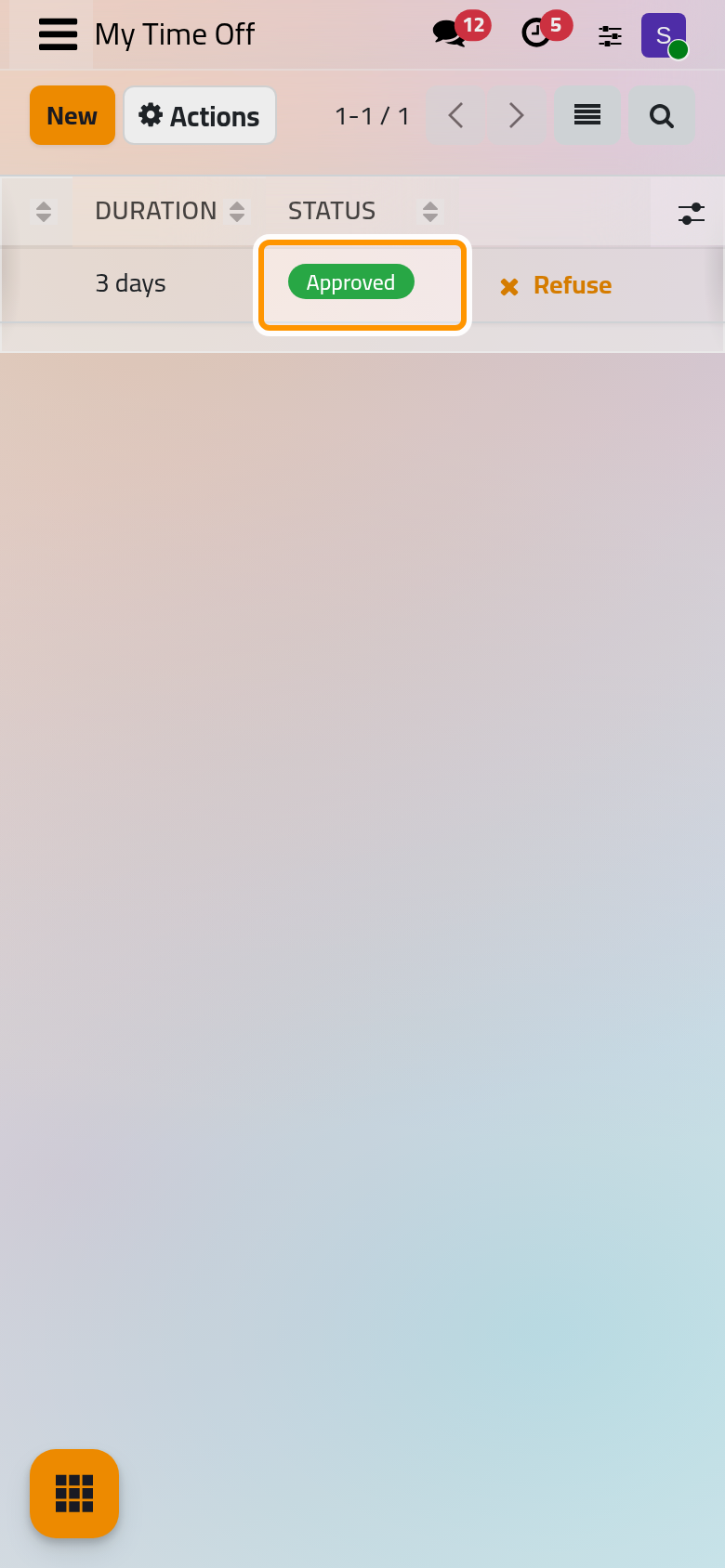
Open . Your request is Approved.
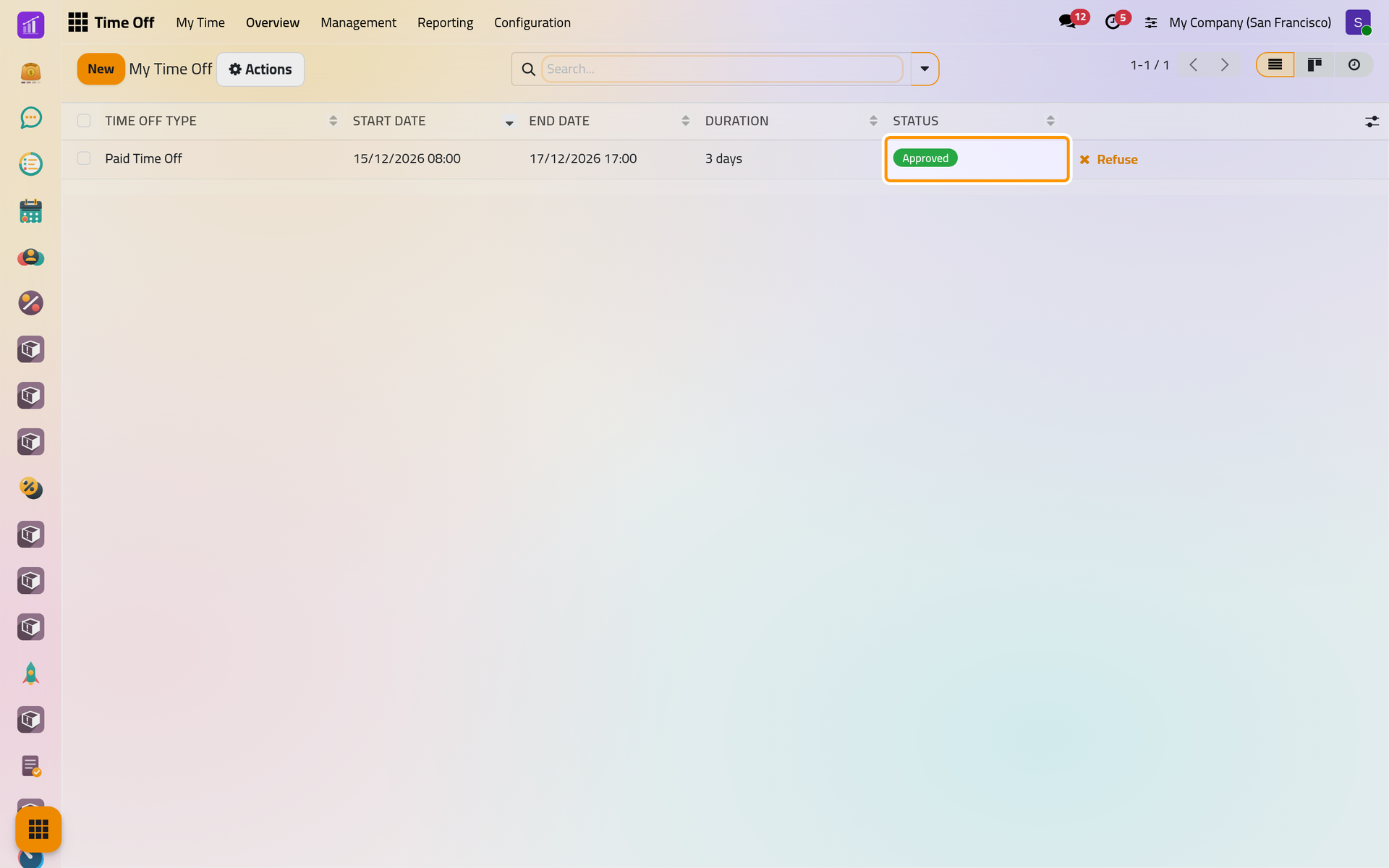
The chatter of the request tells the employee that the time off was accepted, the days appear on Overview for the whole team, and the dashboard calendar shows them in full color.
What you have done
You gave days, checked a balance, asked for time off and approved it: the whole circle the app follows. The next steps are Request time off for half days, files and cancellations, Allocate time off for giving days to many people at once, and Configure time off types for deciding who approves what. How time off works explains the states and the balances behind these screens.
Was this page helpful?
Thank you for your feedback.