Set up accrual plans
On this page
A regular allocation gives a fixed number of days at once. An accrual plan gives them little by little instead: a day and a half each month, two days a year after four years of service, and so on. You build the plan once, then tie it to an accrual allocation for each employee, and a daily job adds the days as they are earned.
Before you start
- needs the Administrator access right on Time Off; giving a plan to employees needs Officer: Manage all requests.
- The demo holds a Seniority Plan with three milestones, a good model to open first.
Create the plan
- Open , click New and give the plan a Title, here
Time off demo: Monthly accrual. - Answer the questions of the Configuration group:
- When the time is accrued? At the start or at the end of each period.
- It is based on worked time? Yes counts the hours actually worked, leaving out the time off taken in the period; no counts every calendar day of the period.
- Do you need a carry-over of the accrued days from one year to another? When ticked, choose when the days left are carried over: at the start of the year, at the allocation date or on a date of your choice.
- With two milestones or more, Switch employees to the new accrual level: says whether an employee moves up Immediately or After this accrual's period.
Add milestones
A milestone says how much is earned and how often, from a given moment.
- Click Create a milestone, or Add a milestone once the plan has one.
- In Set the employee accrual frequency :, type the amount,
1.5, keep the unit in days, and choose the frequency, here Monthly, on the first day of the month. The other frequencies run from Hourly to Yearly; Per Hour Worked comes from the Attendances app. - This milestone will be reached : at the creation of the allocation, or after a number of days, months or years from its start, for seniority steps.
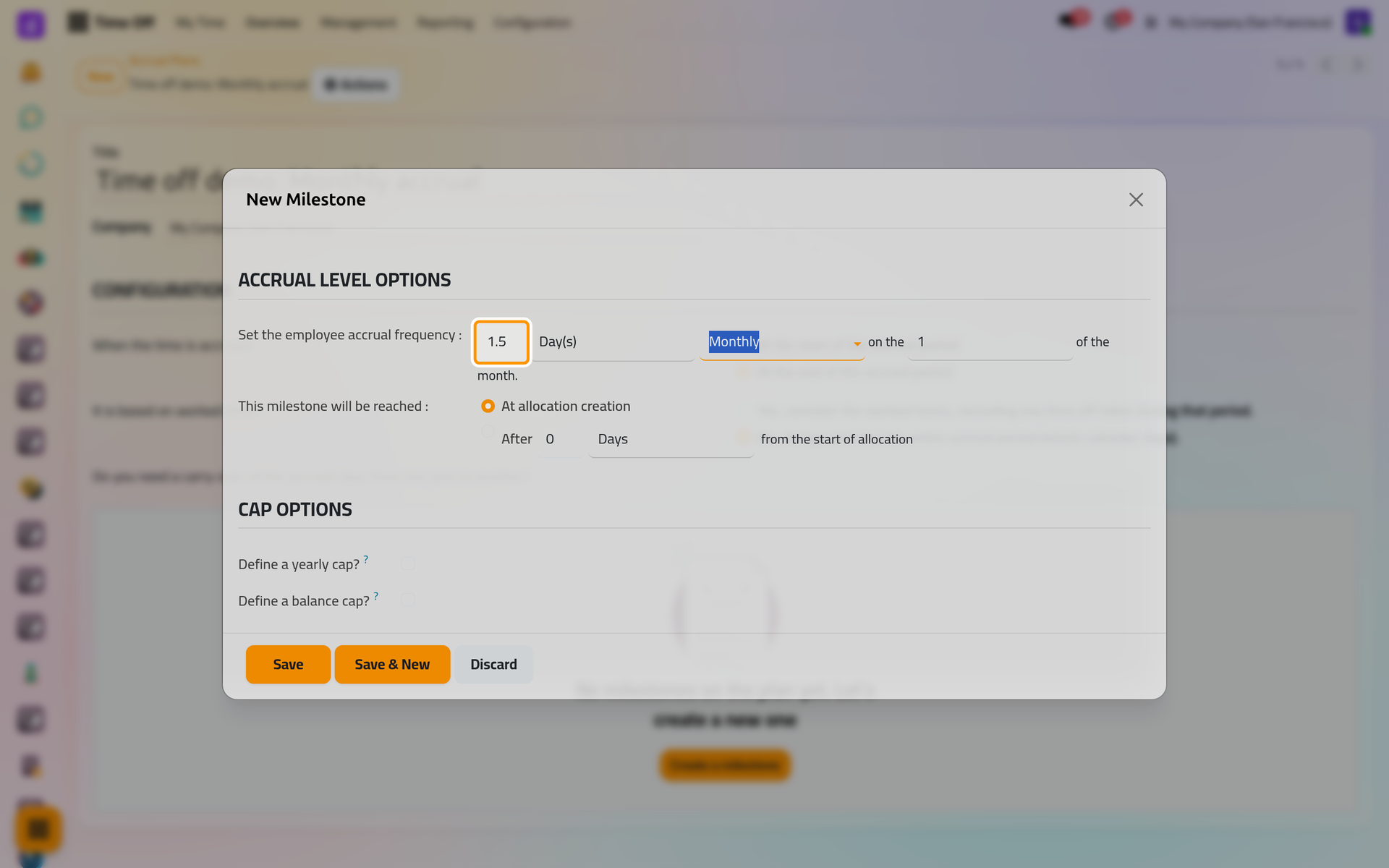
- Under Cap Options, a yearly cap limits what is earned in one year, and a balance cap puts the plan on hold while the balance stays at that amount.
- When the plan carries days over, Carry Over Options decide whether the unused days are Lost or Carried over, how many, and for how long they stay valid.
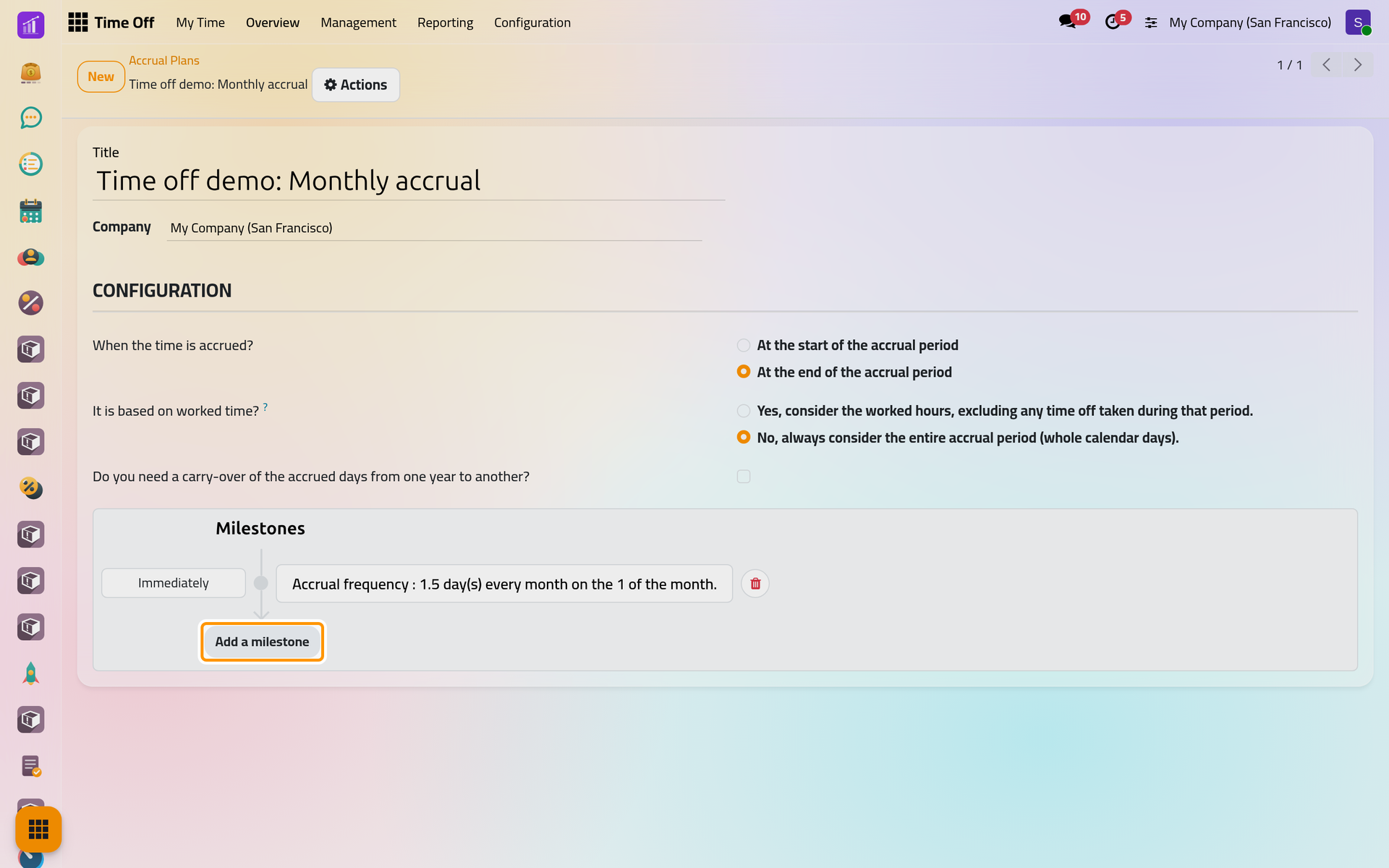
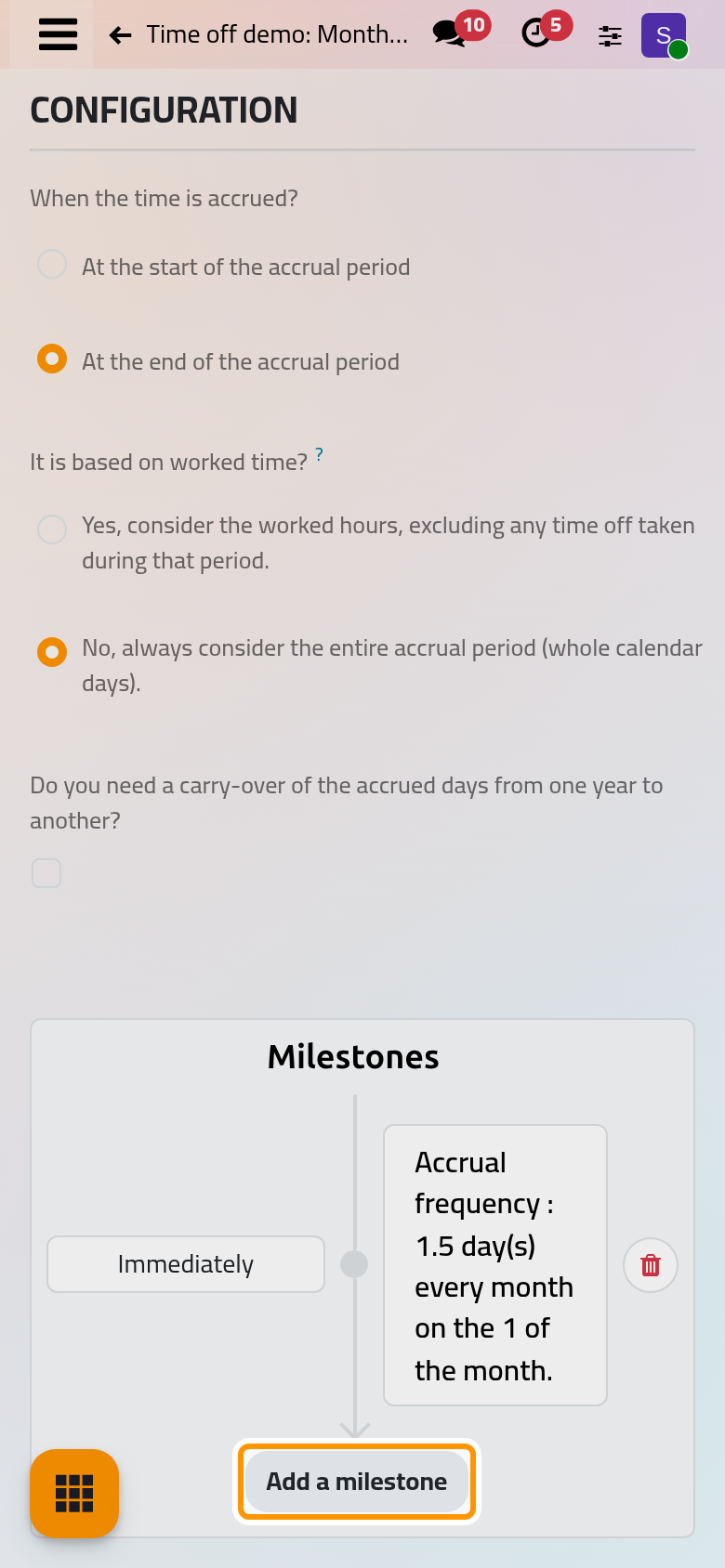
- Click Save. The milestone shows on the plan as one sentence, such as one and a half days every month.
Give the plan to an employee
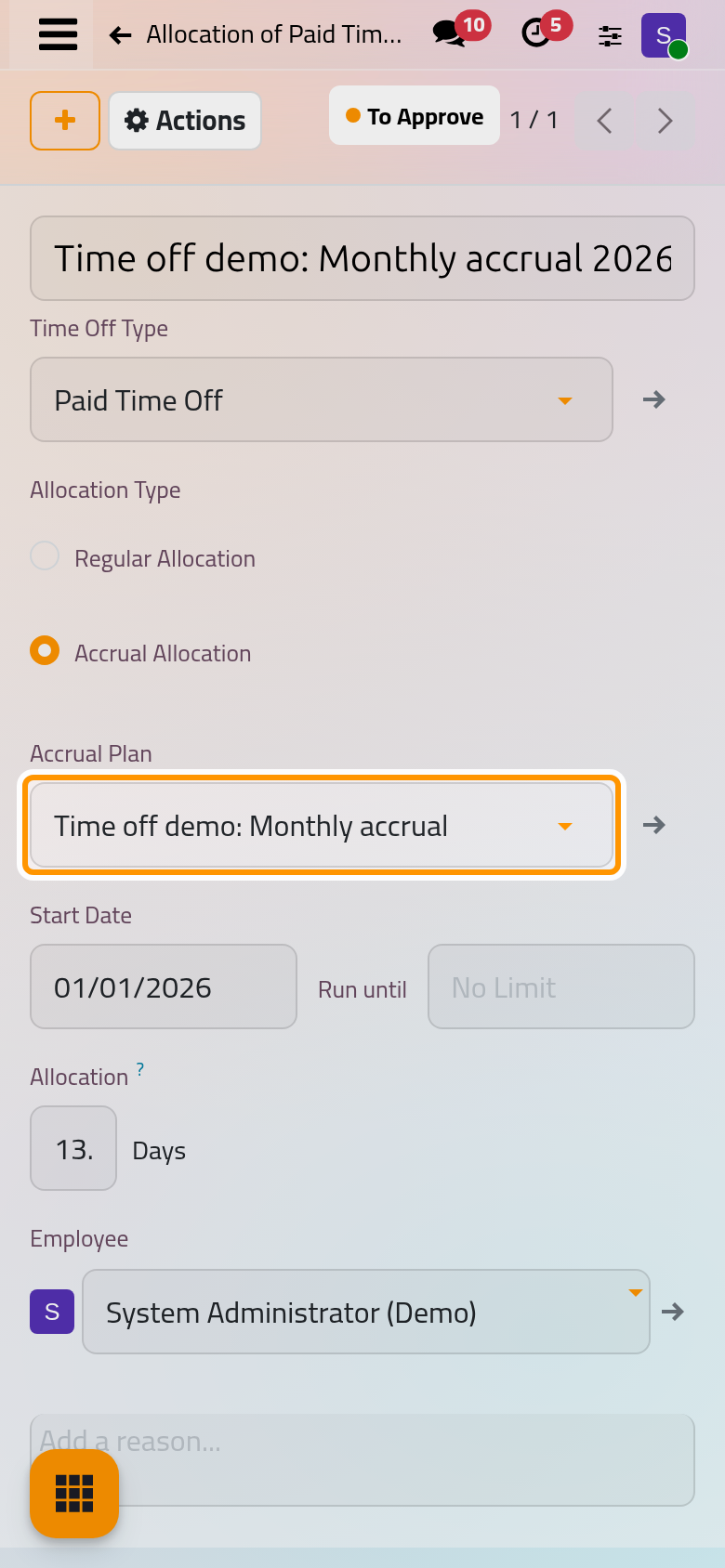
- Open and click New.
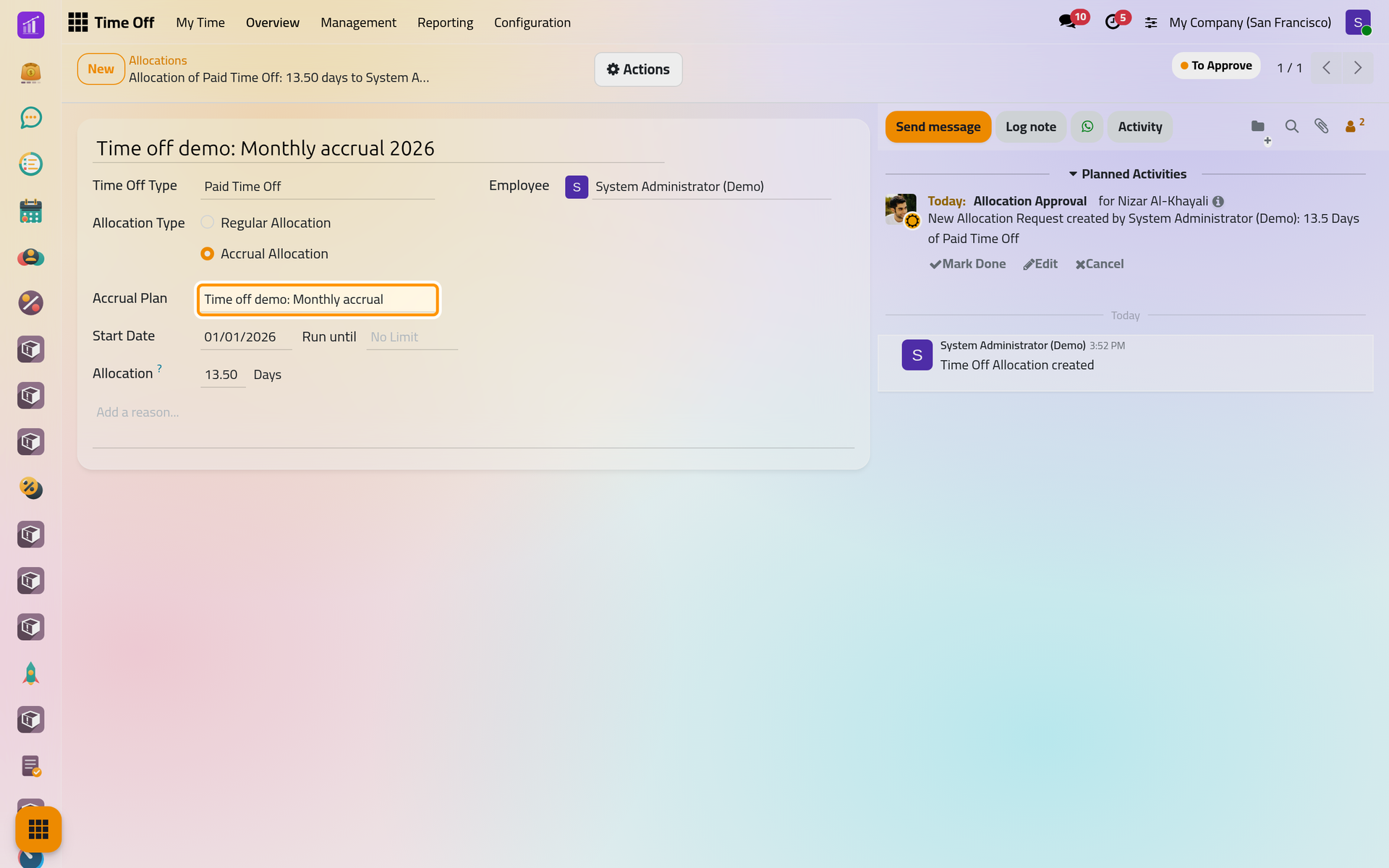
- Choose the Time Off Type, then Accrual Allocation, and pick the plan in Accrual Plan.
- Give the Start Date, and Run until if the plan should stop.
- The Allocation fills itself with the days earned between the start date and today, as if the plan had run all along.
- Save, then approve the allocation from Actions.
For many employees at once, New Group Allocation offers Based on Accrual Plan: Allocate time off.
FAQ
When are the new days added?
A scheduled job runs every day and adds what each approved accrual allocation has earned: Time off automations.
Can an employee book days he has not earned yet?
The dashboard shows, with Balance at the, what he will hold on a later date. A daily check then cancels any request of the next 31 days that the accrued days do not cover, beyond the negative cap of the type, with the reason in its chatter.
What does the demo Seniority Plan give?
One day a year from the first day, two days a year after four years and three after eight, each given on 1 January. Unused days are carried over at the start of the year, and the balance stops growing at 100 days.
Was this page helpful?
Thank you for your feedback.