Time off reports
On this page
Time Off answers four questions from its menus: who is away this week, how many days each person took, what each type cost, and what everyone has left. A printed summary adds a grid of the coming weeks for chosen employees.
Before you start
- Overview is open to every user. Reporting needs Officer: Manage all requests, and its Balance needs Administrator.
- The app also has a ready-made dashboard, Time Off Analysis, whose tiles show above the lists of the app: Ready-made dashboards.
Who is away: Overview
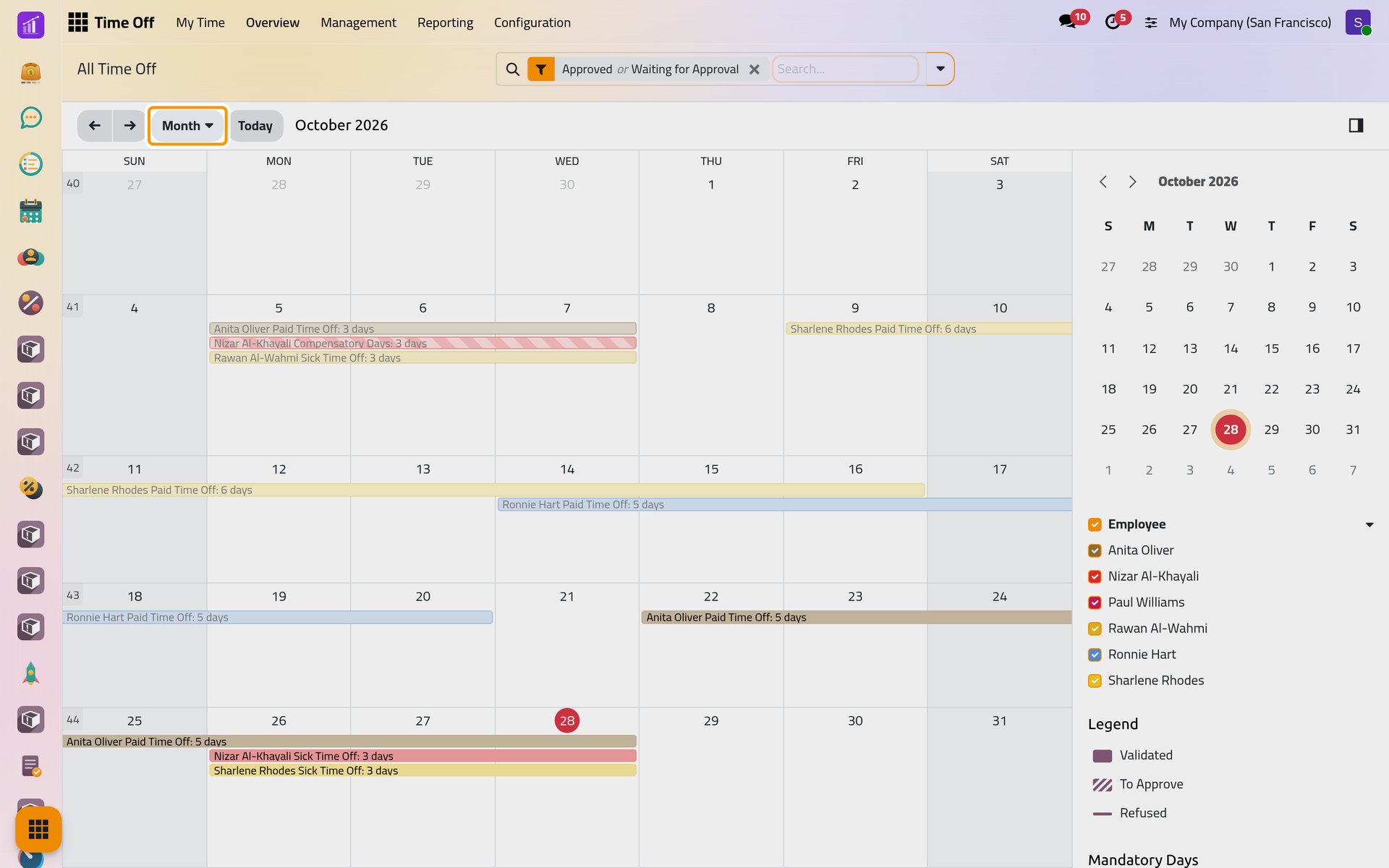
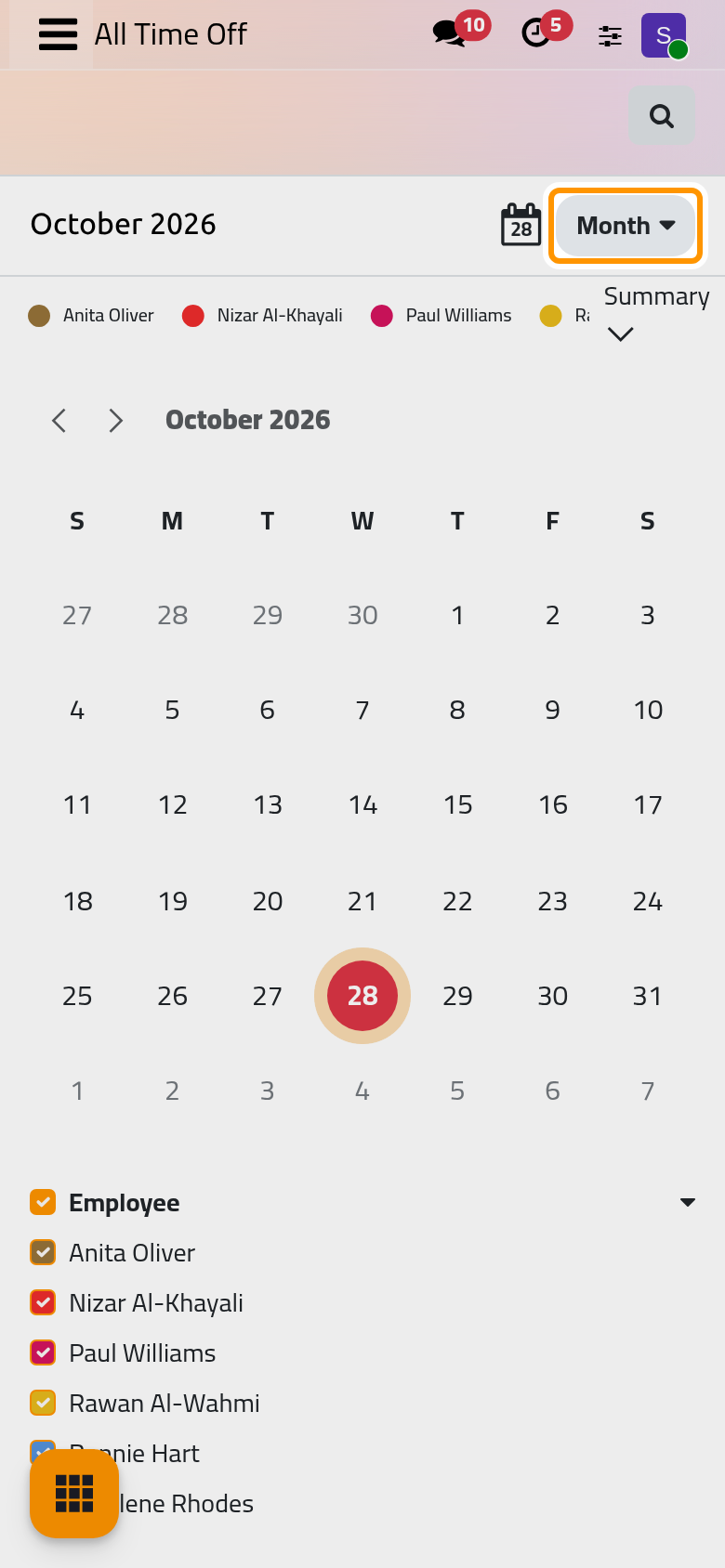
Open . The calendar shows the month with one bar per person away, colored by employee; a striped bar still waits for approval. It opens on My Team, yourself and the people you manage: remove that filter to see the whole company. Month switches to a week or a year.
Days by employee
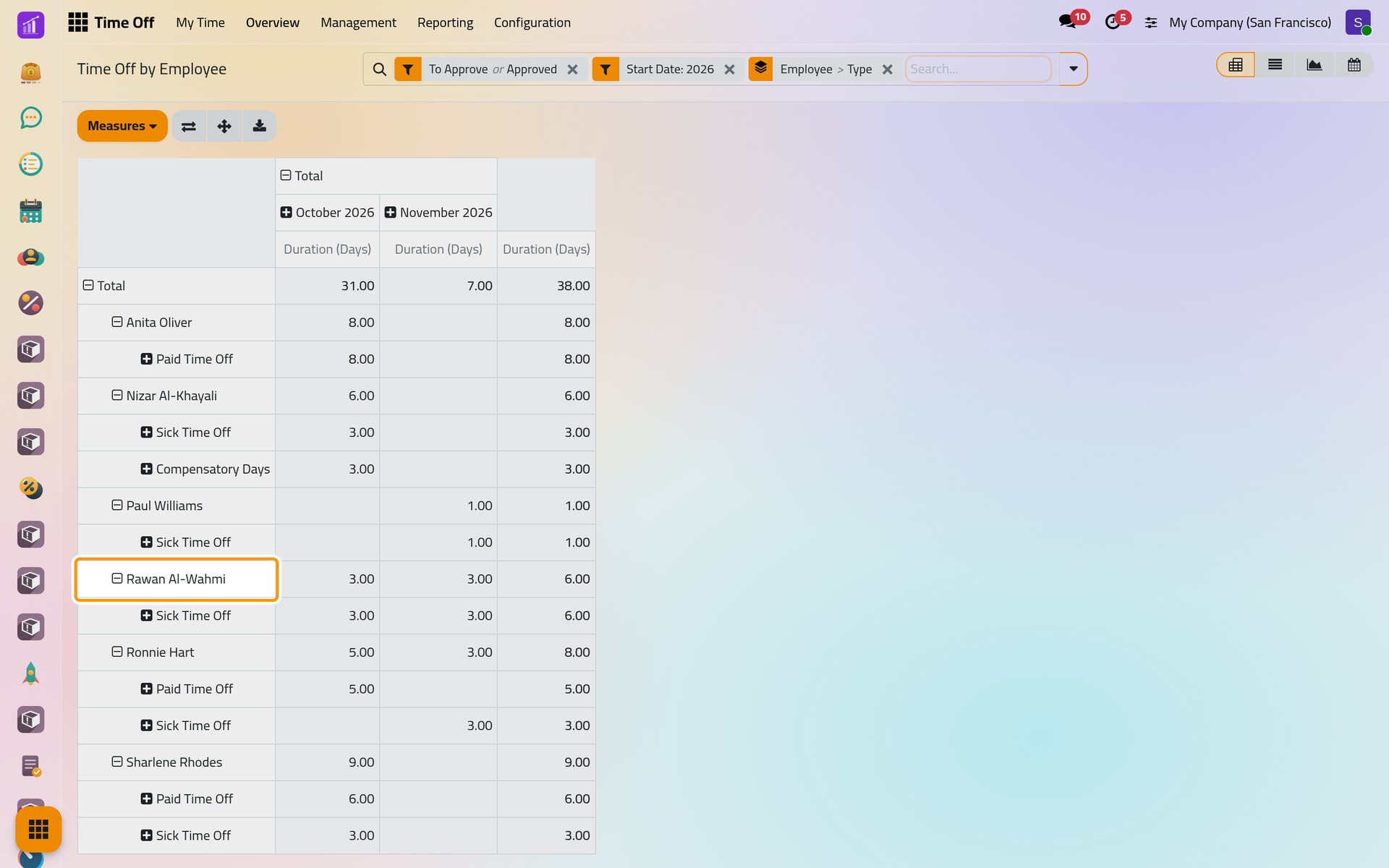
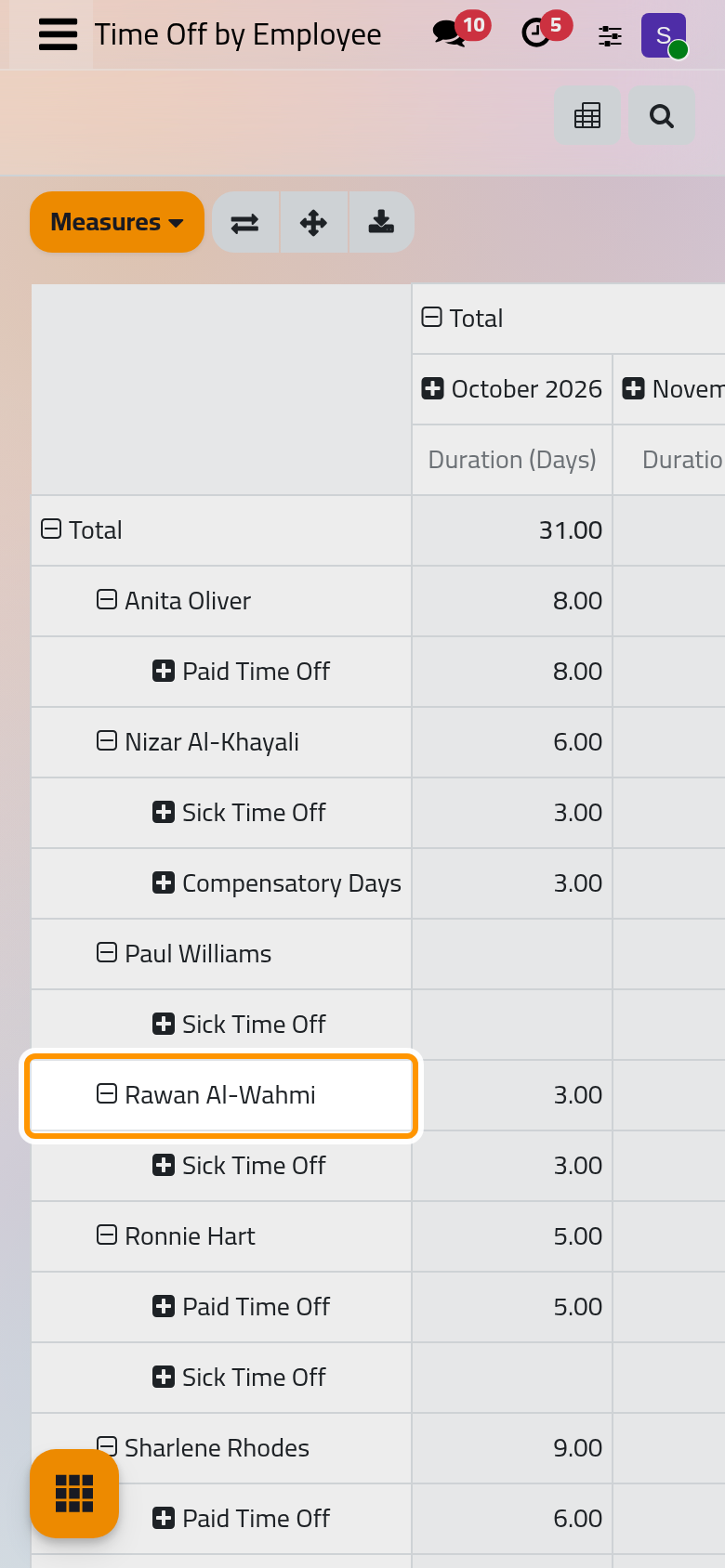
counts the days requested this year, to approve or approved, by employee and type, month by month. Click a header to open or fold a level, and the buttons above the table to change the measures, flip the axes or download the table as a spreadsheet. The switchers at the top give the same figures as a list, a chart or a calendar.
Days by type
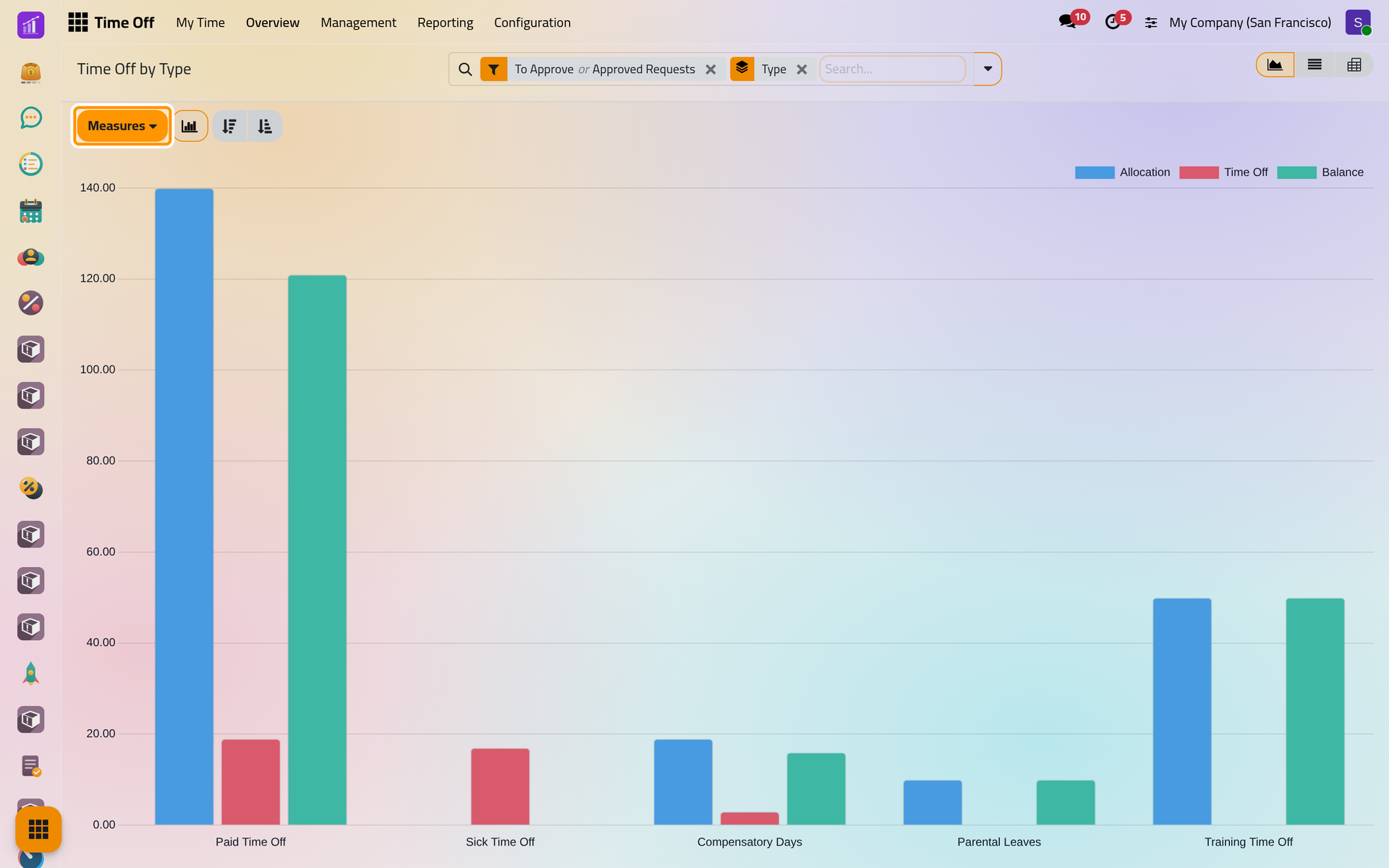
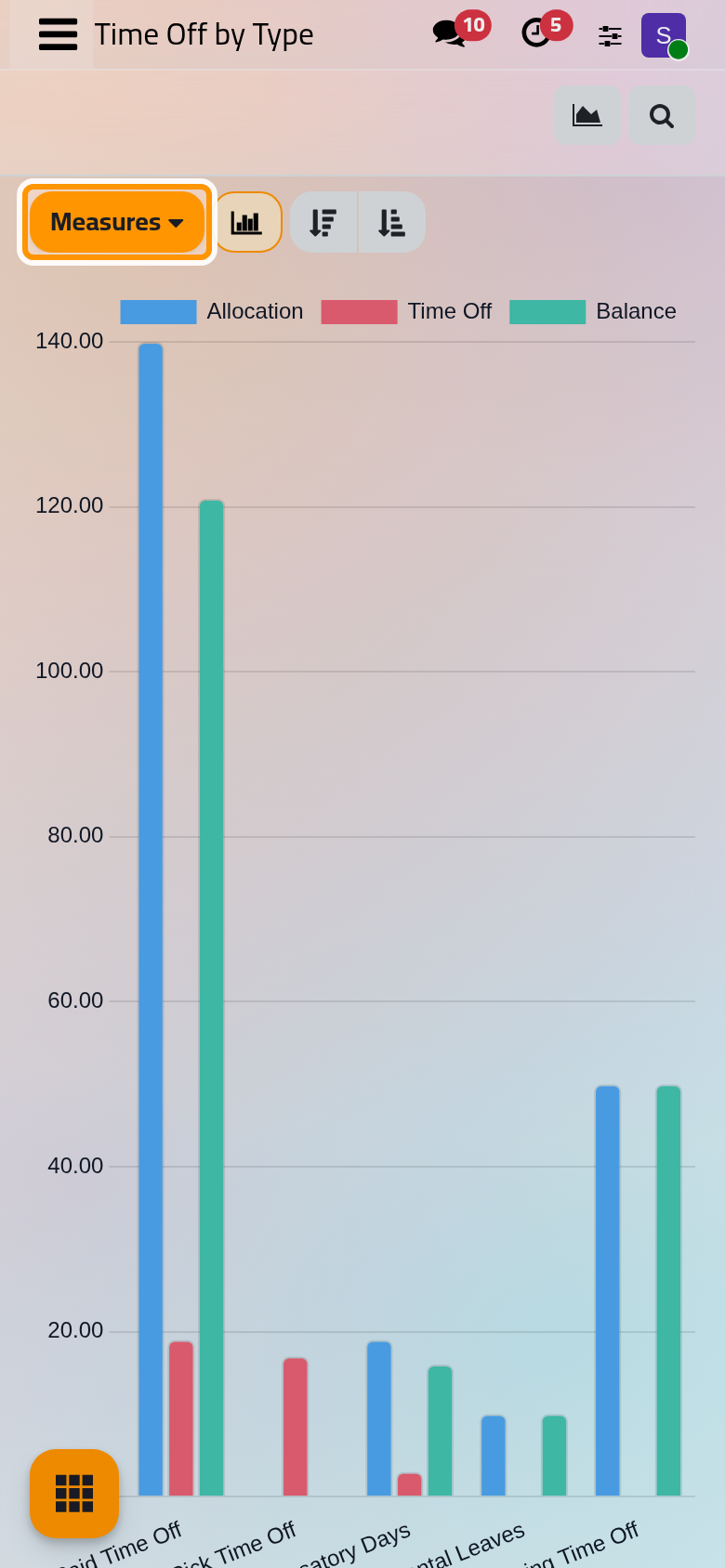
compares, for each type, the days allocated, the time off taken and the balance. Measures chooses what the bars show.
Balance
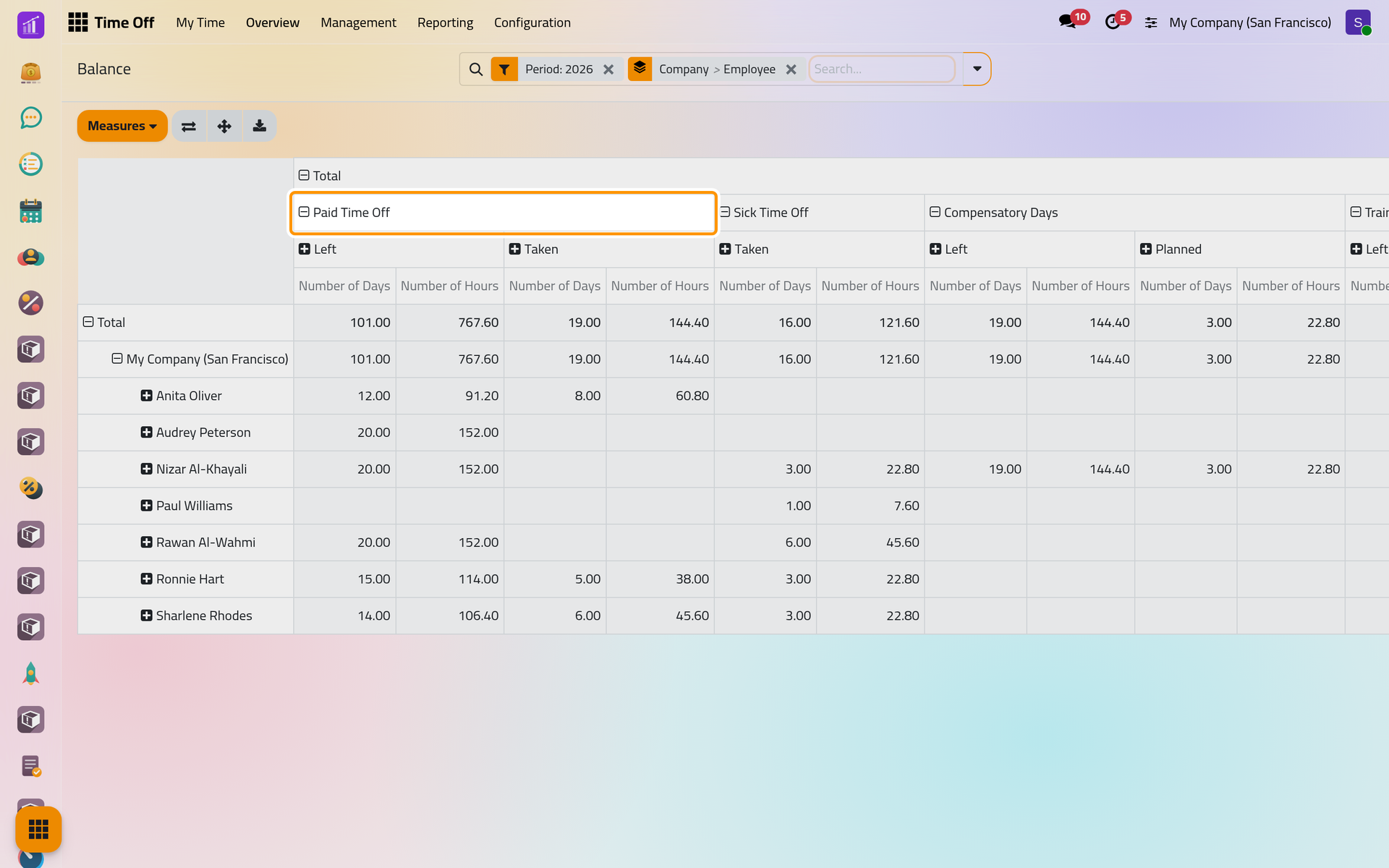
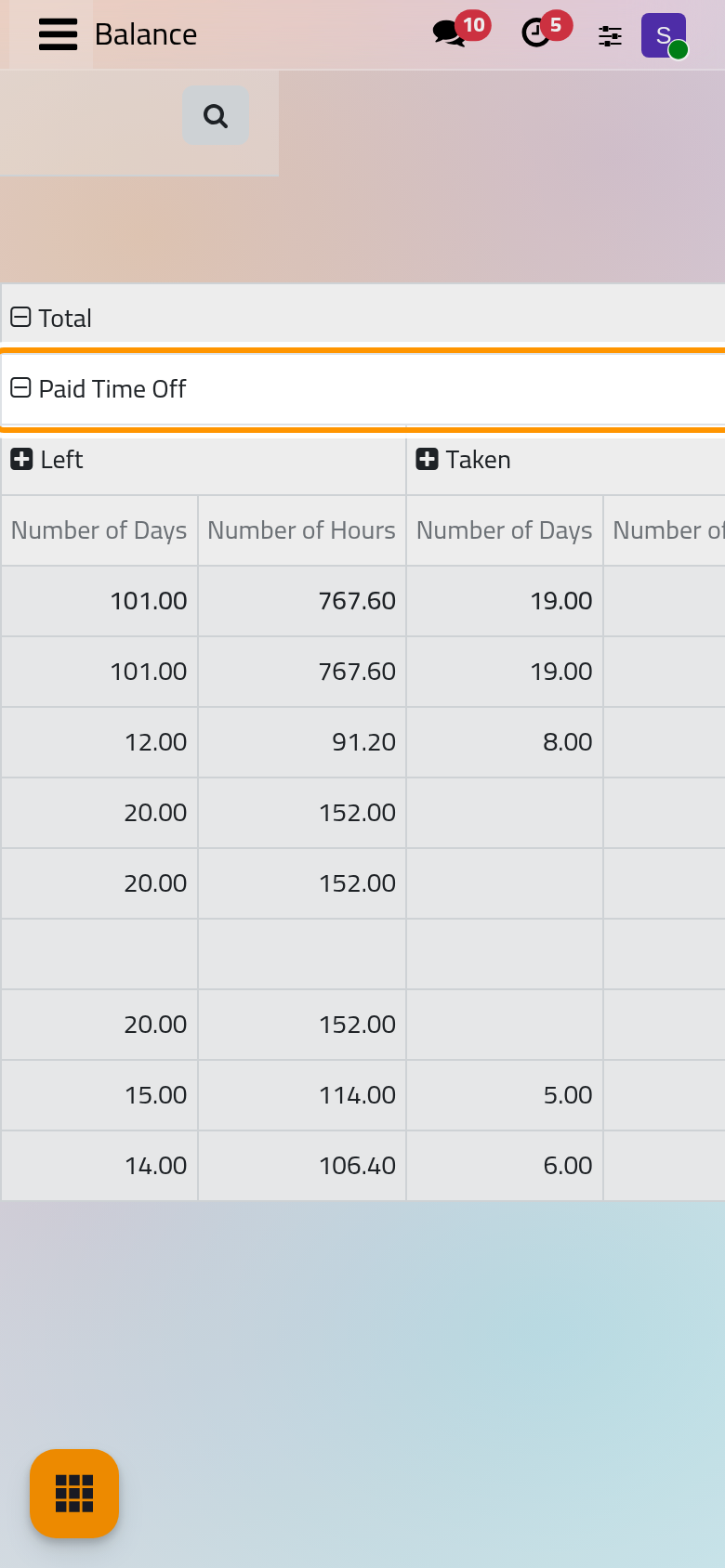
gives, for each employee and each type, the days and hours left, taken and planned this year.
Print a Time Off Summary
- Open , switch to the list and tick the employees.
- Click Print, then Time Off Summary.
- Choose the first day in From, and in Select Time Off Type whether to print the approved time off, the confirmed requests or both.
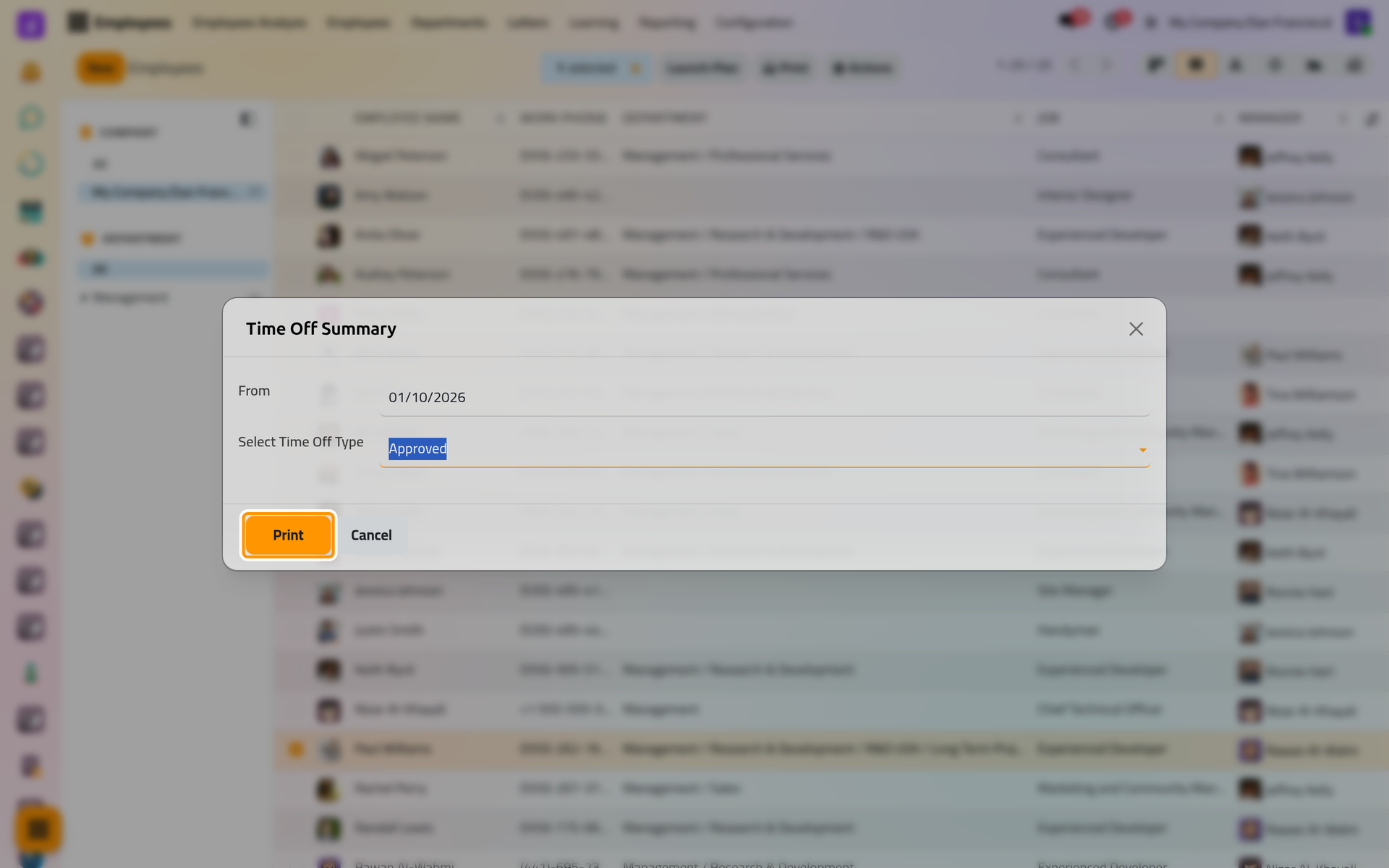
- Click Print. The PDF shows a grid of 60 days from that date, one line per employee, with each day off colored by its type.
On a phone, the dialog fills the screen, with the same buttons at the bottom.
FAQ
Why is the Overview empty?
It opens on My Team: when you manage nobody, it shows only your own time off. Remove the filter.
Why do the reports show only this year?
by Employee and Balance open with a filter on the current year. Remove it, or choose another period in the filters.
Can I export the figures?
Yes: the download button above each table writes it as a spreadsheet, and the list view exports like any list: Export and import data.
Was this page helpful?
Thank you for your feedback.