Use the kiosk
On this page
The kiosk is a page for a tablet at the entrance: employees check themselves in and out there without signing in to anything. Each check-in or check-out made there is recorded with the mode Kiosk.
Before you start
- Opening the kiosk needs Officer: Manage all attendances; its settings need Administrator on Attendances and the right to manage the settings of the database.
- The kiosk lists the employees of the company it belongs to. Its labels follow the language of the company's contact, not the language of the person who opened it.
Choose how employees identify themselves
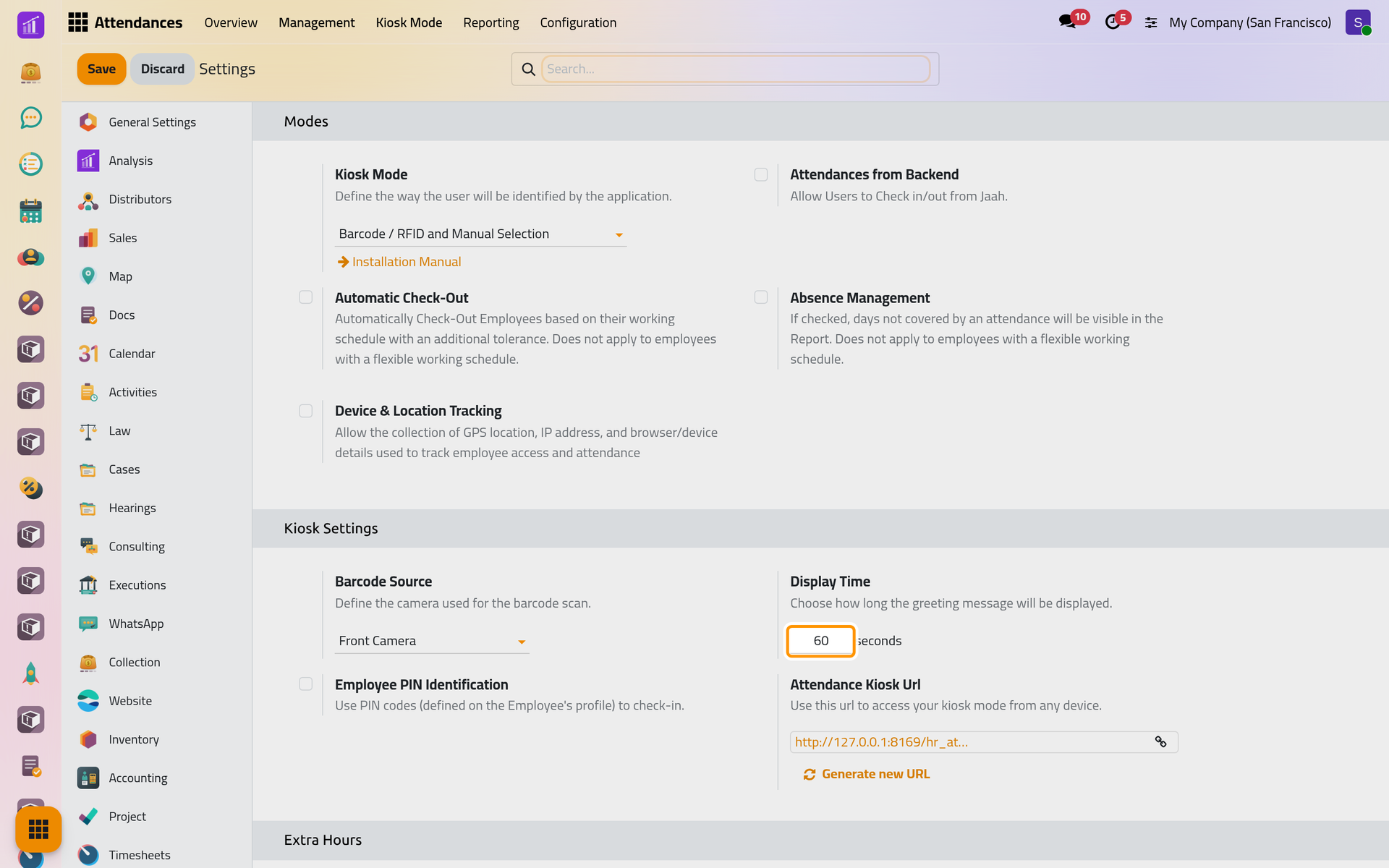
- Open .
- In Kiosk Mode, choose:
- Barcode / RFID: employees scan their badge, nothing else;
- Barcode / RFID and Manual Selection, the default: they scan, or pick their name with Identify Manually;
- Manual Selection: they pick their name from a list.
- When badges are used, set Barcode Source: Scanner for a reader plugged into the tablet, or the Front Camera or Back Camera of the tablet.
- To ask for a PIN after a name is picked, tick Employee PIN Identification. Scanning a badge never asks for it.
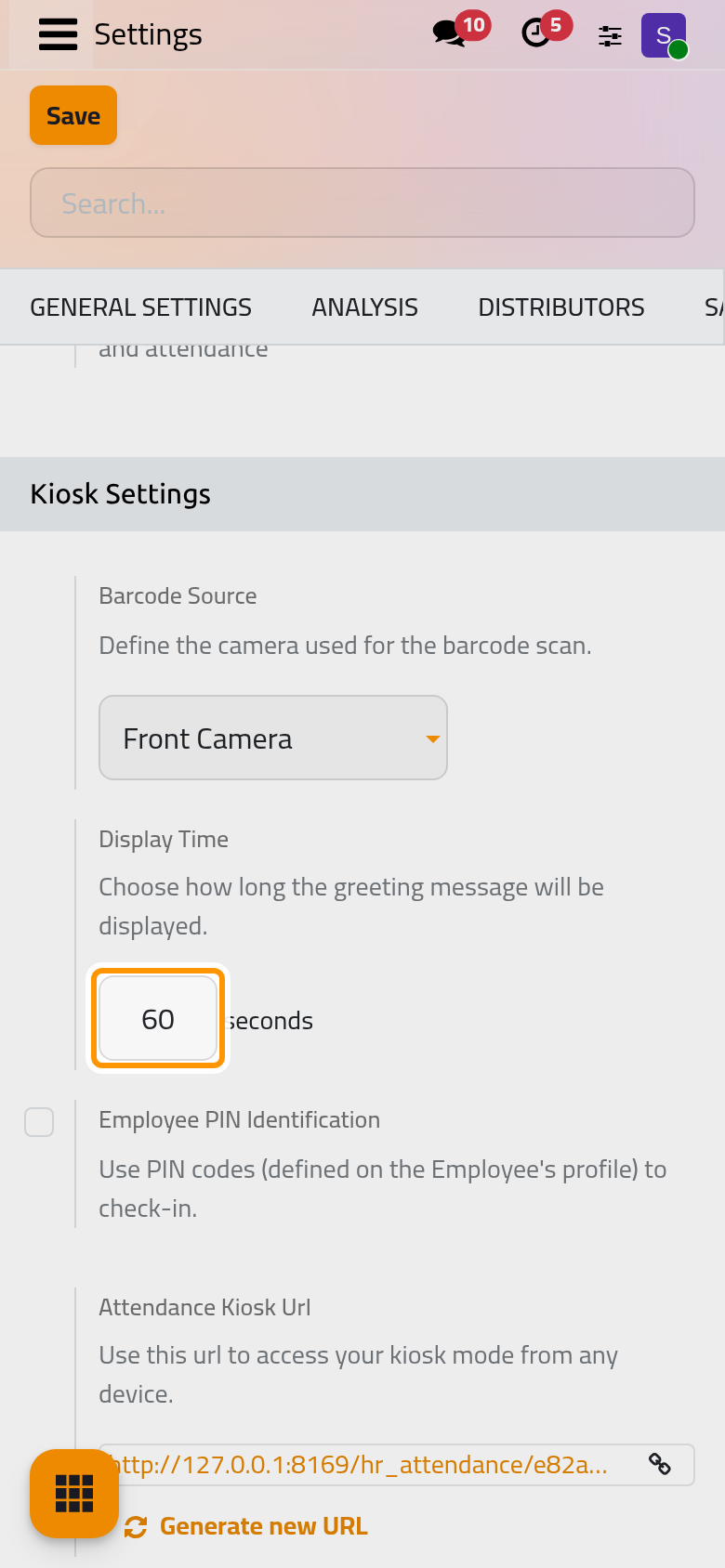
- Display Time sets how many seconds the greeting stays on screen; here, 60. Click Save.
Each employee's badge number and PIN are on the Settings tab of the employee's form, under Attendance/Point of Sale: RFID/Badge Number, with Generate for a random number, and PIN Code.
Open the kiosk
- On the tablet itself, open . The app signs you out first, then shows the kiosk in the same tab, so that nobody at the tablet can reach your account.
- On any other device, open the address shown in Attendance Kiosk Url in the settings. No sign-in is asked: treat the address like a key. Generate new URL replaces it, and the old address stops working at once.
Check in at the kiosk
- On the kiosk, click Identify Manually. The departments are on the left, each with its number of employees, and every card shows On site for someone checked in at the kiosk, Online for someone checked in another way, or Absent.
- Type the start of a name in the search box to narrow the list.
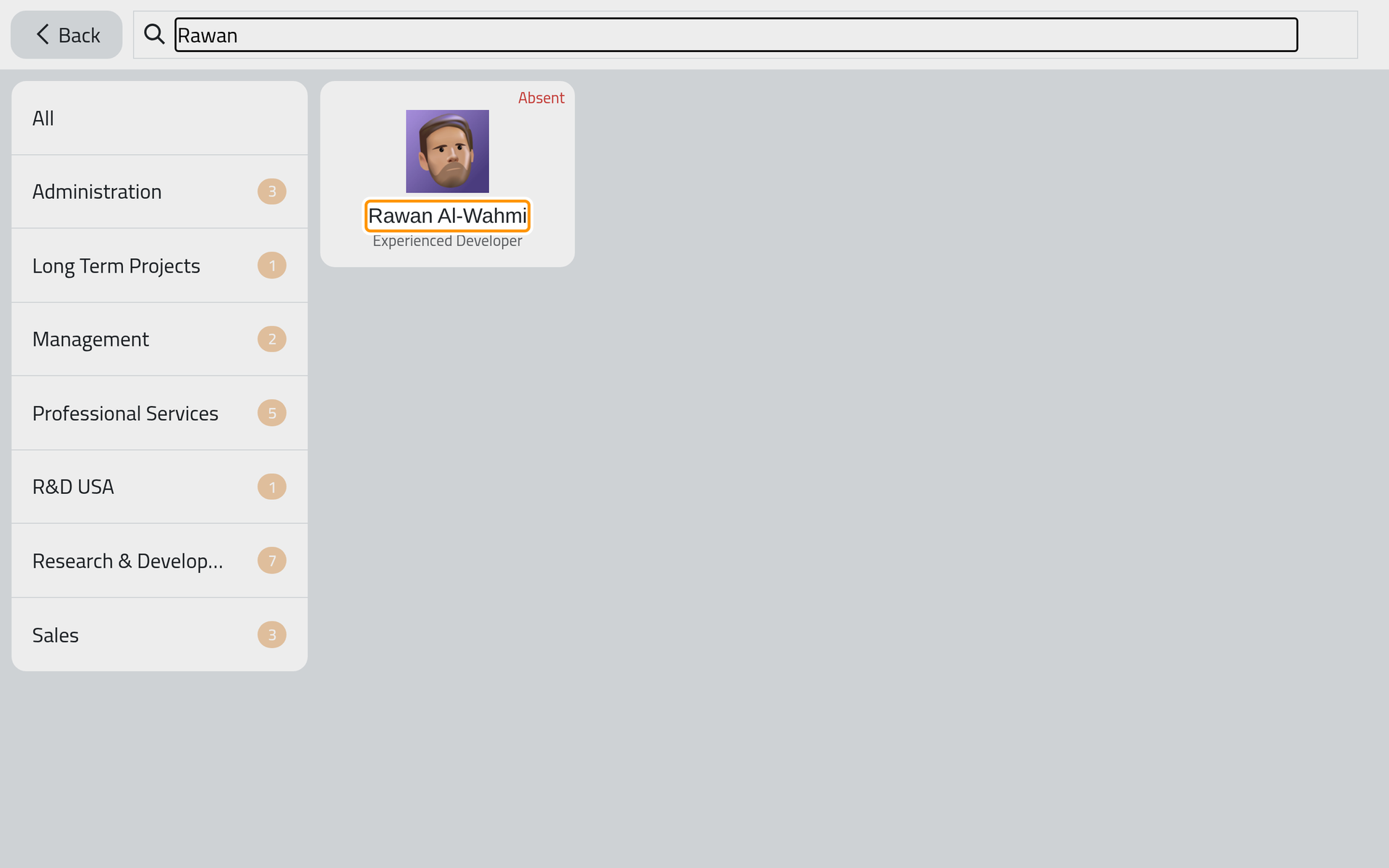
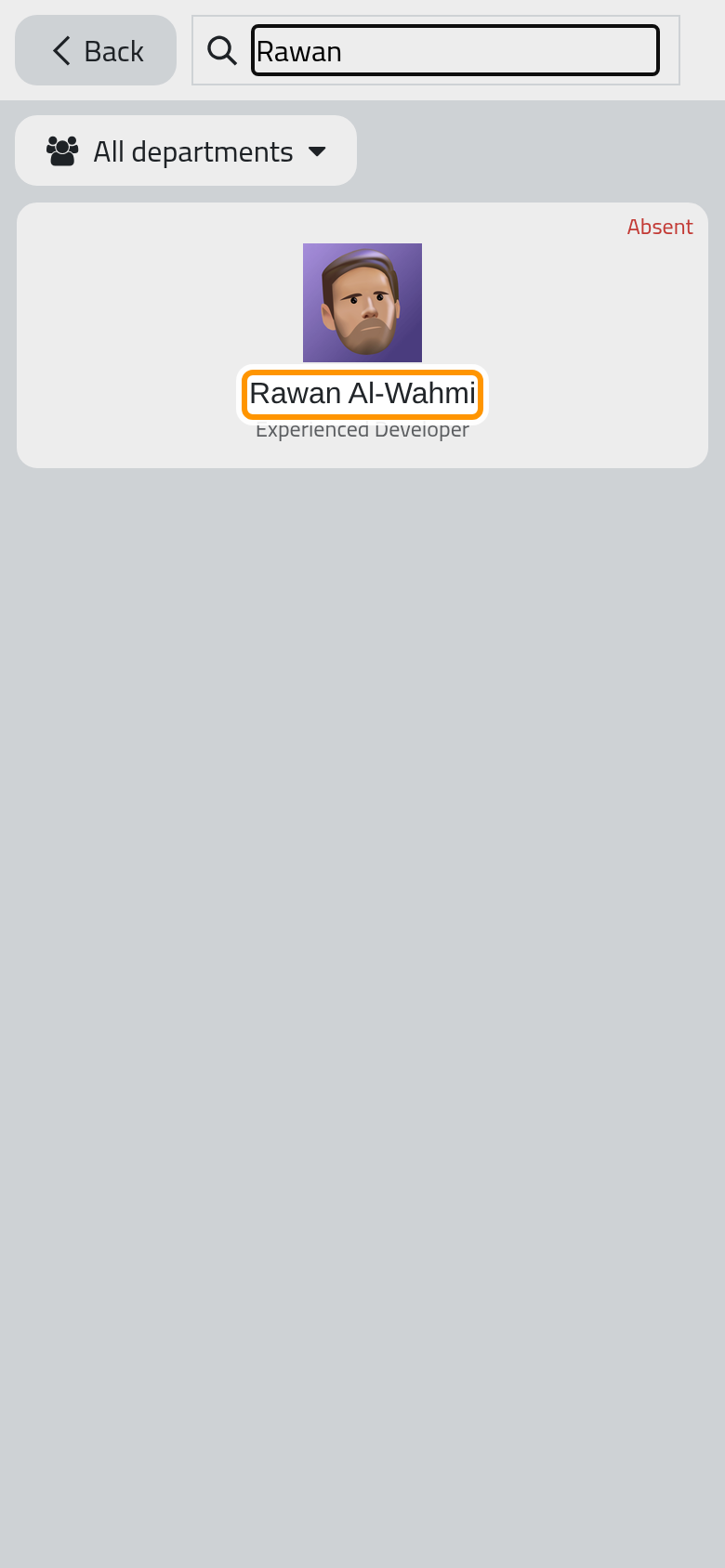
- Click the name. With a PIN required, the kiosk asks for it first.
The greeting says Welcome and the time of the check-in, or Goodbye and the time of the check-out with the hours of the day. With Display Extra Hours turned on, a check-out also shows the extra hours of the day and in total. OK, or the end of the Display Time, brings the kiosk back.
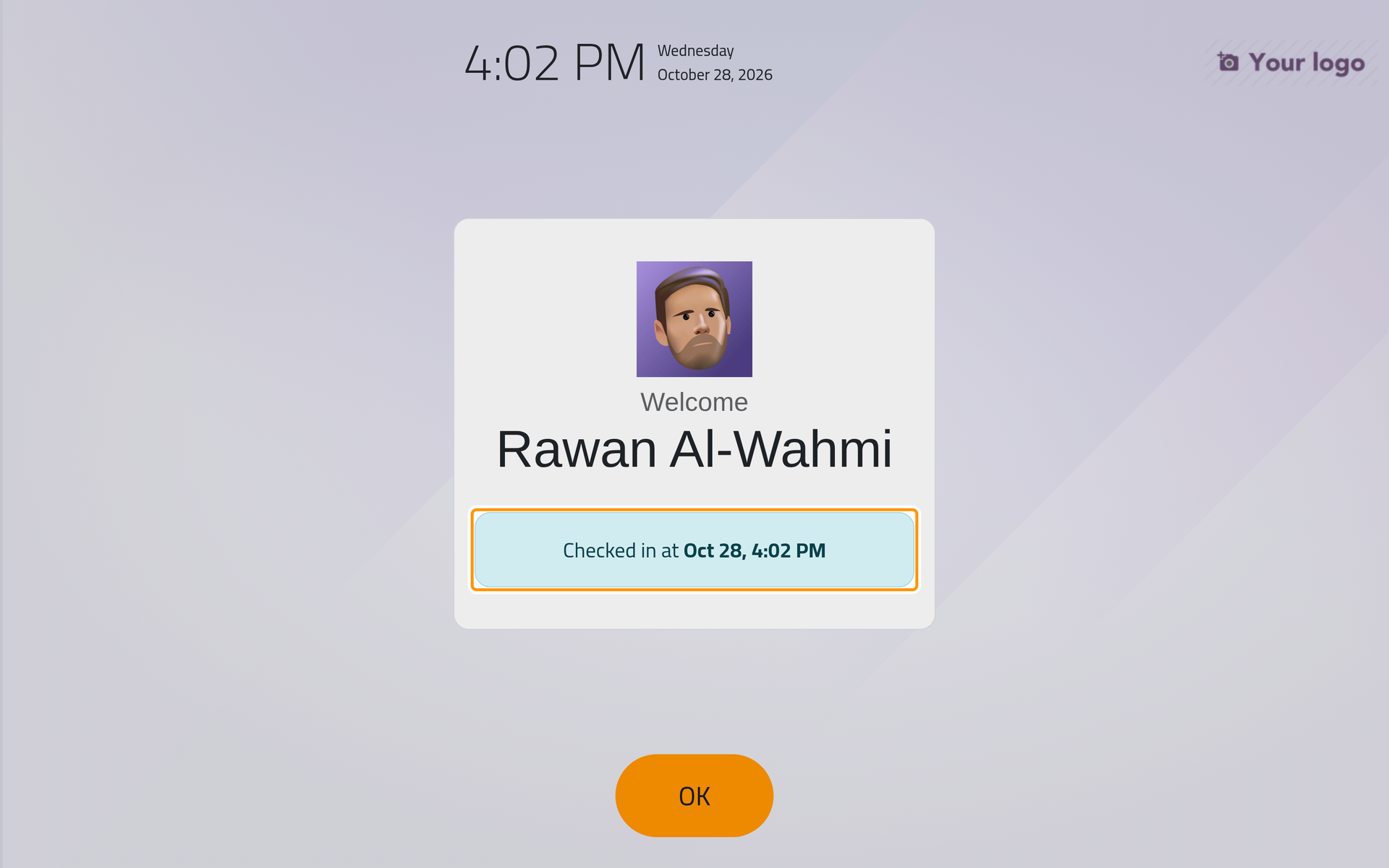
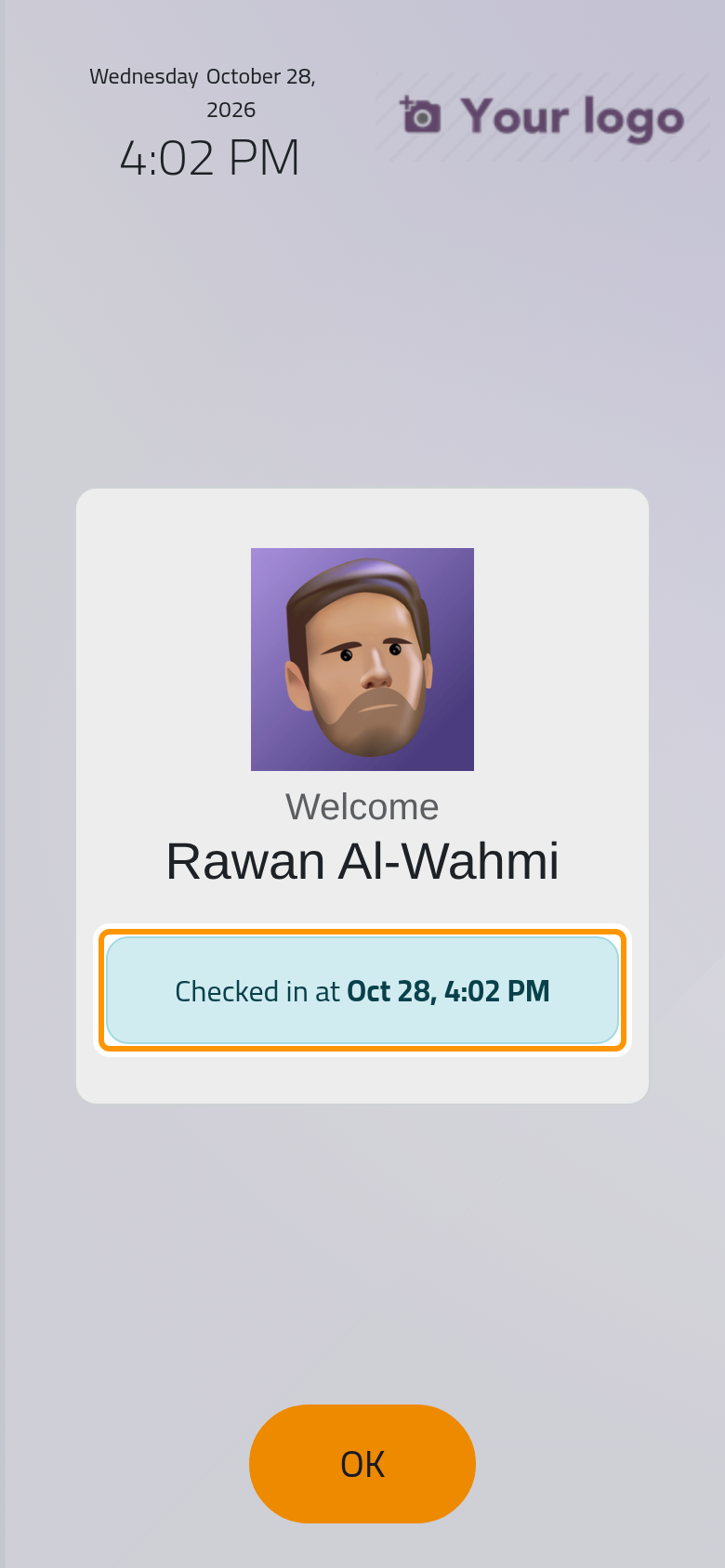
A badge works the same way: scanning it checks its owner in, and the next scan checks them out.
Try the kiosk without signing out
opens a trial kiosk and keeps you signed in. It starts with Choose how to record attendances and three pictures; choosing one changes the Kiosk Mode of the company, as the settings would.
FAQ
Why was I signed out when I opened Kiosk Mode?
On purpose: the tablet stays on the kiosk all day, and nobody should find your session behind it. Sign in again from another tab or device.
The kiosk says a wrong PIN.
The PIN typed differs from the PIN Code of the employee's form. An officer can read and change it there.
Can the kiosk record where people are?
Only with Device & Location Tracking turned on in the settings: the kiosk then records the location, IP address and browser of each check-in and check-out. See Attendance settings.
An employee is missing from the kiosk.
The kiosk lists the employees of its company only. Check the Company of the employee on its form.
Was this page helpful?
Thank you for your feedback.