Attendance settings
On this page
- Before you start
- Modes
- Kiosk Mode
- Attendances from Backend
- Automatic Check-Out
- Absence Management
- Device & Location Tracking
- Kiosk Settings
- Barcode Source
- Display Time
- Employee PIN Identification
- Attendance Kiosk Url
- Extra Hours
- Display Extra Hours
- Extra Hours Validation
- Two tolerances the screen no longer shows
- FAQ
- The circle does not appear for a user.
- Can automatic check-out stop at a fixed hour, such as 18:00?
- Do these settings apply to every company?
Open . The Attendances section holds three groups: Modes, Kiosk Settings and Extra Hours.
Before you start
- The section shows only to users with the Administrator access right on Attendances and the right to manage the settings of the database; How attendance works lists the rights.
- Click Save to apply a change.
Modes
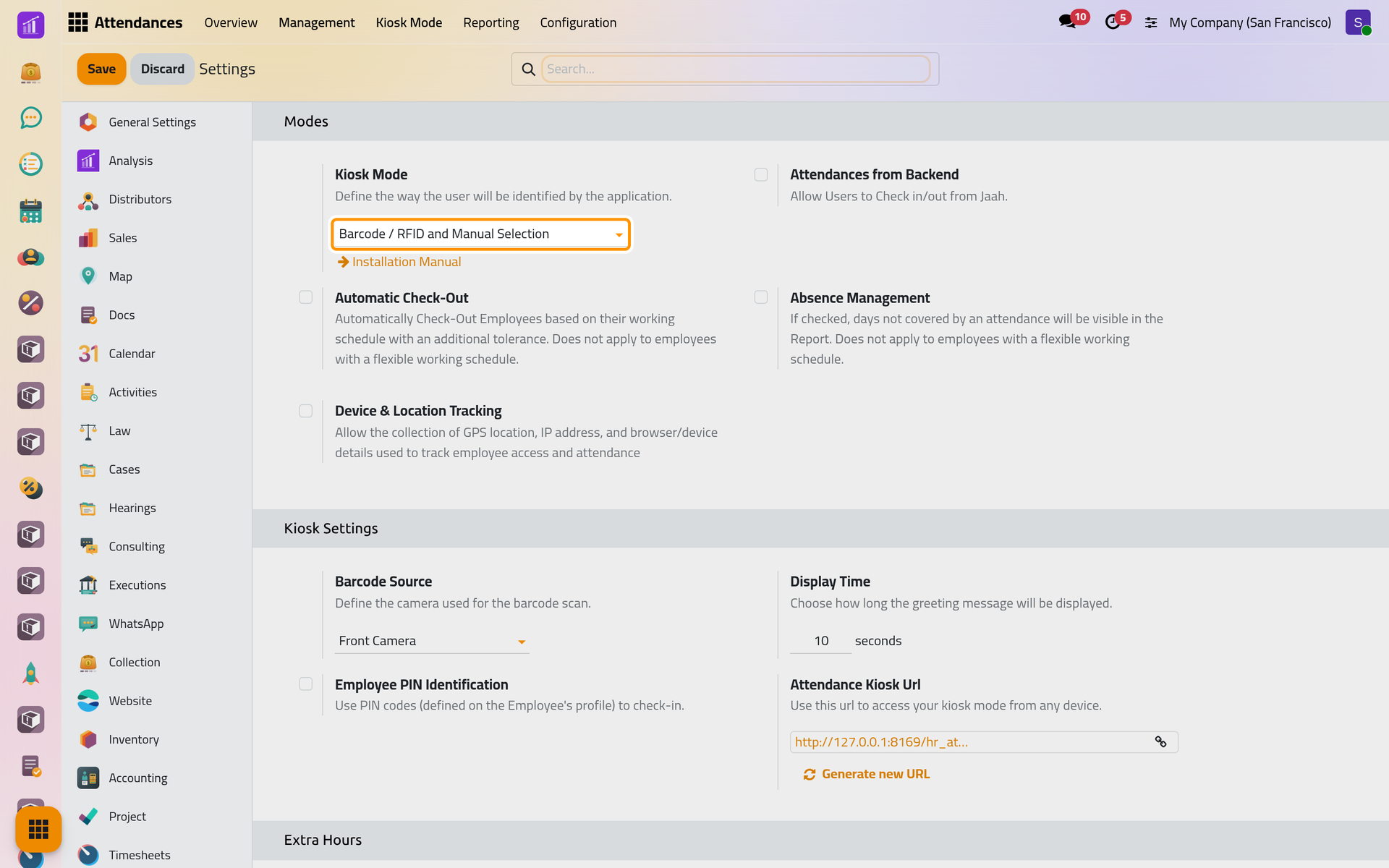
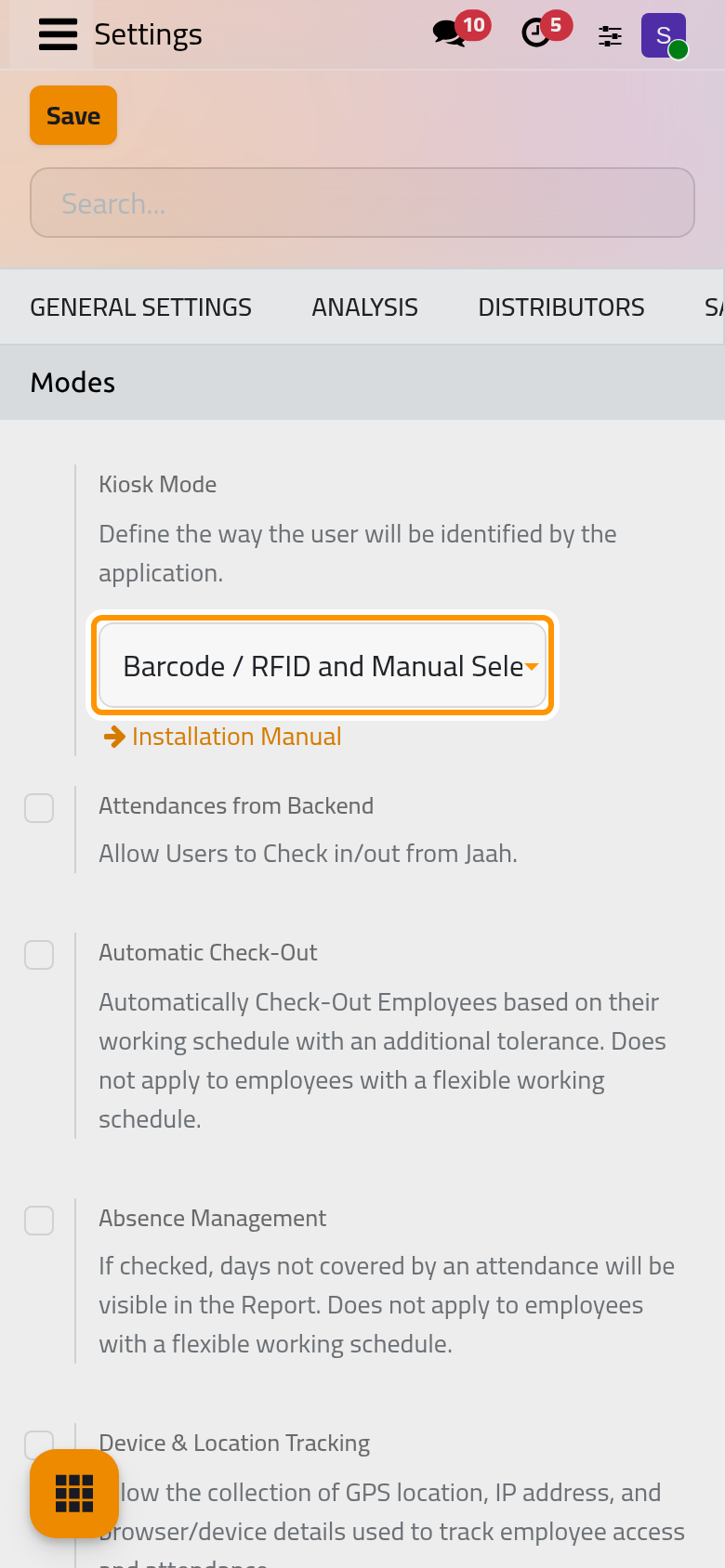
Kiosk Mode
How people identify themselves at the kiosk: Barcode / RFID, Barcode / RFID and Manual Selection (the default) or Manual Selection. Use the kiosk explains each choice.
Attendances from Backend
Shows the attendance circle in the top bar of every user with an employee in the company: Your first attendance. Off by default.
Automatic Check-Out
Closes forgotten attendances. A scheduled job checks every open attendance: when the time worked that day goes beyond the day's working schedule plus the Tolerance, in hours (2 by default), it sets the check-out at that limit.
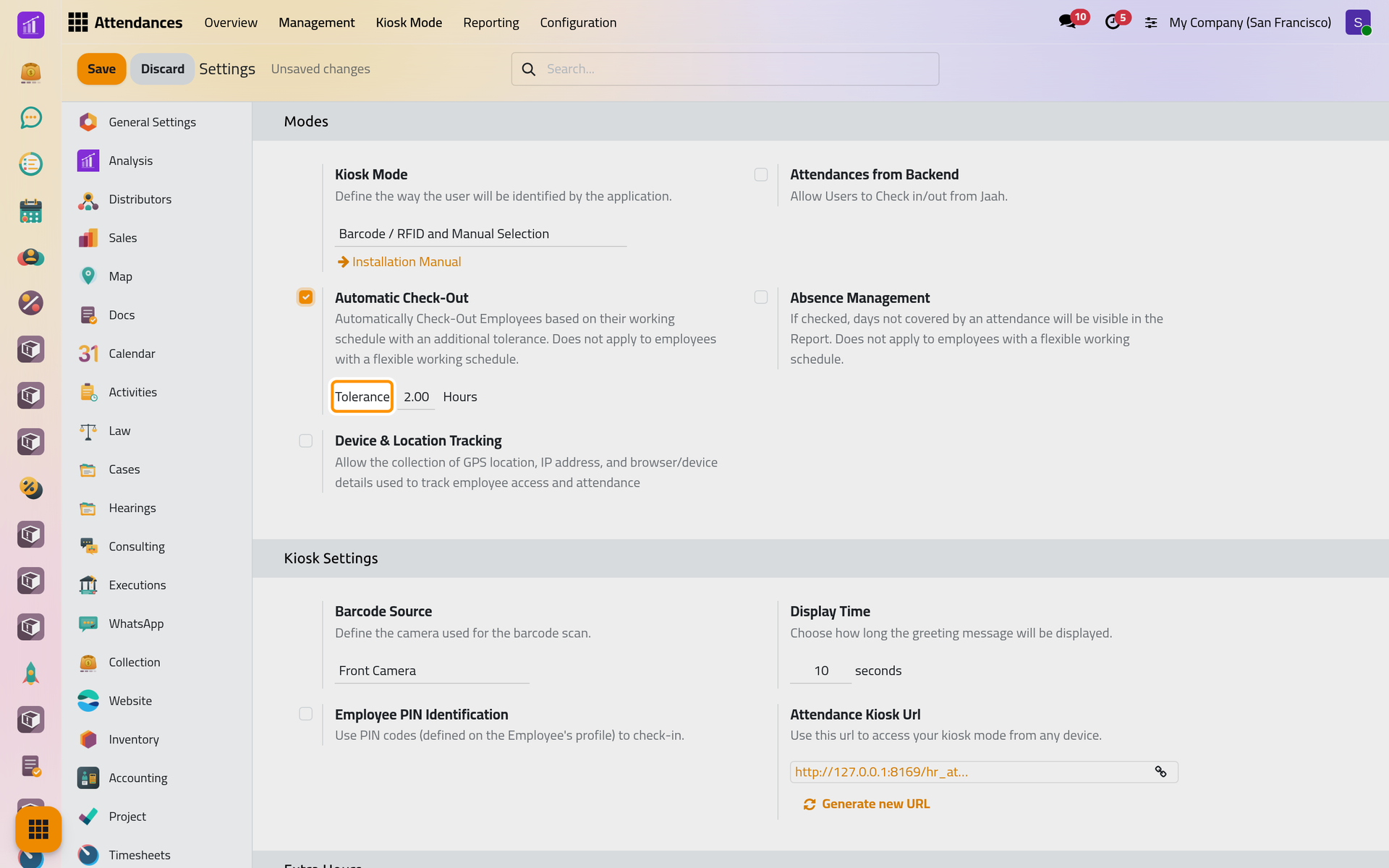
On a phone, Tolerance appears under the option in the same way.
Such attendances carry the mode Automatic Check-Out and a chatter note; the filter Automatically Checked-Out lists them. Flexible schedules are left alone. See Attendance automations.
Absence Management
Shows the hours not worked as negative extra hours. A day worked short of the schedule gets them when its attendance is saved. A scheduled job also checks the day before: an employee with a fixed schedule, a contract start date before that day and nothing recorded gets a one-second attendance with the mode Technical, which carries the whole day. The quantity rules of the employee's ruleset count the missing time, less the employee's tolerance: Set up overtime rules.
Device & Location Tracking
Records the location, IP address and browser of each check-in and check-out made from the top bar or the kiosk; the browser asks for permission to share the location. The attendance form shows them under Check In and Check Out, with a map link. Off by default.
Kiosk Settings
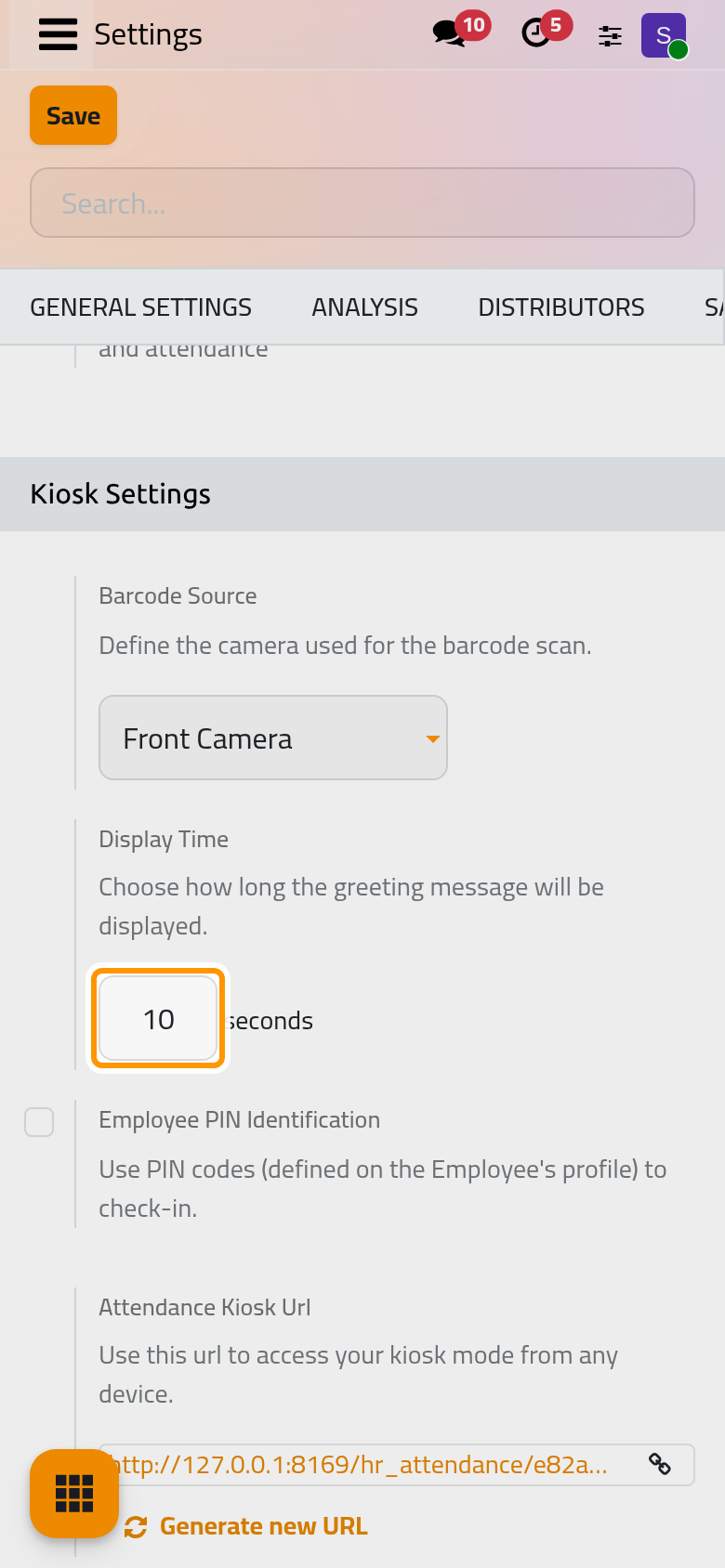
Barcode Source
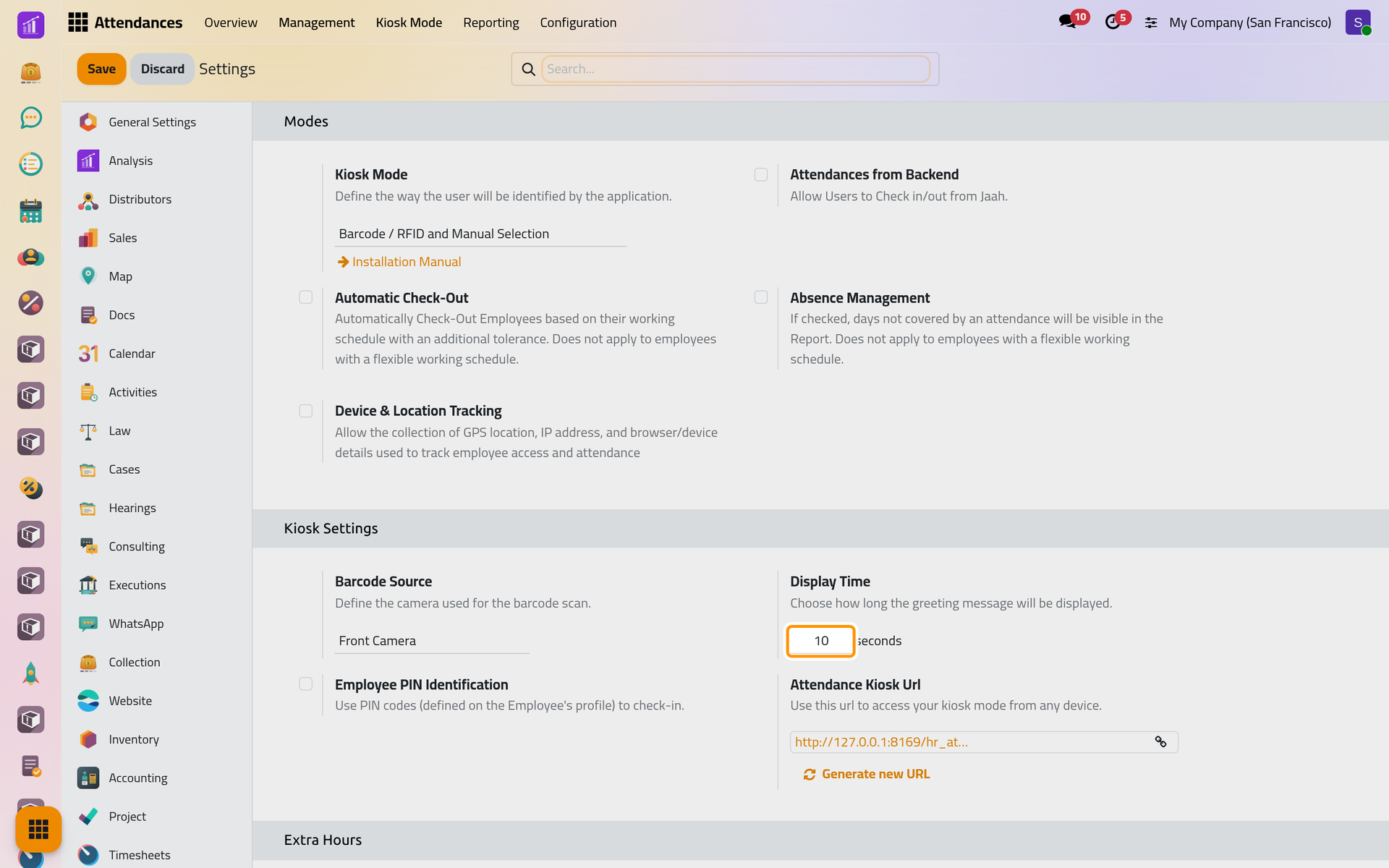
Scanner, a reader plugged into the tablet, or its Front Camera or Back Camera. Hidden when Kiosk Mode is Manual Selection.
Display Time
Seconds the kiosk's greeting stays on screen; 10 by default.
Employee PIN Identification
Asks for the employee's PIN Code, from the Settings tab of their form, after a name is picked at the kiosk. Hidden when Kiosk Mode is Barcode / RFID.
Attendance Kiosk Url
The kiosk's address, with a copy button. Anyone who has it can check employees in and out without signing in; Generate new URL replaces it and the old one stops working.
Extra Hours
Display Extra Hours
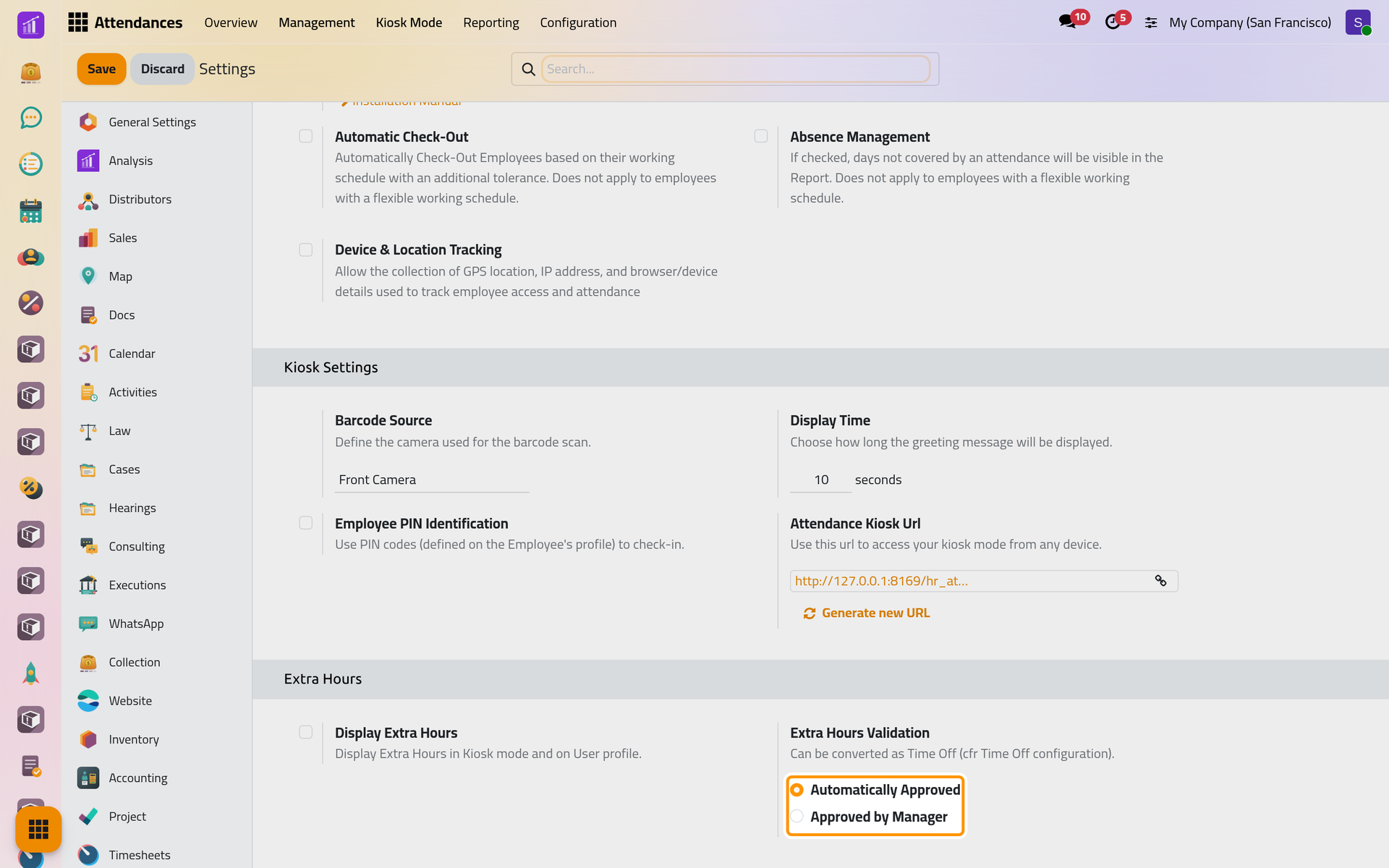
Shows the extra hours on the kiosk's greeting at check-out, and next to the Monthly Hours of the employee's form.
Extra Hours Validation
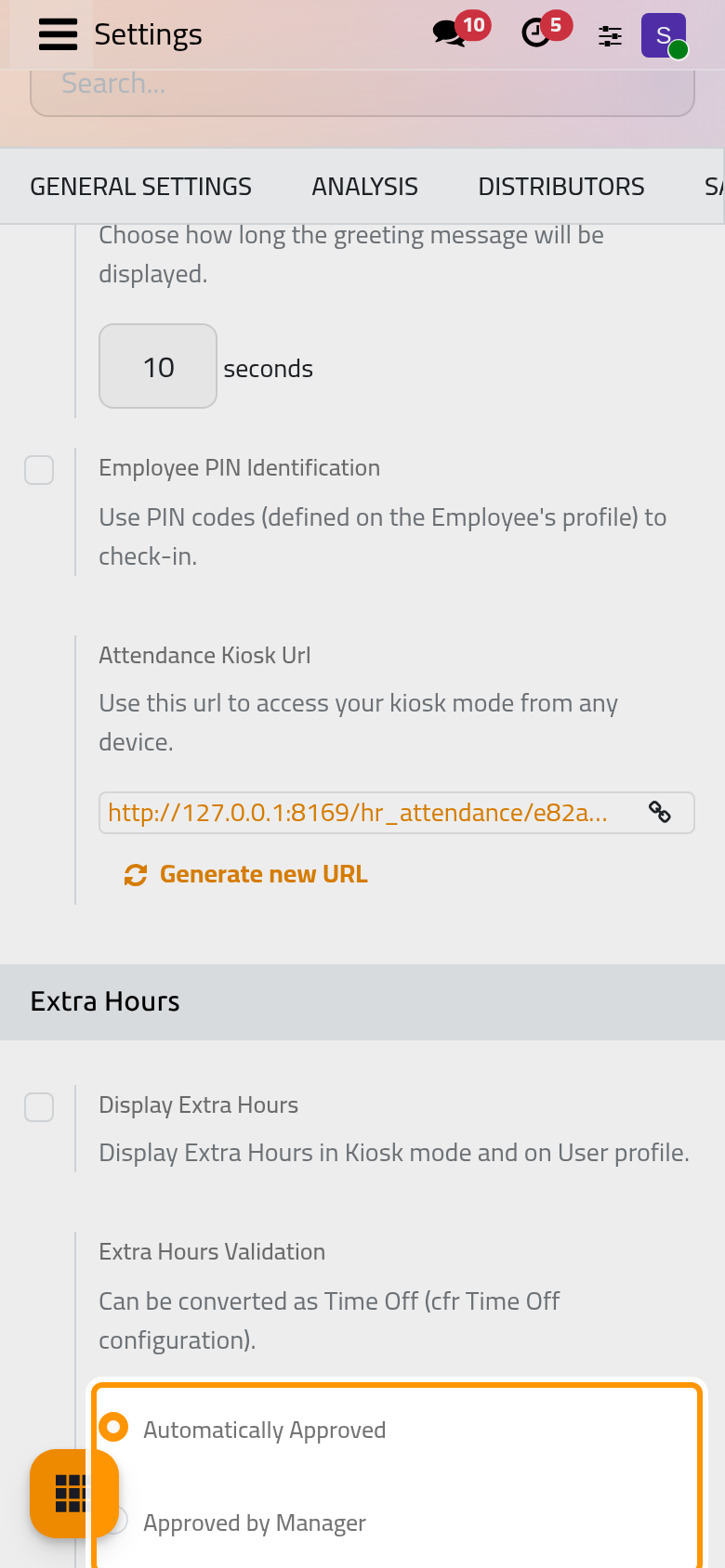
Automatically Approved, the default, validates extra hours as soon as they are computed; Approved by Manager keeps them To Approve until a manager decides: Approve extra hours.
Two tolerances the screen no longer shows
Tolerance Time In Favor Of Company and Tolerance Time In Favor Of Employee, in minutes, come from earlier versions. They are hidden and nothing on the screen sets them; the two tolerances of each overtime rule play their role: Set up overtime rules.
FAQ
The circle does not appear for a user.
Attendances from Backend must be on for the company the user works in, and the user must be linked to an employee of that company.
Can automatic check-out stop at a fixed hour, such as 18:00?
No. The limit follows each employee's schedule for the day, plus the tolerance.
Do these settings apply to every company?
No. Each company keeps its own values: switch the company at the top of the screen to set another one.
Was this page helpful?
Thank you for your feedback.