Your first attendance
On this page
Attendances records when each employee starts and stops working. Every check-in opens an attendance, the next check-out closes it, and the time in between becomes worked time that the reports add up. People check in in three ways: from the circle in the top bar of their own screen, at a shared kiosk, or through a manager who types the times by hand. This walk-through takes the first way, the quickest to try: you switch it on, check in and out yourself, then find and read the record it leaves.
Before you start
- Step 1 changes a setting, which needs the Administrator access right on Attendances and the right to manage the settings of the database. The other steps need Officer: Manage all attendances, or Officer: Manage attendances for the employees you approve. How attendance works explains each right.
- Your user must be linked to an employee of the company you are working in: the circle checks that employee in. The link is the User field on the employee's Settings tab, as How employee records work explains.
Step 1: let people check in from the top bar
- Open .
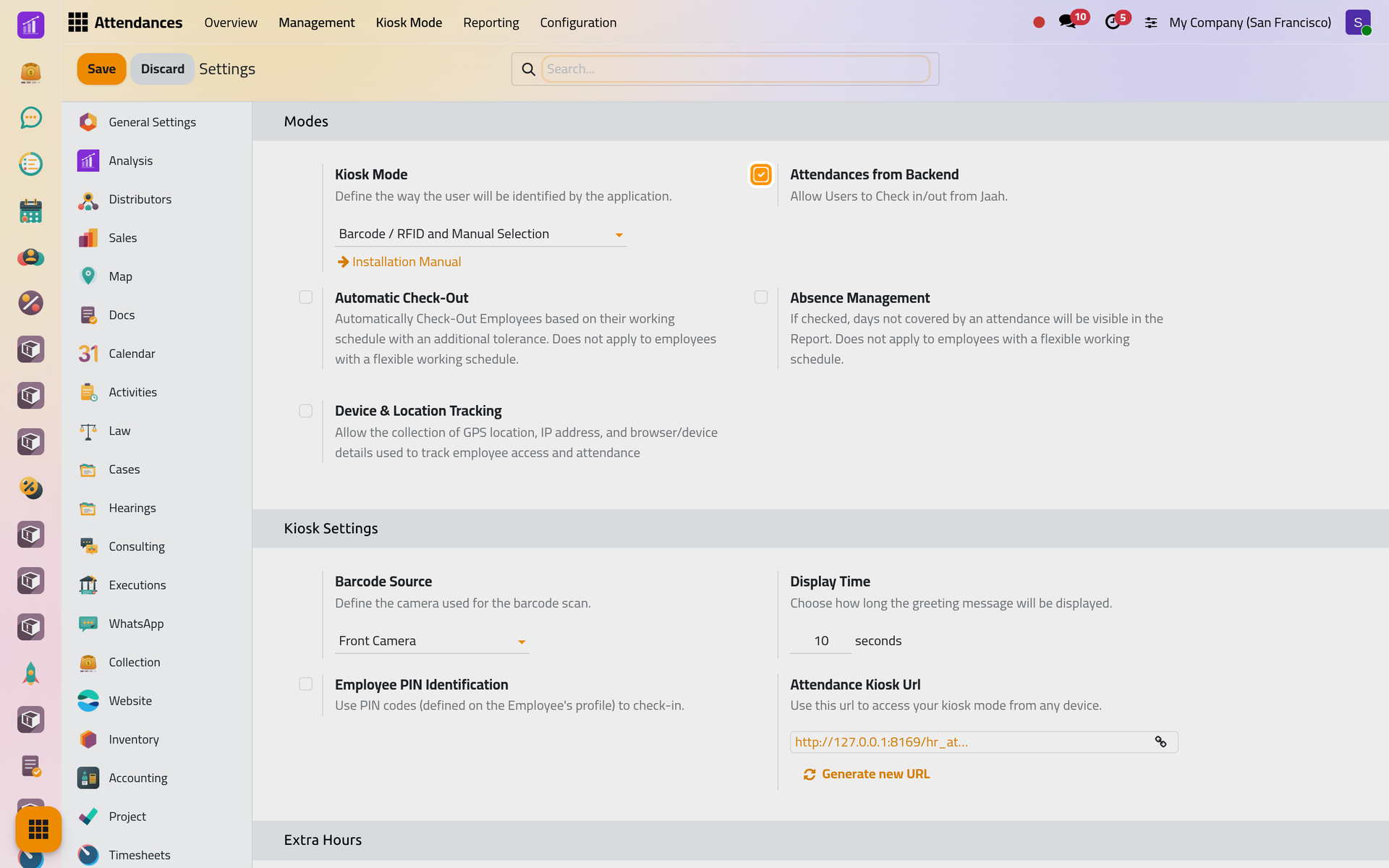
- In the Modes group, tick Attendances from Backend and click Save.
The page reloads, and a small circle appears in the top bar, left of the messages. Every user with an employee in this company now sees it, including people who cannot open the Attendances app: they check themselves in and out, nothing more.
Step 2: check in
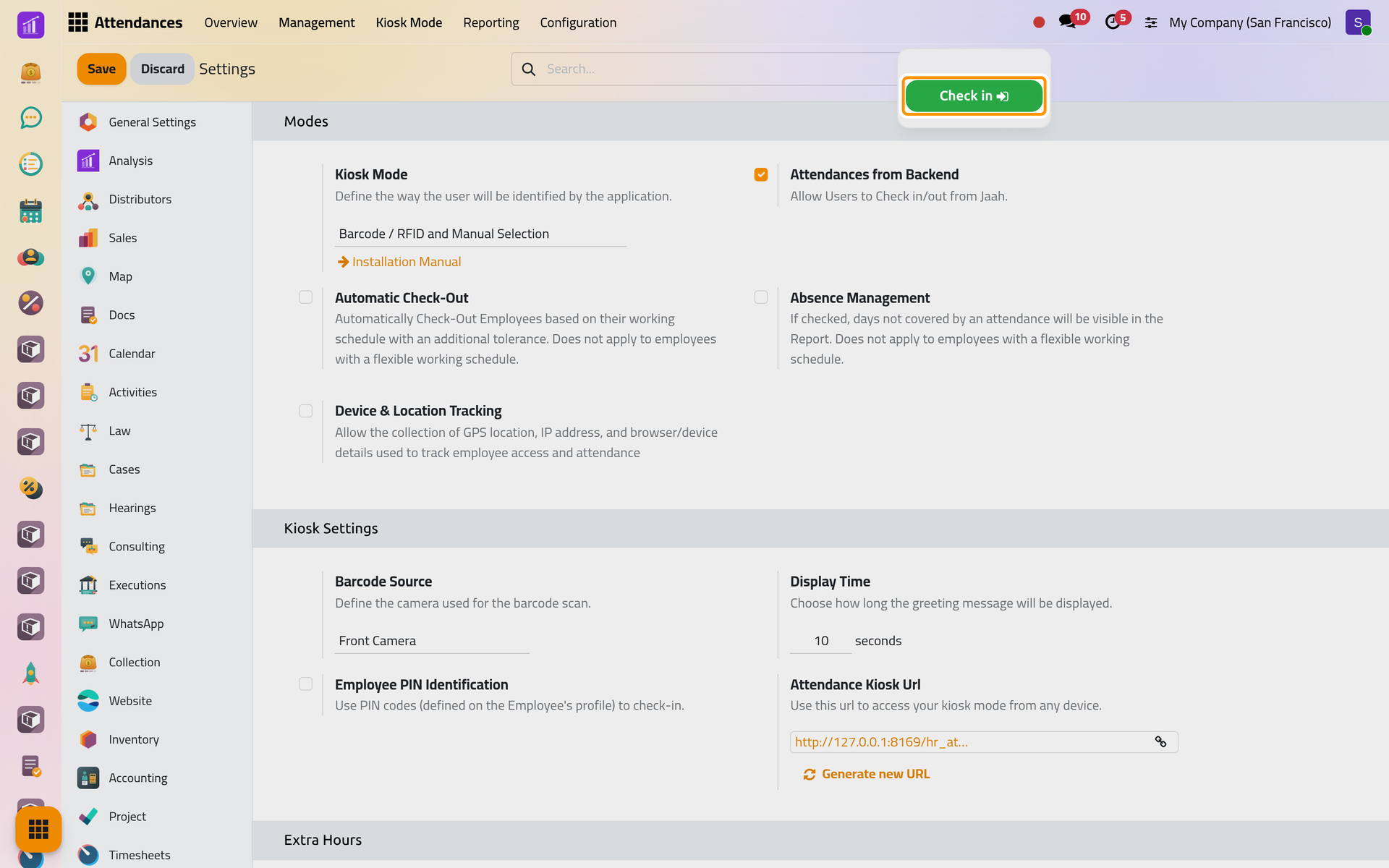
- Click the circle. It is red while you are checked out.
- Click Check in.
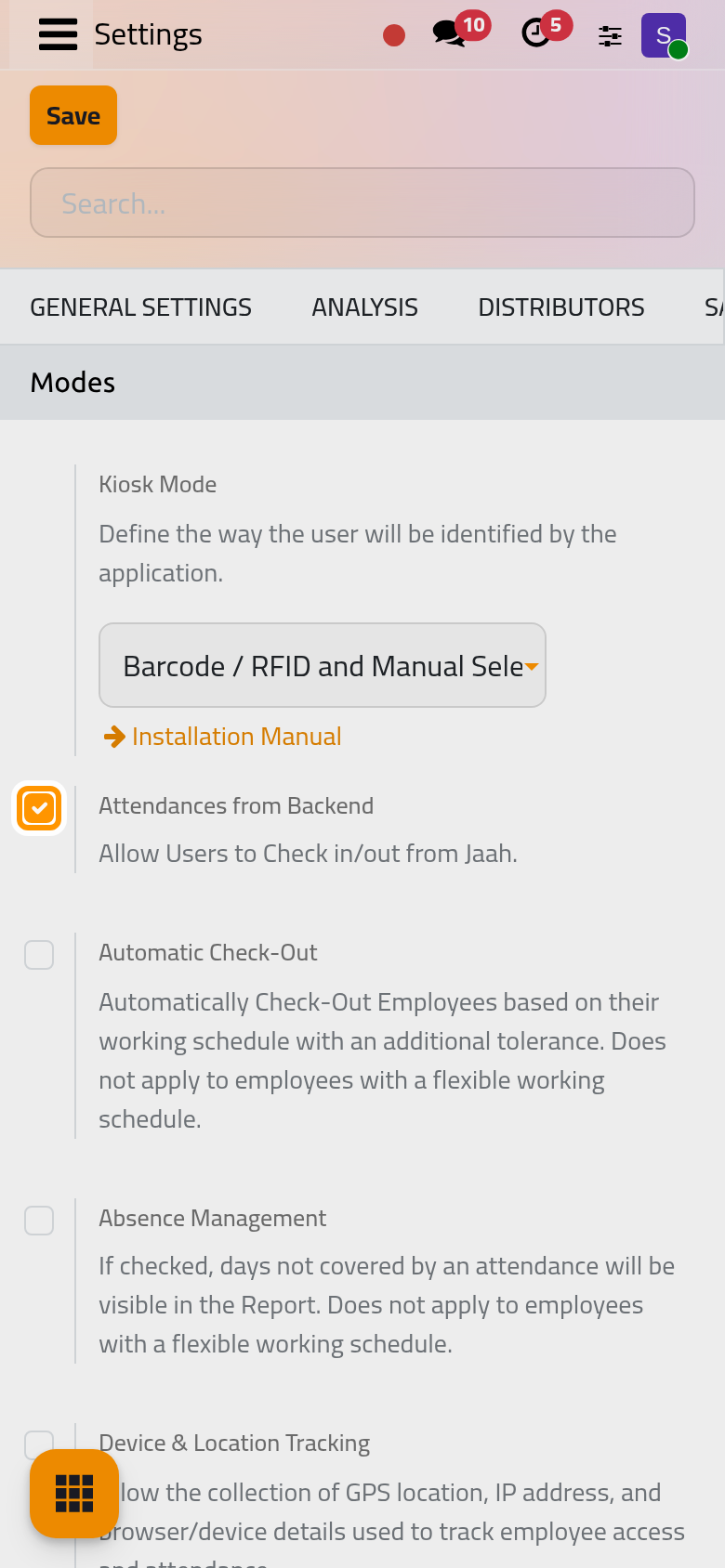
On a phone, the circle stays in the top bar, next to the messages, and opens the same panel.
The circle turns green. An attendance now exists for your employee, with a check-in time and an empty check-out: you are counted as at work. The employee cards in the Employees app show the same state with a green dot.
Step 3: check out
- Click the circle again. The panel now shows since when you are checked in and the time worked so far. From the second attendance of the day, it also shows the time worked before and the Total today.
- Click Check out.
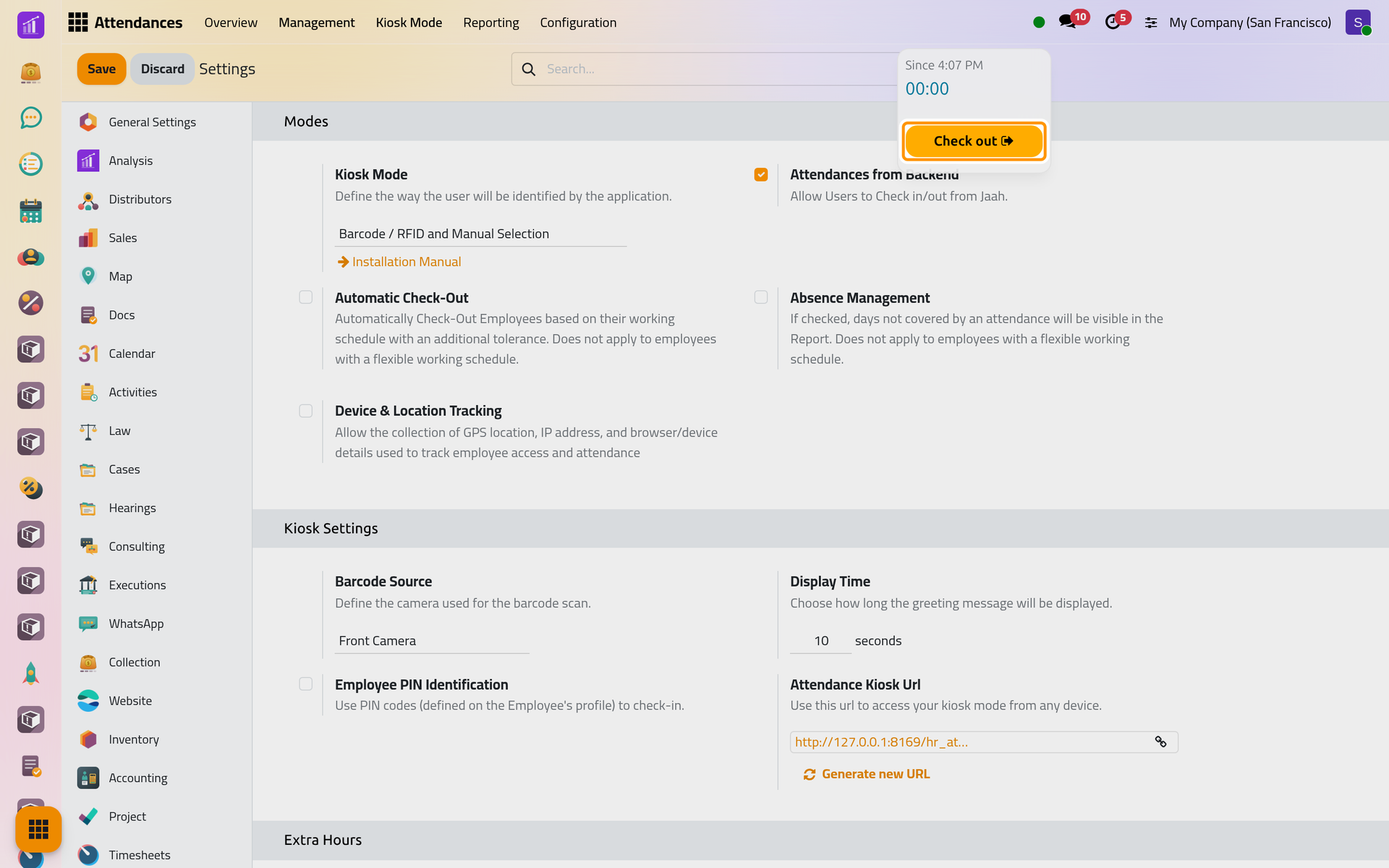
The circle turns red again and the attendance is closed. Checking in later the same day opens a second attendance; a day can hold as many as you need, as long as they do not overlap.
Step 4: find your attendance
- Open . The list opens grouped by month, then by employee.
- Remove the grouping by clicking the small cross of its facet in the search bar.
- Click the arrow at the right of the search bar, which opens the filters, and choose My Attendances. Press Escape to close the panel.
The list keeps the attendances of your own employee: the one you just recorded is on top, since the list is sorted by check-in, newest first.
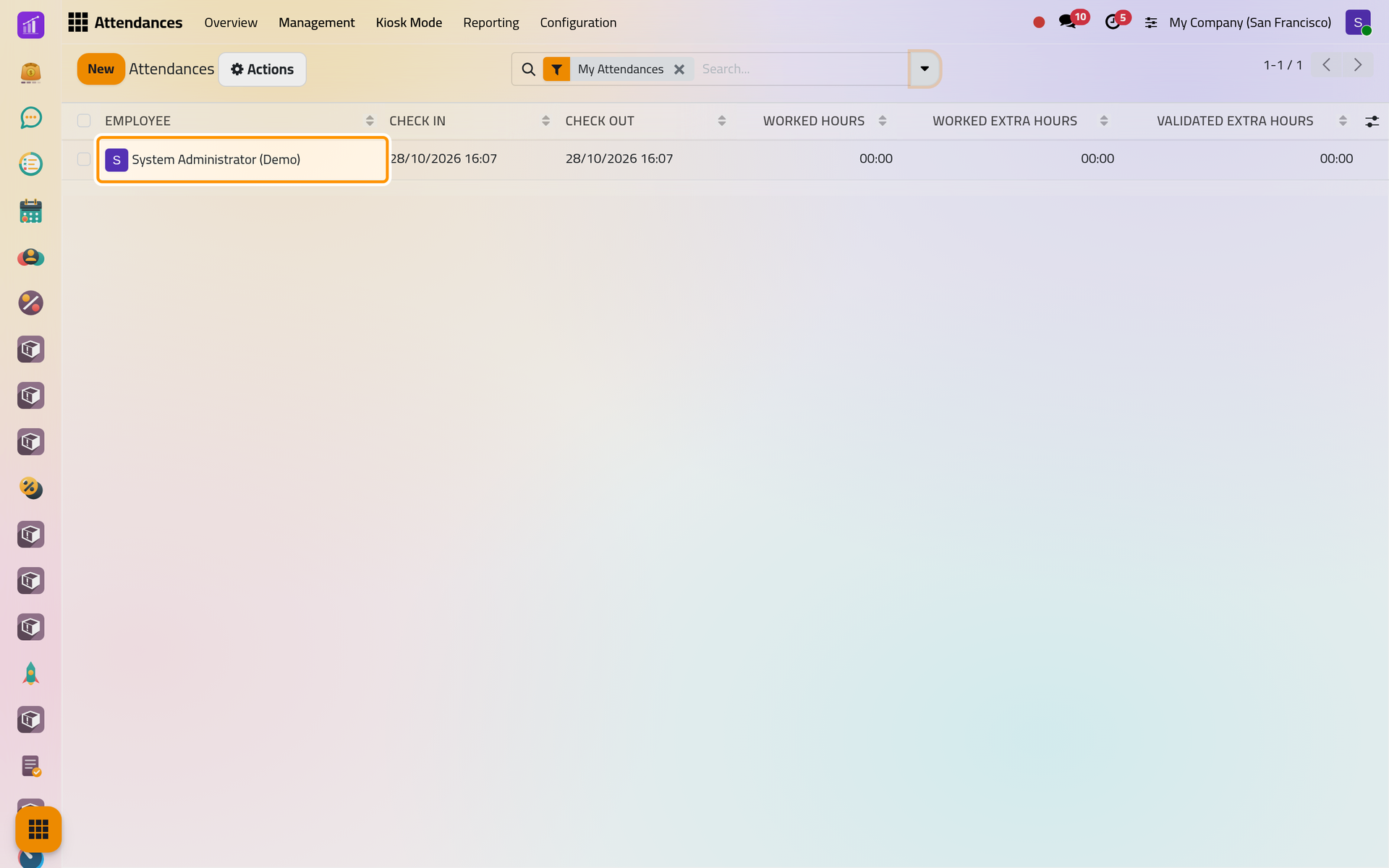
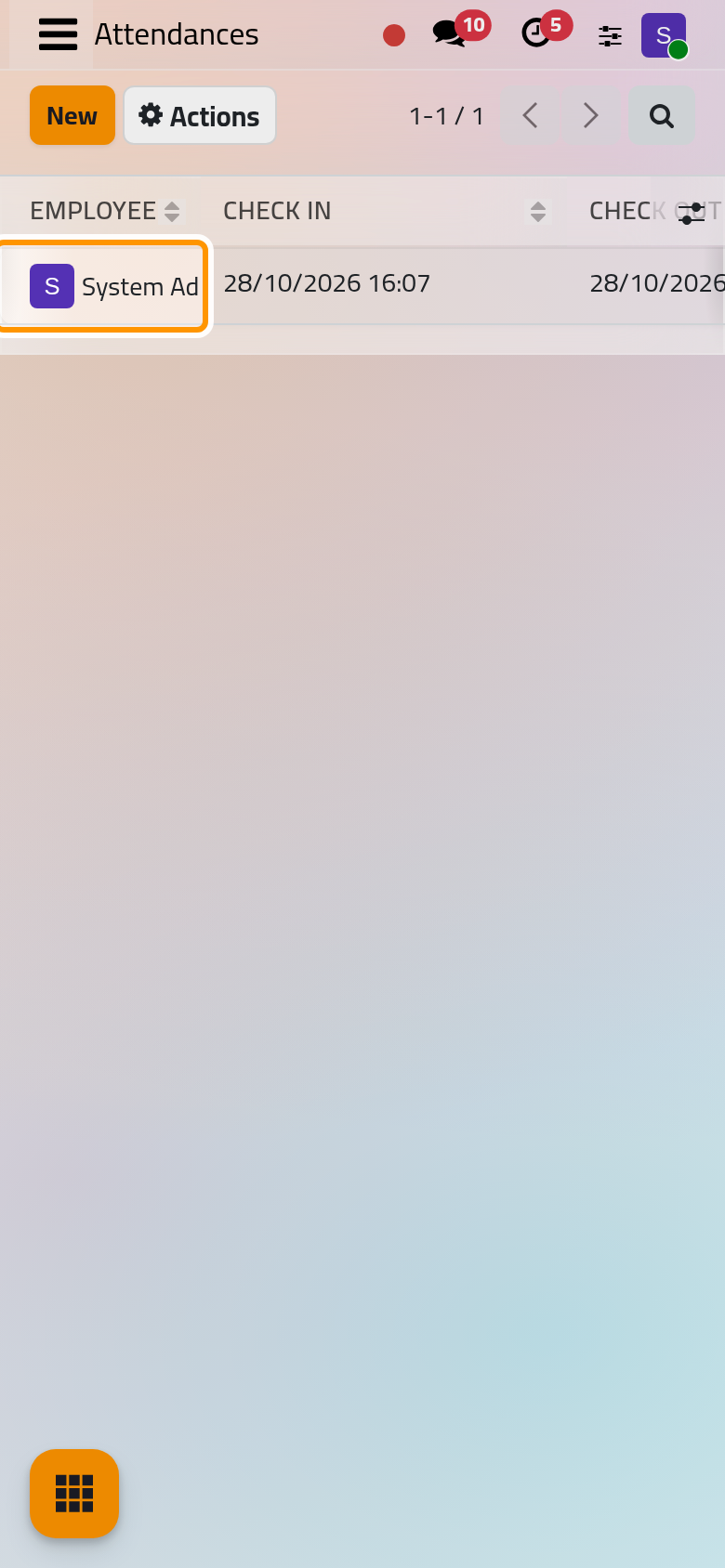
Other filters of the same panel find what needs attention: At Work lists the attendances still open, Errors those that look wrong. Add or correct an attendance uses them.
Step 5: read the record
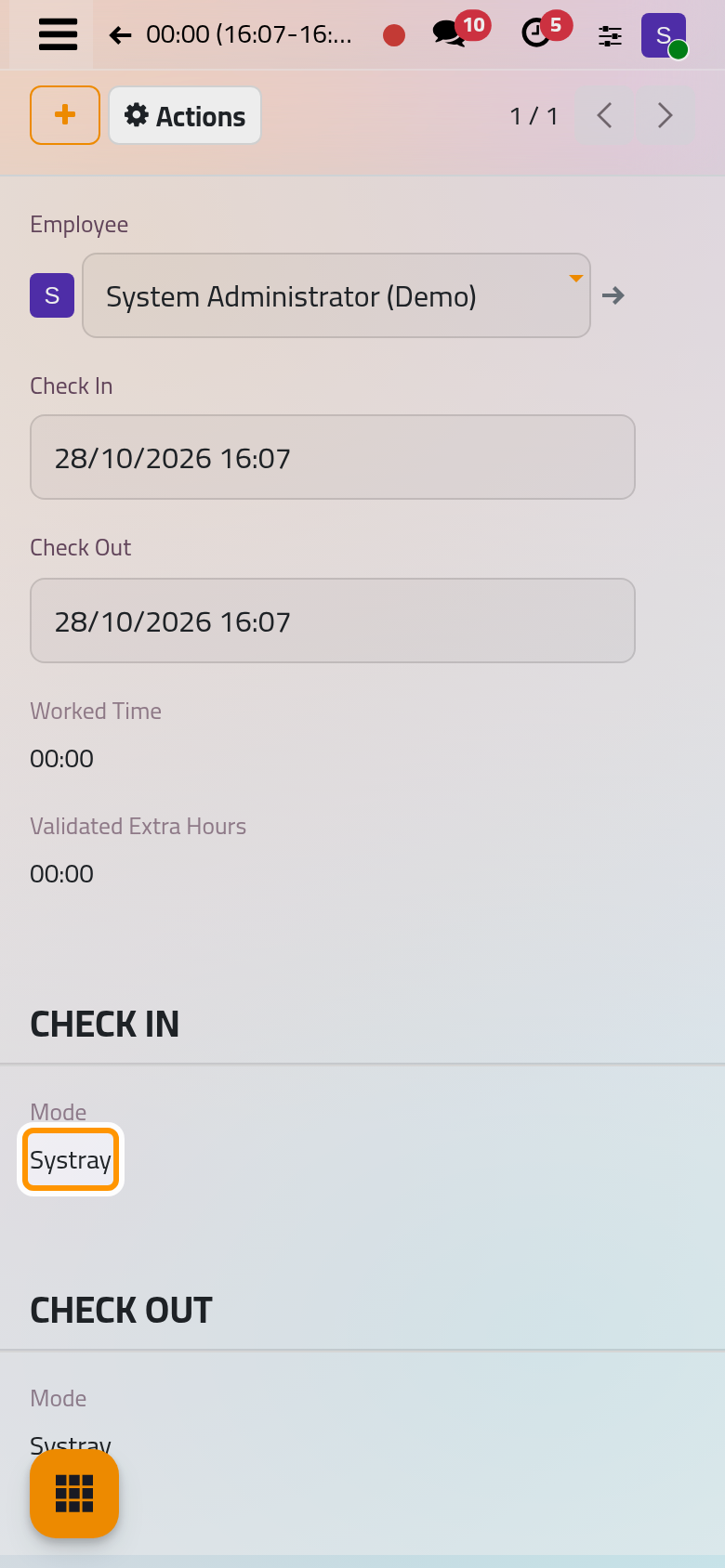
Click the row. The form shows:
- Employee, Check In and Check Out: who, and when, in your own time zone.
- Worked Time: the time between the two, less the lunch break of the employee's working schedule when the attendance covers it. Yours shows a few seconds as 00:00.
- Validated Extra Hours: the extra hours already approved for this attendance. Set up overtime rules explains where extra hours come from.
- Under Check In and Check Out, the Mode of each: Systray for the top bar, Kiosk, Manual for times typed by hand, or Automatic Check-Out when the app closed a forgotten attendance.
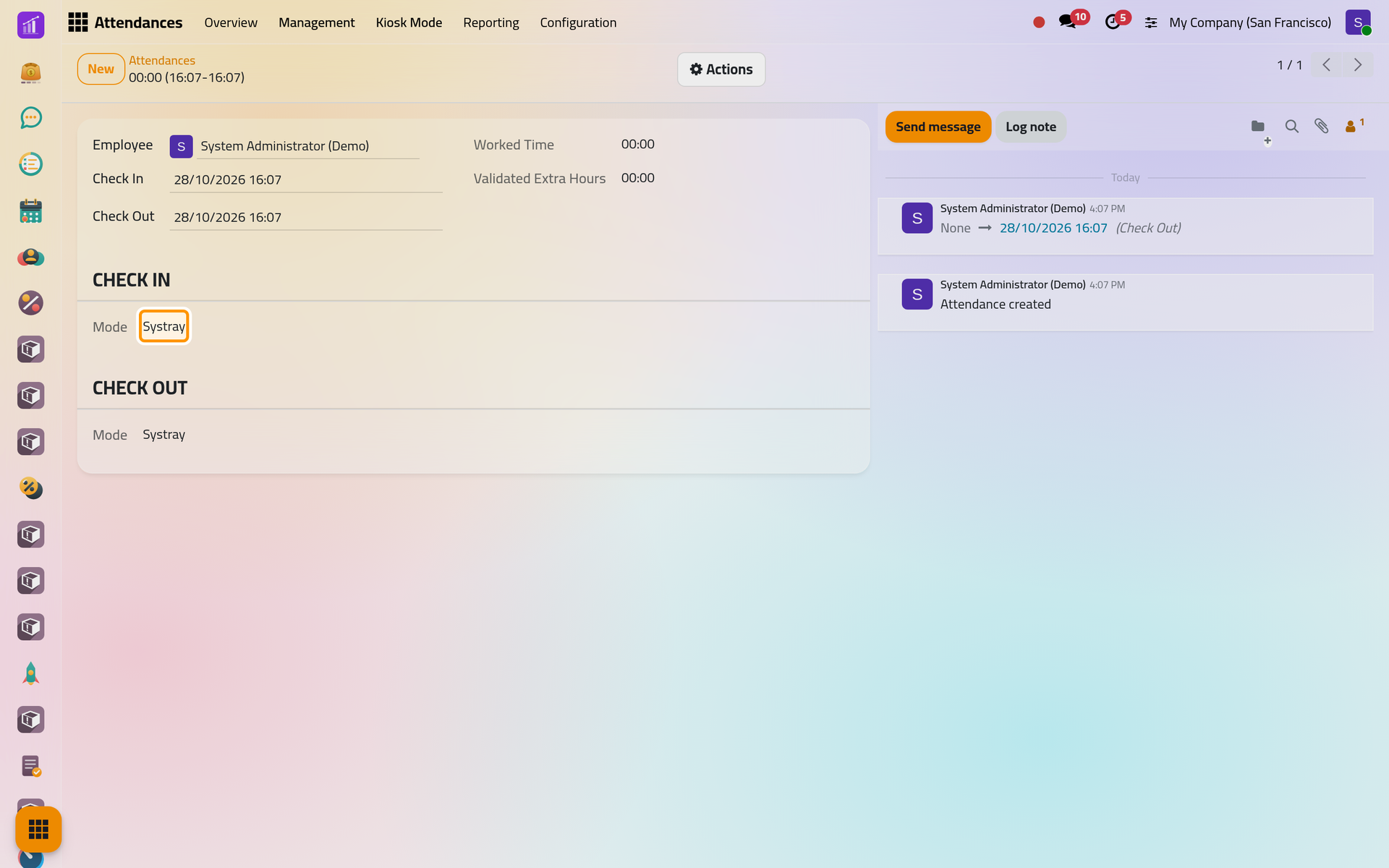
The chatter on the right keeps the history: the creation of the attendance and every change of its times. Follow a record with the chatter explains it.
What you have done
You let people check in from the top bar, recorded a full attendance for yourself and read it back. The same record is what the kiosk and the managers create, and what every report reads. Next:
- Use the kiosk to let a team check in on a shared tablet.
- Add or correct an attendance when someone forgot to check in or out.
- Read attendance reports to see the hours of a team by month.
- How attendance works for the rules behind all of it.
Was this page helpful?
Thank you for your feedback.