Set up overtime rules
On this page
Extra hours are not typed: the app computes them from the attendances, with the rules of the employee's ruleset. A ruleset holds one or more rules; each rule says when hours count as extra and how they are paid. An employee without a ruleset never gets extra hours.
Before you start
- Rulesets need the Administrator access right on Attendances.
- Setting a ruleset on an employee needs the Administrator right on Employees: the field is hidden from everyone else.
Read the ruleset that comes with the app
- Open . The list shows each ruleset with its Rate Mode and number of rules.
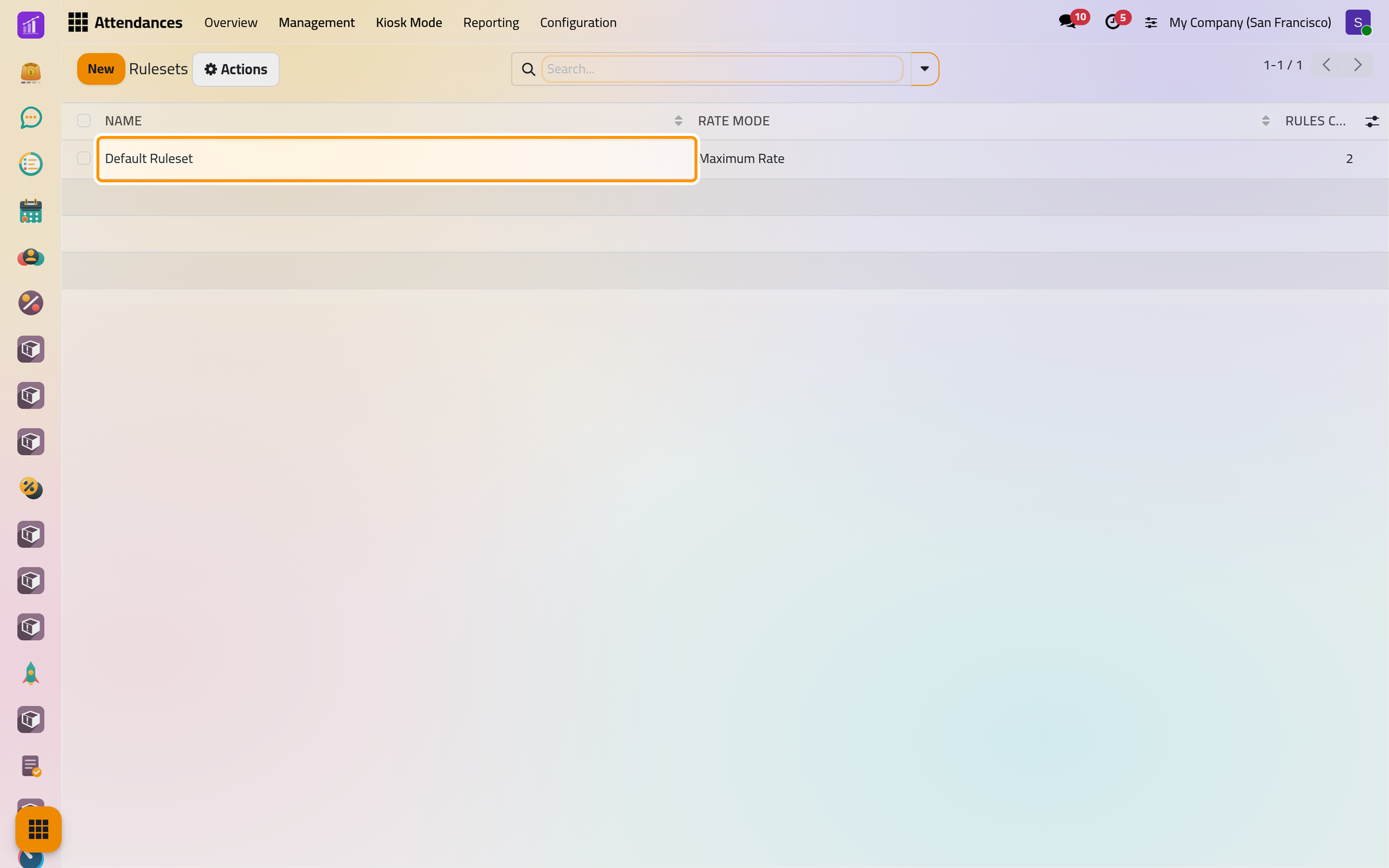
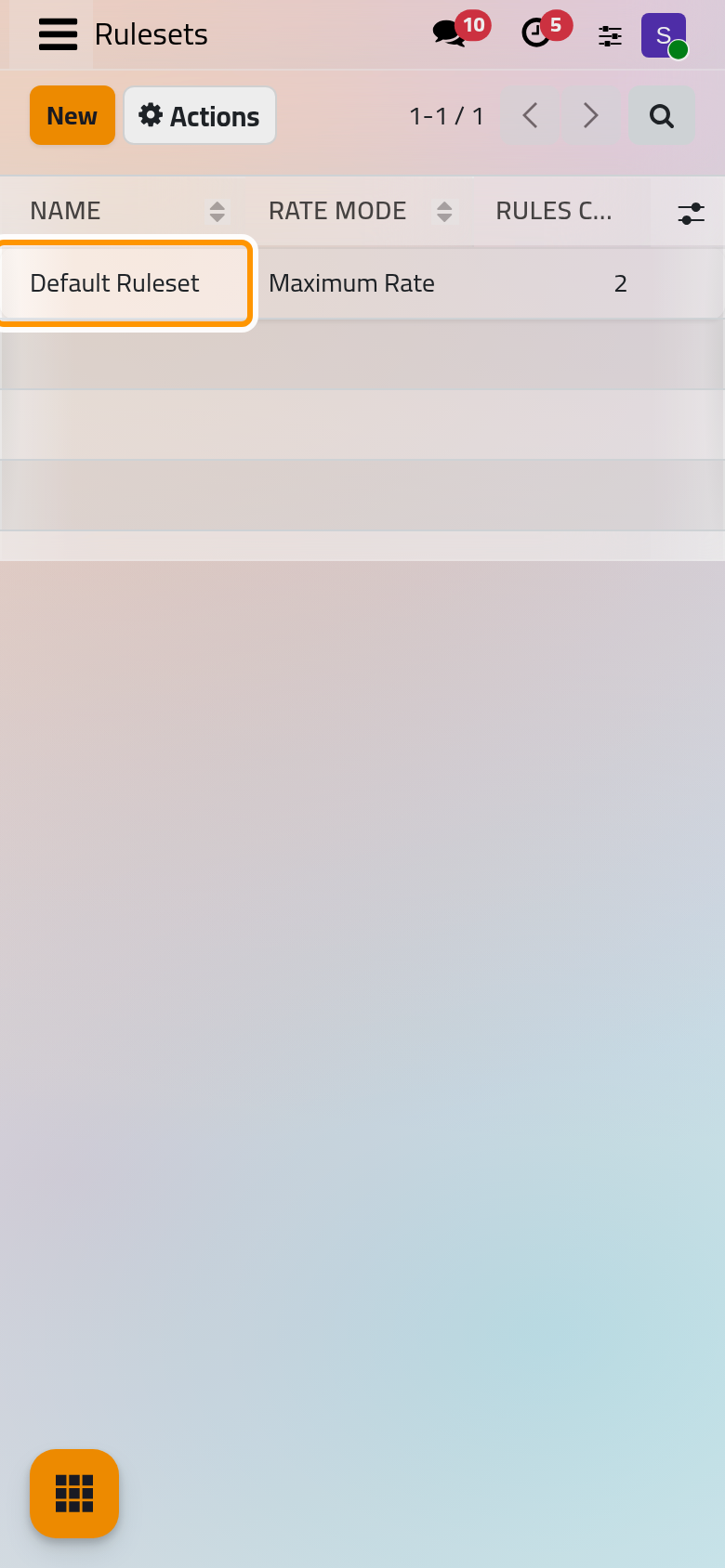
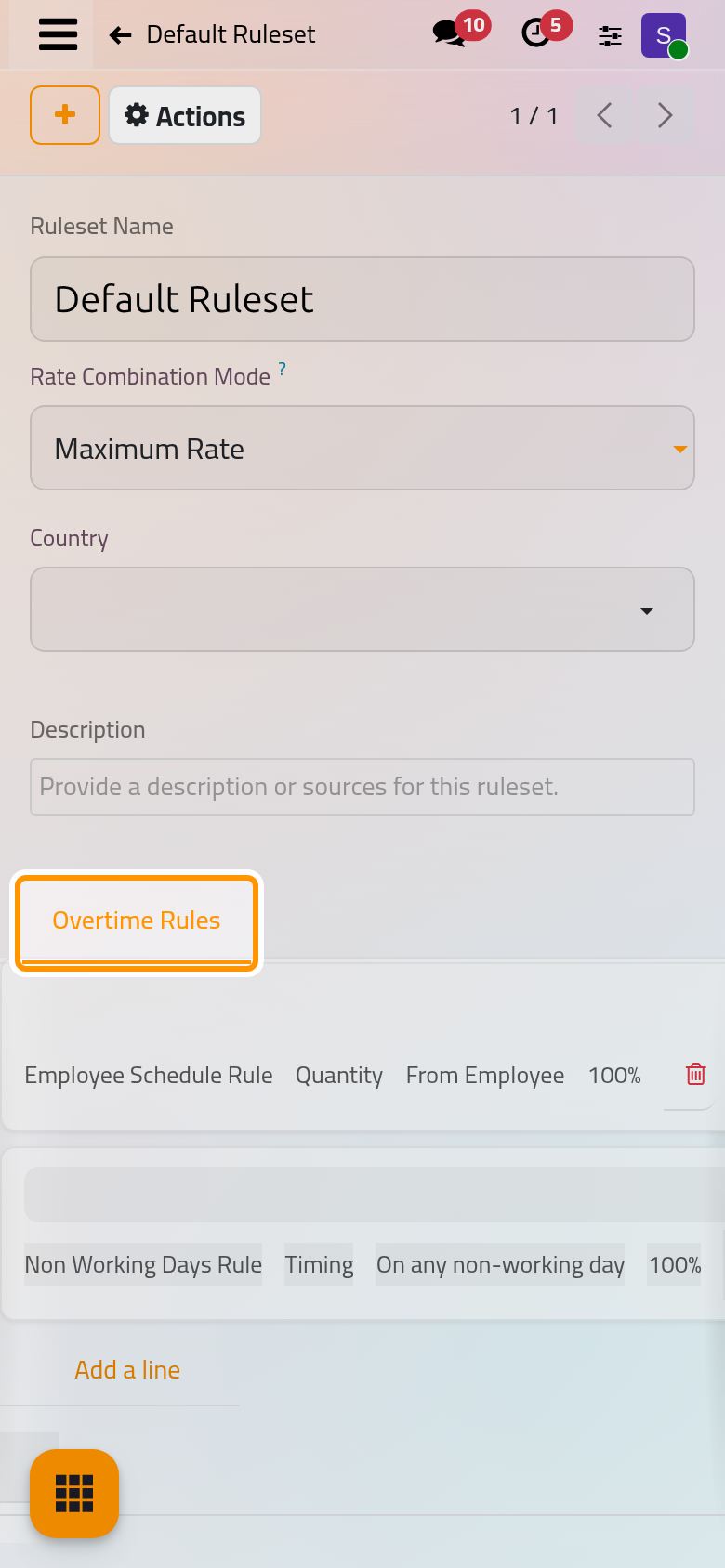
- Open Default Ruleset. It holds two rules:
- Employee Schedule Rule counts the hours of a day beyond those of the employee's working schedule;
- Non Working Days Rule counts every hour worked on a day off of the company's schedule.
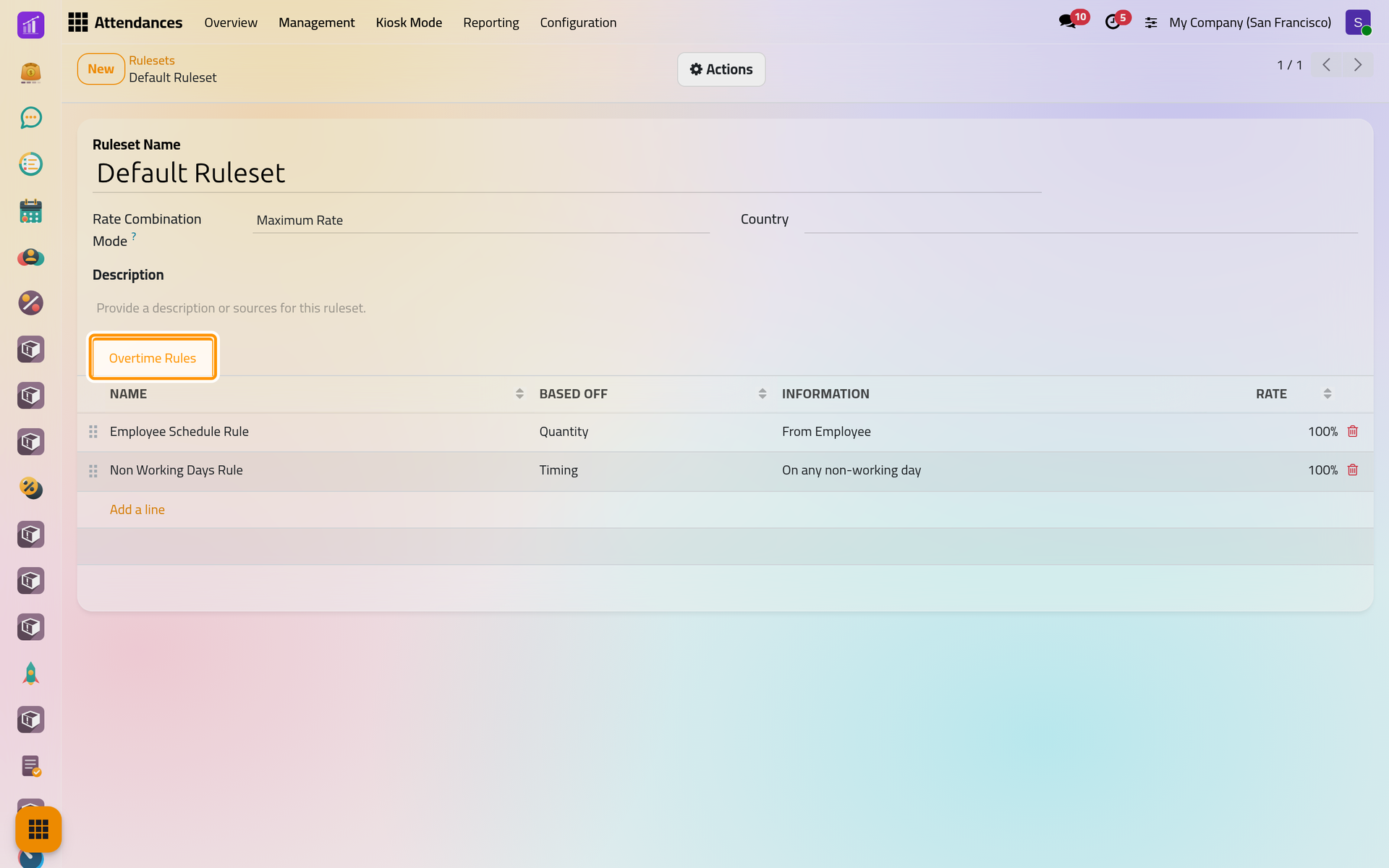
- Click Employee Schedule Rule to read it, then Discard.
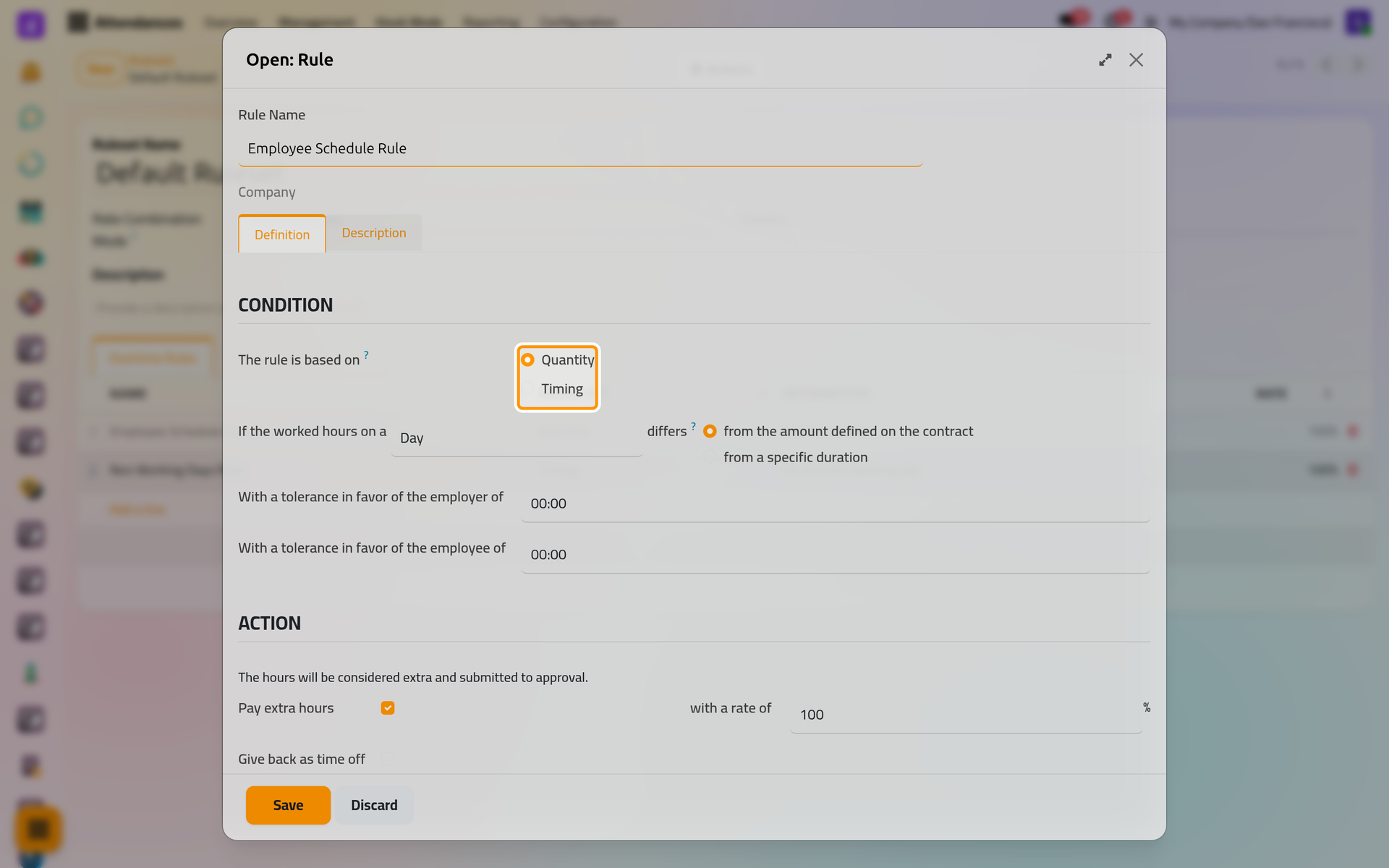
On a phone, the rule opens full screen, with the same fields one under the other.
A rule is based on one of two things:
- Quantity: the hours worked on a Day or a Week are compared with those of the employee's schedule, or with a fixed duration. With a tolerance in favor of the employer of sets how much extra time is ignored: a day counts only when it goes beyond it. With a tolerance in favor of the employee of sets how much missing time is ignored when absences are managed.
- Timing: the hours worked at given moments count, whatever their number: on working days or non-working days between two hours, when the employee is off, or outside a schedule you choose.
Under Action, Pay extra hours marks the hours as paid, at the rate typed next to it; Give back as time off lets the employee spend them later as time off, as How time off works explains. When several paid rules match the same hours, the ruleset's Rate Combination Mode keeps the highest rate, or adds the extra part of each rate: 150% and 120% make 170%.
Create a ruleset
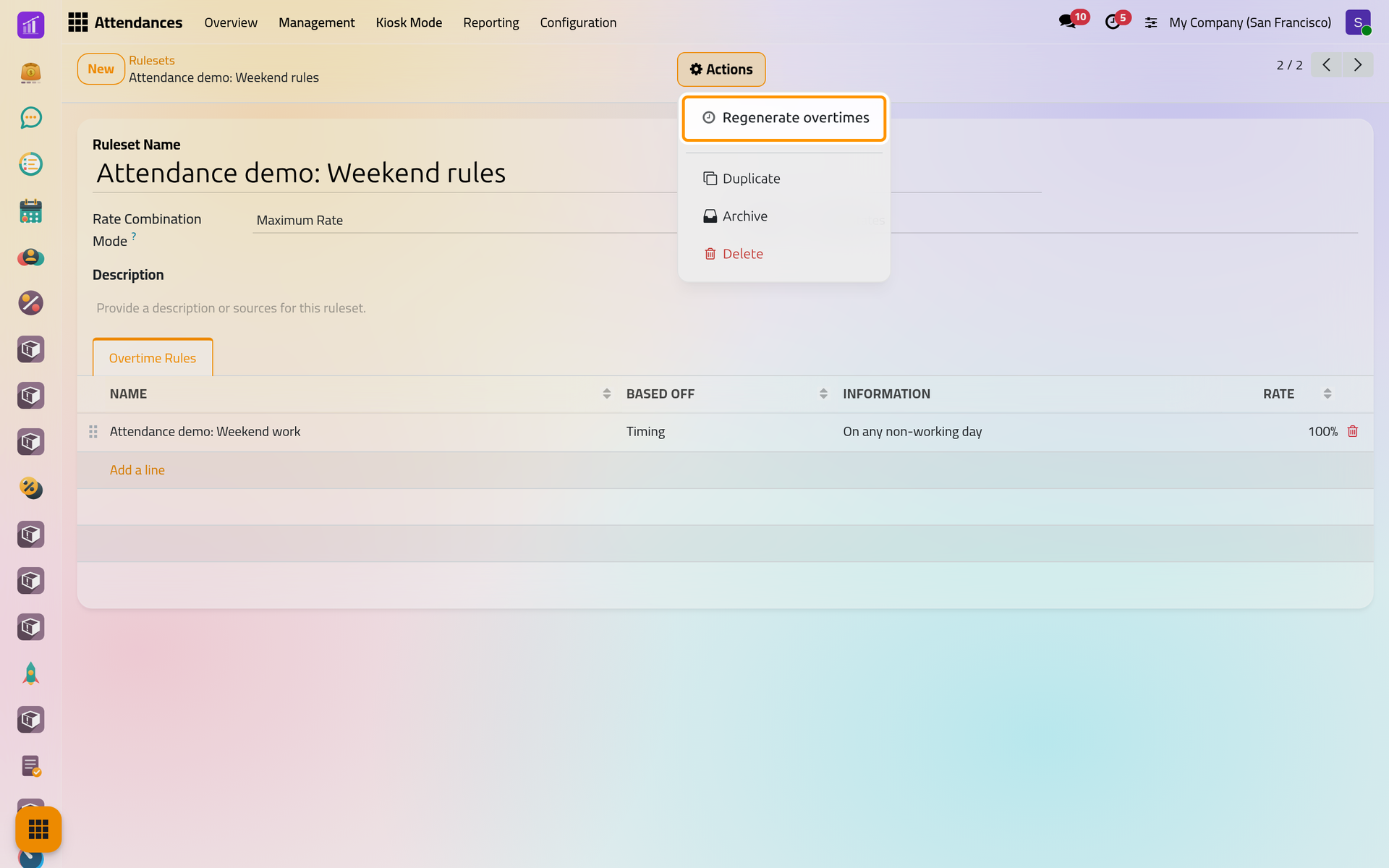
- In the list, click New, type the Ruleset Name, here
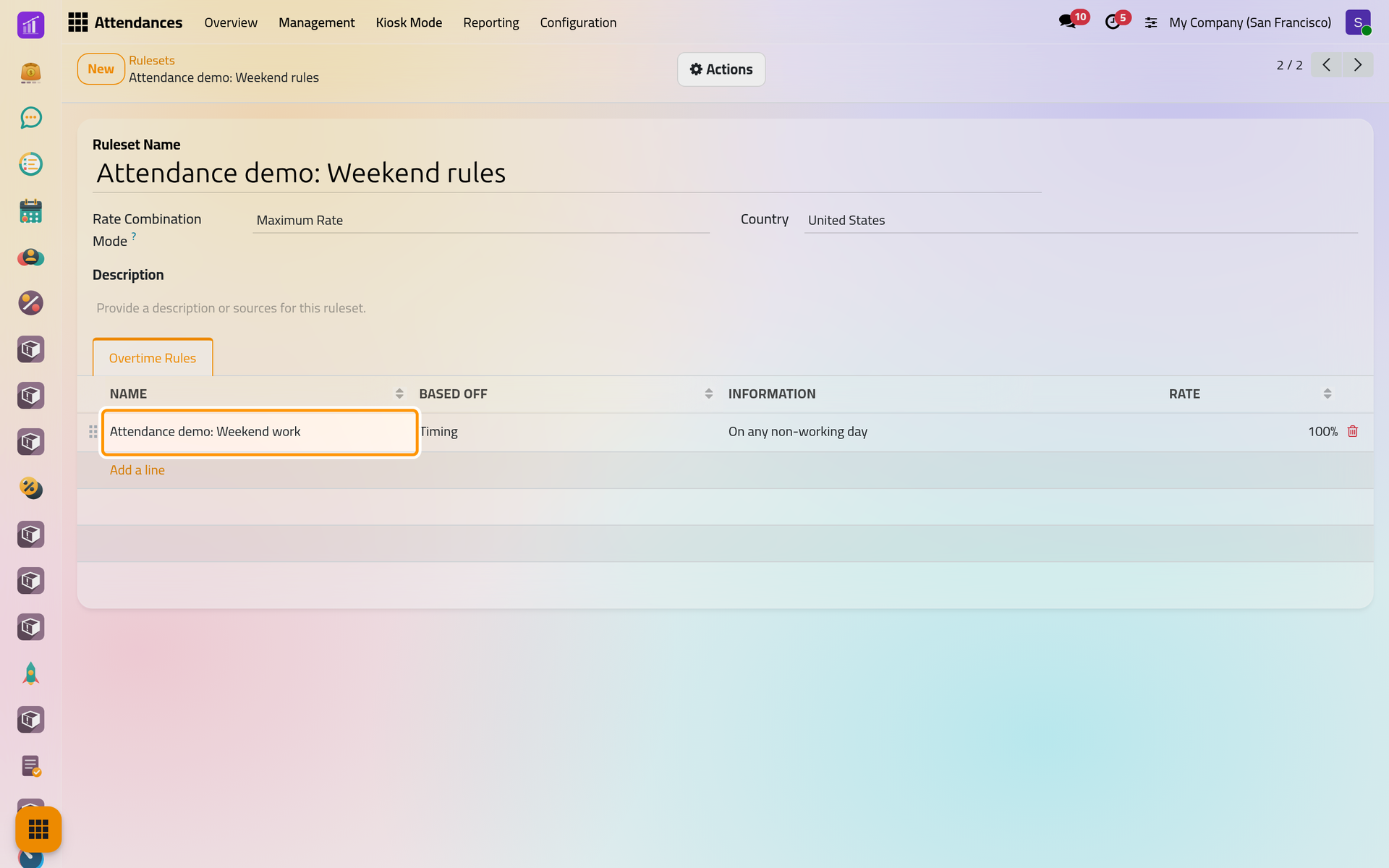
Attendance demo: Weekend rules, and save. - In Overtime Rules, click Add a line.
- Type the Rule Name, here
Attendance demo: Weekend work, choose Timing, then On any non-working day, and tick Pay extra hours. Change the rate if weekend hours are paid more.
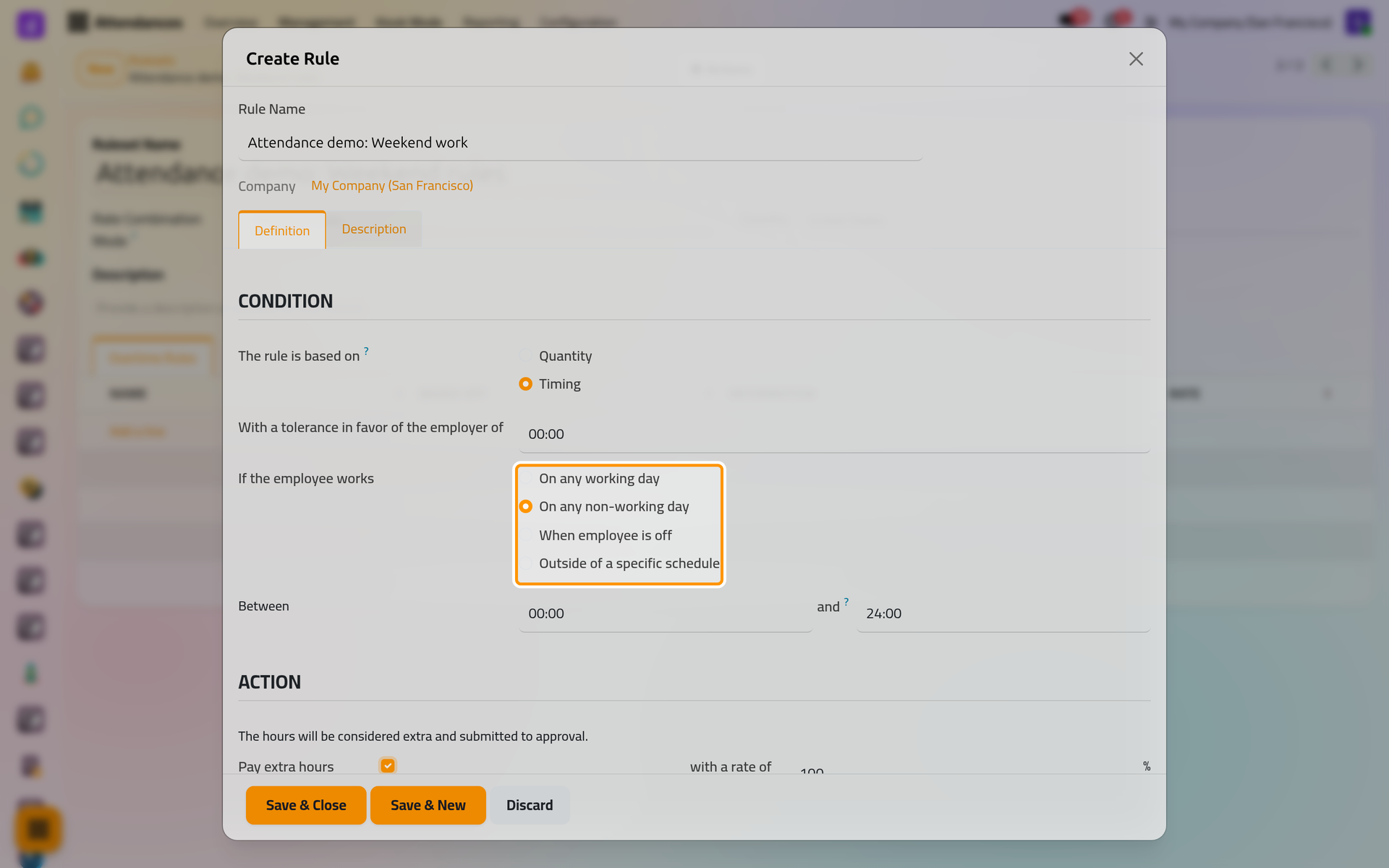
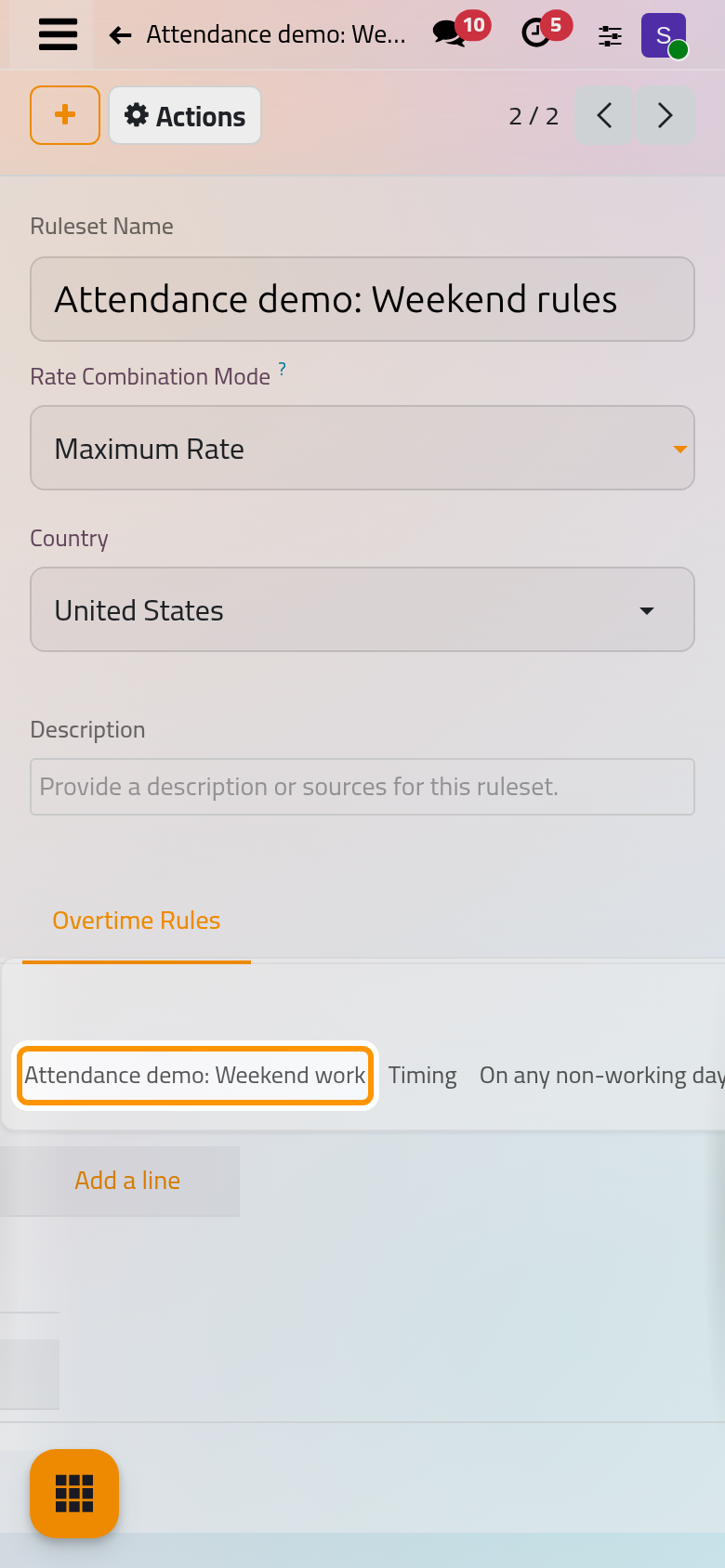
- Click Save & Close, then save the ruleset.
Give the ruleset to employees
On the employee's form, open the Settings tab and choose it in Overtime Ruleset, under Attendance/Point of Sale. The ruleset is kept on each version of the employee's record, which the History button of the form lists: a new version can carry another ruleset from its own date. New employees receive Default Ruleset automatically; employees who existed before the app was installed may have none, so check them.
Compute extra hours again
A rule changed today does not change the extra hours already computed. Open the ruleset and choose Actions, Regenerate overtimes: the app computes again the extra hours of every employee who uses it.
FAQ
Why does an employee get no extra hours at all?
The employee has no ruleset: check Overtime Ruleset on the employee's form. If there is one, the extra time of each day may stay within the employer's tolerance of the rule.
Are approved extra hours kept when I regenerate?
The extra hours are computed again from the attendances. When the settings ask for a manager's approval, they wait for approval again: Approve extra hours.
Does Pay extra hours pay anyone?
No. It marks the hours and their rate on each attendance, for whoever prepares the pay.
Was this page helpful?
Thank you for your feedback.