Read attendance reports
On this page
Every report of the app reads the same attendances; none stores figures of its own, so a corrected attendance changes them at once. This page goes through the two reports of the Reporting menu, then the shorter ways to see the hours of one person.
Before you start
- The Reporting menu needs one of the officer rights on Attendances. With Officer: Manage attendances, the reports count only the employees you approve.
- Time Off Ledger also needs the Administrator right on Attendances; an officer right on Time Off adds the time off types and records of a line.
Hours by employee and month
Open . The table puts the employees in rows and the months in columns, for active employees over the last three months; remove those filters in the search bar to see more. For each cell it shows:
- Worked Hours: the sum of the worked time of the attendances;
- Regular Hours: the worked hours less the extra hours;
- Worked Extra Hours: the extra hours computed;
- Validated Extra Hours: those approved, as Approve extra hours explains.
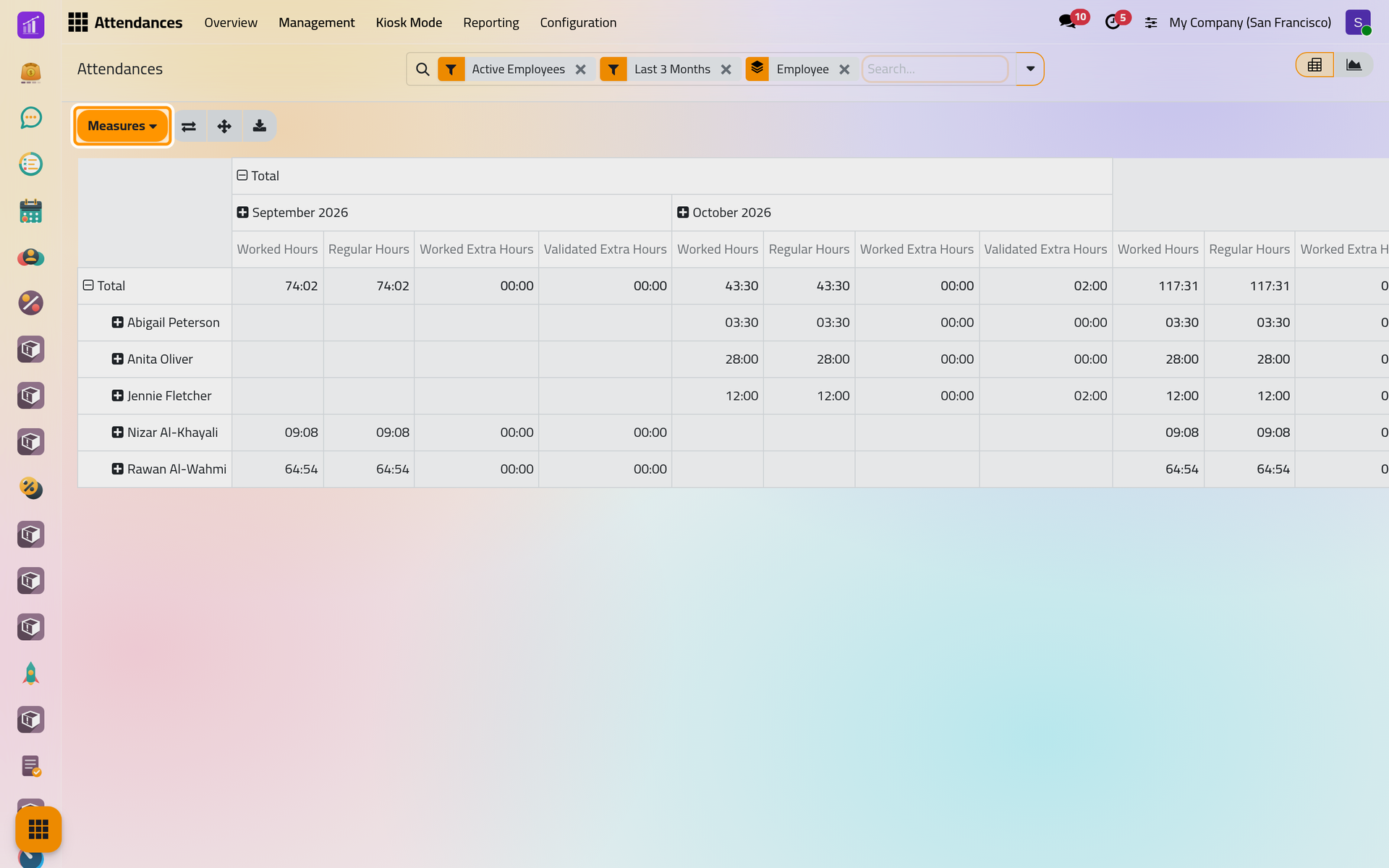
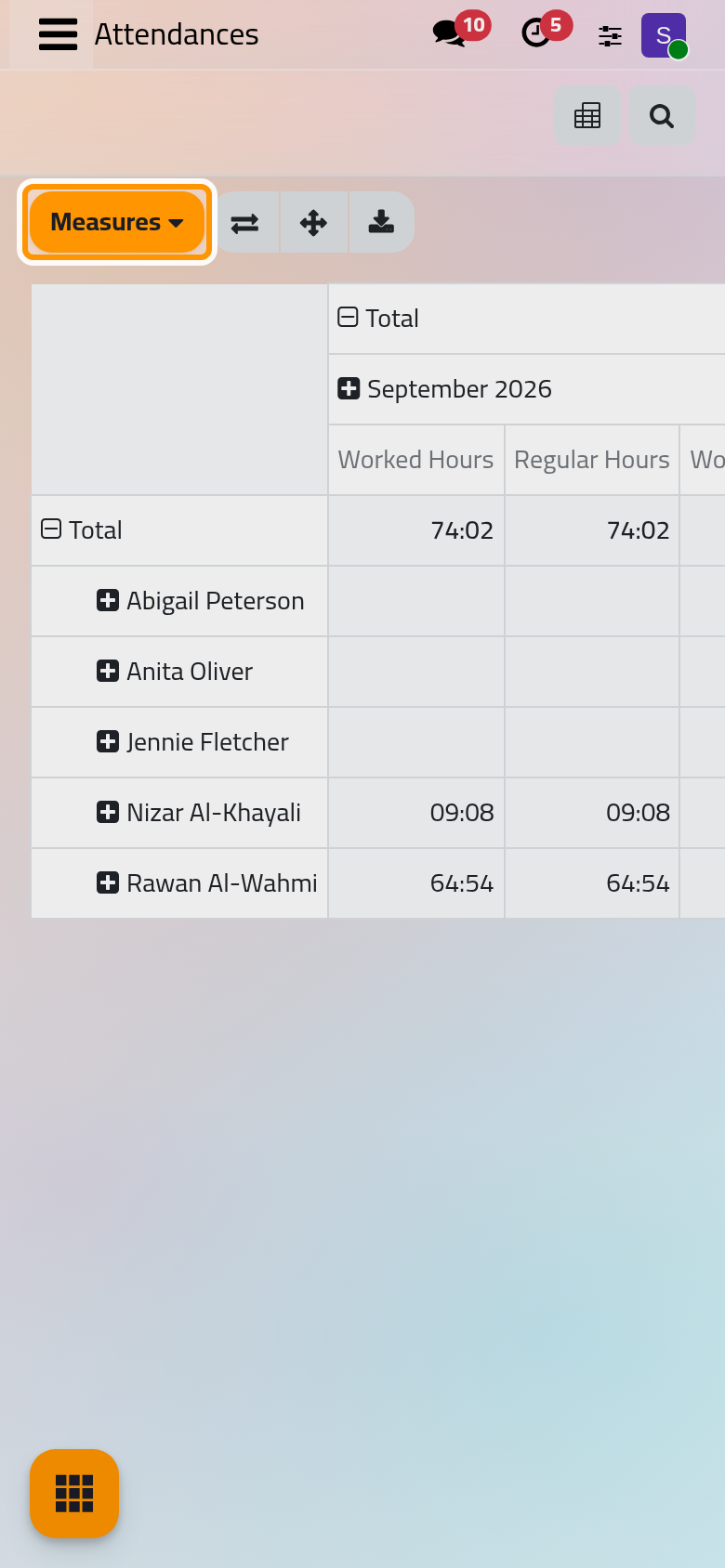
Measures adds or removes figures, a click on a row or column header breaks it down further, and the buttons above the table flip the axes, expand every level or download the table as a spreadsheet. Grouping and filtering work as in any list: Search, filter and group records.
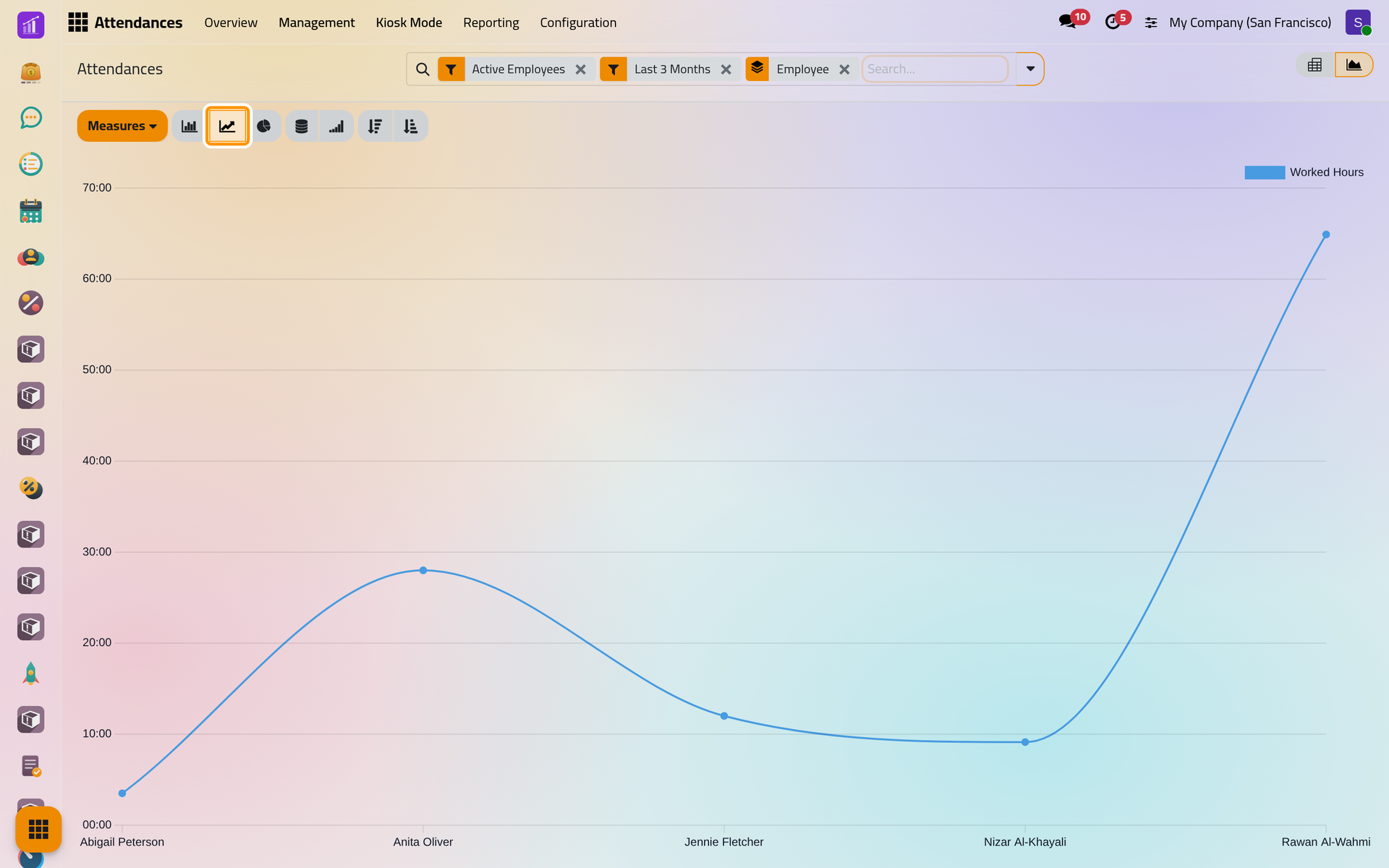
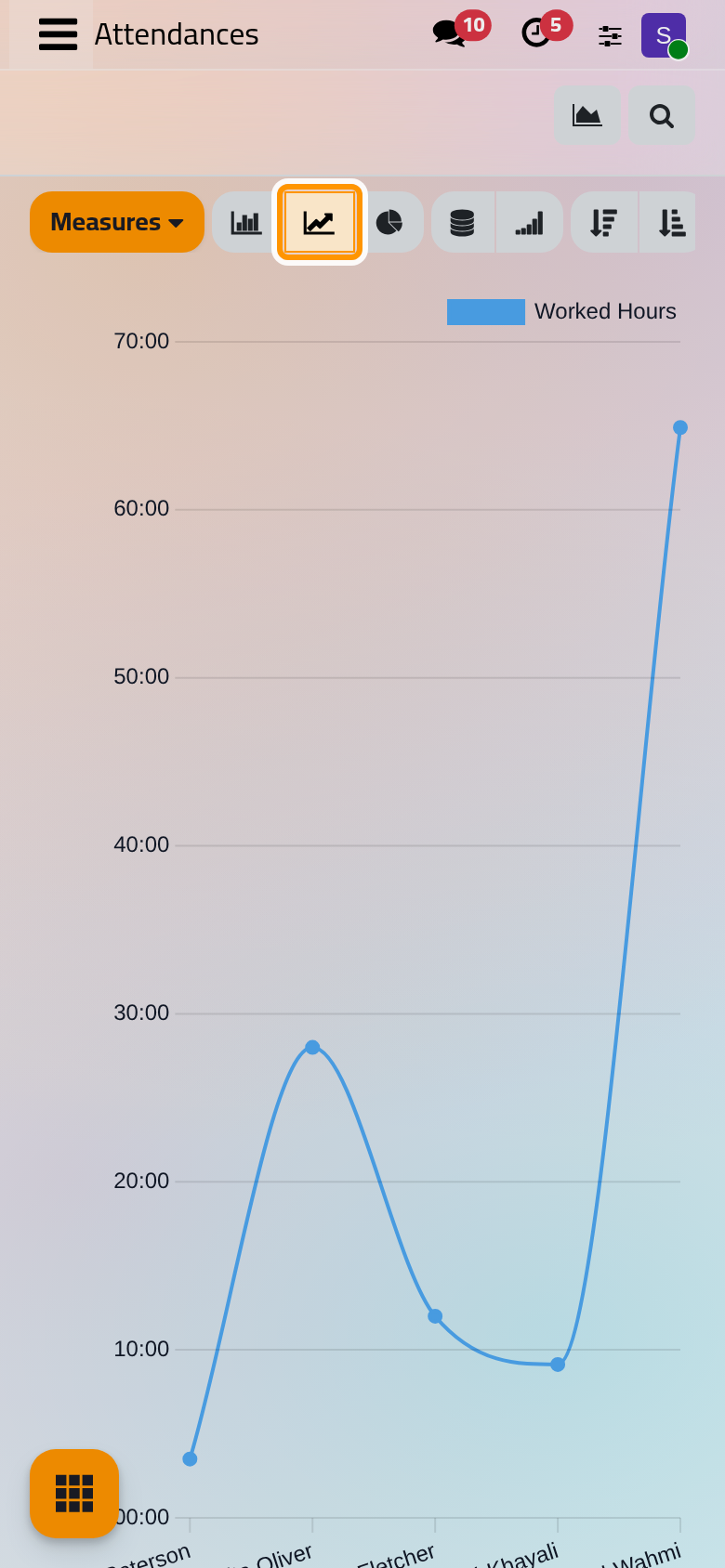
Click the chart button at the top right to see the same figures drawn. The chart opens as lines; the buttons above it switch to bars or a pie.
Each day against the expected hours
Open . Each line is one employee on one day, with:
- Expected Hours: the hours of the employee's working schedule that day;
- Worked Hours: the hours of the attendances;
- Approved Time Off: the hours of approved time off;
- Difference: worked hours less expected hours, plus approved time off.
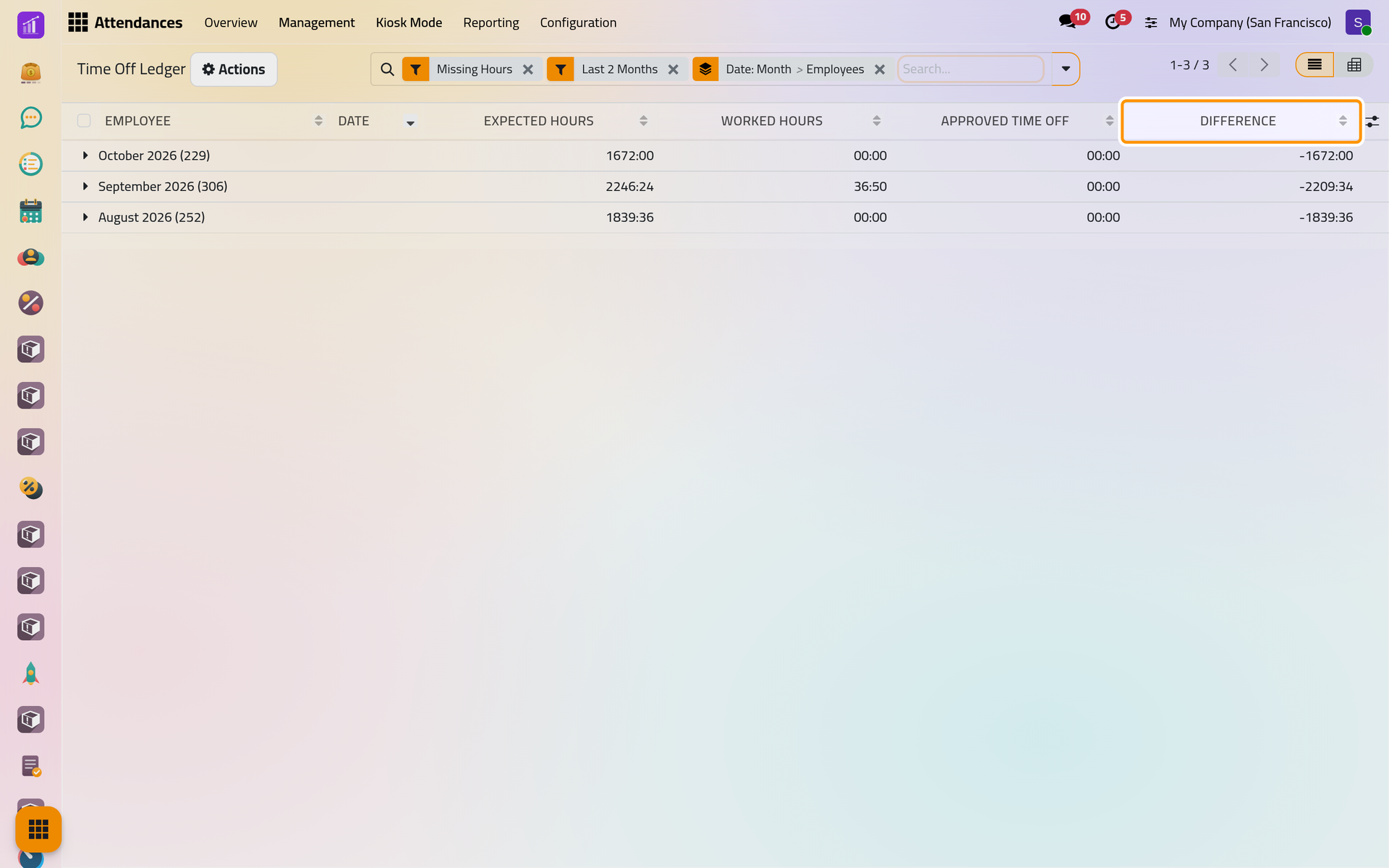
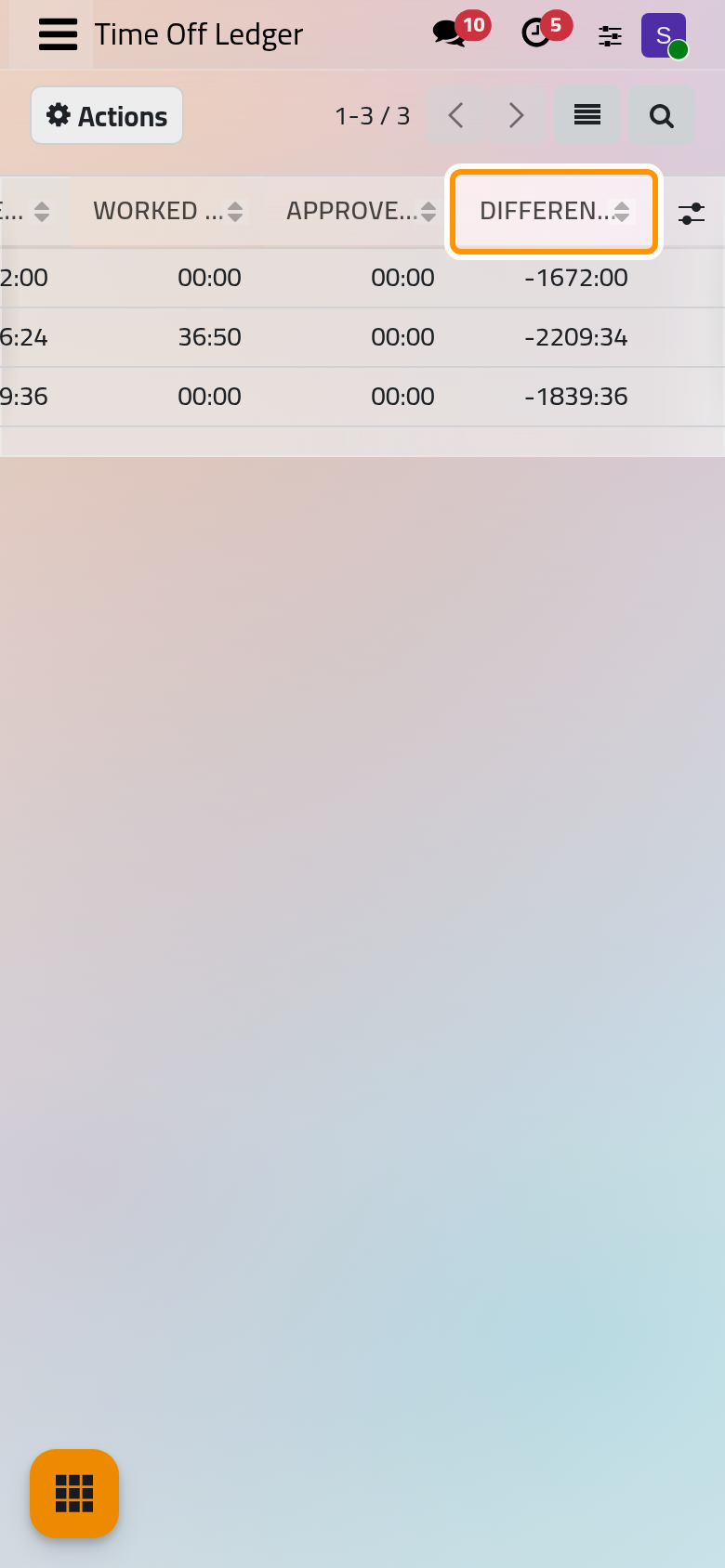
It opens on the Missing Hours filter, the days with a negative difference, over the last two months, grouped by month and employee. A line opens on the attendances and time off of that day.
The hours of one employee
- On the employee's form, the Monthly Hours button shows the hours worked since the first of the month, with the validated extra hours in brackets when Display Extra Hours is on. It opens the list of those attendances.
- groups all attendances by month and employee, with the totals on each group line.
The Analysis app also holds a ready-made Attendances Analysis dashboard, built on the same records: Ready-made dashboards. The comparison of attendances with timesheets lives in the Timesheets app: How projects and timesheets work.
FAQ
Why is a month missing from the table?
The filter Last 3 Months is on by default. Remove it, or choose another period under Date in the filters.
Why do Worked Hours and Regular Hours differ?
Regular hours are the worked hours less the extra hours computed. Where an employee has no ruleset, both are equal.
Why is someone missing from the reports?
Archived employees are left out by Active Employees, and an officer limited to the employees they approve sees only those.
Was this page helpful?
Thank you for your feedback.