Add skills and a resume
On this page
The Resume tab of an employee holds two things side by side: the resume on the left, made of lines grouped in sections, and the skills on the right, each with a level. Both are kept by the HR team and read by everyone who may open the employee.
Before you start
- Adding skills and resume lines to any employee needs the Officer: Manage all employees right on Employees.
- The skill types, their skills and their levels are set in , with the Administrator right. The demo has types such as Languages, with the levels A1 to C2, and Soft Skills.
- These tabs exist while Skills Management is ticked in Employees settings.
Add a skill
- Open the employee in , here a new one,
Employees demo: Huda Al-Rashed, saved once. - Open the Resume tab and click Pick a skill from the list.
- In Update Skills, choose the Category, then the Skill, then the Skill Level: here Languages, English, B2.
- Click Save & Close, or Save & New to add another skill at once.
The skill appears on the right under its type, with the level and a bar of its progress. Each type has an ADD button for another skill of the same type, and each line a bin to remove it. Timeline opens a chart of the level of each skill over time.
Add a resume line
- Click Create Resume Lines.
- Choose the section at the top, here Education. The others are Other Experience, Training, Side Projects and Internal Certification.
- Type the Title, here
Employees demo: Cedar Hill Business School. - Set the Duration: the first date is today by default; type
01/09/2016, then30/06/2020as the end. An empty end reads Forever, and the line then shows "Current". - Add a file in Certificate or a Description if needed.
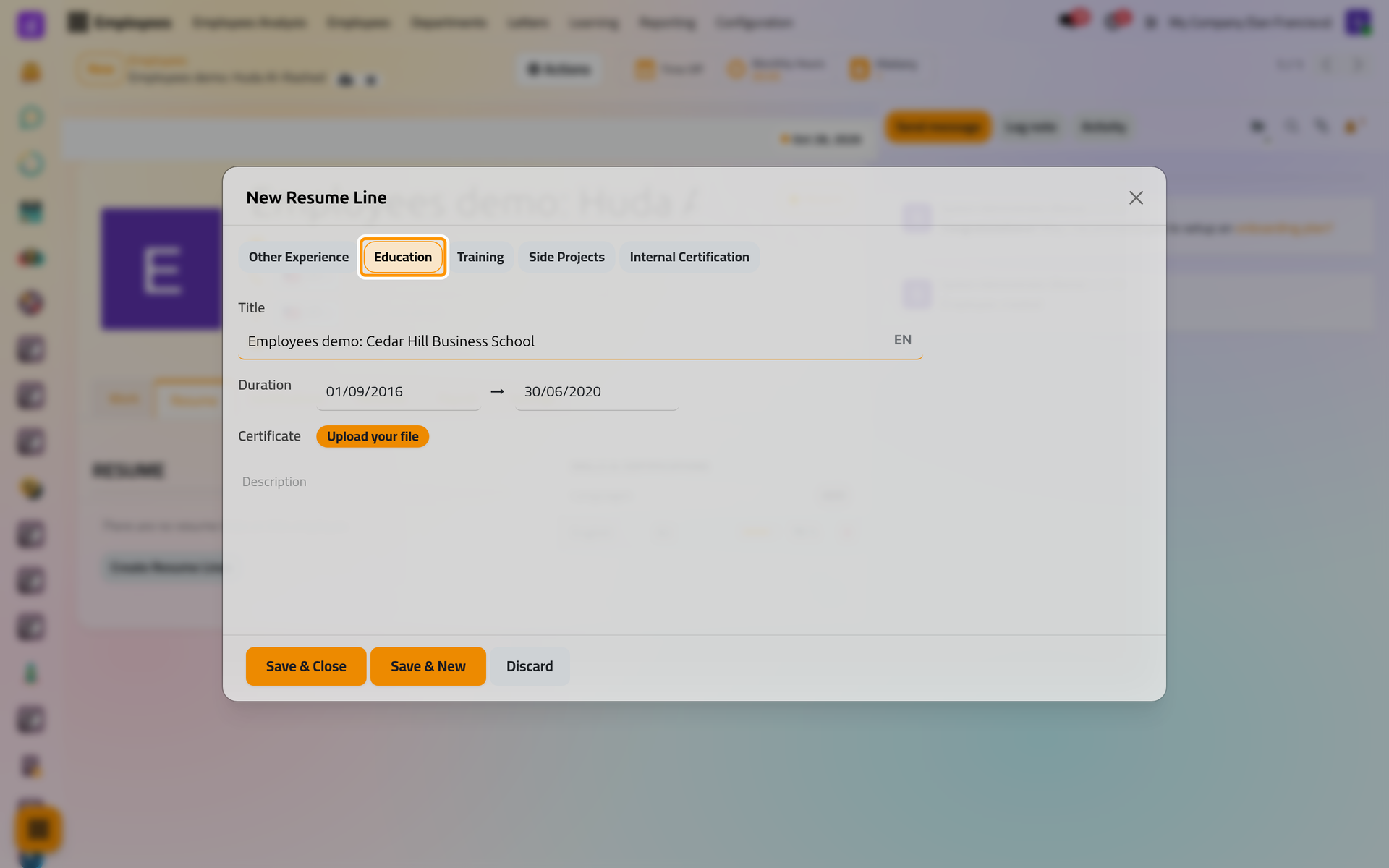
- Click Save & Close, then save the employee.
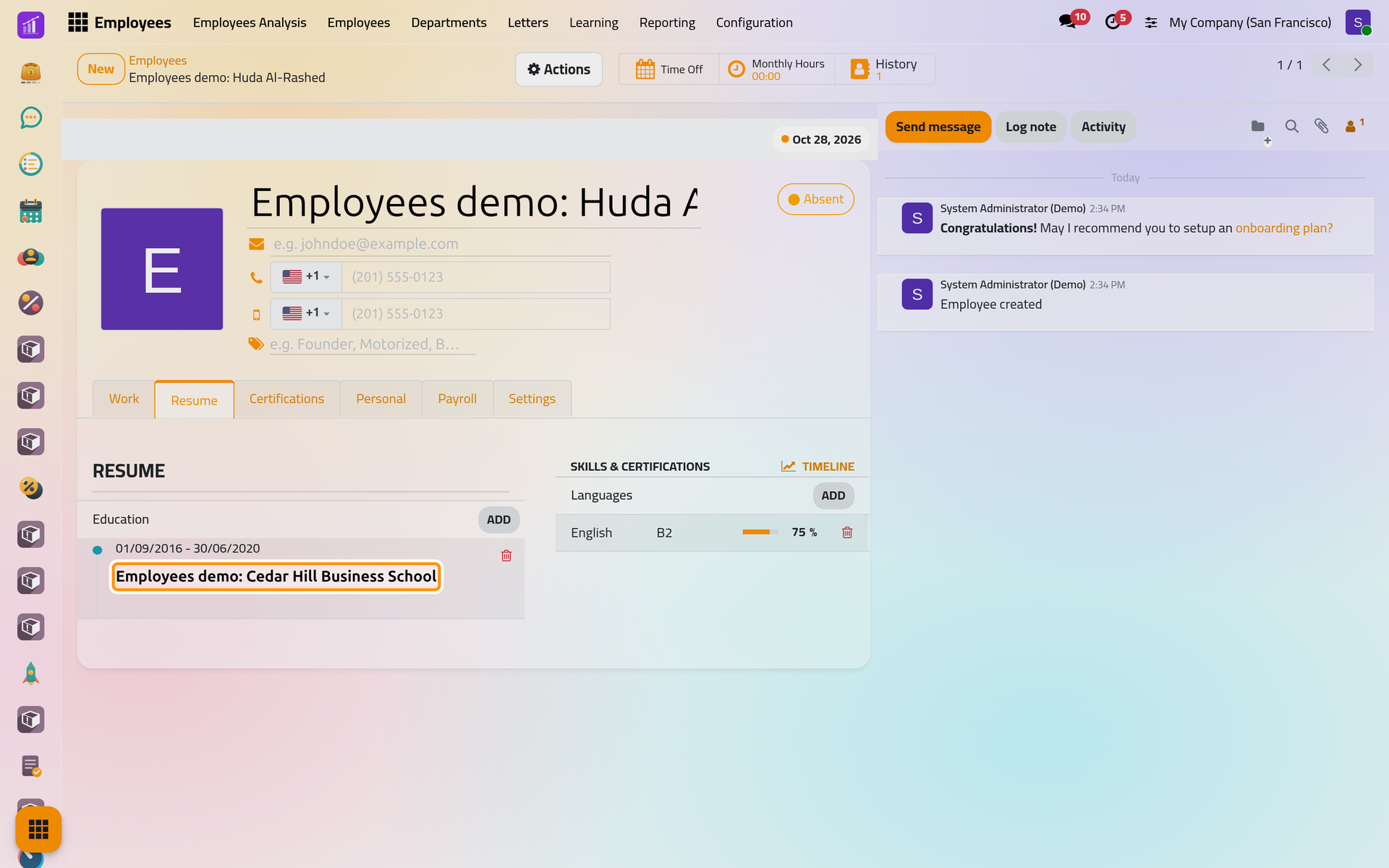
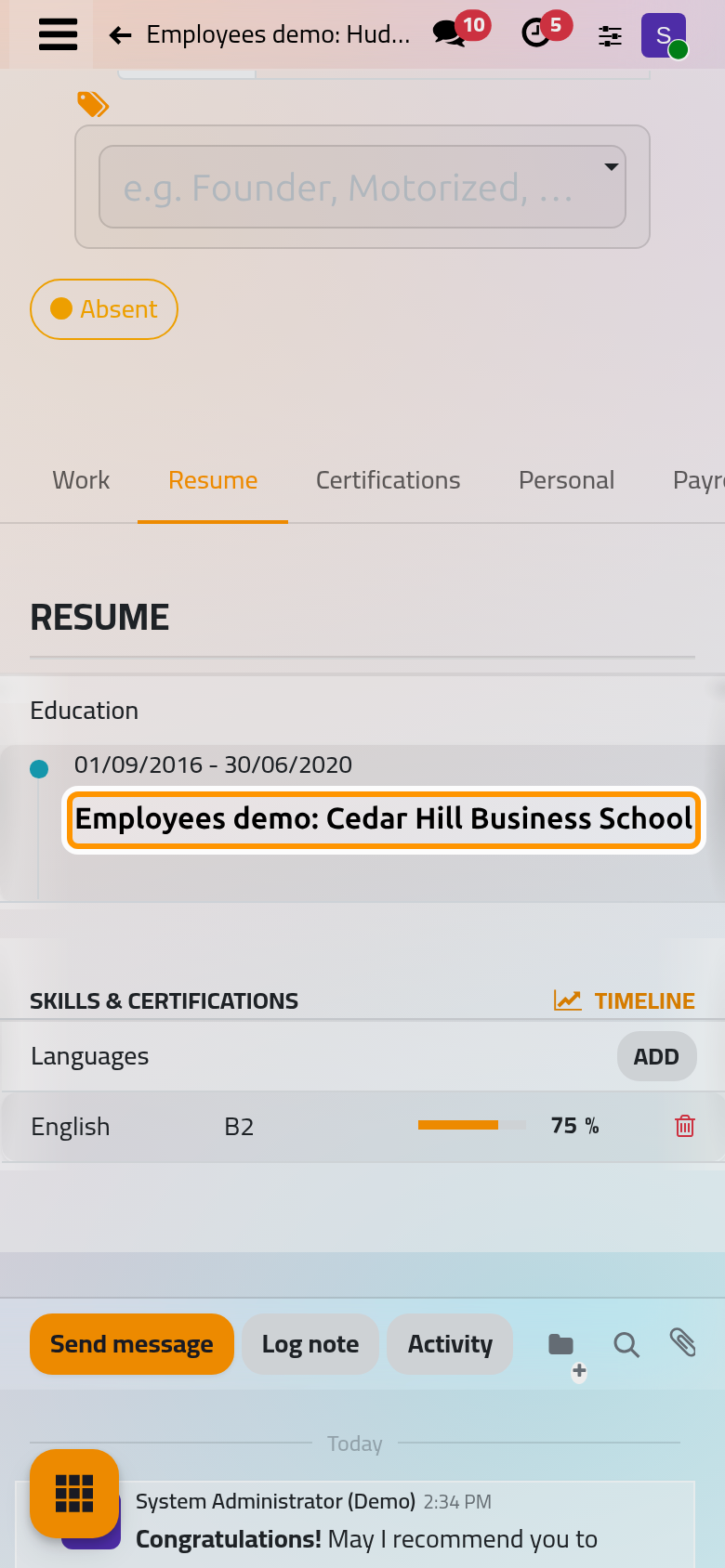
The first section of the resume needs no line of yours: once the employee has a Job Title, it shows the jobs held in the company, read from the dated records of the employee, as the First steps show.
Keep certifications
The Certifications tab lists the skills of a type marked as a certification, here Certifications, with From and To dates. Add a line adds one. gathers the certifications of every employee. When a job position requires a certification, a daily job asks the people concerned to upload it: Employees automations.
Find who has a skill
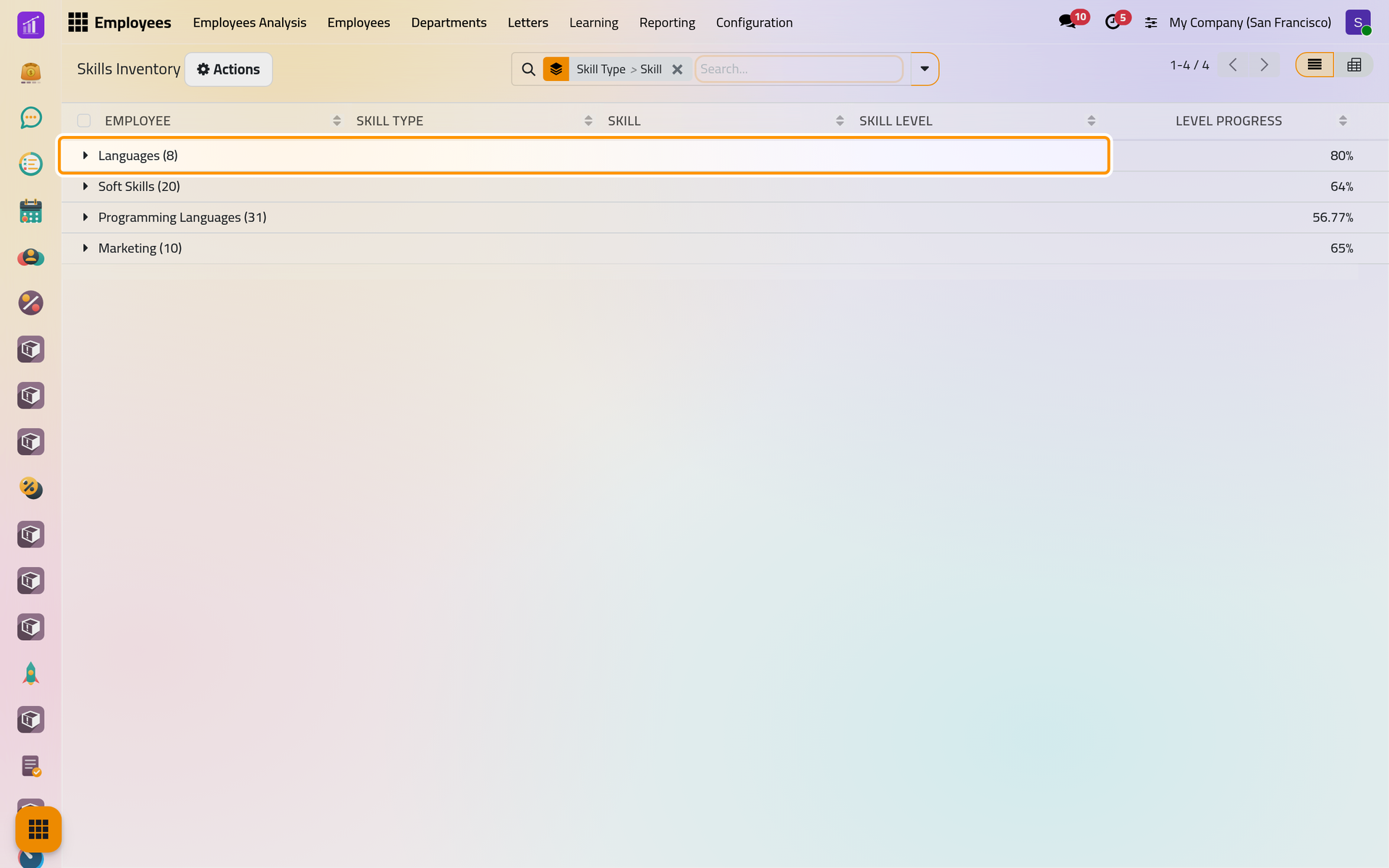
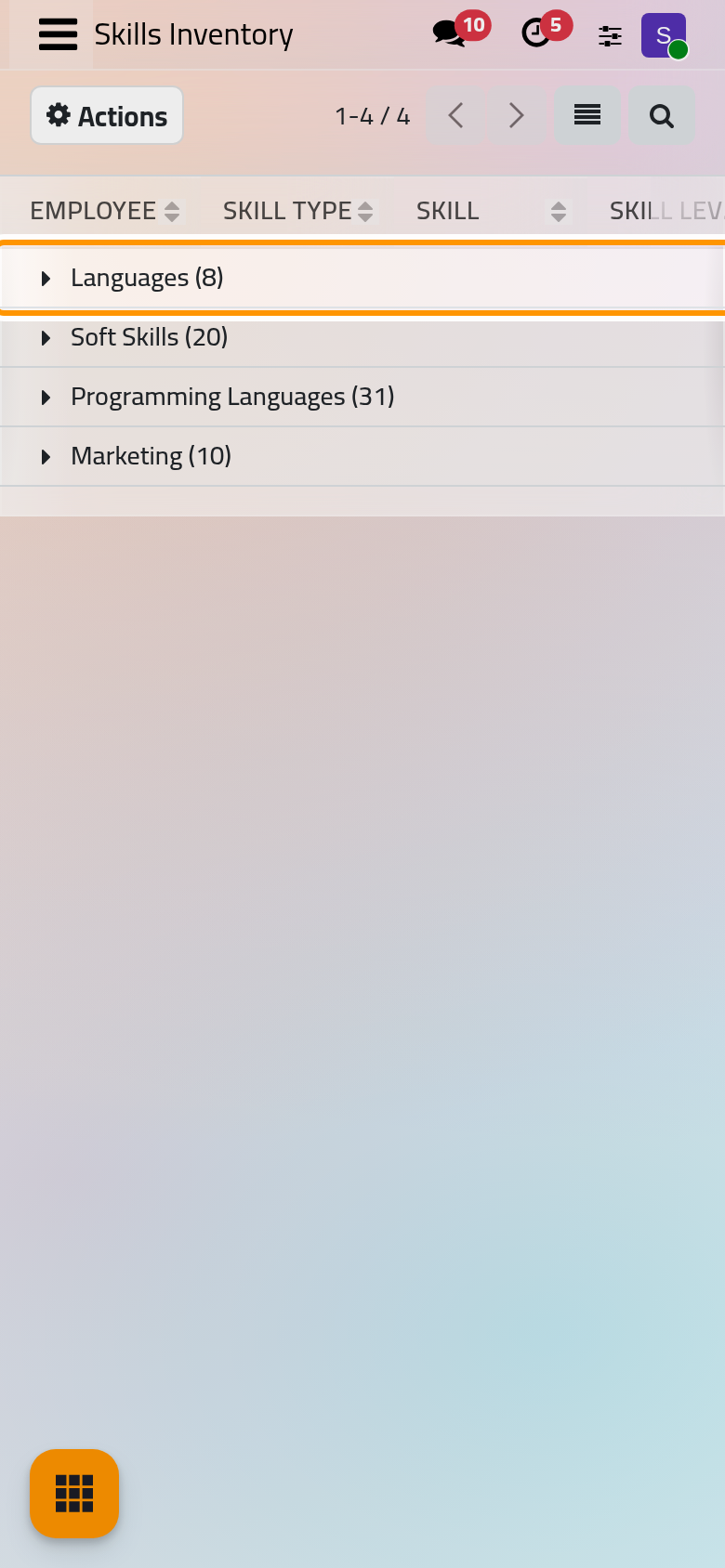
Open . The skills of every employee are grouped by skill type, then by skill; each group gives the number of lines and the average progress of the levels. Open a group to see the people and their levels, or switch to the pivot view to cross skills and employees.
FAQ
A skill is missing from the list.
Add it to its type in , or ask someone with the Administrator right. The window shows only the skills of the type chosen in Category.
Why does the Resume tab show no job of the company?
The first section appears once the employee has a Job Title on the Work tab.
Can the employee update their own skills?
Every internal user can read the skills and resume lines of all employees. A person whose employee record is linked to their user can also add, change and remove their own; the skills of the others stay read-only for them. The HR officers change everyone's.
Was this page helpful?
Thank you for your feedback.