Employees settings
On this page
Open . The Employees section holds three groups: Employees, for presence and skills, Work Organization, for the company's working hours, and Contract, with two notice periods. The rest is in the other entries of Configuration and in the access rights of the users.
Before you start
- The Settings entry needs the right to manage the settings of the database, and the Employees section shows only to an Administrator of Employees.
- The values are kept per company: switch company at the top right to set another one.
- Click Save to apply a change.
Presence display
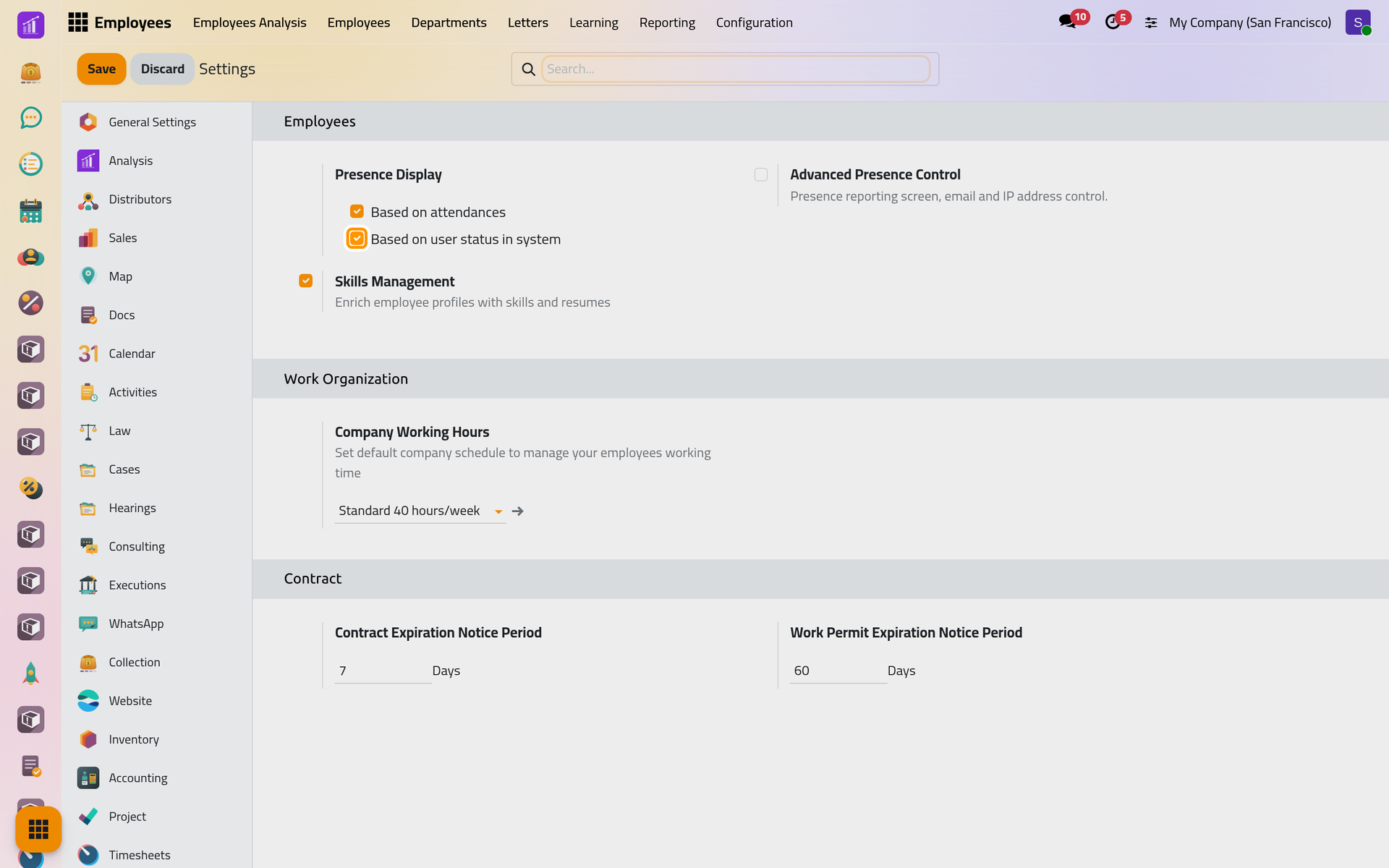
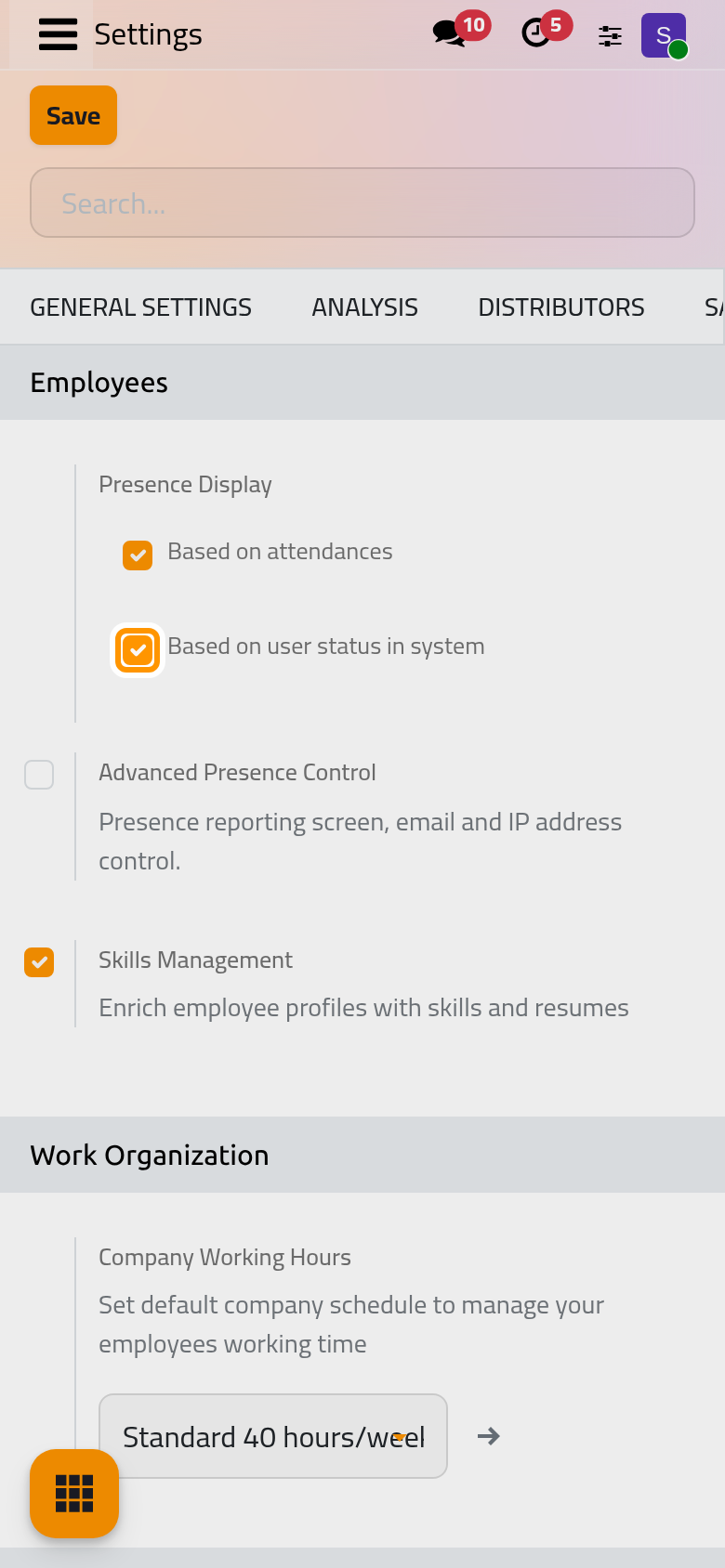
The dot next to an employee's name says whether the person is at work. Presence Display chooses what it is computed from:
- Based on user status in system: the person counts as present while their user is online in the application, and absent when offline during their working hours. Outside their working hours, the dot reads Off-Hours.
- Based on attendances: the person counts as present while checked in to the Attendances app: How attendance works.
Both are ticked in the demo. When a location is set for the day, the icon shows it instead: Set work locations and home working.
Advanced Presence Control adds a separate module: a presence report, and two more ways to count someone present, Based on number of emails sent and Based on IP Address, with their Sent Emails and IP Addresses boxes. These options show only once the module is added, which ticking the box and saving does: leave it to the administrator of the platform.
Skills
Skills Management, ticked, gives the Resume and Certifications tabs, the skill types and the skills reports: Add skills and a resume. Clearing it and saving removes that module, with the skills and resume lines already recorded.
Working hours and notice periods
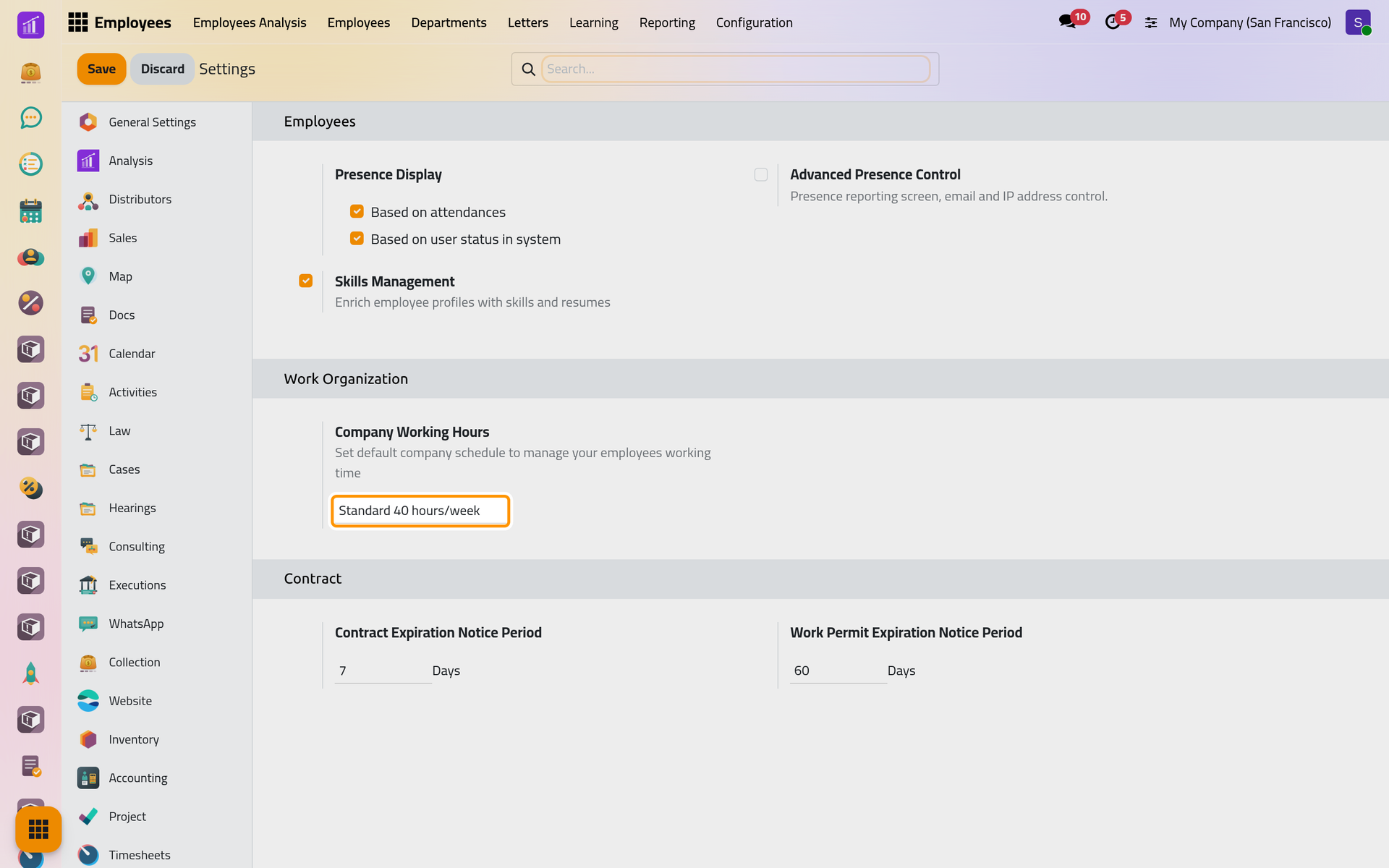
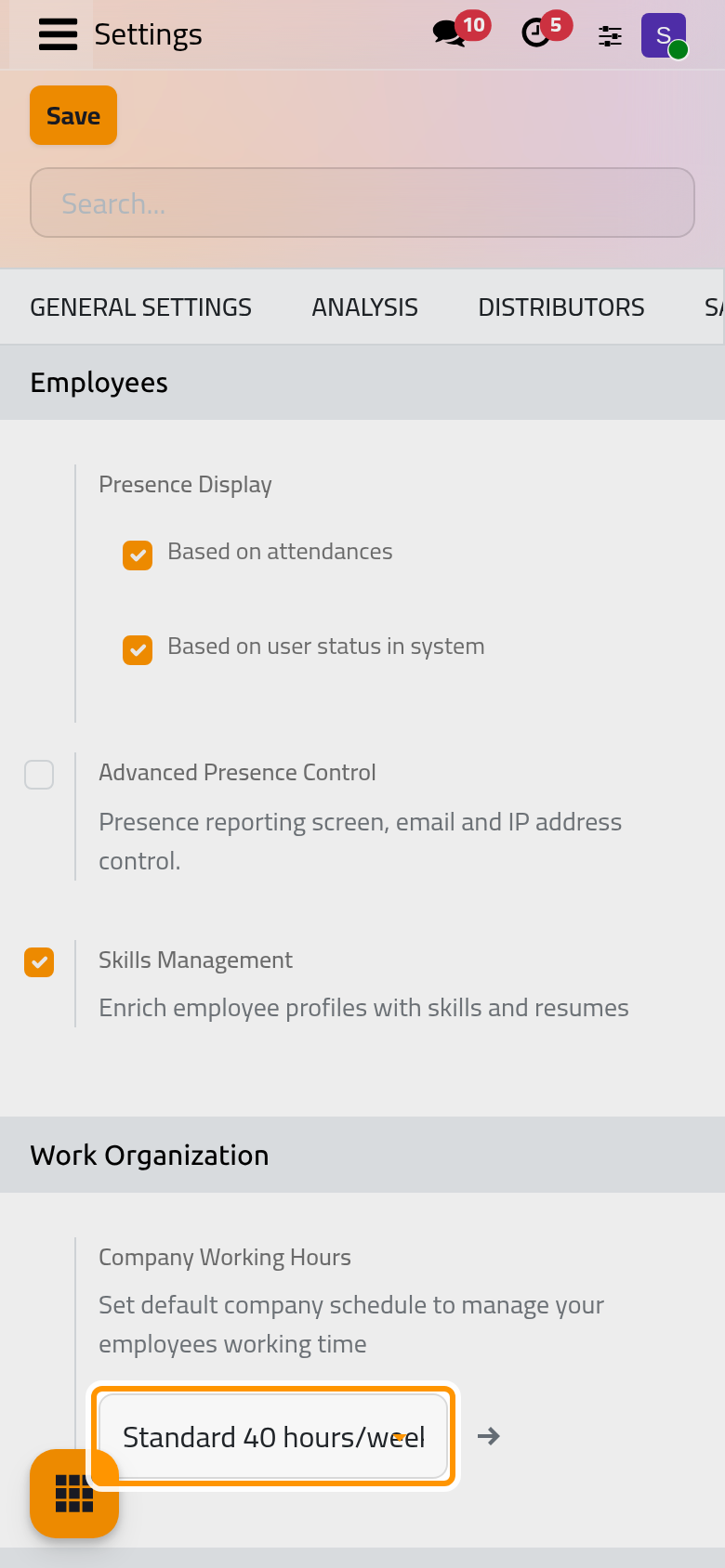
- Company Working Hours is the schedule a new employee takes by default, here Standard 40 hours/week. Time off and attendances count against each person's schedule; the schedules are in .
- Work Permit Expiration Notice Period, 60 days by default: when an employee's work permit, entered on the Personal tab under Visa & Work Permit, expires in exactly that many days, a daily job gives a To-Do activity to the employee's HR Responsible, the approver set on the Settings tab.
- Contract Expiration Notice Period, 7 days by default, works the same way with the end date that the Administrator of the app keeps on the employee.
Employees automations describes the job.
Access rights
Each user gets one of two access rights on Employees, the second including the first. They are set on the user's form: Create a user and set access rights.
| Access right | Can |
|---|---|
| Officer: Manage all employees | Create and change every employee, including the Personal and Settings tabs; departments; skills and resumes; launch plans |
| Administrator | Also the Configuration menu, this settings section, work locations and plans; archive an employee |
Users without either right see their colleagues in Directory, a public profile without the private details, and the Departments menu only if they manage a department.
FAQ
What do the colors of the dot mean?
Green: present. Orange: absent during the working hours of the person's schedule. Grey: outside those hours, Off-Hours. A plane replaces the dot during time off, and a house, a building or a pin when a work location is set for the day.
Does a new Company Working Hours change the current employees?
No. It is given to the employees created from then on; the others keep theirs. Changing a schedule's days and hours in reaches everyone who follows it.
Who receives the work permit reminder when no HR Responsible is set?
The activity then goes to the system's own user, so nobody sees it in their list. Set the HR Responsible of each employee on the Settings tab.
Was this page helpful?
Thank you for your feedback.