First steps with employees
On this page
Employees keeps one record per person who works for the company: work contacts, department, job, manager, work location, resume and skills, and the private details only the HR team reads. The other HR apps, such as time off and attendances, start from this record. This walk-through adds one employee from start to finish and shows where the record appears once saved.
Before you start
- Creating employees needs the Officer: Manage all employees access right on Employees. The Administrator right adds the Configuration menu and the app's settings. Rights are set on the user's form: Create a user and set access rights.
- When you open the app, it shows Employees Analysis first, its ready-made dashboard, if you may see dashboards: Ready-made dashboards. This walk-through starts from the list of people instead.
Step 1: find the people of a department
- Open . Each card is one employee, with the job title, the work email and phone, and a dot that tells whether the person is at work.
- In the panel on the left, click Management, the top department. Its sub-departments unfold under it.
- Click Professional Services. Only the people of that department remain.
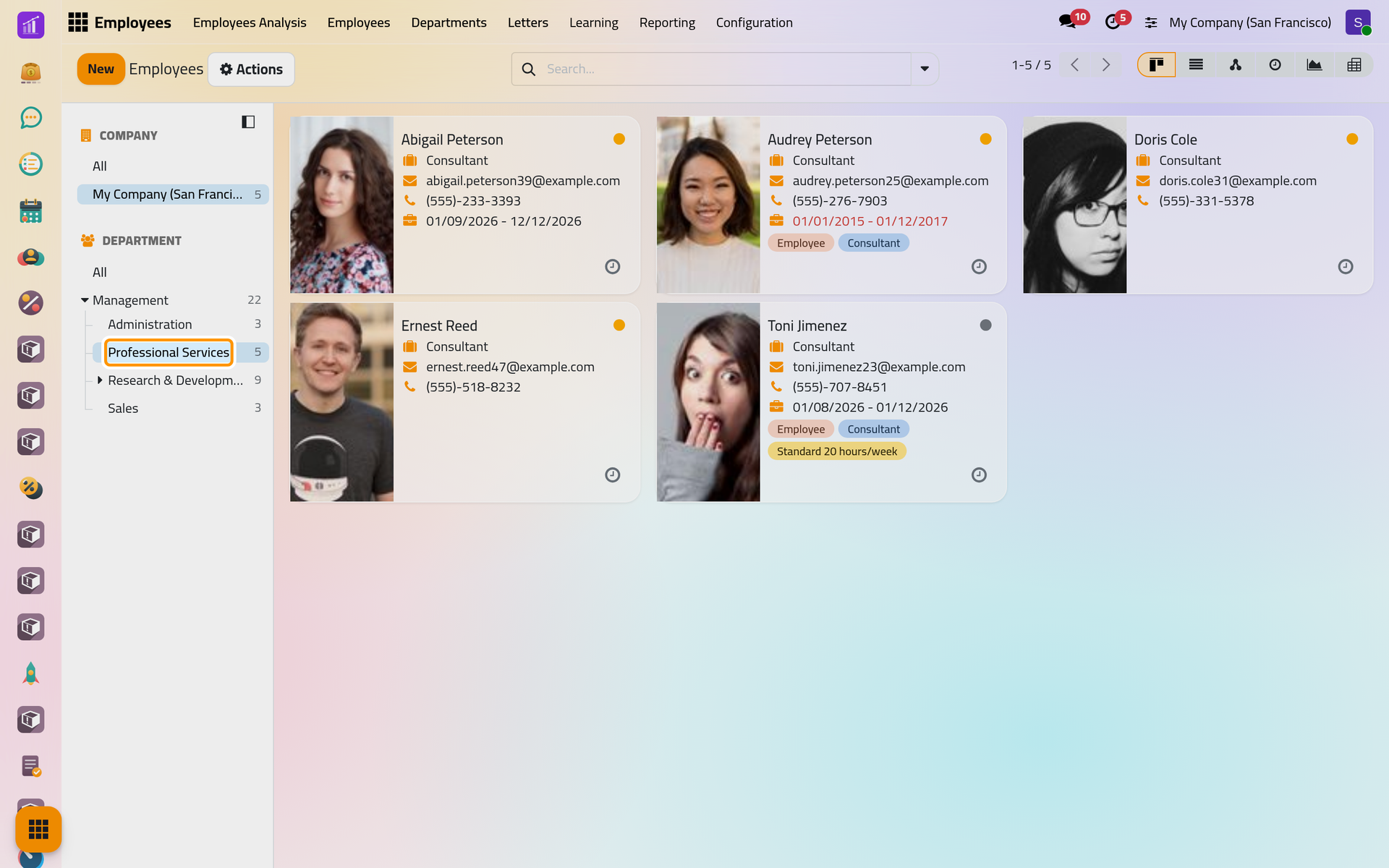
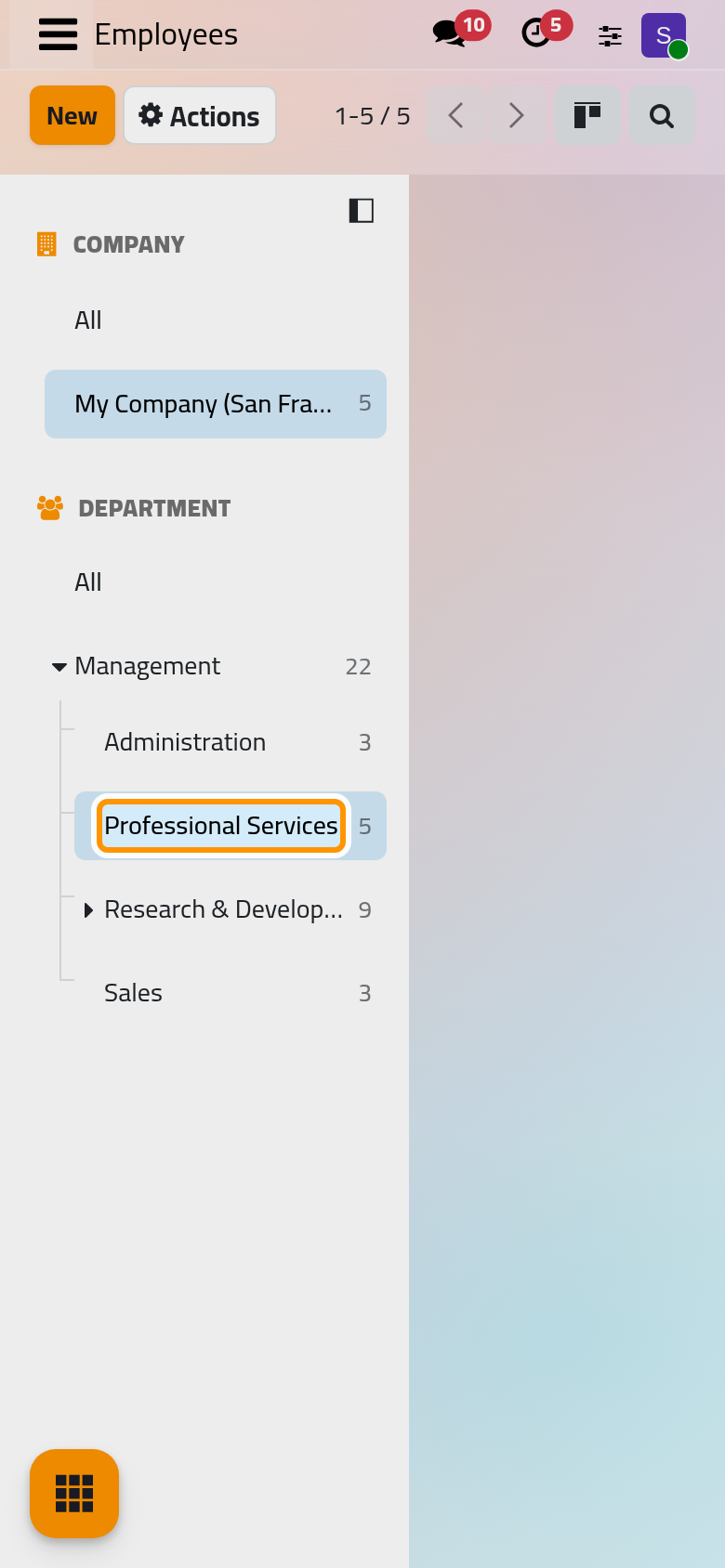
On a phone, the panel covers the left of the screen; the button at its top right folds it into two lists above the cards.
Step 2: create the employee
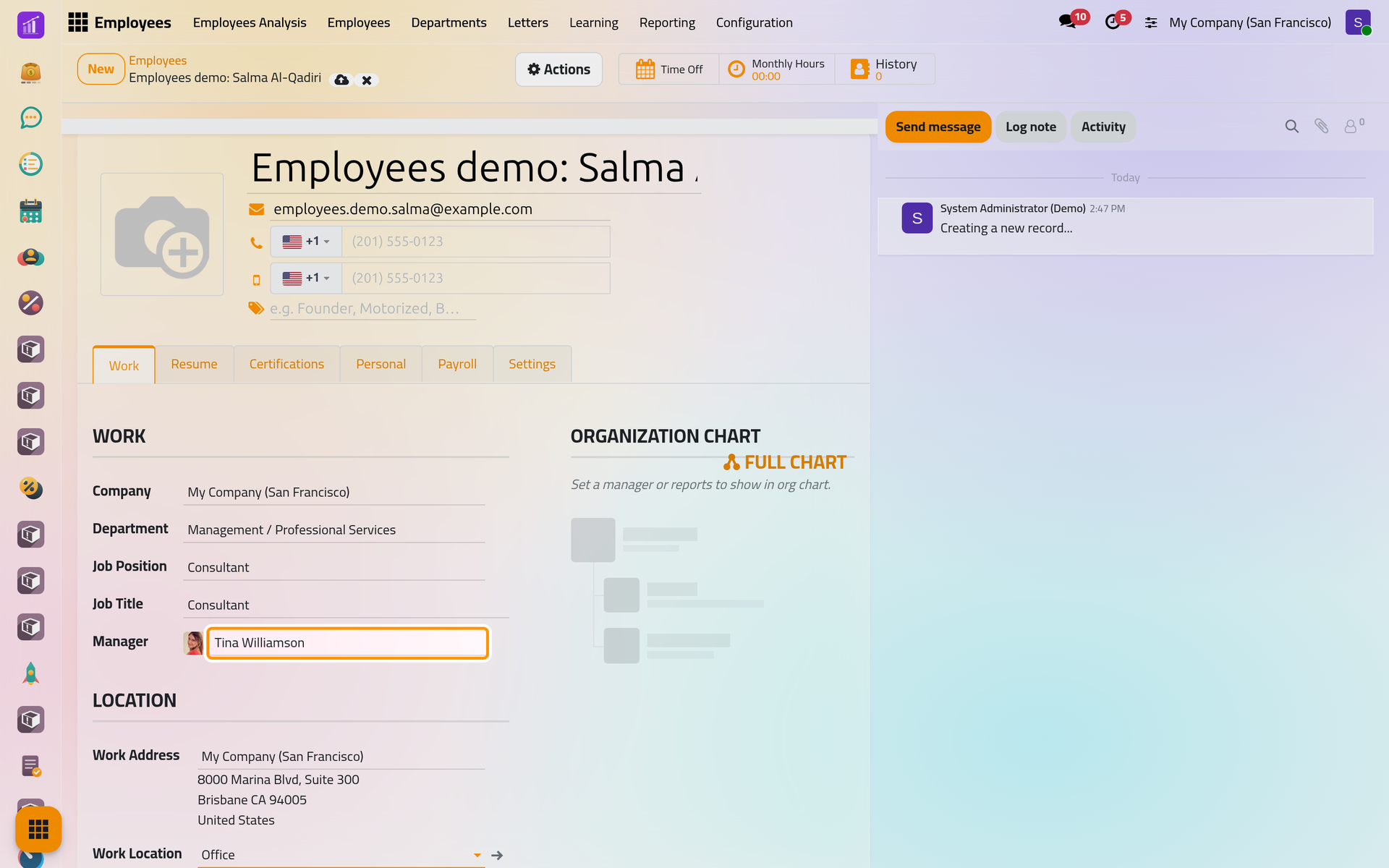
- Click New and type the name, here
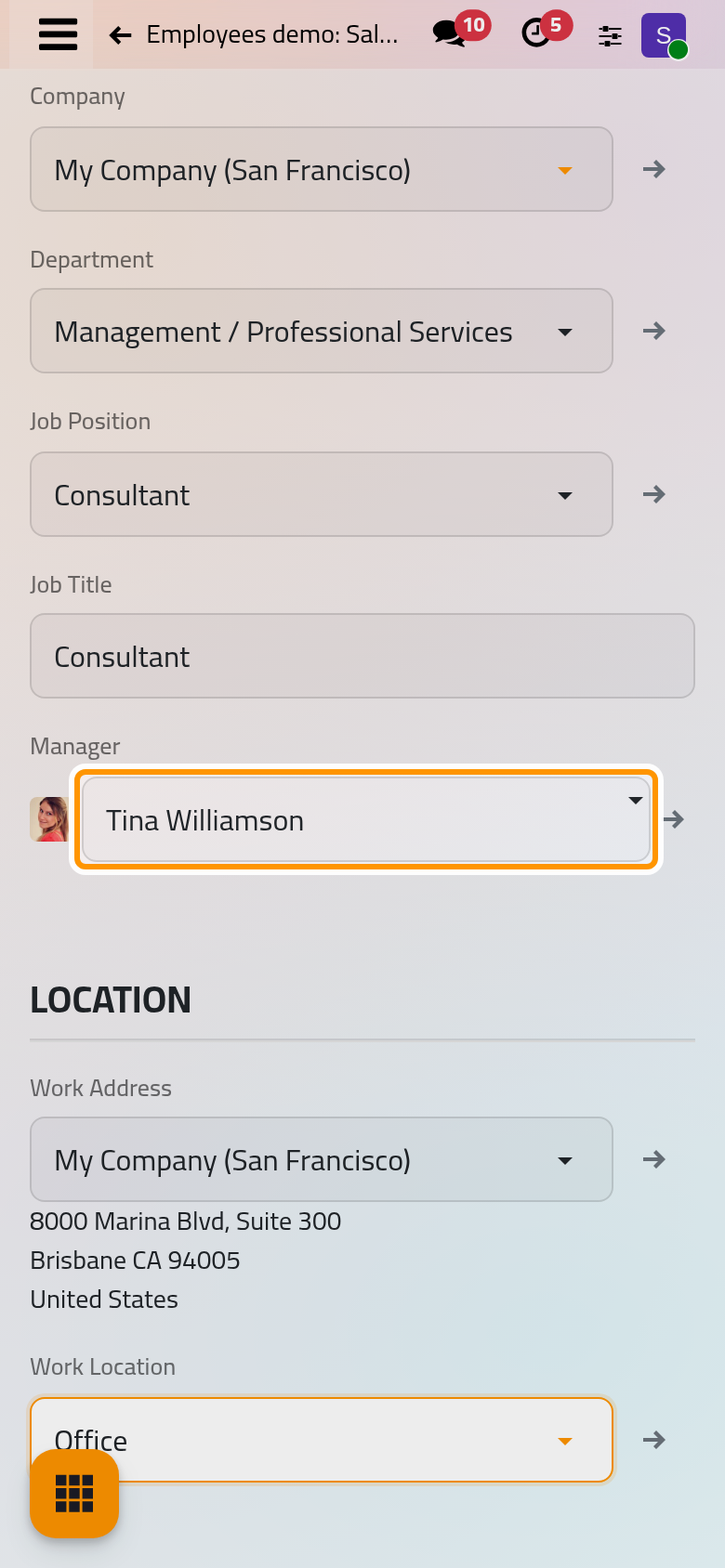
Employees demo: Salma Al-Qadiri, then the work emailemployees.demo.salma@example.com. - On the Work tab, choose Professional Services in Department and Consultant in Job Position. Job Title takes the same words; change it when the person's title on business cards differs.
- Choose Tina Williamson in Manager. Choosing a department does not fill the manager: set it yourself.
- Choose Office in Work Location.
Step 3: save and read the org chart
Click Save. The Organization Chart on the right of the Work tab now shows the line of managers above the new employee: Nizar Al-Khayali, then Tina Williamson. The number on each line is the count of people under that manager.
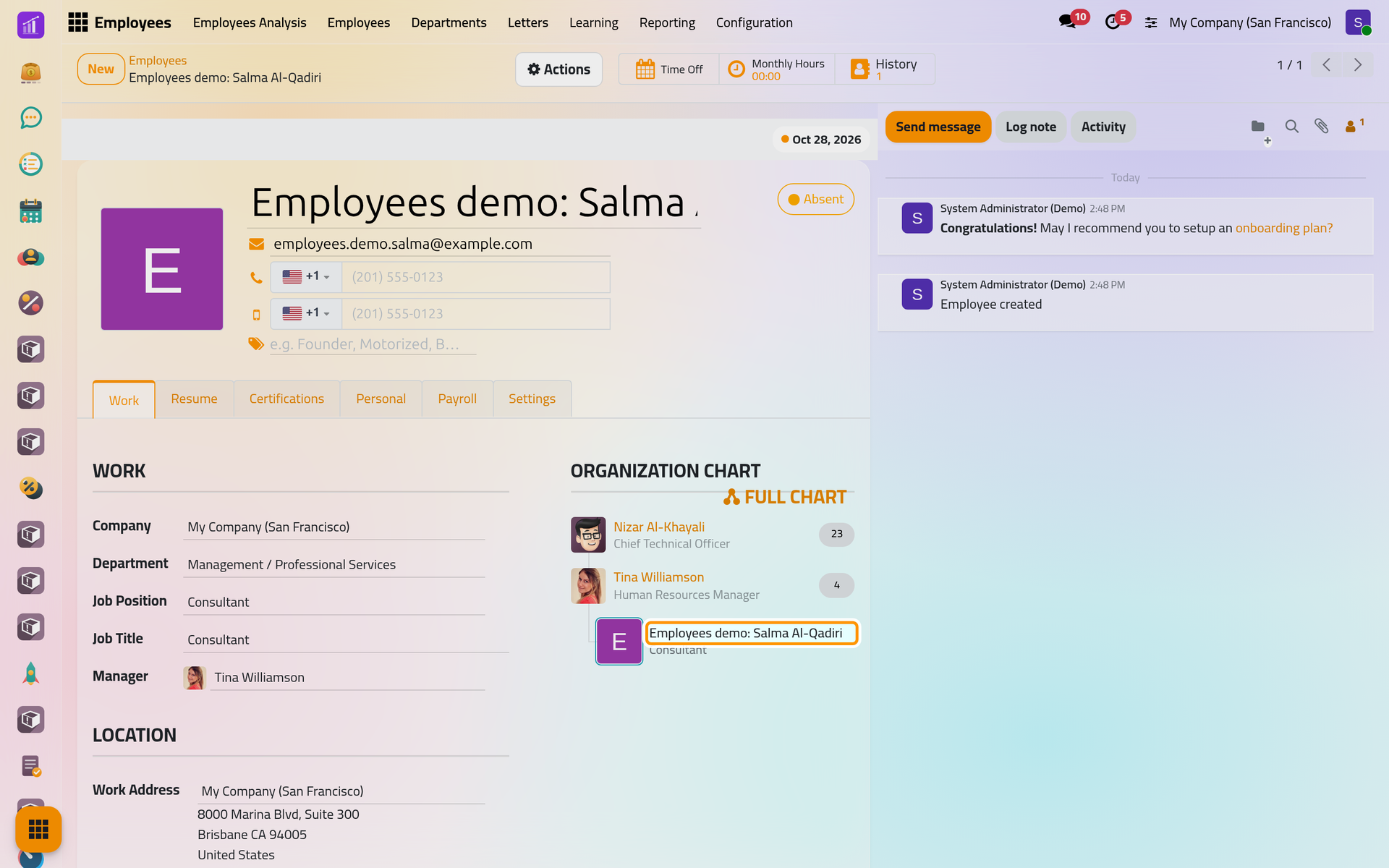
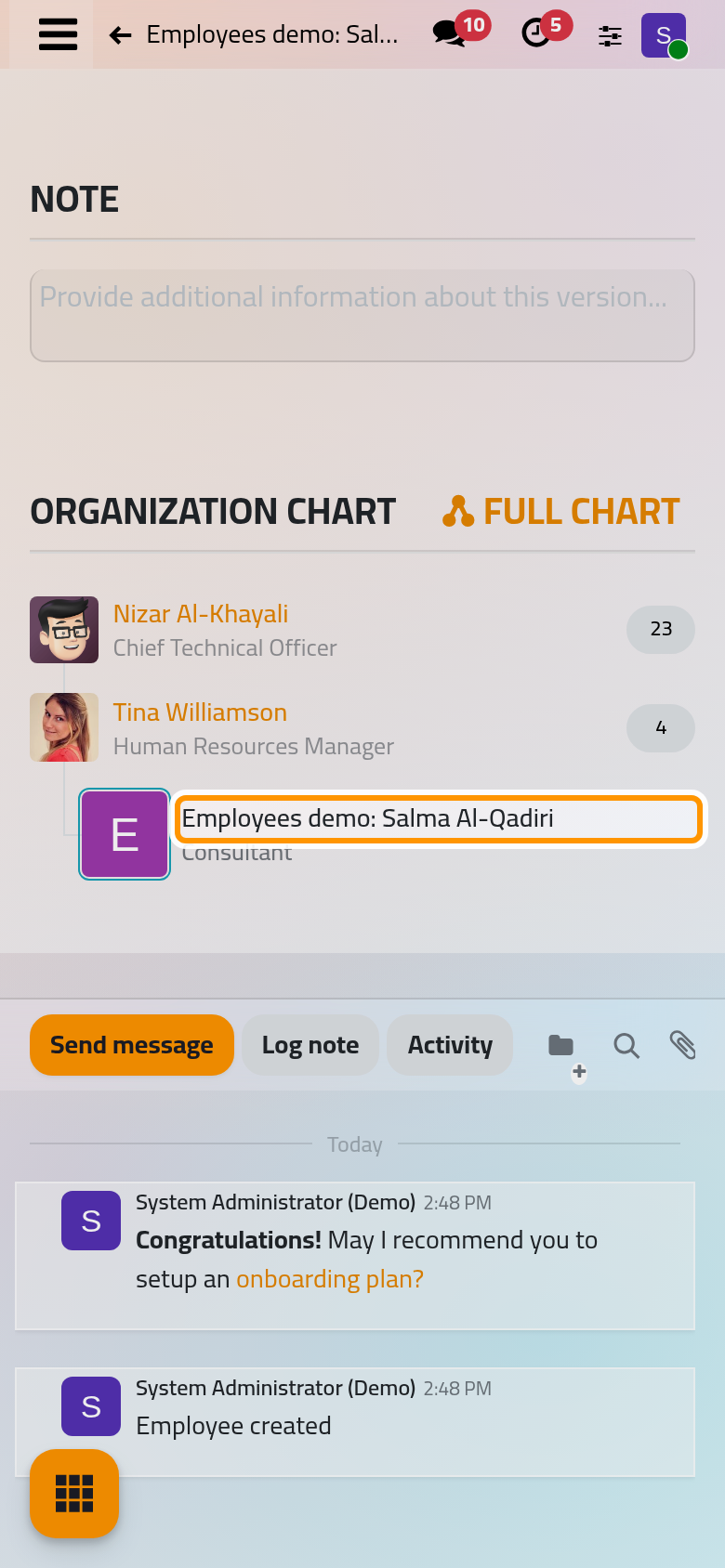
Saving also creates the employee's work contact, which carries the work email and phone. The employee's coach is set to the same person as the manager; How employee records work explains both.
Step 4: add a skill
- Open the Resume tab. The first section already lists the job held in the company, Consultant since the day the employee was created. Other sections, such as Education, are added with Create Resume Lines.
- Click Pick a skill from the list. The Update Skills window offers three rows of choices: Category, Skill and Skill Level.
- Leave Languages, click Arabic, then C2.
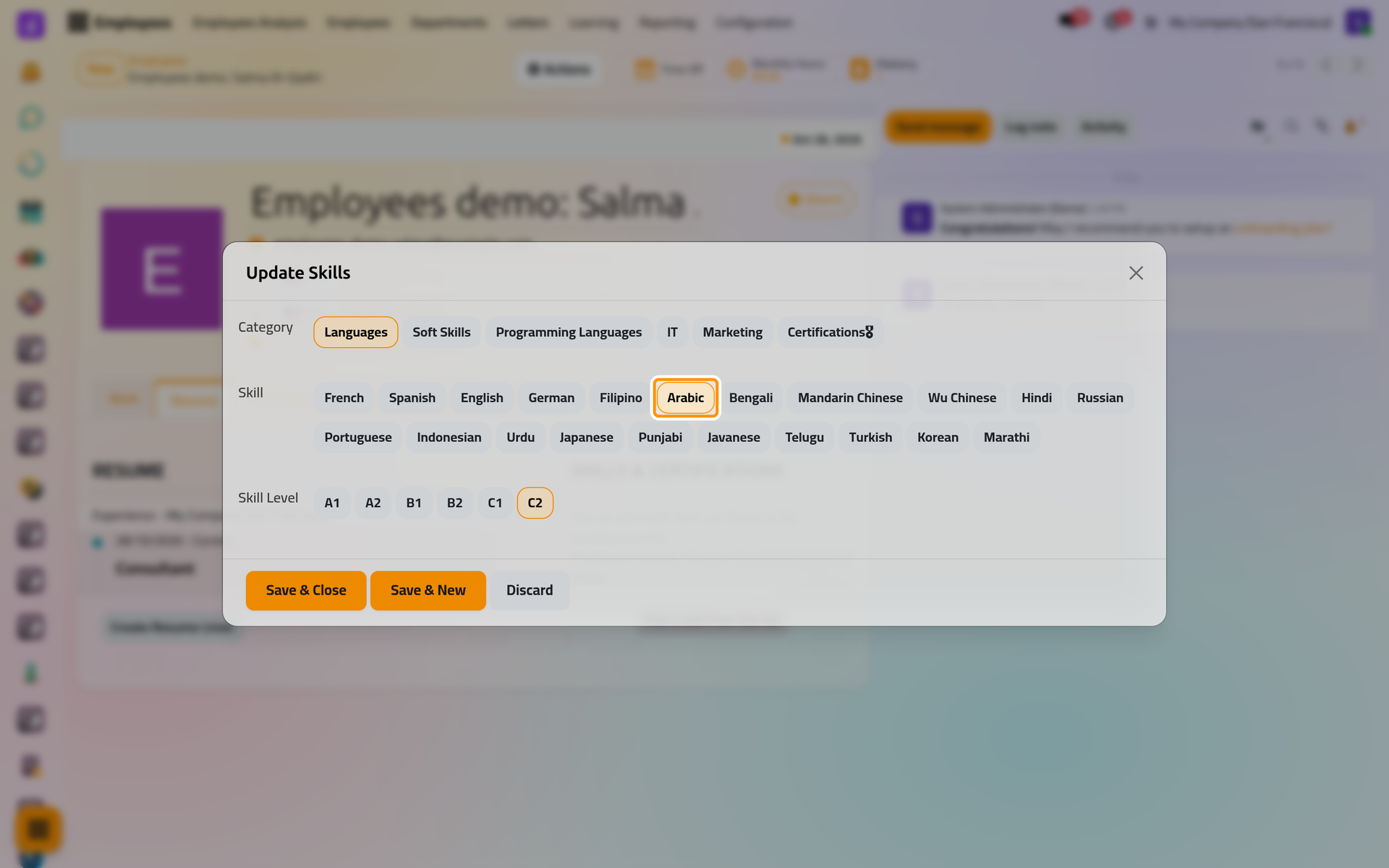
- Click Save & Close, then Save on the form. The skill appears on the right, with its level and the bar of its progress.
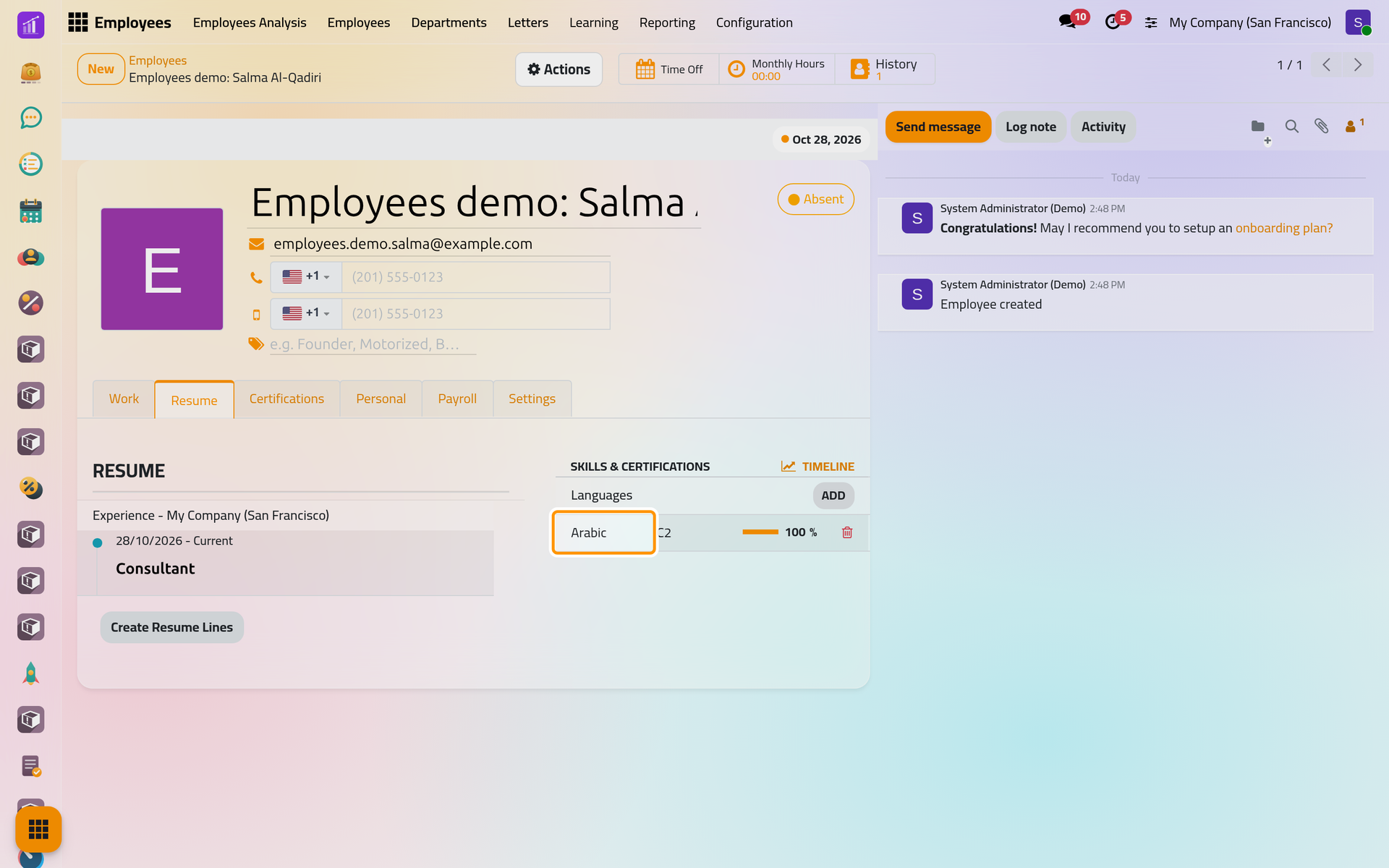
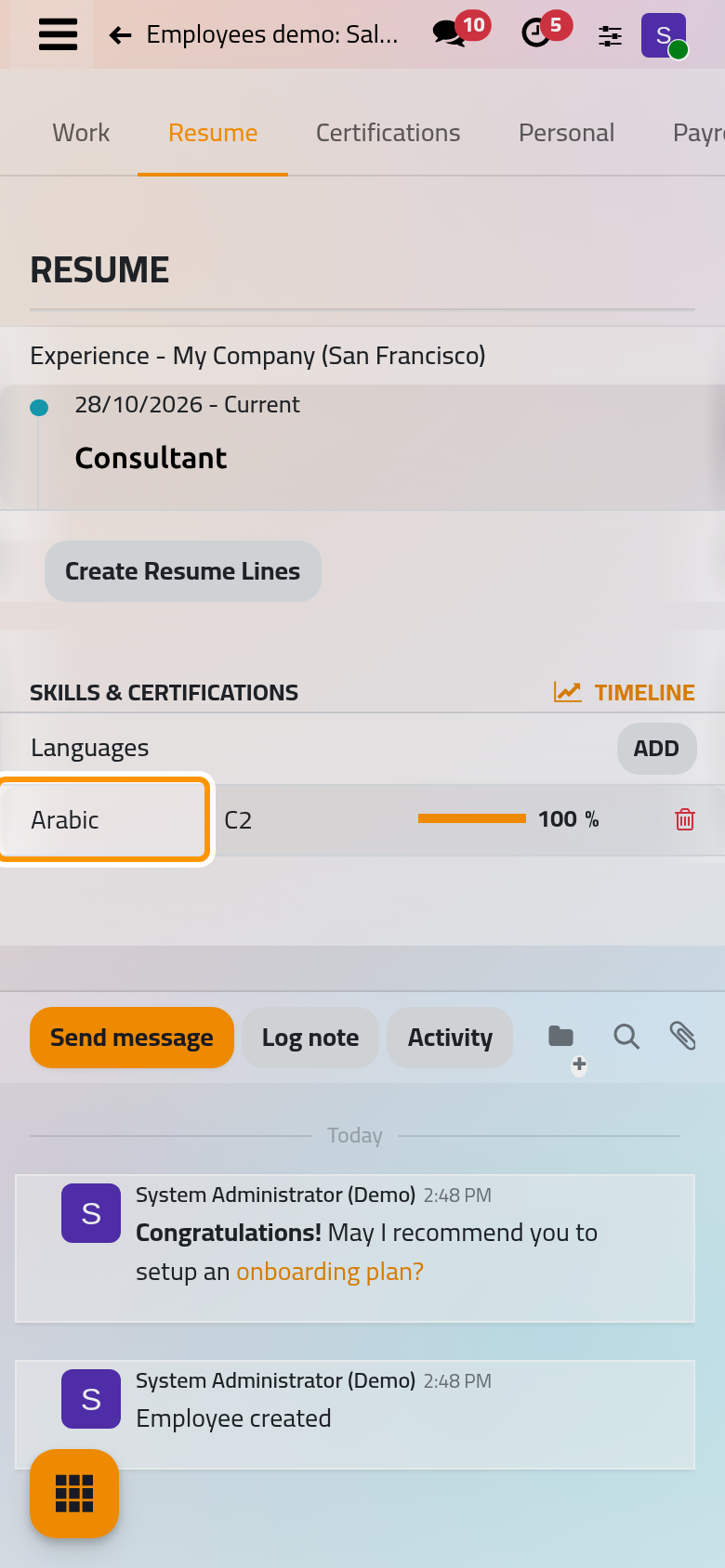
Add skills and a resume goes further: resume lines with dates, certifications and the skills inventory.
Step 5: see the employee in the full chart
- Go back to the Work tab and click Full Chart above the Organization Chart.
- The chart opens on Tina Williamson's team: the manager on top, the new employee next to Doris Cole, Ernest Reed and Toni Jimenez.
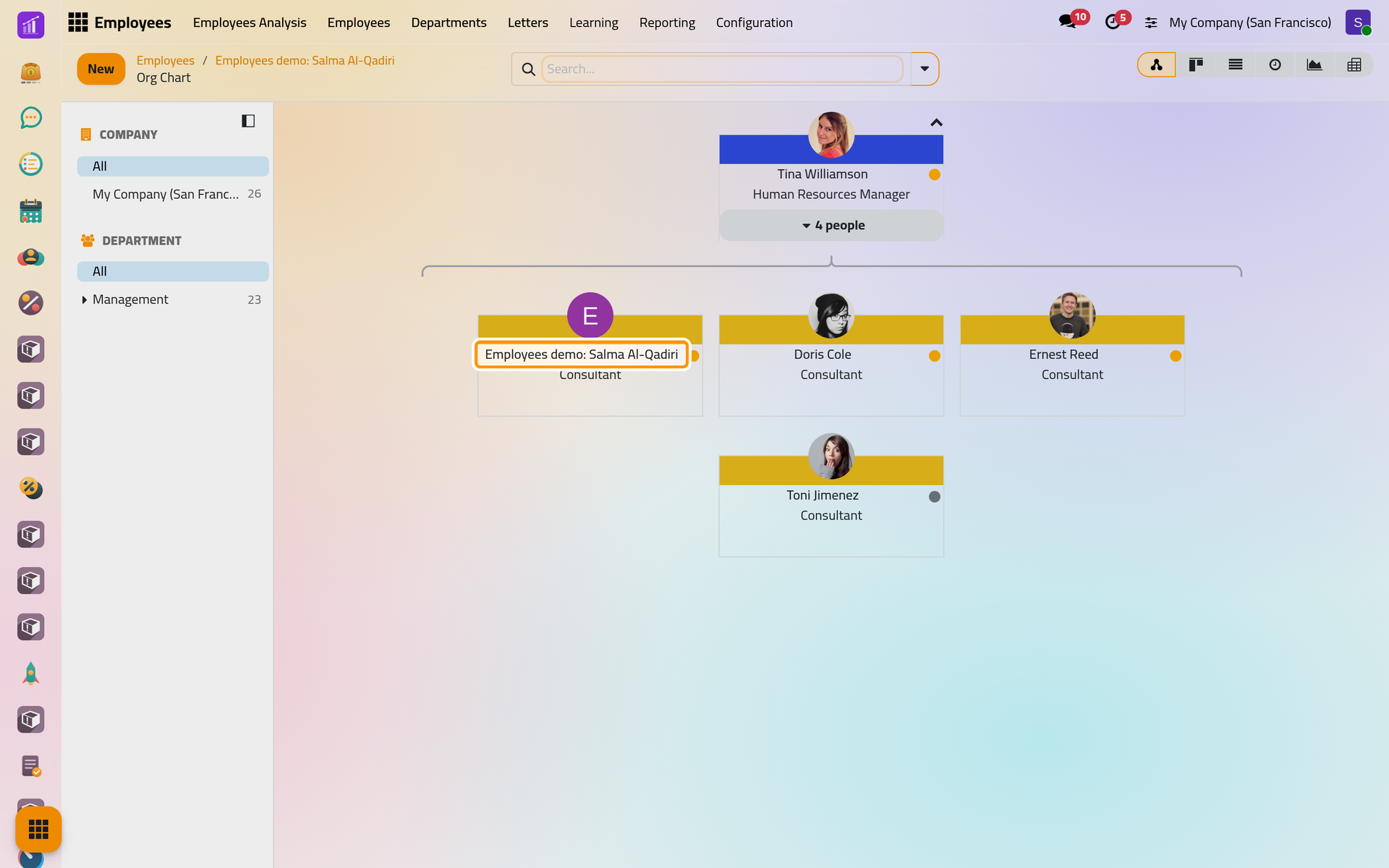
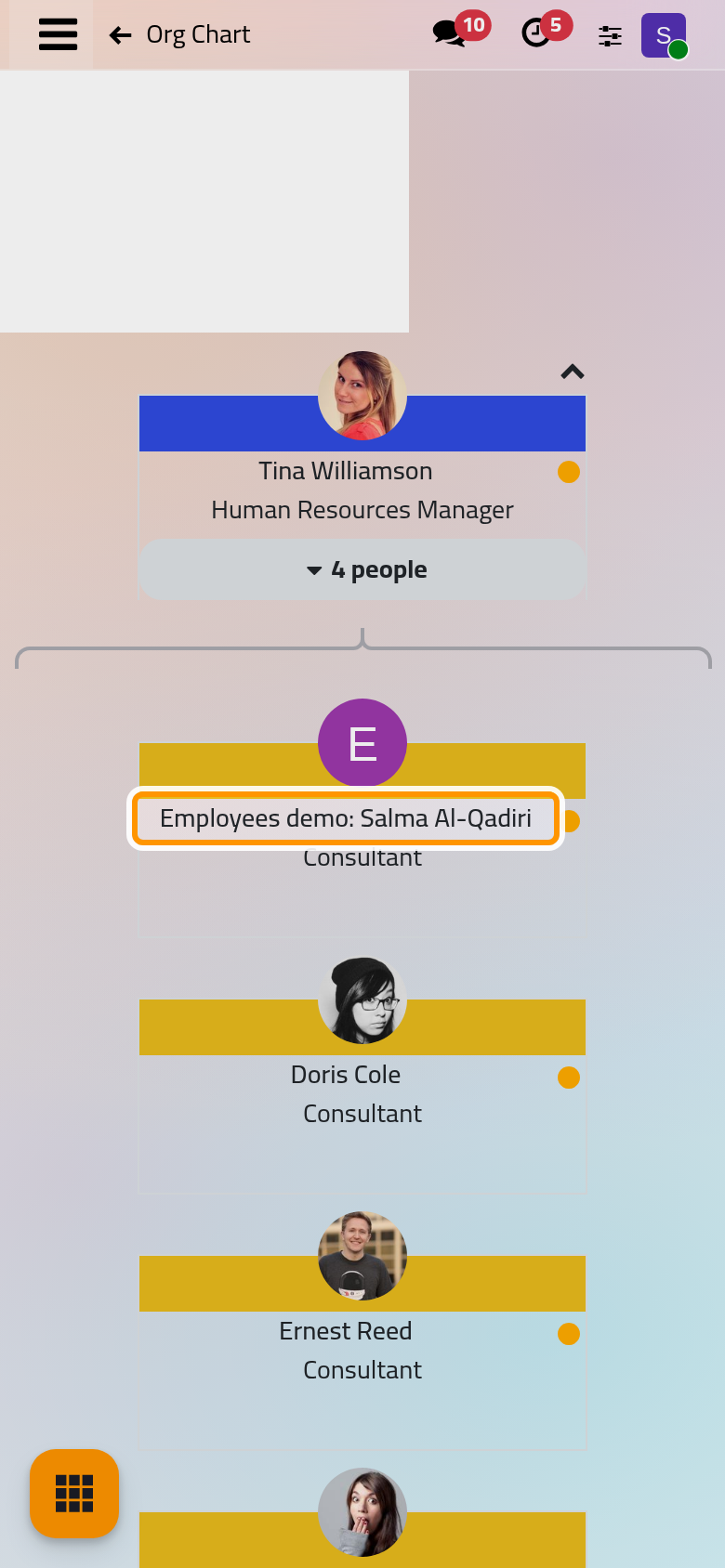
The arrow at the top of the first card climbs one level, and the people button of a card shows or hides the people under it. Read the org chart explains the chart and how to change a manager.
What you have done
You found the people of a department, created an employee with a department, a job position, a manager and a work location, added a skill, and saw the employee in the org chart. From here:
- Build the tree of departments: Organize departments.
- Record where people work each day of the week: Set work locations and home working.
- Give a newcomer the activities of a plan: Launch an onboarding plan.
- Choose how presence is shown and set the company's working hours: Employees settings.
The record's Time Off button and its approvers belong to the Time Off app (How time off works); the Monthly Hours button and the attendance approver come from Attendances (How attendance works).
FAQ
Saving says the email is already in use.
The work email is copied to the employee's work contact, and two contacts cannot share one email address. Use another address, or check whether the person already has an employee record, perhaps archived.
Why can't I see the Personal tab?
The Personal and Settings tabs need the Officer: Manage all employees right. Without it, colleagues are seen in Directory, a public profile without the private details.
Was this page helpful?
Thank you for your feedback.