Launch an onboarding plan
On this page
A plan is a ready list of activities to give at once to the people around an employee: prepare a computer, plan a training, take back a badge. The demo comes with two plans, Onboarding, three activities for a newcomer, and Offboarding, two for someone who leaves. Launching a plan creates the activities on the employee; they are then followed like any other activity: Activities.
Before you start
- Launching a plan needs the Officer: Manage all employees right on Employees; changing the plans needs Administrator.
- Each activity goes to a user. The employee, the manager or the coach can receive one only if their employee record is linked to a user.
Read a plan
- Open . Each plan gives its name, the department it is kept for, if any, and its number of steps.
- Open Onboarding. The Activities To Create tab lists each activity: its Activity Type, its Summary, its Assignment, and when it falls due, in days before or after the plan date.
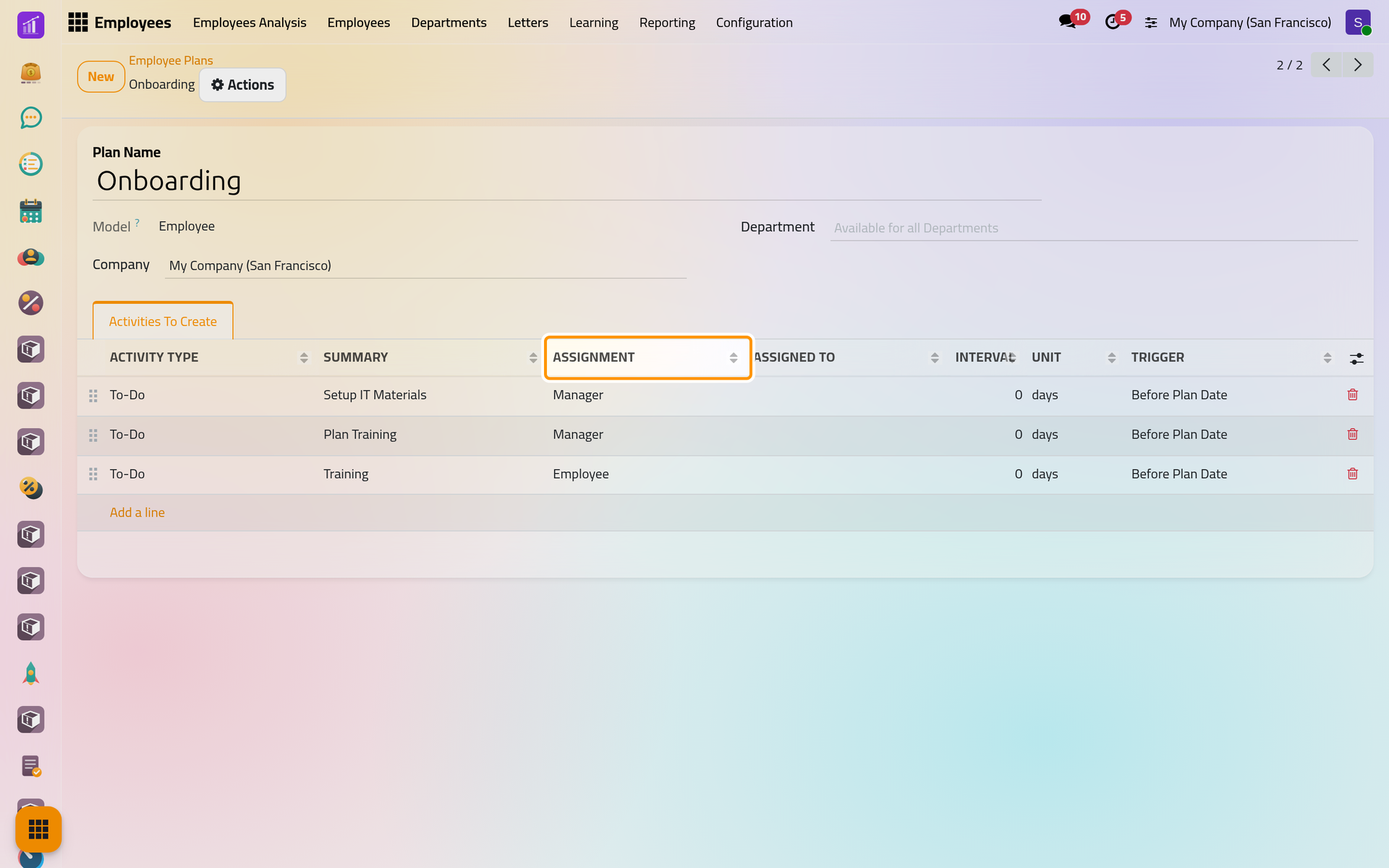
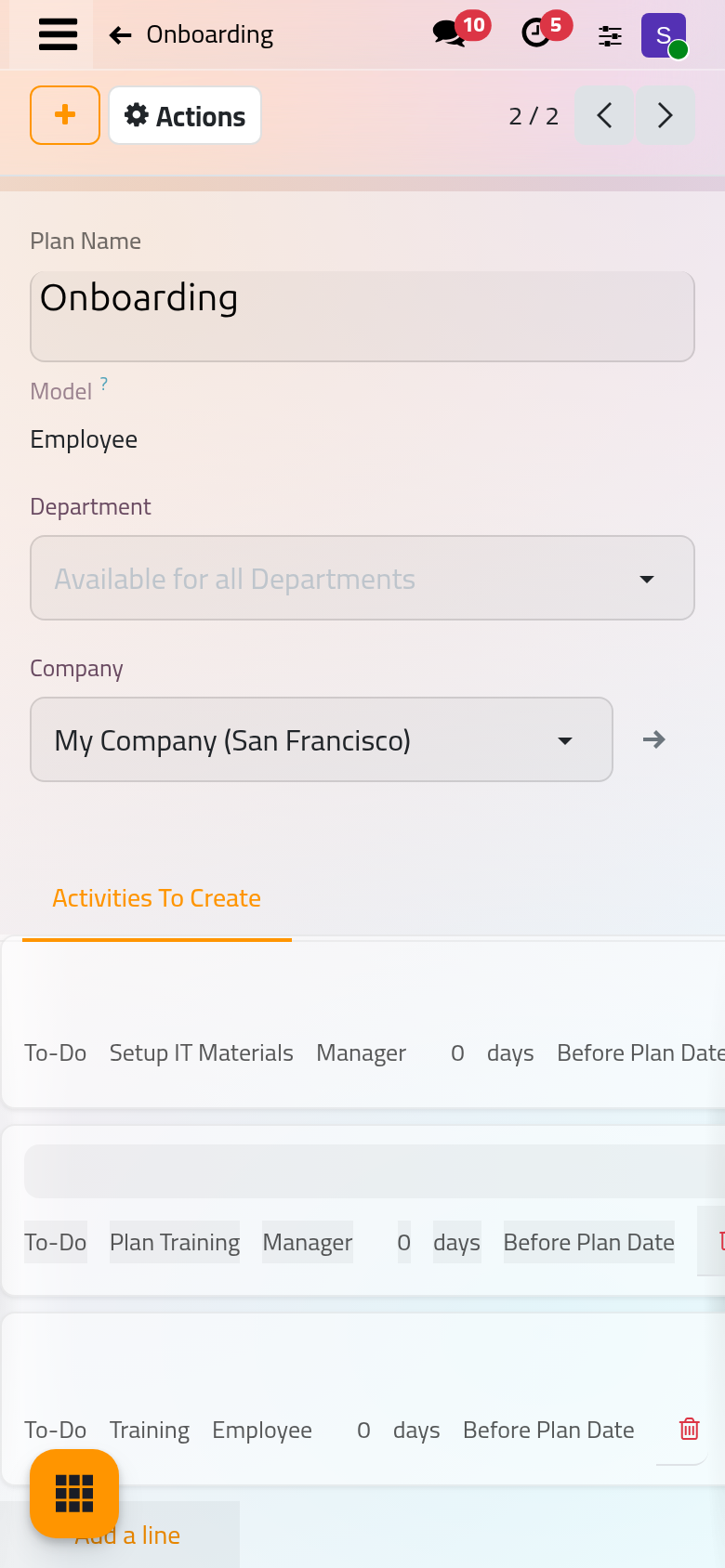
Assignment names who receives the activity: the employee's Manager, Coach or the Employee themselves, a fixed user with Default user and Assigned to, or, with Ask at launch, a user picked in the launch window. A plan with a Department is offered only for the employees of that department.
Launch the plan on an employee
- Open the employee in , here a new one,
Employees demo: Yousef Al-Barrak, with Tina Williamson as manager, saved. - Open Actions and choose Launch Plan.
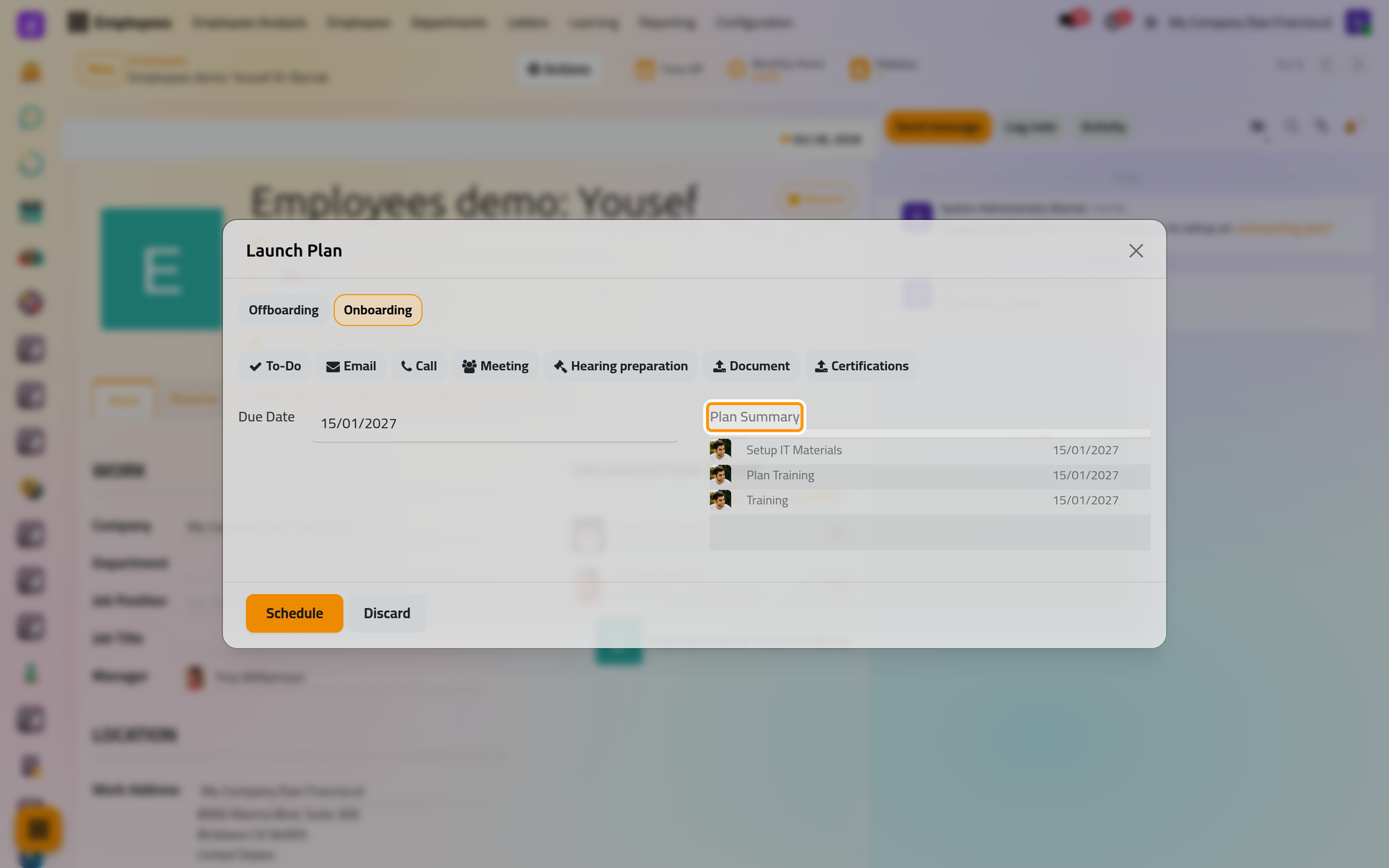
- In Launch Plan, the plans are the buttons at the top; Onboarding is chosen. Set the Due Date, here
15/01/2027. Plan Summary lists each activity with the person who will receive it and its date.
- Click Schedule.
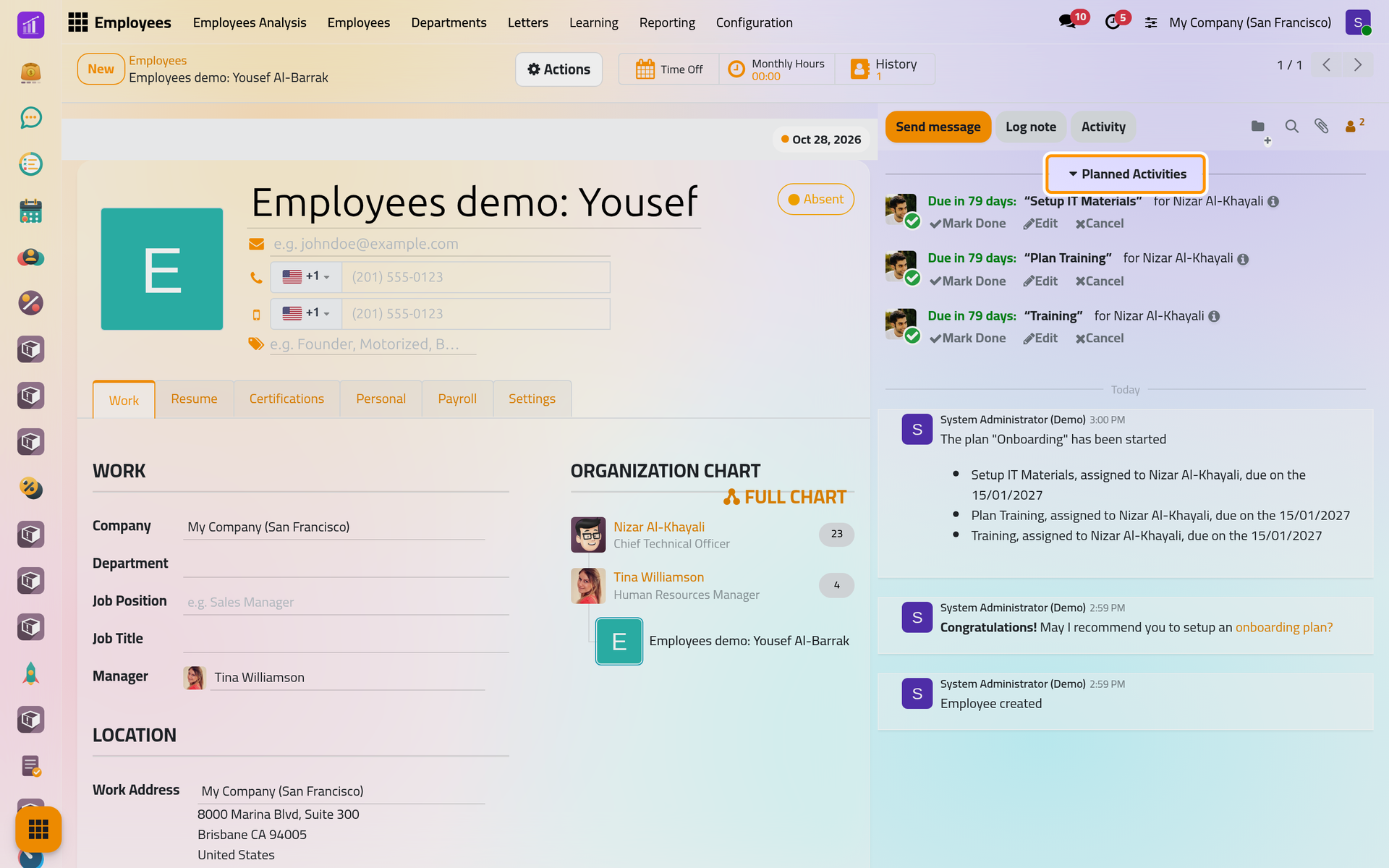
The activities appear under Planned Activities in the chatter of the employee, and a note records that the plan has started, with each activity, its user and its date.
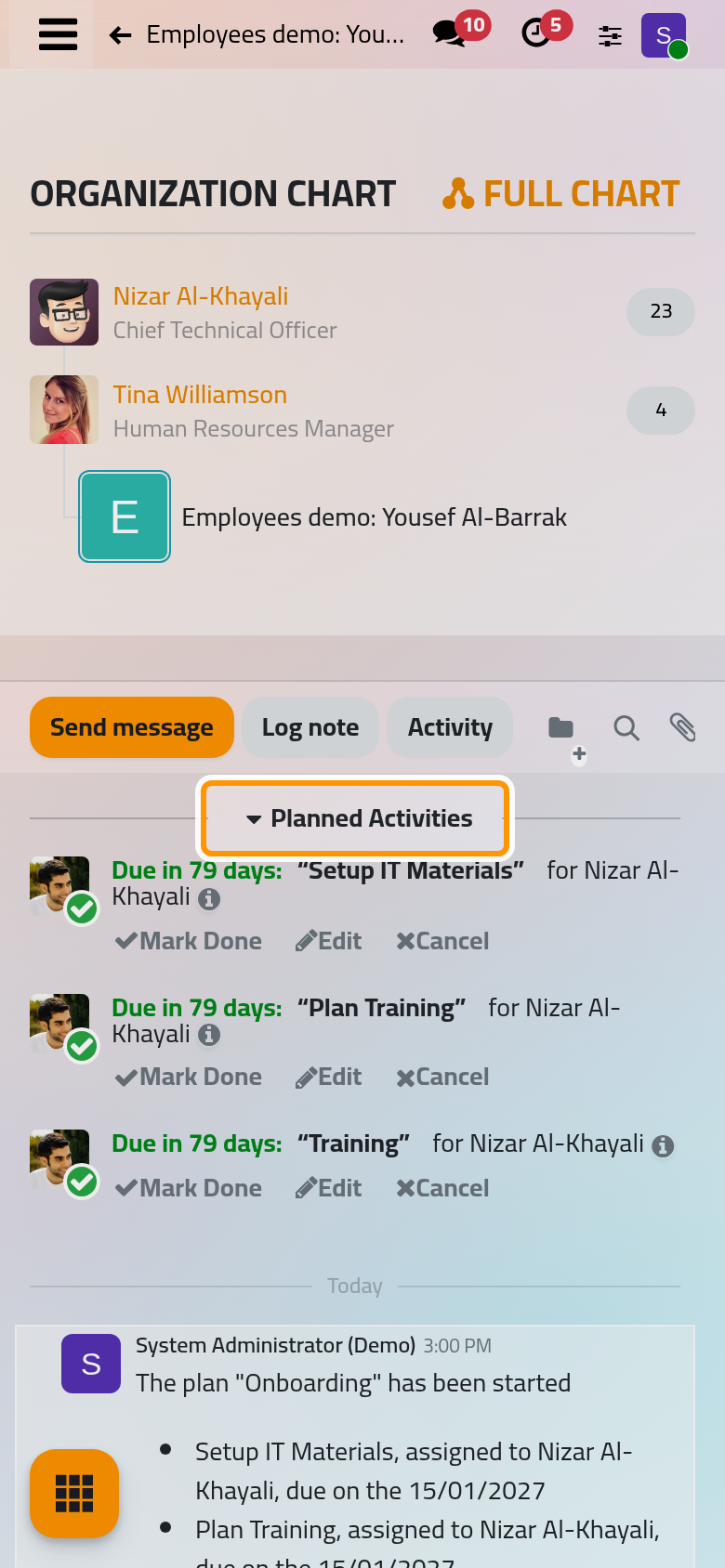
On a phone, Launch Plan is in the same Actions menu, at the top of the form.
Who receives an activity
When the person named by Assignment has no user, the activity climbs the line of managers to the first one who has a user. In the demo, Tina Williamson has no user, nor the new employee, so the three activities go to Nizar Al-Khayali, the manager above her. When nobody up the line has a user, the activity goes to the person who launches the plan, and the window says so in yellow. A plan cannot start when an activity is meant for the manager or the coach and the employee has none: the window shows the reason in red and hides Schedule.
FAQ
Can I launch a plan on several employees at once?
Yes. In the list of , tick the employees: Launch Plan appears at the top of the list.
Where do I see the activities later?
On the employee's chatter, in the activities of each person who received one, and in the Activities app. Marking them done is explained in Activities.
What does the message about an onboarding plan mean?
When an employee is created, the chatter shows "Congratulations! May I recommend you to setup an onboarding plan?". Its link opens Launch Plan for that employee; it changes nothing by itself.
Was this page helpful?
Thank you for your feedback.