Set work locations and home working
On this page
- Before you start
- Keep the list of work locations
- Give an employee a main and a usual location
- Change one day from the calendar
- FAQ
- What is the difference between Work Address and Work Location?
- The icon next to a name does not show home or office.
- Can I set a location for a colleague from the calendar?
A work location says where someone works: an office, a home, or another place. Each employee has a main Work Location and, for each day of the week, a usual one; the location of the day shows next to the person's name, so colleagues know who is at the office and who works from home.
Before you start
- The list of work locations needs the Administrator right on Employees. Setting the locations of any employee needs Officer: Manage all employees.
- Each person can set their own usual locations, without these rights, in My Preferences, Calendar tab, from the user menu at the top right.
Keep the list of work locations
- Open . The demo company has Home, Office, Other and Building 1, Second Floor.
- Each line gives the name, its kind in Cover Image, home, office or other, as an icon, and the company.
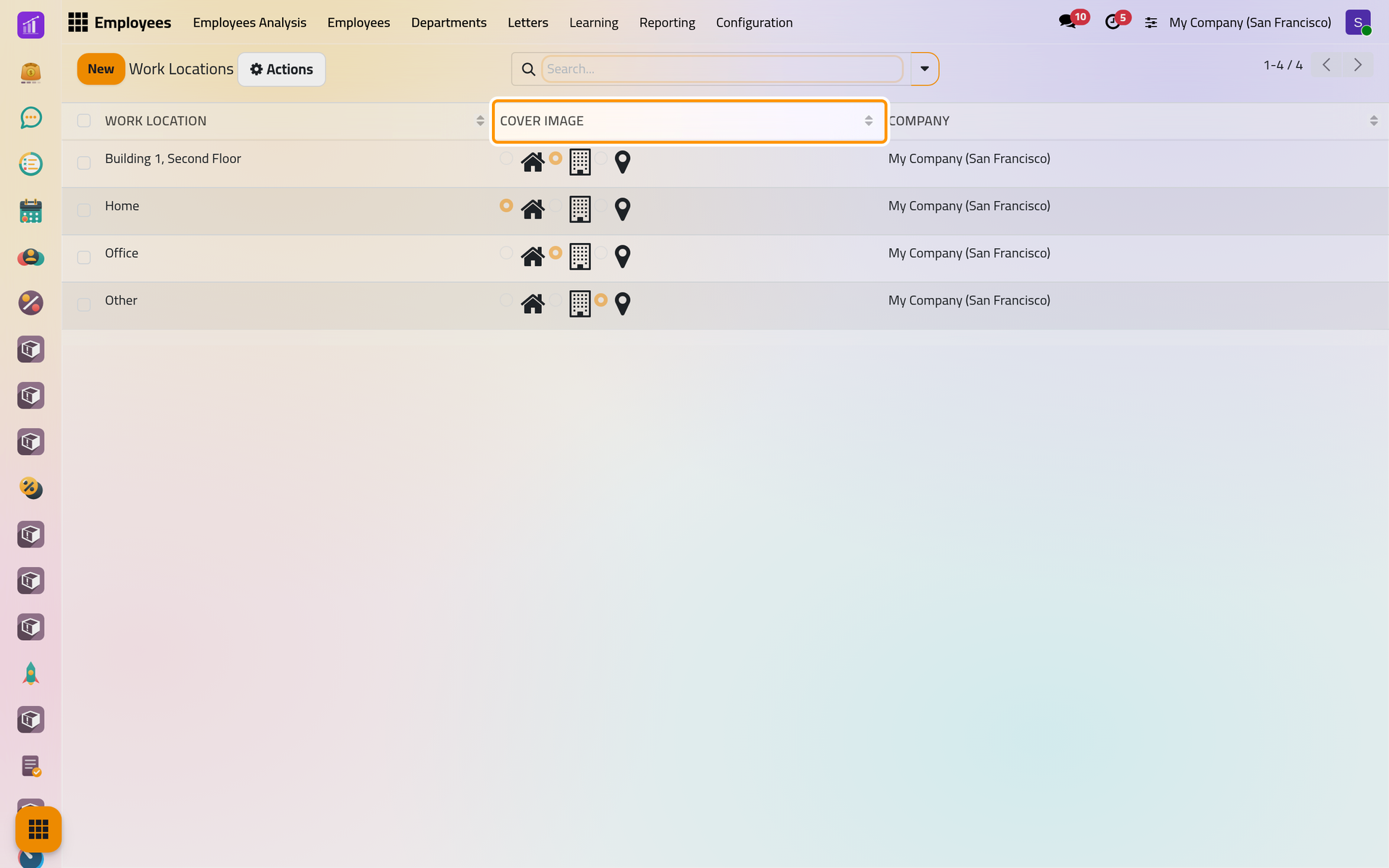
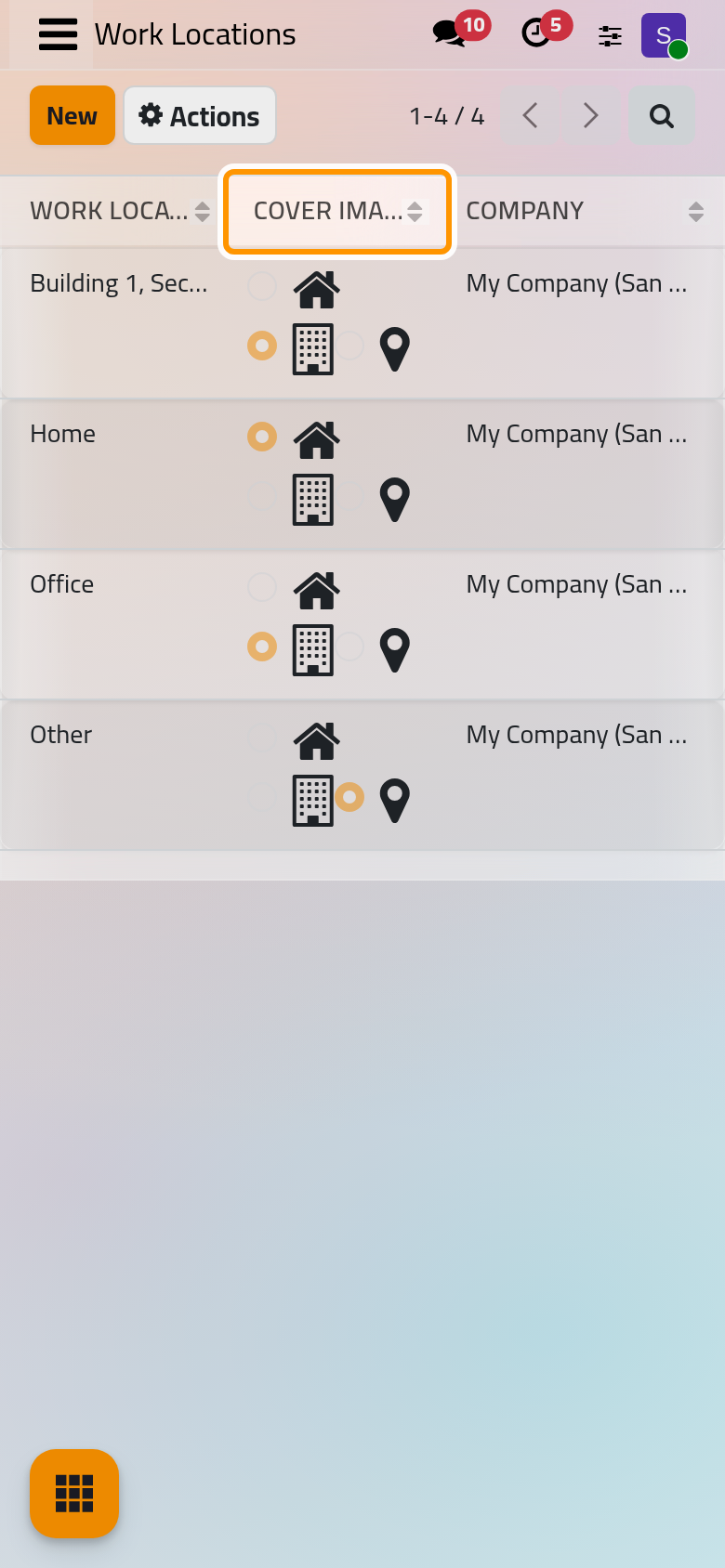
- To add one, click New, type the Work Location name, choose the Work Address and the kind, and save. The kind decides the icon shown next to the employees who work there that day.
Give an employee a main and a usual location
- Open the employee in , here a new one,
Employees demo: Karim Al-Masri. - On the Work tab, under Location, choose Office in Work Location. Work Address, above it, is the address of the company by default.
- Under Usual Work Location, choose a location for the days that differ: here Office on Monday and Home on Wednesday. A day left Unspecified has no location of its own.
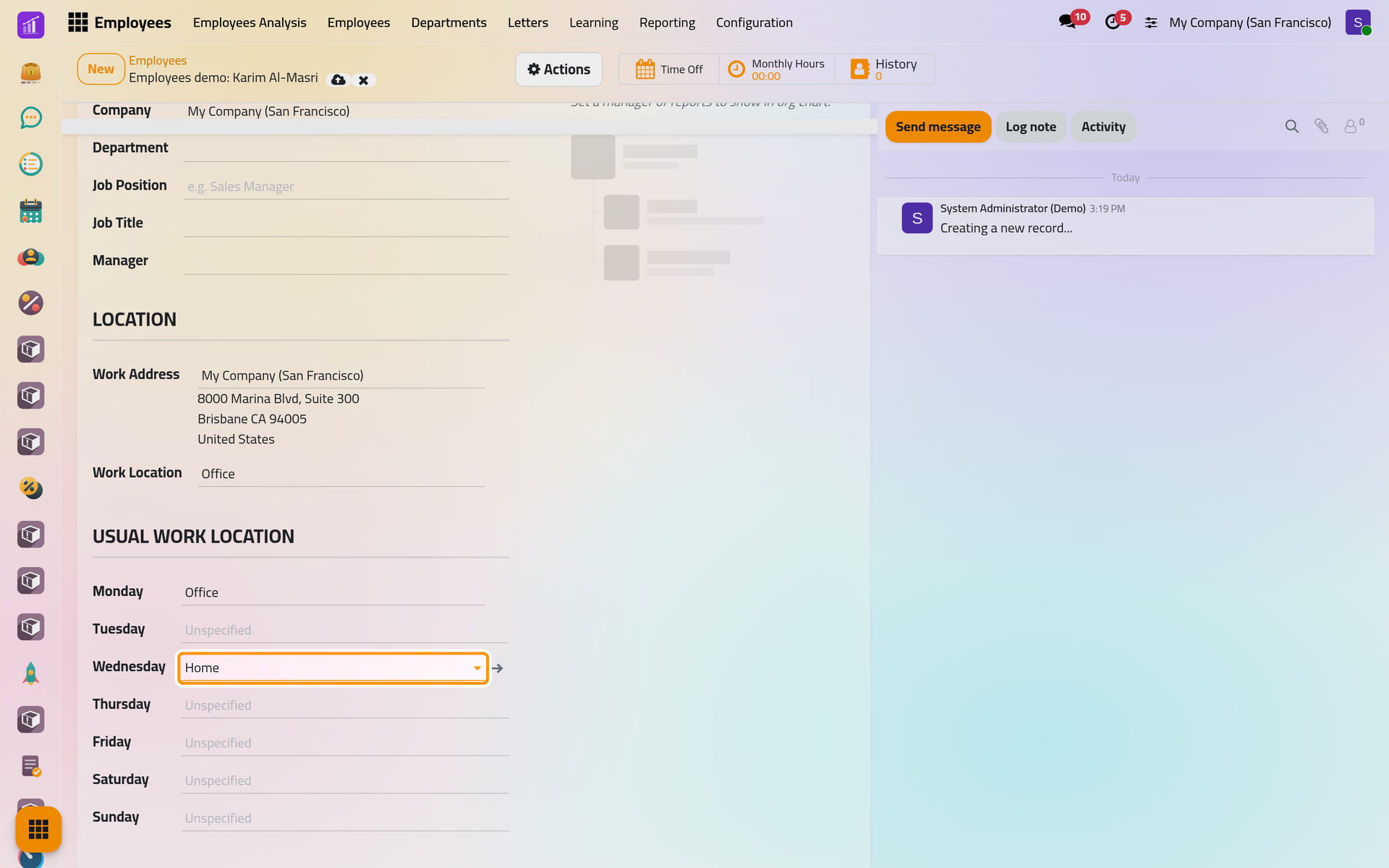
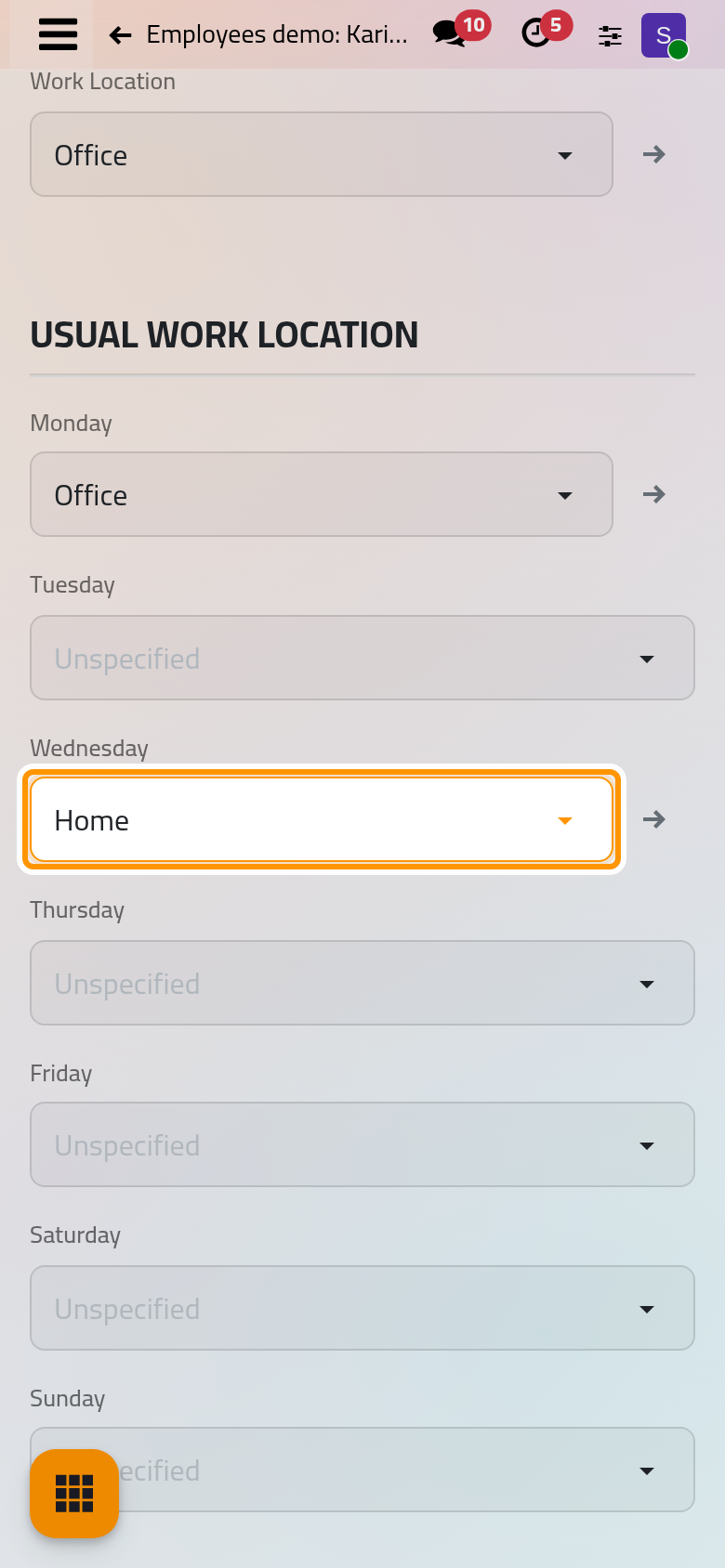
- Save.
On the day itself, the location of the day shows as an icon next to the employee's name on the card, the form and the org chart: a house for home, a building for the office, a pin for another place. Grouping the employees list by Work location gathers them by today's location.
Change one day from the calendar
Plans change: someone who usually comes to the office works from home on one day.
- Open in the week view. Under the number of a day, move the mouse to show Set Location, and click it.
- In Set Location, the Date is the day you clicked. Choose the Location. Tick Weekly to make it the usual location of that day of the week instead.
- Click Set Location.
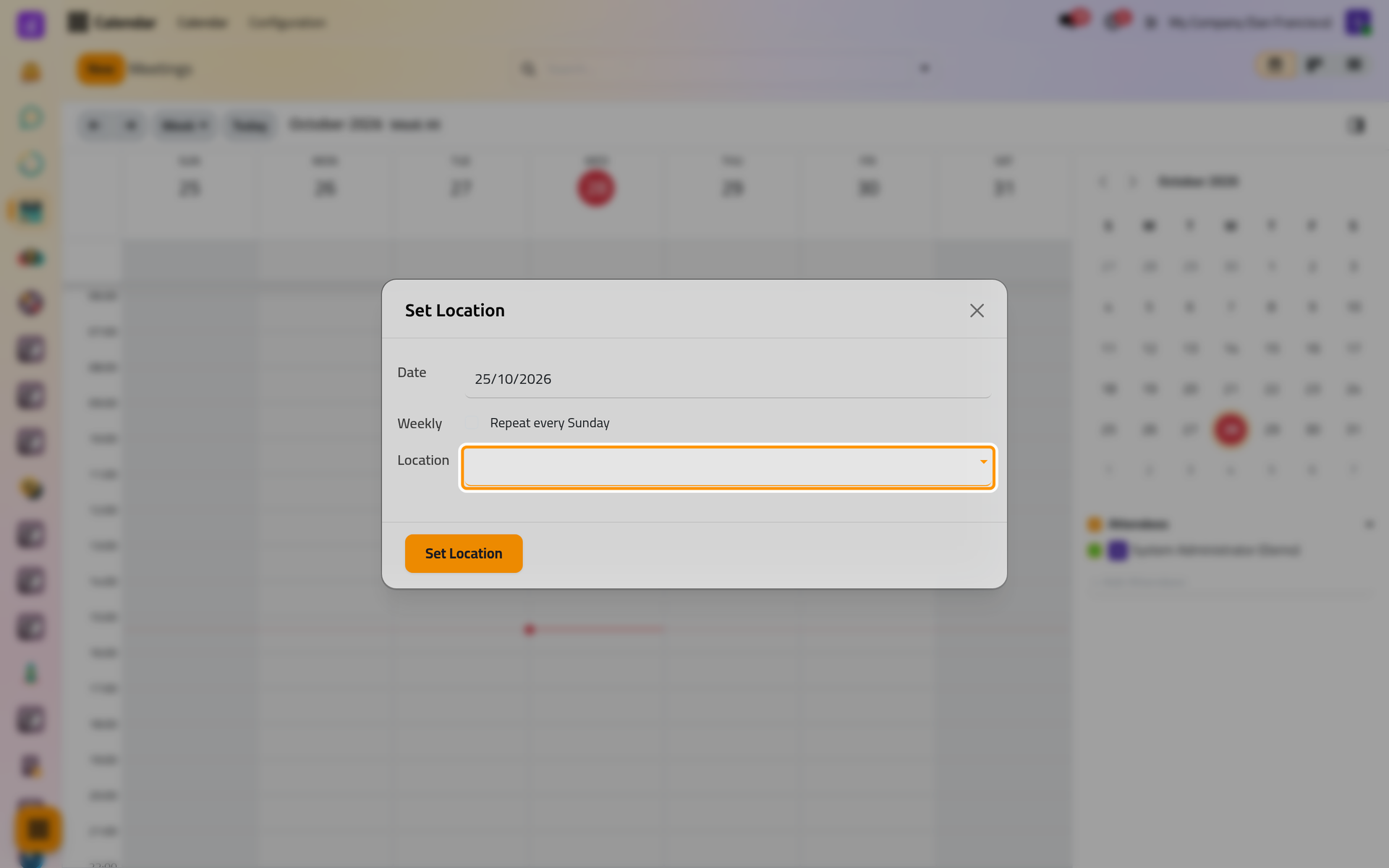
The button appears when the mouse passes under the day; on a phone, change your usual days in the Calendar tab of My Preferences instead.
Without Weekly, the choice holds for that date only, and the usual location comes back the next week. With Weekly, it replaces the usual location of that day on the employee. The window always sets the location of your own employee. Once a day has a location, clicking it in the calendar offers to change or remove it. Calendar explains the rest of the calendar.
FAQ
What is the difference between Work Address and Work Location?
Work Address is the postal address of the place of work, by default the company's. Work Location is one of the named places of the list, with its kind; it is the one that drives the icon of the day.
The icon next to a name does not show home or office.
No location is set for today: neither a usual location for this day of the week nor a one-day change. The icon then shows presence instead, as chosen in Employees settings.
Can I set a location for a colleague from the calendar?
No, the window sets your own. Change a colleague's usual days on the Work tab of their form.
Was this page helpful?
Thank you for your feedback.