Add another payment provider
On this page
Besides Moyasar, Tamara and bank transfer, the list of payment providers holds about twenty more providers that come with the platform, each covering its own countries. Once you have an account with one of them, adding it takes a few minutes. To compare them, see Which payment provider to choose.
Each provider is a separate company: opening the account, its fees and its terms are an agreement between you and that provider.
Before you start
- You need the Administrator access right on Accounting and the Administrator role on your user. Installing a provider installs a module, which only the Administrator role can do.
- You need an account with the provider and the keys it gives you. If the provider offers a test account, use it first to try payments without real money.
Install it
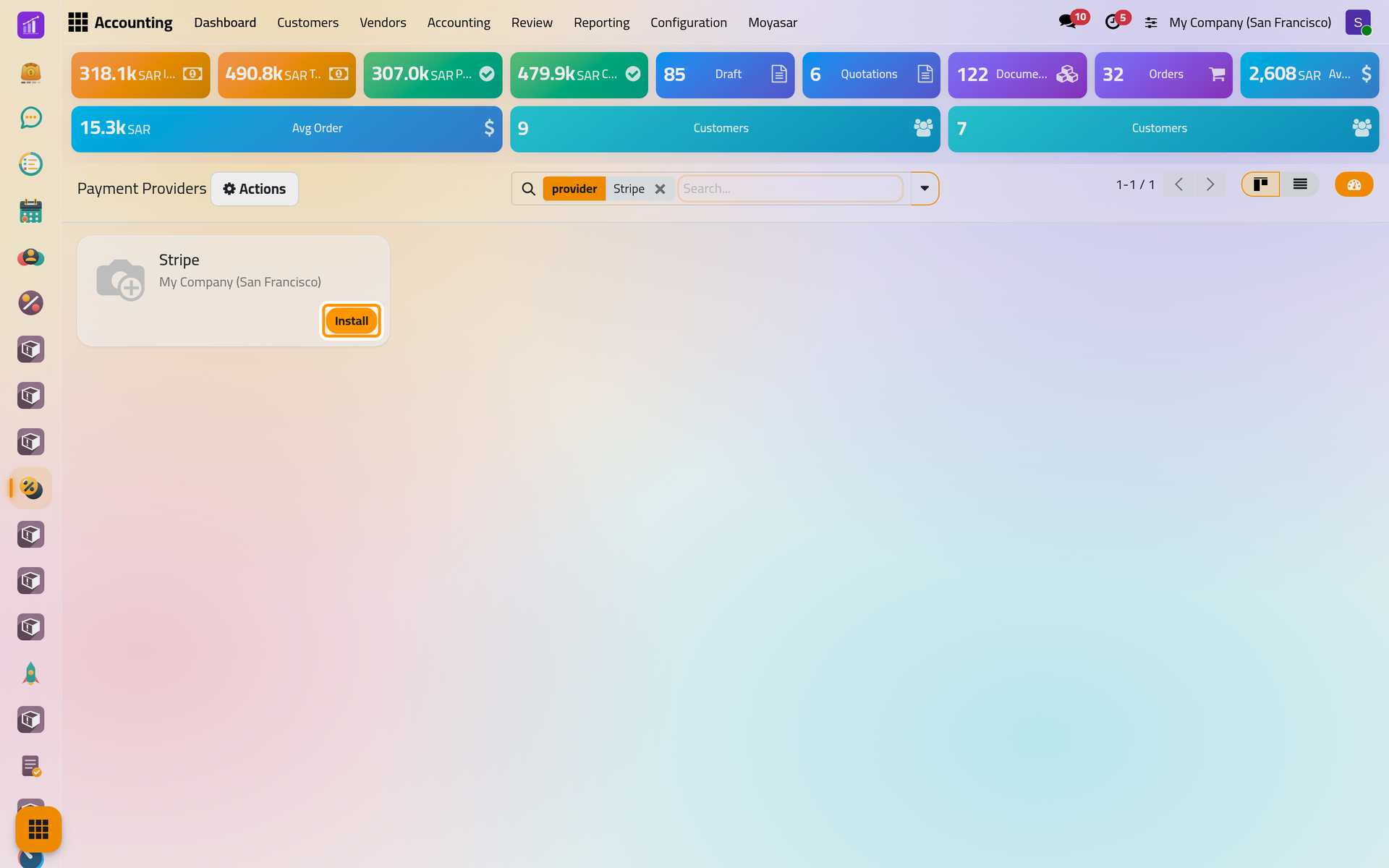
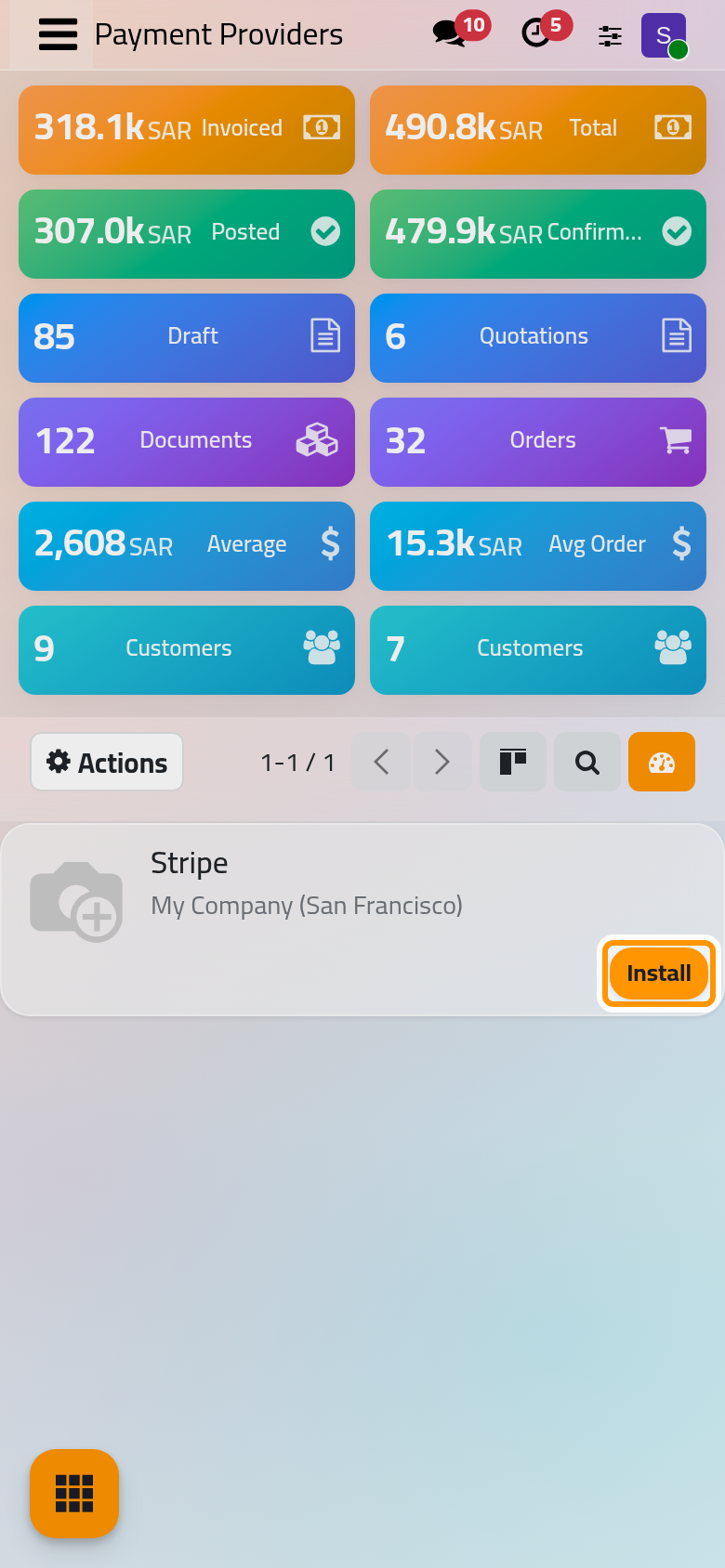
- Open . A card with an Install button is a provider that is not installed yet. A card with Activate is installed but still disabled.
- Type the provider's name in the search box, then click Install on its card. The page reloads when the installation is done, and the card then shows Activate.
Enter the keys
Click the provider's card. The Credentials tab asks for what the provider gave you, and each provider names its fields its own way. Two examples:
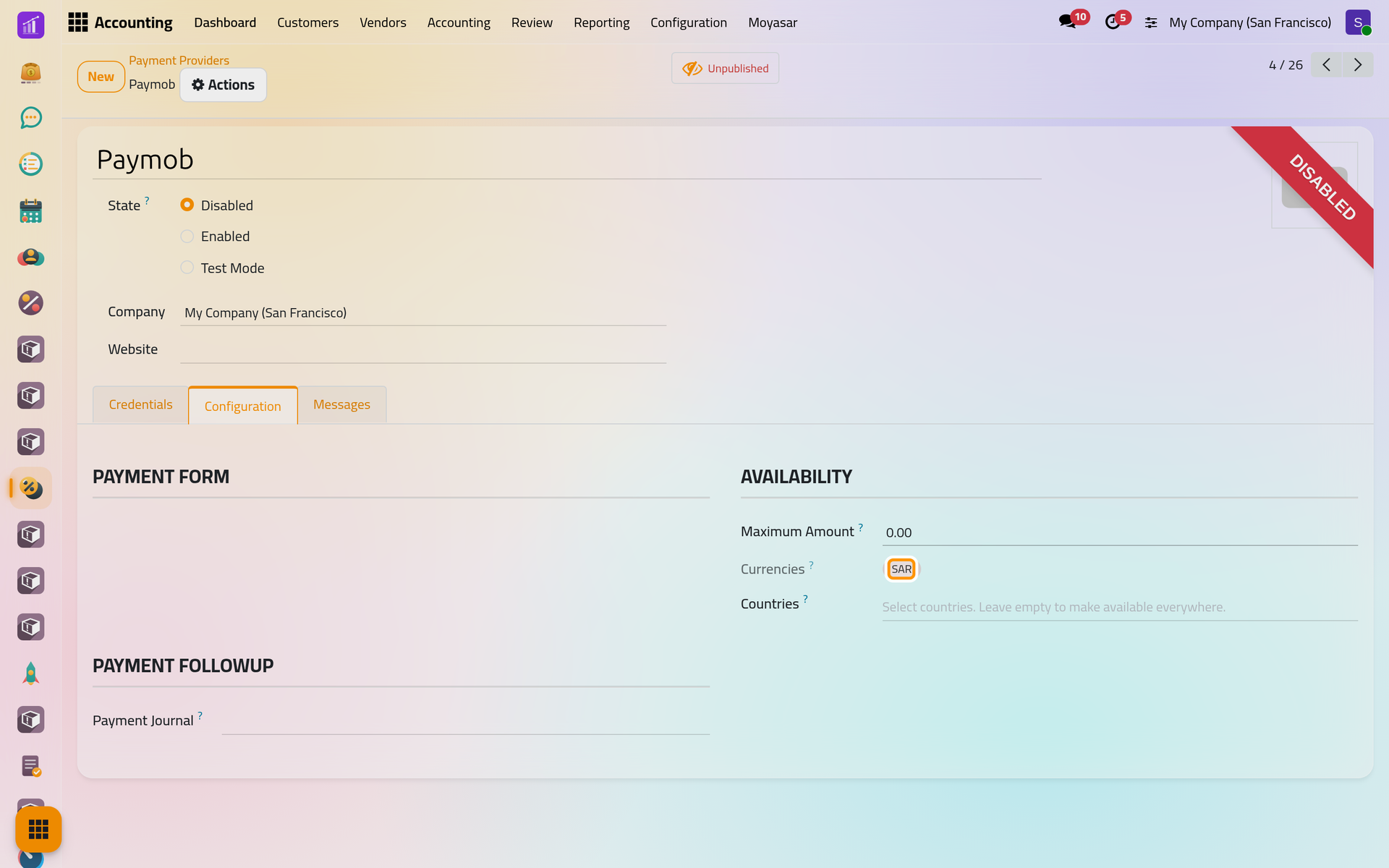
Paymob asks first for the Account Country, then for the HMAC Key, the API Key, the Secret Key and the Public Key.
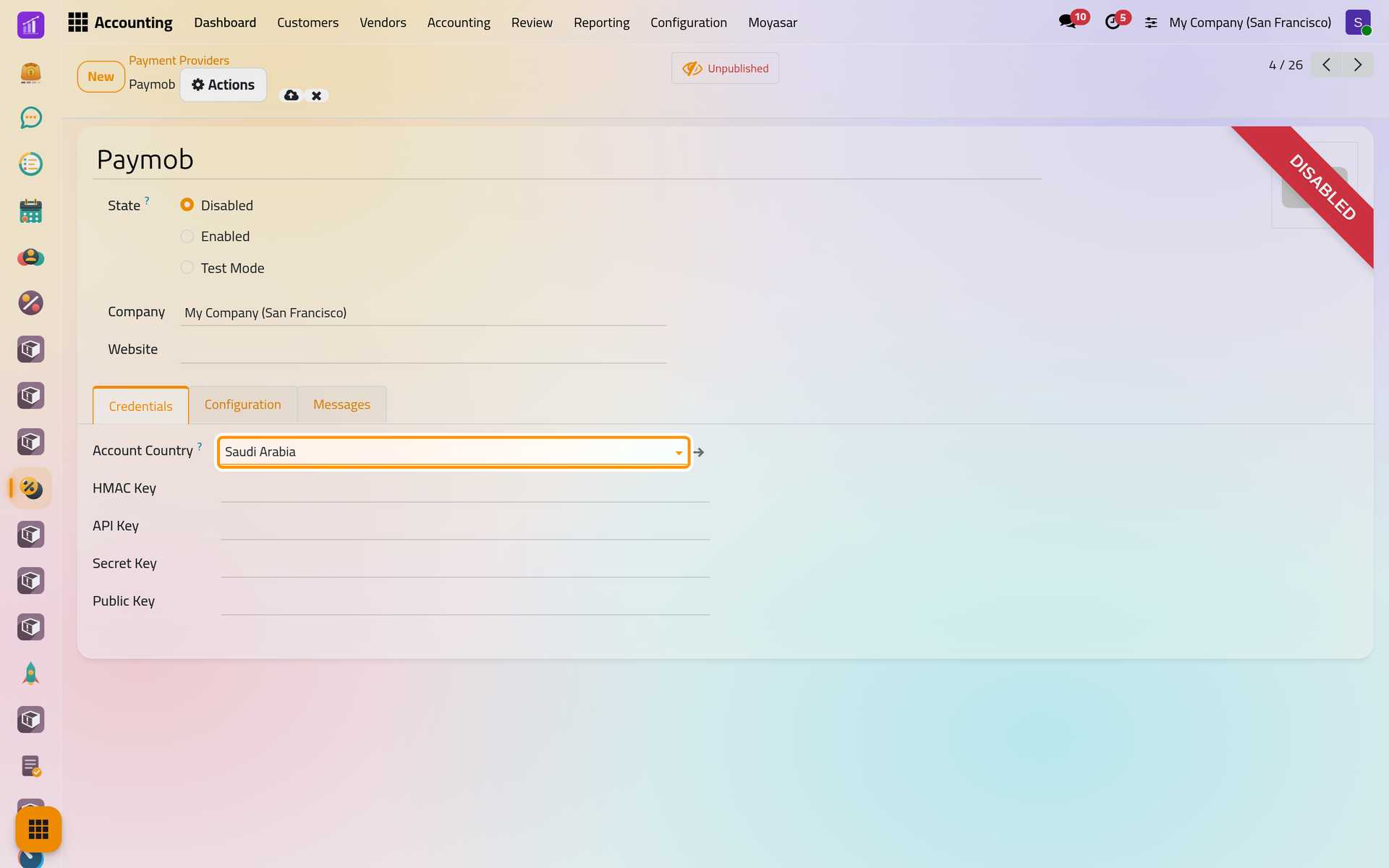
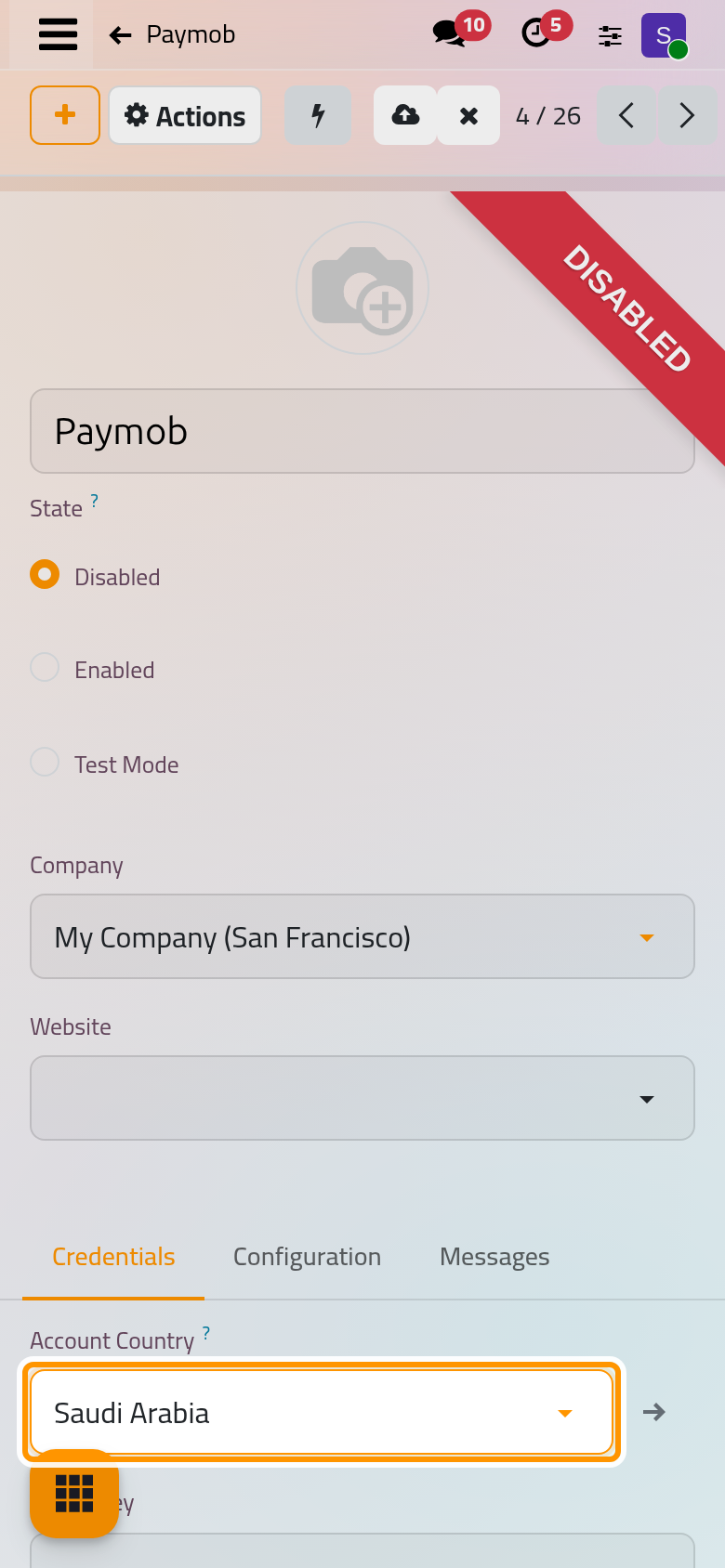
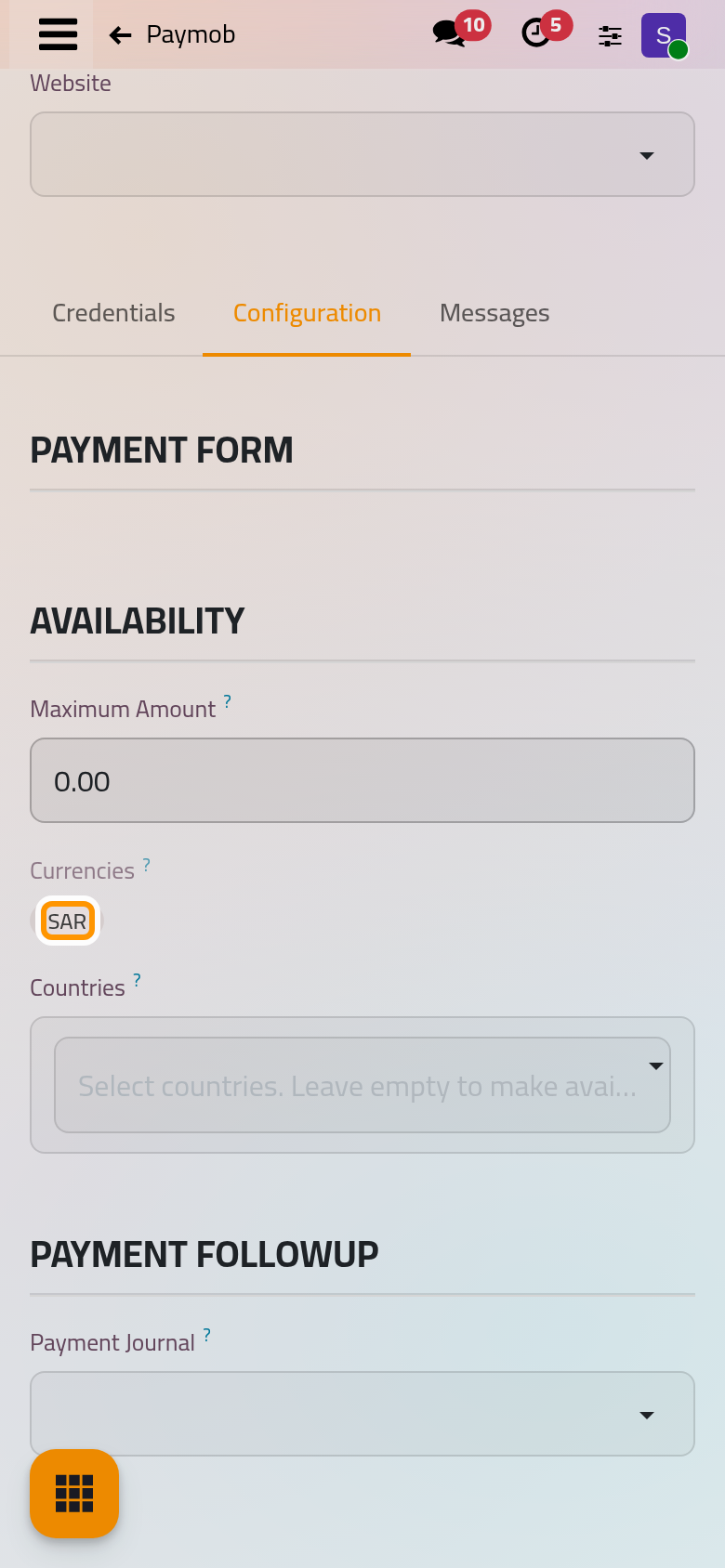
The account country is Saudi Arabia, the United Arab Emirates, Oman or Egypt, and it decides the one currency Paymob accepts: the Saudi riyal for an account in Saudi Arabia, the country's own currency for the others. When you save, the Currencies field of the Configuration tab takes that currency, and it cannot be changed by hand. Once the provider is out of Disabled and its keys are saved, the Synchronize With Paymob button of the same tab links the payment methods enabled on the provider to those of your Paymob account; click it again after you choose Enabled.
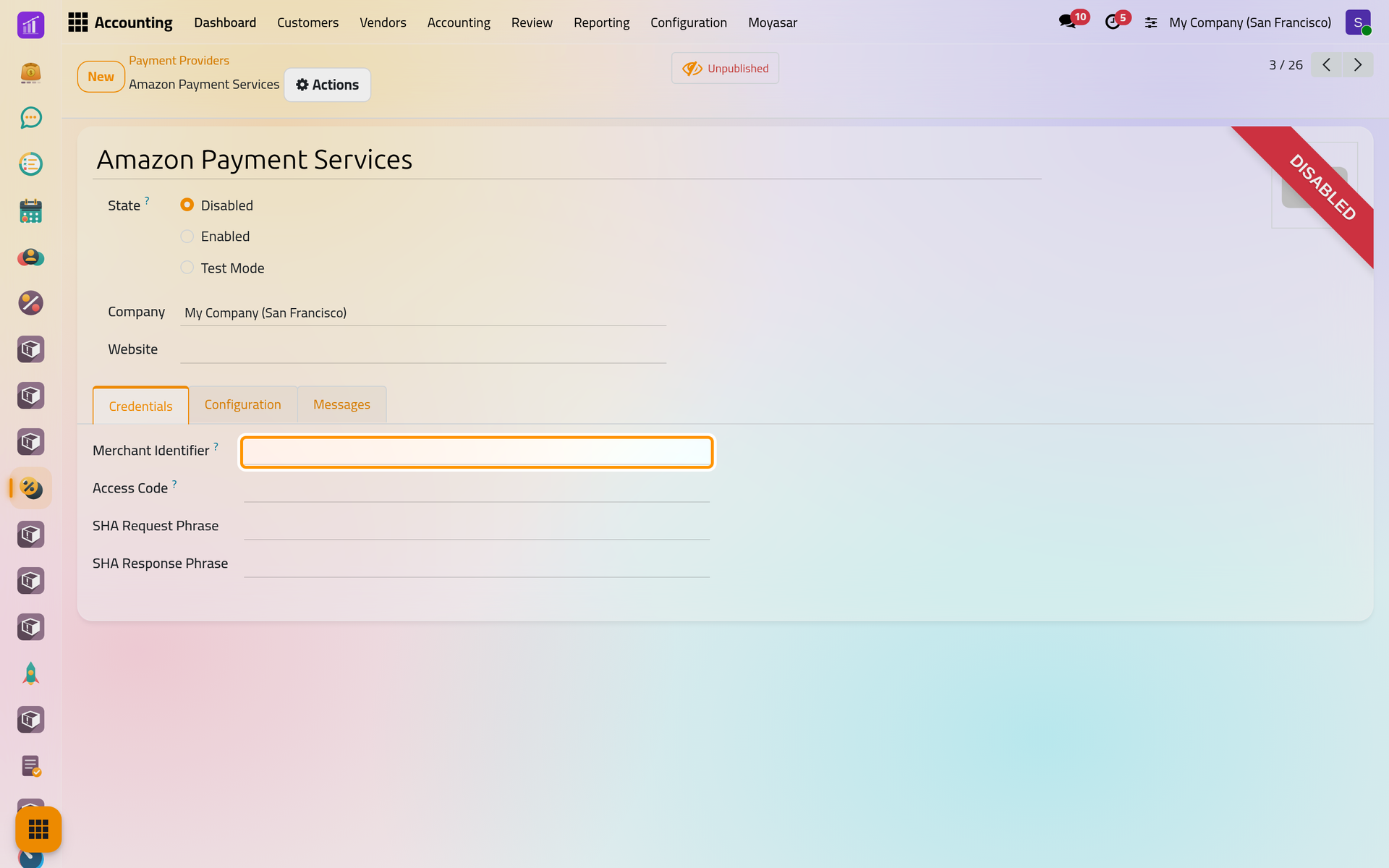
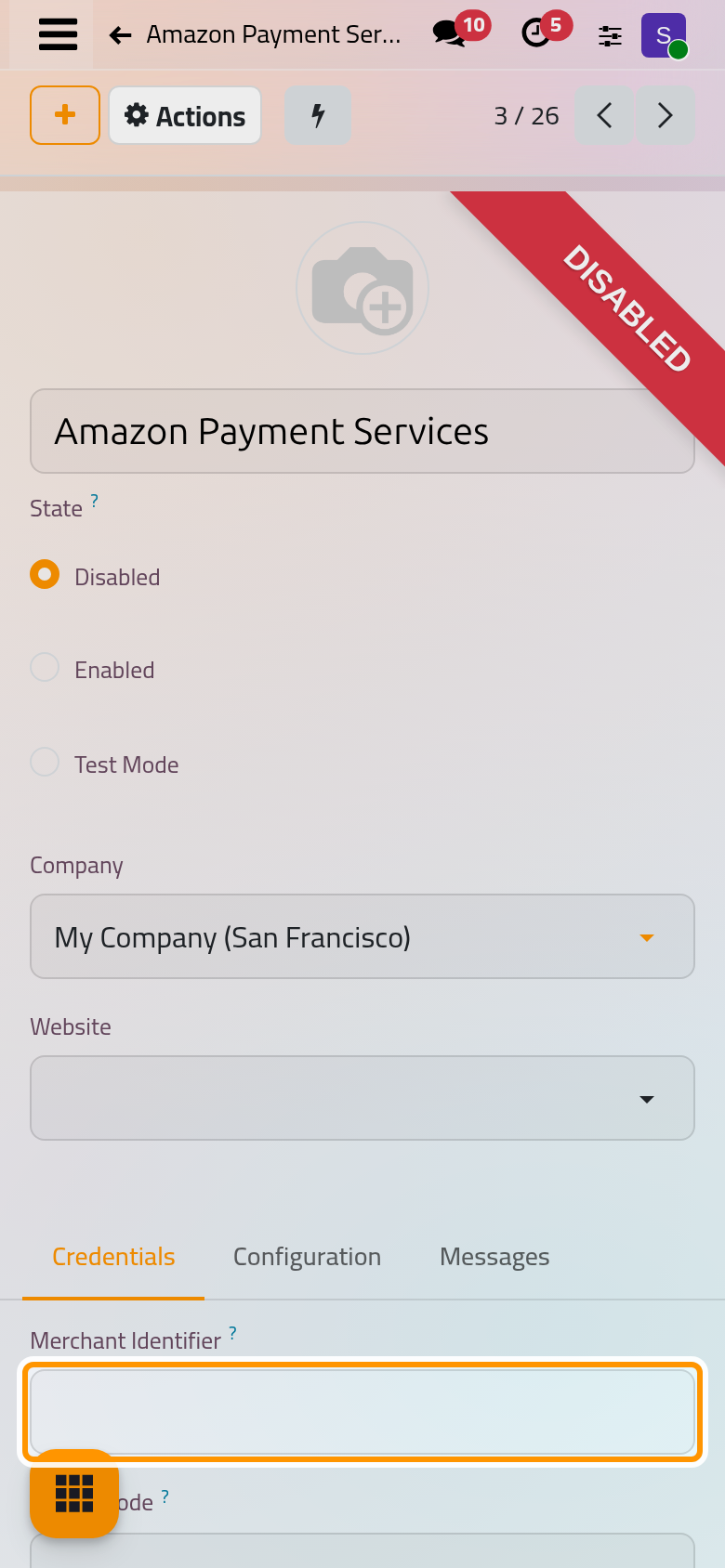
Amazon Payment Services asks for the Merchant Identifier, the Access Code, the SHA Request Phrase and the SHA Response Phrase.
Try it, then publish it
- Choose Test Mode as the State, then click the cloud icon Save manually. The provider stays unpublished: only the firm's own users see it on a payment page, and with test keys the payments go to the provider's test environment.
- Pay one of your invoices from its page, as a client would; Send a payment link shows how to open that page.
- Review the Configuration tab: the Payment Methods offered, the Availability (amount, currencies and countries) and the Payment Journal that records the payments. They work as for Moyasar, see Set up Moyasar.
- Replace the test keys with the live ones if the provider gives different keys, choose Enabled and save. The provider is published at the same moment.
FAQ
The provider I want is not in the list.
Only the providers in the list can be added: creating a provider with the New button is not supported. Bank transfer works with any bank, see Set up bank transfer.
What is the SEPA Direct Debit card?
It cannot be installed on the platform: its card shows Upgrade instead of Install, and that button leads outside the platform, so leave it.
Can clients choose between two providers?
Yes. The payment page offers every published provider that accepts the invoice's currency and the client's country, and the client picks one.
What is the Demo card?
It runs fake payments, to try the payment page without any provider. Never publish it to clients.
Was this page helpful?
Thank you for your feedback.