Set up bank transfer
On this page
Bank transfer is a payment option that needs no account with a payment provider. The client chooses it on the payment page, reads your bank account and the reference to write on the transfer, and pays from their own bank. Nothing is charged online: the invoice stays unpaid until the money reaches your bank and you record it.
Before you start
- You need the Administrator access right on Accounting and the Administrator role on your user.
- The account the client pays into must belong to a bank journal of the company: the transfer details are built from the bank accounts of the company's bank journals. See Banks, cash and currencies.
- If the Wire Transfer card shows Install, click it once. It then shows Activate, like the other providers that are ready to use.
Turn it on
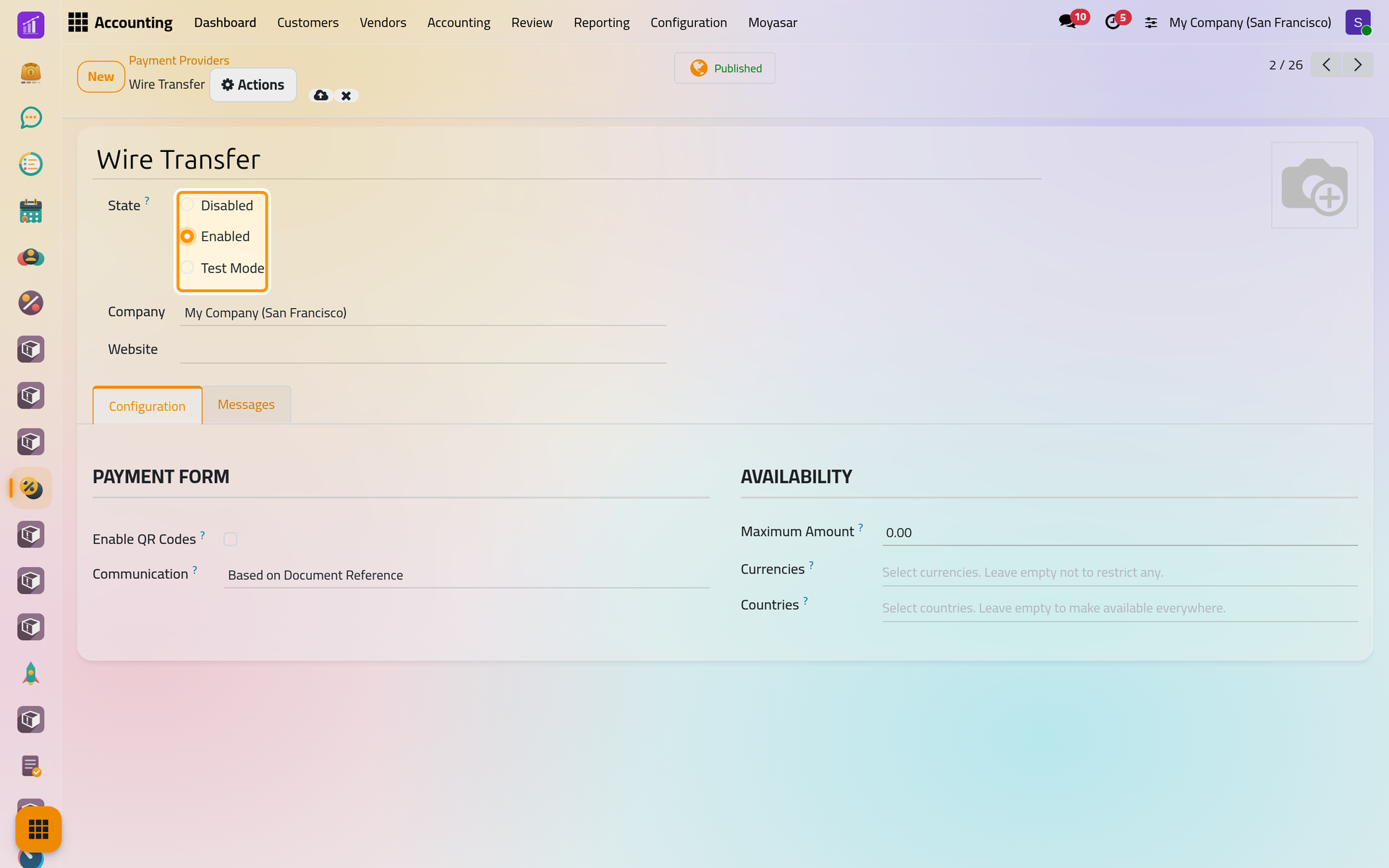
- Open and click the Wire Transfer card.
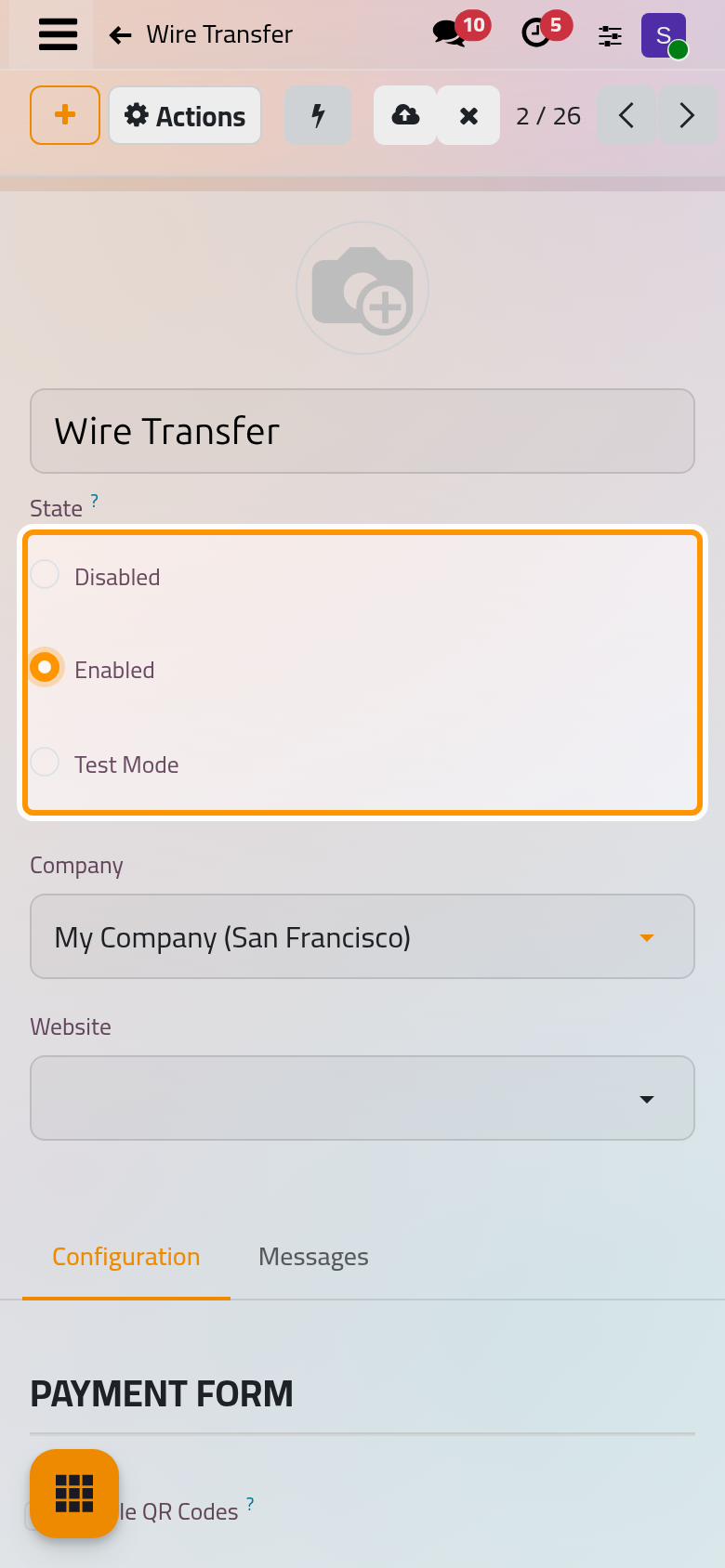
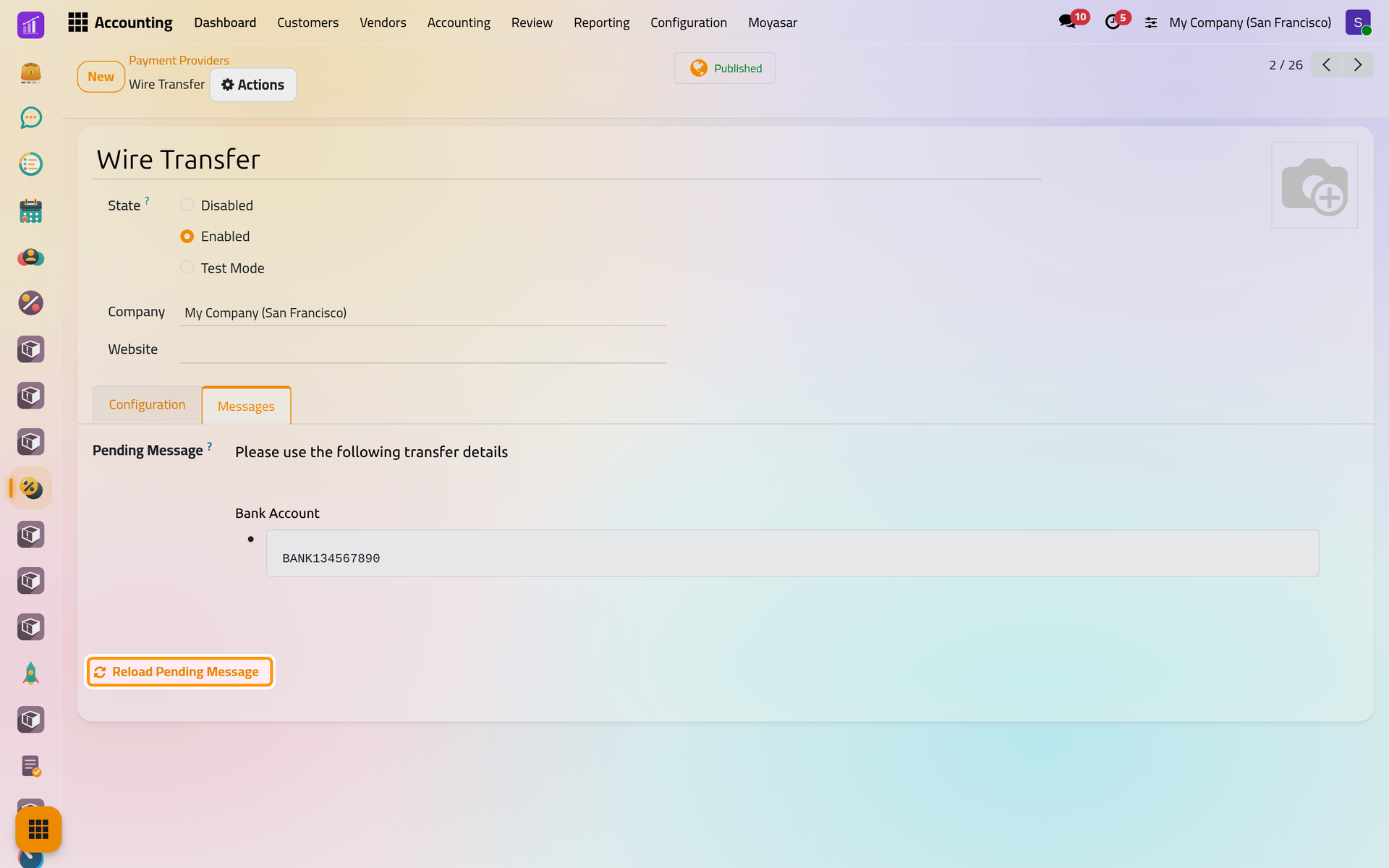
- Choose Enabled as the State. The button at the top switches to Published at the same moment: an enabled provider is offered to every client. Test Mode keeps it unpublished, so that only the firm's own users see it while you try it.
What the client is offered
Open the Configuration tab:
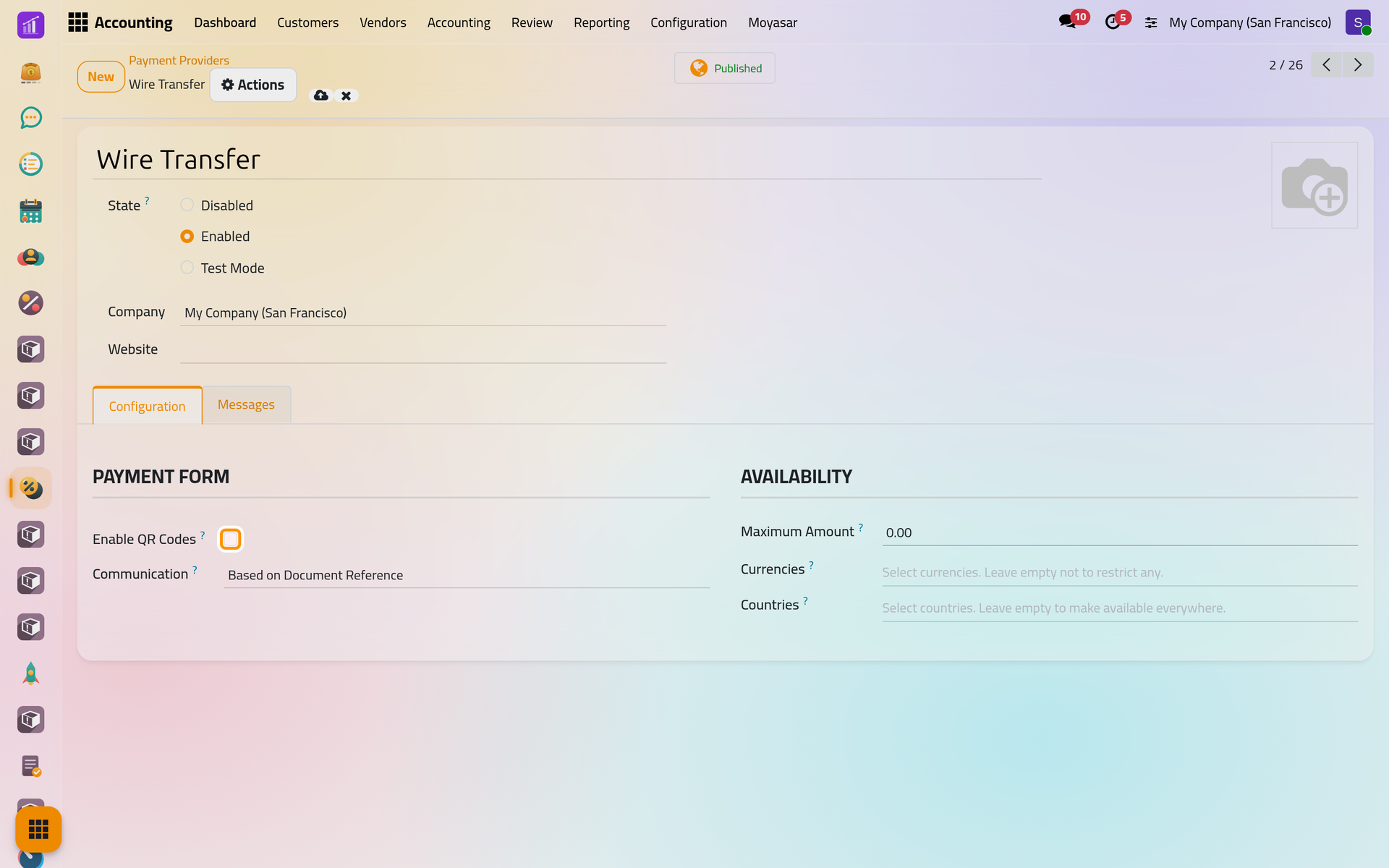
- Enable QR Codes adds a QR code next to the transfer details, for the client's banking app to scan. It appears only when the company's first bank account supports a payment QR code, such as a euro account in the SEPA zone; a Saudi account gets none.
- Communication is the reference the client writes on a transfer that pays a quotation or a sales order: the document's reference, or a code built from the client's record (CUST/ and two digits). A transfer for an invoice always quotes the invoice's own payment reference.
- In Availability, Maximum Amount hides the transfer above an amount (0 means no limit), and Currencies and Countries keep it for some currencies or some client countries (empty means all).
The transfer details
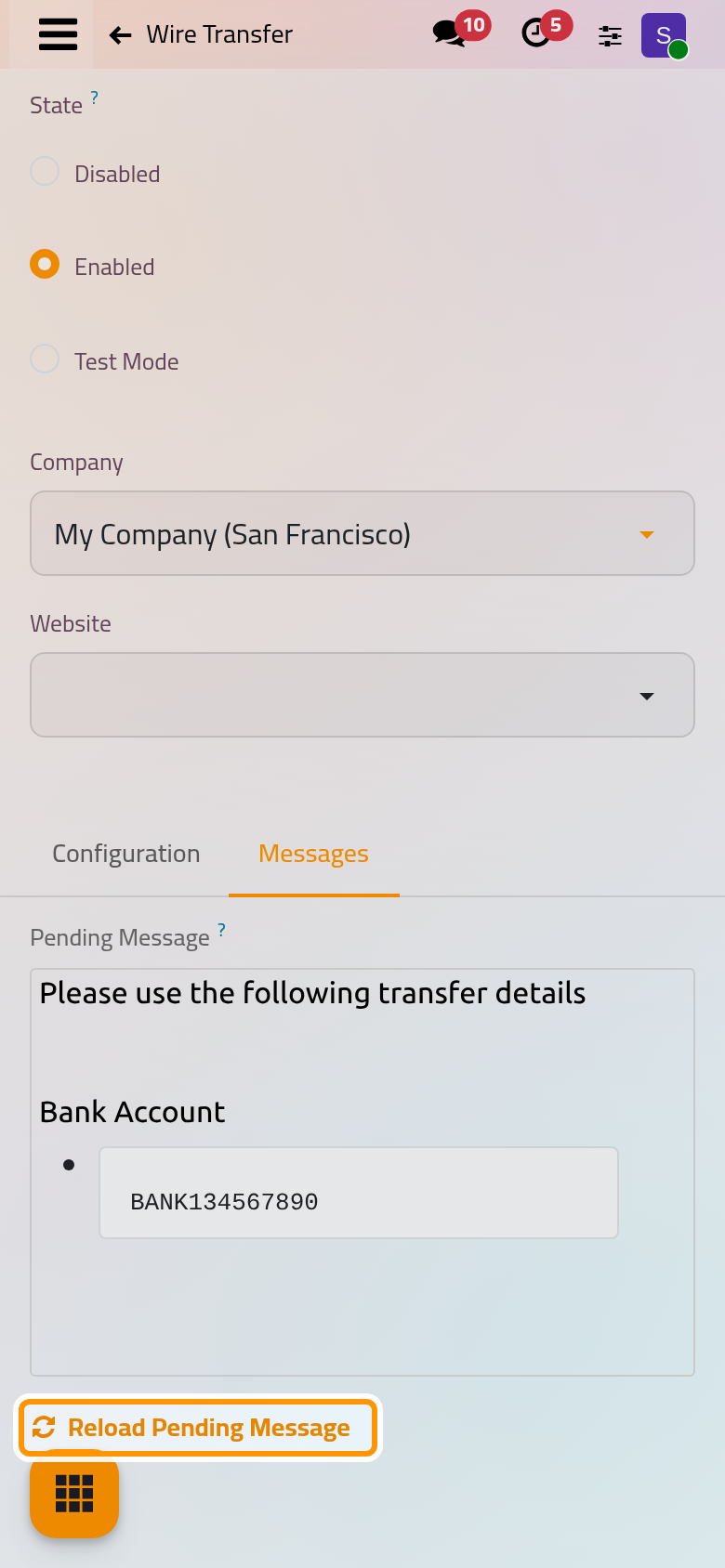
The Messages tab holds the Pending Message, the text the client reads after choosing the transfer. It lists the bank accounts of the company's bank journals.
- Click Reload Pending Message after you add or change a bank account. The message is rebuilt in the language you work in, so do it once in each language your clients read.
- Edit the text if you want to add something, such as the beneficiary's name.
- Click the cloud icon Save manually.
What the client sees
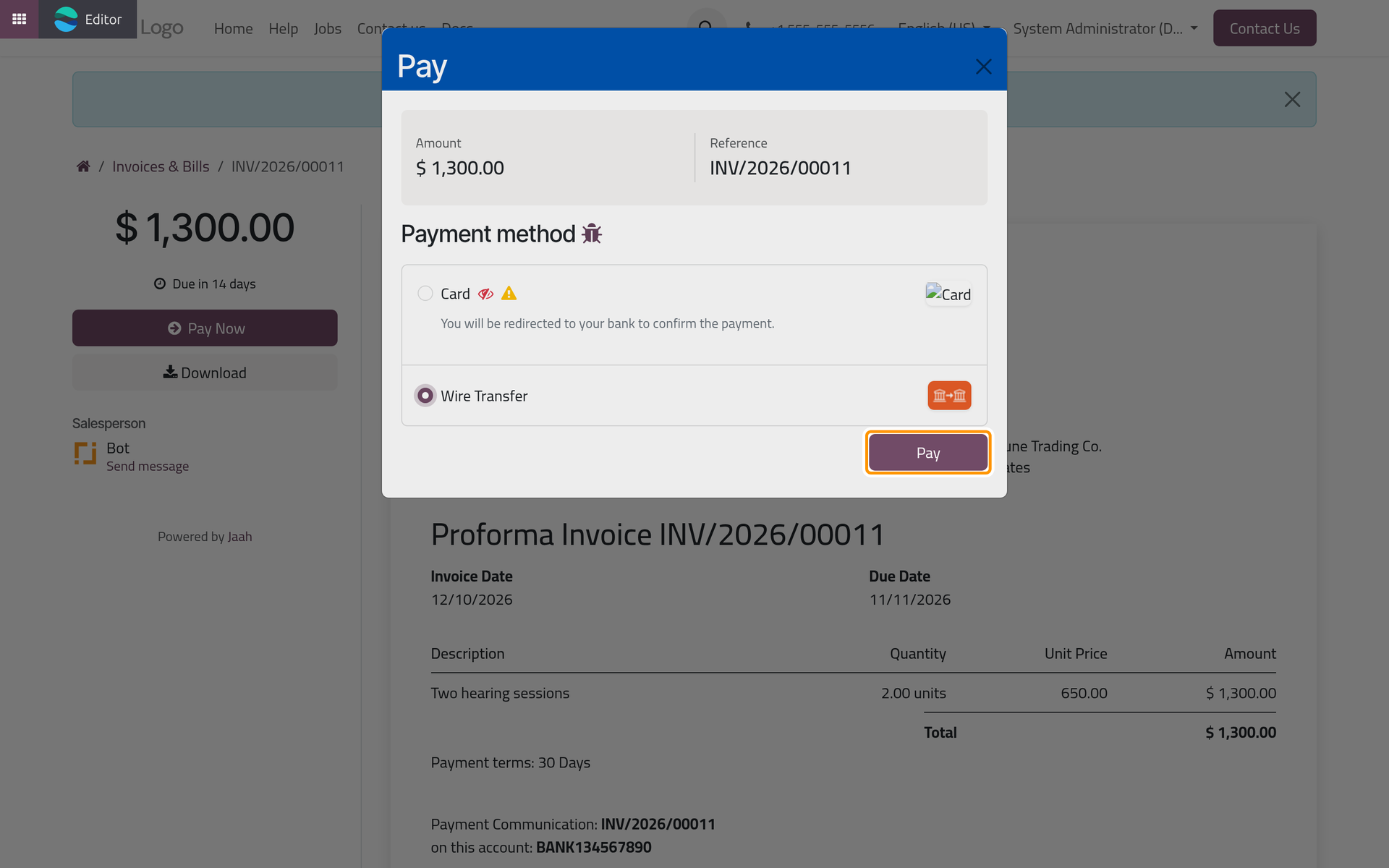
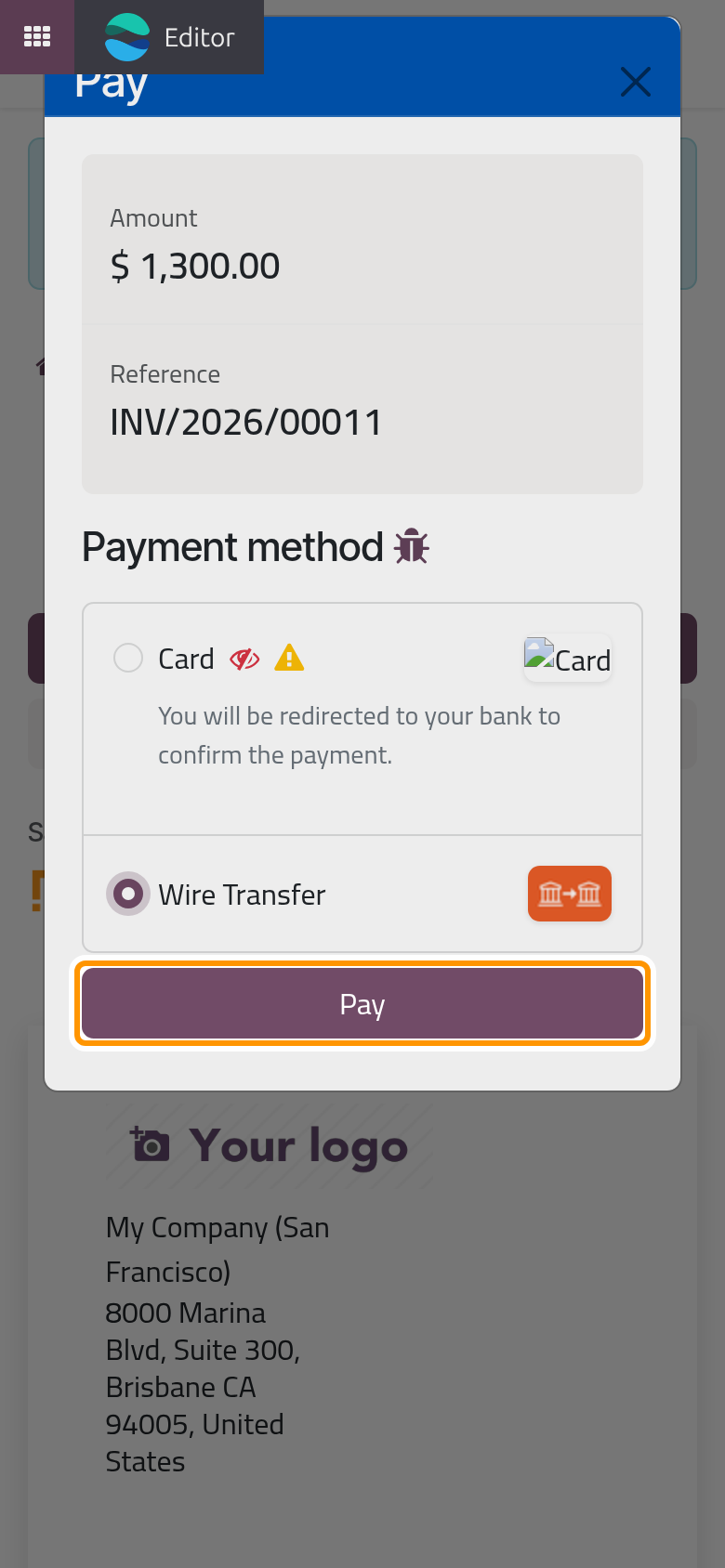
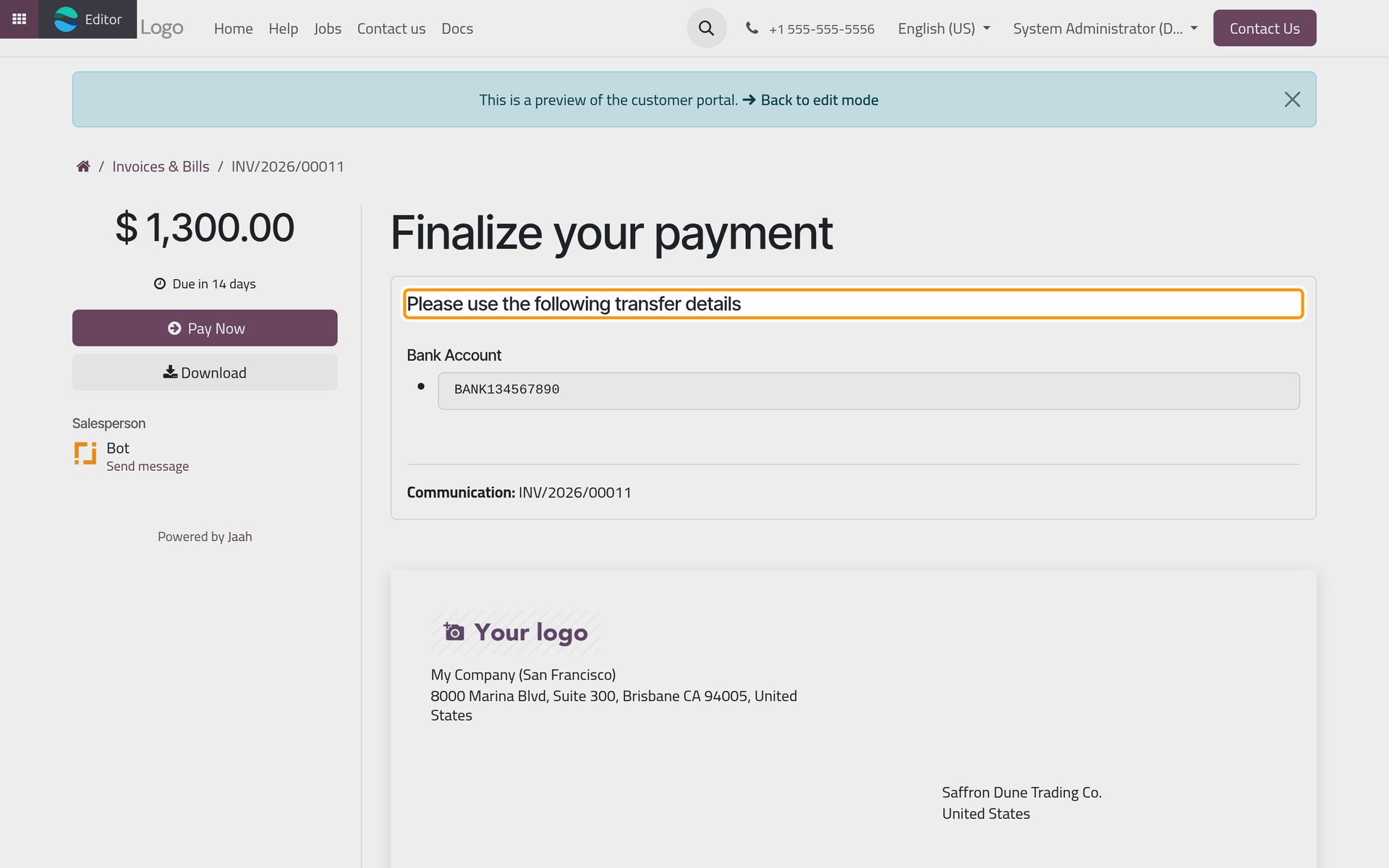
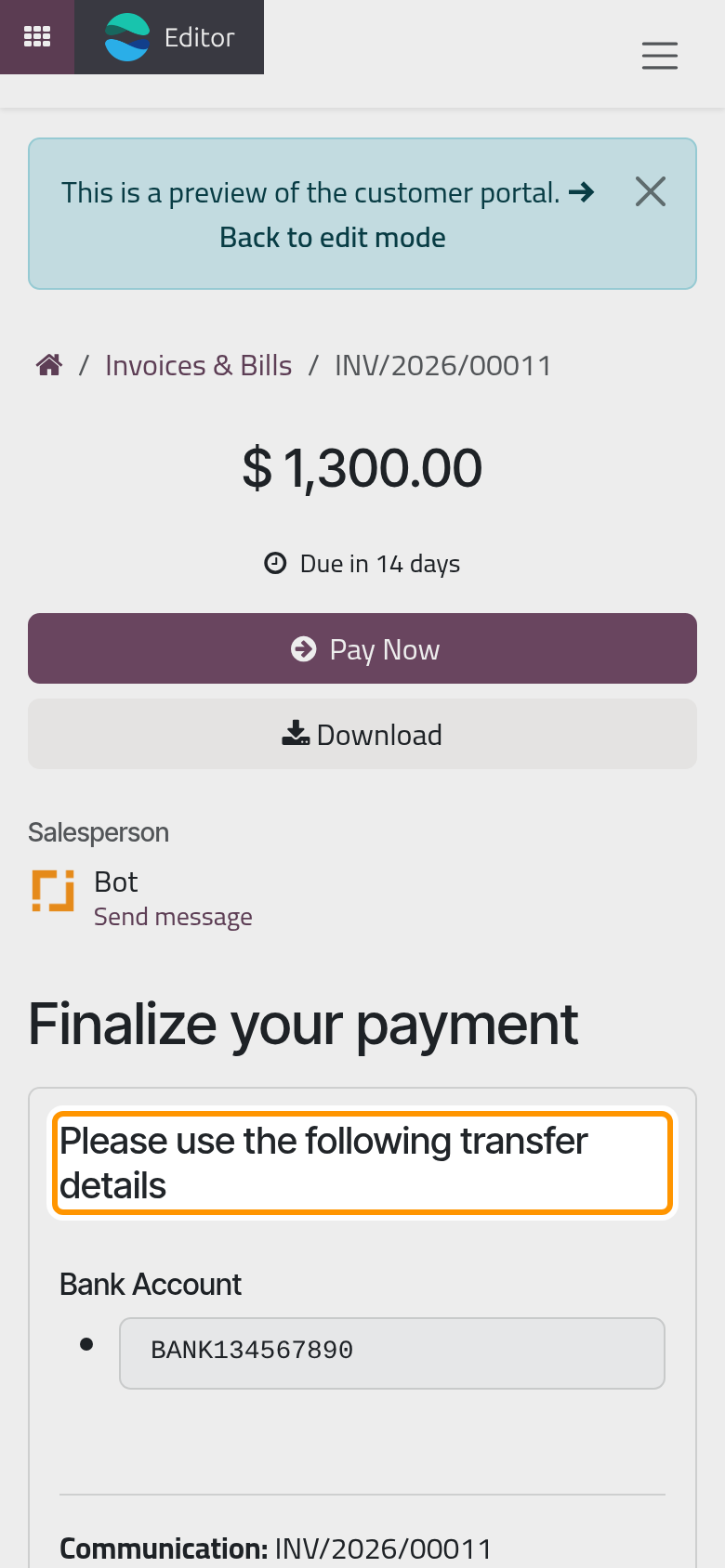
On the invoice's page, the client clicks Pay Now, chooses Wire Transfer and clicks Pay.
The page then asks them to complete the payment. It shows your bank account and, under Communication, the reference to write on the transfer, here the invoice's number.
When the money arrives
The client's choice records a payment transaction in the Pending state on the invoice. No amount is taken and the invoice stays unpaid. When the transfer reaches your account, record it in one of two ways:
- register the payment on the invoice, as in Record a customer payment;
- or match the bank statement line with the invoice, as in Match payments and invoices.
FAQ
A client does not see bank transfer.
Check that the State is Enabled and that the button reads Published. Then check Maximum Amount, Currencies and Countries in the Configuration tab. In Test Mode, only the firm's own users see it.
The details show an old account, or the wrong language.
Click Reload Pending Message in the Messages tab, once in each language your clients read, then save.
Does the client's choice mark the invoice as paid?
No. The invoice is paid only by the payment you register or by the bank line you match with it.
Was this page helpful?
Thank you for your feedback.