Log time on tasks
On this page
A timesheet line says that one employee spent some time, on a date, on a task of a project. You write it where you work: on the task itself, or in the Timesheets app, which lists every line you wrote.
Before you start
- You need an access right on Timesheets and an employee linked to your user in the current company (Employees); without one, saving a line fails with "Timesheets must be created with an active employee in the selected companies."
- The project must have Timesheets ticked: in the window that creates it, or later under Time Management in its Settings tab.
- A line belongs to a project; a task without a project, a private to-do, takes no time.
From the task
Open the task, then its Timesheets tab, click Add a line and fill Description and Time Spent; the date is today and the employee is you. Your first project goes through it step by step. Under the lines, the task adds up Time Spent, and Time Remaining when an Allocated Time is set; the percentage next to Allocated Time follows. Time logged on sub-tasks counts in the parent task too.
When the time spent passes the time allocated, the remaining time turns negative and red on the card. In the projects list, the Timesheets >100% filter shows the projects in that case.
From the Timesheets app
- Open . The list holds your own lines, the newest first.
- Click New. A line opens at the top, dated today, on the project you used most in your last lines (the company's internal project before your first line).
- Choose the Project, then the Task, type the Description and the Time Spent, here
01:30on the task Unit Testing of Research & Development.
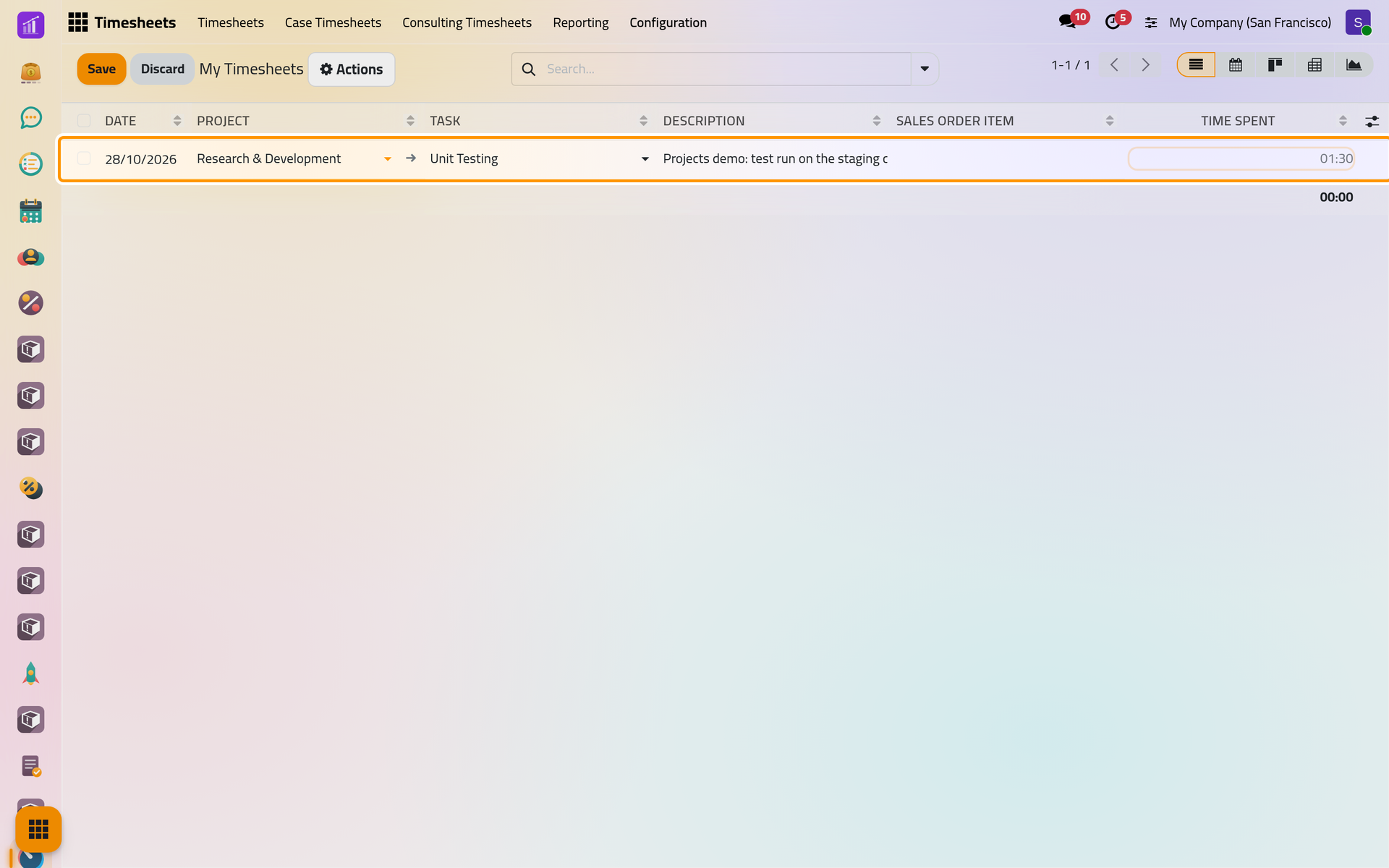
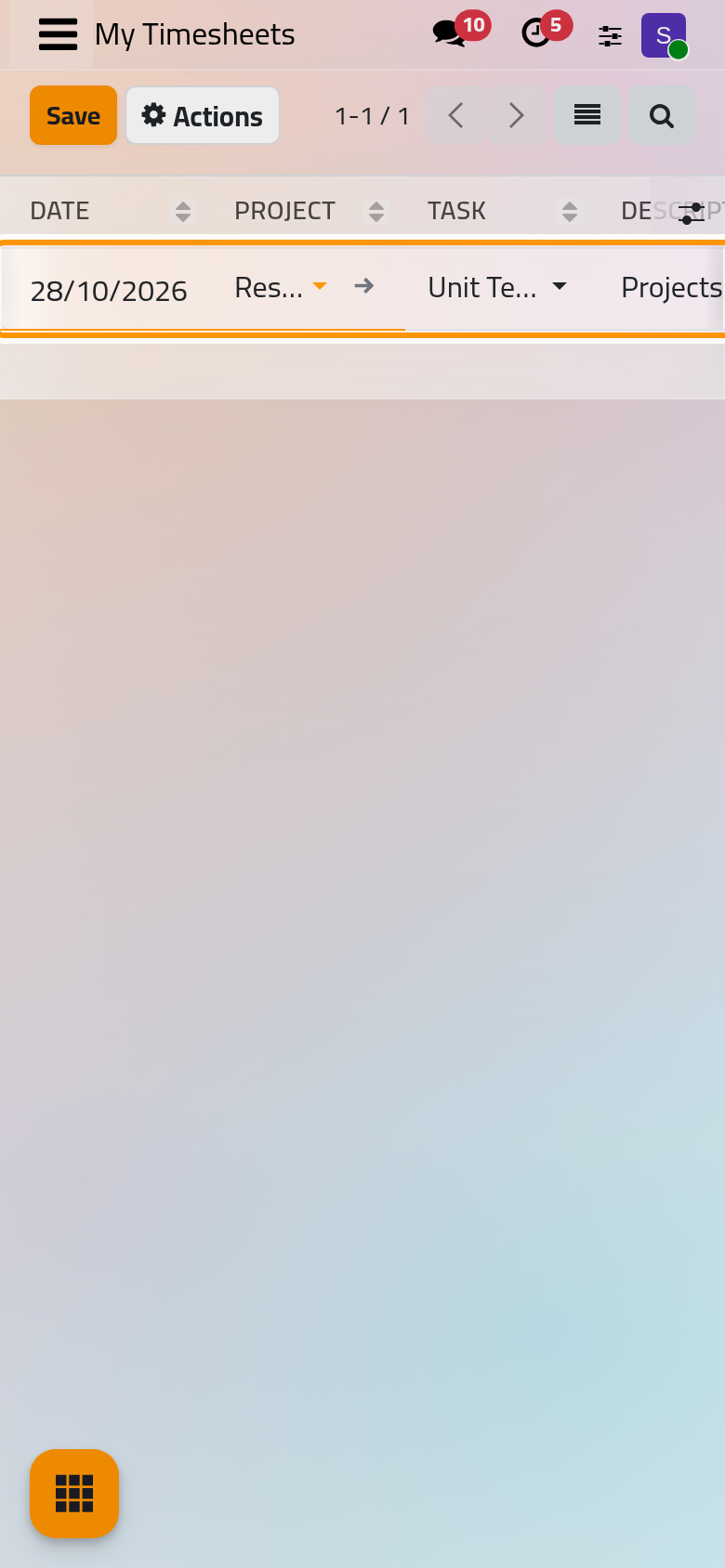
- Click Save.
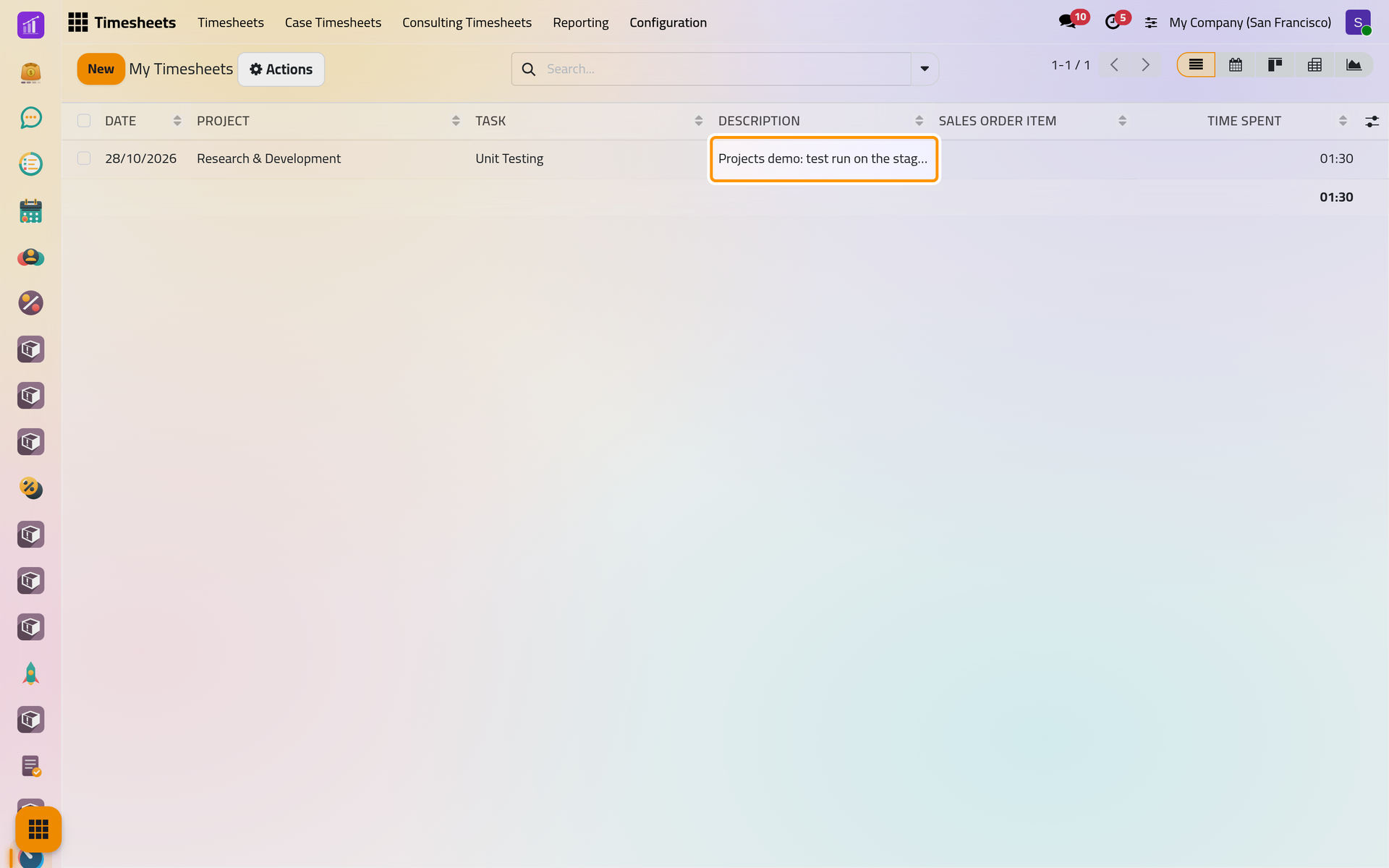
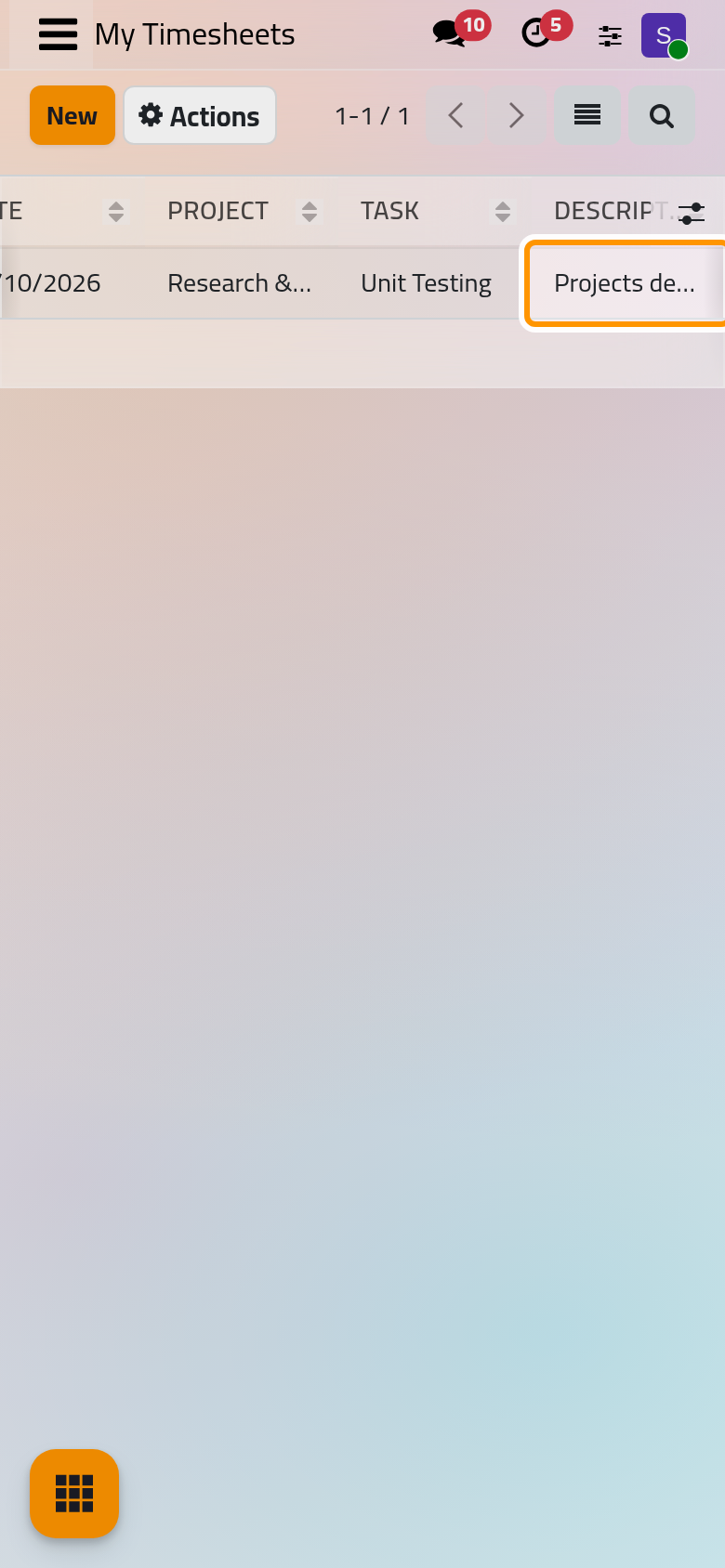
The same line appears in the task's Timesheets tab. The buttons at the top right show your lines as a calendar, cards, a pivot table or a chart.
Time is typed in hours and minutes, 01:30, unless the settings record it in days: Projects and timesheets settings.
Lines written for you
With the Time Off option of the settings, each validated time off and each public holiday writes lines on the internal project, task Time Off, for the hours of your working schedule (Time off). The time logged on legal cases and consultations goes through Case Timesheets and Consulting Timesheets in the same app (Cases).
See everybody's time
With User: all timesheets on Timesheets, lists the lines of every employee in the projects you can see, and the reports of Review time and progress open.
FAQ
My project is not in the Project list of a new line.
Its Timesheets option is off, it is archived or a template, or its visibility keeps you out.
Can I log time for a colleague?
Only with User: all timesheets or more, by choosing the colleague in Employee on the task's Timesheets tab. With User: own timesheets only, every line is yours.
I cannot delete a task.
A task with timesheet lines cannot be deleted. Delete its lines first, or archive the task.
Does logged time need an approval?
No. A line counts as soon as it is saved; anyone allowed to see it can still change it.
Was this page helpful?
Thank you for your feedback.